How to import contacts in Mailchimp

Importing contacts into Mailchimp is essential for building and managing your email marketing lists. Whether you're starting fresh or consolidating existing contact data, Mailchimp provides multiple ways to add contacts to your audience. This guide walks you through the contact import process using Zapier integration.
Quick summary
In this tutorial, you'll learn how to navigate Mailchimp's audience management interface and connect your contacts through Zapier. You'll discover how to access the contact import feature, select your preferred integration method, and organize your imported data. By the end, you'll have a clear understanding of how to seamlessly add contacts to your Mailchimp audience.
Why this matters
Building a quality contact list is the foundation of any successful email marketing campaign. Importing contacts efficiently saves time and ensures your audience data is accurate and organized. A well-maintained contact list in Mailchimp enables better segmentation, targeting, and campaign performance tracking.
Step-by-step guide
- 1
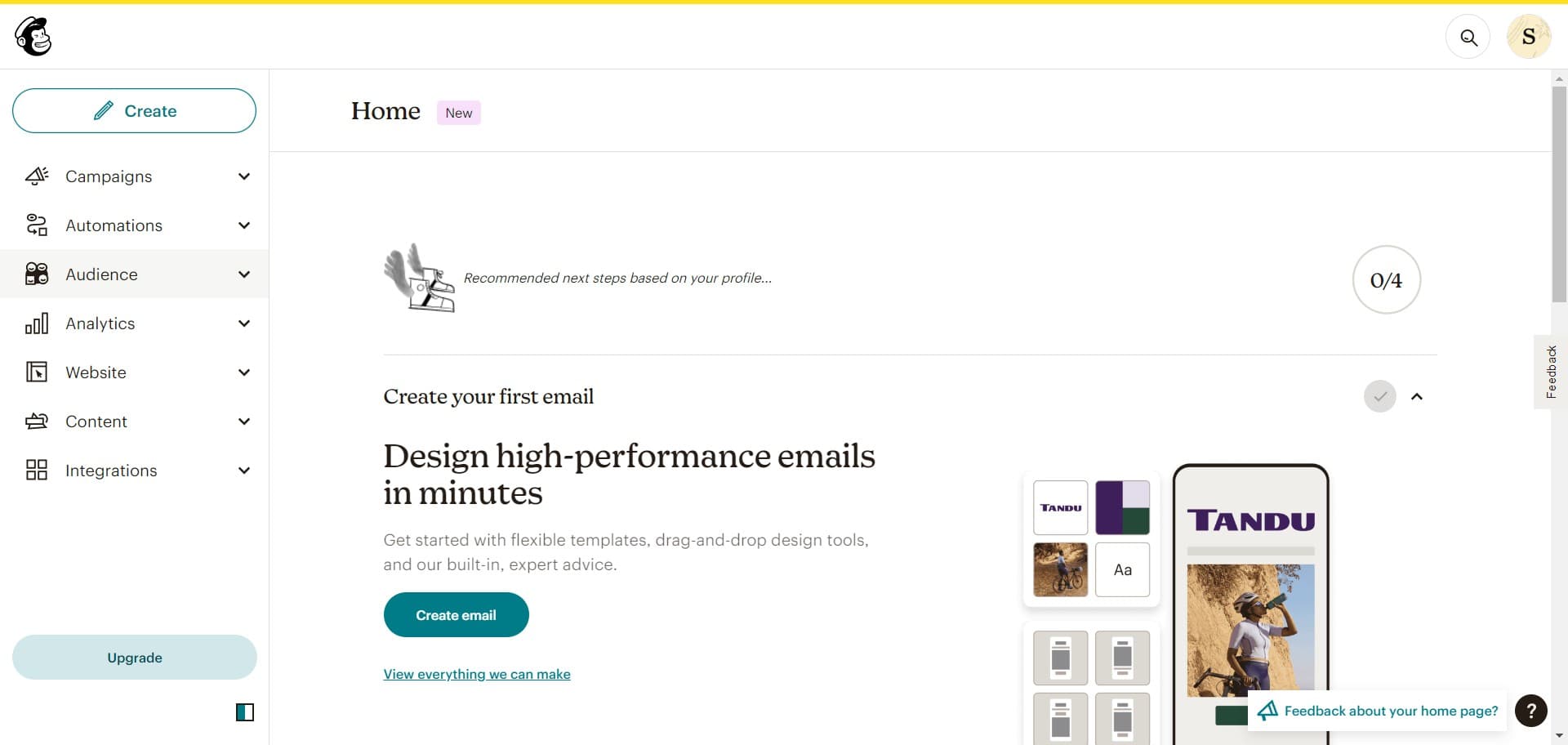
Click on Audience
Navigate to the main menu and select the Audience option. This takes you to the section where all your contact lists and audience management tools are centralized.
- 2
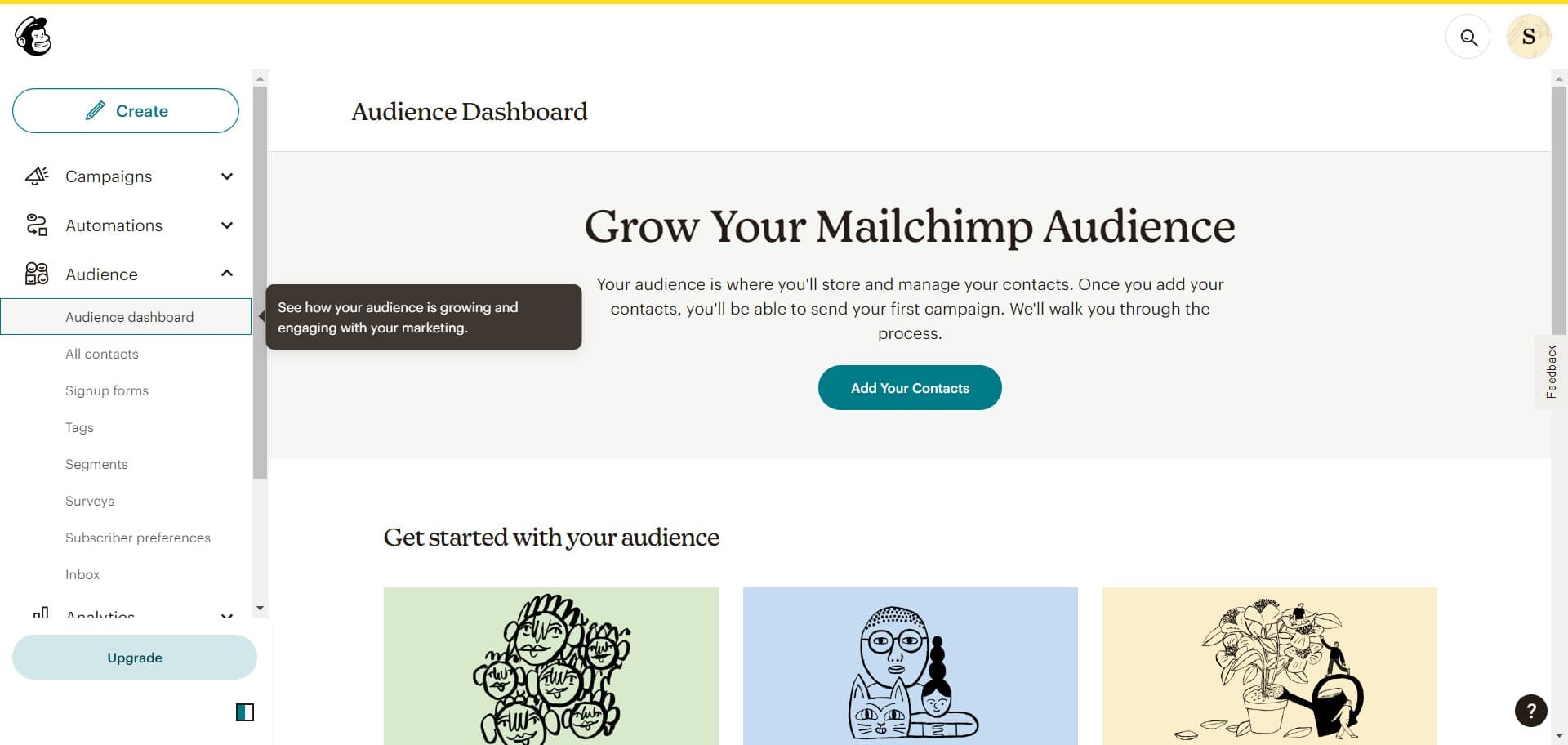
Click on Audience dashboard
From the Audience menu, select the Audience dashboard to view your current audience overview and access audience management features.
- 3
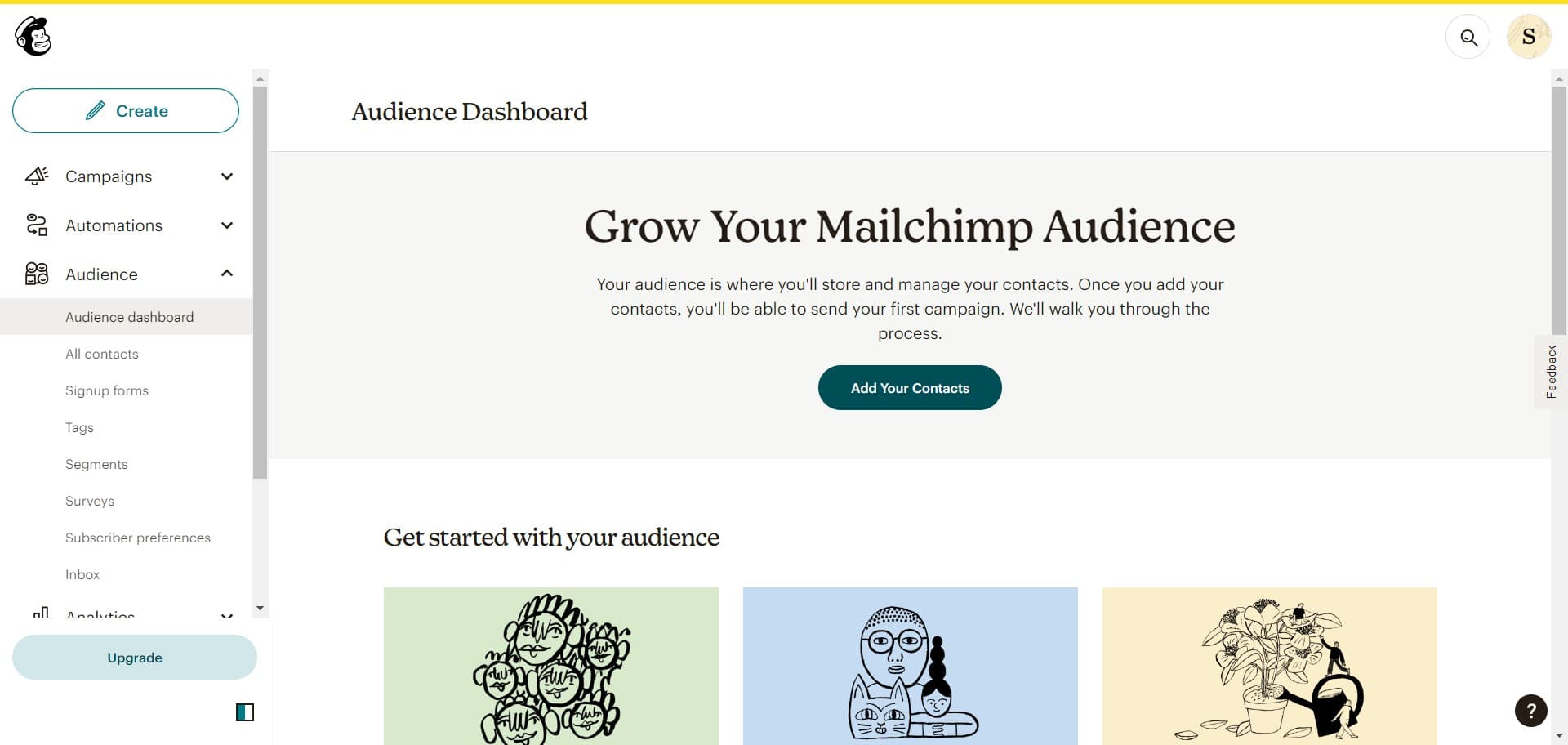
Click on Add Your Contacts
Look for the Add Your Contacts button on the dashboard and click it. This initiates the contact import workflow and opens options for how you'd like to add contacts to your audience.
- 4
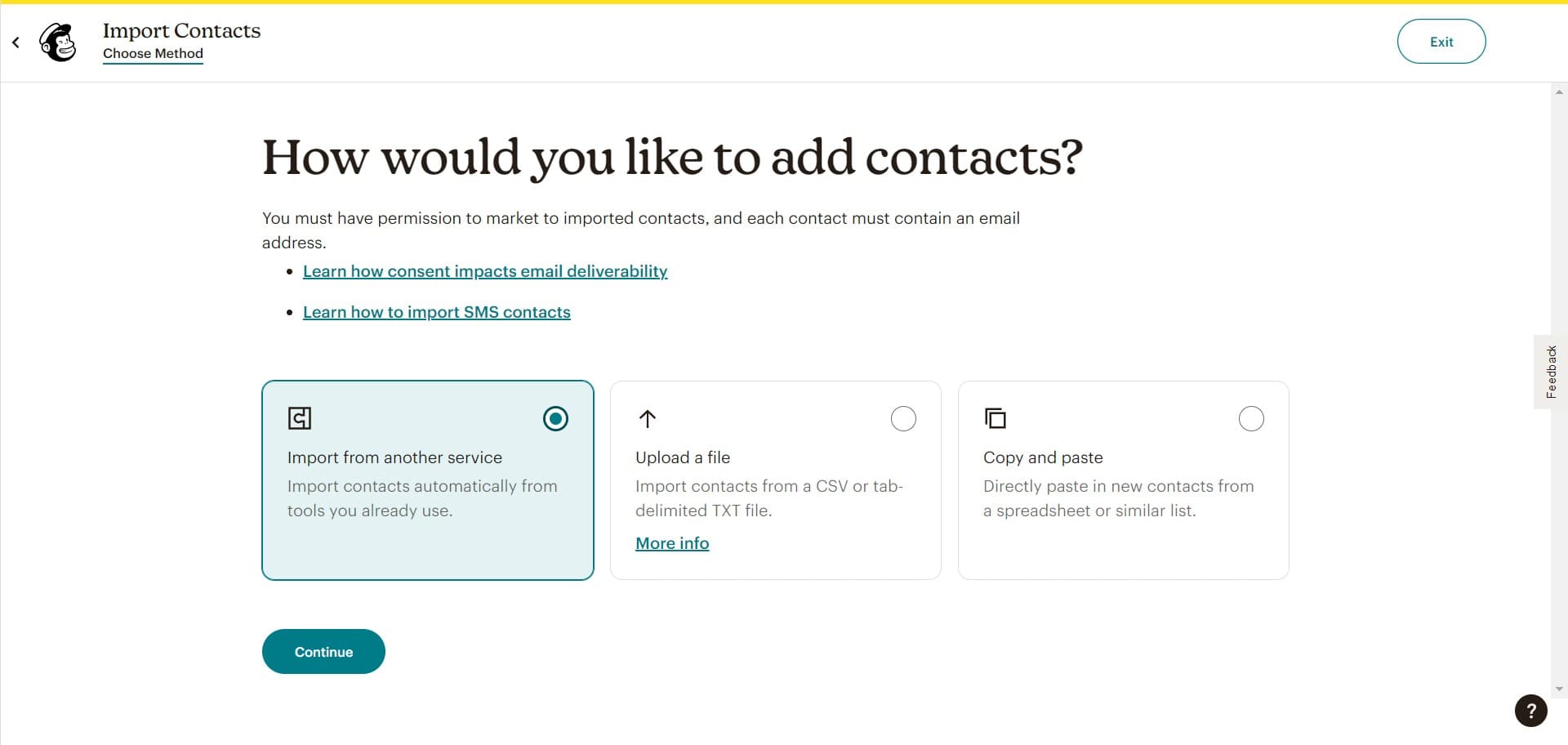
Select the import method
Review the available import options presented on this screen. You'll see various ways to add contacts, including direct uploads and integration options.
- 5
Click Continue to proceed
After reviewing the import method options, click the Continue button to move forward in the import process.
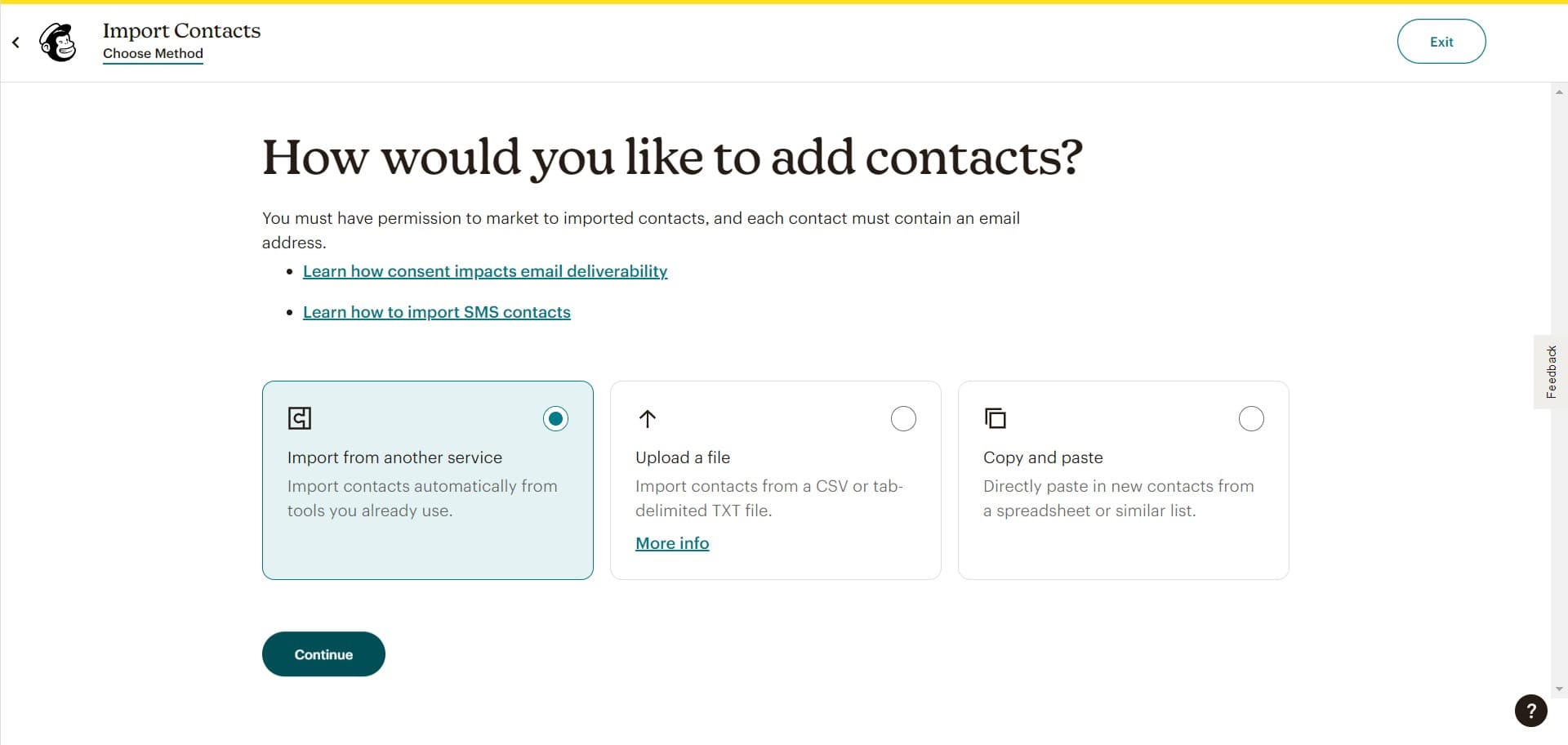
- 6
Select Zapier integration
Choose Zapier as your integration method from the available options. Zapier allows you to automatically sync contacts from hundreds of other applications into Mailchimp.
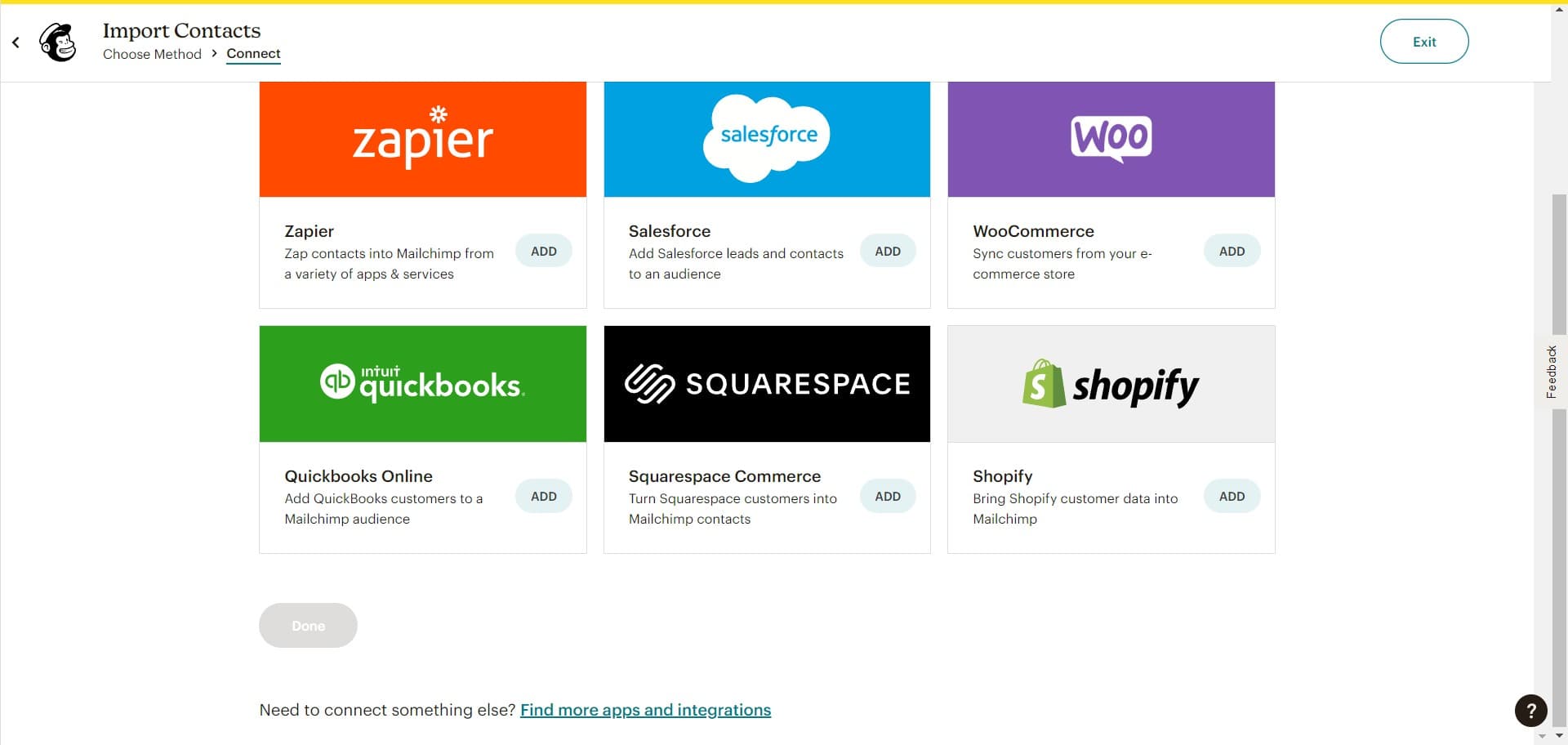
- 7
Confirm Zapier selection
Verify that Zapier is selected as your import method and proceed with the integration setup.
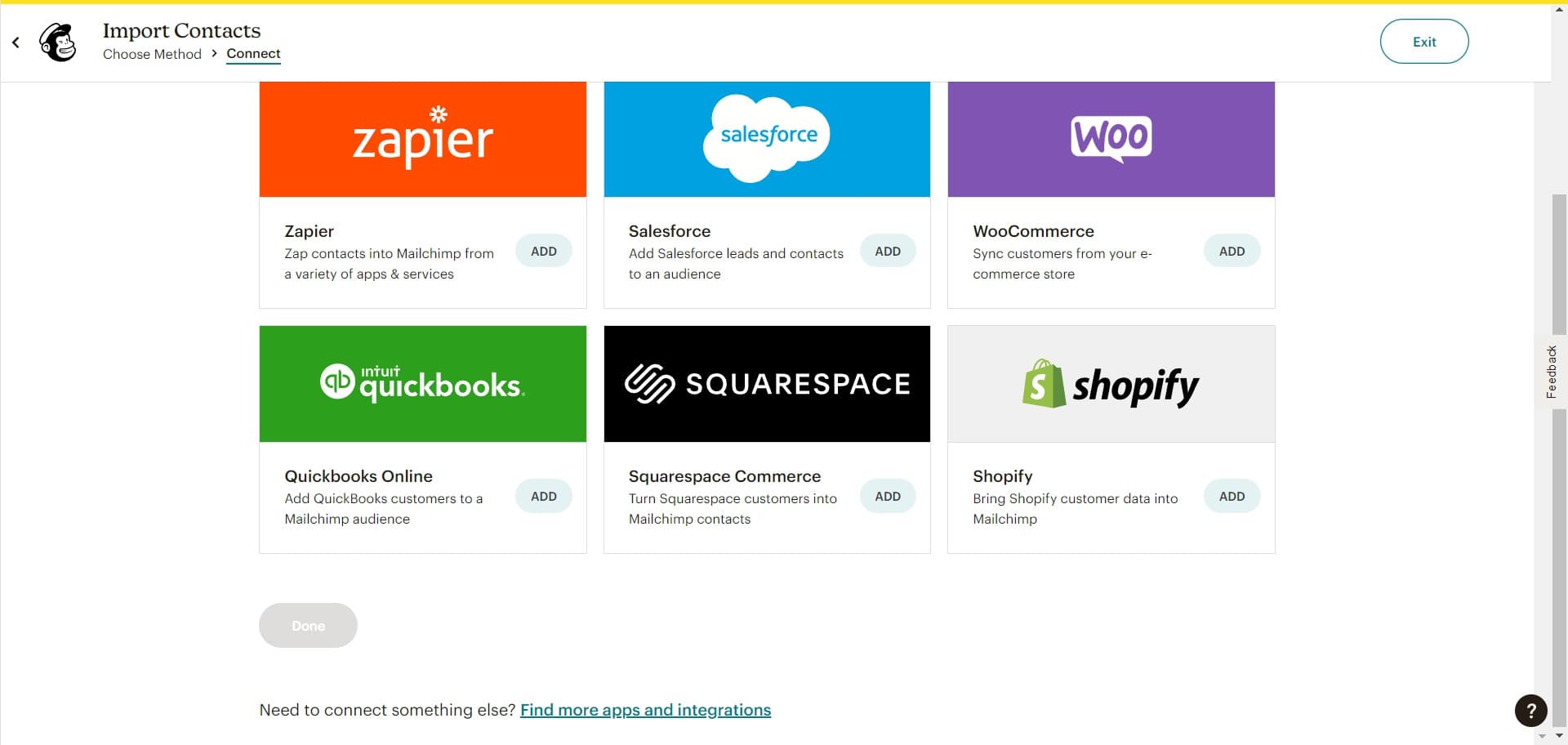
- 8
Click Continue to configure
Click Continue to move to the next step where you'll configure your Zapier integration settings.
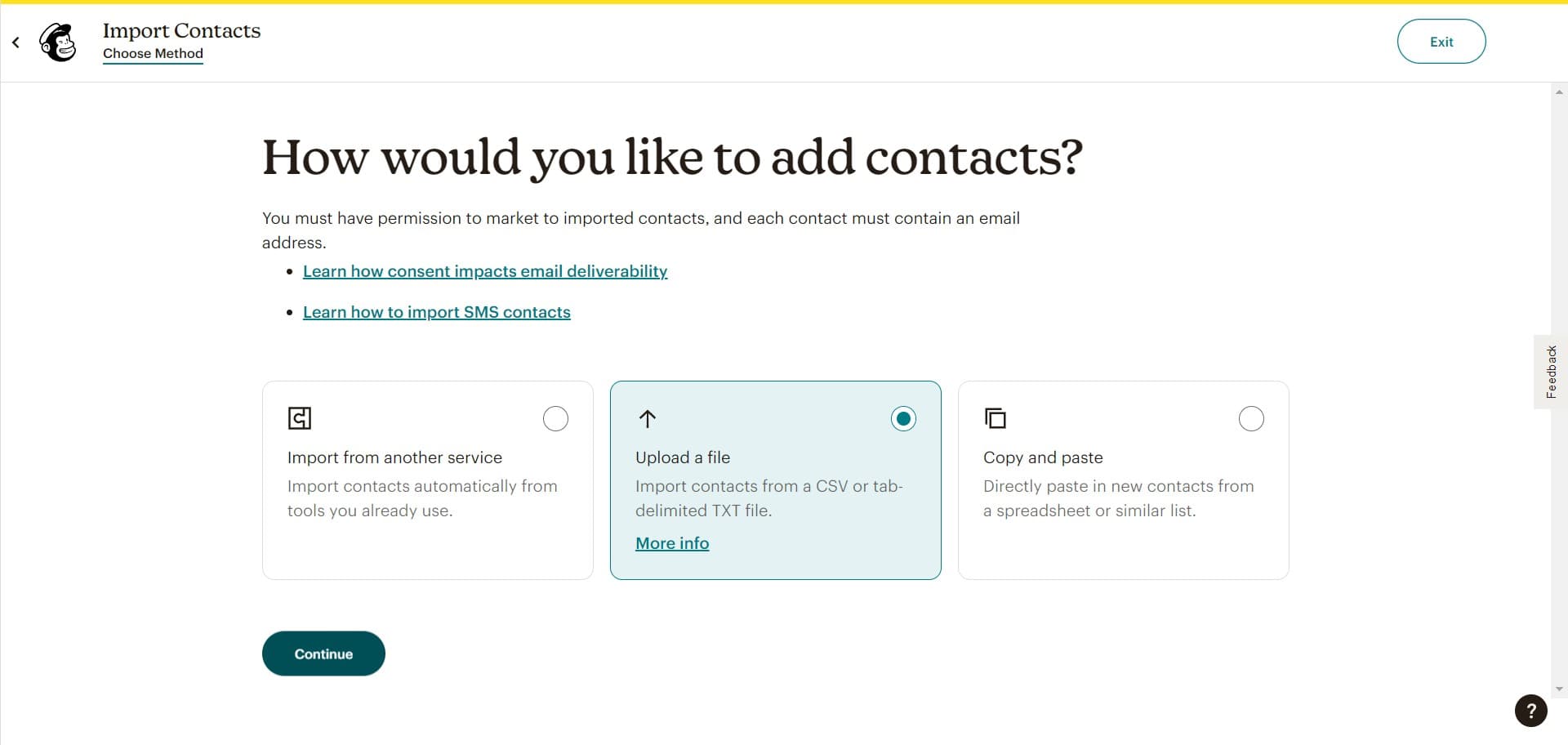
- 9
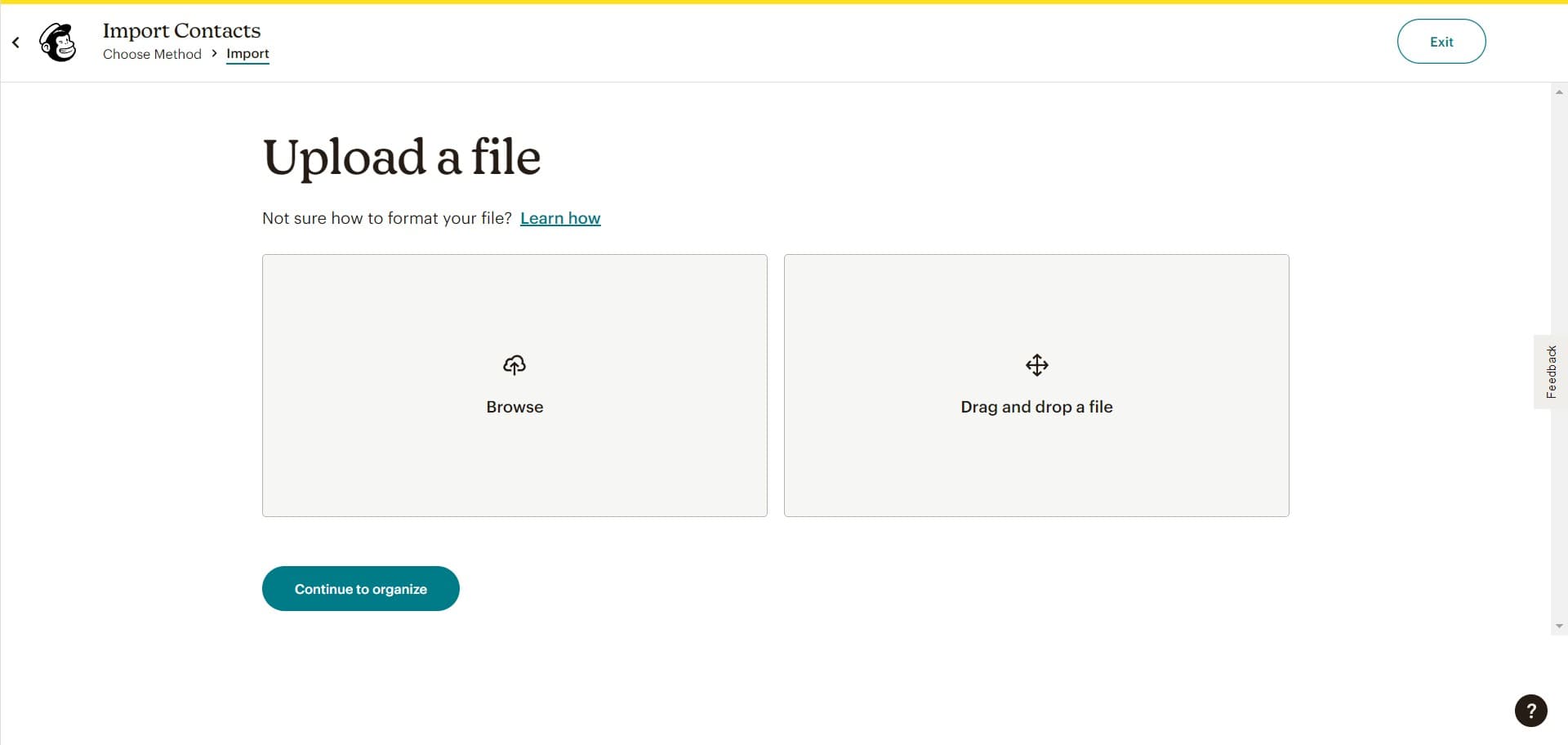
Browse available applications
Click the Browse button to view and select the source application from which you want to import contacts. Zapier supports connections with numerous platforms and services.
- 10
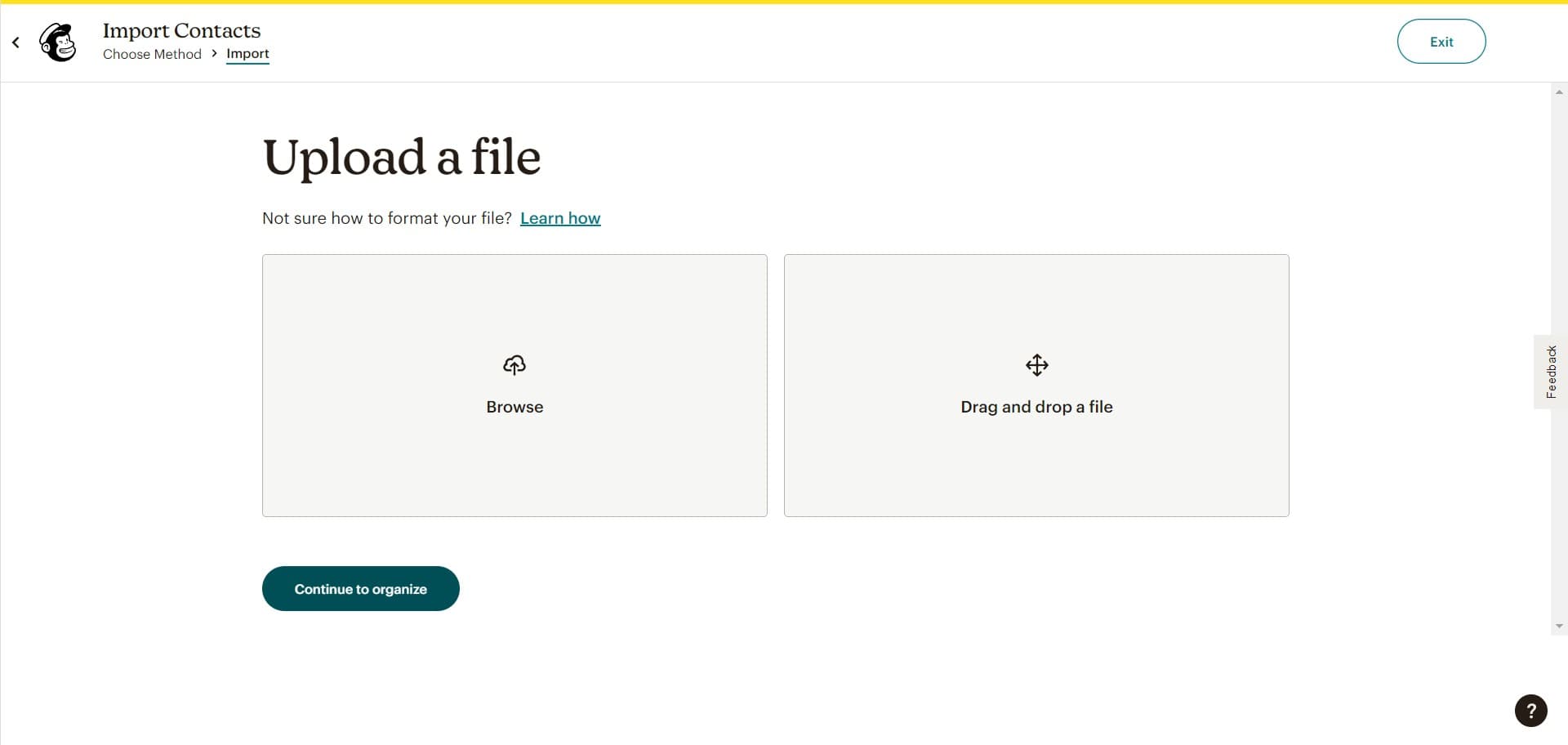
Proceed to organize contacts
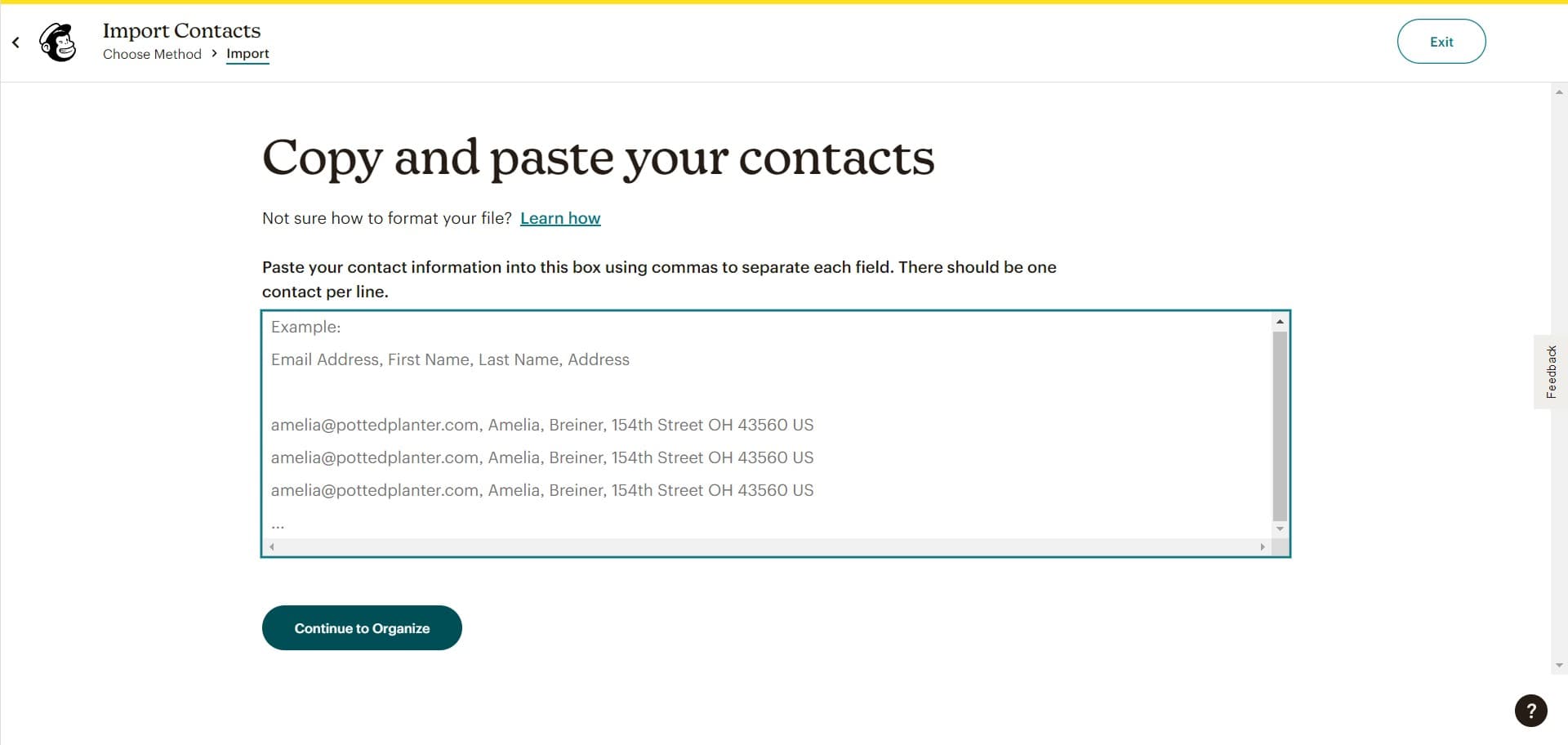
After selecting your source application, click Continue to organize to advance to the data mapping stage where you'll organize how your contact information is structured.
- 11
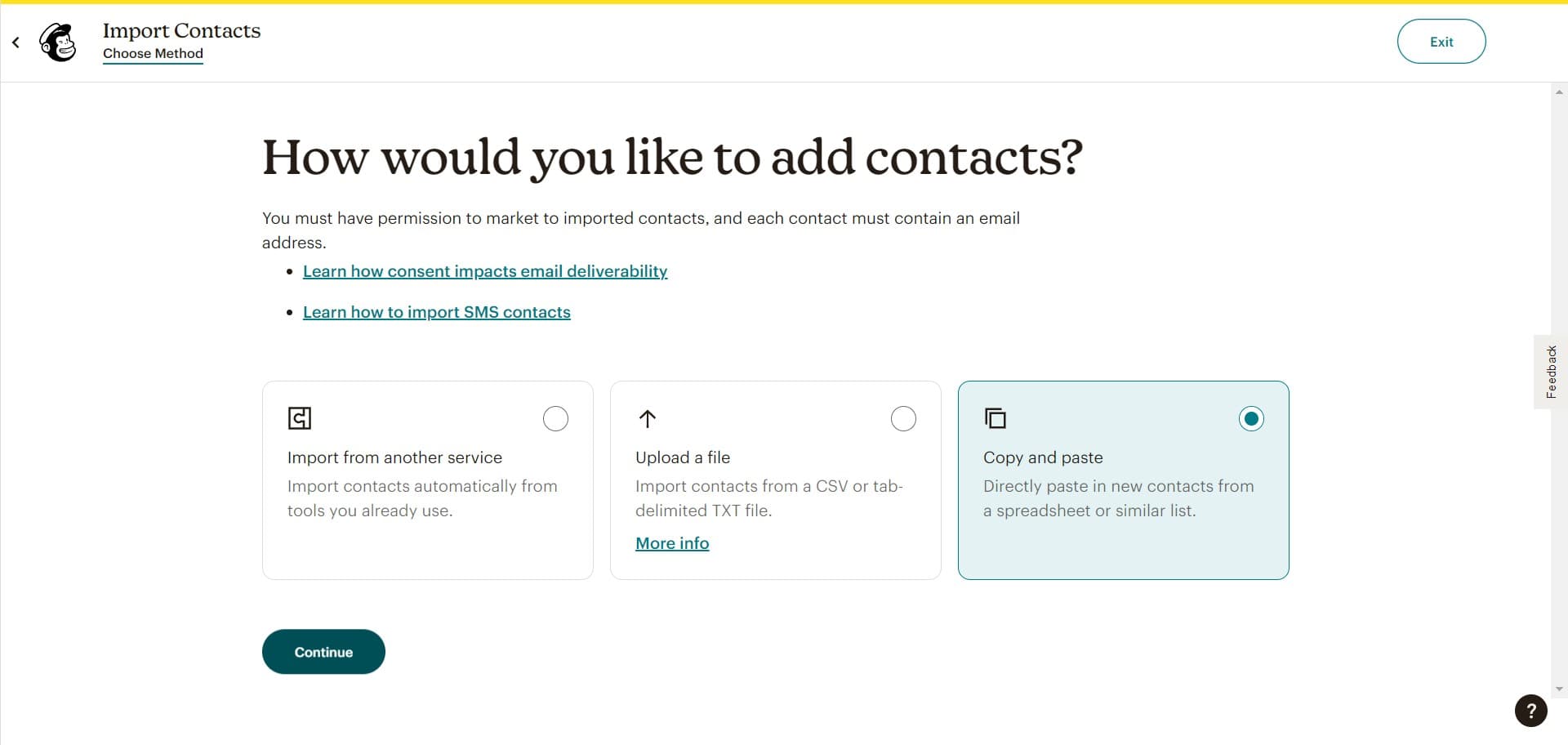
Review mapping settings
At this stage, you can review and confirm how your contact fields will be mapped into Mailchimp's audience structure.
- 12
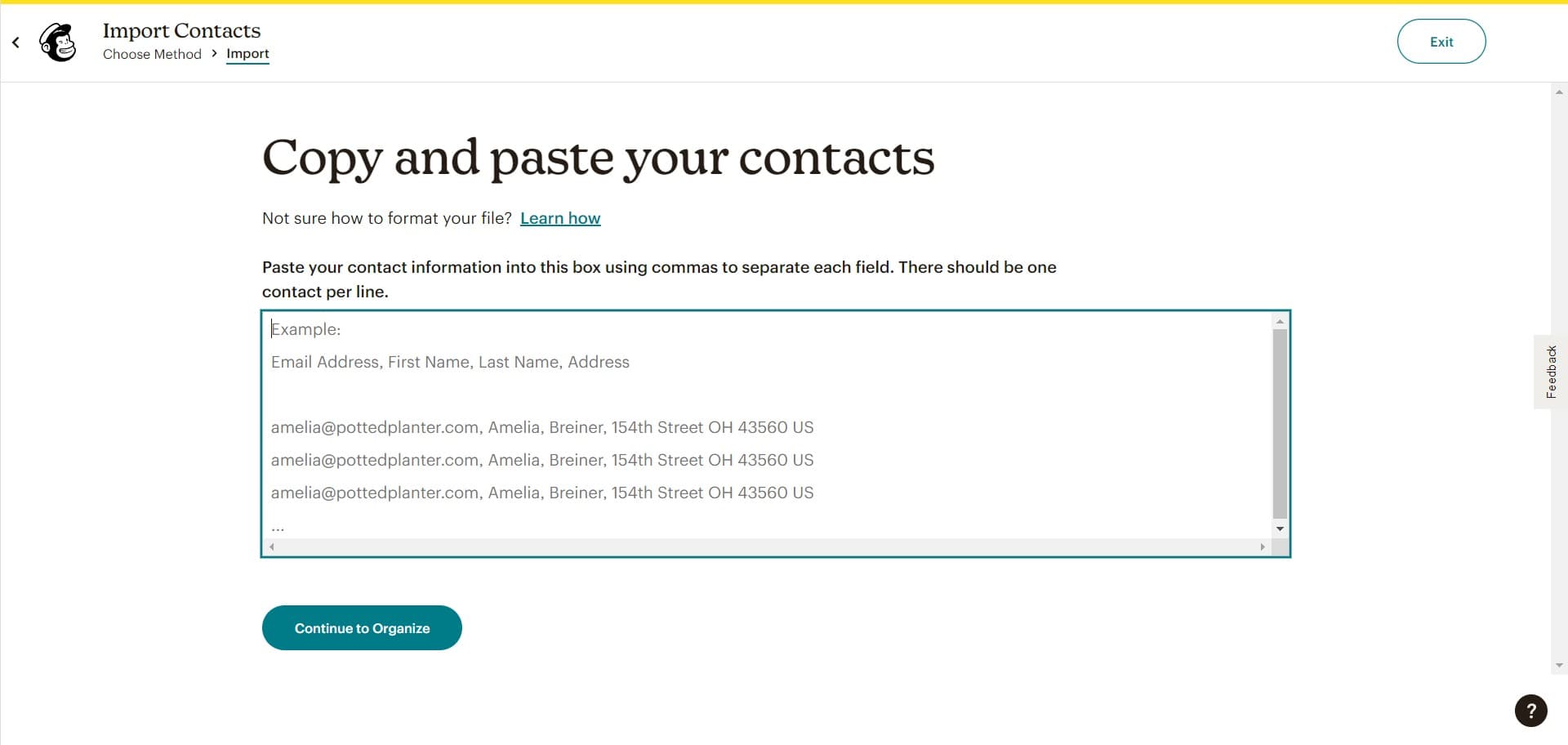
Finalize contact mapping
Verify that all contact fields are properly configured and matched to the correct Mailchimp audience fields.
- 13
Complete the import setup
Click Continue to organize to finalize your import configuration. Your contacts will now be ready to sync into your Mailchimp audience.
Frequently asked questions
Common questions about how to import contacts in mailchimp.
Mailchimp accepts CSV and TXT file formats for direct uploads. If you're using Zapier, the file format depends on your source application, as Zapier handles the data transformation automatically. For the best results, ensure your file includes email addresses and any other contact fields you want to import.
Yes, you can set up multiple Zapier integrations to import contacts from different applications into the same Mailchimp audience. Each integration can be configured separately, allowing you to consolidate contacts from various sources.
Mailchimp automatically detects duplicate email addresses and prevents duplicate entries in your audience. If an email already exists, Mailchimp will update the existing contact record with new information rather than creating a duplicate.
Direct CSV uploads typically appear within a few seconds to a few minutes. When using Zapier, the sync time depends on your Zapier plan and frequency settings. You can monitor import progress in your Mailchimp dashboard or through the Zapier interface.
No, imported contacts do not automatically receive emails unless you specifically set up a welcome campaign or automation. You'll need to manually send a campaign or create an automation trigger to communicate with newly imported contacts.