How to send test email in Mailchimp

Sending test emails in Mailchimp is a critical step before launching your campaigns to ensure your content, formatting, and links work correctly. This guide walks you through the process of accessing your email templates and sending a test message to verify everything looks and functions as intended.
Quick summary
In this tutorial, you'll learn how to navigate to your email templates in Mailchimp, select a campaign, and send a test email to review your content before it reaches your audience. By following these steps, you'll be able to catch any errors or formatting issues before your campaign goes live.
Why this matters
Test emails are essential for quality assurance—they let you verify that your design renders correctly across devices, all links function properly, and your message conveys what you intended. Sending a test before your full campaign launch saves time and protects your sender reputation by preventing poorly formatted or broken emails from reaching your subscribers.
Step-by-step guide
- 1
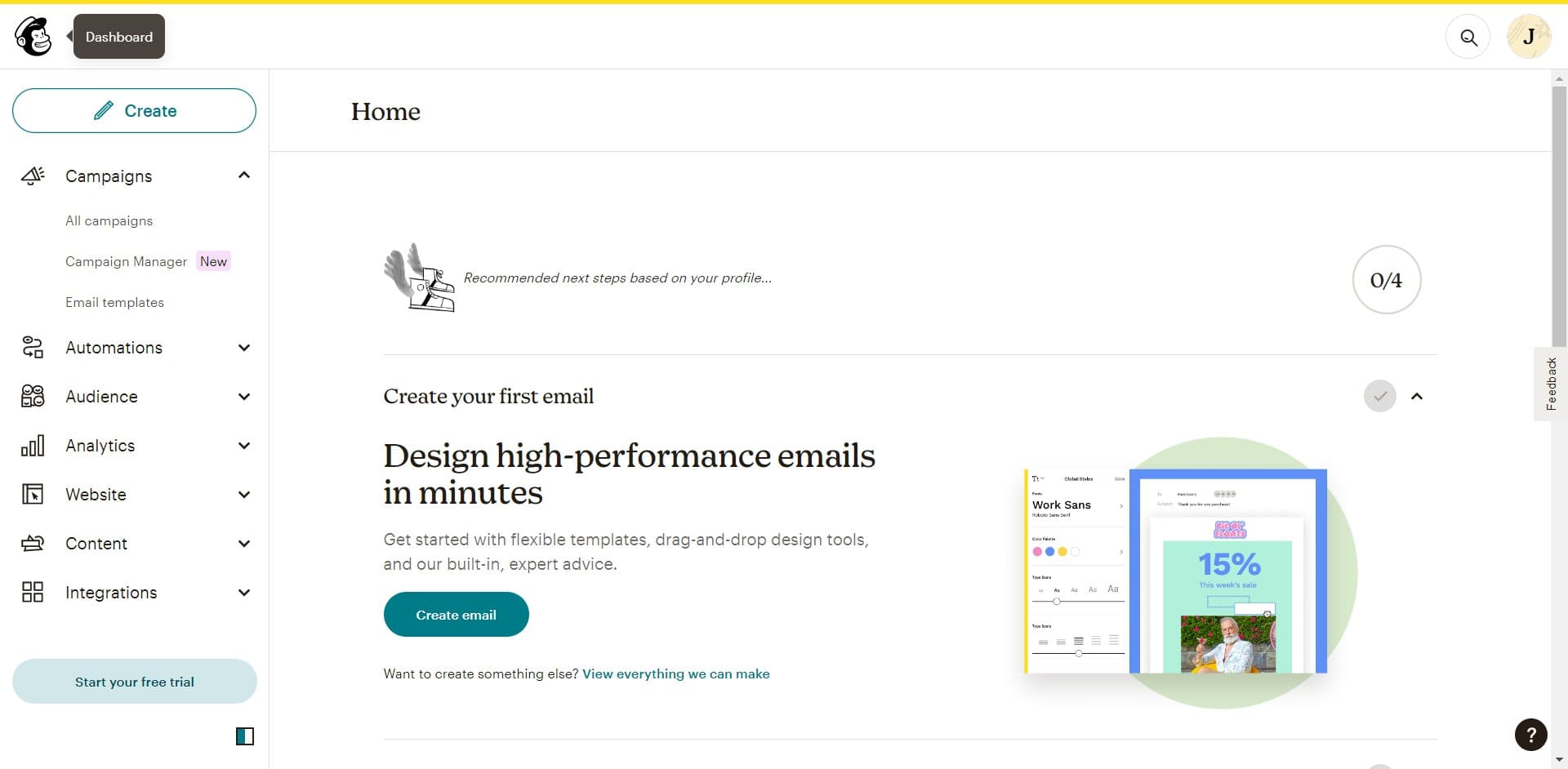
Click on the search function
Open Mailchimp and locate the search bar at the top of the dashboard. This will allow you to quickly find the tools and features you need.
- 2
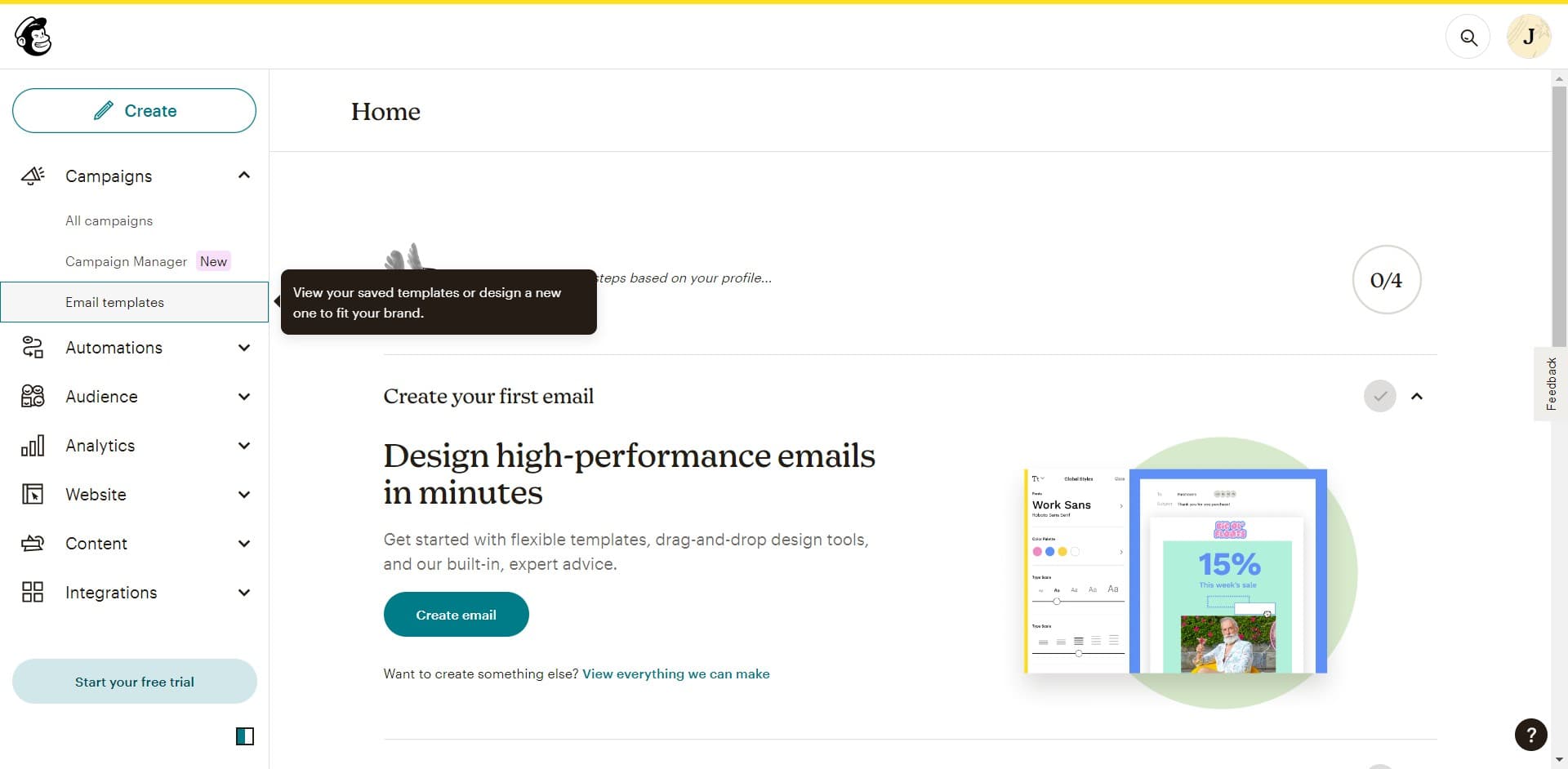
Navigate to email templates
Search for and click on 'Email templates' to access your library of saved templates and campaigns. This is where you'll find the email you want to test.
- 3
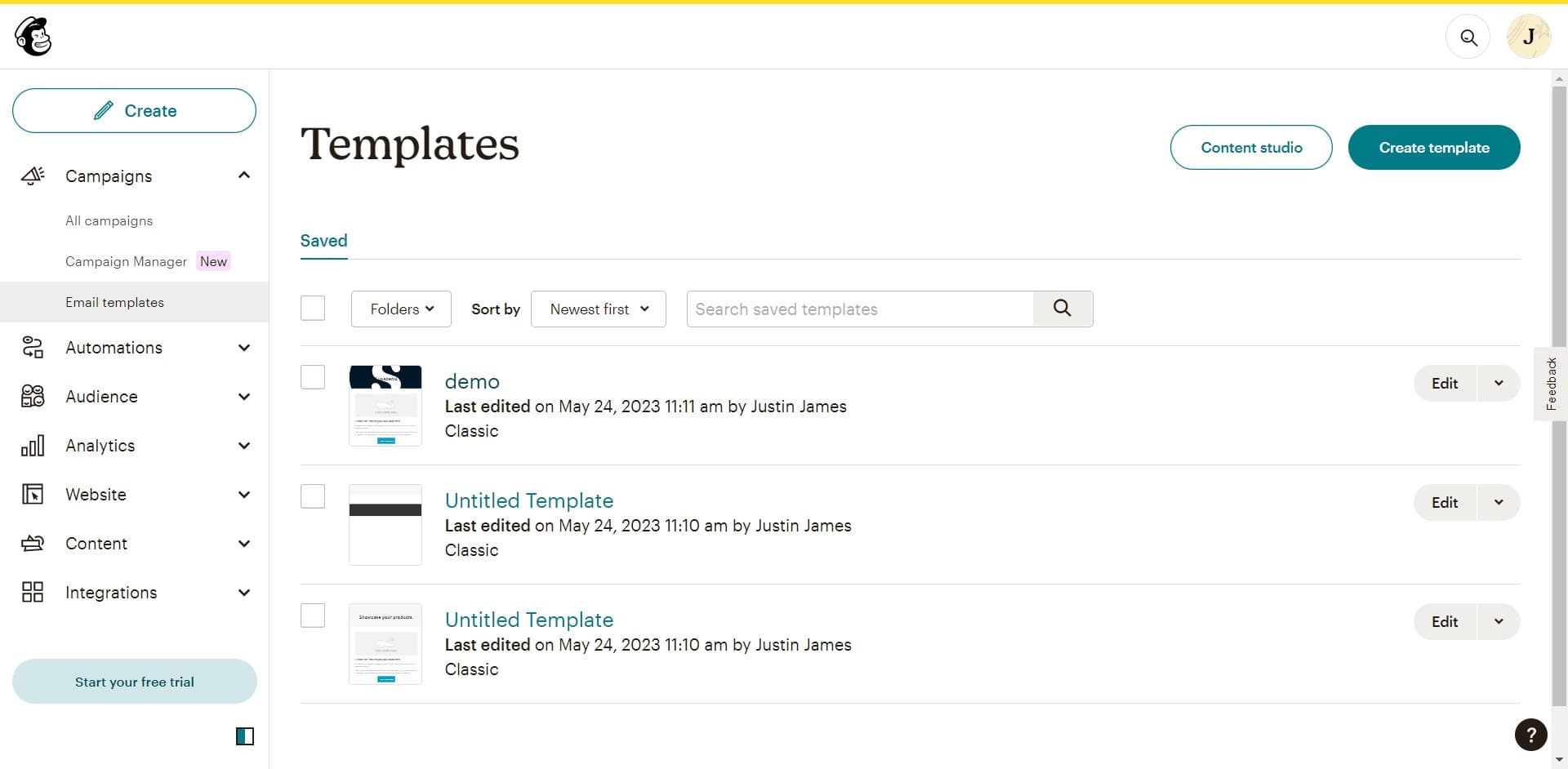
Select your template
Click on the template or campaign you want to send a test email for. This will open the email editor where you can review and configure your content.
- 4
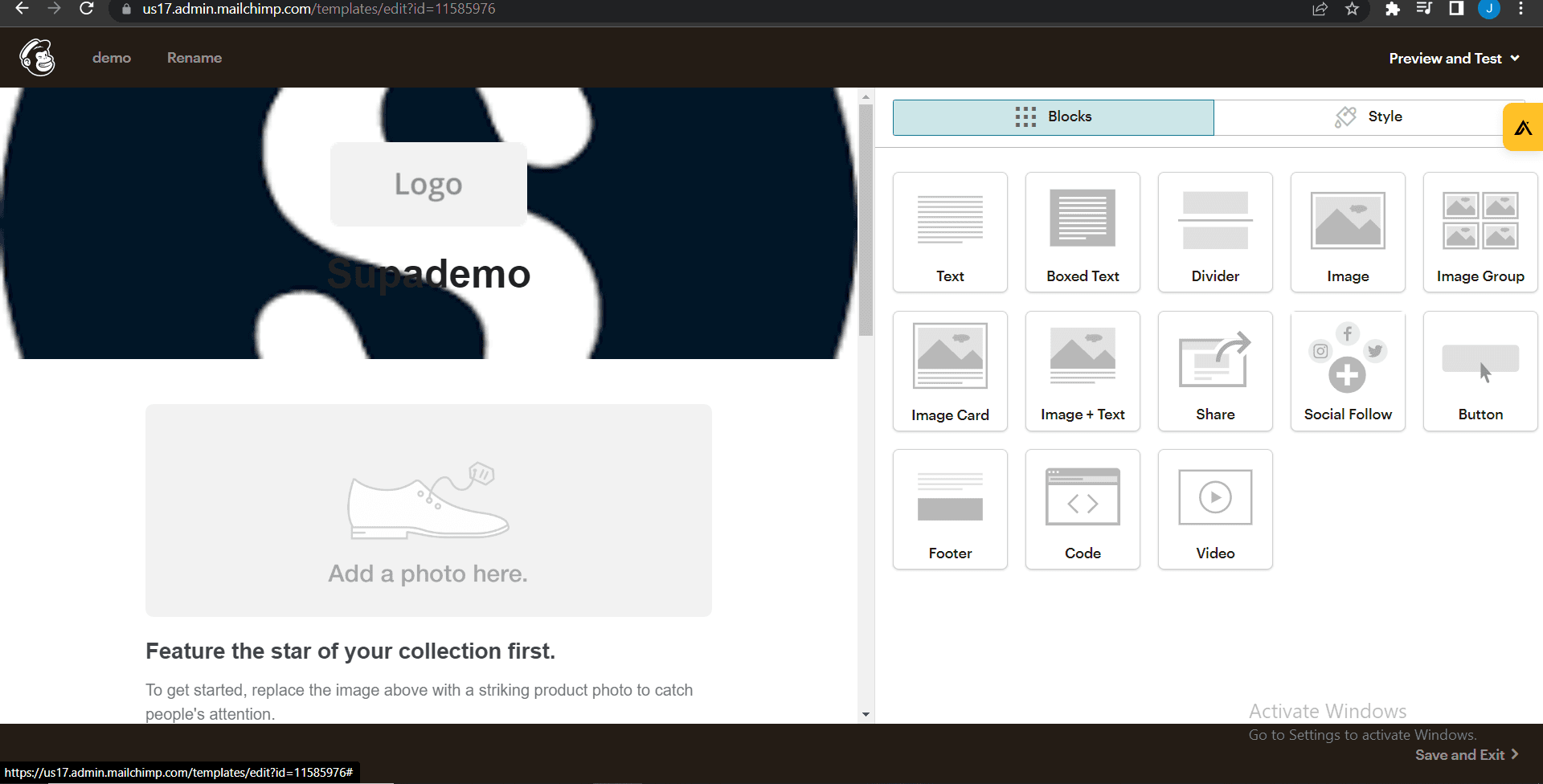
Upload your content or design
If needed, upload any images, files, or design assets required for your email. Ensure all media is properly formatted and optimized for email delivery.
- 5
Upload additional assets
Continue uploading any remaining images or content files needed to complete your email design. Make sure all visual elements are in place before testing.
- 6
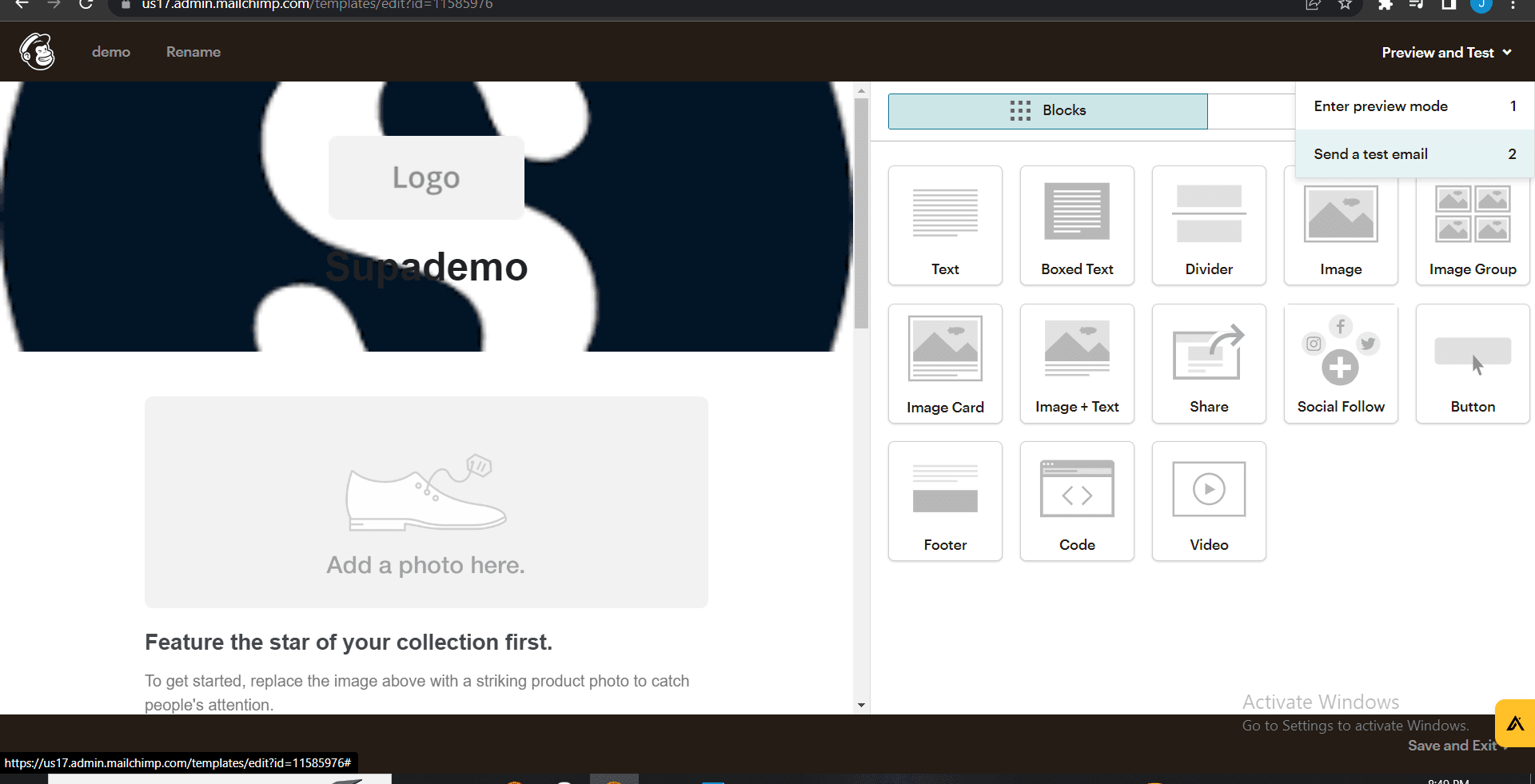
Access the test email option
Click on the test email or preview option to configure how you want to send your test. You'll be able to specify the recipient email address for your test message.
- 7
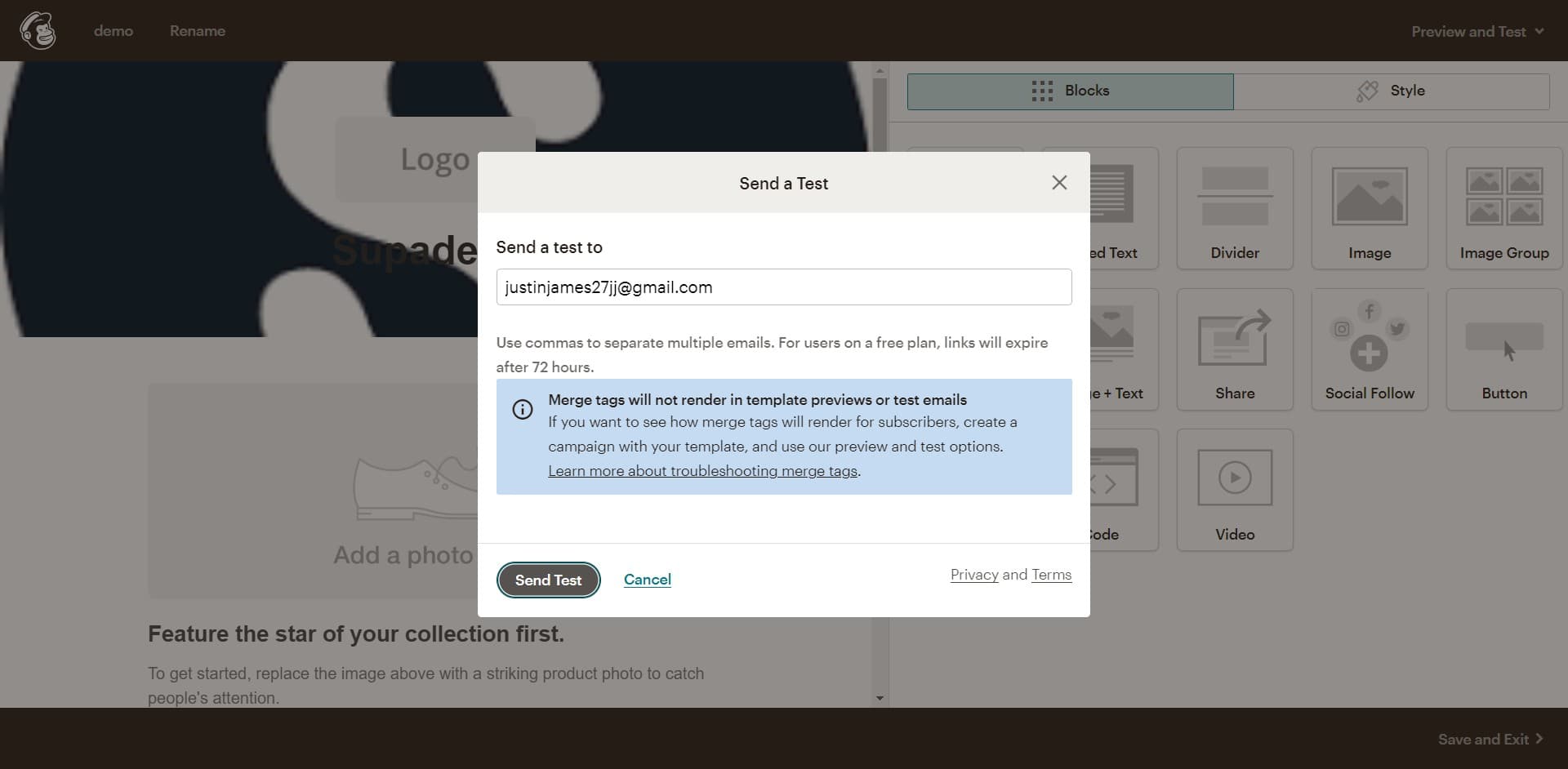
Upload final elements if needed
Upload any last-minute content, images, or assets that need to be included in your test email. Verify all elements are complete and correct.
- 8
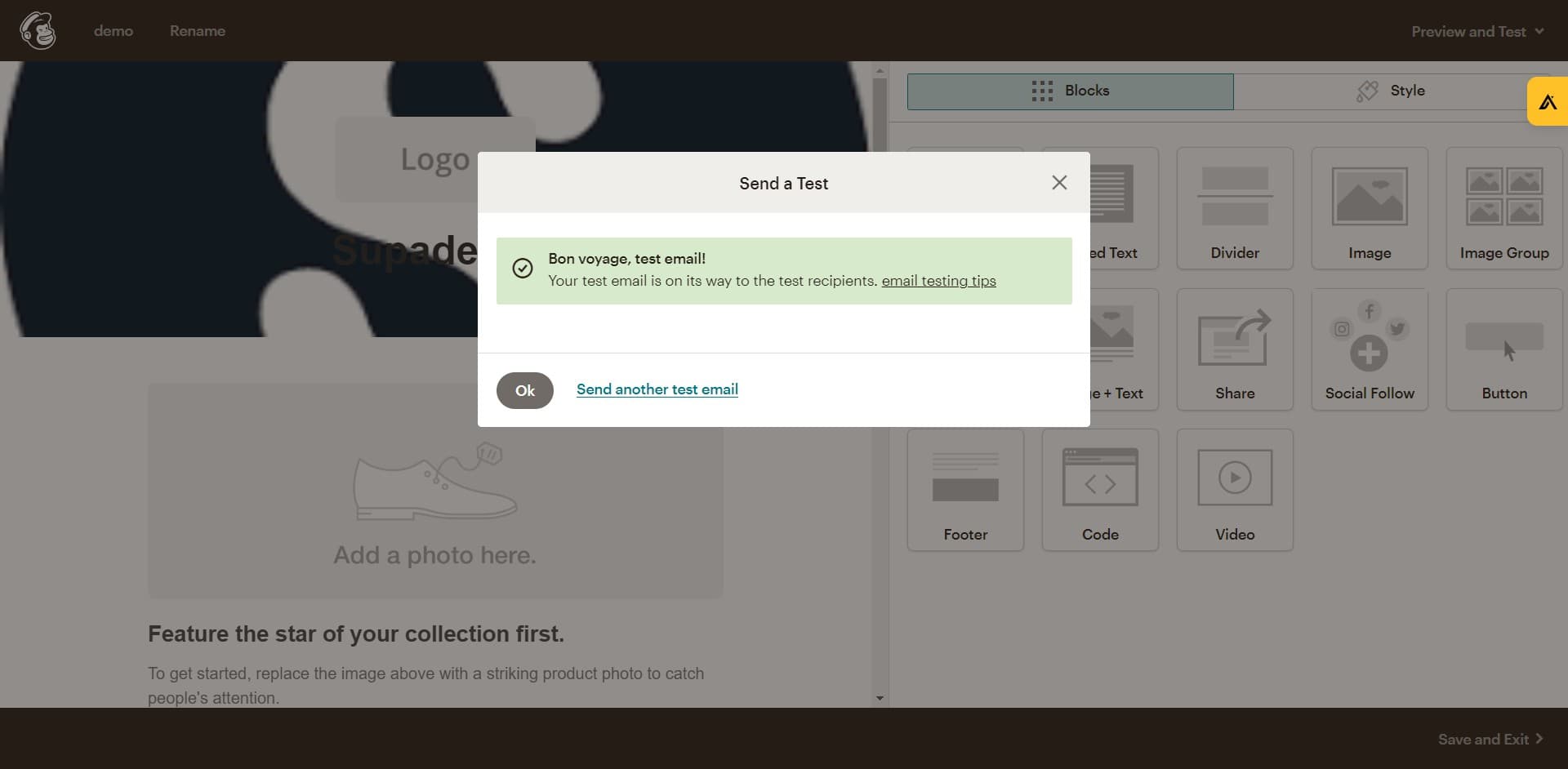
Send the test email
Click on the 'Bon voyage' or send test button to dispatch your test email. Check your inbox to review how the email appears and ensure all links and formatting are correct.
Frequently asked questions
Common questions about how to send test email in mailchimp.
Yes, Mailchimp allows you to send test emails to multiple recipients. During the test email configuration, you can enter multiple email addresses separated by commas, allowing your team to review the email from different perspectives.
Test emails typically arrive within seconds to a few minutes after you click send. If you don't see it immediately, check your spam or junk folder as email filters may redirect it there.
Review the email subject line, preview text, content alignment, image display, link functionality, and call-to-action buttons. Also test how the email renders on different devices and email clients to ensure optimal appearance for all subscribers.
Yes, you can make edits to your email template after sending a test. Simply return to the email editor, make your changes, and send another test to verify the updates before launching your full campaign.
Mailchimp does not impose a strict limit on the number of test emails you can send. However, it's best practice to keep testing to a reasonable number to avoid unnecessary deliverability records and focus your testing efforts efficiently.