How to create a form in MailerLite

MailerLite's form builder allows you to create customized signup forms to grow your email list efficiently. Whether you're building a simple popup or an embedded form, this guide walks you through the entire process from creation to deployment.
Quick summary
In this tutorial, you'll learn how to create a form in MailerLite by setting up form details, customizing design elements, configuring triggers, and publishing your form. By the end, you'll have a fully functional form ready to capture subscriber data.
Why this matters
Forms are essential for building your email list and converting website visitors into subscribers. A well-designed form in MailerLite helps you capture leads at the right moment and integrate seamlessly with your existing marketing workflow.
Step-by-step guide
- 1
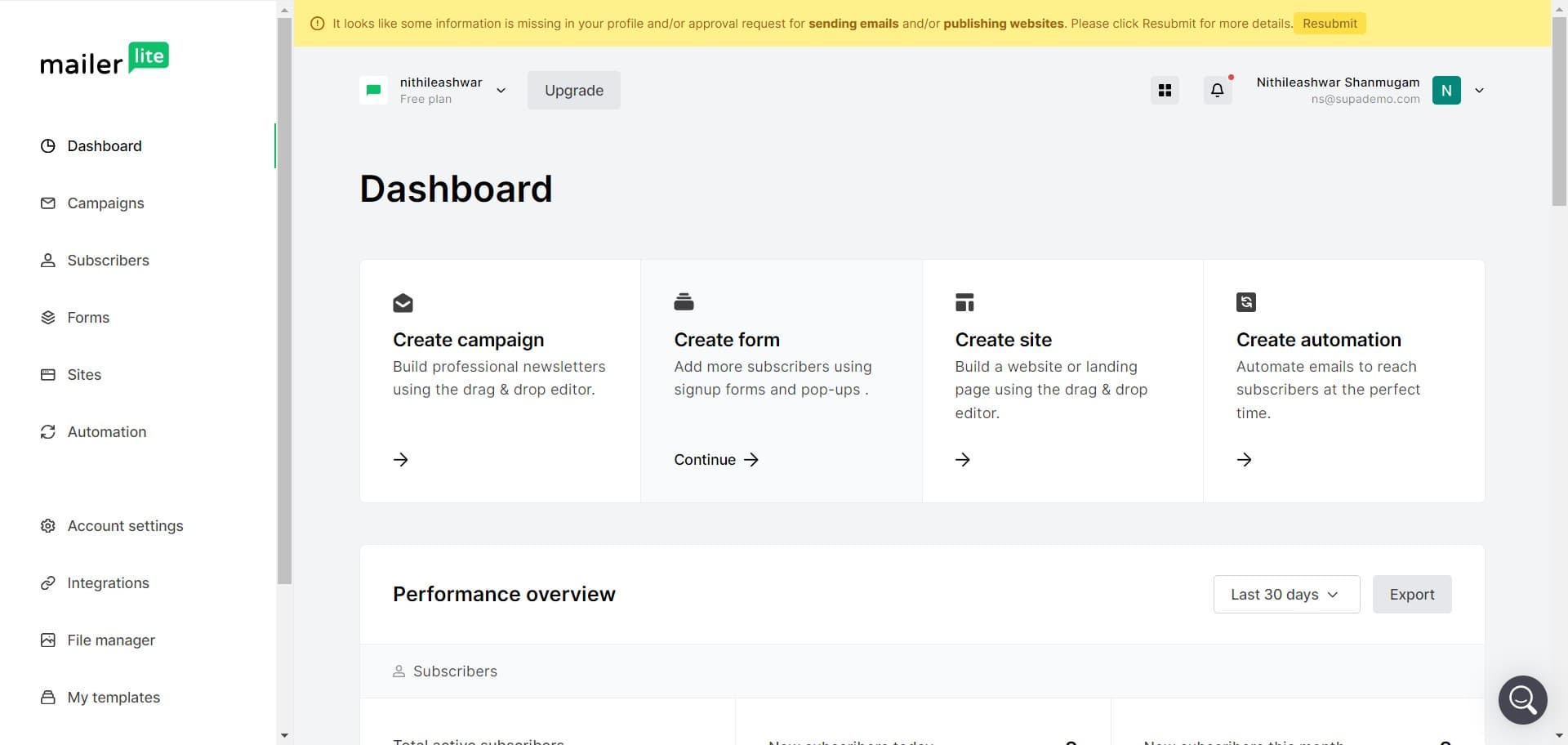
Click on Create form
Begin by navigating to the forms section in your MailerLite account and select the 'Create form' button. This will initiate the form creation process and take you to the form builder interface.
- 2
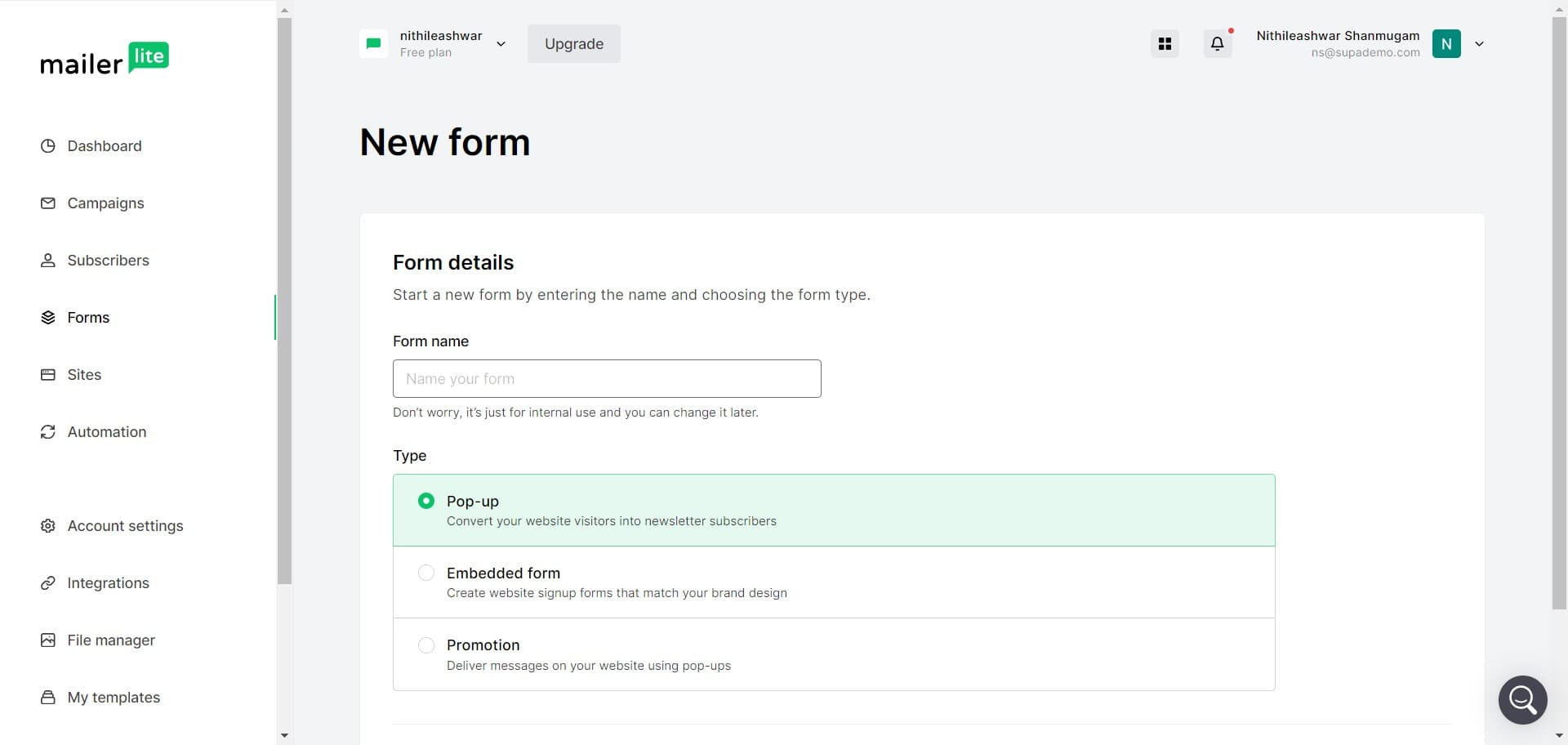
Select your form type
Choose the type of form that best suits your needs from the available options. MailerLite offers various form types including popups, embedded forms, and landing page forms.
- 3
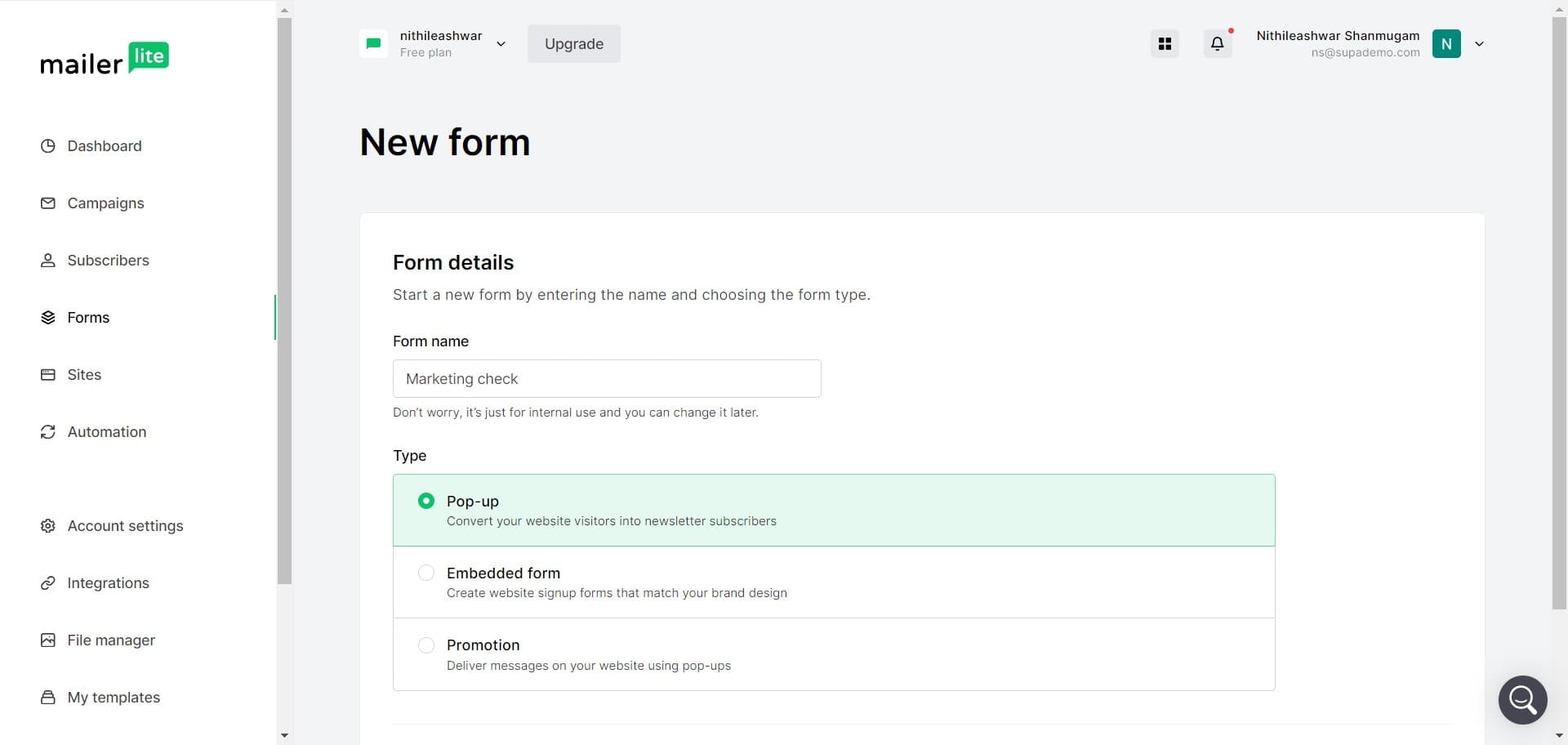
Configure form settings
Set up the basic configuration for your form, including naming it and selecting any preliminary options. These settings will define how your form behaves and functions on your website.
- 4
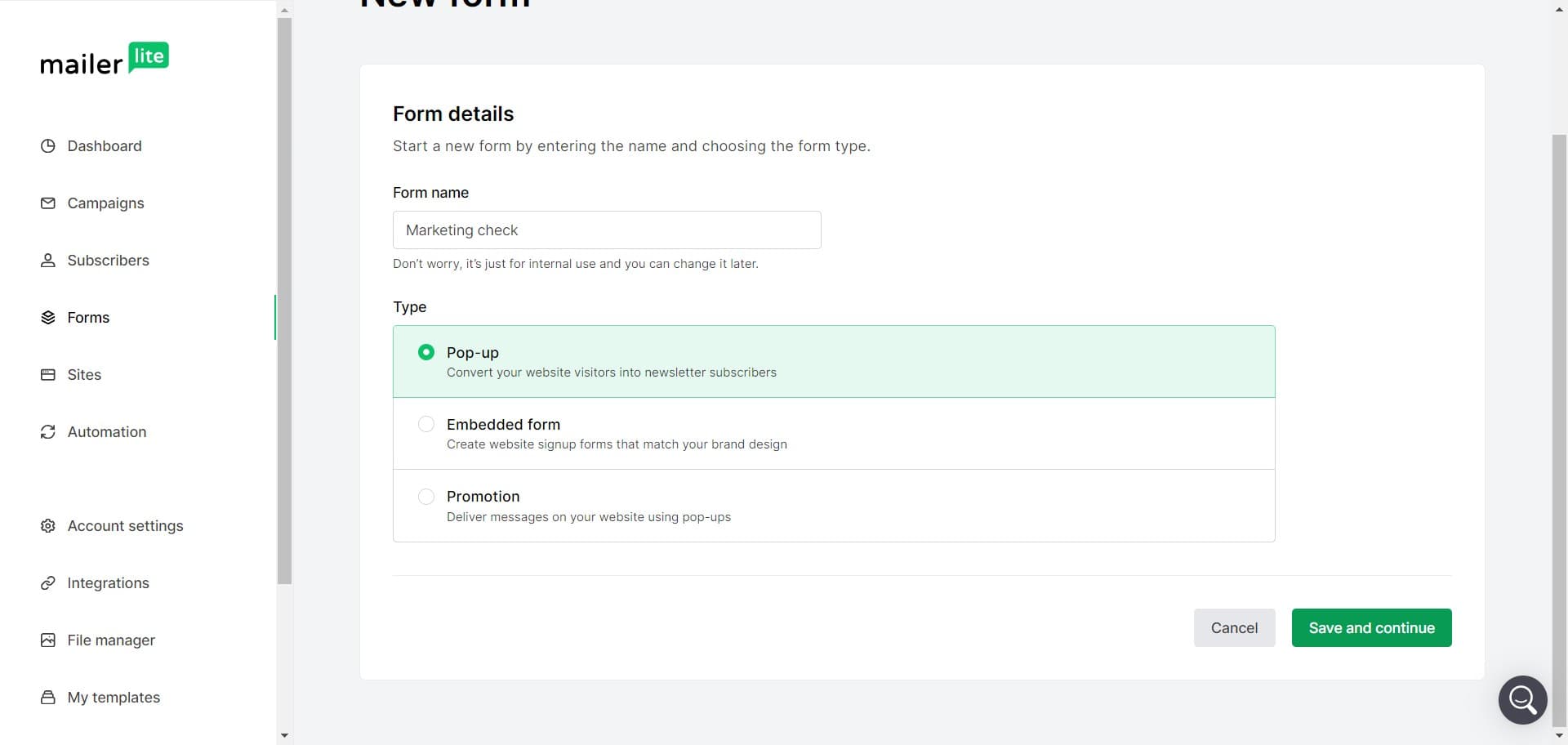
Click on Save and continue
Save your initial form configuration by clicking the 'Save and continue' button. This will preserve your choices and advance you to the next stage of form customization.
- 5
Customize form fields
Add or modify the fields that will appear in your form, such as name, email, and custom fields. Arrange them in the order you want them to appear to your subscribers.
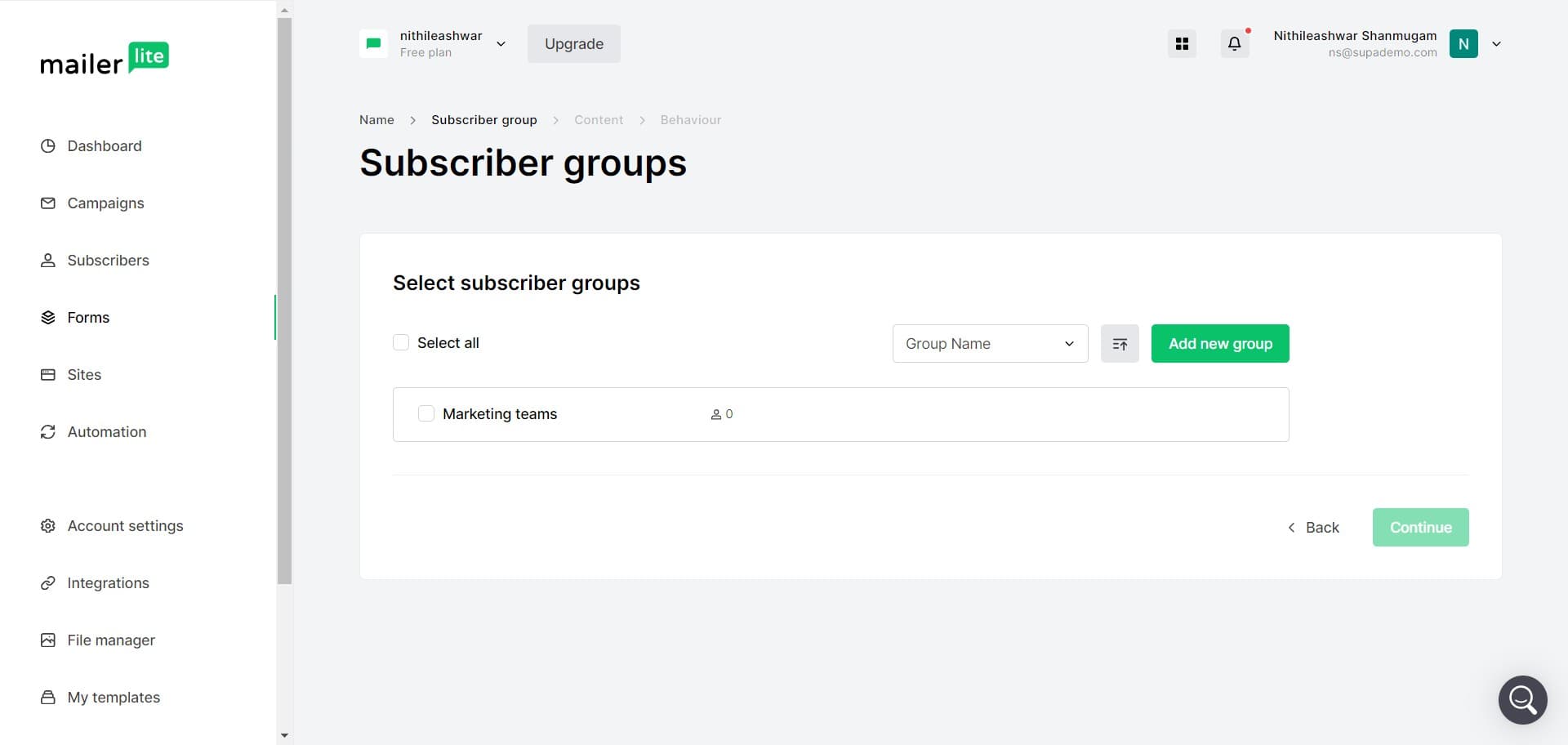
- 6
Click on Continue
Proceed to the next section of form setup by clicking 'Continue'. This advances you toward designing the visual appearance and behavior of your form.
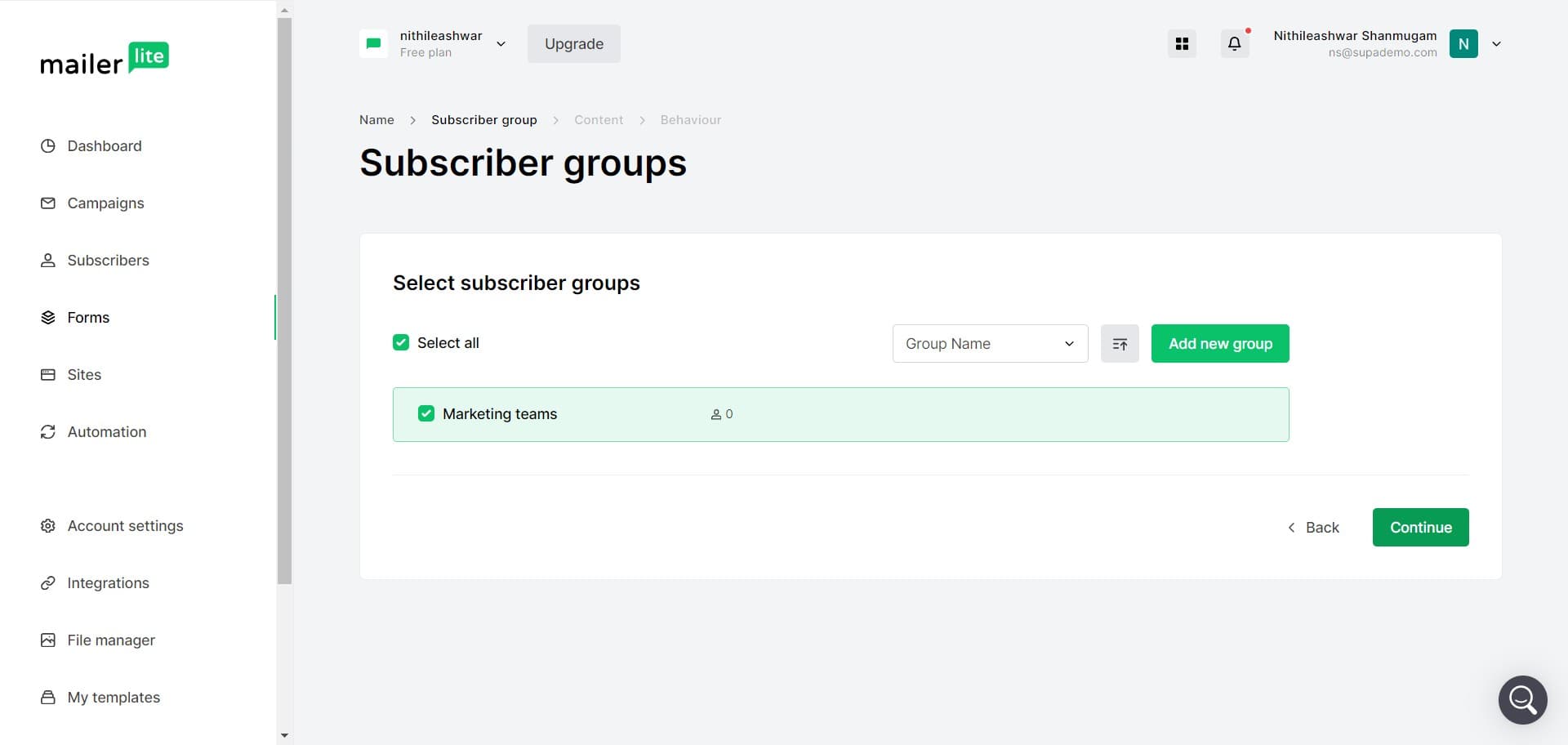
- 7
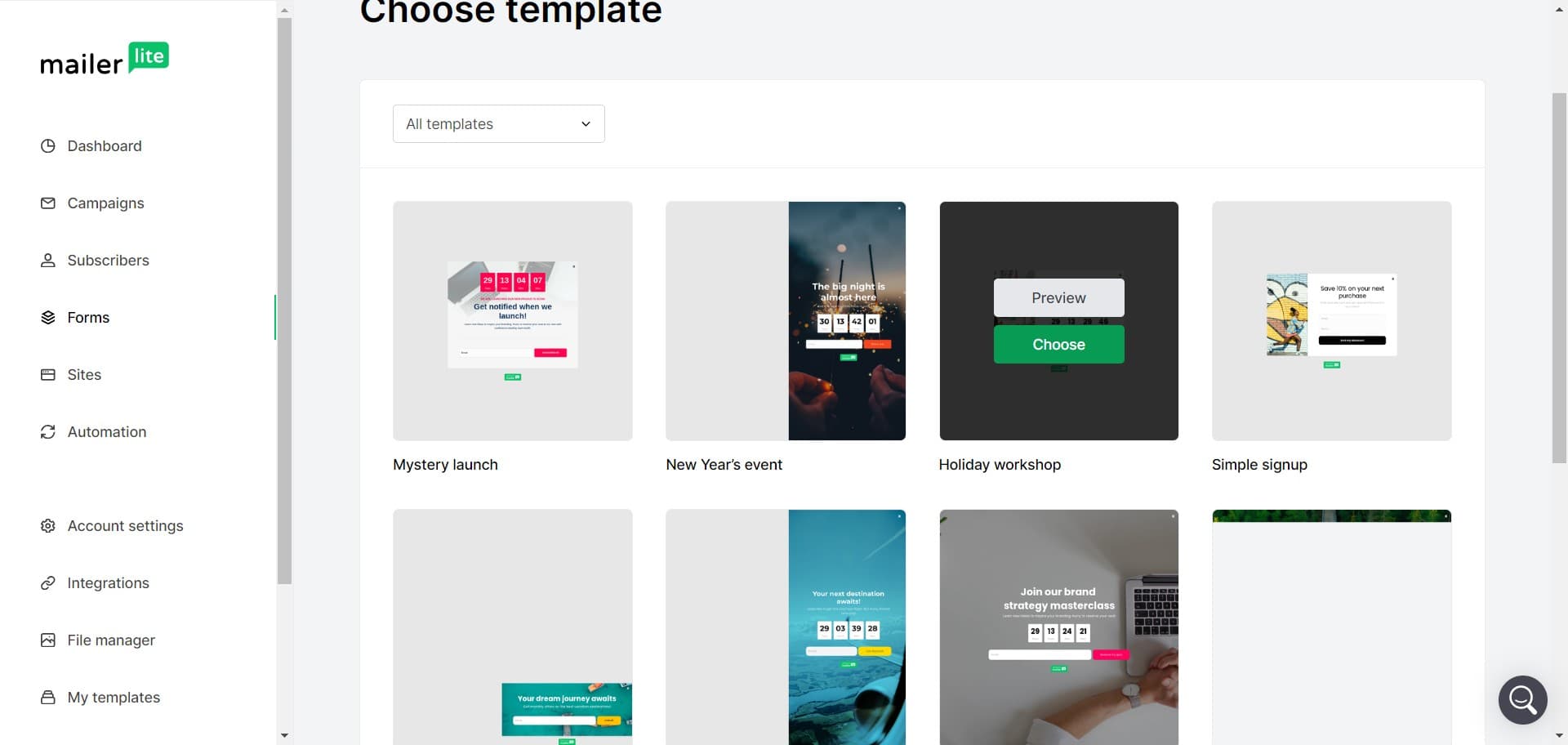
Choose your design template
Select a design template that matches your brand aesthetic or choose to customize the design from scratch. MailerLite provides pre-built templates that you can modify to fit your needs.
- 8
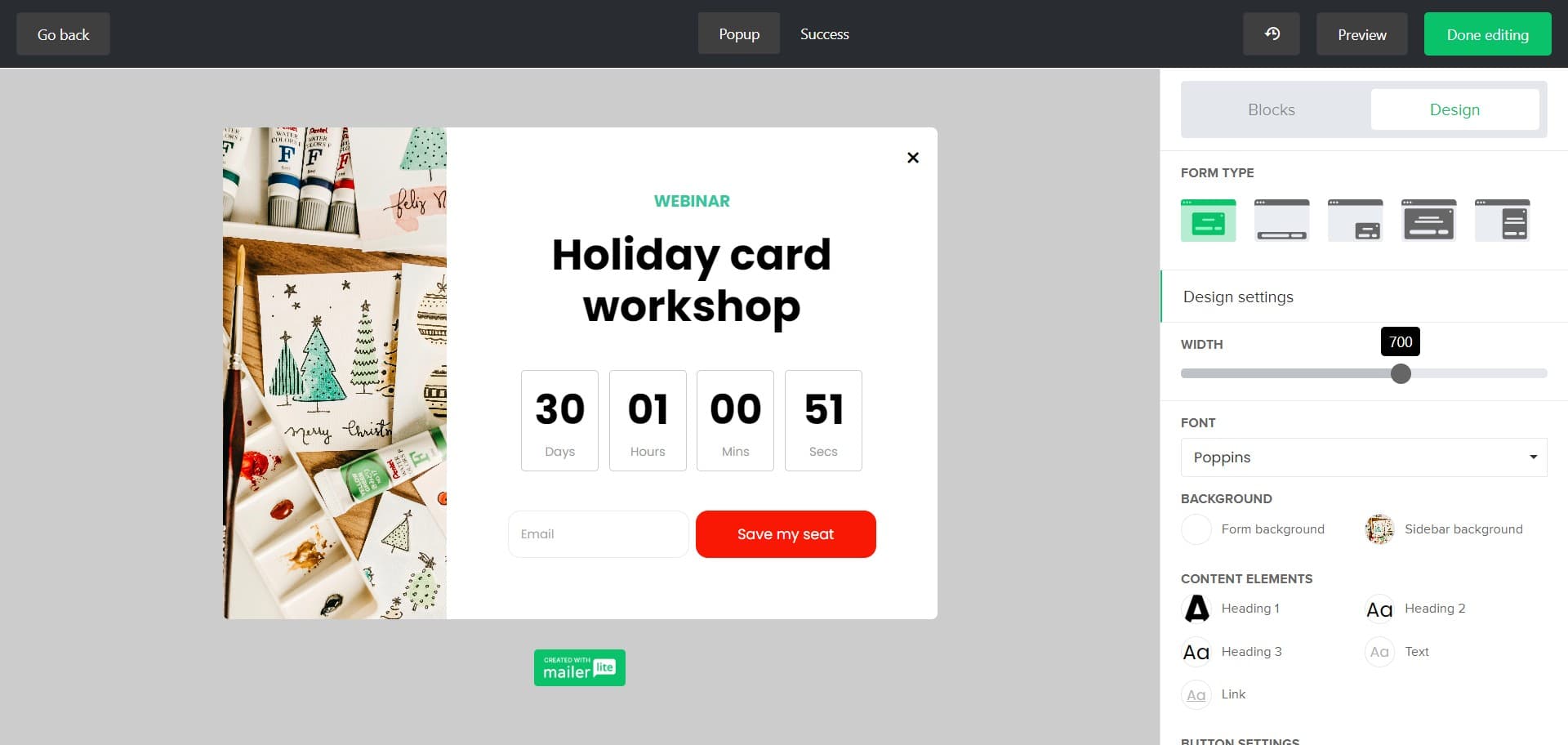
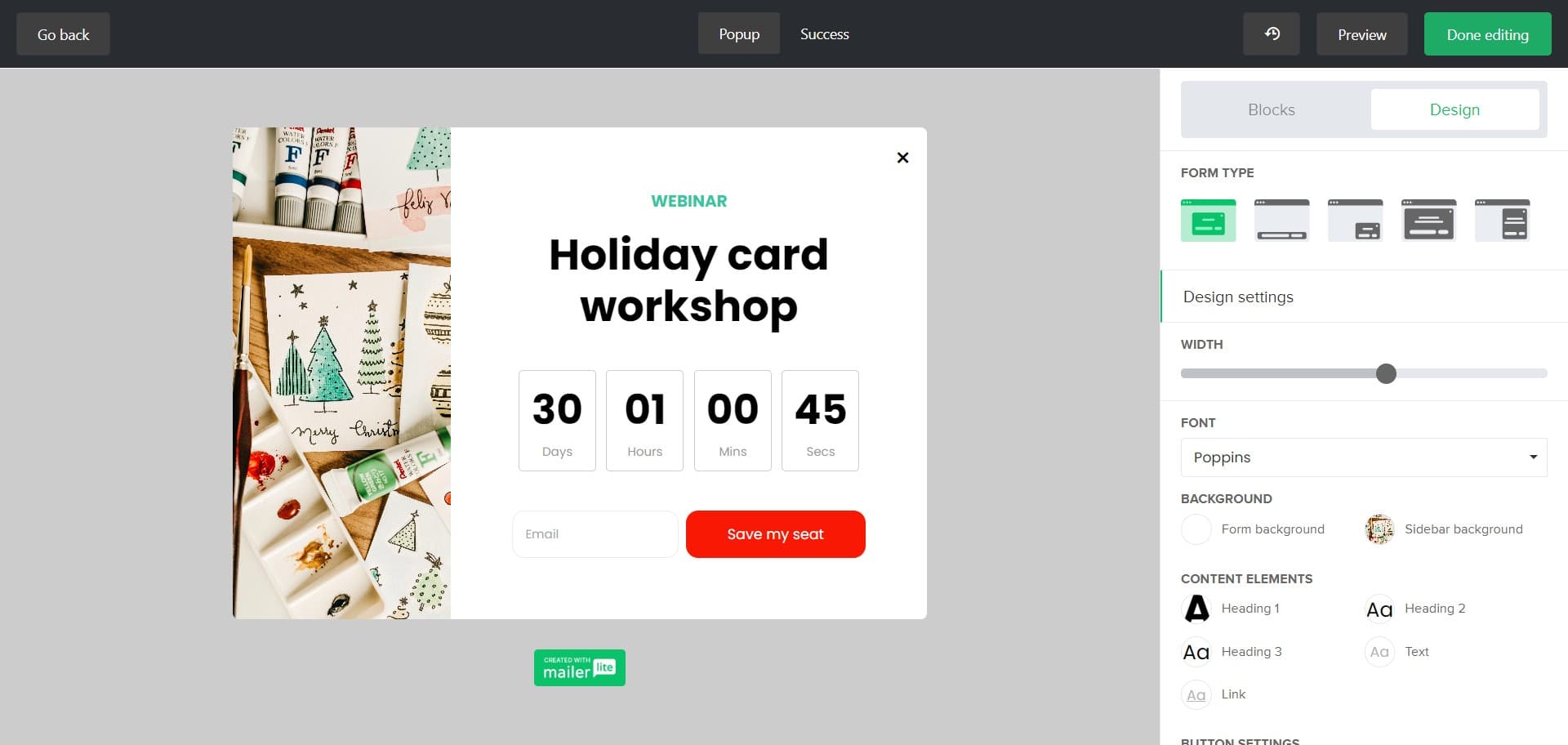
Customize the form design
Modify colors, fonts, backgrounds, and layout elements to align with your brand. Ensure your form is visually appealing and encourages visitors to subscribe.
- 9
Click on Done editing
Finish designing your form by clicking 'Done editing'. This will save your design changes and prepare you to set up how the form will be displayed.
- 10
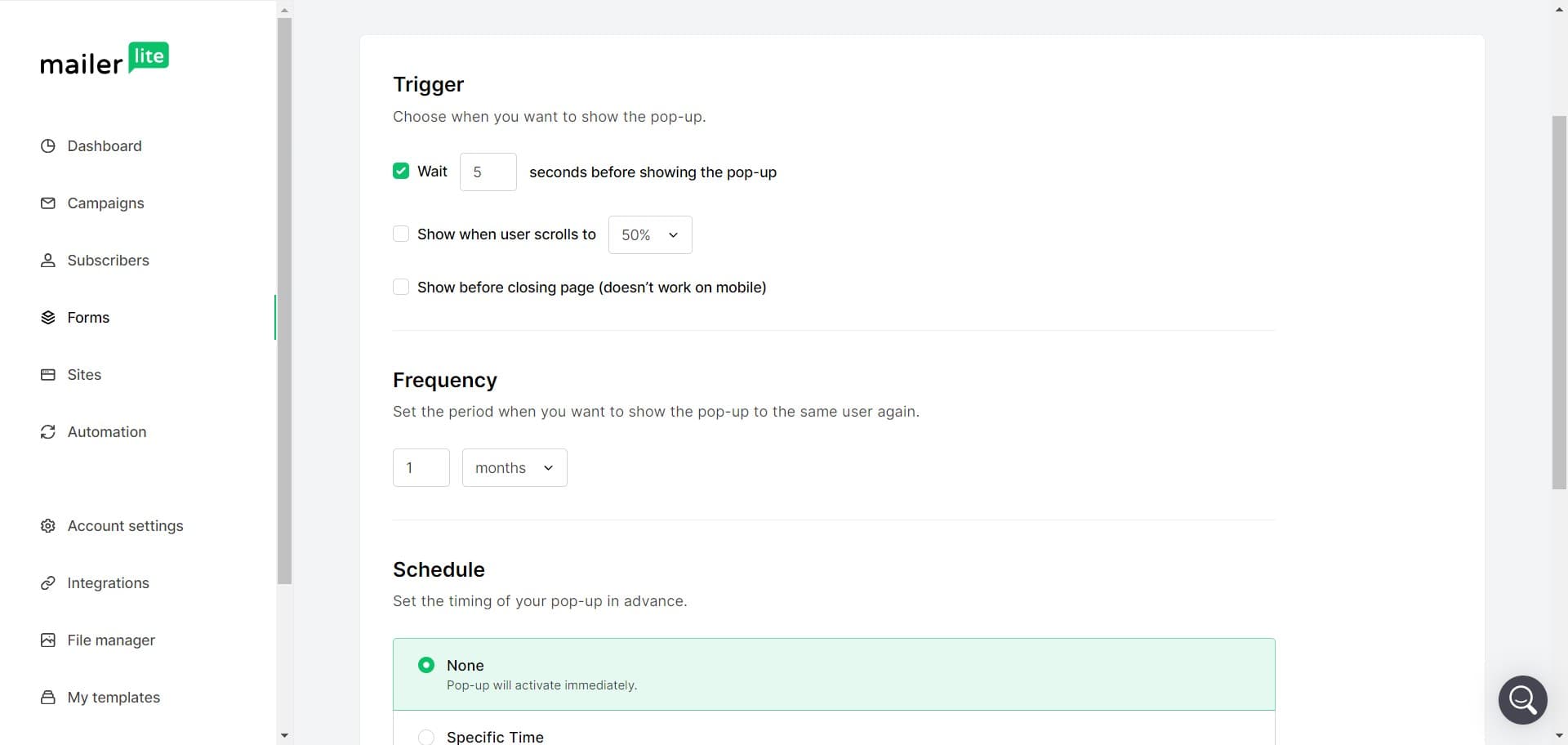
Click on Trigger
Configure the trigger settings that determine when and how your form appears to visitors. Choose options such as exit-intent, time delay, or scroll-based triggers.
- 11
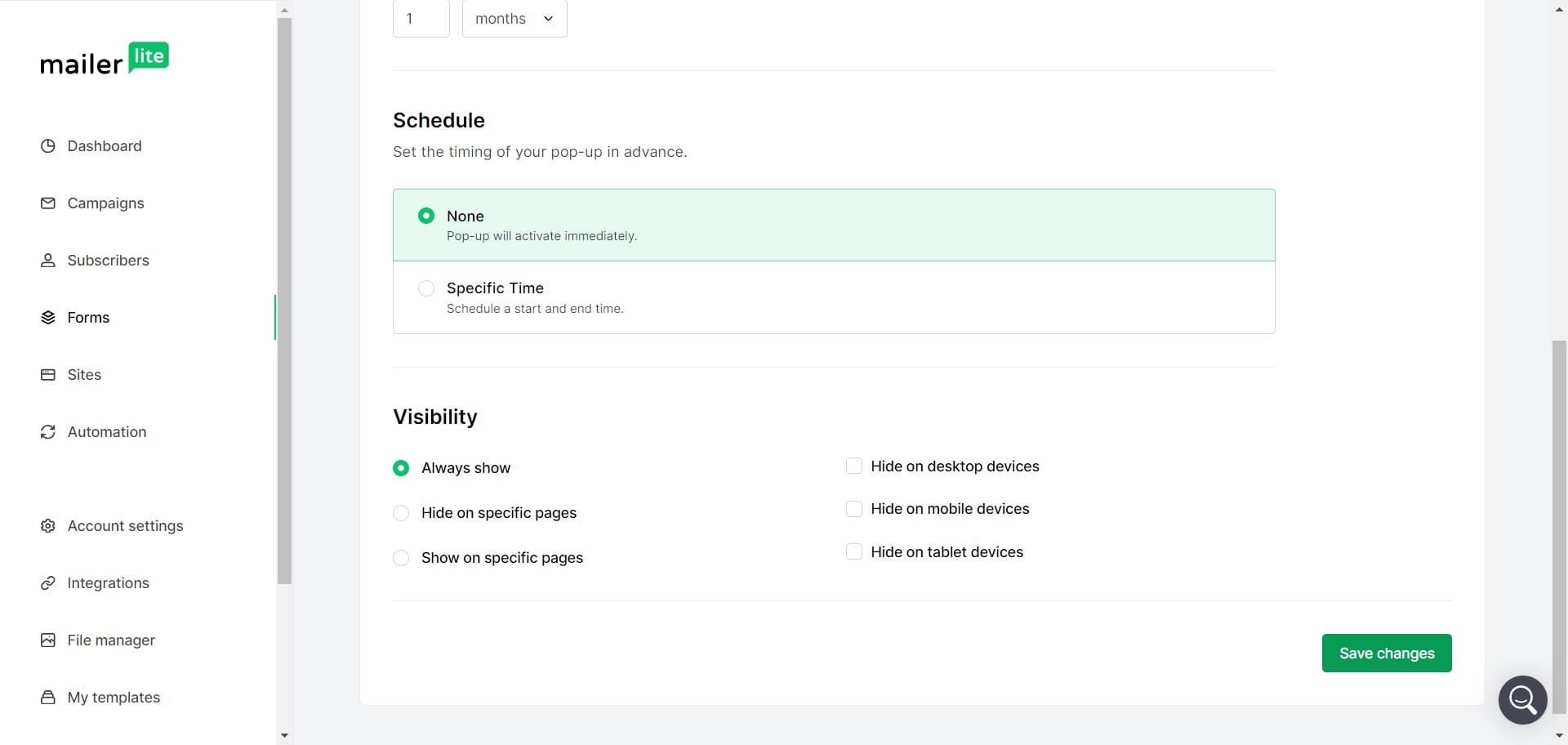
Click on Save changes
Save all your trigger and display settings by clicking 'Save changes'. This ensures your form behavior configuration is stored.
- 12
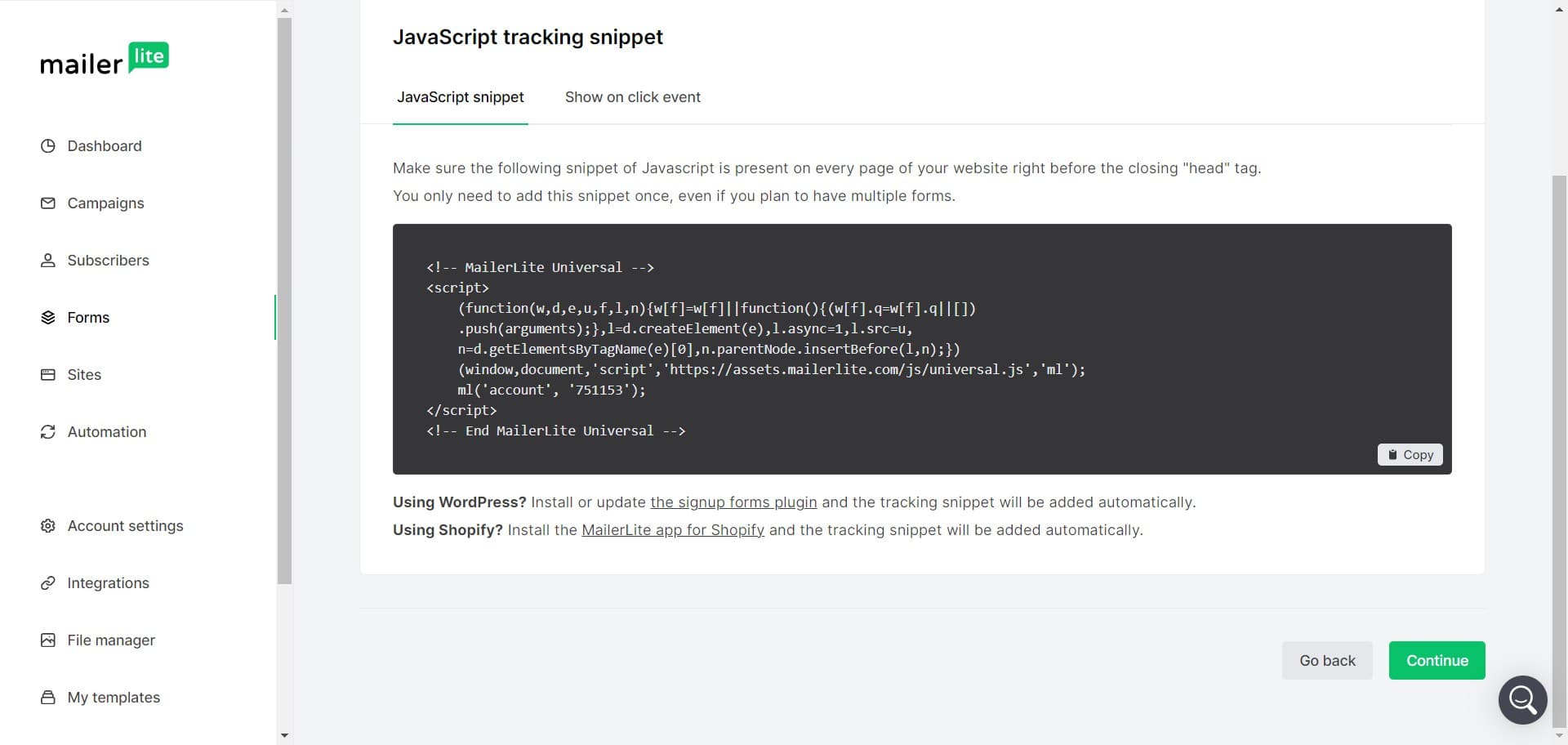
Select your publishing method
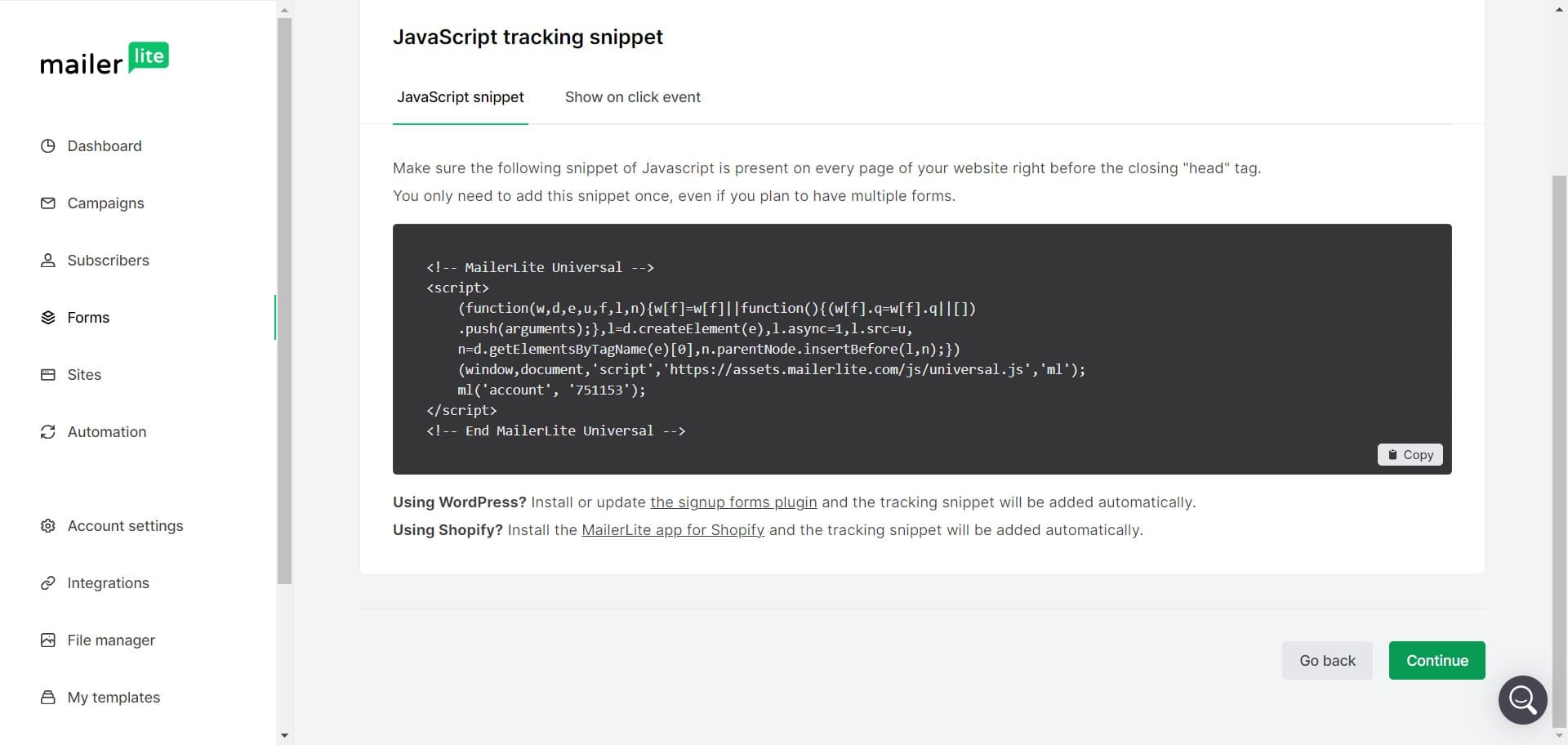
Choose how you want to publish your form, with WordPress integration being one of the available options. Select the method that best fits your website platform.
- 13
Click on Continue
Proceed with your selected publishing method by clicking 'Continue'. Follow the prompts to complete the integration and make your form live.
Frequently asked questions
Common questions about how to create a form in mailerlite.
MailerLite offers several form types including popups, embedded forms, landing page forms, and sticky forms. Each type serves different purposes and can be customized to match your specific marketing needs and website layout.
Yes, MailerLite provides extensive design customization options. You can modify colors, fonts, backgrounds, images, and layout to match your brand identity. Pre-built templates are also available if you prefer a faster setup.
During the form customization process, you can add custom fields beyond the standard name and email fields. This allows you to collect additional information from subscribers based on your specific requirements.
Form triggers determine when your form appears to visitors. Options include exit-intent triggers, time-based delays, scroll-based activation, and click-based triggers. Choosing the right trigger increases form completion rates.
MailerLite provides multiple publishing options including WordPress integration, code embedding, and direct integrations with popular platforms. Select the method that matches your website platform and follow the provided integration steps.