How to create a website in MailerLite

MailerLite's website builder allows you to create professional, responsive websites without coding knowledge. This guide walks you through the entire process of building and publishing your site using MailerLite's intuitive interface.
Quick summary
In this tutorial, you'll learn how to create a website in MailerLite from start to finish. You'll navigate through site creation, configure your design preferences, select templates, customize backgrounds, and save your work at each stage.
Why this matters
Creating a website in MailerLite enables you to establish an online presence directly within your email marketing platform, streamlining your workflow and keeping all your marketing assets in one place. A well-designed website helps build credibility and provides customers with essential information about your business or services.
Step-by-step guide
- 1
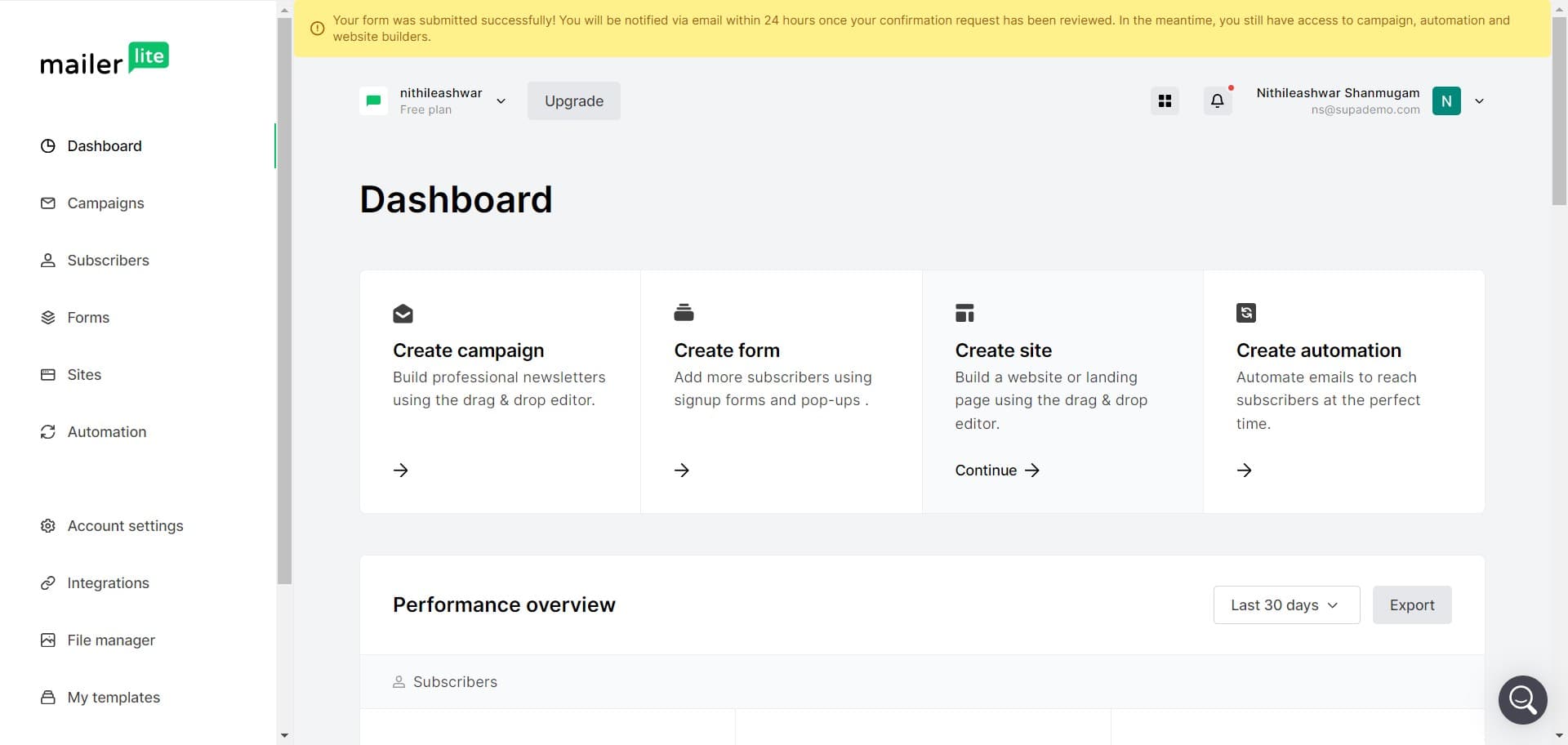
Click on Create site
Start by locating and clicking the 'Create site' button in your MailerLite dashboard. This initiates the website creation process and opens the site builder.
- 2
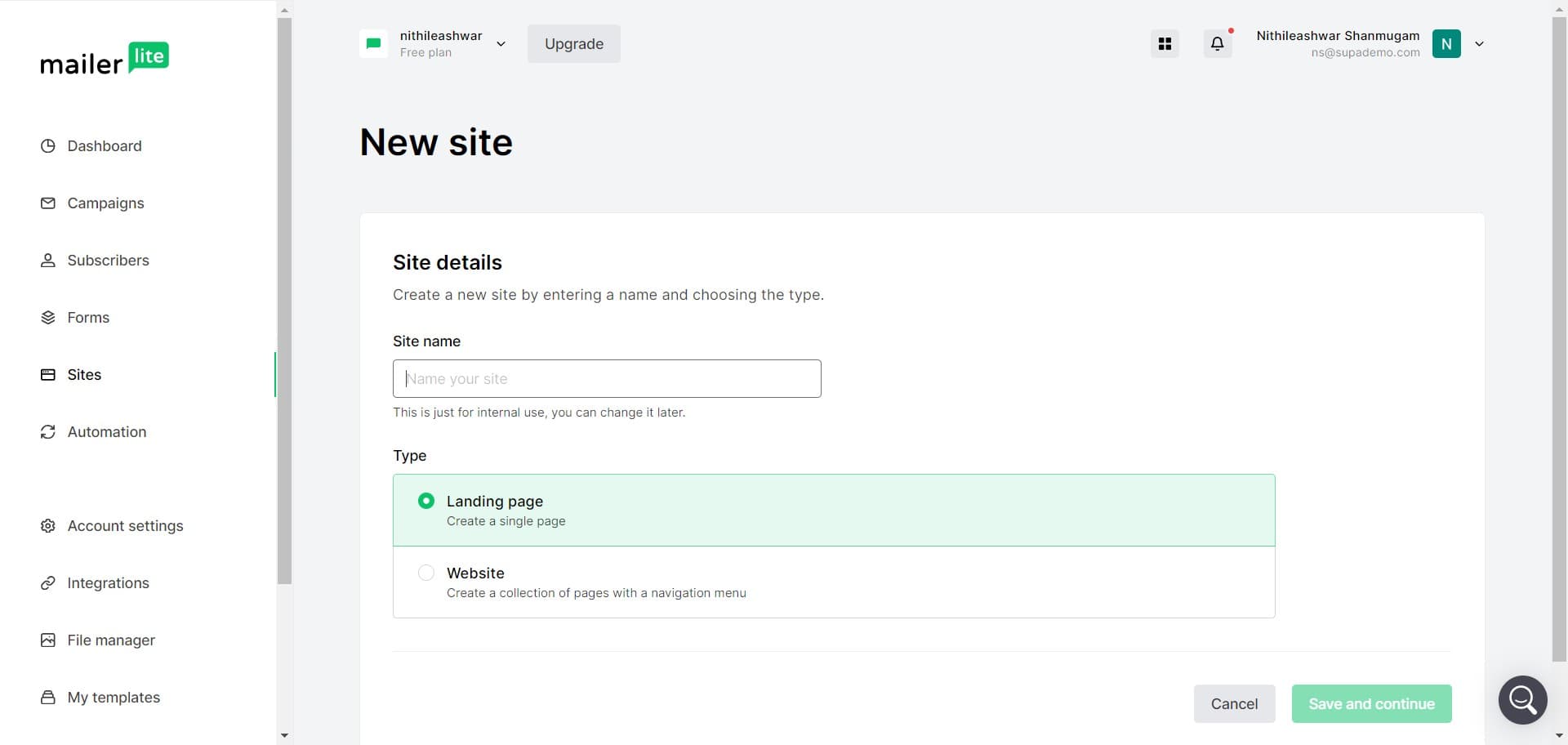
Select your site configuration
Click on the displayed option to proceed with your site setup. This step allows you to specify initial parameters for your new website.
- 3
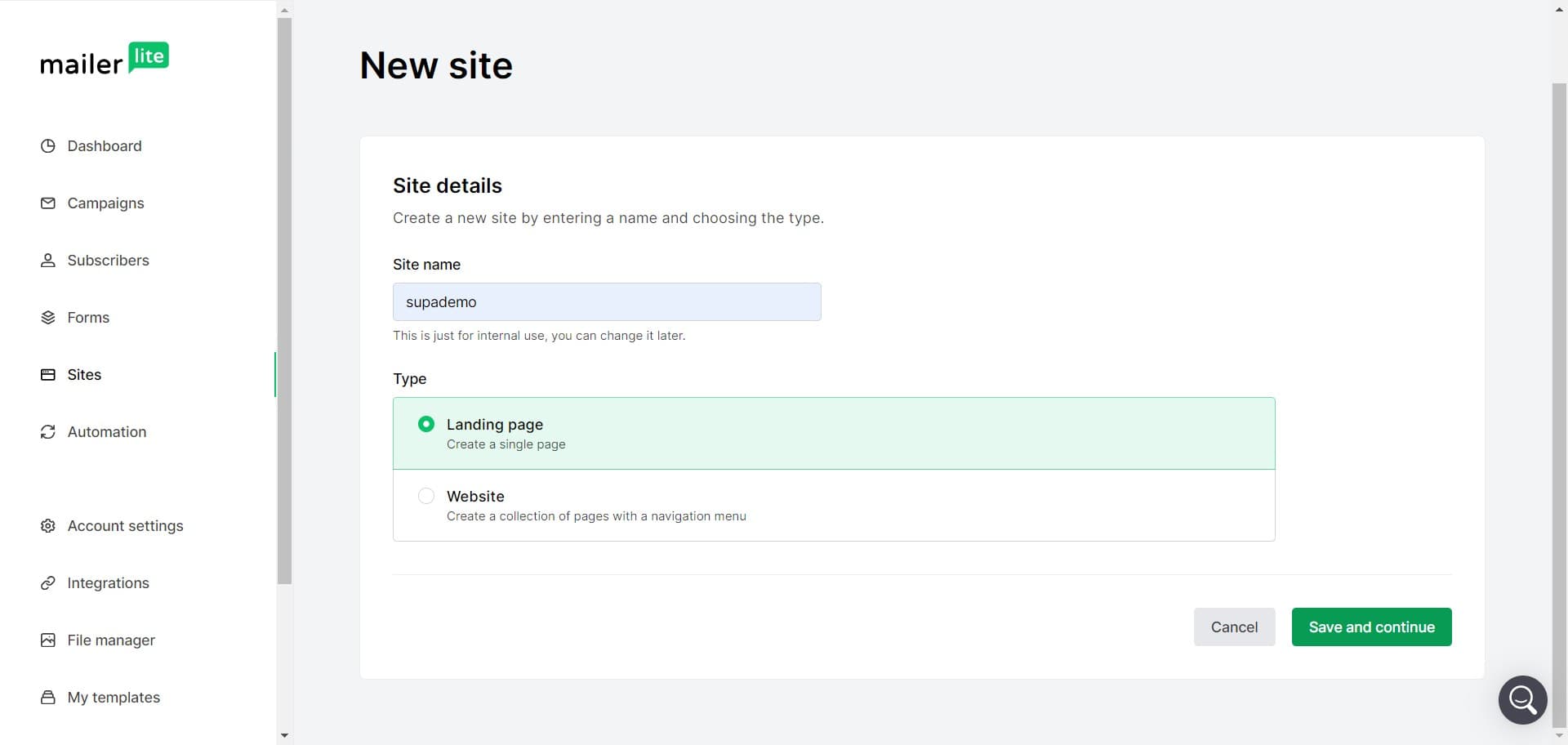
Click Save and continue
Review your initial configuration settings and click 'Save and continue' to move forward. This confirms your choices and progresses to the next setup stage.
- 4
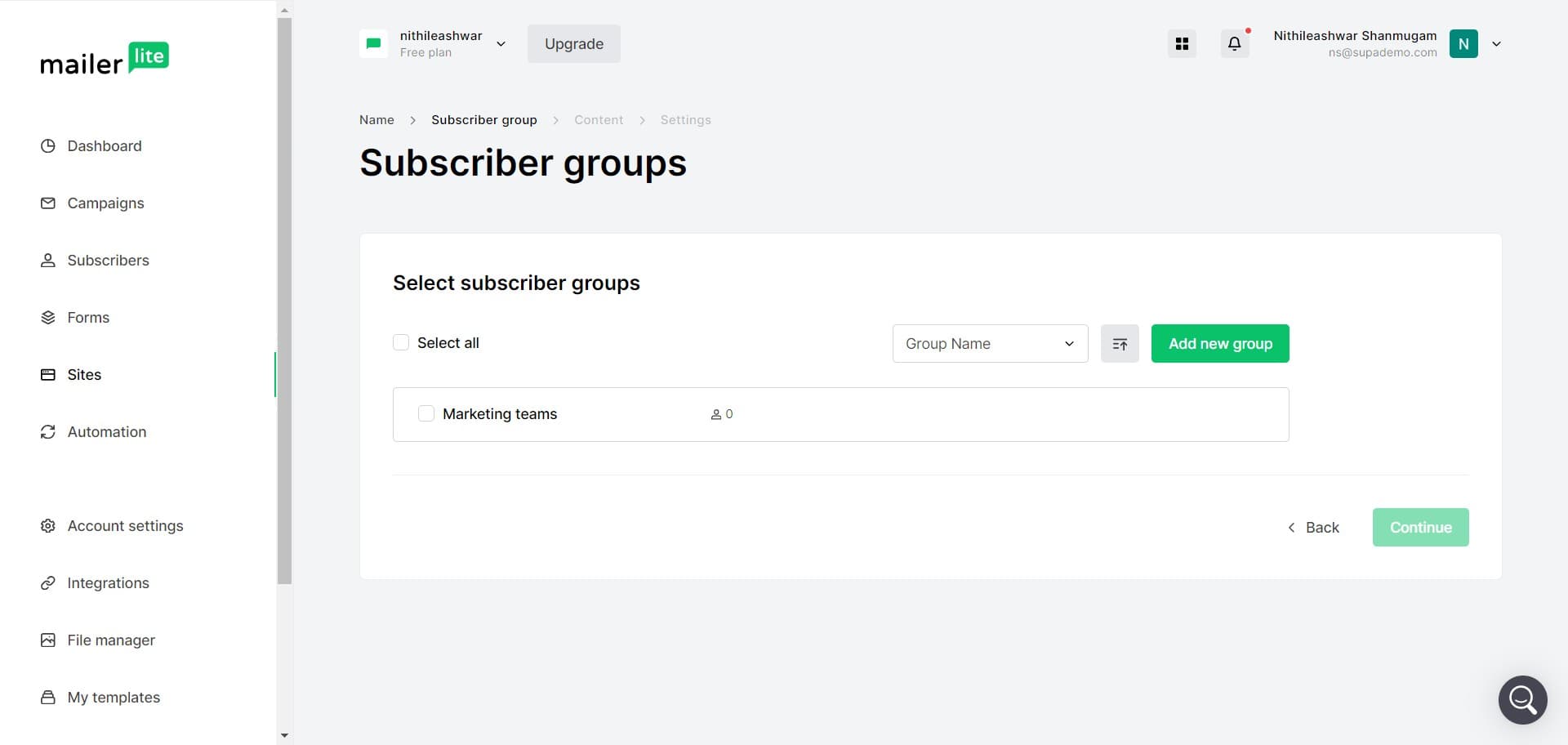
Complete the additional setup
Click on the next required field or button to continue configuring your site. This step typically involves adding more specific details about your website.
- 5
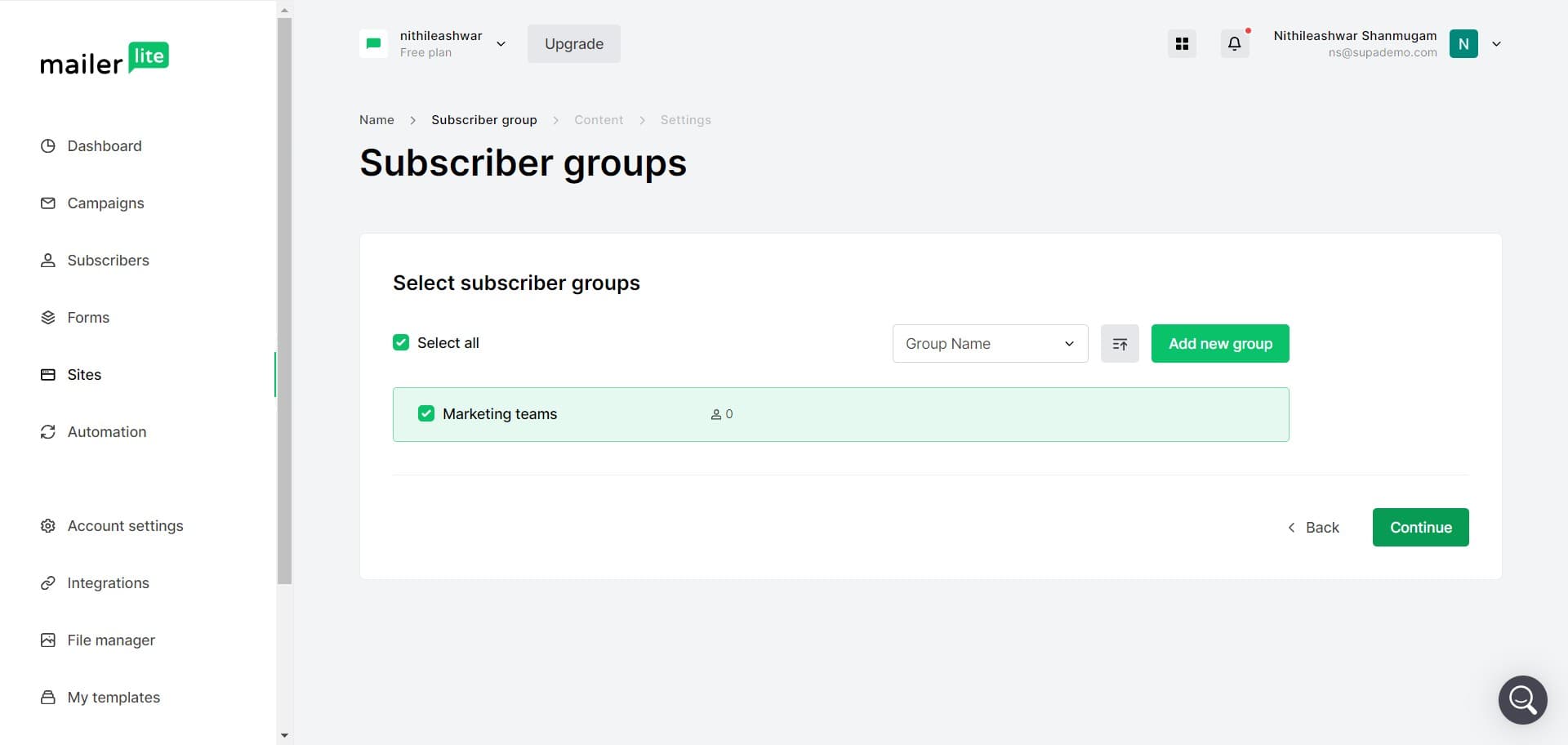
Click Continue
Click the 'Continue' button to advance to the design and customization phase. You're now moving closer to building out your site's appearance.
- 6
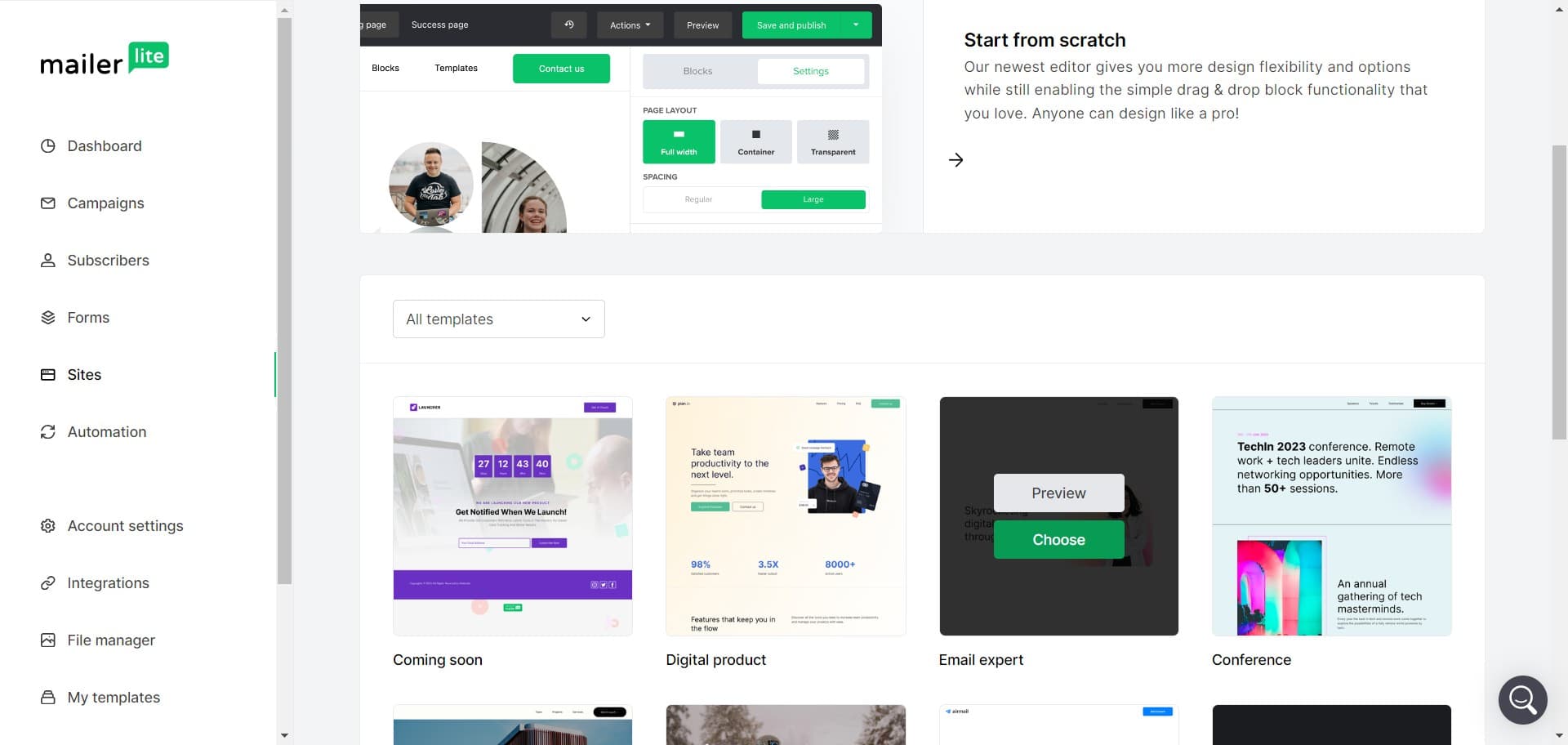
Choose your template
Click on 'Choose' to select a template for your website. MailerLite offers several professionally designed templates that you can customize to match your brand.
- 7
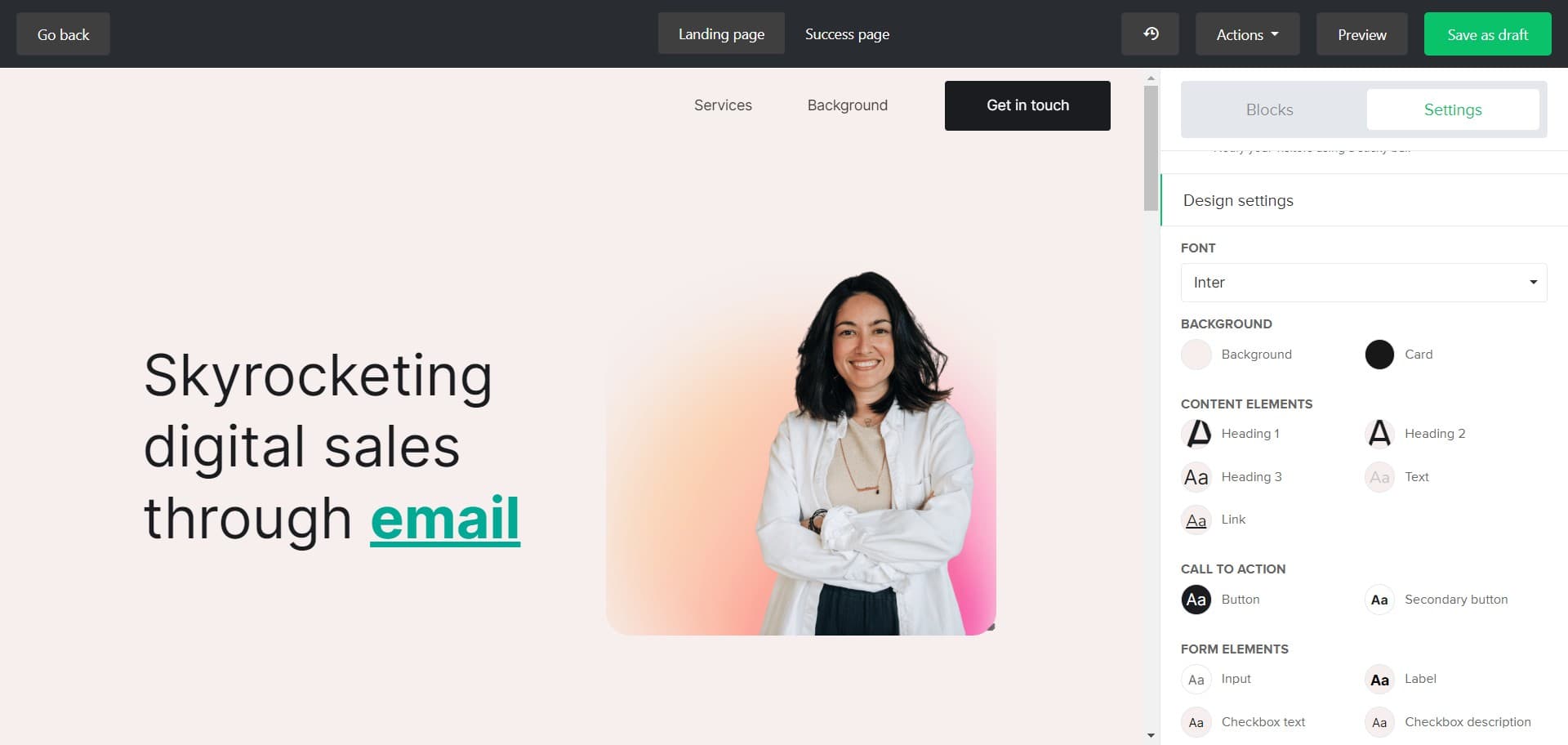
Access background settings
Click on 'Background' to modify the visual elements of your site's design. This allows you to customize colors, images, or patterns that form the backdrop of your pages.
- 8
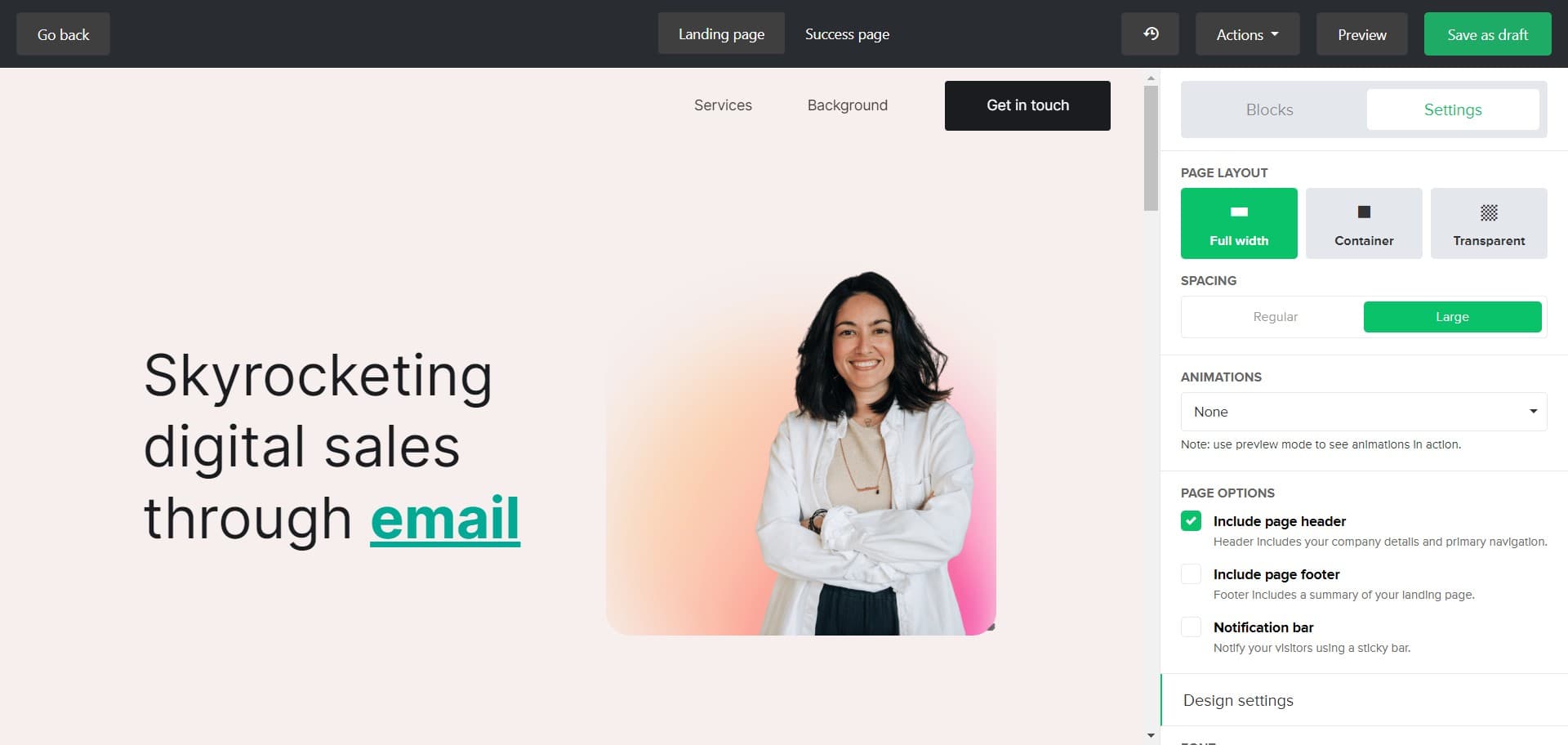
Save as draft
Click 'Save as draft' to preserve your current progress without publishing your site. This ensures your work is safely stored for future editing and refinement.
- 9
Proceed with site building
Click on the next available option to continue building out your website content and structure. You're now in the active design and content creation phase.
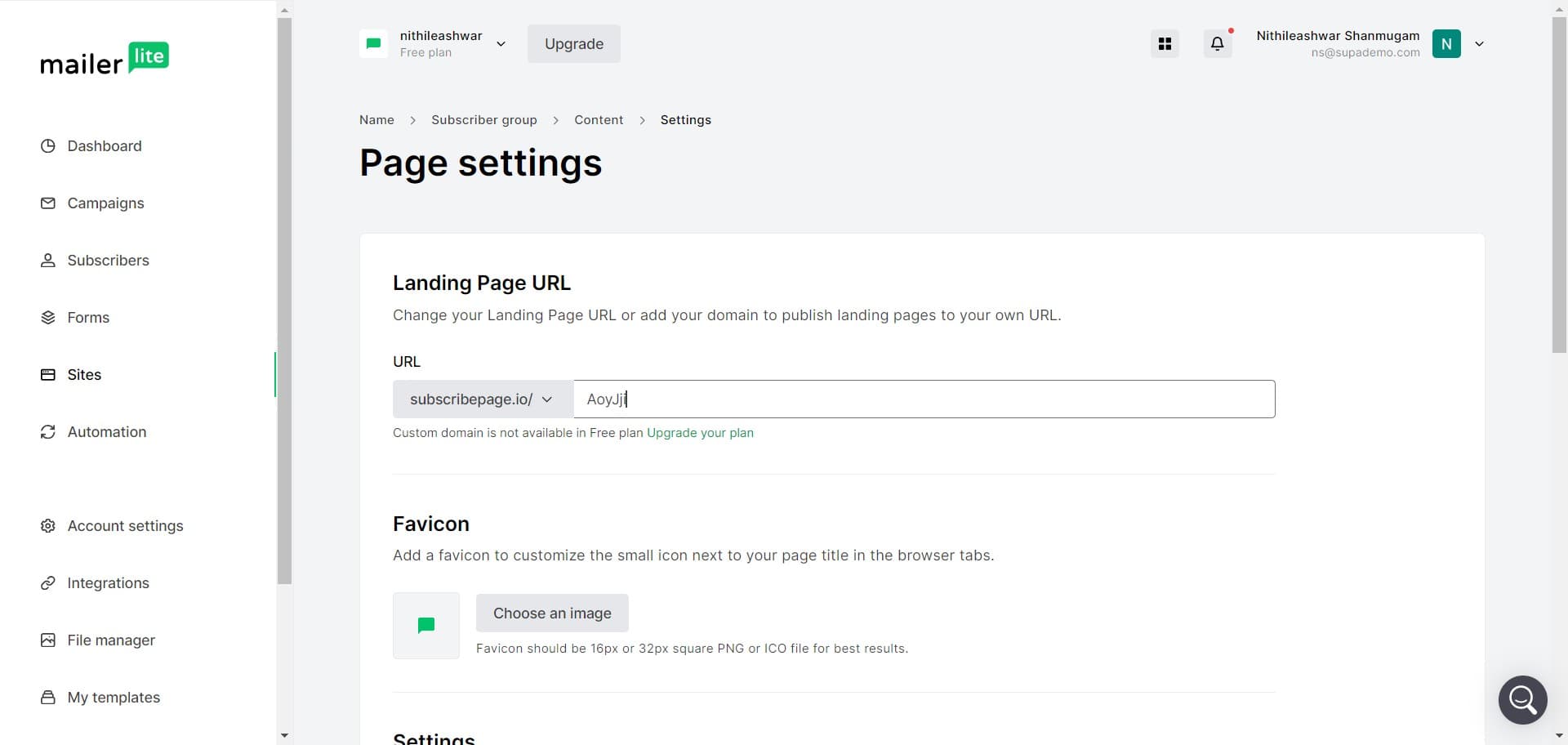
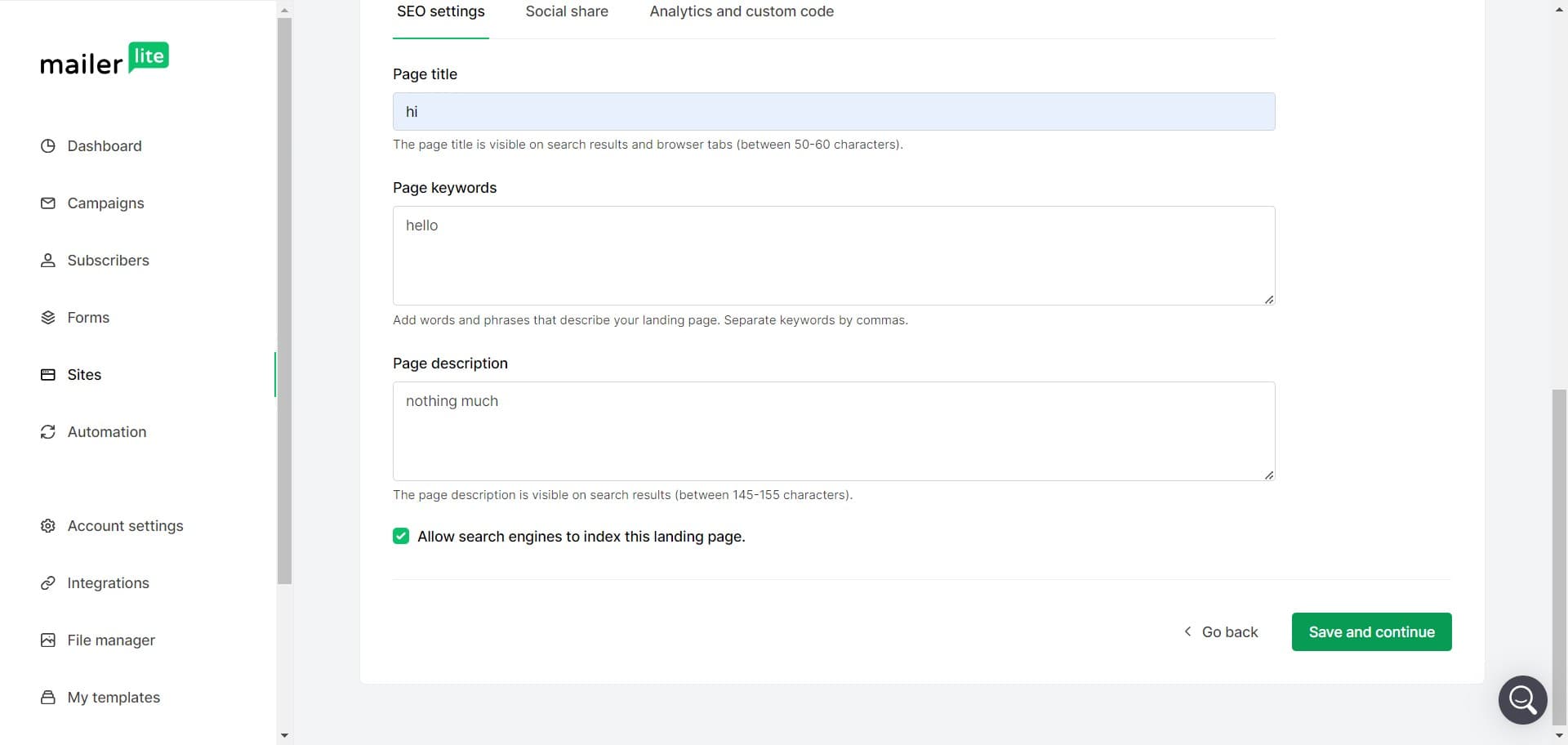
- 10
Save and continue again
Click 'Save and continue' to confirm your latest changes and move to the next step. This keeps your progress intact while advancing through the builder.
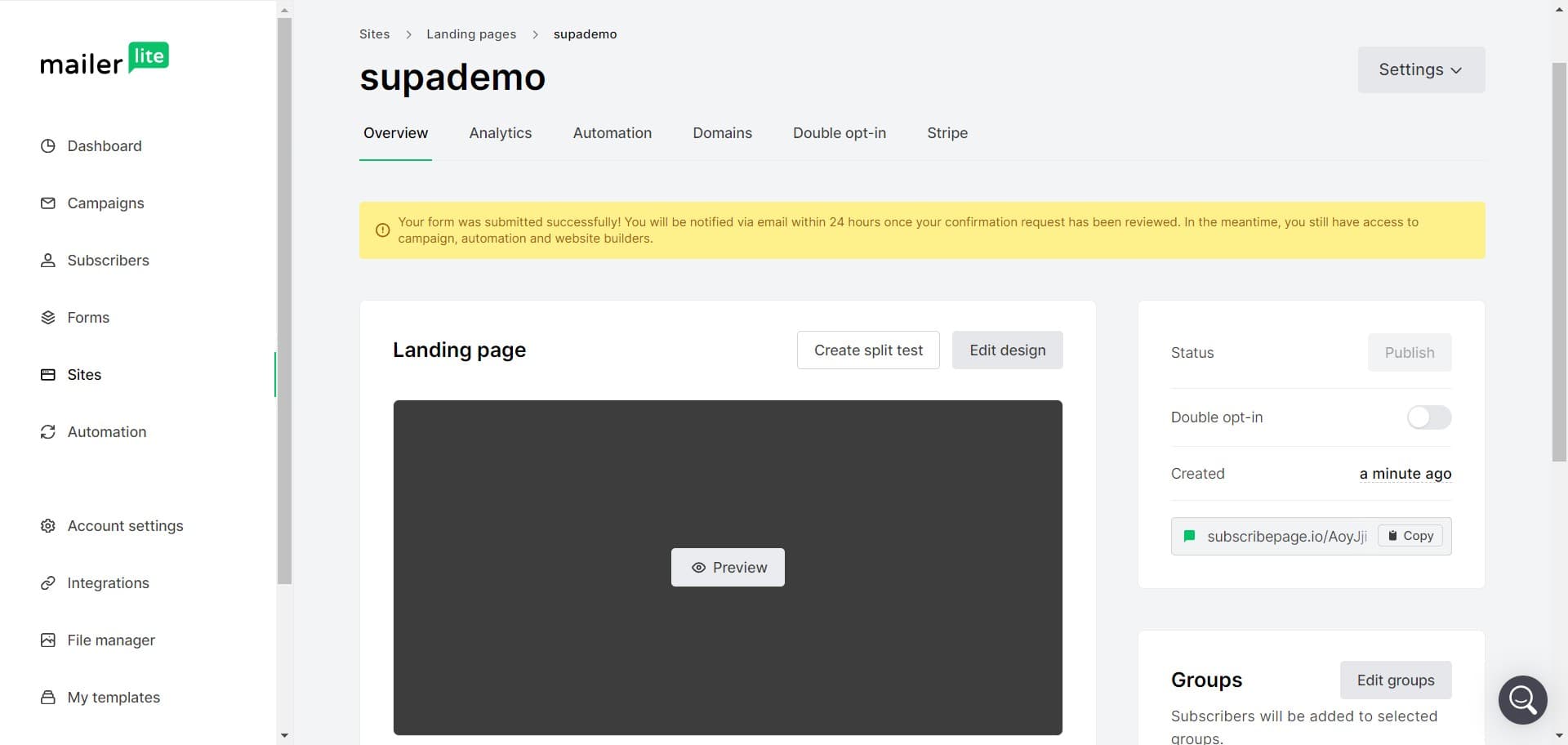
- 11
Finalize your setup
Click on the final step button to complete your website creation process. Your site is now ready for further customization, content additions, or publishing.
Frequently asked questions
Common questions about how to create a website in mailerlite.
Yes, absolutely. Saving as a draft preserves your work, and you can return to edit it at any time before publishing. You can make changes to the design, content, backgrounds, and all other elements whenever needed.
MailerLite offers a variety of professionally designed templates that cater to different industries and business types. Each template is fully customizable, allowing you to adjust colors, fonts, layouts, and content to match your brand identity.
No, MailerLite's website builder is designed for users without coding experience. The drag-and-drop interface and pre-built templates make it easy for anyone to create a professional website.
Yes, the background settings in MailerLite allow you to customize the visual appearance of your site pages. You can change colors, add images, patterns, and adjust other design elements to create a unique look.
After completing the setup steps, your website framework is ready for additional customization and content. You can add pages, edit content, adjust designs further, and when you're satisfied, publish your site to make it live online.