How to create a segment in MailerLite

Segmentation is a powerful way to organize your MailerLite subscribers based on specific criteria, allowing you to send targeted campaigns to the right audience. This tutorial walks you through creating a segment from scratch, from filtering subscribers to saving your segment for future use.
Quick summary
In this tutorial, you'll learn how to create a segment in MailerLite by navigating to your subscribers, applying filters, and saving your filtered audience as a reusable segment. By the end, you'll be able to quickly build segments that enable more personalized email marketing campaigns.
Why this matters
Segments help you organize your contact list and ensure your messages reach the most relevant subscribers. By grouping subscribers based on shared characteristics, you can improve engagement rates, reduce unsubscribes, and deliver content that actually resonates with each audience group.
Step-by-step guide
- 1
Access your subscribers list
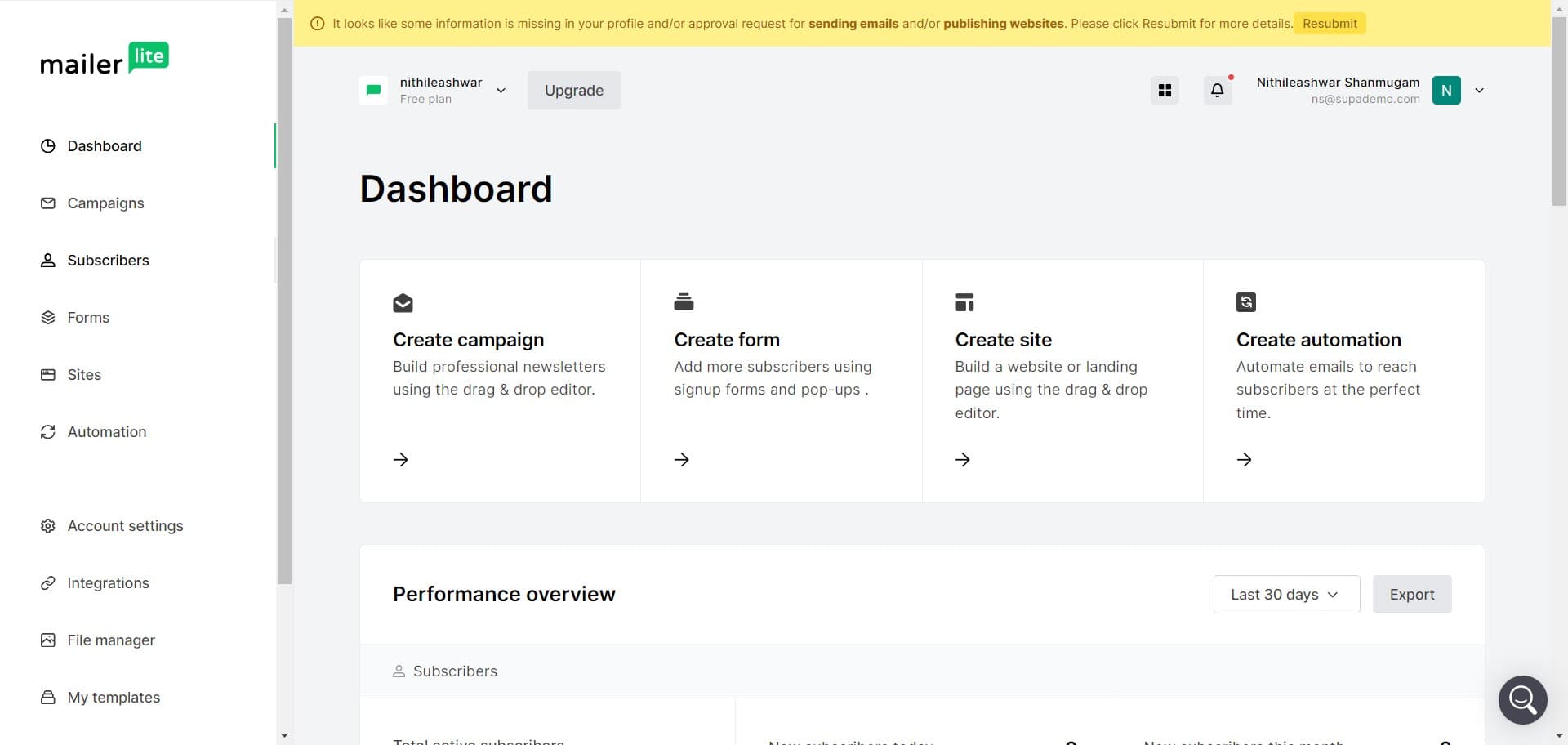
Click on the "Subscribers" tab in your MailerLite dashboard. This opens your complete subscriber database where you can view and manage all your contacts.
- 2
Open the filter options
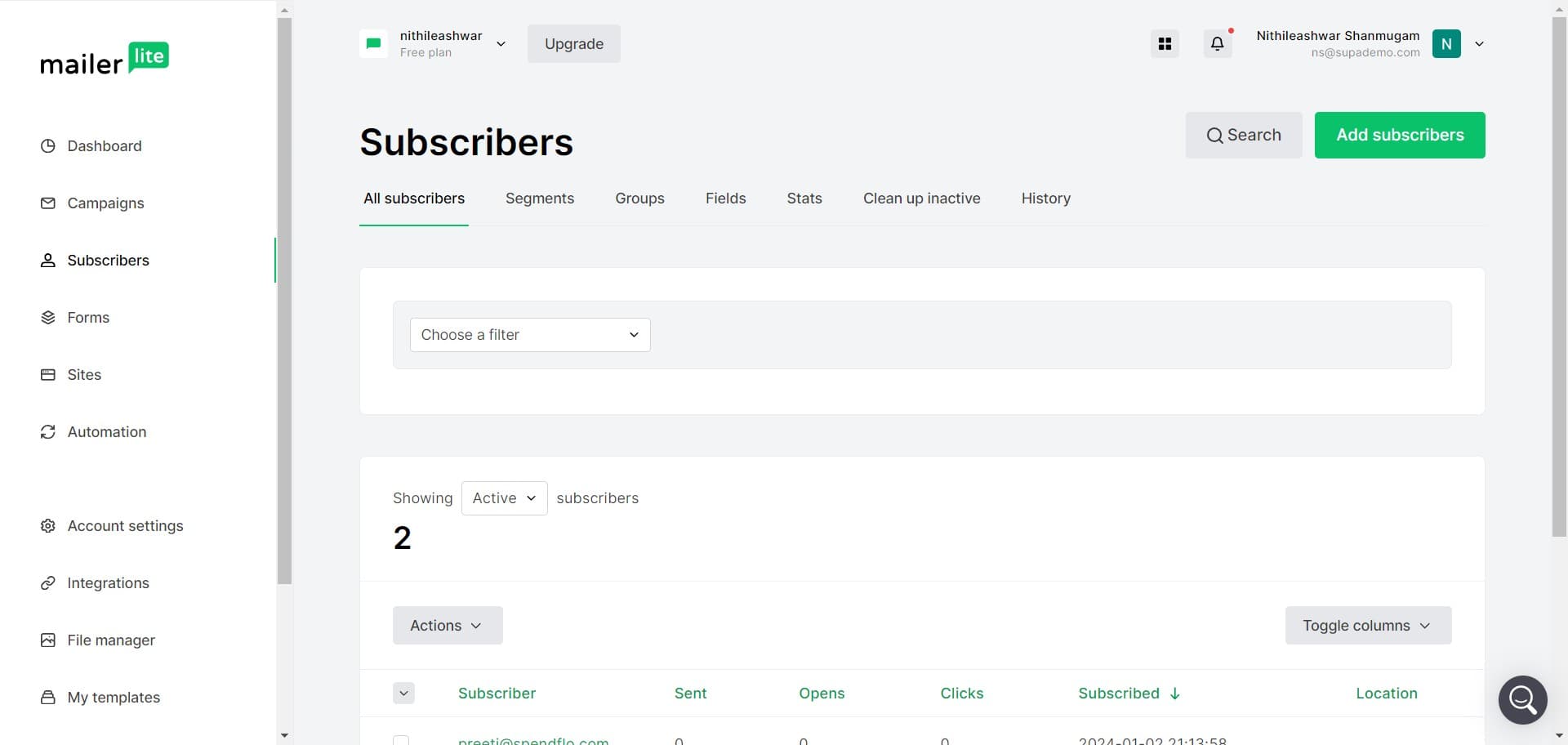
Click on "Choose a filter" to begin setting criteria for your segment. A menu of available filter options will appear, allowing you to narrow down your subscribers based on specific attributes.
- 3
Save filtered results as segment
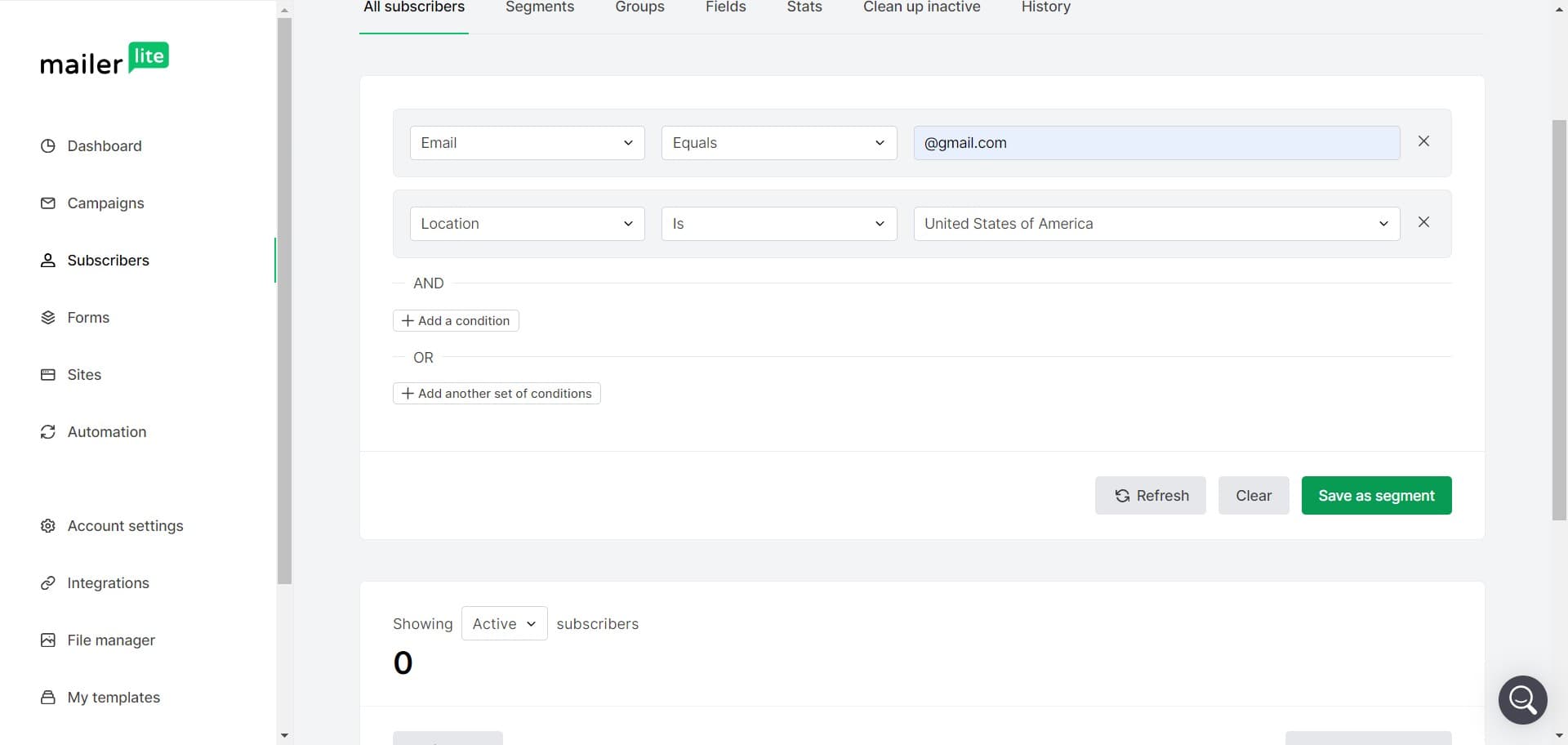
Click on "Save as segment" after you've applied your desired filters. This converts your current filtered view into a named segment that you can access and use repeatedly.
- 4
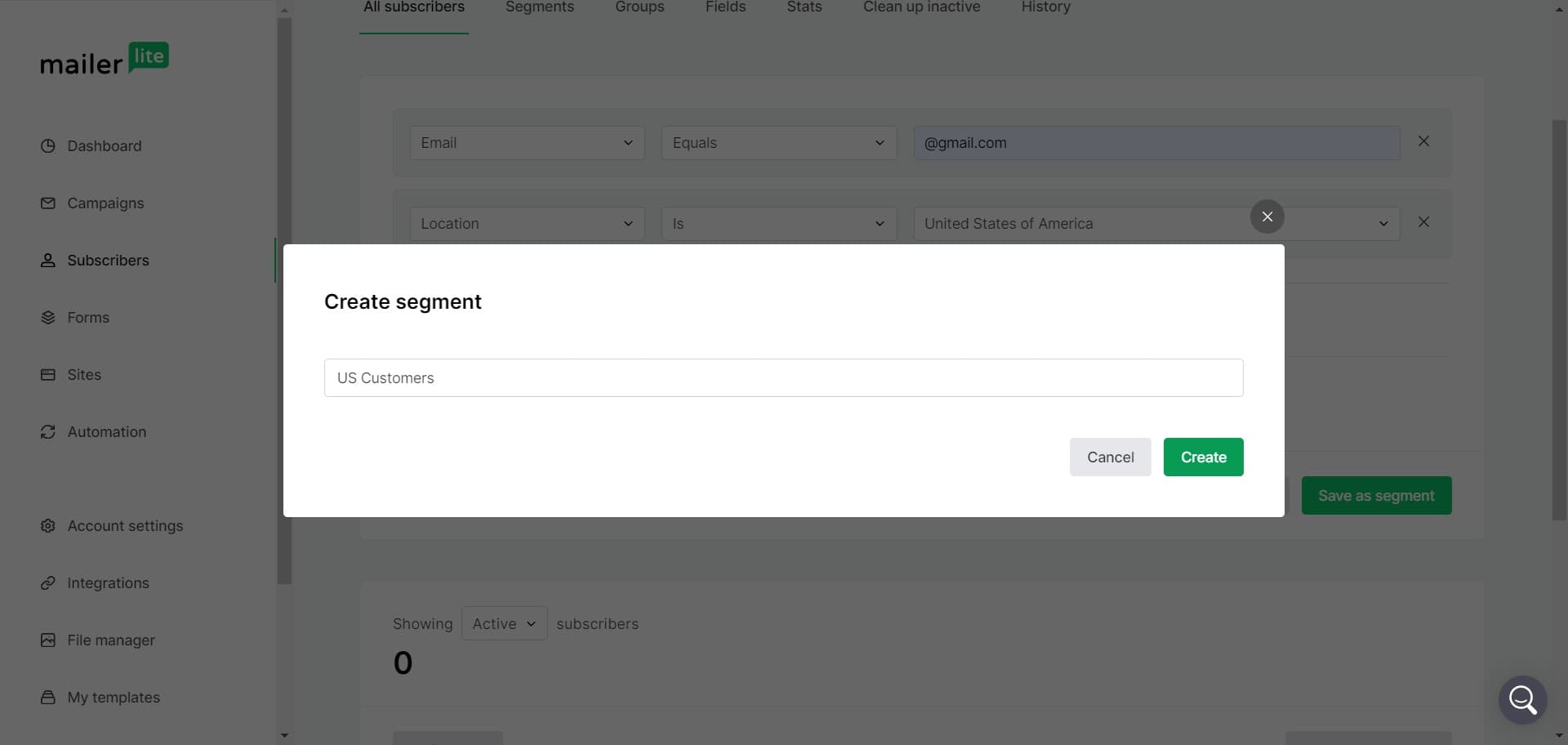
Enter segment details
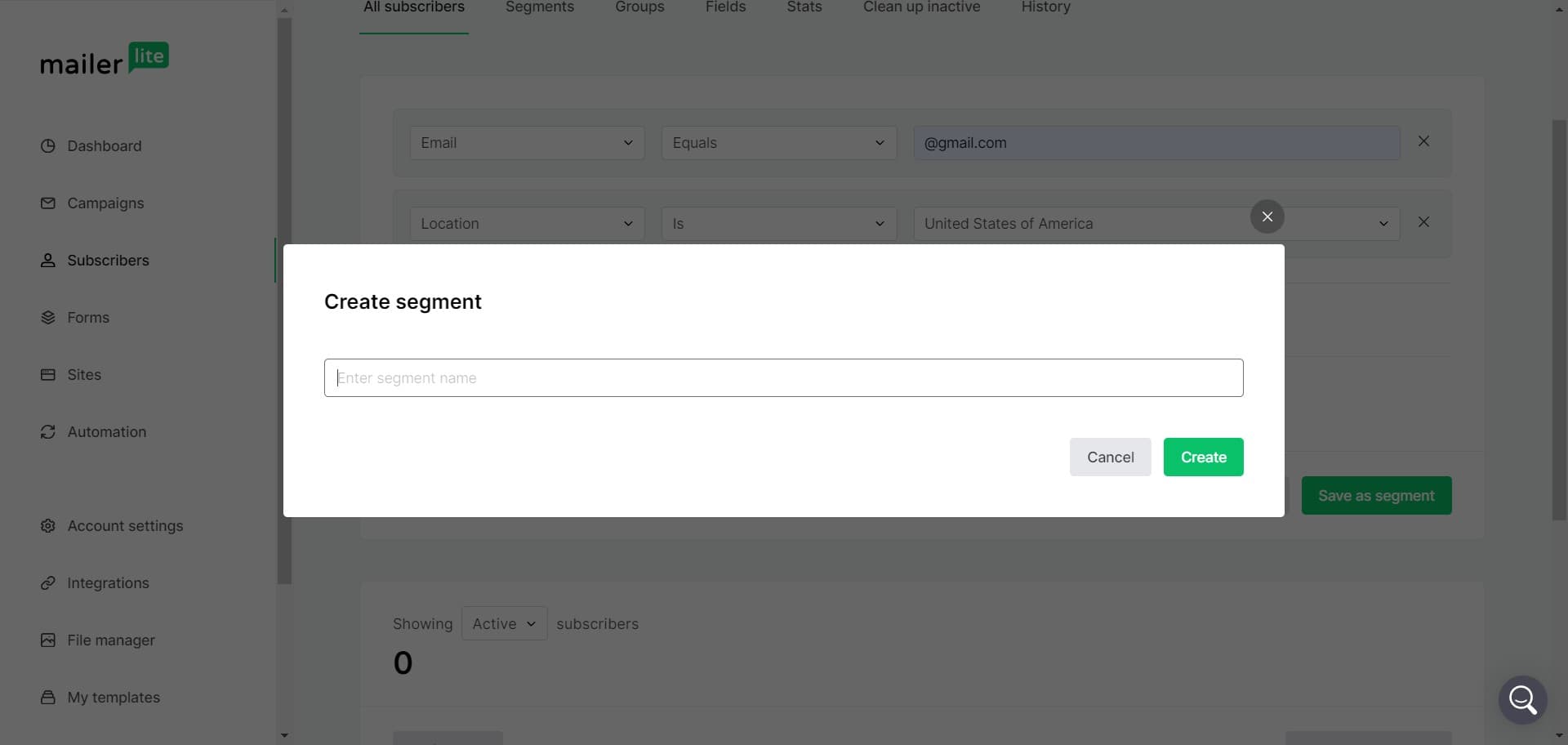
Complete the segment configuration by entering a name and any additional information. Make sure your segment name is descriptive so you can easily identify it later.
- 5
Finalize segment creation
Click on "Create" to save your segment. Your new segment is now available in your MailerLite account and ready to be used for targeted campaigns.
- 6
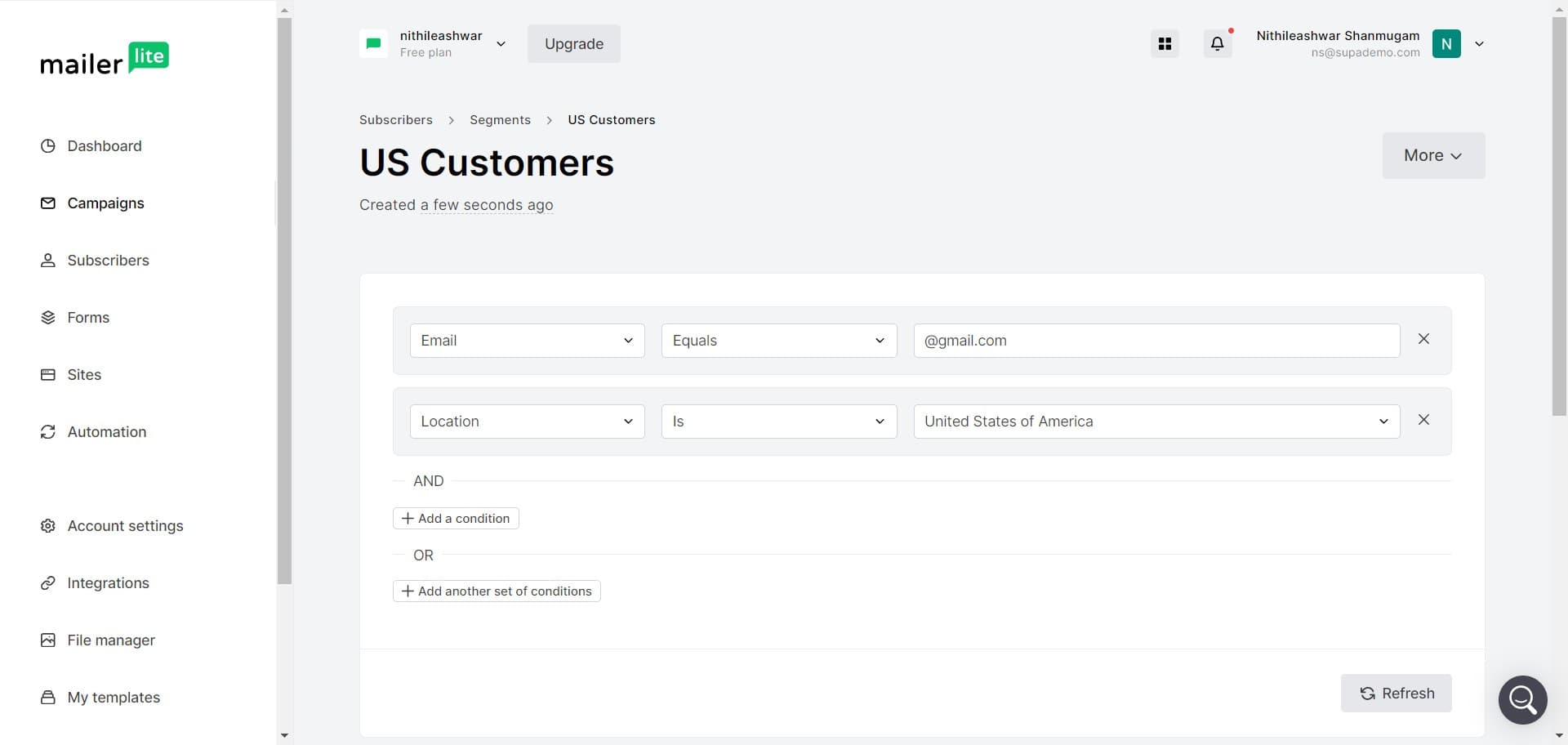
Navigate to campaigns section
Click on "Campaigns" to access your email campaign management area. This is where you'll use your newly created segment to send targeted messages.
- 7
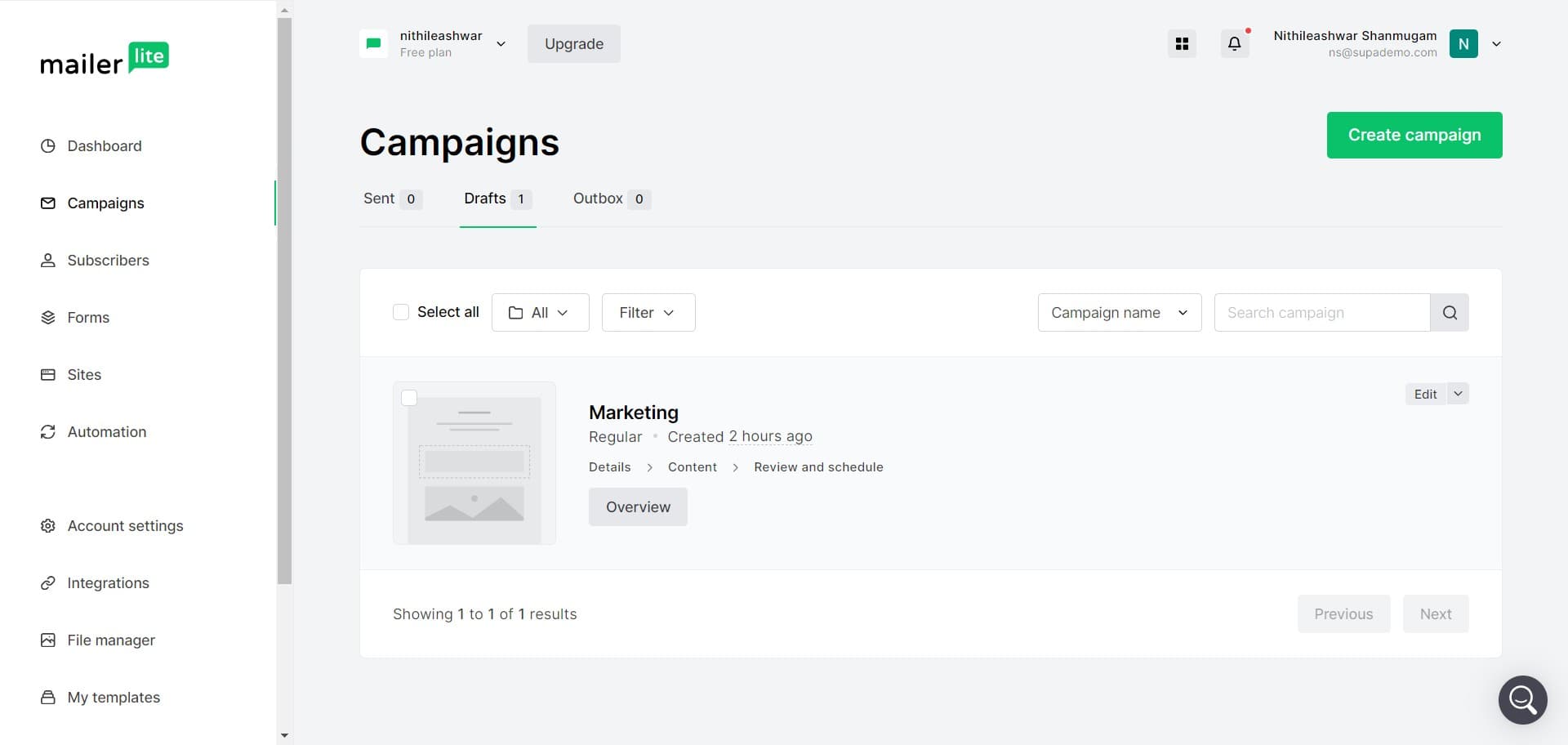
Open campaign editor
Click on "Edit" to open the campaign you want to customize. This allows you to modify campaign content and recipient targeting.
- 8
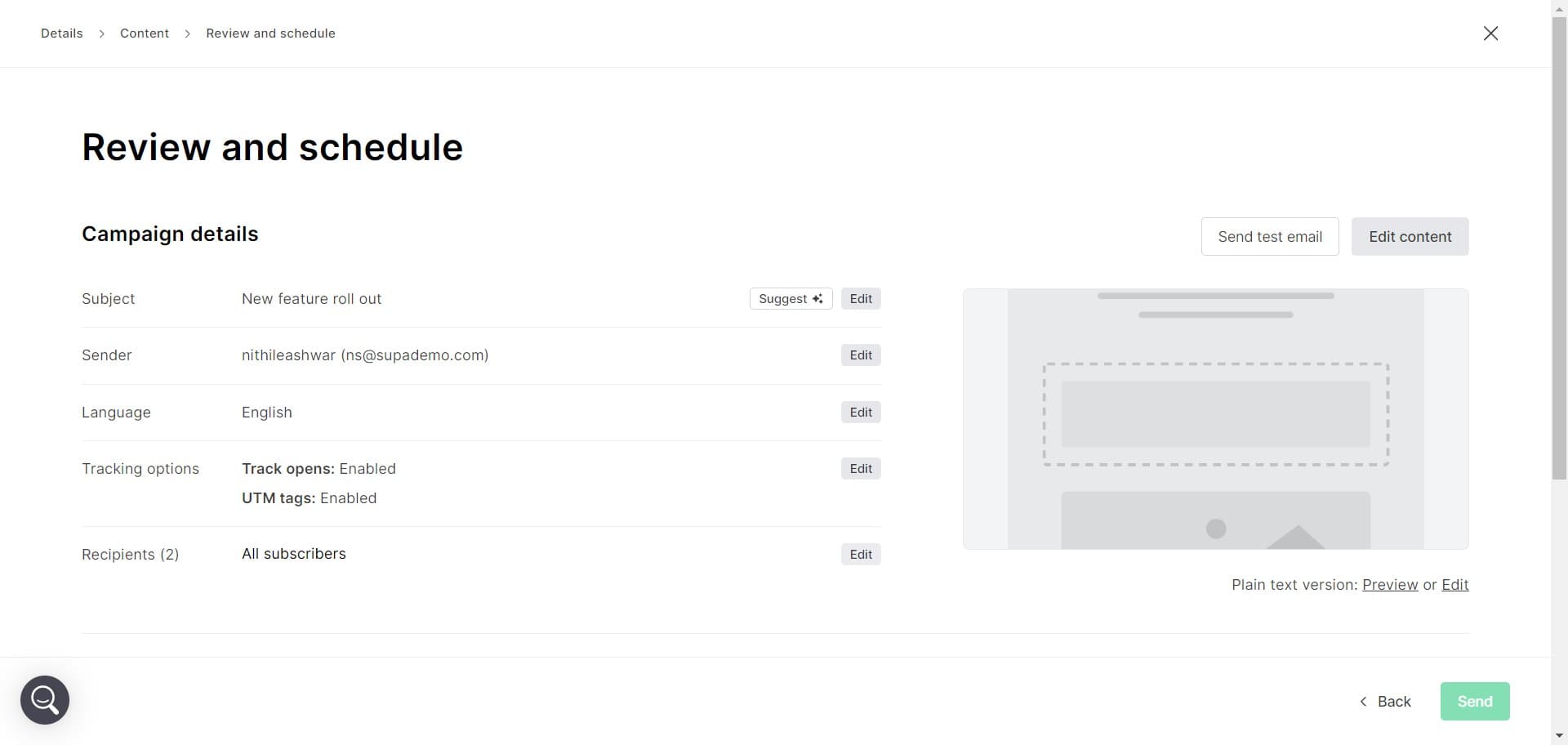
Access advanced campaign settings
Click on the second "Edit" option to access additional campaign configuration options. This section typically contains more detailed targeting and delivery settings.
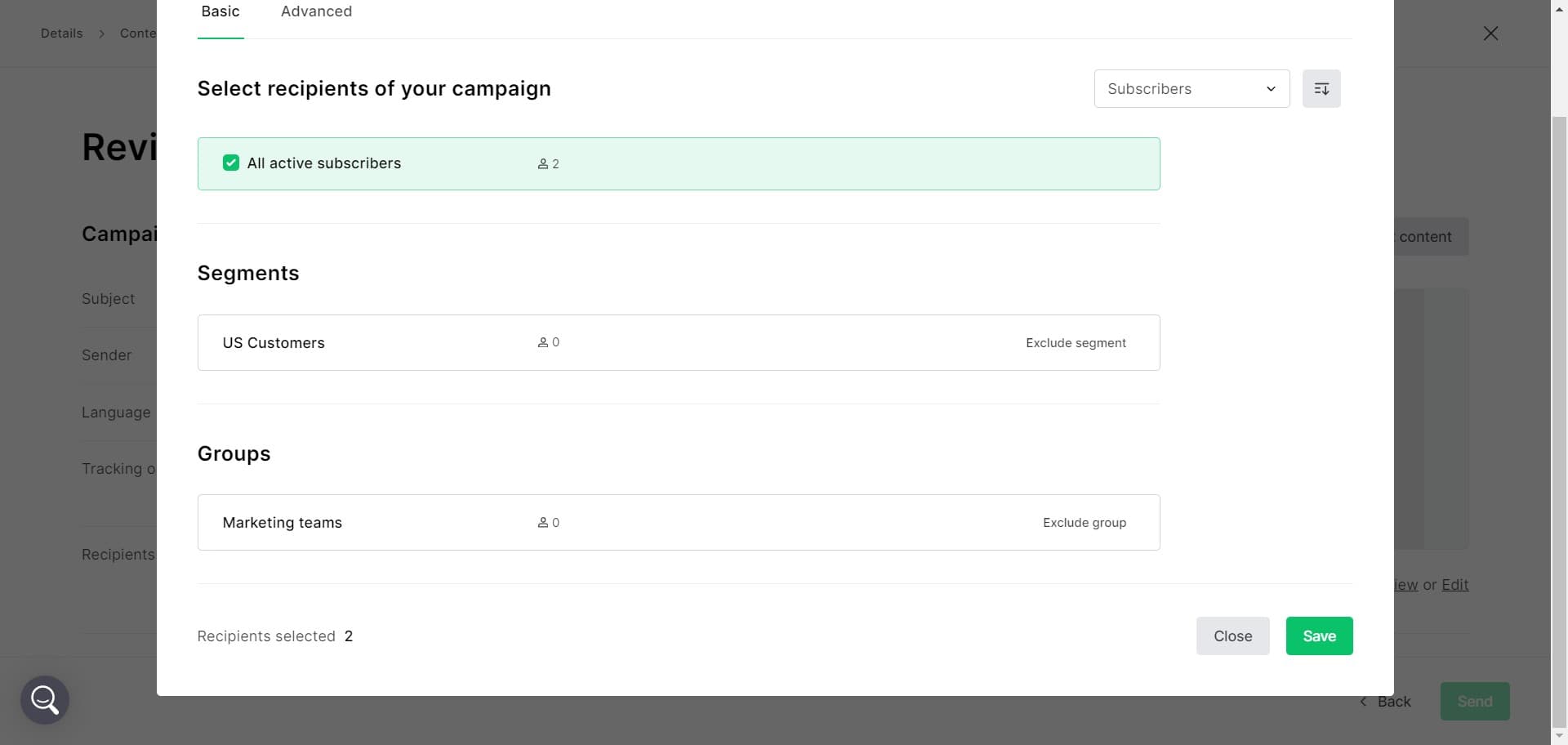
- 9
Configure first setting
Click the indicated area to adjust your first campaign parameter. This may relate to recipient targeting, scheduling, or campaign behavior.
- 10
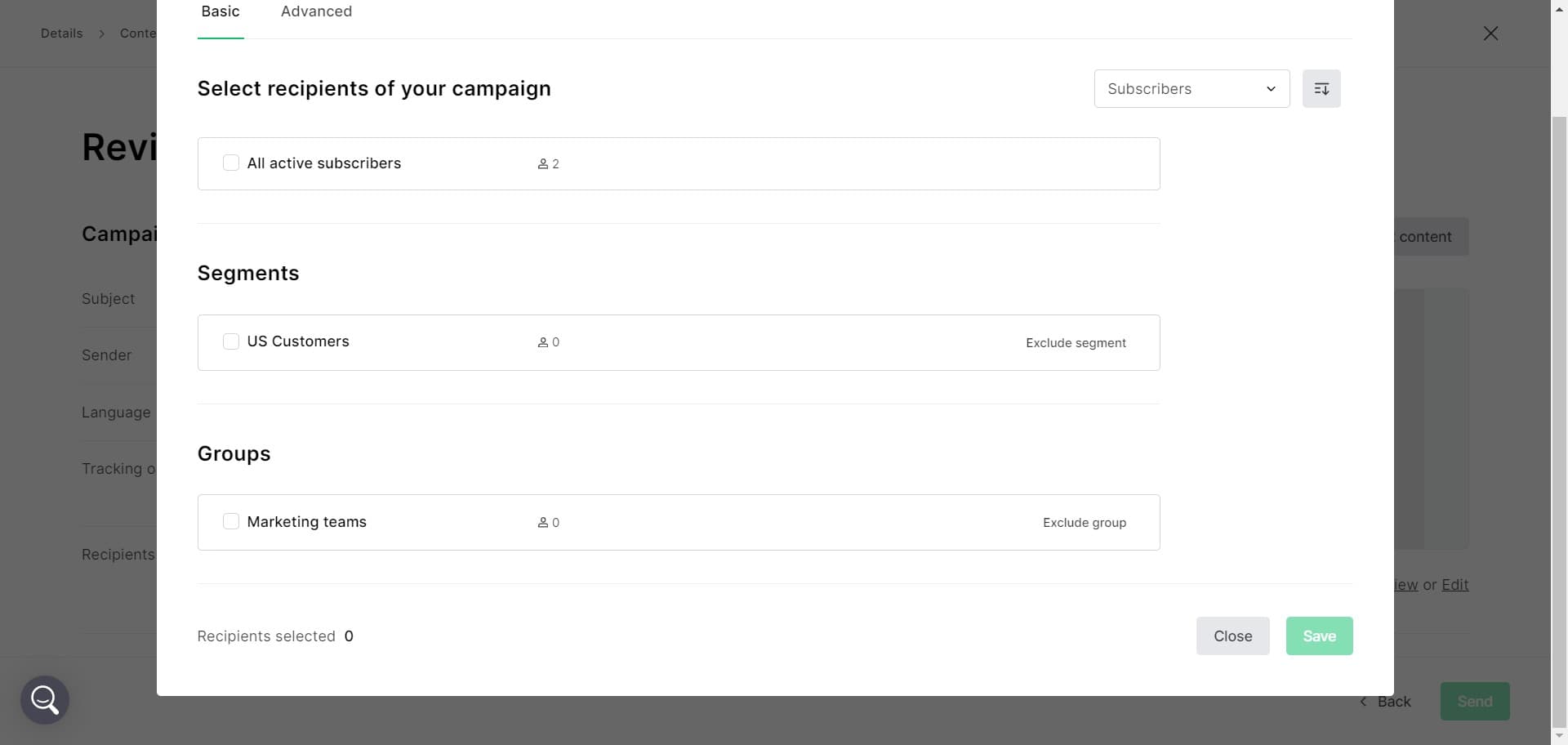
Configure second setting
Click the next indicated area to set your second campaign parameter. These settings work together to ensure your campaign reaches the right segment with the right message.
- 11
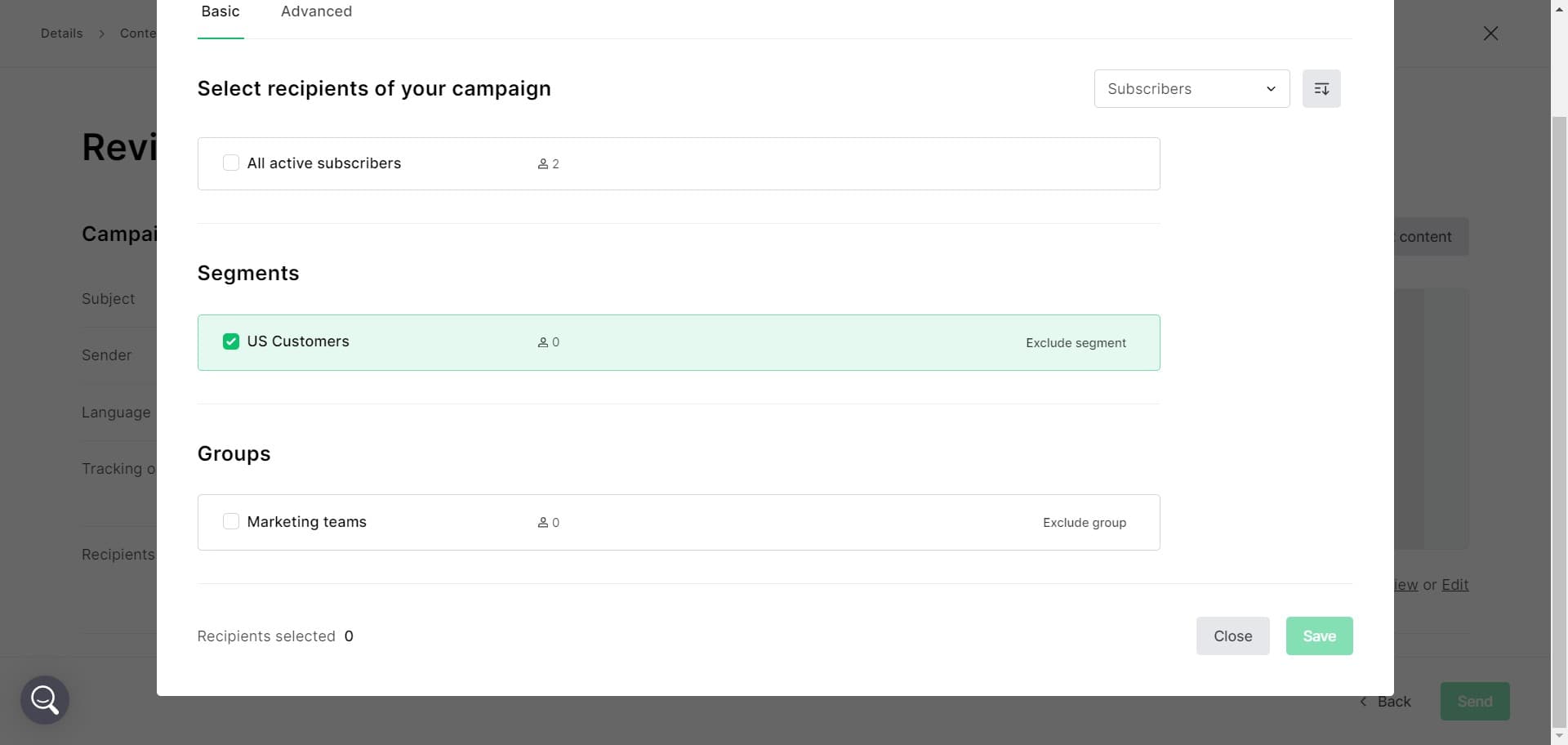
Save campaign changes
Click "Close" followed by "Save" to finalize and store all your campaign modifications. Your campaign is now configured with your segment and ready to send.
Frequently asked questions
Common questions about how to create a segment in mailerlite.
MailerLite offers a variety of filters including subscriber engagement (opens, clicks), demographics, custom fields, and list status. You can combine multiple filters to create highly specific segments that match your campaign goals. The available filters depend on the data you've collected about your subscribers.
Yes, you can modify segment filters at any time by accessing the segment settings. Changes to filter criteria will automatically update the subscribers included in that segment, and any future campaigns using that segment will target the updated audience.
MailerLite allows you to create multiple segments without a specific limit. You can organize segments by campaign type, subscriber behavior, or any other criteria relevant to your marketing strategy.
Absolutely. Once you've created a segment, you can use it in as many campaigns as needed. This makes it easy to consistently target the same audience across different messages and campaigns.
If you delete a subscriber who was in a segment, they will be automatically removed from that segment as well. The segment definition itself remains unchanged and will continue to apply to all remaining subscribers who meet the filter criteria.