How to use the SEMRush position tracking tool

Semrush's Position Tracking tool allows you to monitor your website's keyword rankings across search engines in real time. This feature is essential for understanding your SEO performance and tracking the impact of your optimization efforts over time.
Quick summary
In this tutorial, you'll learn how to set up a position tracking project in Semrush, configure your target keywords, and begin monitoring your search rankings. By the end, you'll have a fully operational tracking campaign that provides ongoing insights into your keyword performance.
Why this matters
Tracking keyword positions is critical for SEO success because it reveals whether your optimization efforts are moving the needle. Regular monitoring helps you identify which keywords are improving, which are stagnating, and where to focus your next round of optimizations to stay competitive.
Step-by-step guide
- 1
Navigate to Position Tracking
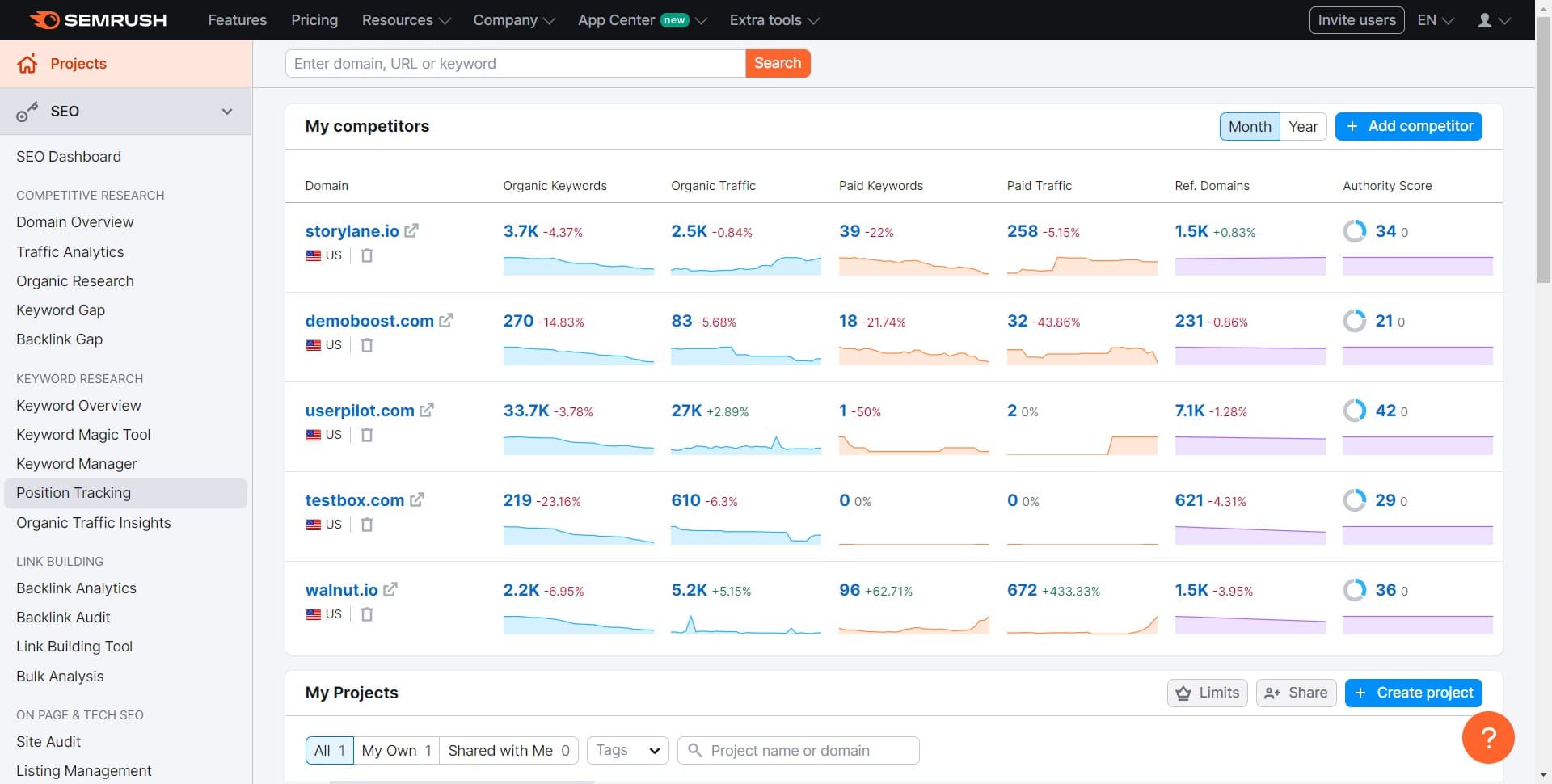
From your Semrush dashboard, click on the Position Tracking tool from the main menu. This opens the Position Tracking module where you can manage all your ranking projects.
- 2
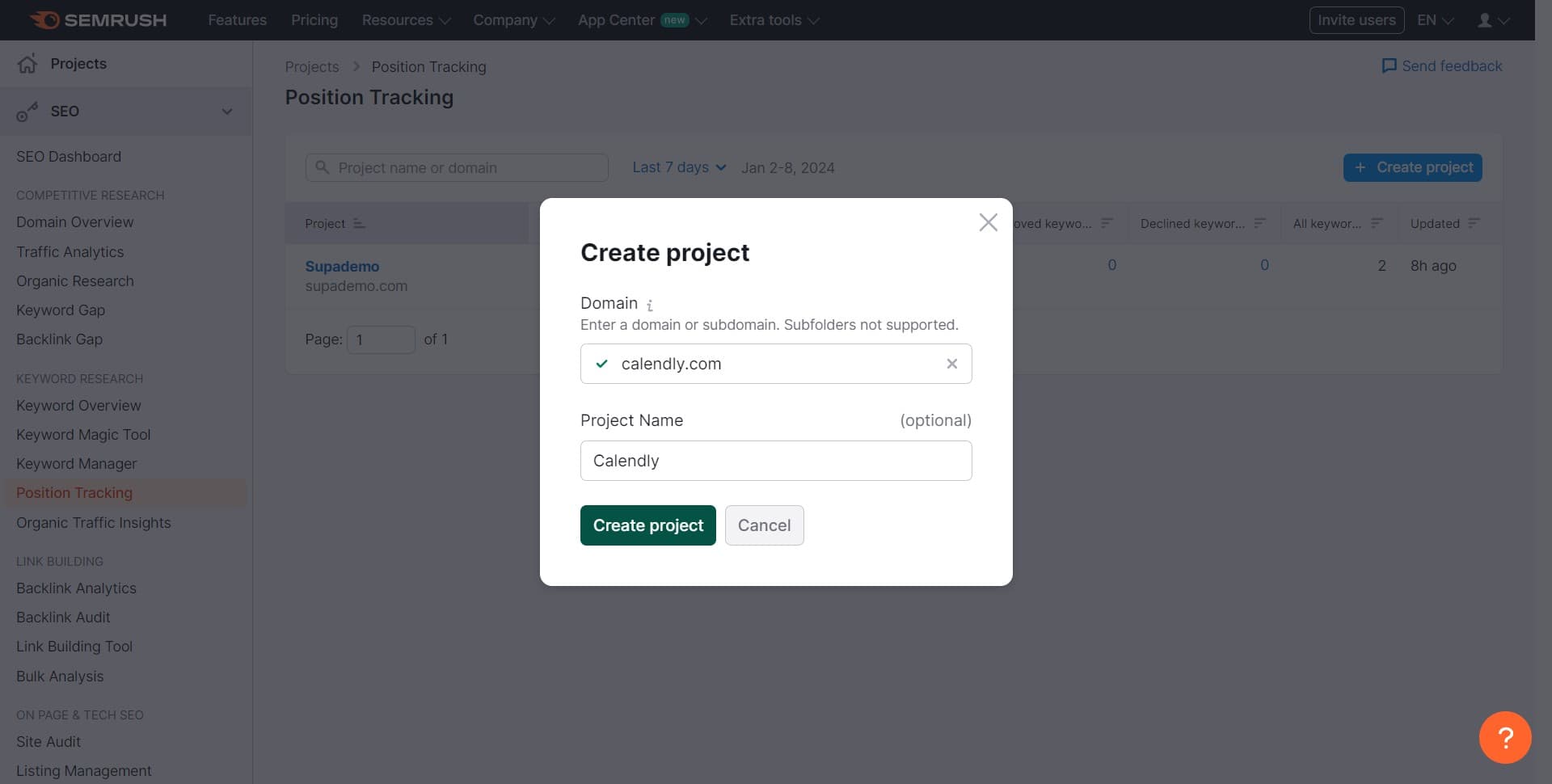
Click Create Project
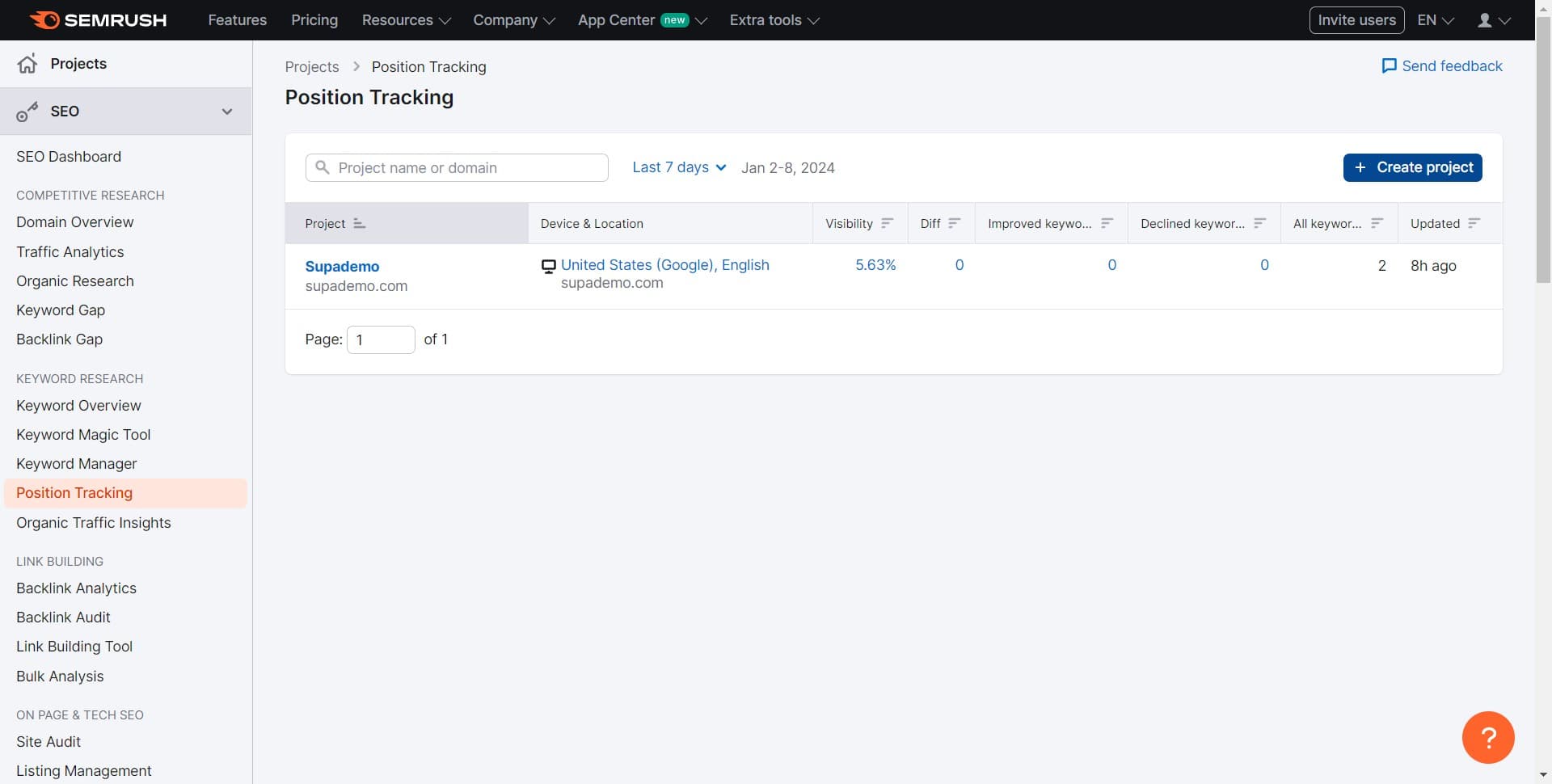
On the Position Tracking page, locate and click the Create Project button. This initiates the setup wizard for your new tracking campaign.
- 3
Configure Project Settings
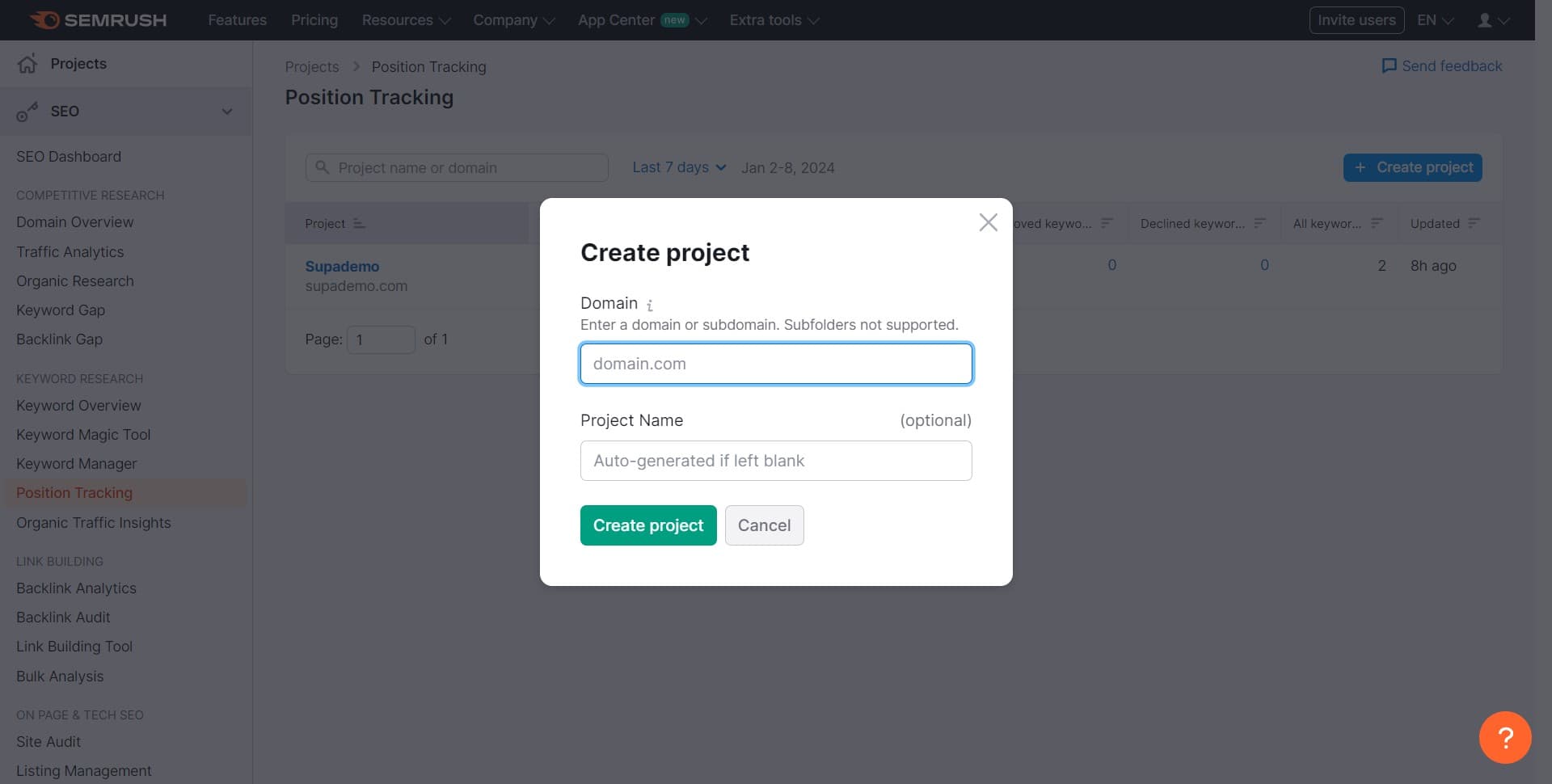
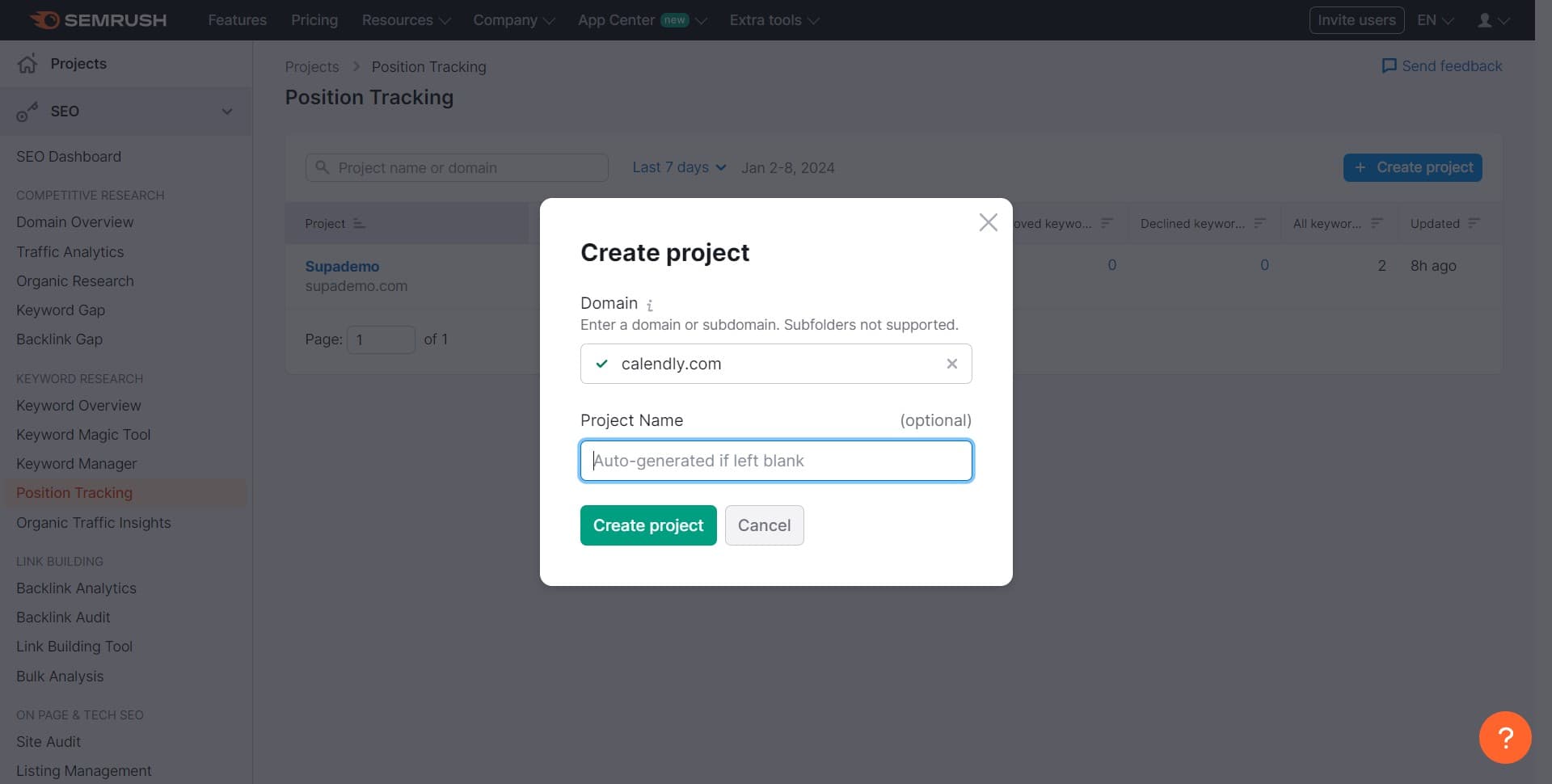
In the dialog that appears, enter your project details such as project name and domain. This step establishes the foundation for your tracking campaign.
- 4
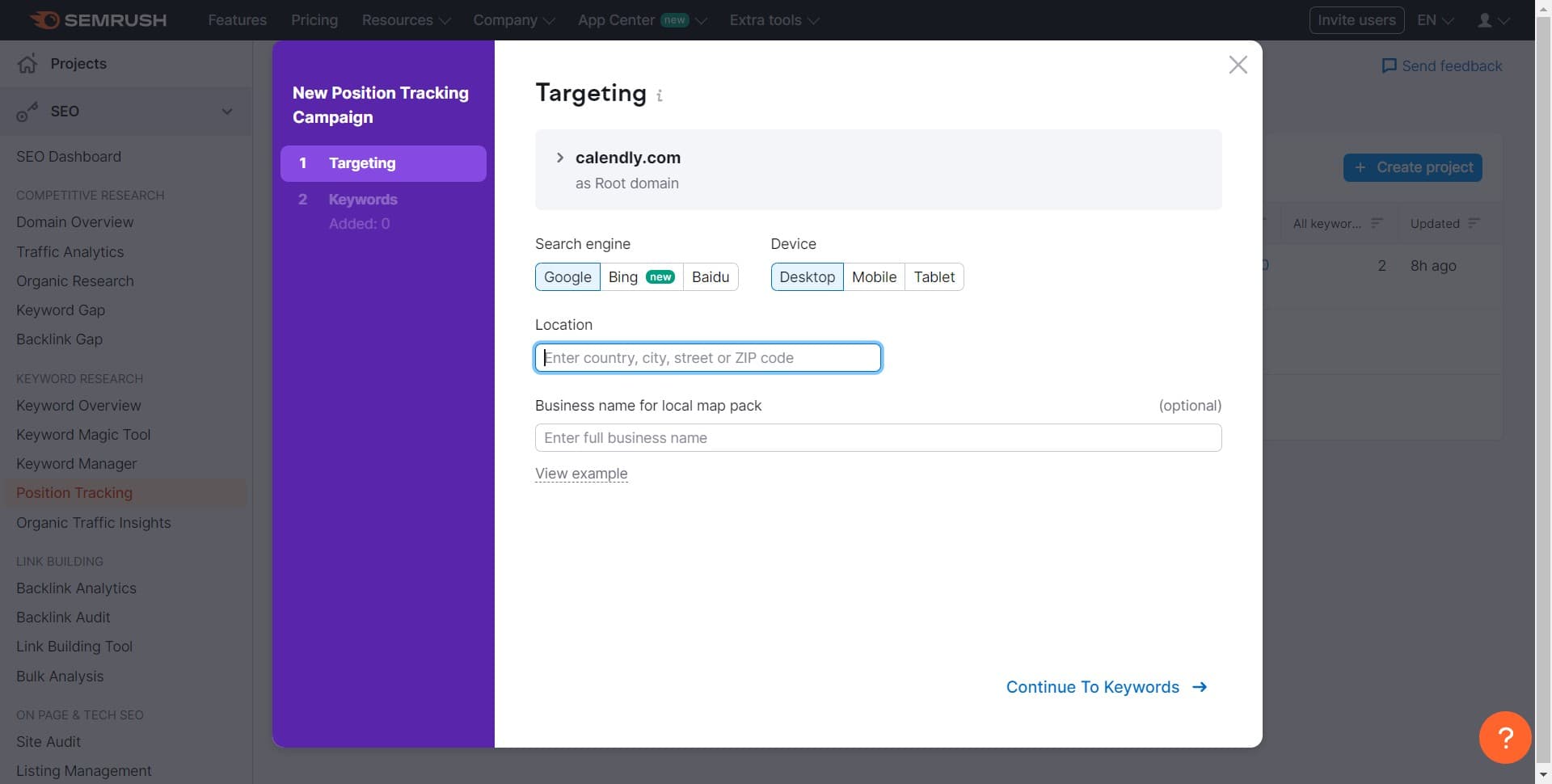
Select Search Engines and Location
Choose the search engines you want to track (Google, Bing, etc.) and specify your target geographic location. These settings ensure your rankings are tracked in the markets that matter most to your business.
- 5
Finalize Project Creation
Click Create Project to save your configuration and proceed to the next phase of setup. You'll now move into the keyword configuration section.
- 6
Review Project Summary
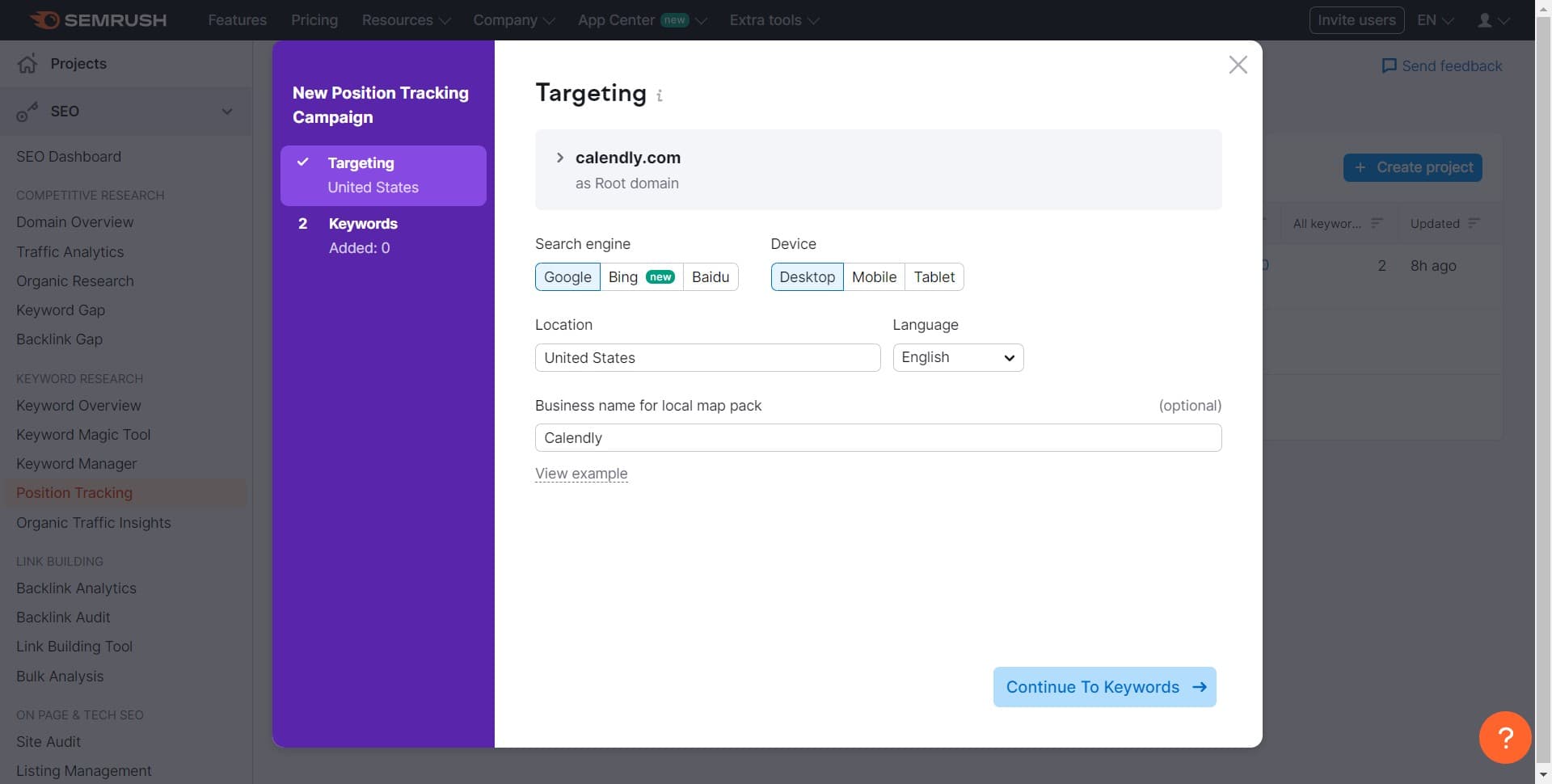
Semrush displays a summary of your newly created project with all the settings you've configured. Review this information to ensure everything is correct before continuing.
- 7
Proceed to Keywords Setup
Click Continue to Keywords to advance to the keyword addition phase. This section allows you to specify which keywords you want to track.
- 8
Access Keyword Input Options
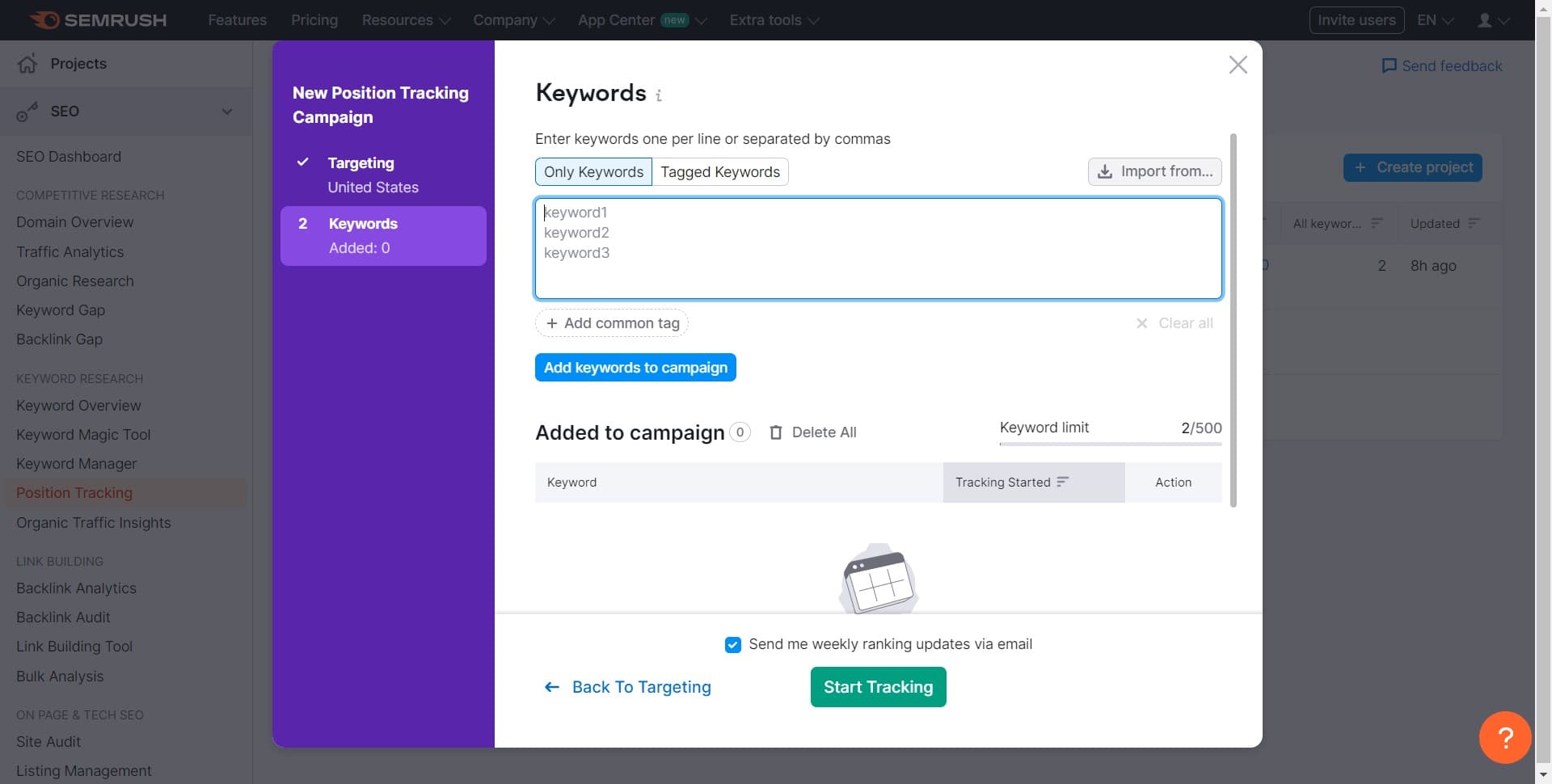
A menu appears with different methods for adding keywords to your campaign. You can choose to manually enter them or import from a file.
- 9
Start Adding Keywords
Click Add Keywords to Campaign to begin entering the keywords you want to track. This opens the input interface where you can add multiple keywords at once.
- 10
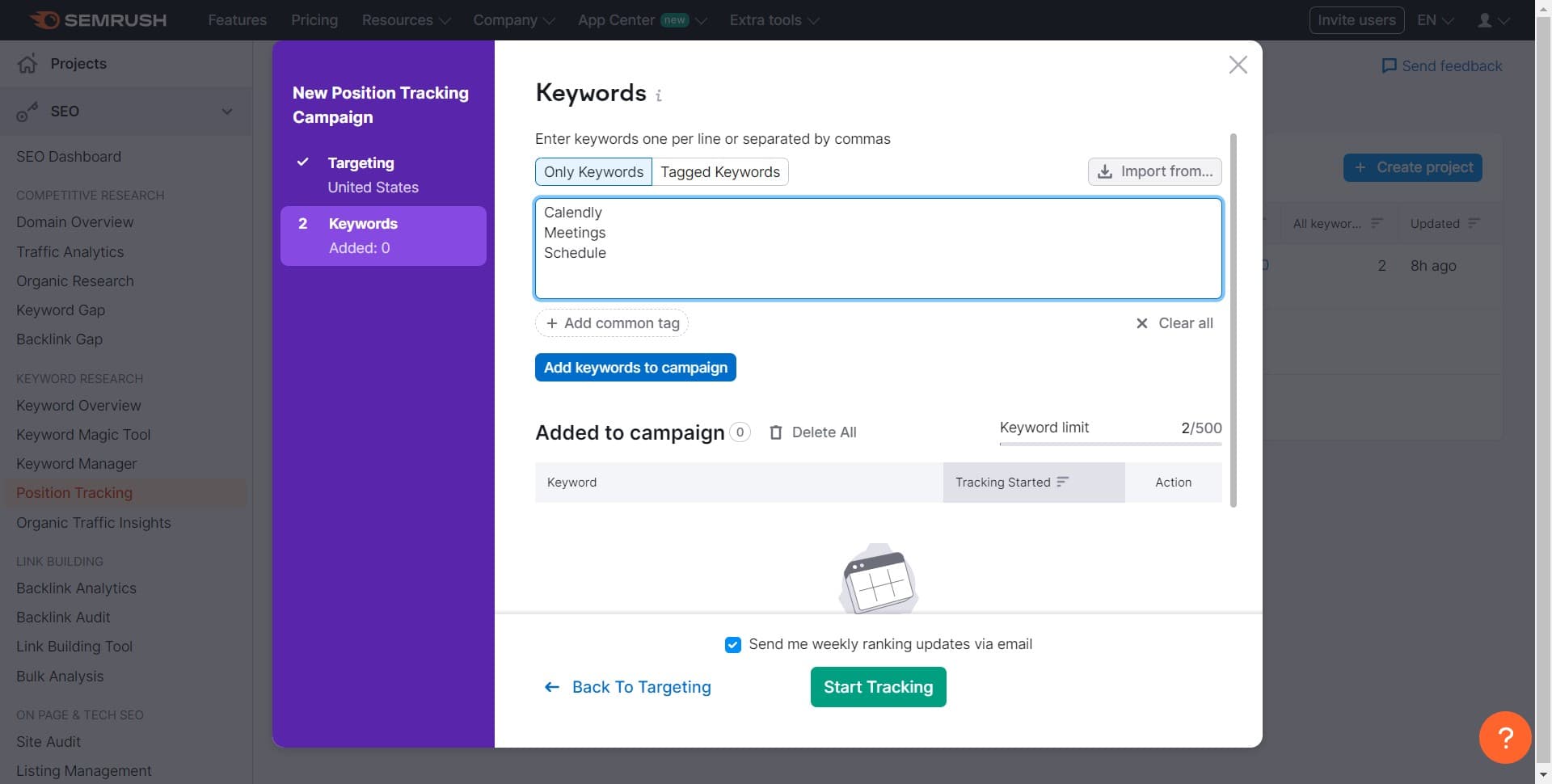
Enter Your Keywords
Click on the Enter Keywords input field and type the keywords you want to monitor. You can add one keyword per line.
- 11
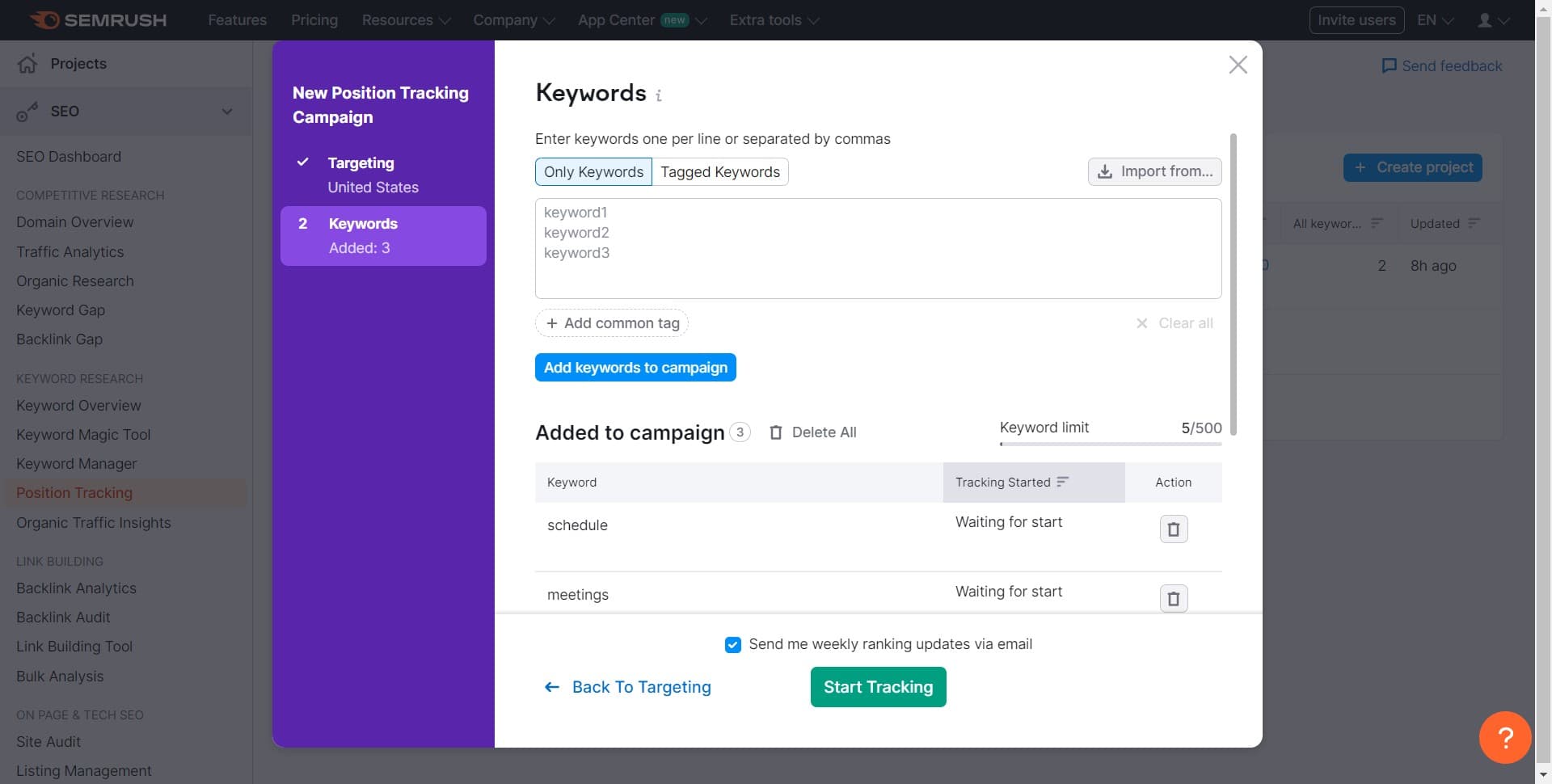
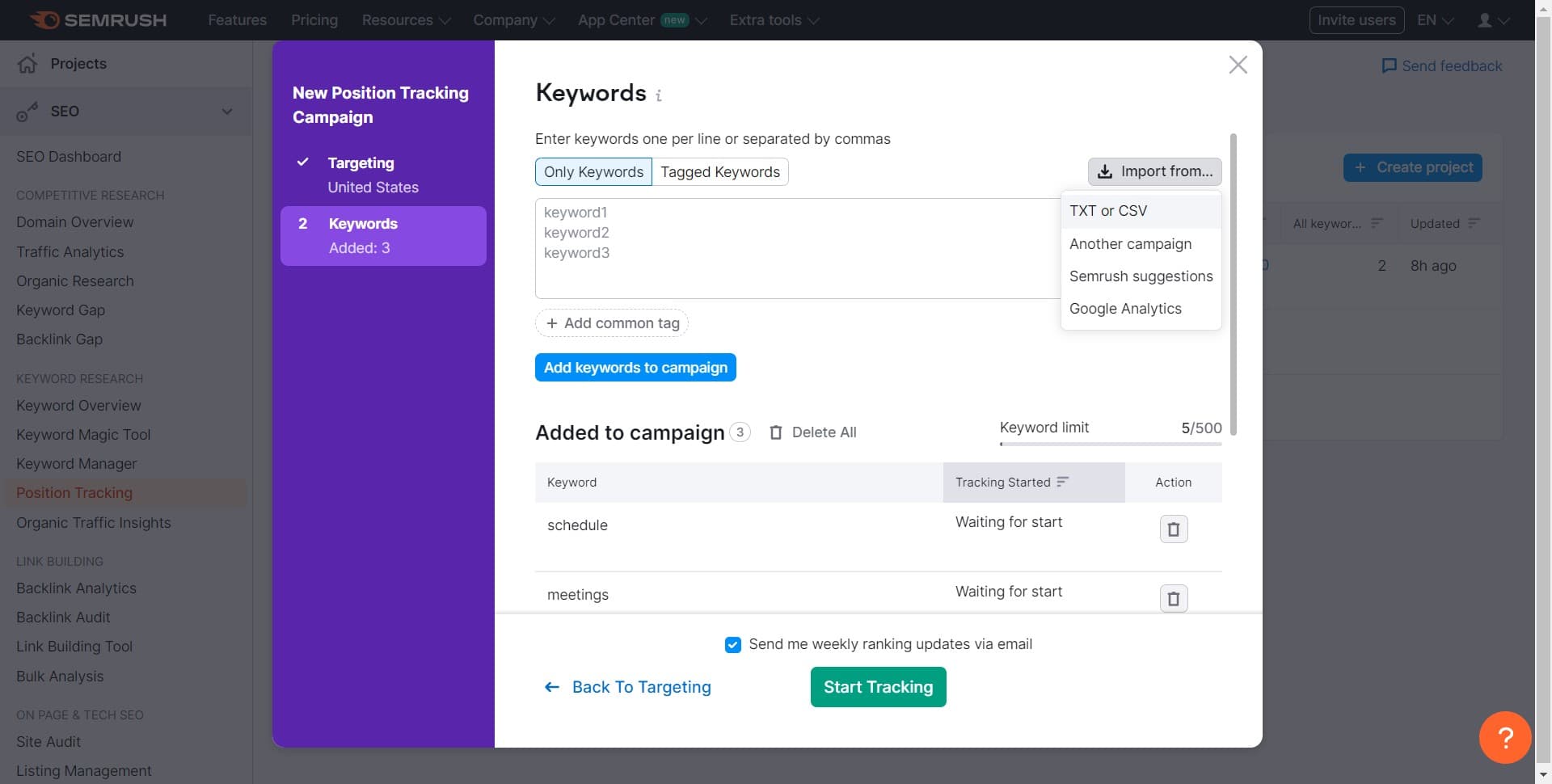
Import Keywords from File
Select the TXT or CSV option to import keywords from a file on your computer. This is useful if you have a large keyword list already prepared.
- 12
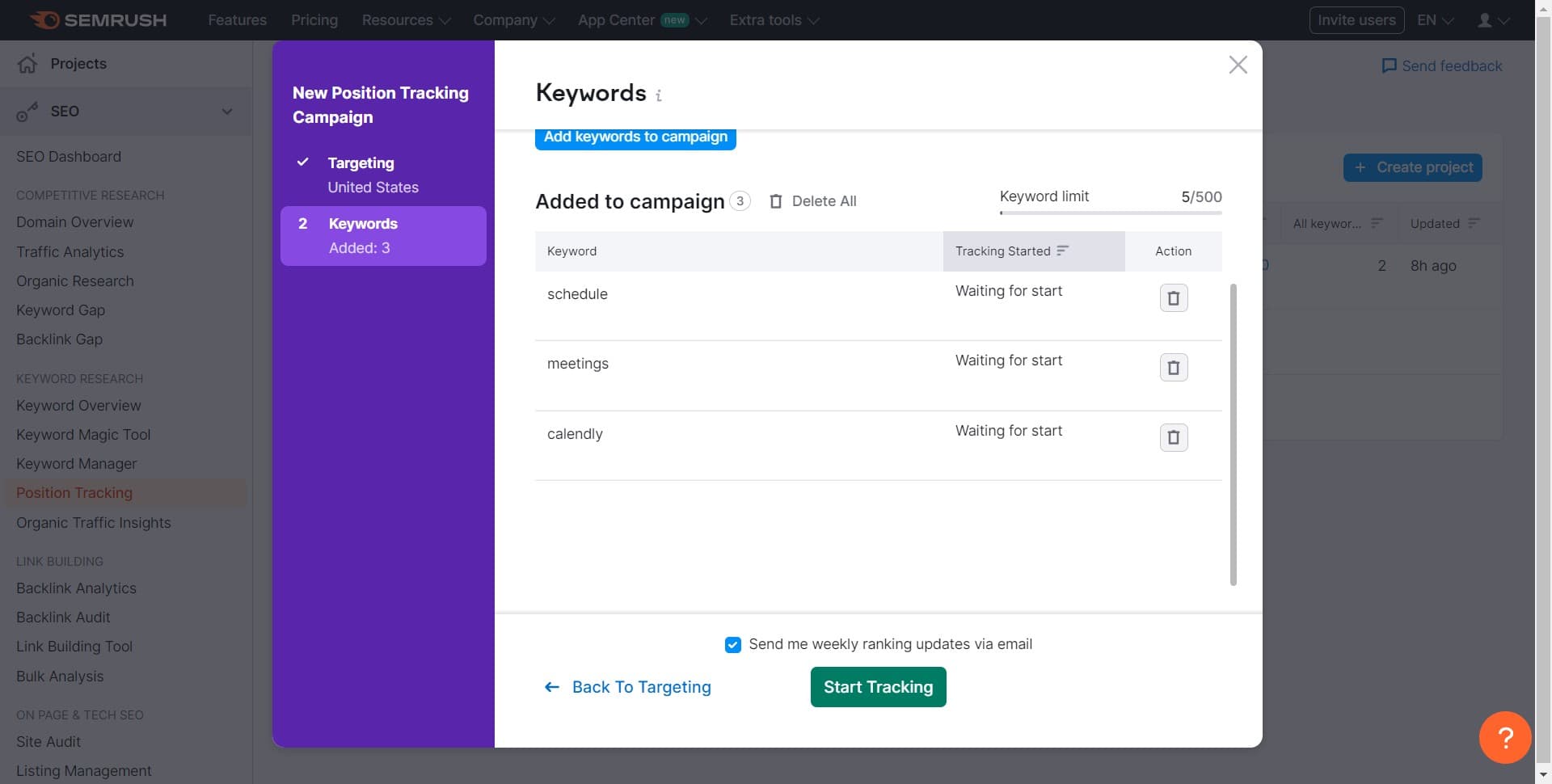
Begin Tracking Your Keywords
Click Start Tracking to activate your position tracking campaign. Semrush will now begin monitoring your keyword rankings and you'll start receiving regular performance updates.
Frequently asked questions
Common questions about how to use the semrush position tracking tool.
Semrush updates position tracking data on a daily basis for most campaigns. The exact update frequency may depend on your subscription plan and the number of keywords being tracked. You can check your account settings to see the specific update schedule for your projects.
No, each Position Tracking project is created for a single domain. If you need to track multiple domains, you'll need to create separate projects for each one. However, you can manage all your projects from the main Position Tracking dashboard.
The keyword limit depends on your Semrush subscription plan. Higher-tier plans typically allow you to track more keywords per project. Check your account dashboard or plan details to see your specific limit.
While Semrush doesn't directly import from Google Search Console or Analytics, you can export your keywords from those tools and then import them into Position Tracking as a TXT or CSV file. This gives you flexibility in managing your keyword list across platforms.
Position Tracking shows your current keyword rankings, ranking changes over time, and trends for each keyword. Green indicators typically mean your ranking improved, red means it declined, and gray means it stayed the same. Use this data to identify which keywords need optimization attention.