How to Add a Progress Bar in Typeform

Progress bars in Typeform help guide respondents through multi-page forms by showing how much of the survey remains. Adding a progress bar improves user experience and reduces form abandonment by setting clear expectations about completion time.
Quick summary
In this tutorial, you'll learn how to enable and customize a progress bar in Typeform to display respondent progress throughout your form. You'll discover where to find the progress bar settings and how to configure it to match your form's design and goals.
Why this matters
Progress bars are critical for longer forms because they reduce uncertainty and encourage completion. When respondents can see they're halfway through a form, they're more likely to finish rather than abandon it, leading to higher response rates and better data quality.
Step-by-step guide
- 1
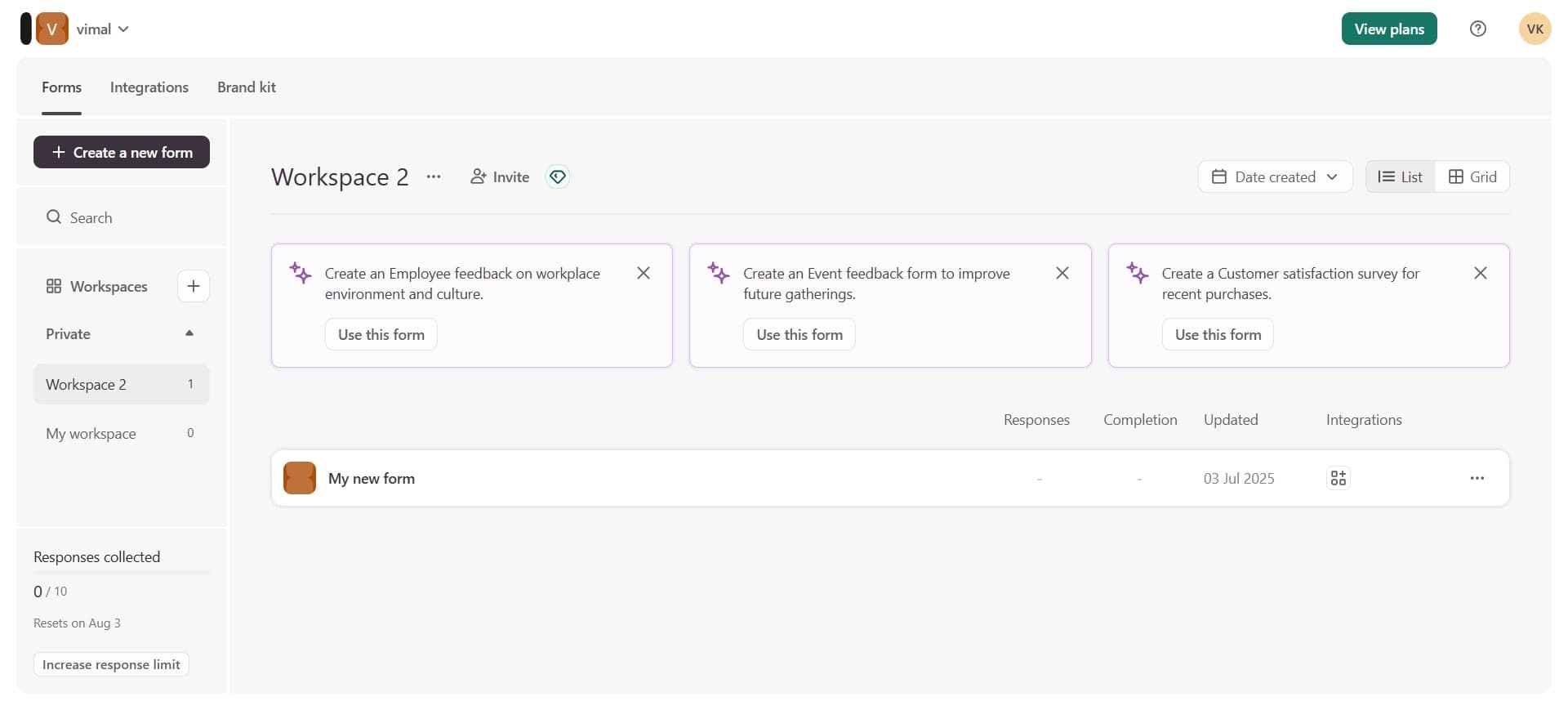
Open your Typeform workspace
Log into your Typeform account and navigate to the form you want to edit. Click on the form title to enter the editor view where you can modify form settings and structure.
- 2
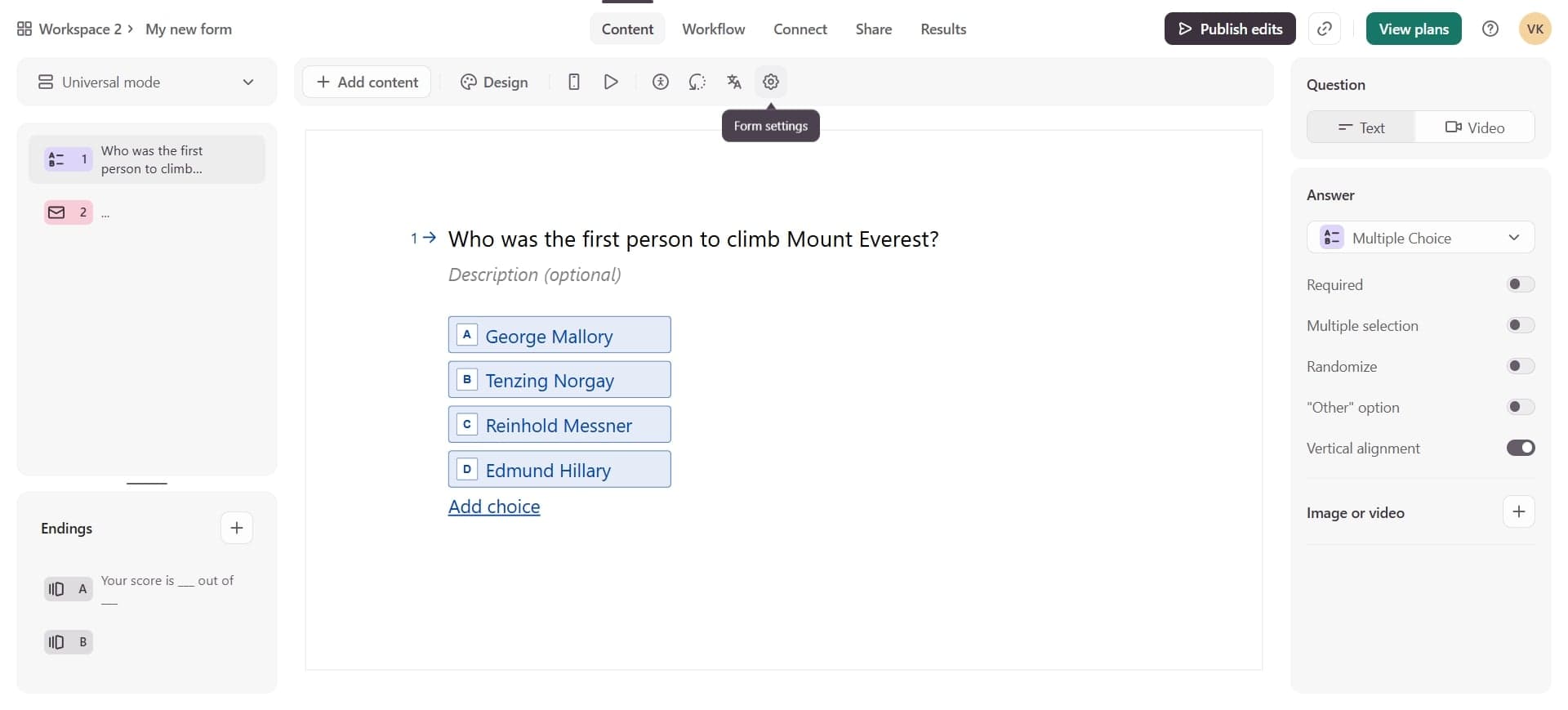
Access the Settings menu
Look for the Settings option in the left sidebar or top navigation menu. This menu contains all form-level controls, including display options and user experience features.
- 3
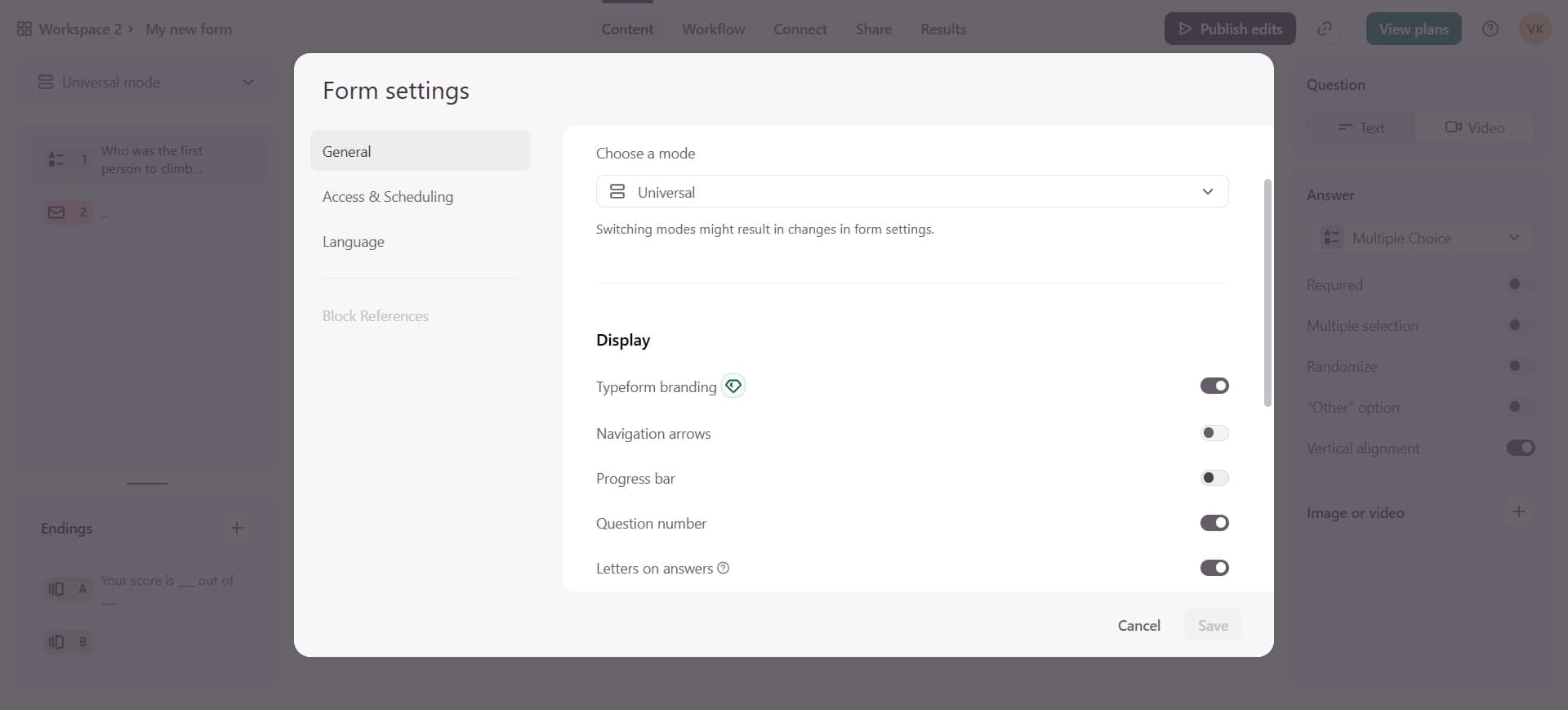
Locate the Progress Bar option
Scroll through the Settings panel to find the Progress Bar toggle or checkbox. This option controls whether your form displays a visual progress indicator to respondents.
- 4
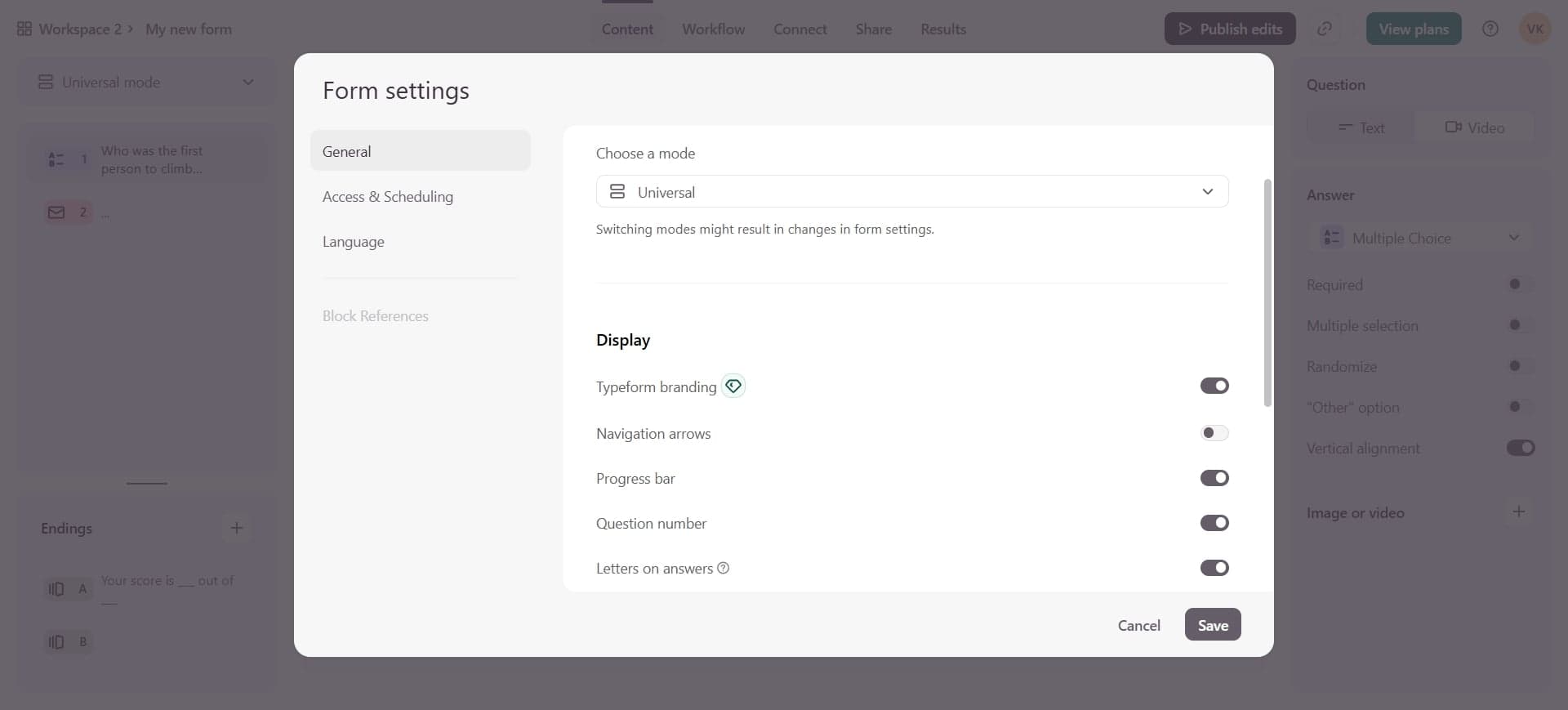
Enable and customize the progress bar
Toggle the Progress Bar setting on to activate it for your form. You may see additional options to customize the bar's style, position, or color depending on your Typeform plan. Save your changes when complete.
Frequently asked questions
Common questions about how to add a progress bar in typeform.
The level of customization available depends on your Typeform plan. Premium and higher-tier plans typically offer more styling options, allowing you to match the progress bar to your brand colors and form design. Check your current plan's features in the Settings menu.
Yes, Typeform's progress bar is responsive and displays on mobile devices as well as desktops. The bar adjusts its layout to fit smaller screens while maintaining functionality and visibility for mobile respondents.
The progress bar counts all pages or questions in your form, including text fields, multiple choice, rating scales, and other question types. It provides an overall completion percentage regardless of question format.
The progress bar setting applies to your entire form and cannot be disabled for individual questions or sections. If you want different respondent experiences, you would need to create separate forms with different progress bar settings.
Typeform calculates progress based on the number of pages or questions completed divided by the total number in your form. The percentage updates as respondents move through each question, giving them real-time feedback on their completion status.