How to Collect Email Addresses in Typeform

Typeform makes it easy to collect email addresses from respondents through customizable forms and surveys. Whether you're building a mailing list, qualifying leads, or gathering contact information, Typeform's email collection features streamline the process without requiring coding.
Quick summary
In this tutorial, you'll learn how to set up email collection in Typeform by creating a form, adding an email field, configuring field settings, and testing your form to ensure it captures contact information correctly.
Why this matters
Collecting email addresses through forms is essential for building engaged audiences, nurturing leads, and maintaining direct communication channels with your customers. A well-configured email field ensures you capture valid addresses and can follow up effectively with respondents.
Step-by-step guide
- 1
Log in to your Typeform account
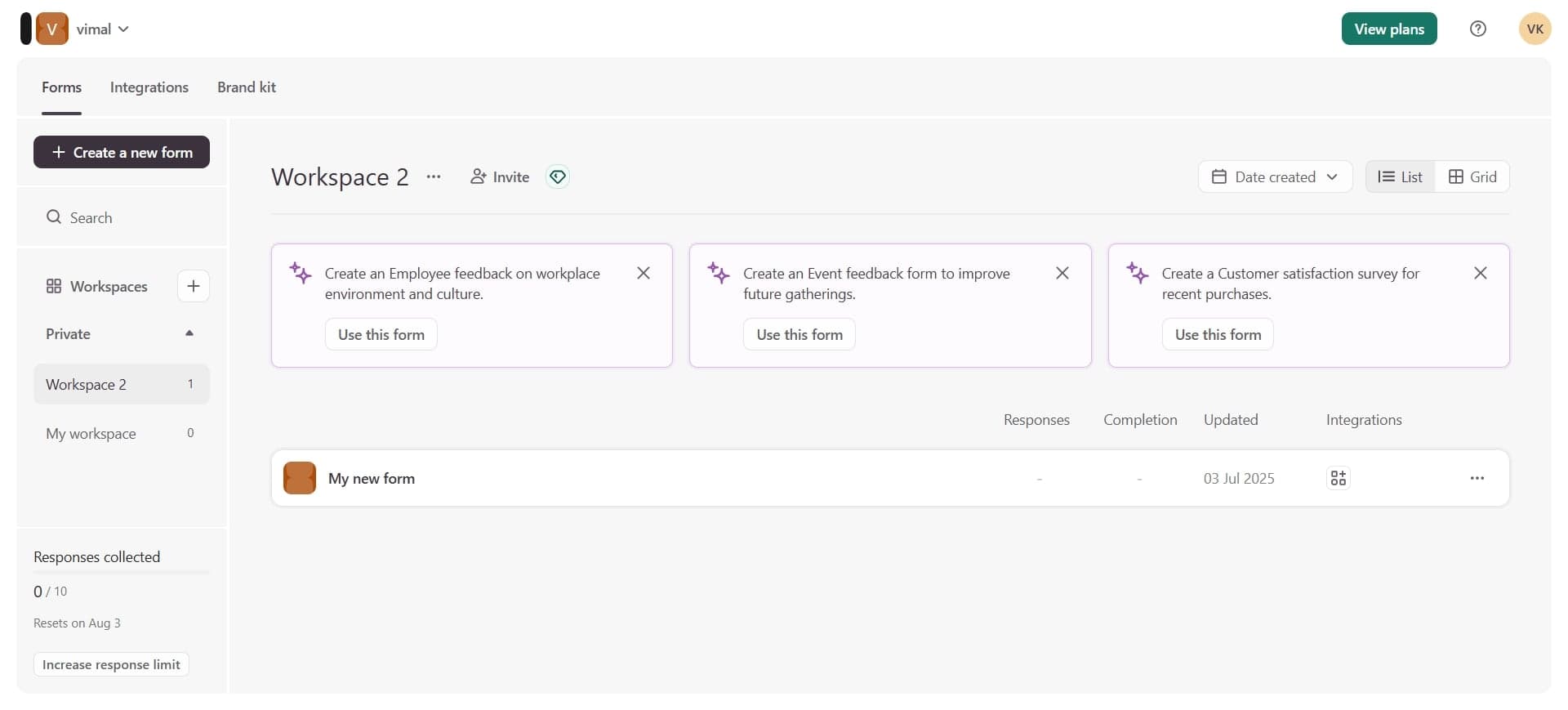
Navigate to Typeform.com and sign in with your credentials. You'll be taken to your dashboard where you can create new forms or access existing ones.
- 2
Create a new form or open existing one
Click the 'Create' button to start a new form, or select an existing form from your dashboard. Choose a template or start blank depending on your needs.
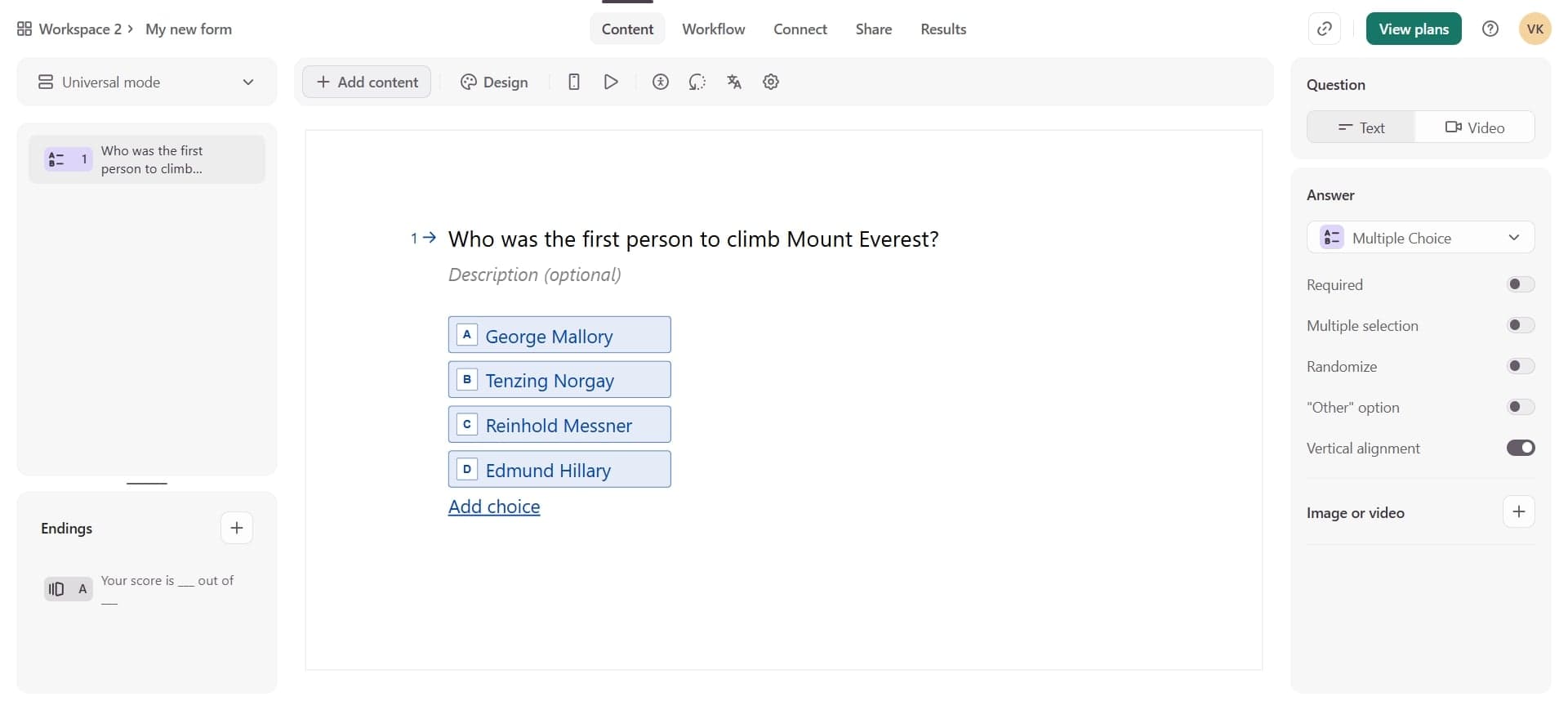
- 3
Add an email field to your form
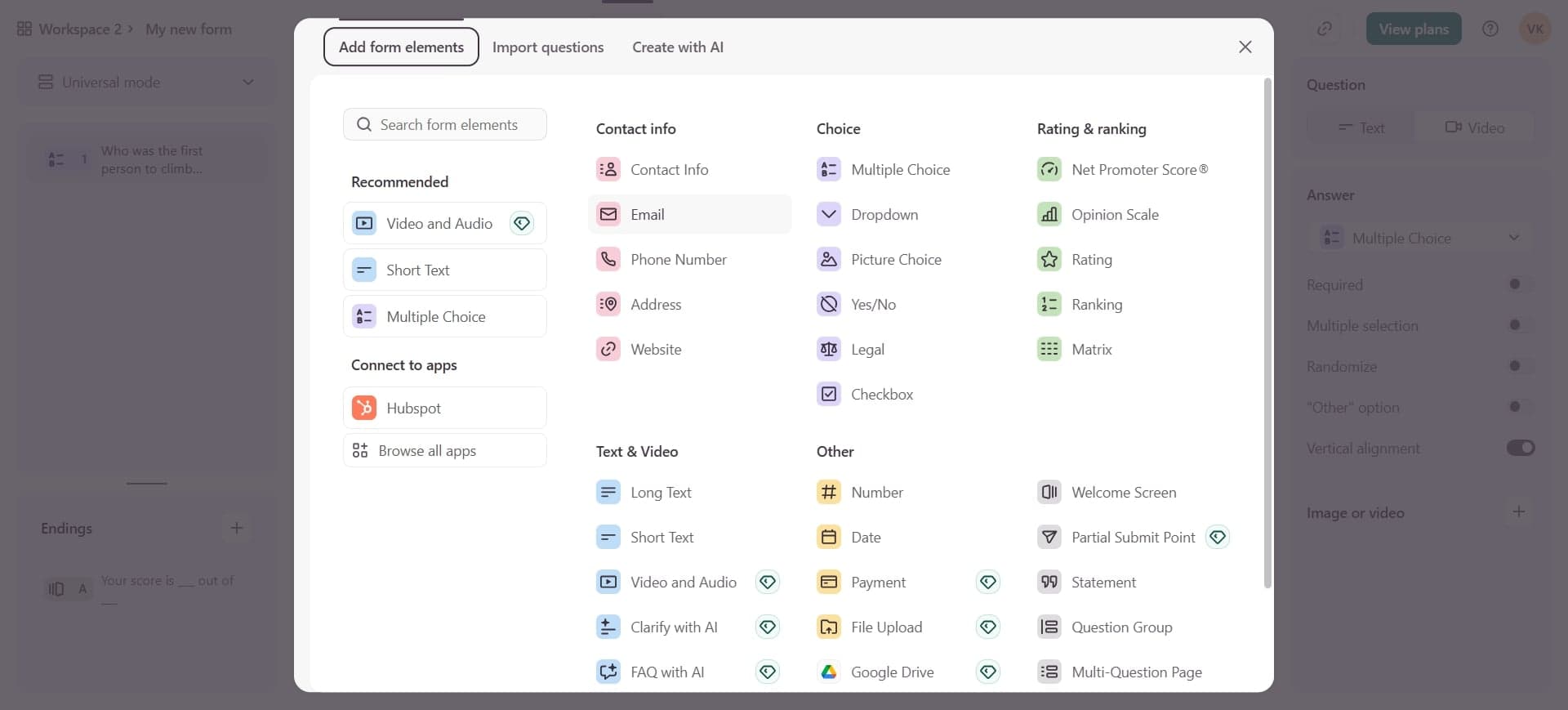
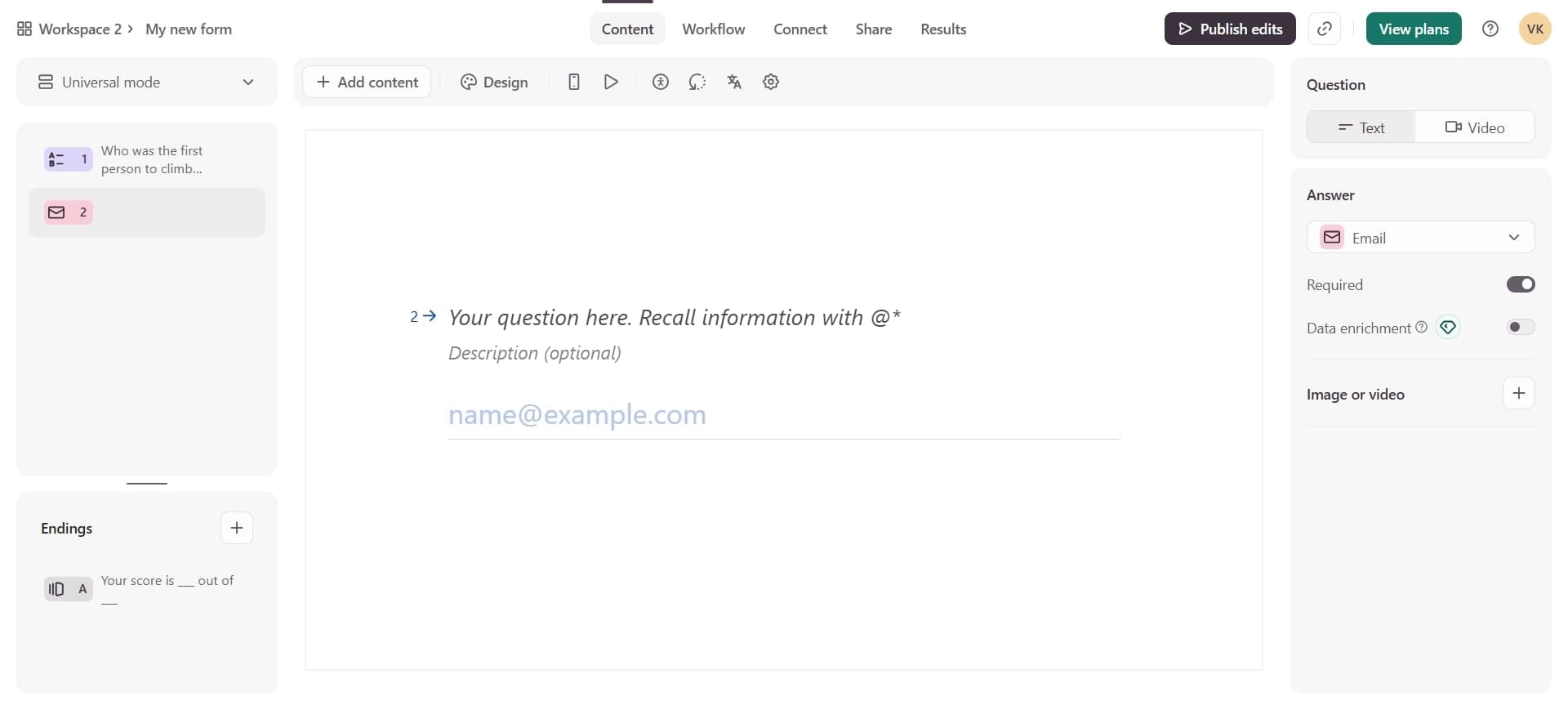
Click the plus icon to add a new question or field, then select 'Email' from the field type options. This ensures respondents enter properly formatted email addresses.
- 4
Configure email field settings
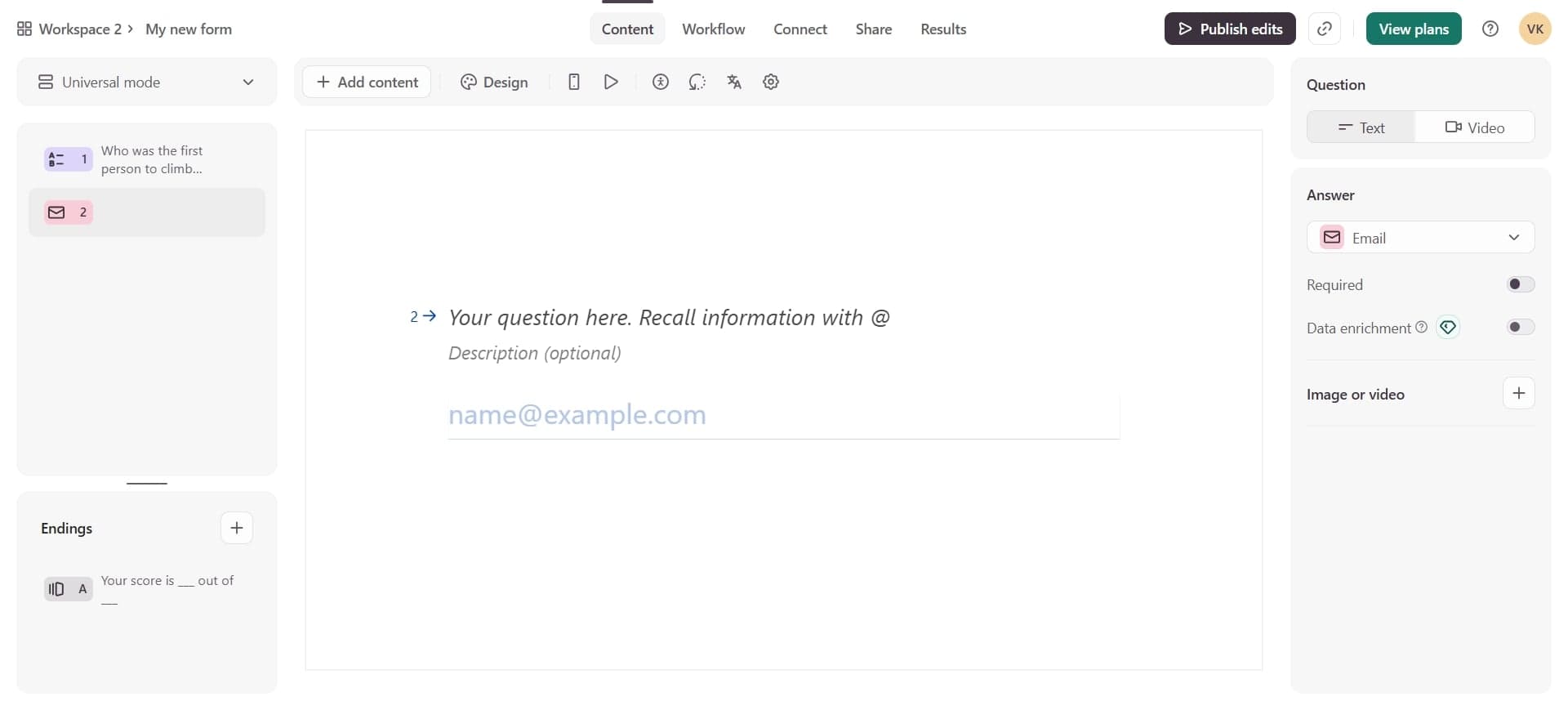
Customize the field label, placeholder text, and validation rules. You can make the email field required, set custom error messages, and add helpful instructions for respondents.
- 5
Test and publish your form
Click the preview button to test your form and verify the email field works correctly. Once satisfied, click 'Share' to publish your form and start collecting email addresses.
Frequently asked questions
Common questions about how to collect email addresses in typeform.
Yes. When editing the email field, toggle the 'Required' option to make it mandatory. Respondents won't be able to submit the form without providing a valid email address.
Yes. Typeform's email field includes built-in validation that checks for proper email format. Invalid entries will trigger an error message prompting the respondent to correct their input.
All responses, including email addresses, are stored in the 'Responses' tab of your form. You can view them in a table format, export them to CSV, or integrate them with other tools via Typeform's integrations and APIs.
Absolutely. In the field settings, you can change the label text, add a description, set placeholder text, and include custom error messages to guide respondents through providing their email.
Typeform offers native integrations with tools like Mailchimp, ConvertKit, and Zapier. Use these integrations to automatically send collected emails to your email list or CRM without manual data entry.