How to Connect Typeform to Notion

Connecting Typeform to Notion allows you to automatically capture form responses and organize them in a database without manual data entry. This integration streamlines your workflow by syncing data between two powerful productivity tools in real time.
Quick summary
In this tutorial, you'll learn how to set up a seamless connection between Typeform and Notion, configure your form responses to populate a Notion database, and ensure data flows automatically with each new submission. By the end, you'll have a fully integrated system that saves time and reduces errors.
Why this matters
Automating the connection between Typeform and Notion eliminates repetitive manual work and keeps your data centralized and up-to-date. This integration is essential for teams managing surveys, registrations, feedback, or any form-based data collection that needs to be tracked and analyzed in Notion.
Step-by-step guide
- 1
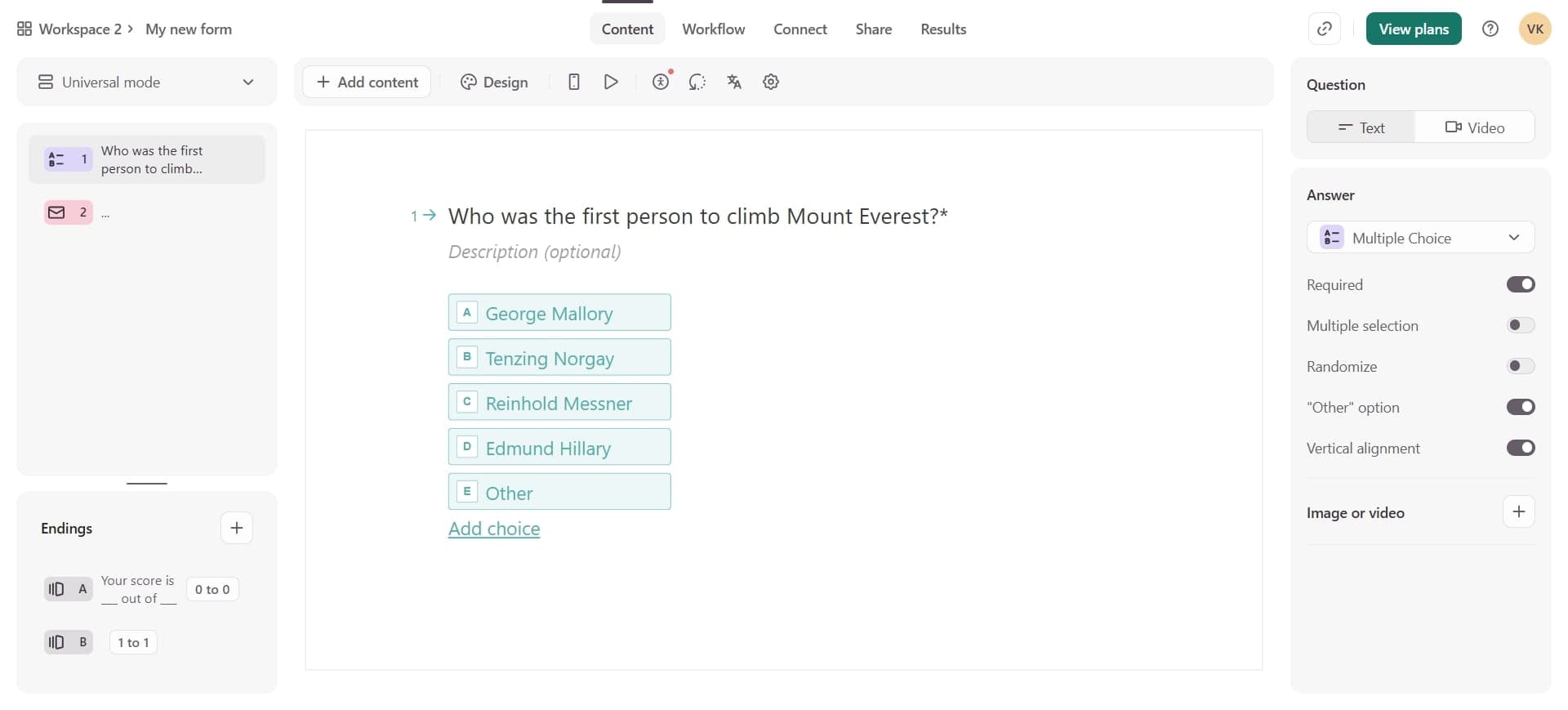
Open Typeform account settings
Log into your Typeform account and navigate to your workspace settings. Look for the integrations or connections section where you can manage third-party app connections.
- 2
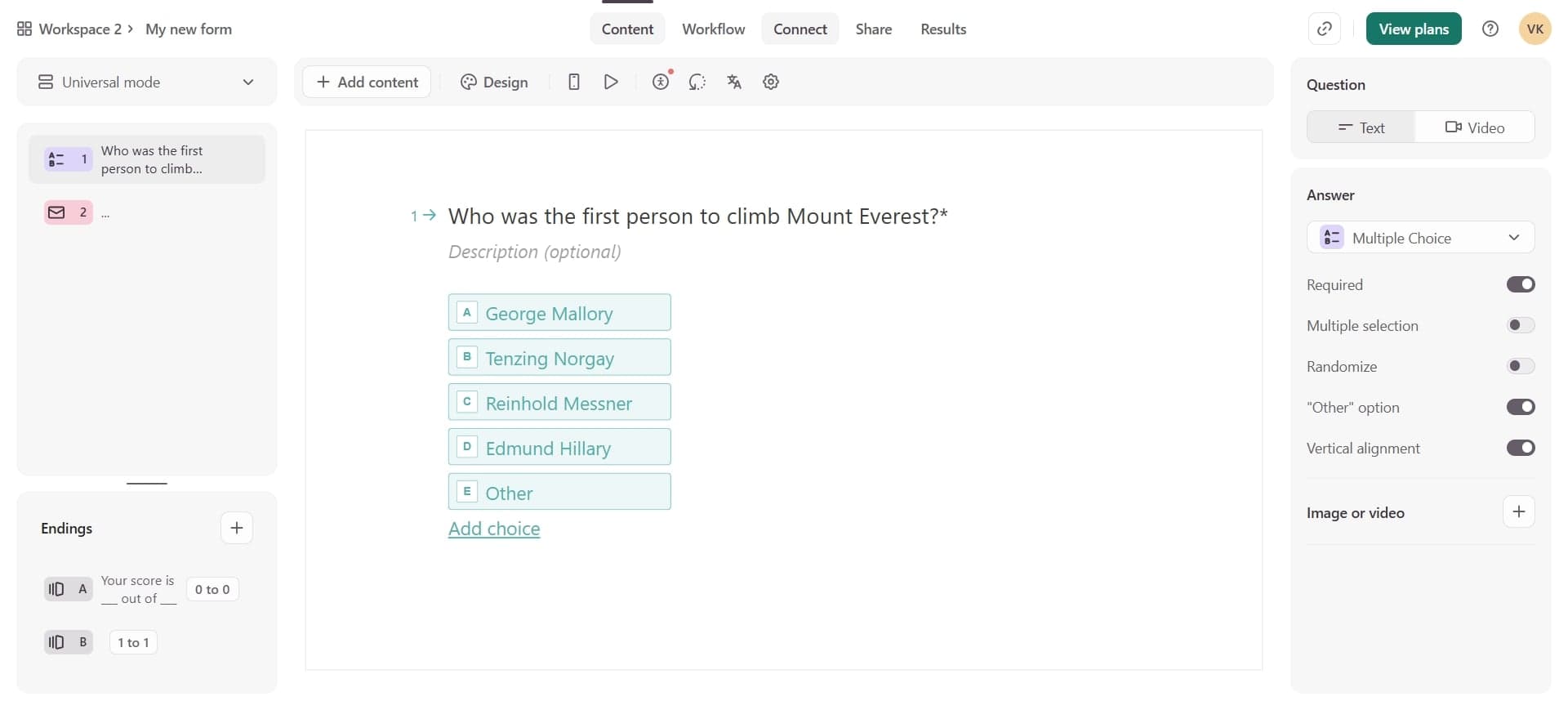
Access the Integrations menu
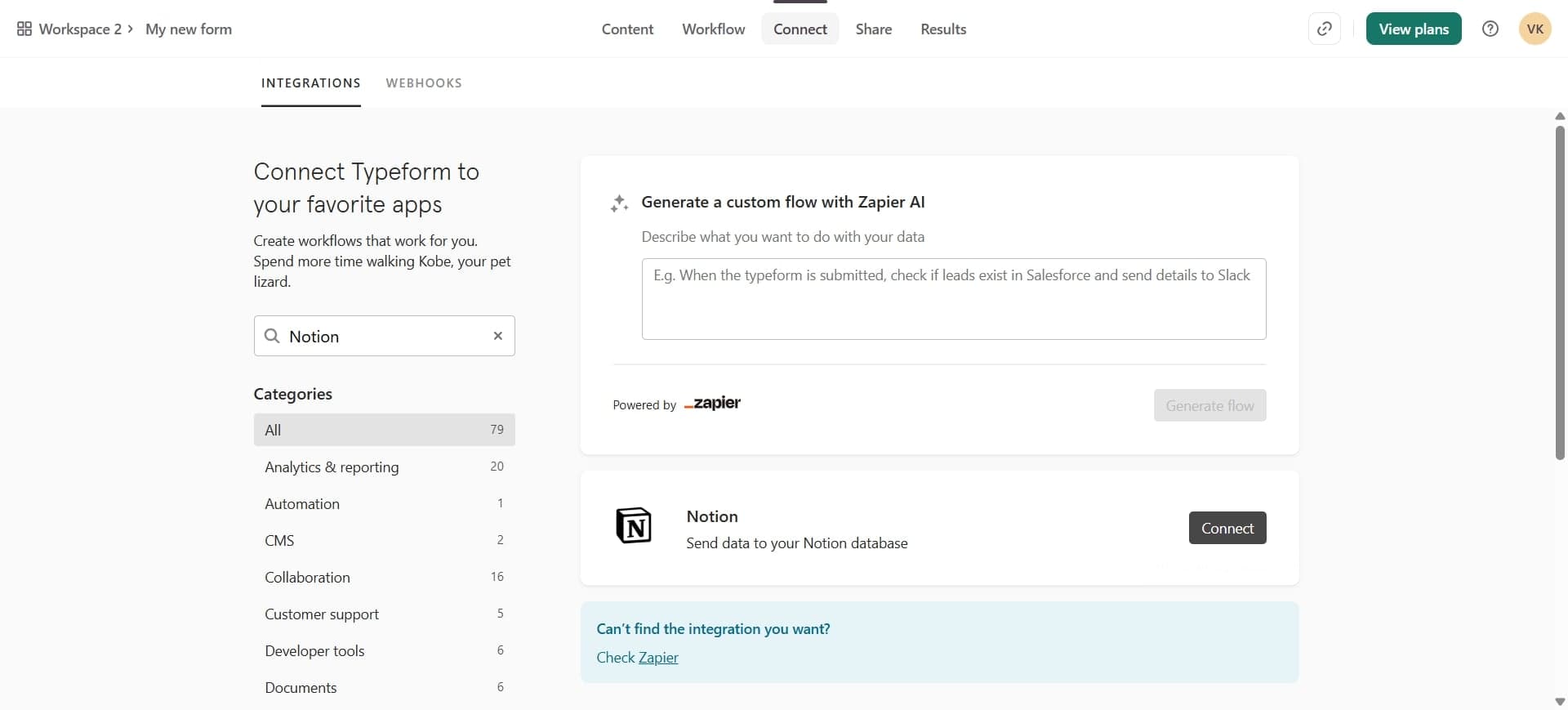
Click on the Integrations or Apps option in your settings dashboard. This section displays all available integrations and connected services.
- 3
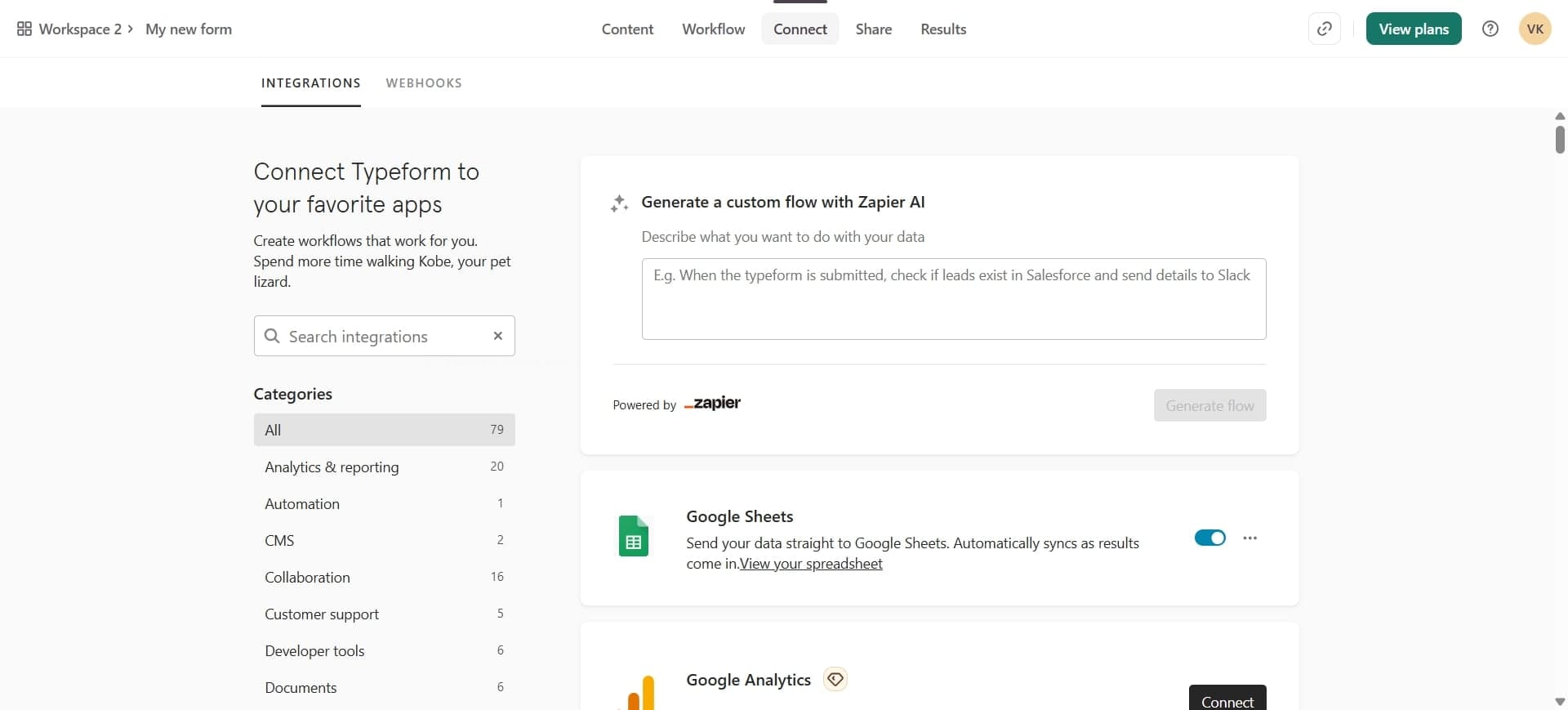
Search for Notion integration
Use the search bar to find and select the Notion integration from the available options. Click on it to view the integration details and setup requirements.
- 4
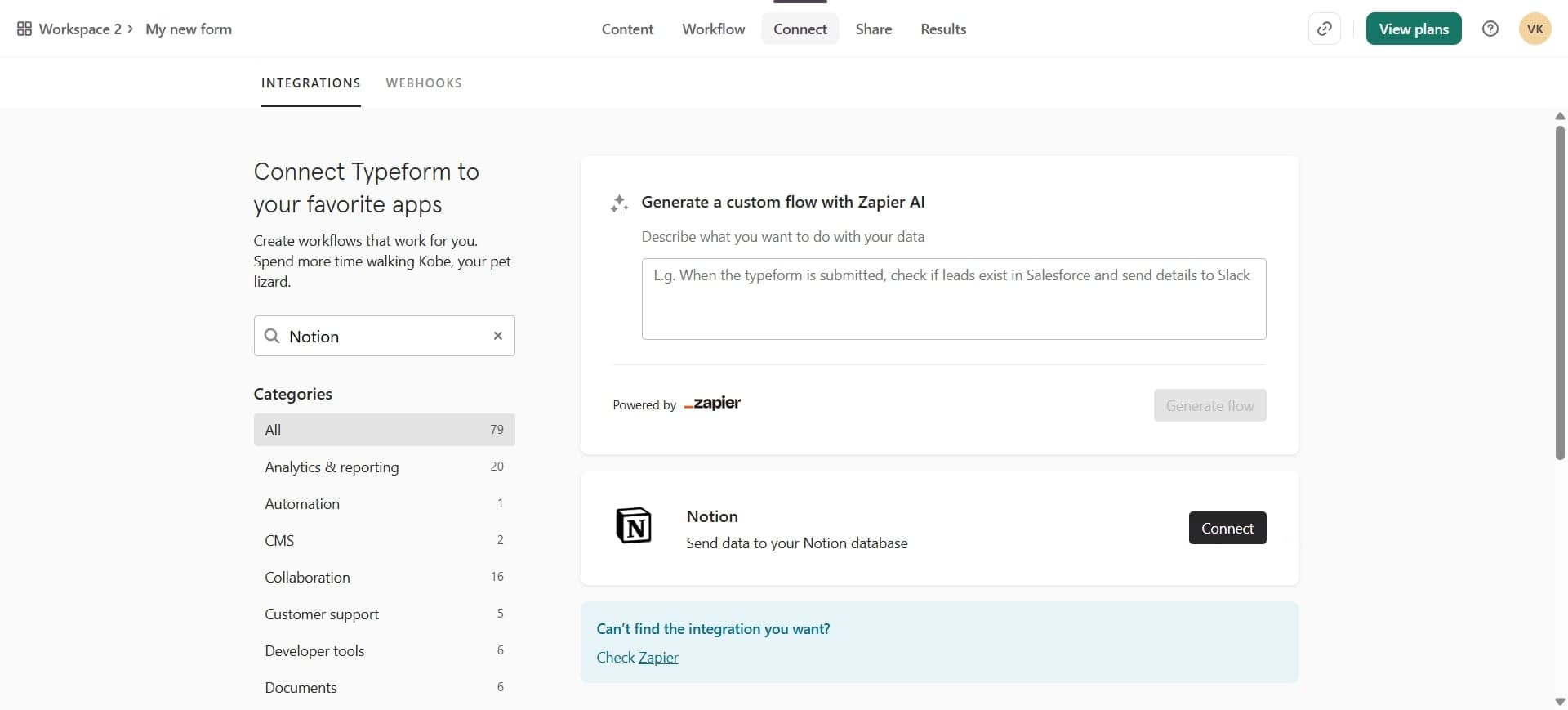
Click Connect or Authorize
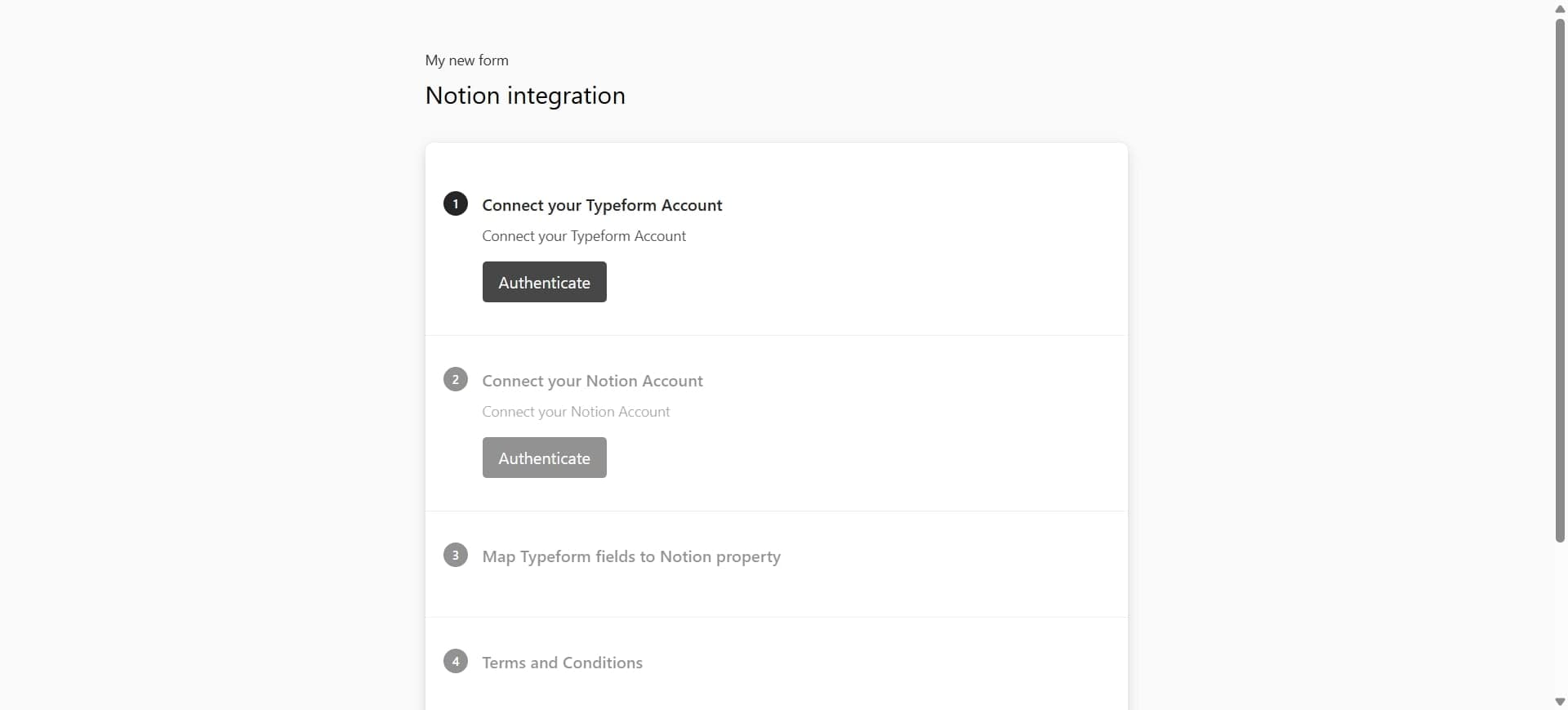
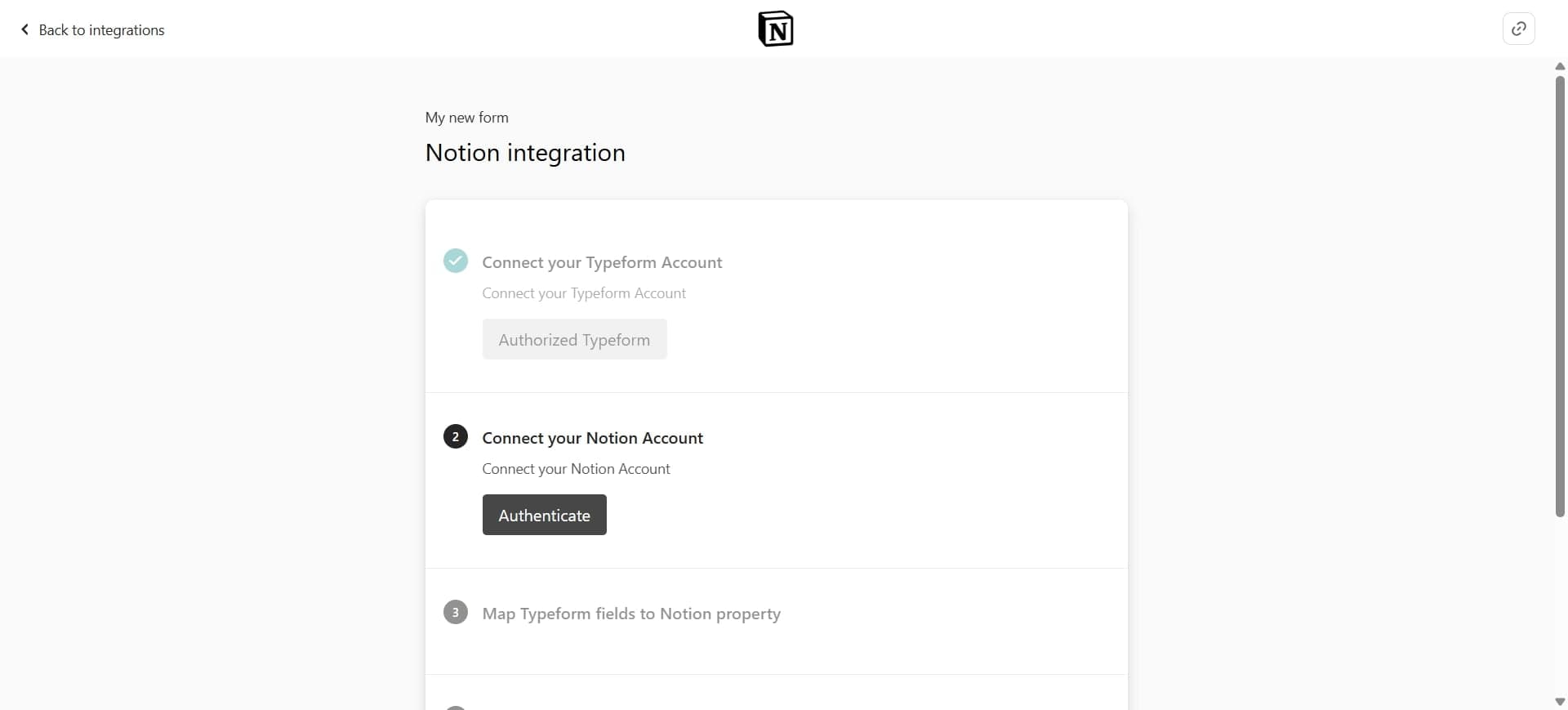
Select the Connect or Authorize button to begin linking your Typeform account with Notion. You may be prompted to log into your Notion account if you aren't already signed in.
- 5
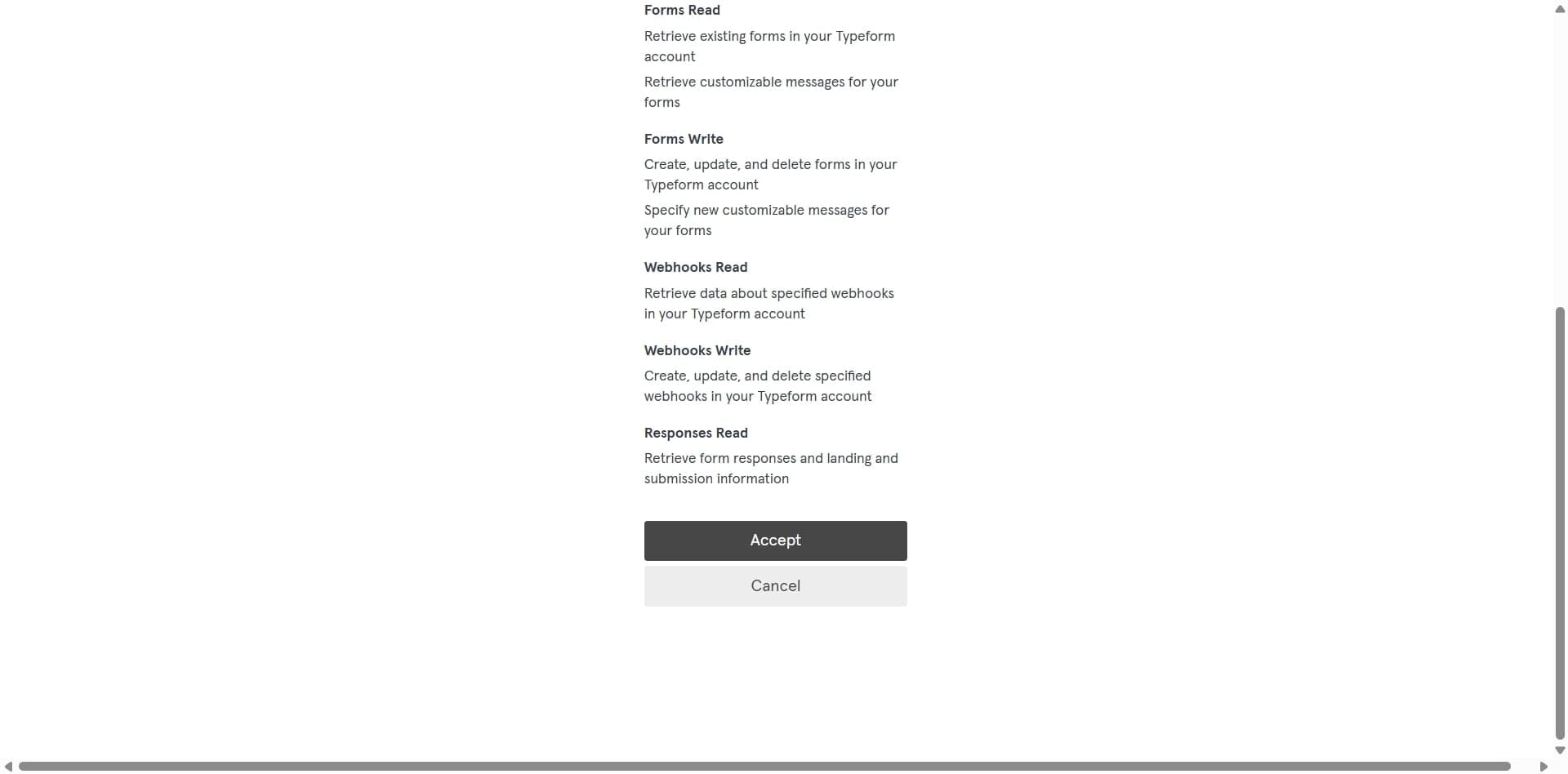
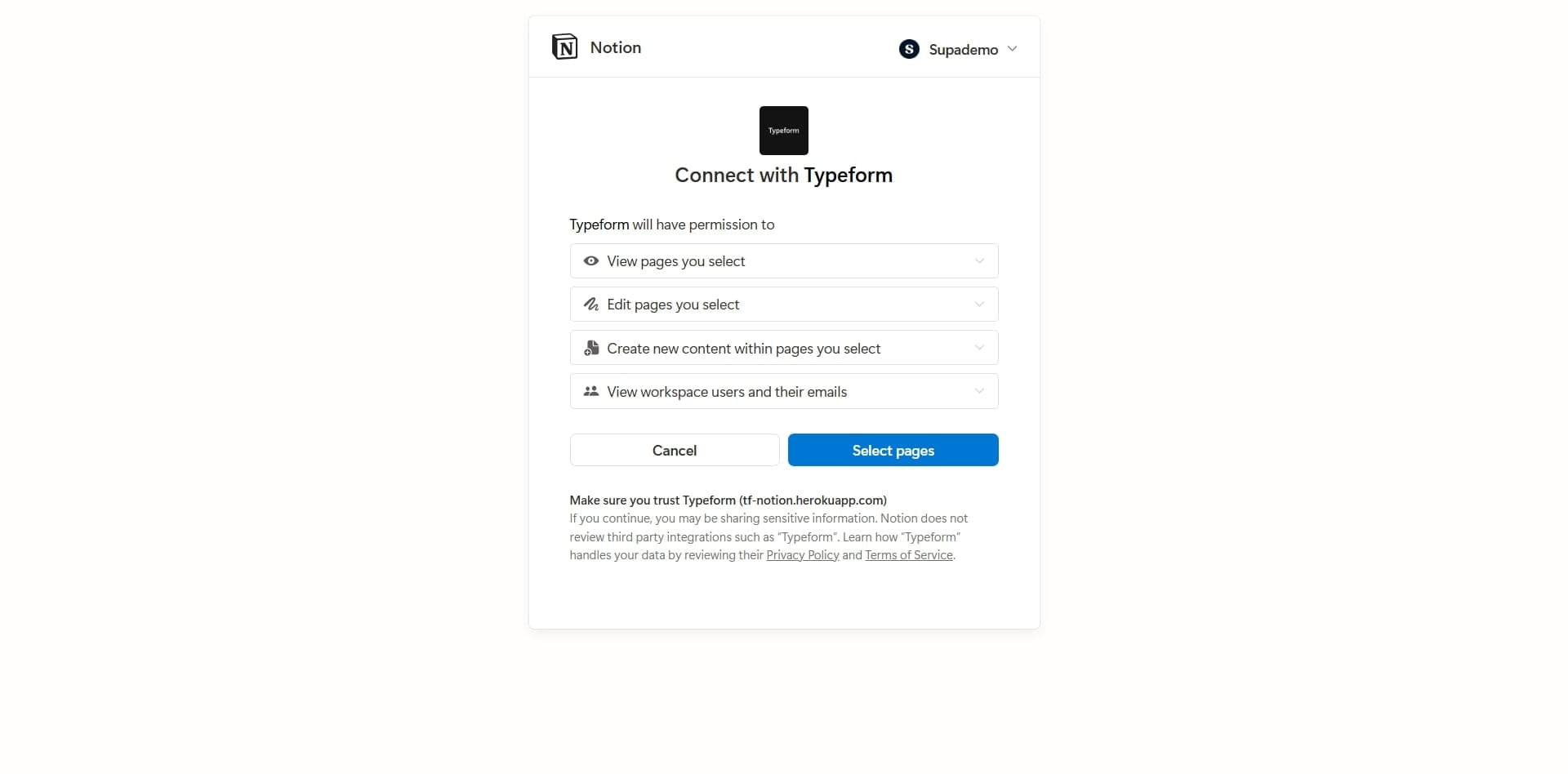
Grant permission to Typeform
Review the permissions Typeform is requesting and click Allow or Grant Access to authorize the connection. This allows Typeform to write responses to your Notion workspace.
- 6
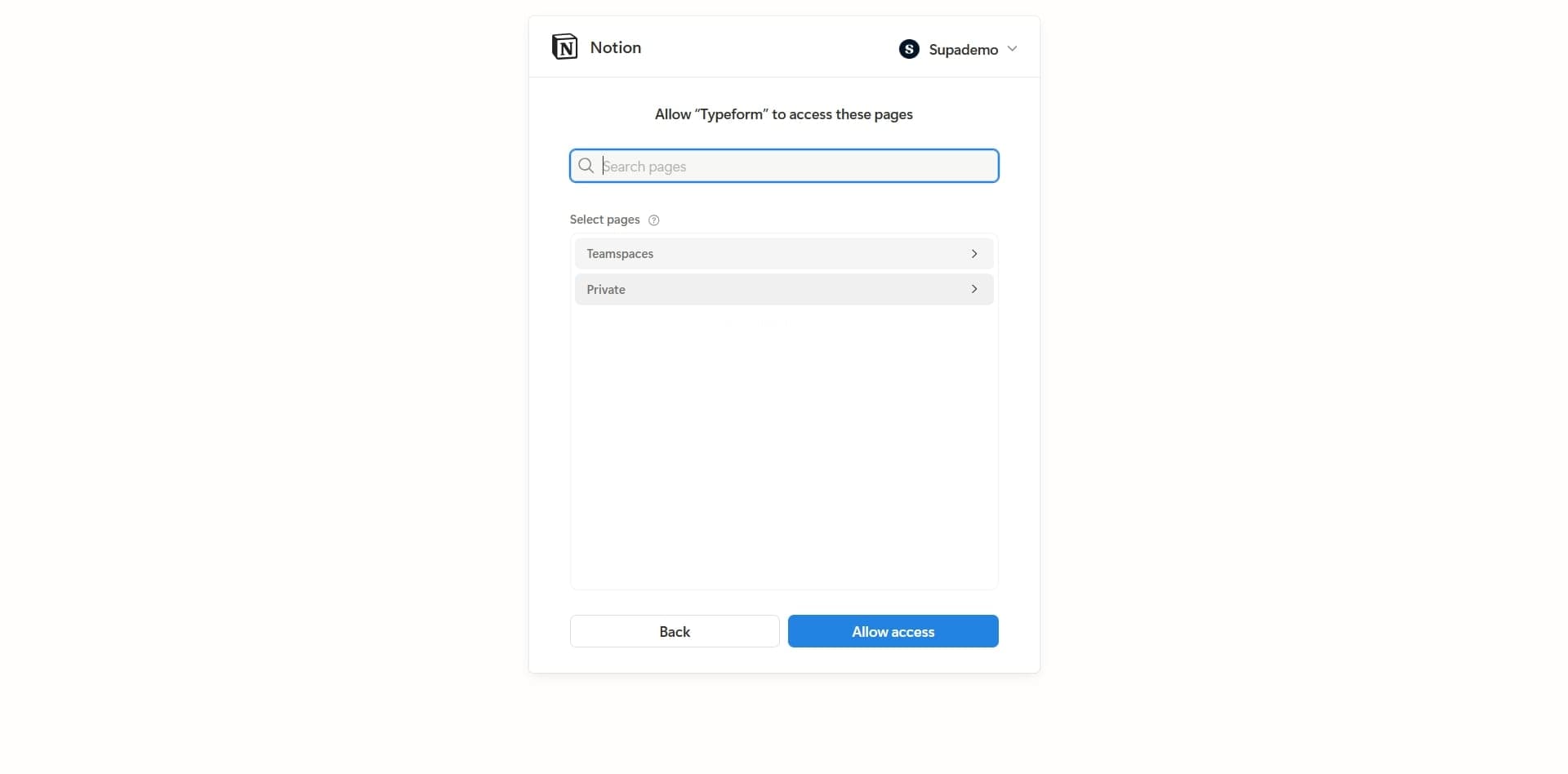
Select your Notion workspace
Choose the Notion workspace where you want form responses to be stored. If you have multiple workspaces, verify you're selecting the correct one.
- 7
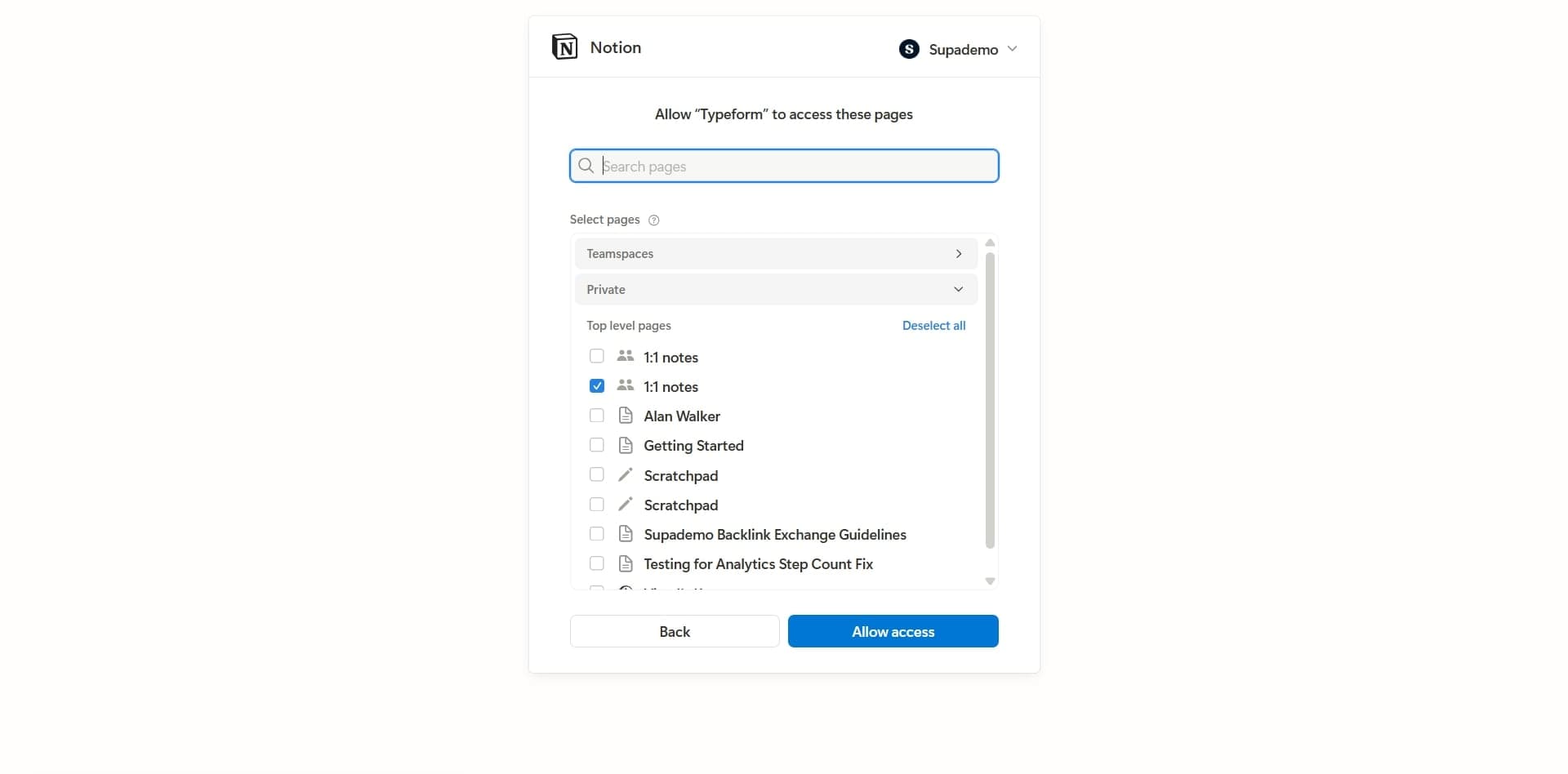
Choose or create a Notion database
Select an existing Notion database to receive form responses, or create a new one. The database structure should match your form fields for proper data mapping.
- 8
Map form fields to database properties
Match each Typeform field to the corresponding Notion database property. Ensure field types are compatible, such as text fields, dropdowns, and dates, to prevent data errors.
- 9
Configure response settings
Set any additional options such as which form responses to capture, whether to include timestamps, or if you want to filter certain submissions. Review these settings carefully to match your workflow needs.
- 10
Enable the integration
Toggle the integration to Active or On status to begin syncing form responses. You should see a confirmation message indicating the connection is live.
- 11
Test with a sample form submission
Submit a test response through your Typeform to verify that data appears correctly in your Notion database. Check that all fields are properly populated and formatted before deploying to users.
Frequently asked questions
Common questions about how to connect typeform to notion.
You'll need to map fields manually during setup. If a Typeform field doesn't have a corresponding Notion property, you can create new properties in your Notion database or leave that field unmapped. Unmapped fields won't be captured in Notion, so ensure all critical data is properly matched.
Yes, you can connect multiple Typeforms to a single Notion database. Each form's responses will be added as new rows in the same database. Make sure your field mappings are consistent across all forms to maintain data organization.
Responses typically sync within a few seconds to a couple of minutes after submission. The exact timing depends on your Typeform plan and current system load. You can always manually refresh your Notion page to see the latest entries immediately.
First, check if your Notion workspace permissions have changed or if your access token expired. Disconnect and reconnect the integration by going back to your Typeform settings and re-authorizing Notion. If issues persist, verify that your Notion database structure hasn't changed dramatically.
No, deleting entries from Notion won't delete them from Typeform. The integration is one-way, syncing Typeform responses to Notion only. If you need to remove data, you'll need to delete or archive it in both platforms separately.