How to Create a Typeform Survey

Typeform is a powerful tool for creating engaging, conversational surveys that capture meaningful feedback from your audience. This guide walks you through the complete process of building a survey from scratch, covering everything from initial setup to launch and response collection.
Quick summary
In this tutorial, you'll learn how to create a fully functional Typeform survey by setting up your account, designing questions, customizing your form's appearance, and publishing it to start collecting responses. You'll understand how to leverage Typeform's intuitive interface to build professional surveys without coding knowledge.
Why this matters
Creating well-structured surveys is essential for gathering actionable customer insights, conducting research, and making data-driven decisions. Typeform's conversational approach increases response rates compared to traditional surveys, making it a valuable tool for businesses, researchers, and content creators who need reliable feedback.
Step-by-step guide
- 1
Sign up or log into Typeform
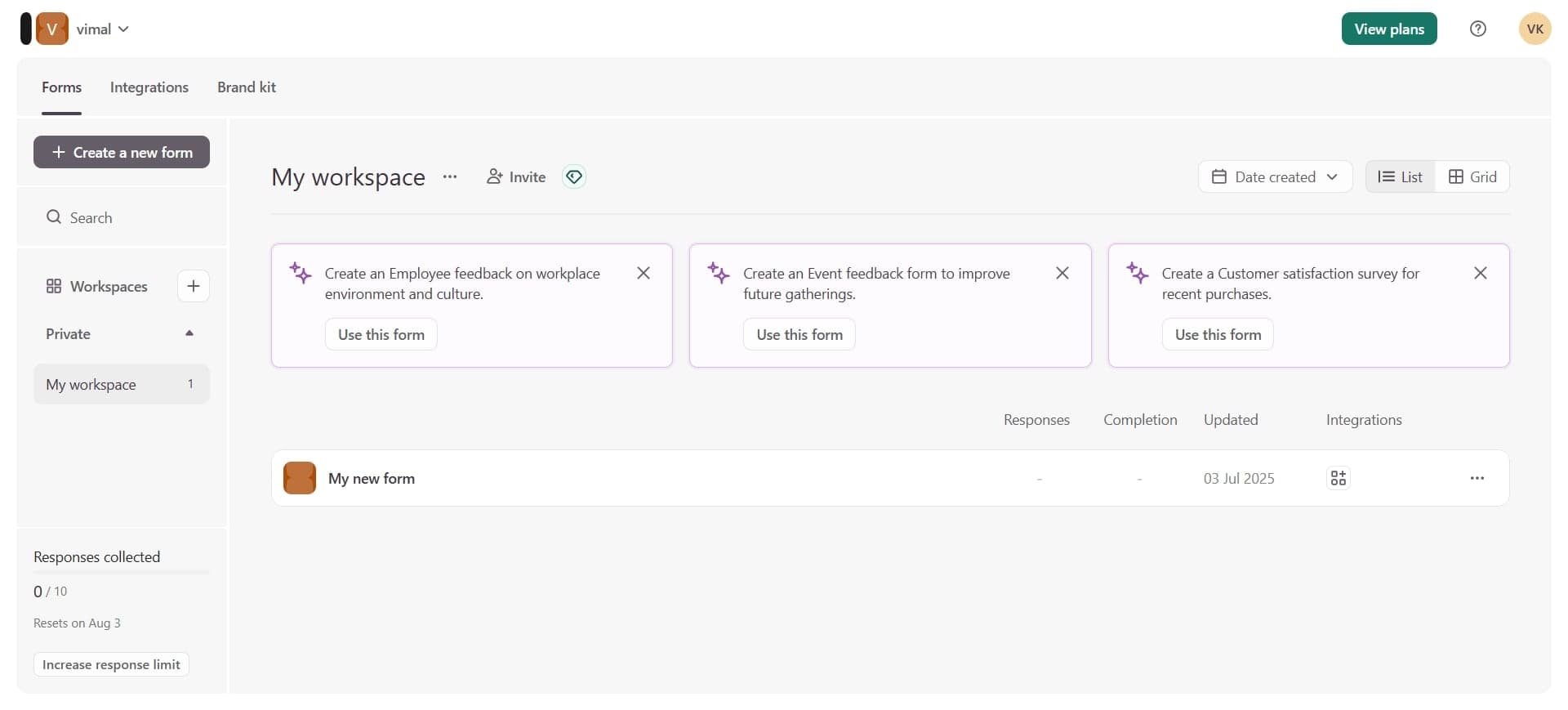
Navigate to the Typeform website and create a new account using your email address or sign in if you already have one. You'll be directed to your dashboard where you can manage all your forms and surveys.
- 2
Click 'Create a new form'
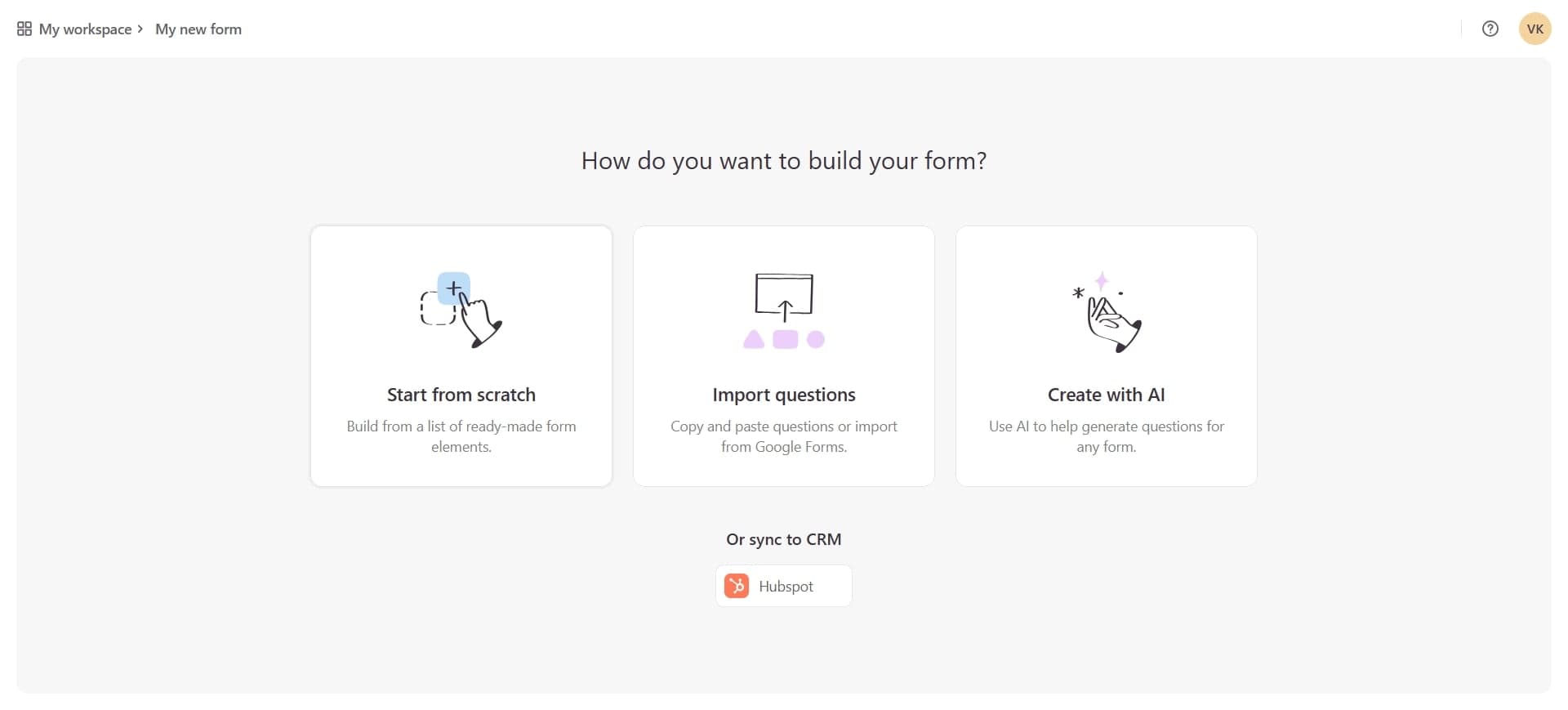
From your dashboard, select the option to create a new form or survey. Typeform will prompt you to choose a template or start from scratch, depending on your preference.
- 3
Choose your survey template
Browse Typeform's library of pre-built templates or select 'Blank' to start from the beginning. Templates can save time if your survey needs align with common use cases like customer feedback, NPS surveys, or market research.
- 4
Add your first question
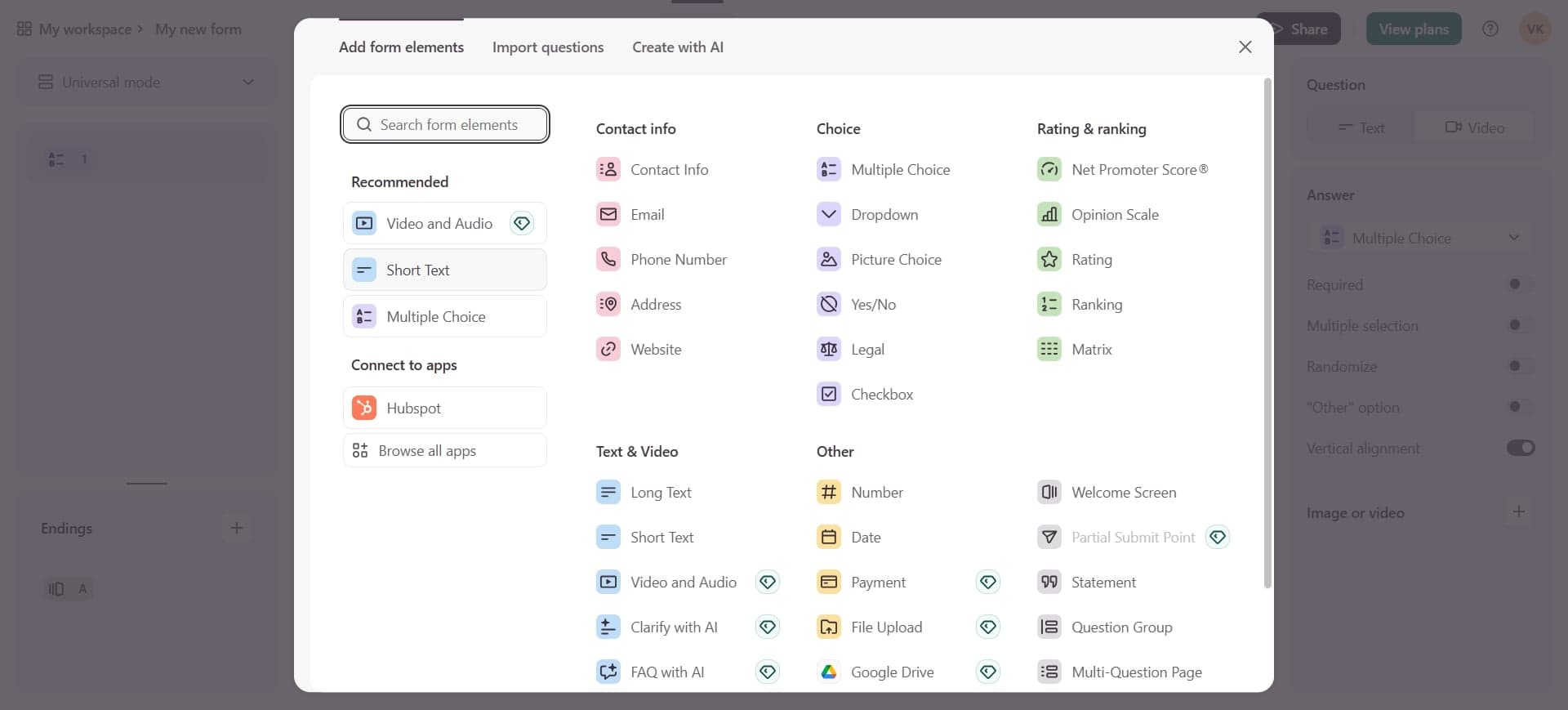
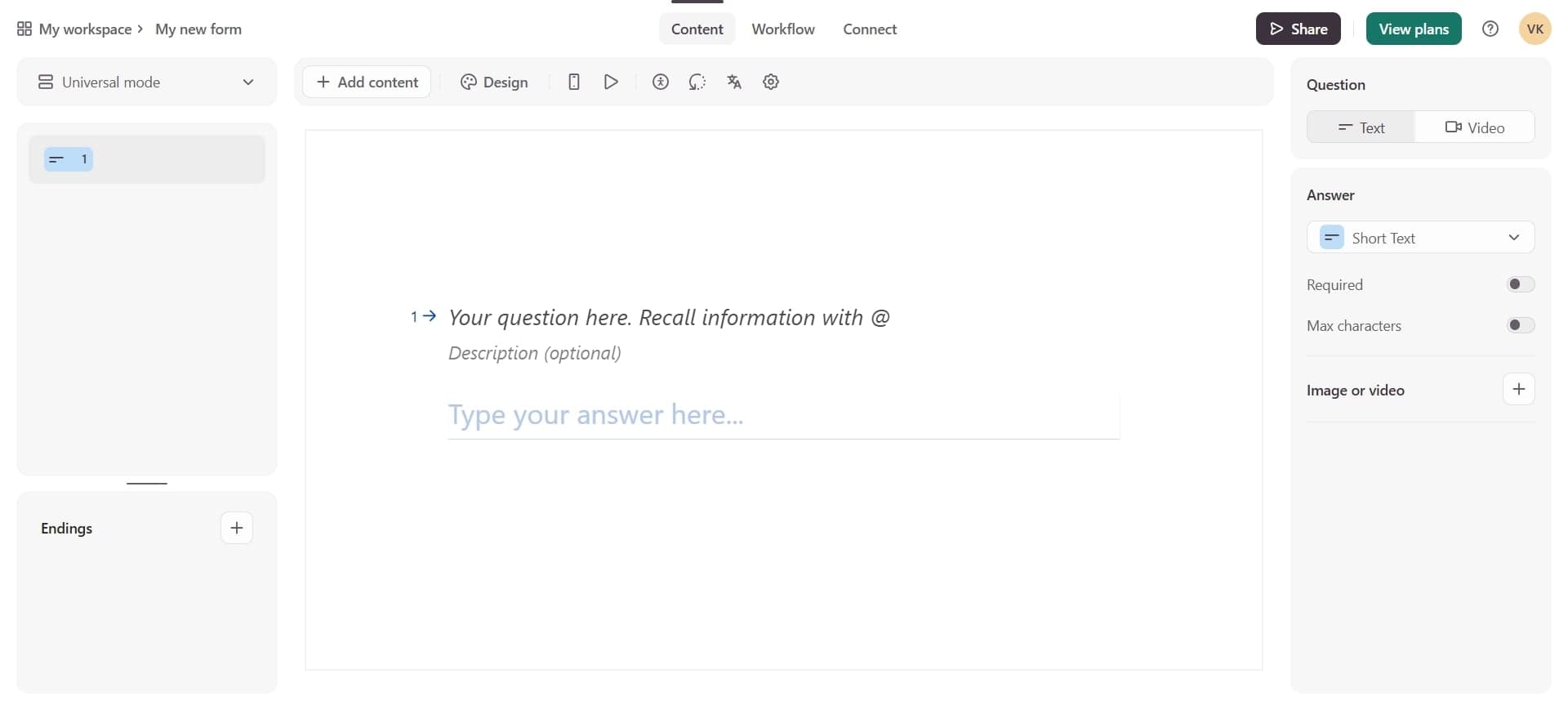
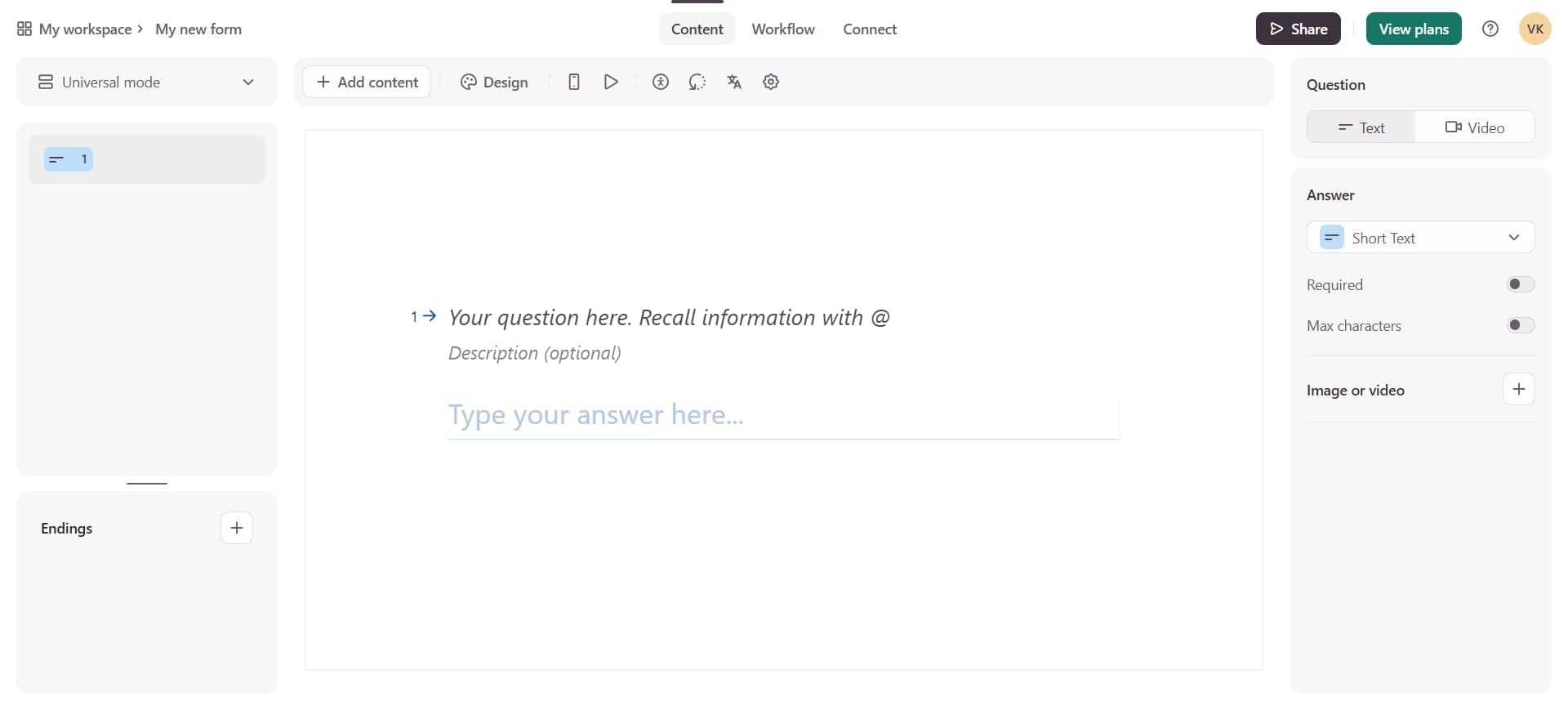
Click the plus icon to add a new field to your survey. Select your question type such as short text, multiple choice, rating scale, or email, then enter your question text.
- 5
Configure question settings
Customize each question by setting it as required or optional, adding answer options for multiple choice questions, and adding helpful descriptions. You can also enable logic jumps to direct respondents to different questions based on their answers.
- 6
Design your form's appearance
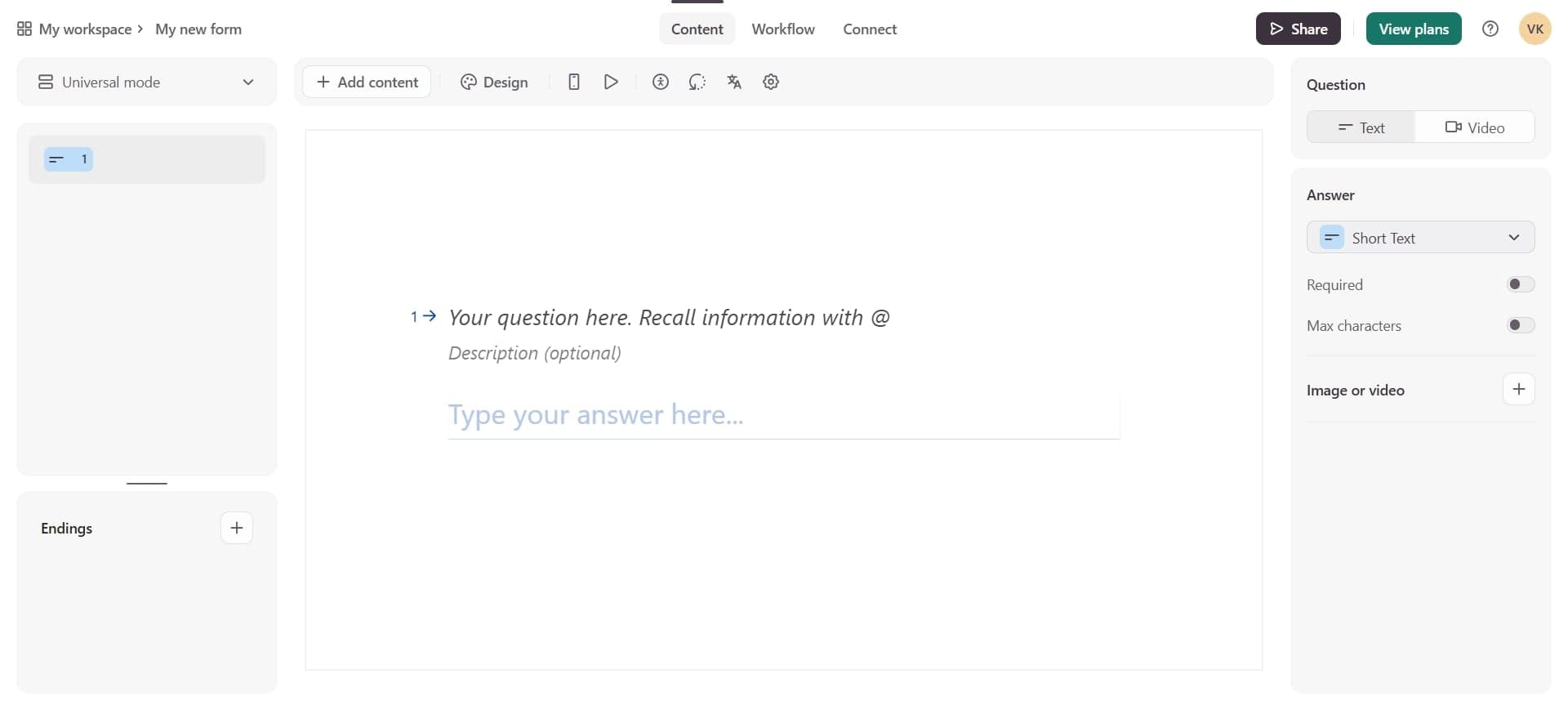
Access the design panel to customize colors, fonts, and backgrounds to match your brand identity. You can also add your logo, change the button text, and adjust the overall layout to create a cohesive experience.
- 7
Add welcome and thank you screens
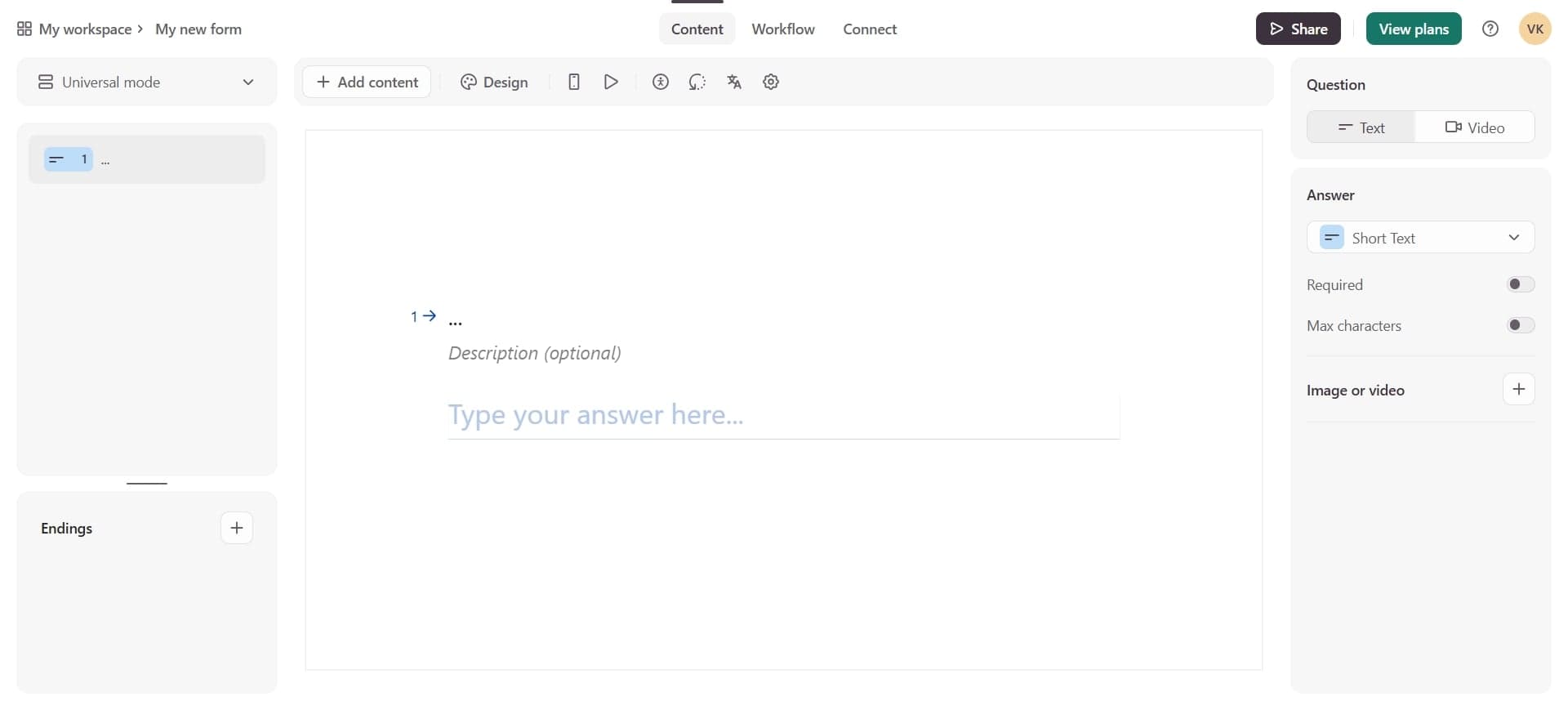
Insert a welcome screen at the beginning to introduce your survey and explain its purpose, and add a thank you screen at the end with a personalized message. These screens improve user experience and set clear expectations for respondents.
- 8
Review and test your survey
Use the preview feature to test your survey as a respondent would experience it. Check for clarity, logic flow, and appearance across different devices to ensure everything works correctly.
- 9
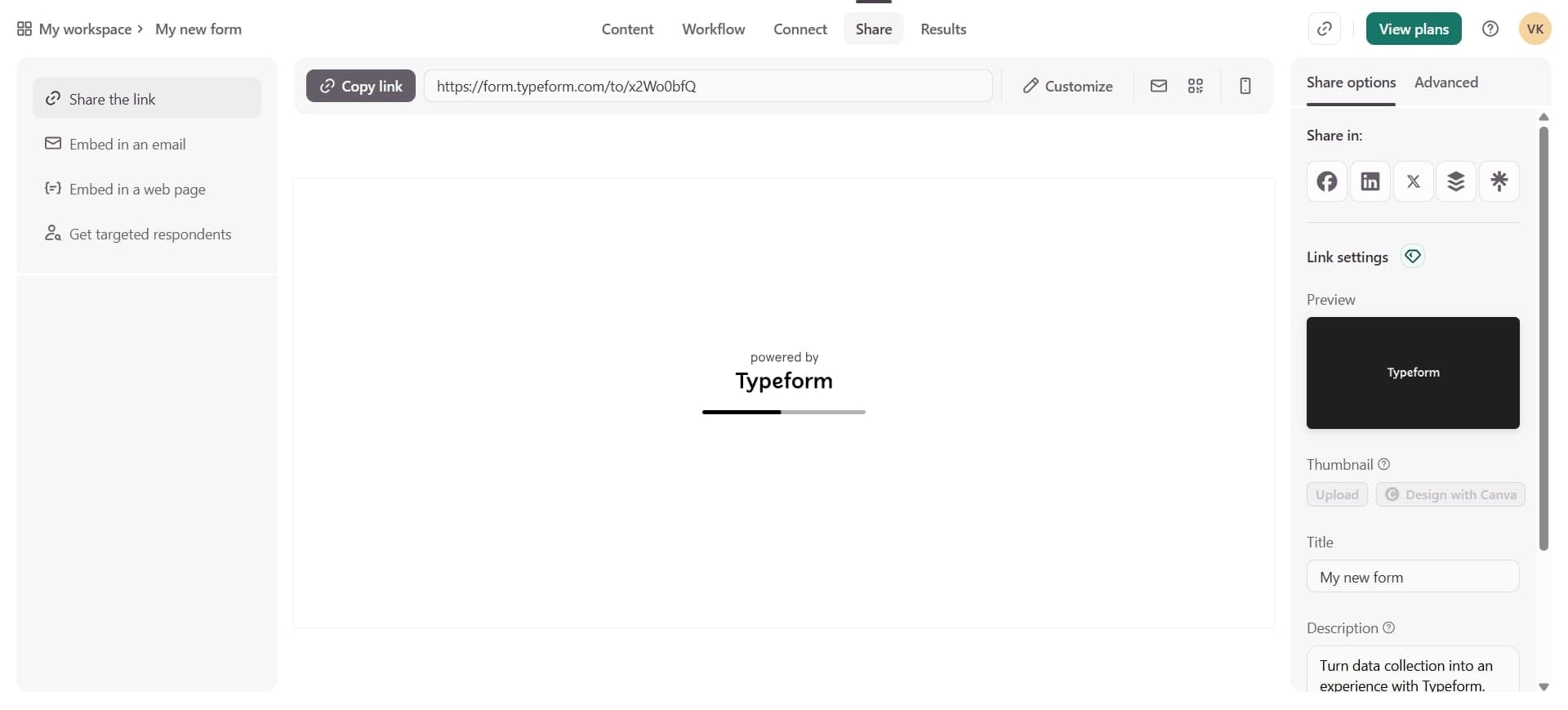
Publish and share your survey
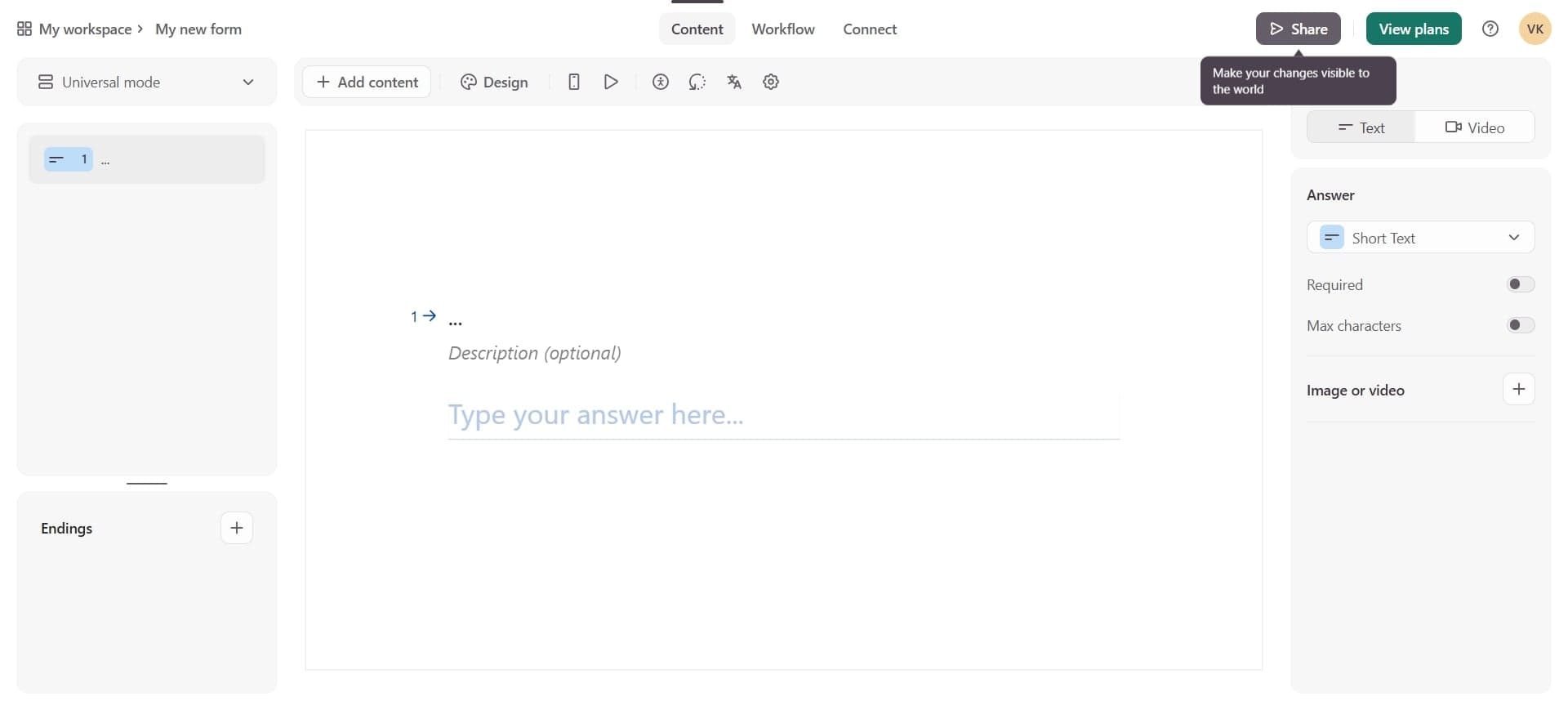
Once satisfied, click publish to make your survey live. Typeform provides multiple sharing options including a direct link, email, embedded code for your website, or social media sharing.
Frequently asked questions
Common questions about how to create a typeform survey.
Yes, you can edit your survey at any time even after it's live. However, be cautious when modifying questions that respondents have already answered, as it can affect data consistency. Major changes like adding new questions won't impact previously collected responses.
Responses are automatically collected in Typeform's dashboard. You can view them in real-time, filter by specific questions, and export data as CSV or Excel files for further analysis. Premium plans offer integrations with tools like Google Sheets and Zapier for automated data management.
Typeform offers a wide variety of question types including short text, long text, multiple choice, dropdown, rating scales, ranking, matrix tables, date pickers, email fields, and more. You can also add media like images and videos within questions to make them more engaging.
Yes, Typeform supports logic jumps that allow you to create branching paths based on respondent answers. This means different users can see different questions depending on their previous responses, making surveys more personalized and efficient.
Typeform doesn't impose a strict limit on the number of questions, but it's recommended to keep surveys concise to maintain high completion rates. Most surveys perform best with 5-15 questions, though you can add more if necessary using conditional logic to control which respondents see certain questions.