How to Customize the Design of a Typeform

Typeform's design customization features allow you to create forms that align with your brand identity and engage your audience. Whether you want to adjust colors, fonts, backgrounds, or layout, Typeform provides intuitive tools to make your forms visually distinctive.
Quick summary
In this tutorial, you'll learn how to access Typeform's design settings and customize every visual element of your form. You'll discover how to modify colors, typography, backgrounds, and other design properties to match your brand guidelines.
Why this matters
A well-designed form increases user engagement and completion rates. Customizing your Typeform's appearance ensures consistency with your brand, builds trust with respondents, and creates a professional experience that reflects your organization's values.
Step-by-step guide
- 1
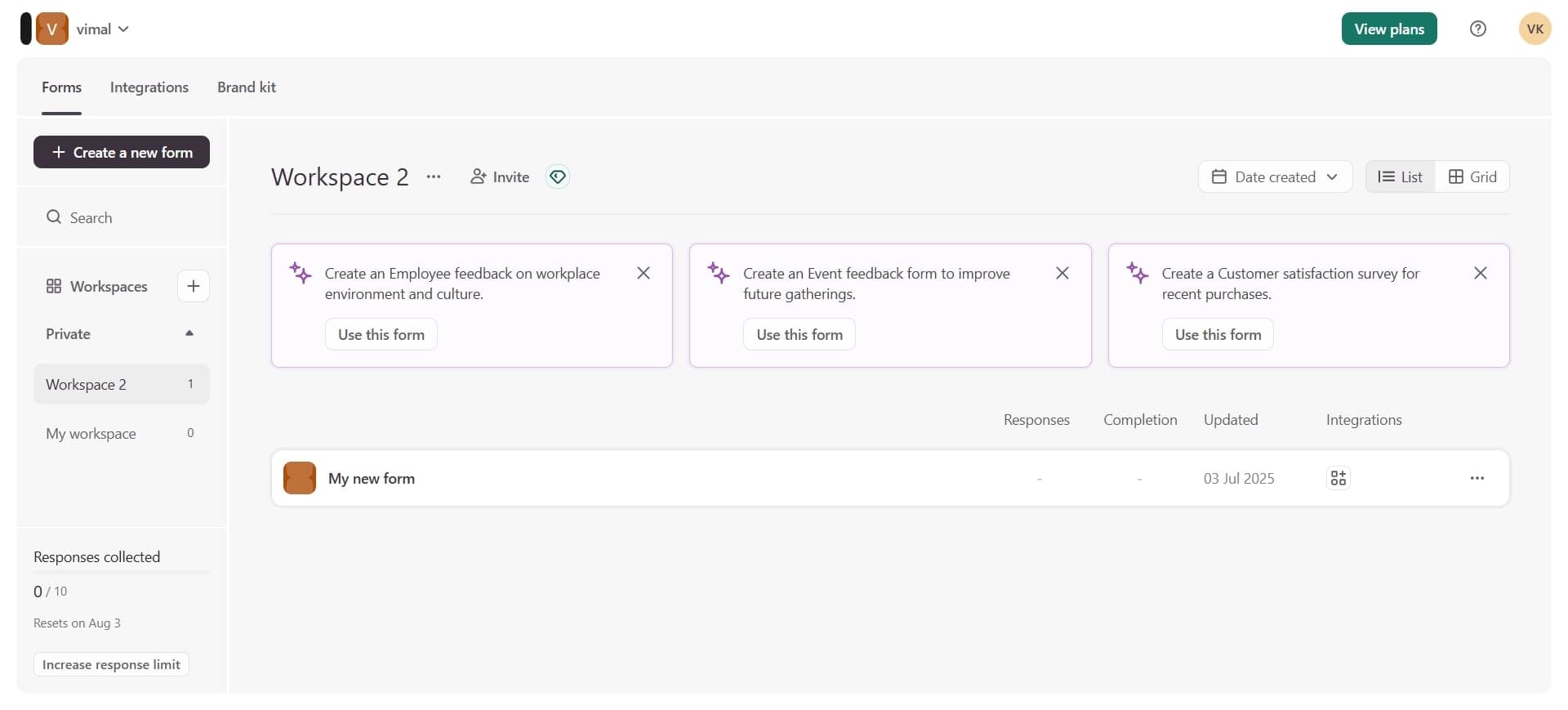
Open your Typeform workspace
Log in to your Typeform account and navigate to your workspace. Select the form you want to customize from your list of forms.
- 2
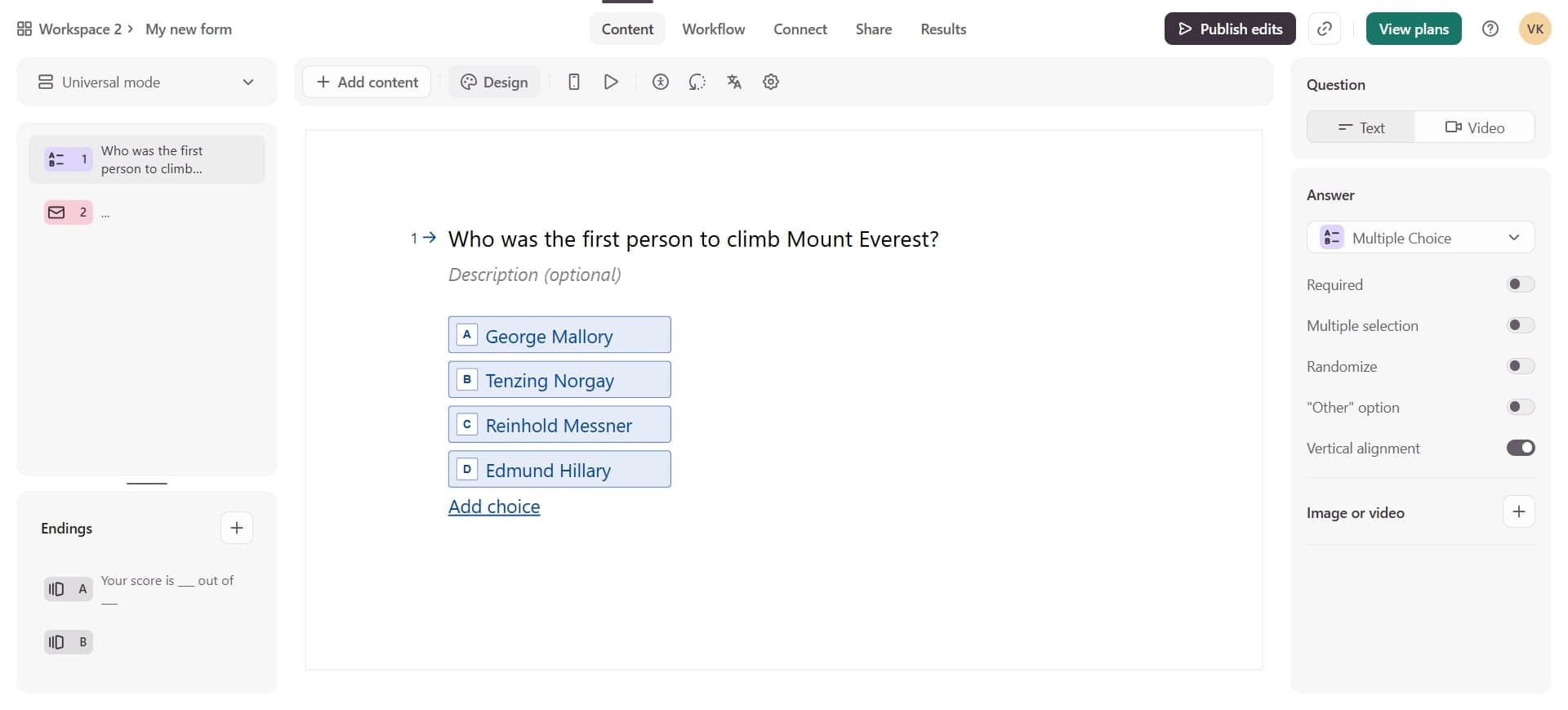
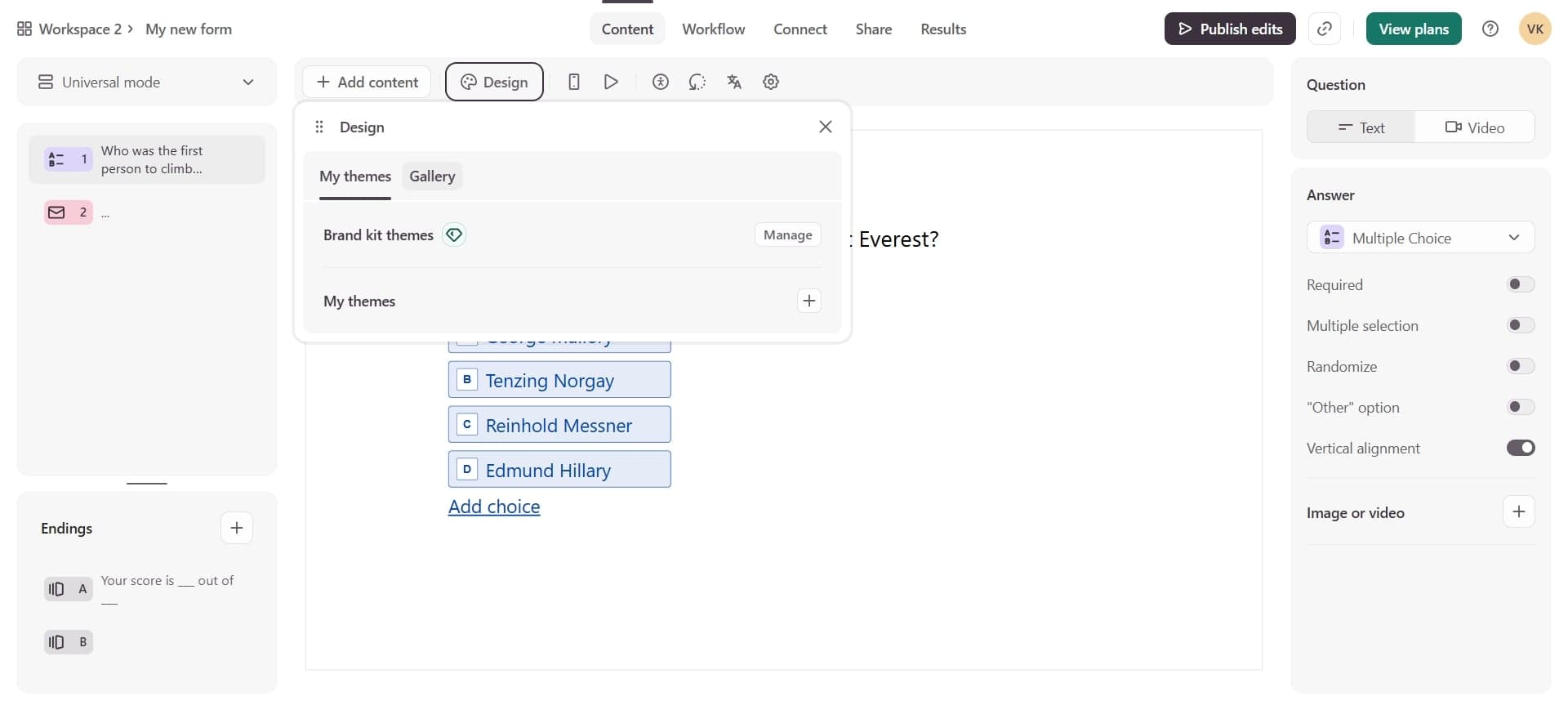
Access the design panel
Click on the 'Design' tab or option in the form editor menu. This opens the design customization panel where all visual settings are located.
- 3
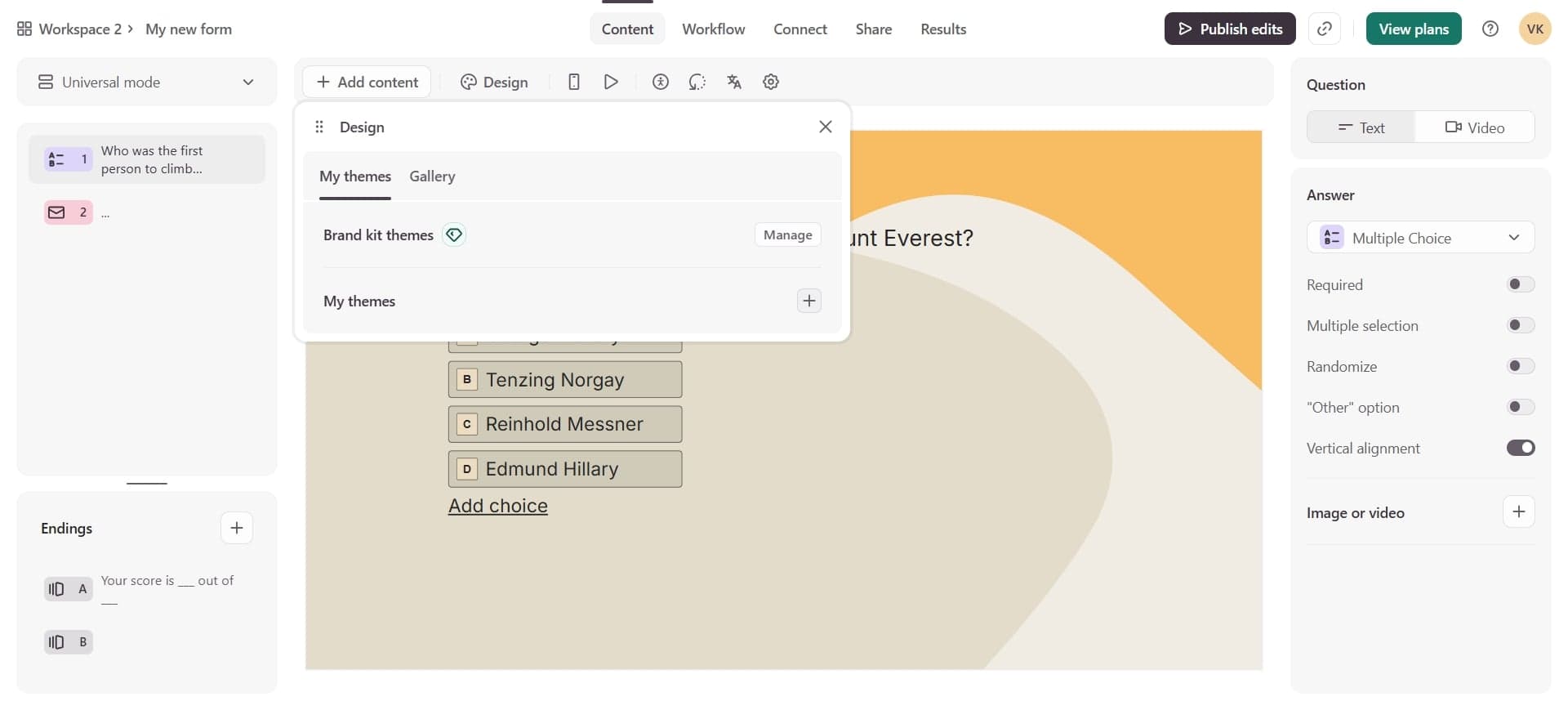
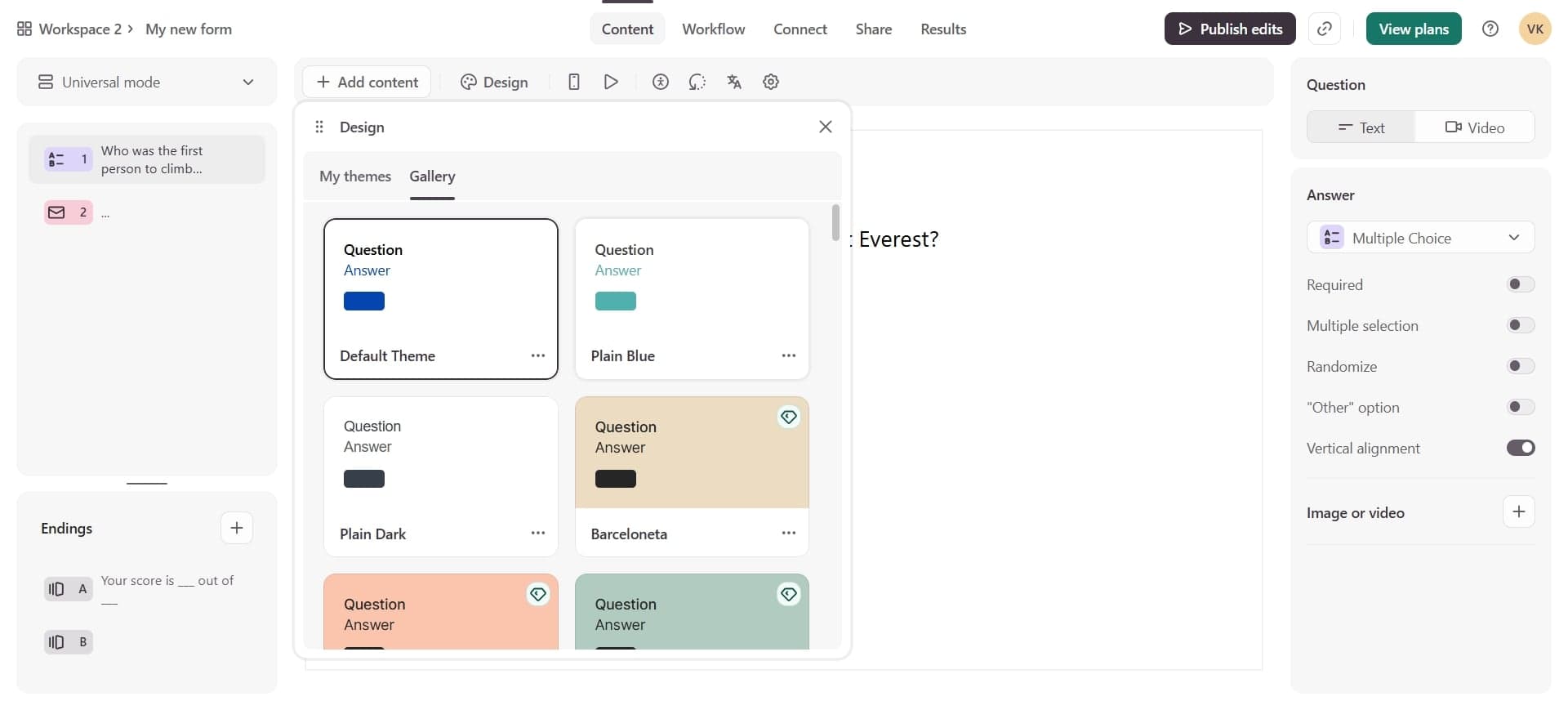
Customize the form colors
Select the color options to change your form's primary color, background color, and button colors. Click on each color field and choose from the color picker or enter specific hex codes.
- 4
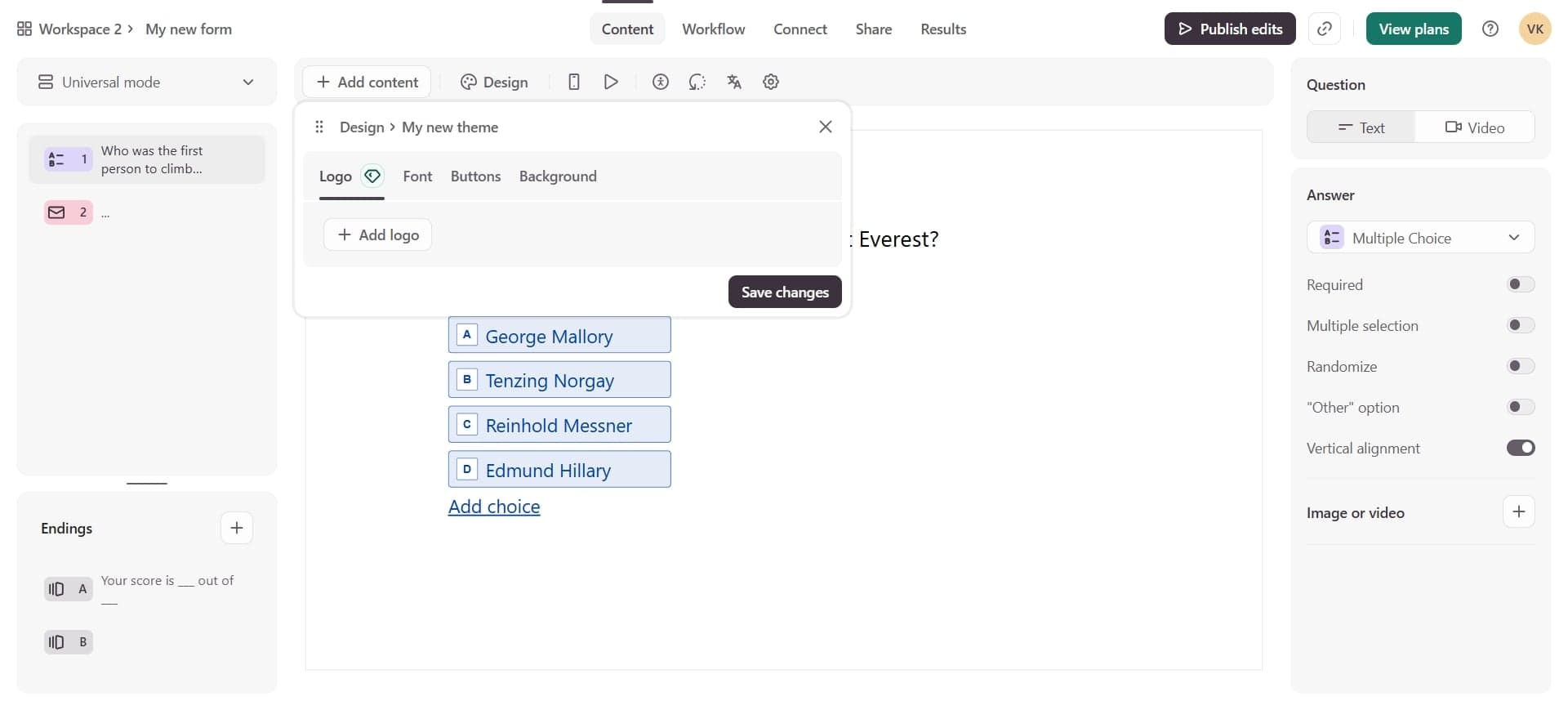
Adjust typography settings
Modify the font family, size, and weight for your form's headings and body text. Typeform provides several pre-selected fonts that work well for forms.
- 5
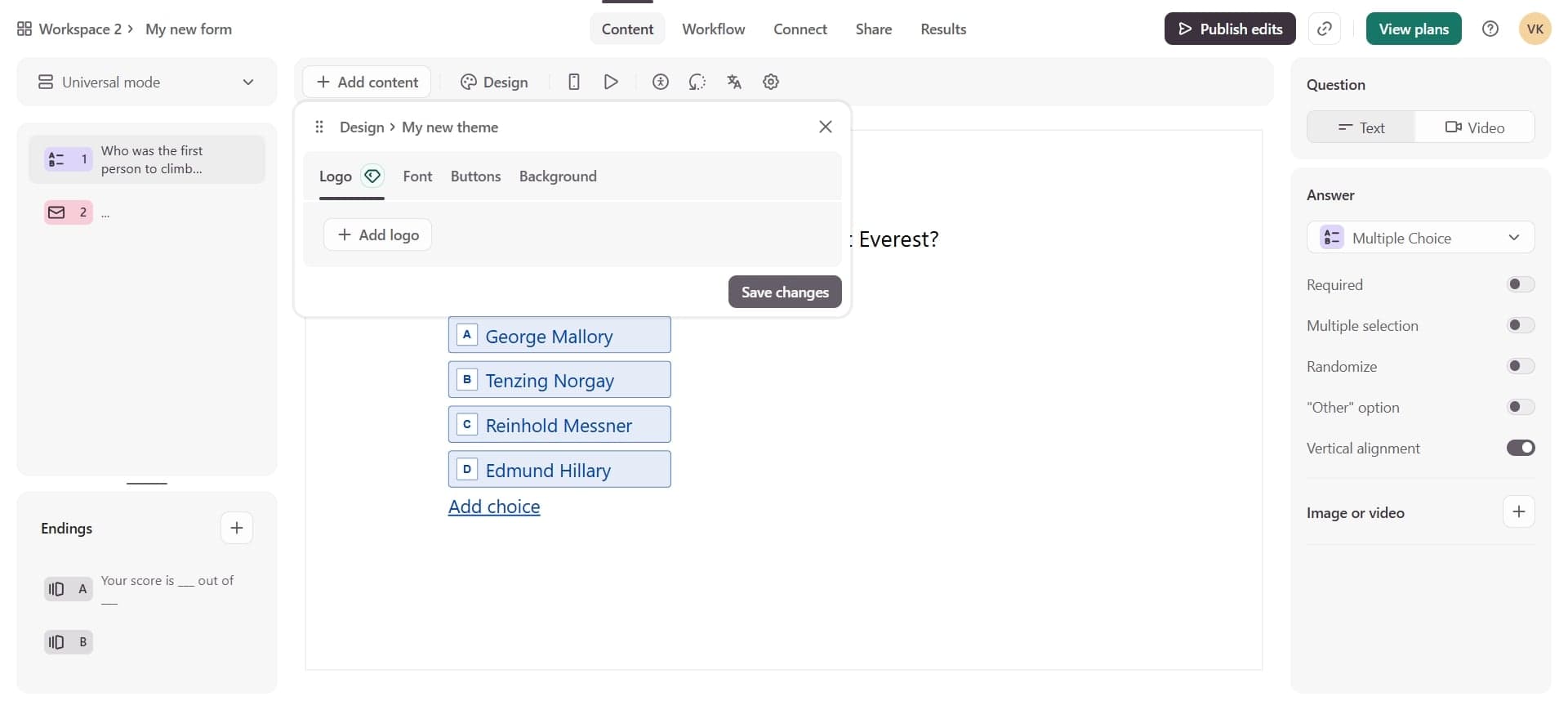
Set the background style
Choose between solid colors, gradients, or image backgrounds for your form. Upload a custom image or select a pre-designed background option.
- 6
Configure spacing and layout
Adjust padding, margins, and question spacing to create the visual hierarchy you prefer. These settings affect how your form appears on different screen sizes.
- 7
Preview and save your changes
Use the preview function to see how your customizations look on desktop and mobile devices. Save your design settings to apply them to your live form.
Frequently asked questions
Common questions about how to customize the design of a typeform.
Yes, Typeform allows you to enter custom hex color codes for all design elements. You can match your exact brand colors by using the color picker tool or pasting specific hex values into the color fields.
Typeform offers a curated selection of web-safe fonts optimized for readability on forms. These include sans-serif and serif options that work well across all devices. You can preview each font before applying it.
Yes, you can upload custom images as backgrounds for your form. Typeform recommends using high-quality images and suggests optimizing them for web to ensure fast loading times.
No, design customizations are purely visual and do not affect how your form functions or collects responses. You can change colors, fonts, and layouts without impacting form logic or data collection.
Use the preview feature to check how your form appears on mobile devices. Typeform automatically adjusts layouts for smaller screens, but you can test responsiveness before publishing to ensure everything displays correctly.