How to Group Questions in Typeform

Organizing questions into groups in Typeform helps you create a more intuitive survey experience by clustering related questions together. This feature allows respondents to navigate through your form in logical sections, making longer surveys feel more manageable and less overwhelming.
Quick summary
In this tutorial, you'll learn how to group questions in Typeform to improve form organization and user experience. You'll discover how to create question groups, manage them effectively, and customize their appearance to guide respondents through your survey in a structured way.
Why this matters
Grouping questions matters because it reduces cognitive load on respondents and improves completion rates for longer forms. When questions are logically organized into groups, surveys become easier to navigate, and you're more likely to collect complete, high-quality responses. Well-structured forms also make analyzing results more intuitive, since related data is naturally grouped together.
Step-by-step guide
- 1
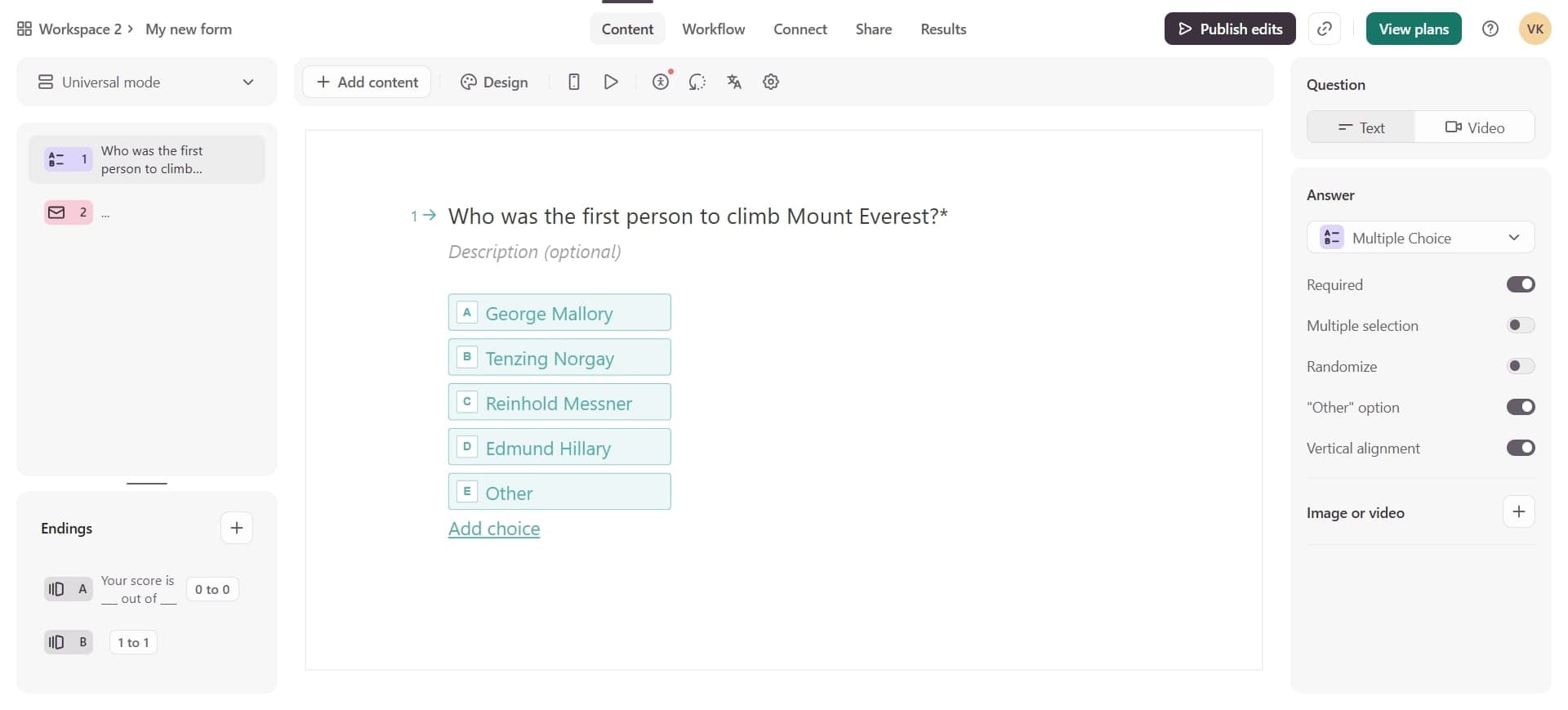
Access your Typeform workspace
Log into your Typeform account and navigate to the form you want to edit. Click the Edit button to open the form builder and access all available customization options.
- 2
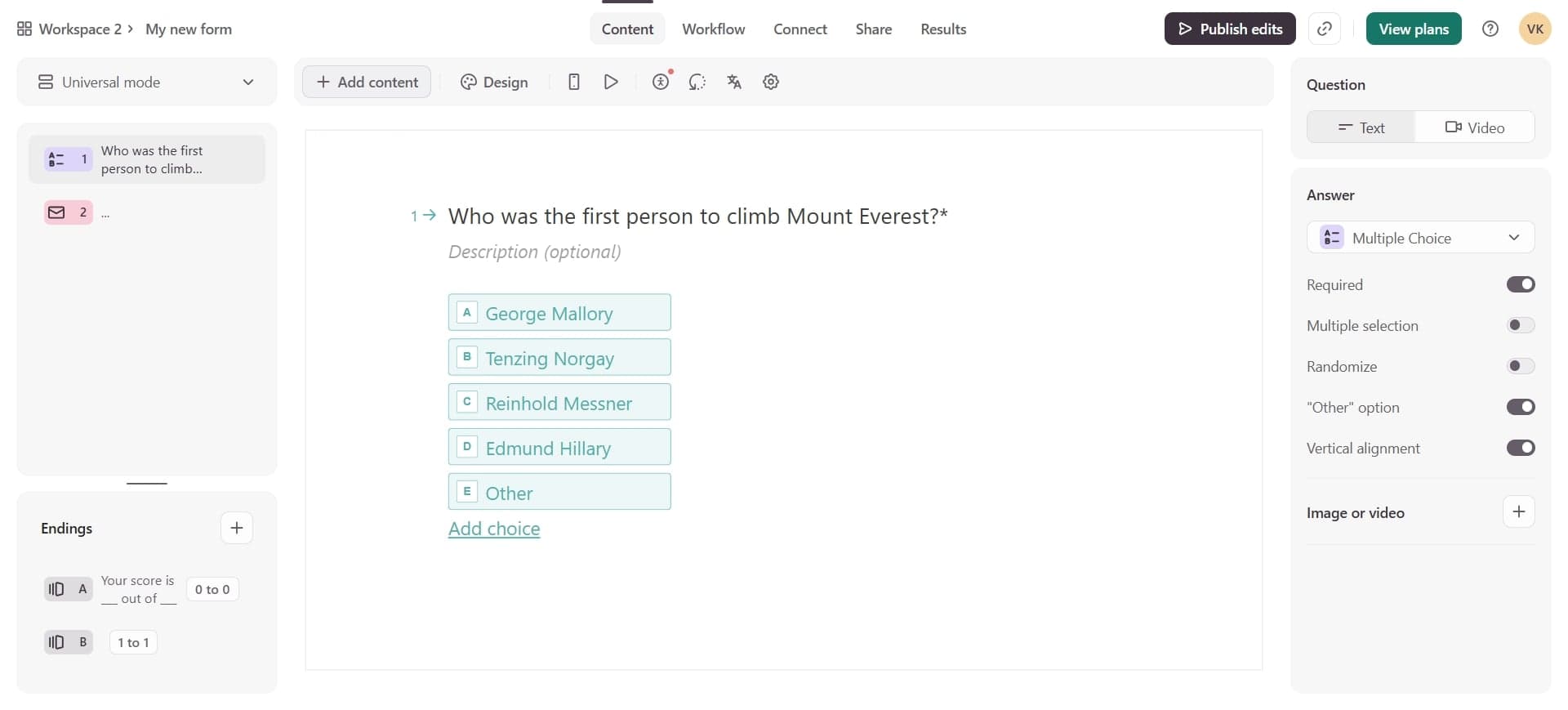
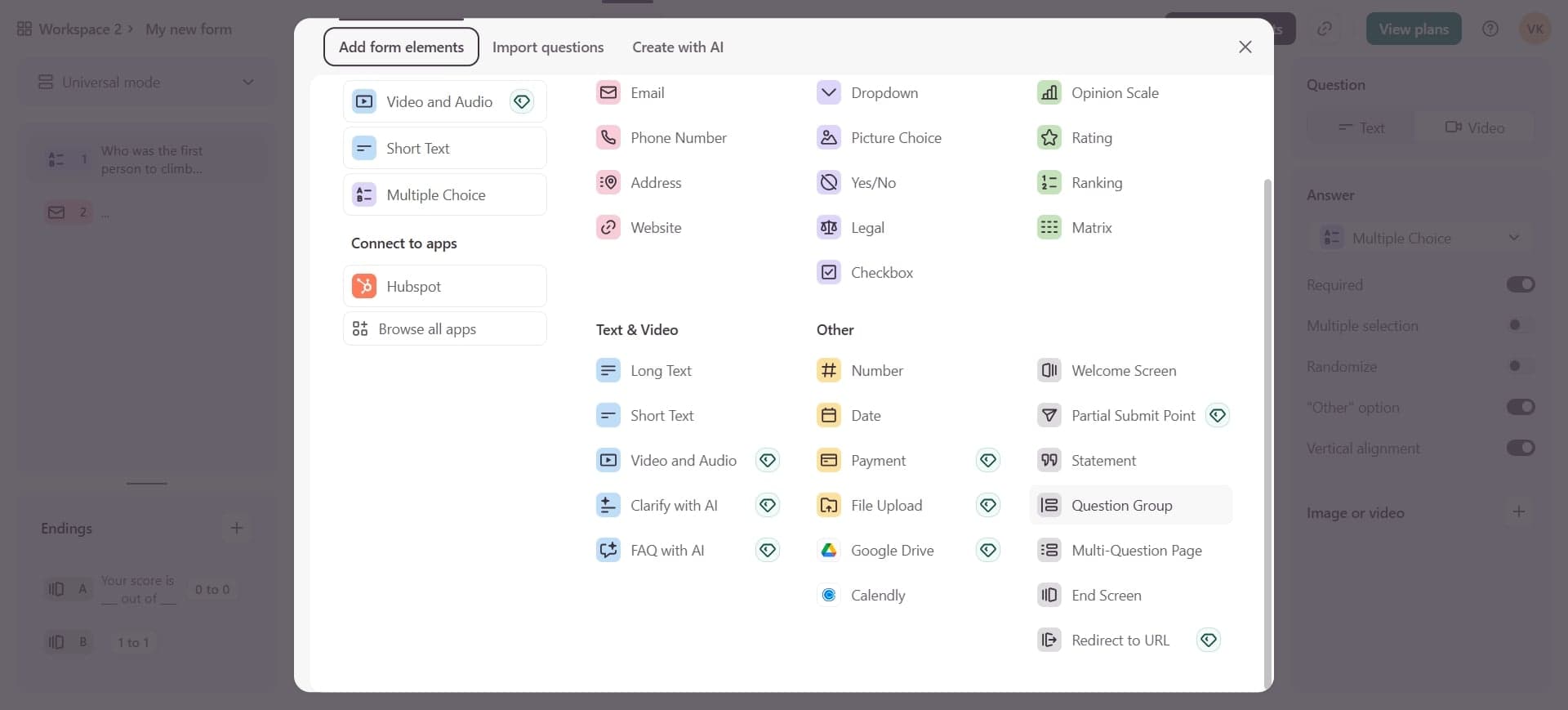
Create a new question group
In the form builder, locate the Group button in the left toolbar and click it to insert a new group. A group container will appear in your form where you can add multiple related questions.
- 3
Add questions to the group
Drag existing questions into the group, or add new questions directly within the group by clicking the plus icon. You can reorder questions within the group by dragging them to your preferred position.
Frequently asked questions
Common questions about how to group questions in typeform.
Yes, you can customize group appearance by adding a title and description, adjusting colors, and setting the background. These customizations help differentiate sections and guide respondents through your survey more clearly.
Groups allow you to organize questions within a single page, while sections break your form into multiple pages. Groups are ideal for organizing related questions on one screen, whereas sections work better for creating a multi-step form experience.
Yes, Typeform allows you to apply conditional logic to groups, meaning entire groups can show or hide based on respondent answers. This feature helps create personalized form experiences where respondents only see relevant sections.
There's no hard limit on the number of questions per group, but for optimal user experience, it's recommended to keep groups concise. Aim for 3-10 related questions per group to maintain readability and prevent overwhelming your respondents.
Absolutely. You can drag and drop groups to reorder them, and click the delete icon to remove a group entirely. Note that deleting a group will also delete all questions contained within it, so ensure you want to remove the content.