How to Send Typeform Responses to Email

Typeform makes it easy to collect responses from your audience, but you may want those responses delivered directly to your email inbox for immediate action. This guide walks you through setting up email notifications so you never miss a submission.
Quick summary
In this tutorial, you'll learn how to configure Typeform to automatically send form responses to your email address. By the end, you'll have a fully automated workflow that notifies you of every new submission in real time.
Why this matters
Email notifications ensure you stay informed about form submissions without having to log into Typeform repeatedly. This is especially valuable for time-sensitive forms where quick response times matter, allowing you to act on feedback, leads, or requests immediately after they're submitted.
Step-by-step guide
- 1
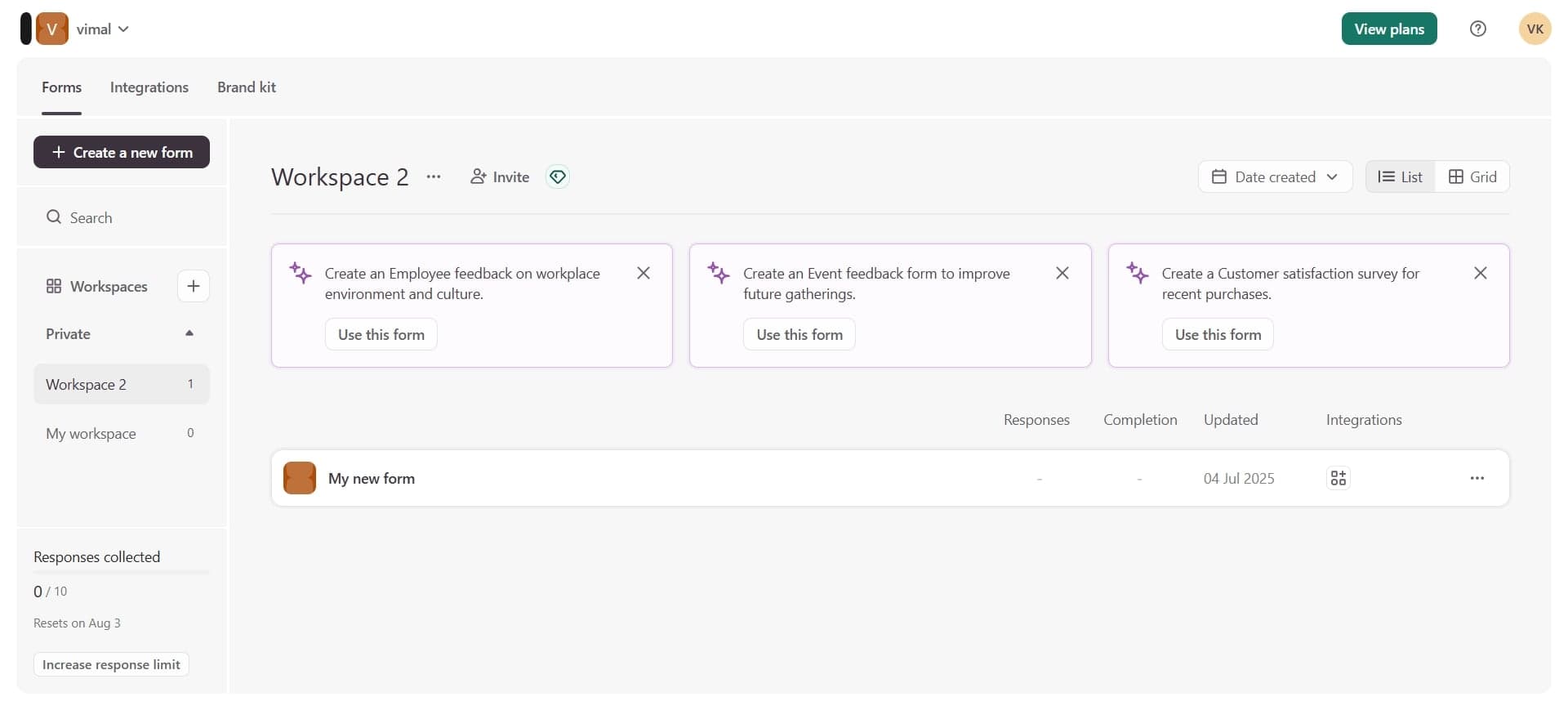
Log in to your Typeform account
Navigate to Typeform.com and sign in with your credentials. Once logged in, you'll see your dashboard with all your forms listed.
- 2
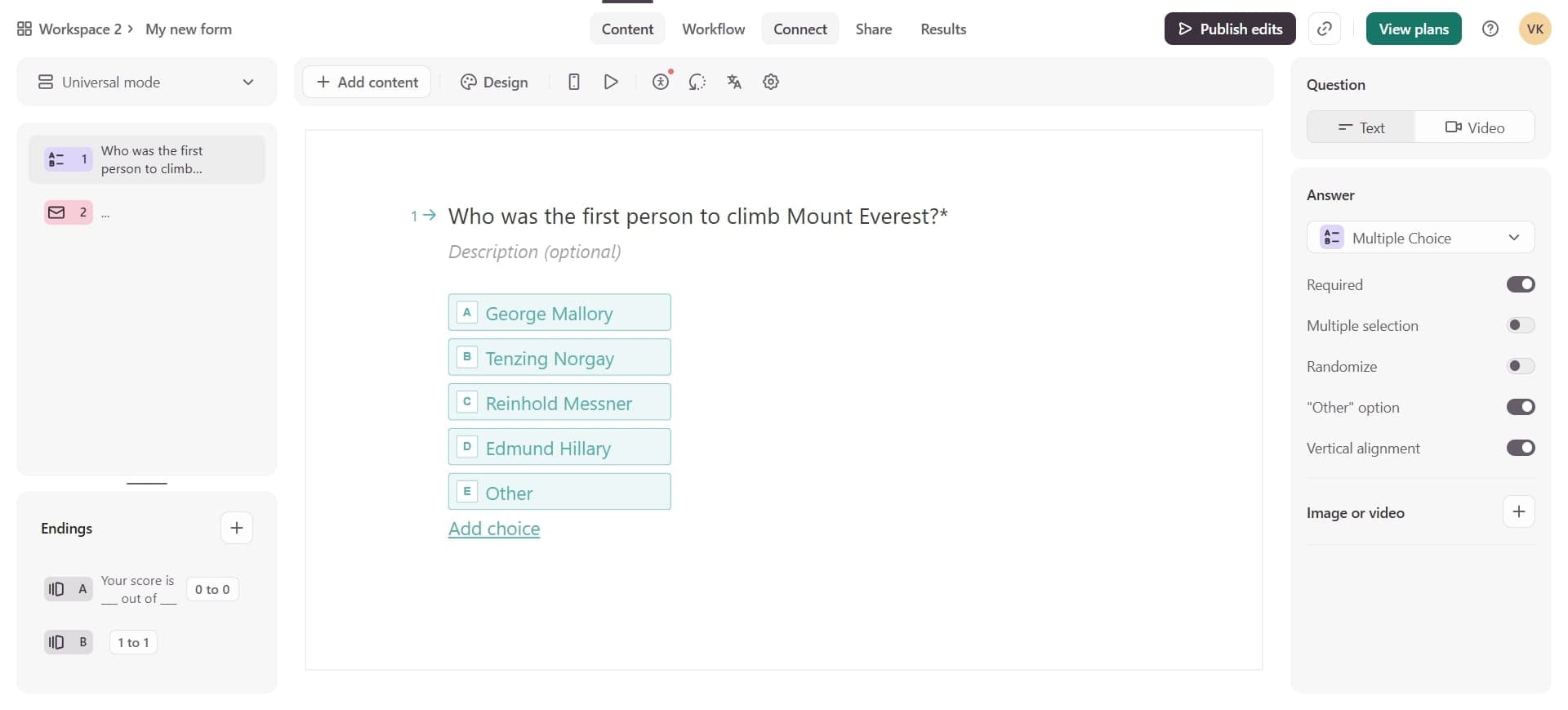
Select the form to configure
Click on the form for which you want to enable email notifications. This opens the form editor and settings interface.
- 3
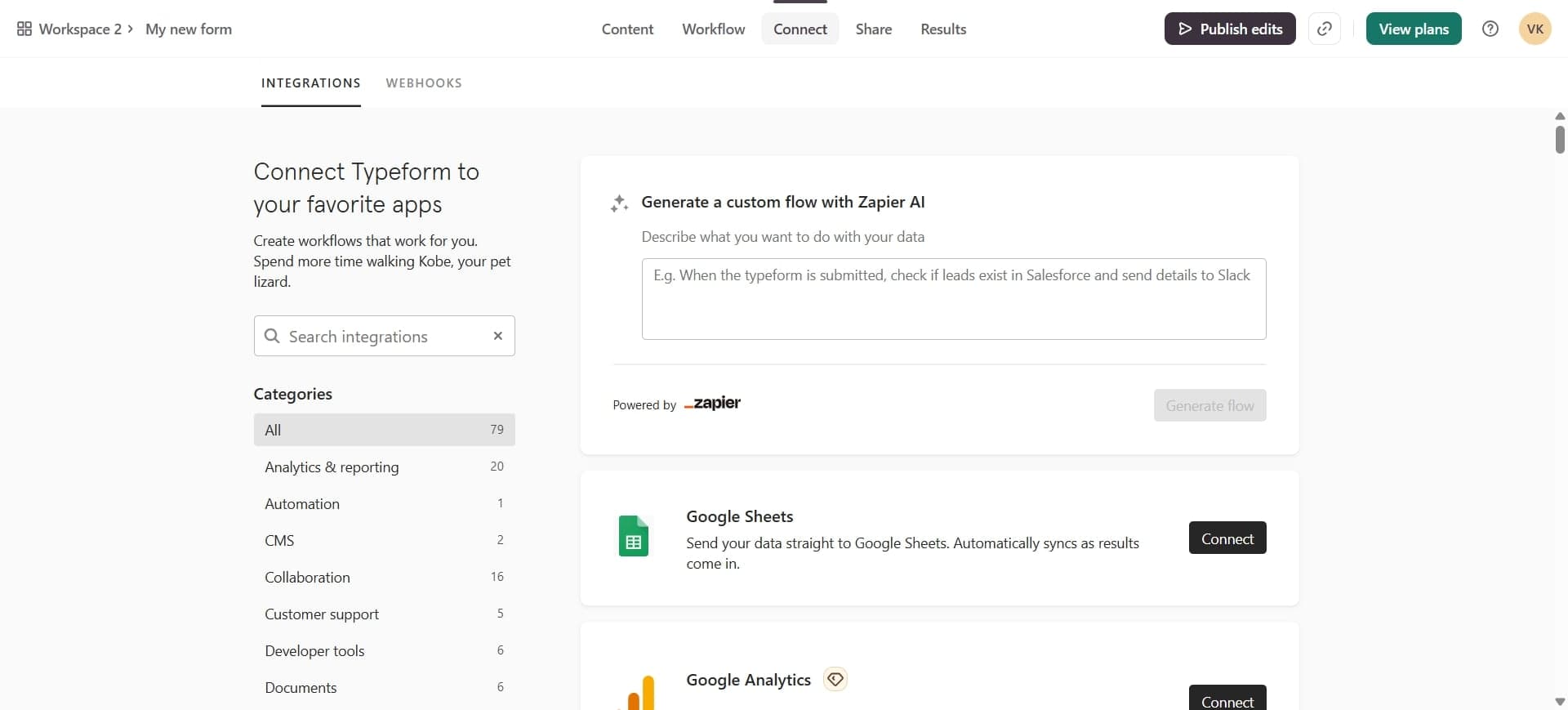
Access the notifications settings
Click on the Notifications icon or menu option, typically found in the top navigation bar or settings panel of your form.
- 4
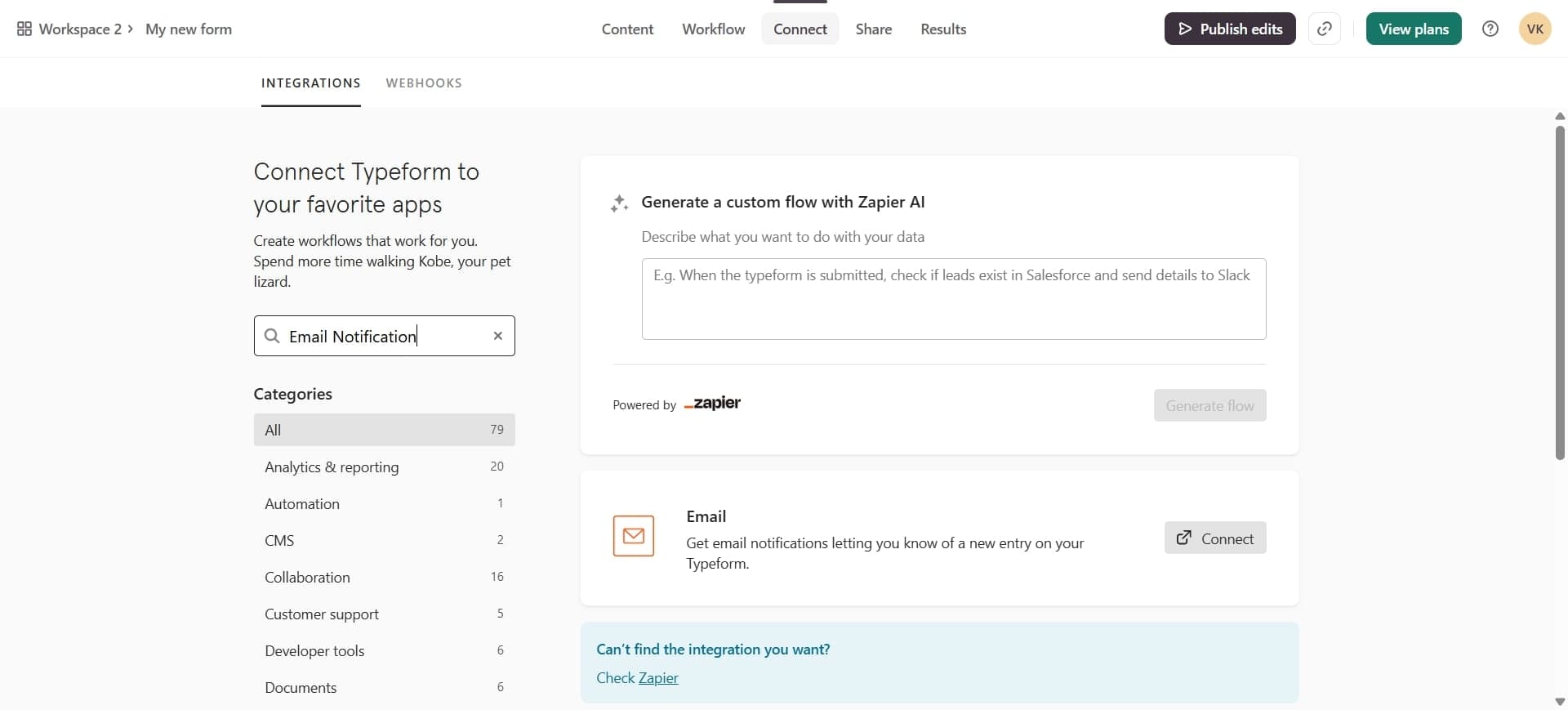
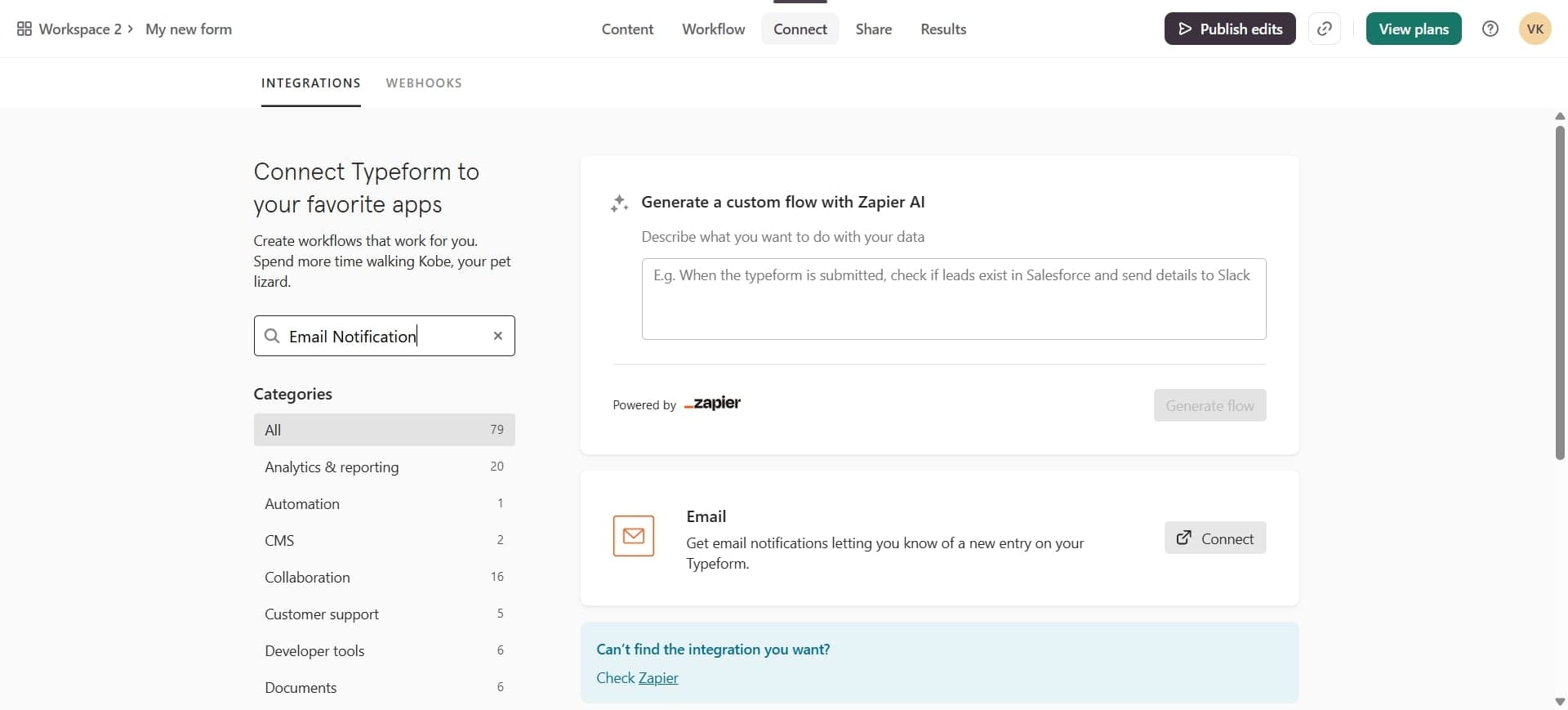
Choose email as notification type
Select Email from the available notification options. Typeform will present you with configuration choices for how you want to receive notifications.
- 5
Enter your email address
Type the email address where you want to receive form responses. You can add multiple email addresses if you want notifications sent to different team members.
- 6
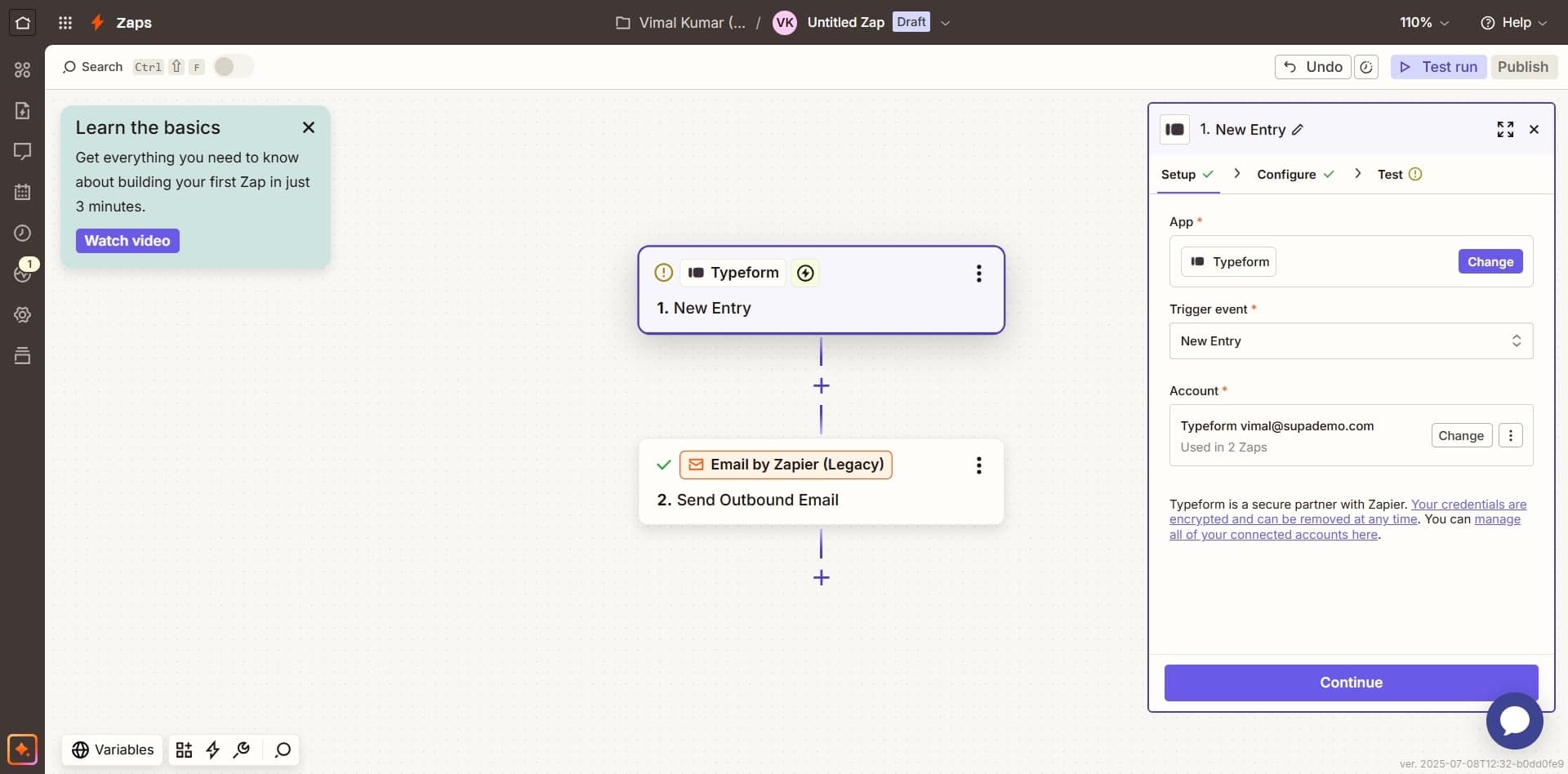
Select notification frequency
Choose whether you want to receive emails immediately upon submission, as a daily digest, or on another schedule that works for your workflow.
- 7
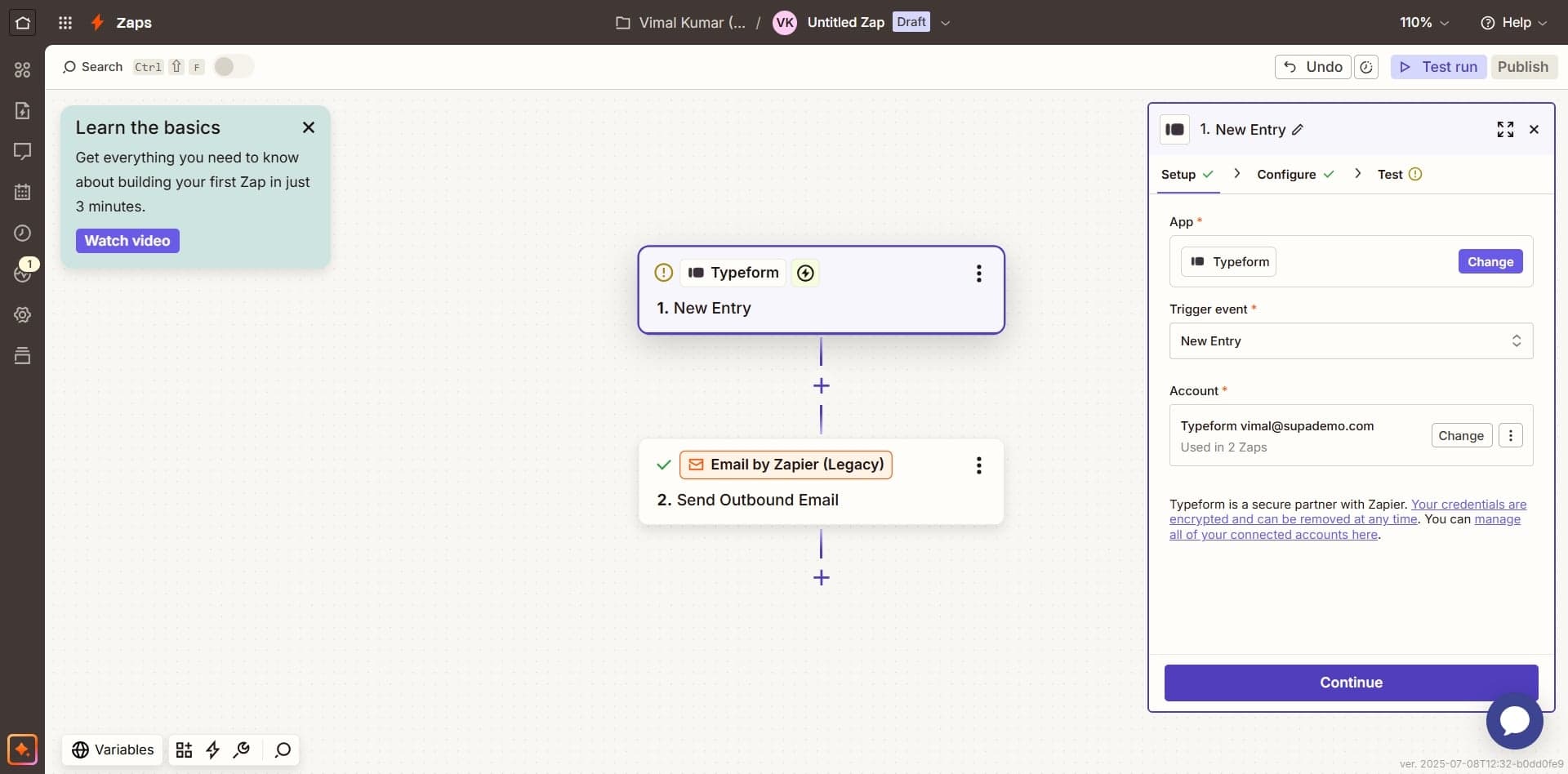
Configure which fields to include
Optionally, select which form fields should be included in the email notification. This helps keep your inbox focused on the most important information.
- 8
Review and save settings
Double-check all your notification settings to ensure the email address is correct and your preferences are set as desired. Click Save to apply the changes.
- 9
Test your notification setup
Submit a test response to your form to verify that the email notification arrives at the specified address with all the information you configured.
Frequently asked questions
Common questions about how to send typeform responses to email.
Yes, Typeform allows you to add multiple email addresses to your notification settings. Simply enter each email address you want to receive notifications, and each will get a copy of every submission. This is useful for teams where multiple people need to be informed of new responses.
First, check your spam or junk folder as notifications may be filtered there. Make sure you saved your notification settings correctly and verify the email address you entered is spelled correctly. If issues persist, test the form with a fresh submission to see if notifications work on subsequent responses.
Absolutely. When setting up email notifications, you can choose which form fields to include in the email. This allows you to exclude sensitive information or focus only on the most critical data points for your workflow.
Yes, you can disable email notifications at any time by returning to your form's notification settings and toggling off the email option or deleting the email addresses. Your form will continue to collect responses, but you simply won't receive email alerts.
Email notifications include responses from all question types in your form, including multiple choice, text fields, file uploads, and more. However, very large file uploads may not be included in the email itself but will be accessible through your Typeform responses dashboard.