How to add teammates access to your Calendly account

Collaborating with teammates on Calendly makes scheduling more efficient and allows your team to manage bookings collectively. This guide walks you through the process of granting teammate access to your Calendly account so they can view and manage your calendar.
Quick summary
In this tutorial, you'll learn how to add teammates to your Calendly account and configure their permissions. You'll navigate to the settings, enable teammate access, and apply the necessary permission changes to get your team up and running.
Why this matters
Giving teammates access to your Calendly account streamlines scheduling workflows and reduces bottlenecks when multiple people need to manage appointments. This is especially valuable for support teams, sales groups, and administrative staff who need to coordinate availability and respond to booking requests in real time.
Step-by-step guide
- 1
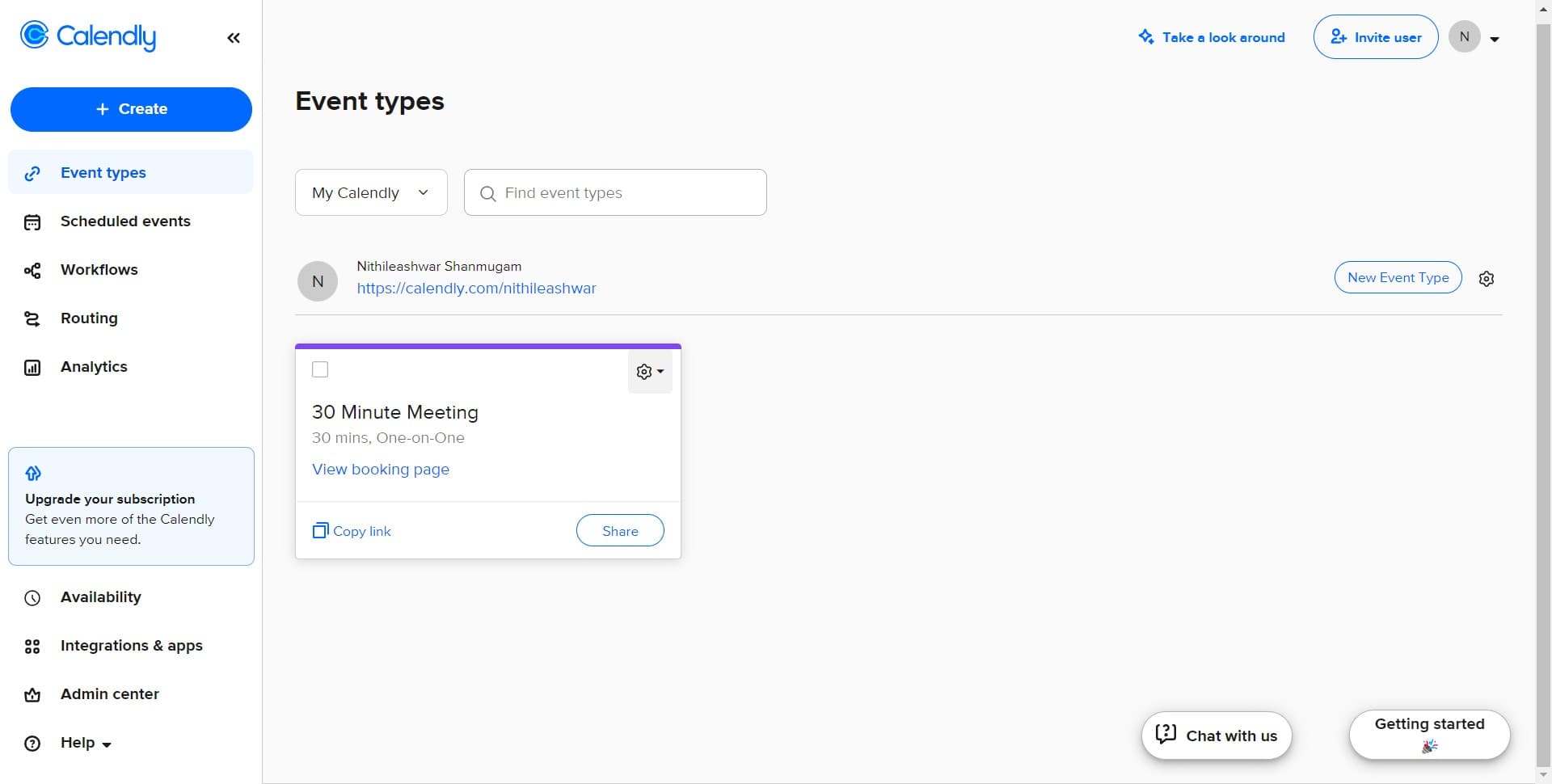
Access the teammates section
Start by navigating to the appropriate settings area in your Calendly account. You'll find the option to manage team members and their access levels from this location.
- 2
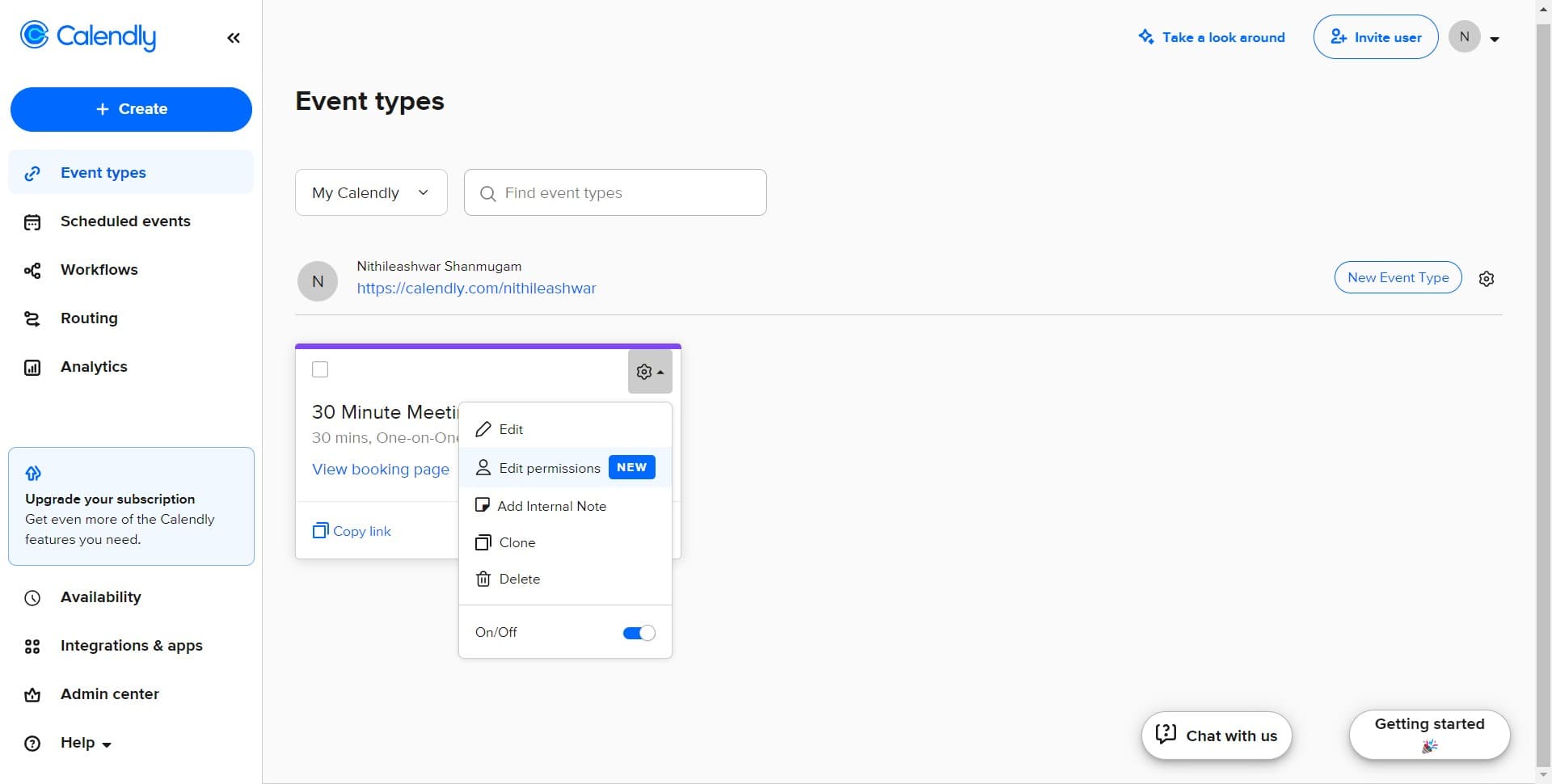
Edit permissions for teammates
Click on the 'Edit permissions' option to open the permission management panel. This is where you'll define what actions your teammates can perform on your calendar and account.
- 3
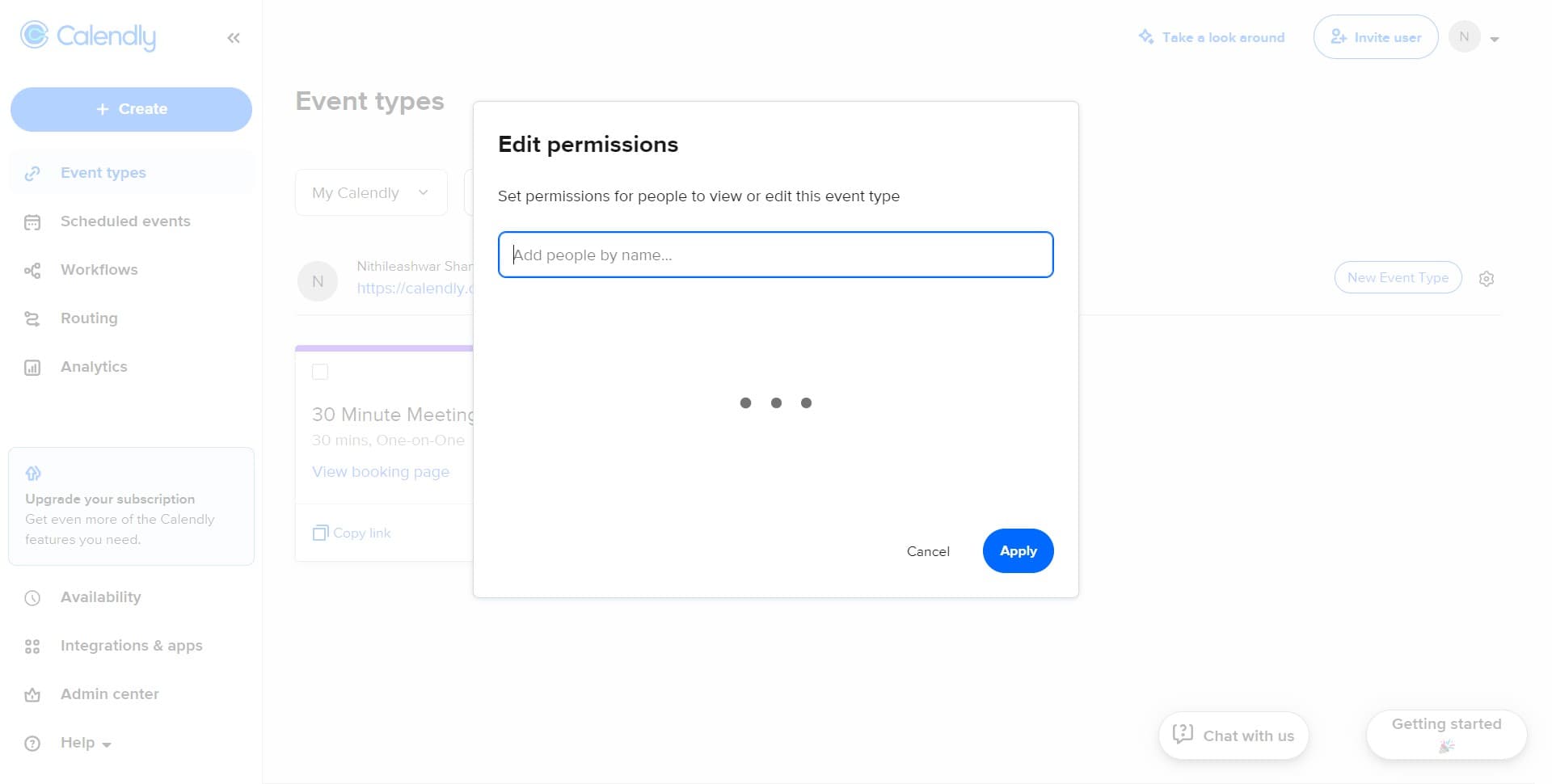
Configure the access settings
Review the available permission options and select the appropriate access level for each teammate based on their role. You can customize permissions to control whether they can view, edit, or manage calendar events.
- 4
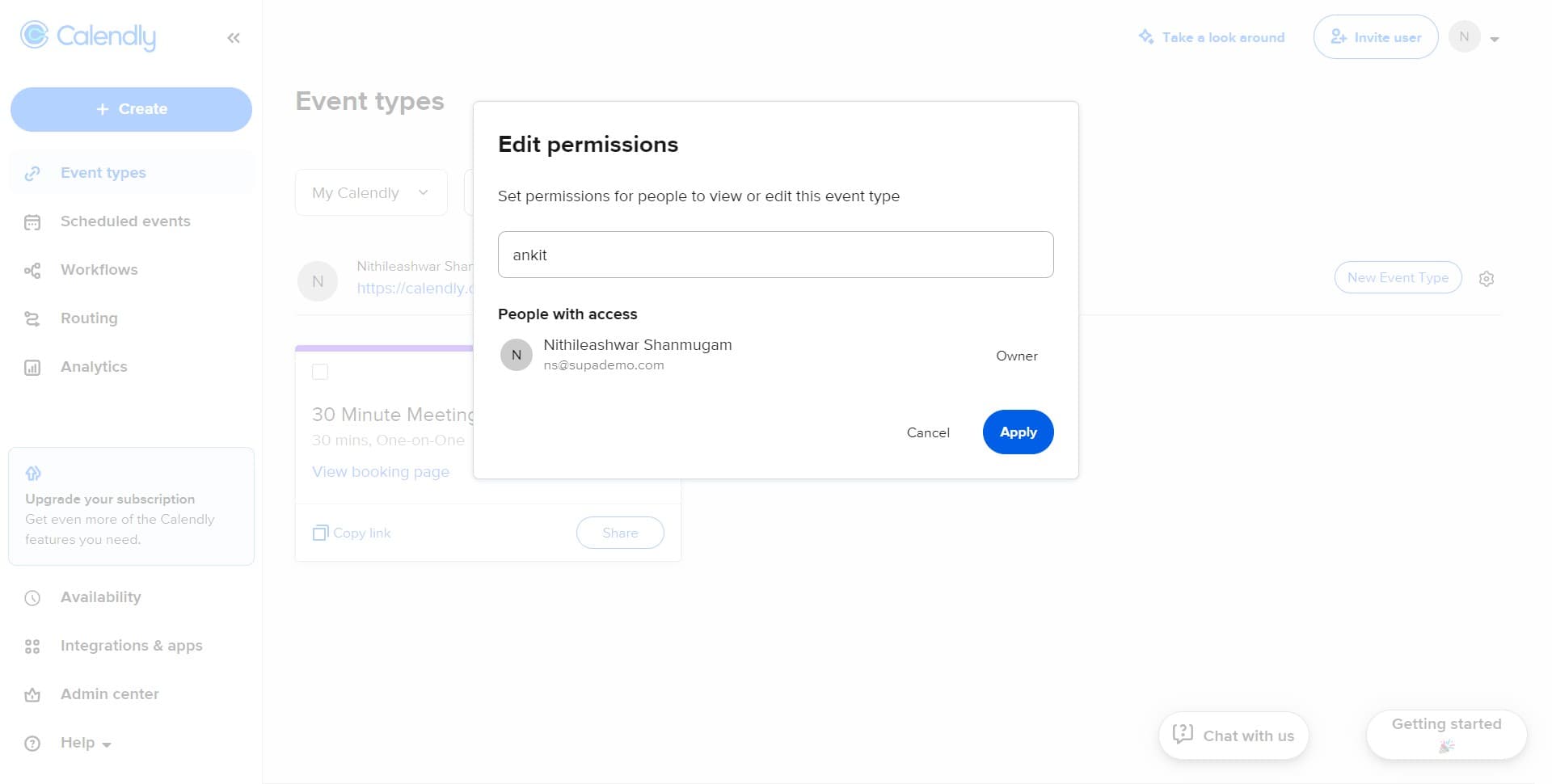
Apply the permission changes
Click the 'Apply' button to finalize and save the permission settings. Your teammates will now have the access level you've configured and can begin using their new permissions immediately.
Frequently asked questions
Common questions about how to add teammates access to your calendly account.
Yes, Calendly allows you to customize permission levels for each teammate individually. You can control what each person can access and modify based on their specific role and responsibilities within your team.
When you grant full access, teammates can view your calendar, manage bookings, and potentially make changes to calendar settings depending on the specific permissions you enable. Review each permission carefully to ensure teammates only have access to what they need.
Absolutely. You can return to the permission settings at any time to modify or remove a teammate's access. Changes take effect immediately, and the teammate will lose access to the features you've disabled.
Teammates typically need to have Calendly accounts or be invited through Calendly's team features to gain access. Check your Calendly plan, as team functionality may vary depending on your subscription level.
The information teammates can see depends on the specific permissions you grant. You can control whether they access your full calendar, specific event details, or only scheduling availability. Configure permissions according to your privacy needs.