How to Add Audio to Canva

Adding audio to your Canva designs can enhance presentations, social media content, and marketing materials with sound effects or background music. This guide walks you through the process of uploading and inserting audio files directly into your Canva project.
Quick summary
In this tutorial, you'll learn how to add audio to Canva by accessing the uploads section, selecting an audio file, and choosing the specific audio clip you want to use. By the end, you'll be able to integrate sound into your designs seamlessly.
Why this matters
Audio elements make designs more engaging and memorable, especially for video content, presentations, and interactive media. Adding audio directly within Canva streamlines your workflow, eliminating the need to edit audio files separately or switch between multiple tools.
Step-by-step guide
- 1
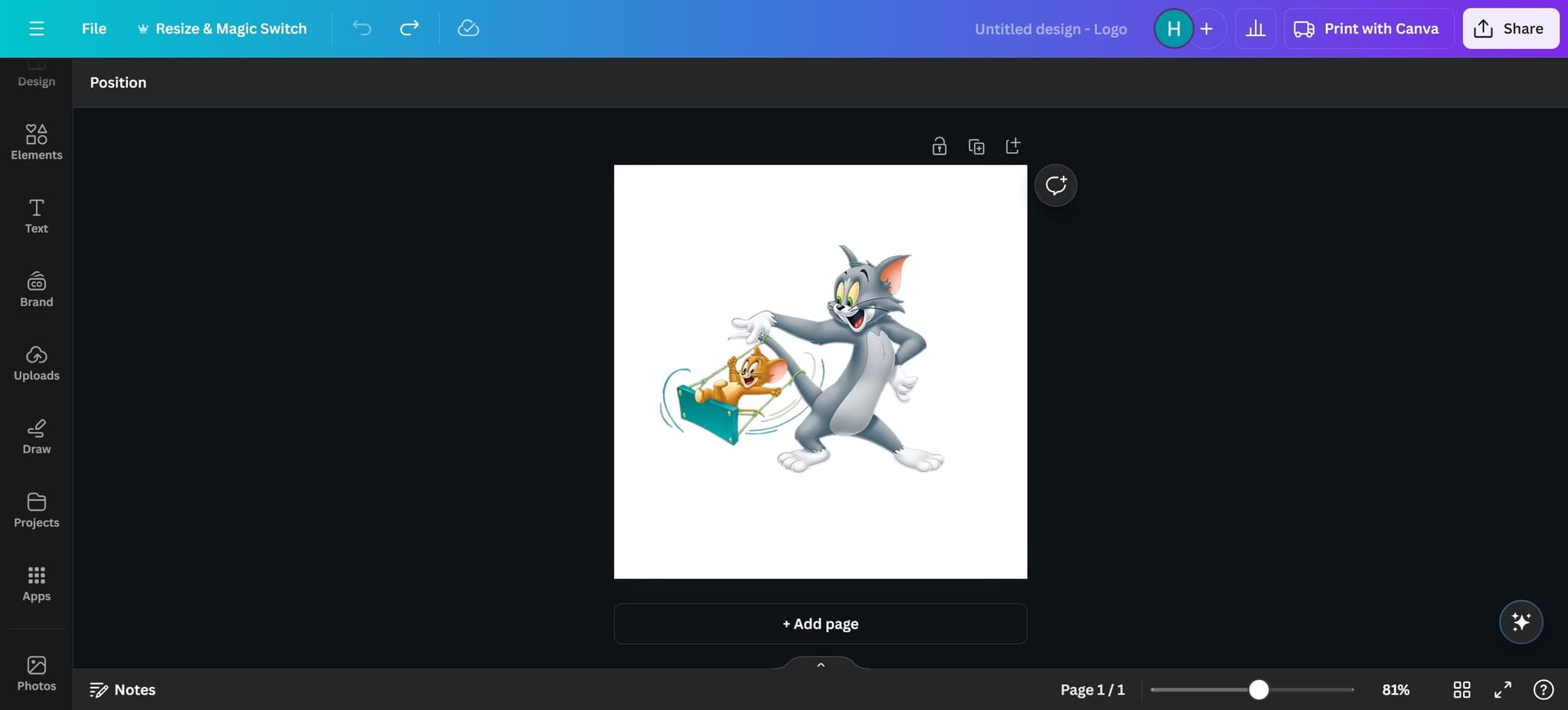
Click on the design element
Begin by clicking on the element in your Canva design where you want to add audio. This selects the element and prepares it for audio insertion.
- 2
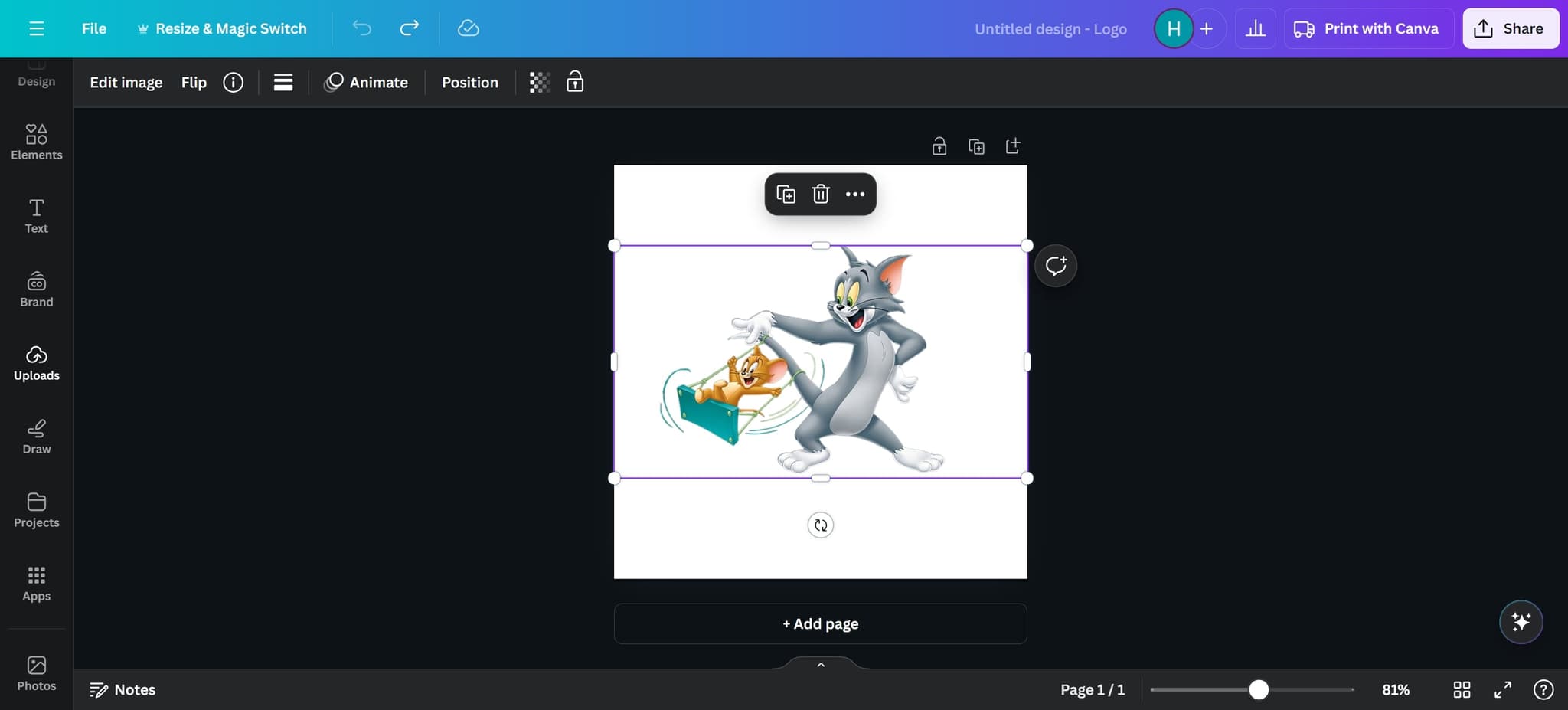
Open the Uploads section
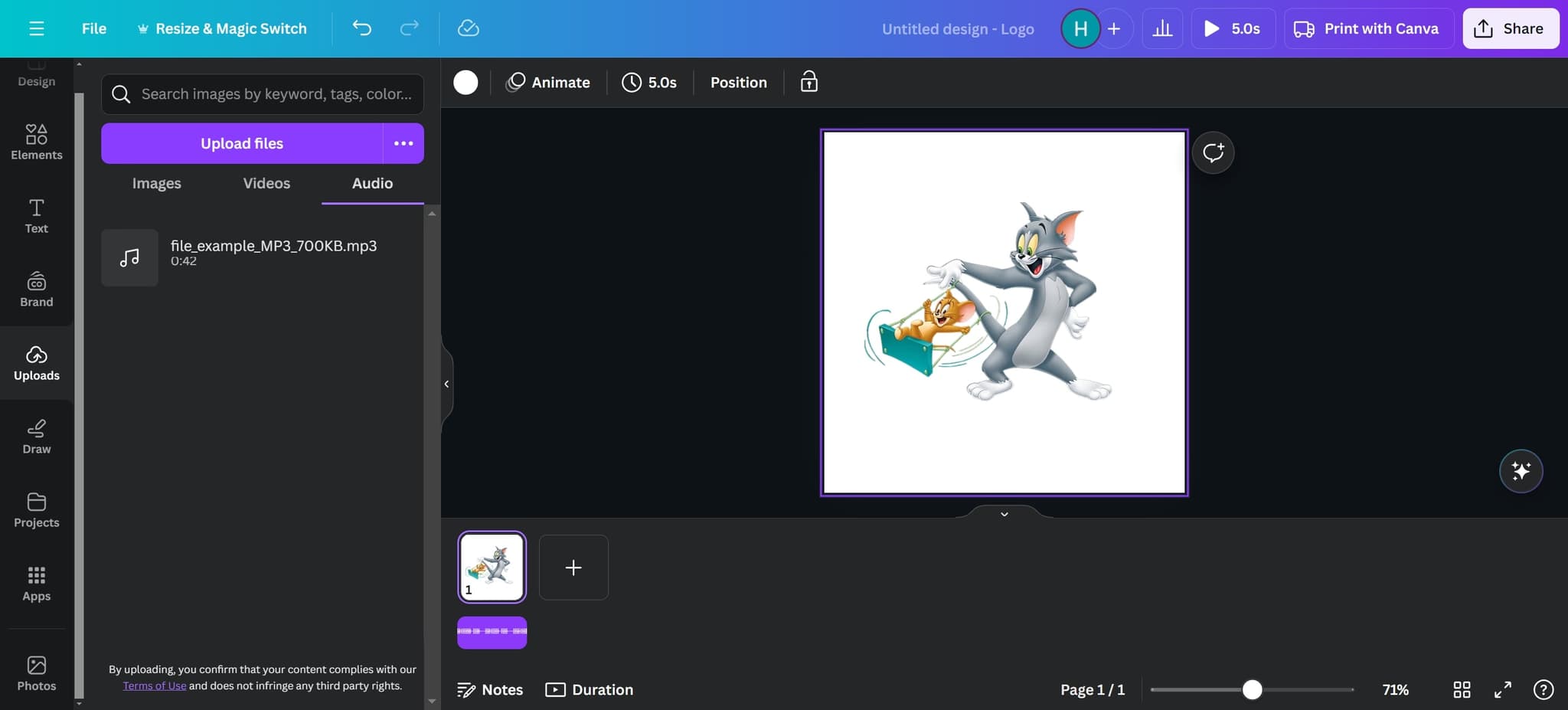
Click on the 'Uploads' option in the menu or sidebar. This displays all previously uploaded files and gives you access to upload new audio files to your account.
- 3
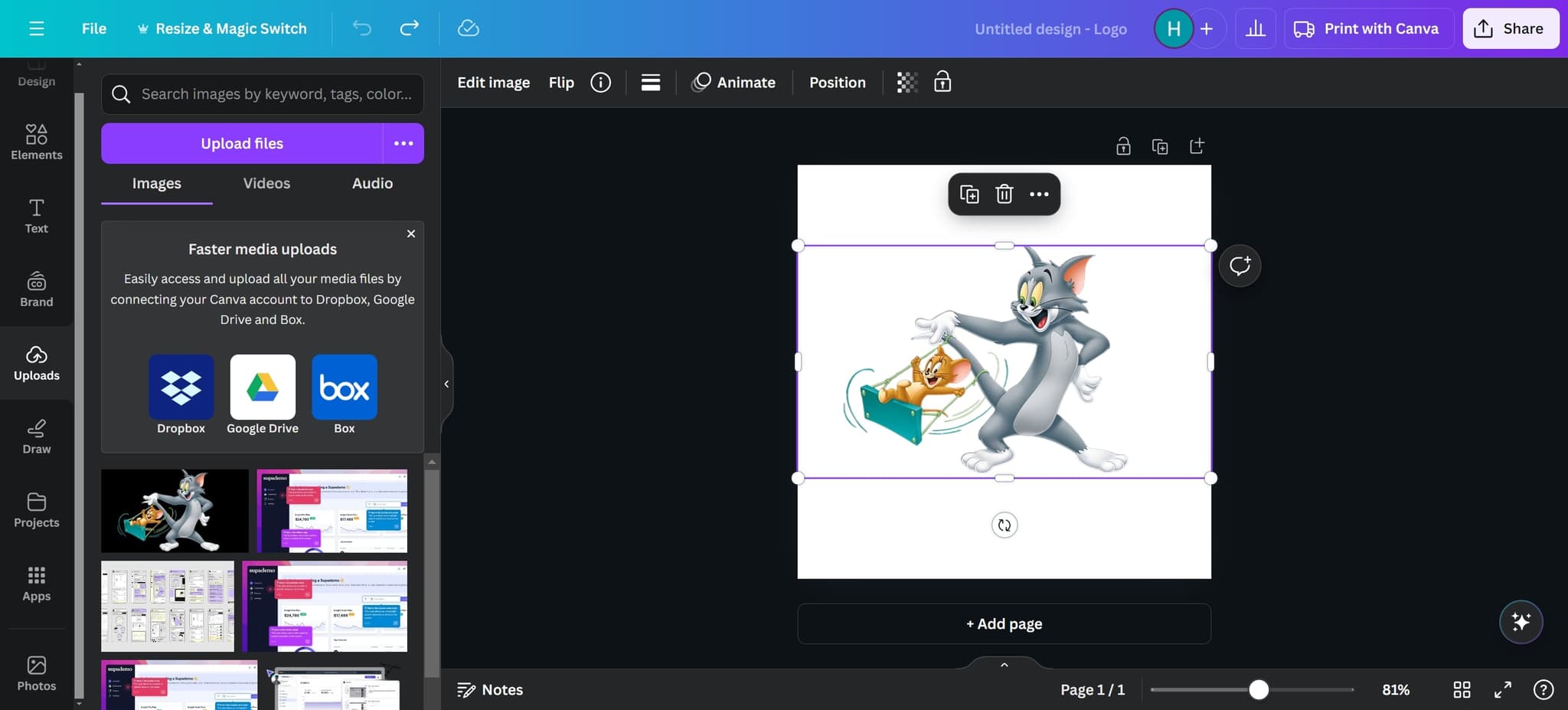
Select Audio from uploads
Click on 'Audio' to filter and view all available audio files. You'll see a list of audio options that you can add to your design.
- 4
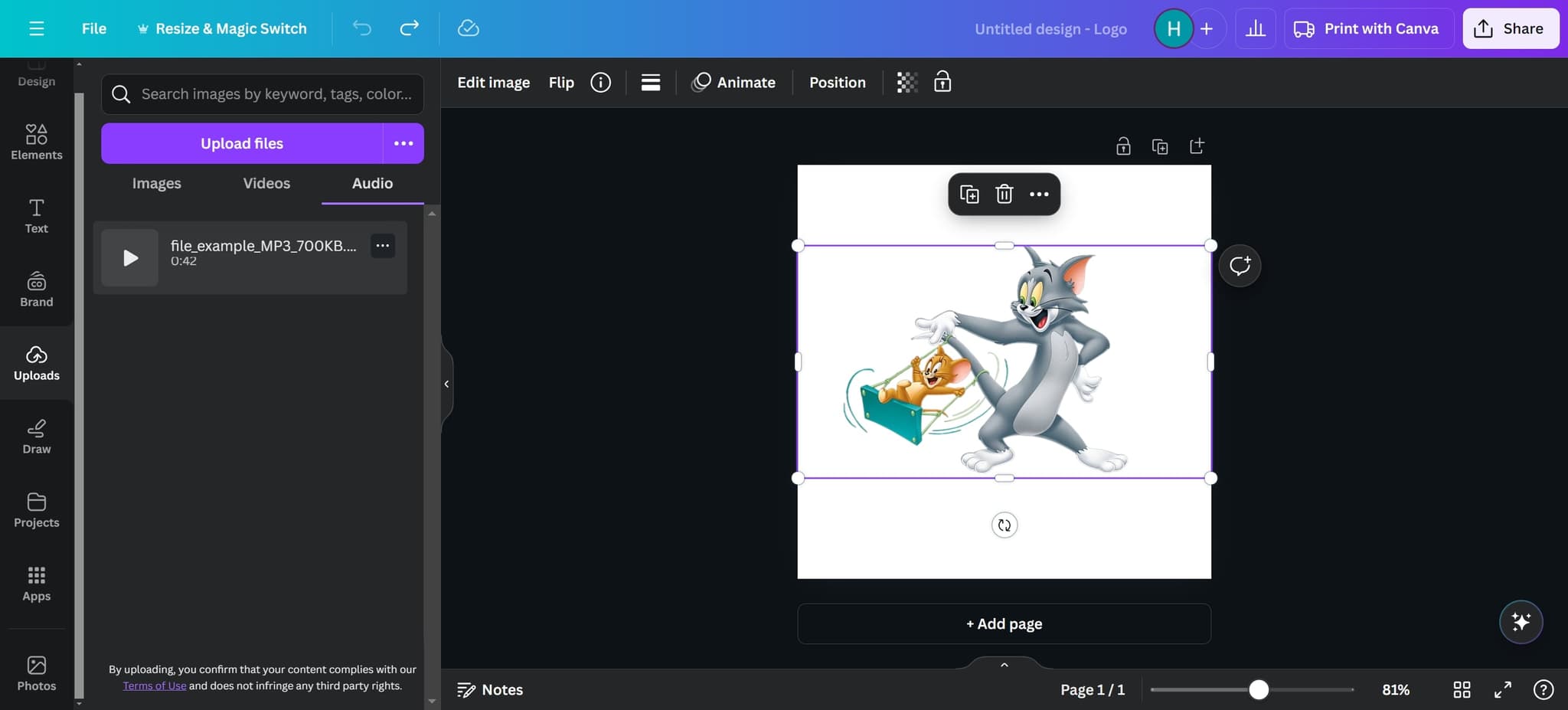
Choose your audio clip
Click on the specific audio clip you want to use, such as '0:42'. This selects the audio file and prepares it to be added to your design element.
- 5
Apply audio to the element
Click on the element again to finalize the audio attachment. The audio will now be associated with that element in your Canva design.
Frequently asked questions
Common questions about how to add audio to canva.
Canva supports common audio formats including MP3, WAV, and OGG files. When uploading audio, ensure your file is in one of these supported formats to avoid compatibility issues.
Canva allows you to select audio clips by duration, as shown in the tutorial with the '0:42' option. However, for detailed audio editing beyond selecting pre-set durations, you may need to edit the file externally before uploading.
Storage limits depend on your Canva subscription plan. Free users have limited upload storage, while premium members typically get more space for storing audio files and other media.
Yes, you can add audio to multiple elements within your design. Simply repeat the process for each element where you want audio to appear.
Audio playback depends on the export format and how your design is shared. For video exports or interactive formats, audio will typically play. For static image exports, audio will not be included.