How to Add Page Numbers in Canva

Vimal Kumar
Vimal Kumar·
How to Add Page Numbers in Canva
Interactive demo powered by Supademo

1. First, open the Canva project where you want to add page numbers.

2. Click on the 'Text' tab

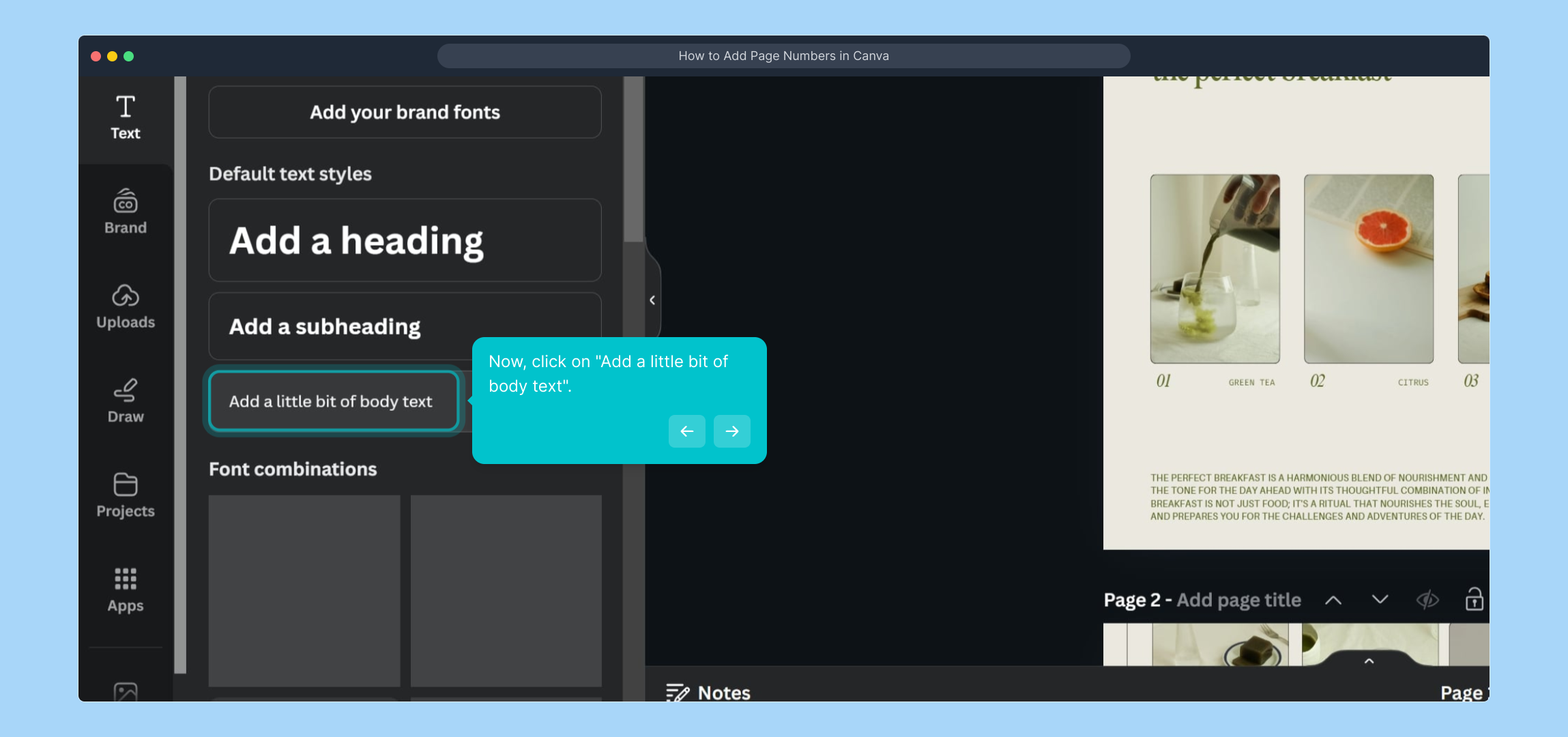
3. Now, click on "Add a little bit of body text".

4. Video Step

(

Play Now

)

5. Video Step

(

Play Now

)

6. Congratulations!
You have successfully added a page number in Canva.
If you have multiple pages, repeat this step for each page, updating the number accordingly.

7. Enjoyed the guided demo?

This interactive demo/guided walkthrough on How to Add Page Numbers in Canva was created using Supademo.


How to Add Page Numbers in Canva : Step-by-Step Guide

Begin by opening the Canva project where you want to insert page numbers. This ensures you’re working directly within the design file that needs page numbering.

1

Next, navigate to the left sidebar and select the ‘Text’ tab. This section contains all the text formatting options and tools you’ll use to add new text elements like page numbers.

2

Look for and click on the "Add a little bit of body text" option. This will add a new text box to your design where you can type the page number or any other text you want to display.
3

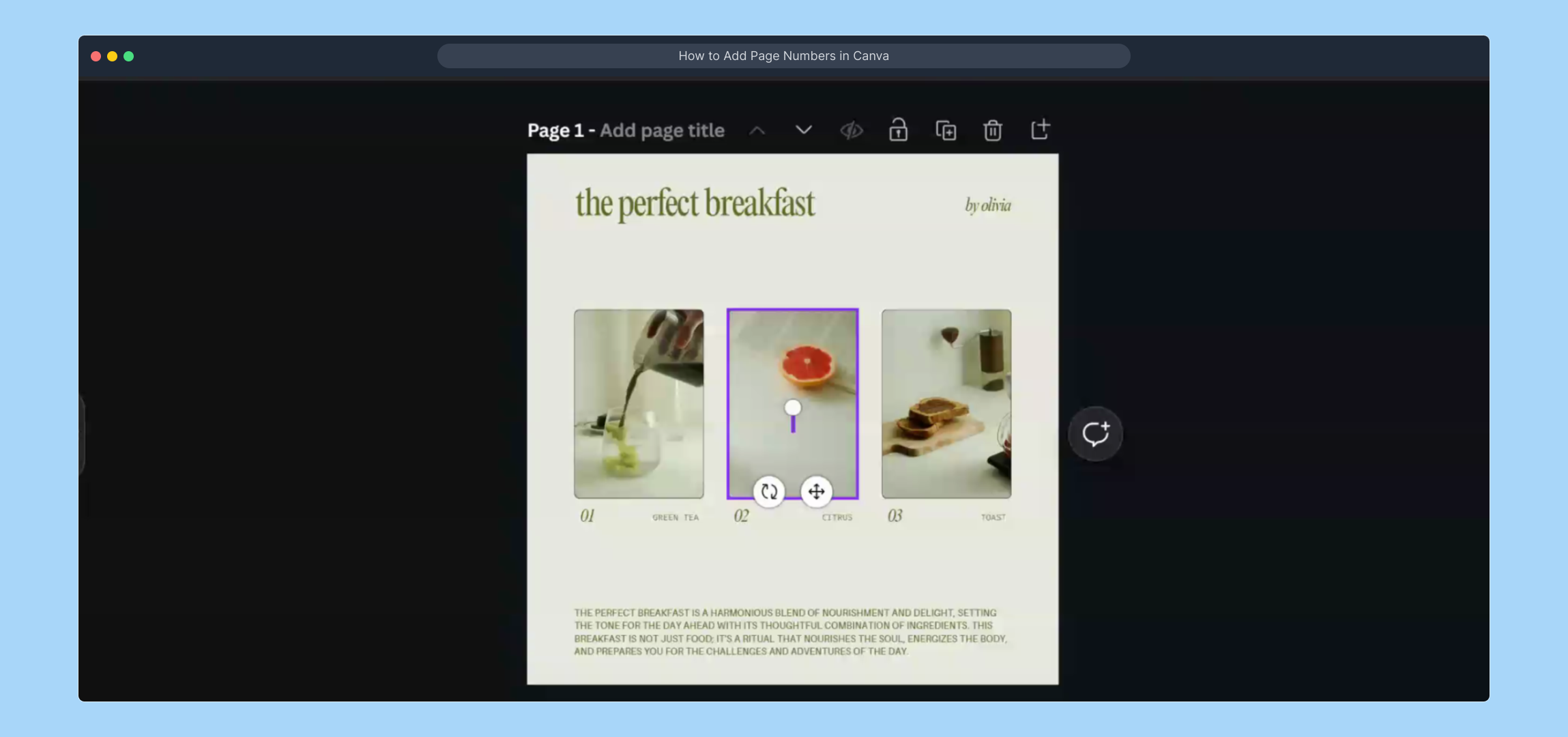
Watch the following video to see a clear step-by-step demonstration of how to add and format the page number text box within your design for best results.

(
Play Now

)

4

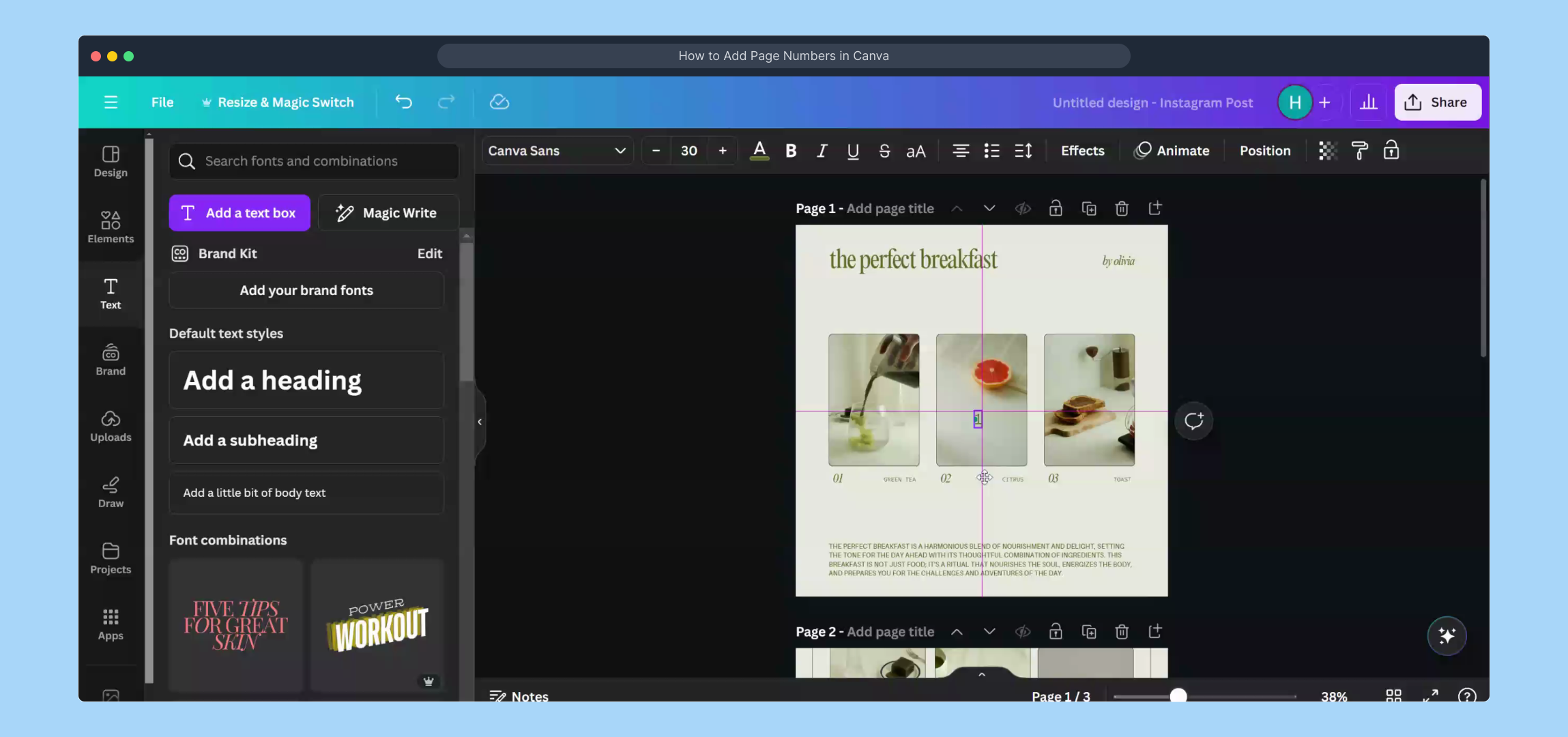
For additional guidance, here’s another video illustrating more advanced tips and tricks to customize the placement and style of your page numbers to fit your project’s needs.

(
Play Now

)

5

Well done! You’ve now successfully placed a page number within your Canva project. If your design contains multiple pages, repeat this process on each page, updating the number as you go to keep your layout consistent.

6

Did this demo help you get comfortable with adding page numbers? We hope you found these instructions clear and useful for your design work.

7

Create your own interactive demos in < 5 mins with Supademo

You can create your own interactive product demo in minutes using Supademo. Drive growth, scale enablement, and supercharge product-led onboarding with Supademo. Sign up for free here with no credit card required.


FAQs

Commonly asked questions about this topic.

How do I add page numbers to my Canva project?

Open your Canva project, click the ‘Text’ tab, then select "Add a little bit of body text" to insert a text box. Type the page number manually and position it where you want. Repeat this on each page for continuous numbering.

Can Canva automatically number pages?

No, Canva does not currently support automatic page numbering. You must manually add and update the page number on each page using text boxes.

Is there a way to format page numbers in Canva?

Yes, after adding the page number text box, you can customize the font, size, color, and position using Canva’s text editing tools to fit your design style.

How do I keep page numbers consistent across my Canva project?

Add a page number text box on one page, format it, then copy and paste it onto other pages, updating the numbers manually for consistency.

Can I add page numbers to both vertical and horizontal Canva designs?

Yes, you can add page numbers to any Canva design orientation by positioning and styling the text boxes appropriately for vertical or horizontal layouts.

Will page numbers appear when I download my Canva design?

Yes, any page numbers you add as text boxes will be visible and included when you download your project as PDF, PNG, JPG, or other supported formats.

Can I use Canva templates to add page numbers?

Many Canva templates do not include page numbers by default, but you can add page numbering manually by following the steps to insert text boxes on each page.

Is it possible to add page numbers to Canva presentations?

Yes, you can add page numbers manually to slides in Canva presentations by inserting and formatting text boxes on each slide.

What should I do if my page numbers overlap with other design elements?

Adjust the size, position, or layer order of the text boxes containing the page numbers. You can also add space or margins in the design to prevent overlapping.

Can I automate page numbers in Canva using third-party tools?

Currently, Canva does not support automatic page numbering, and no native or mainstream third-party tool fully automates this. Manual addition remains the best option.

Vimal Kumar

Vimal Kumar

Product Operations Associate

Vimal Kumar helps build and grow Supademo’s team and GTM efforts, with a focus on figuring out growth levers and improving product traction.


More from the blog

How to Add Products to Shopify

How to Add Products to Shopify

Learn step-by-step how to add products to your Shopify store effortlessly, including tips on product details, images, pricing, and inventory management to boost your online sales.

Vimal Kumar
Vimal KumarDec 17, 2025
How to Deactivate Your Shopify Store

How to Deactivate Your Shopify Store

Learn step-by-step how to deactivate your Shopify store easily, including important considerations and tips to pause or close your shop without losing data.

Vimal Kumar
Vimal KumarDec 17, 2025
How to Remove 'Powered by Shopify'

How to Remove 'Powered by Shopify'

Learn how to easily remove the 'Powered by Shopify' text from your online store with step-by-step instructions and tips to customize your Shopify storefront.

Vimal Kumar
Vimal KumarDec 17, 2025
How to Create a Shopify Account

How to Create a Shopify Account

Learn step-by-step how to create a Shopify account quickly and easily, set up your online store, and start selling your products in no time.

Vimal Kumar
Vimal KumarDec 17, 2025
How to Create a Stripe Account

How to Create a Stripe Account

Learn how to create a Stripe account quickly and easily with our step-by-step guide, perfect for beginners looking to start accepting online payments.

Vimal Kumar
Vimal KumarDec 17, 2025
How to Contact Stripe Support

How to Contact Stripe Support

Learn the easiest ways to contact Stripe support for quick assistance with your payment processing, account issues, and technical questions.

Vimal Kumar
Vimal KumarDec 16, 2025