
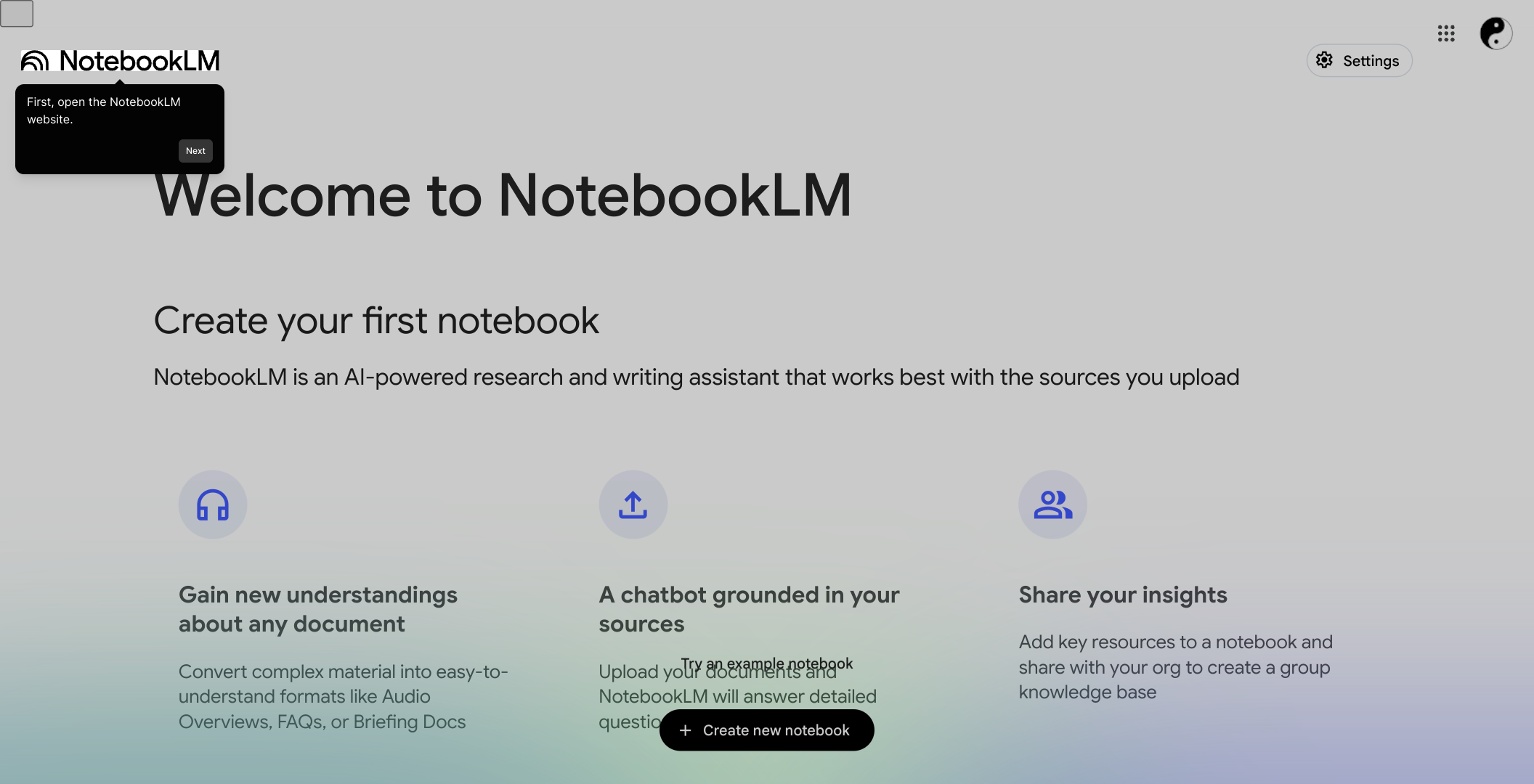
1. First, open the NotebookLM website.
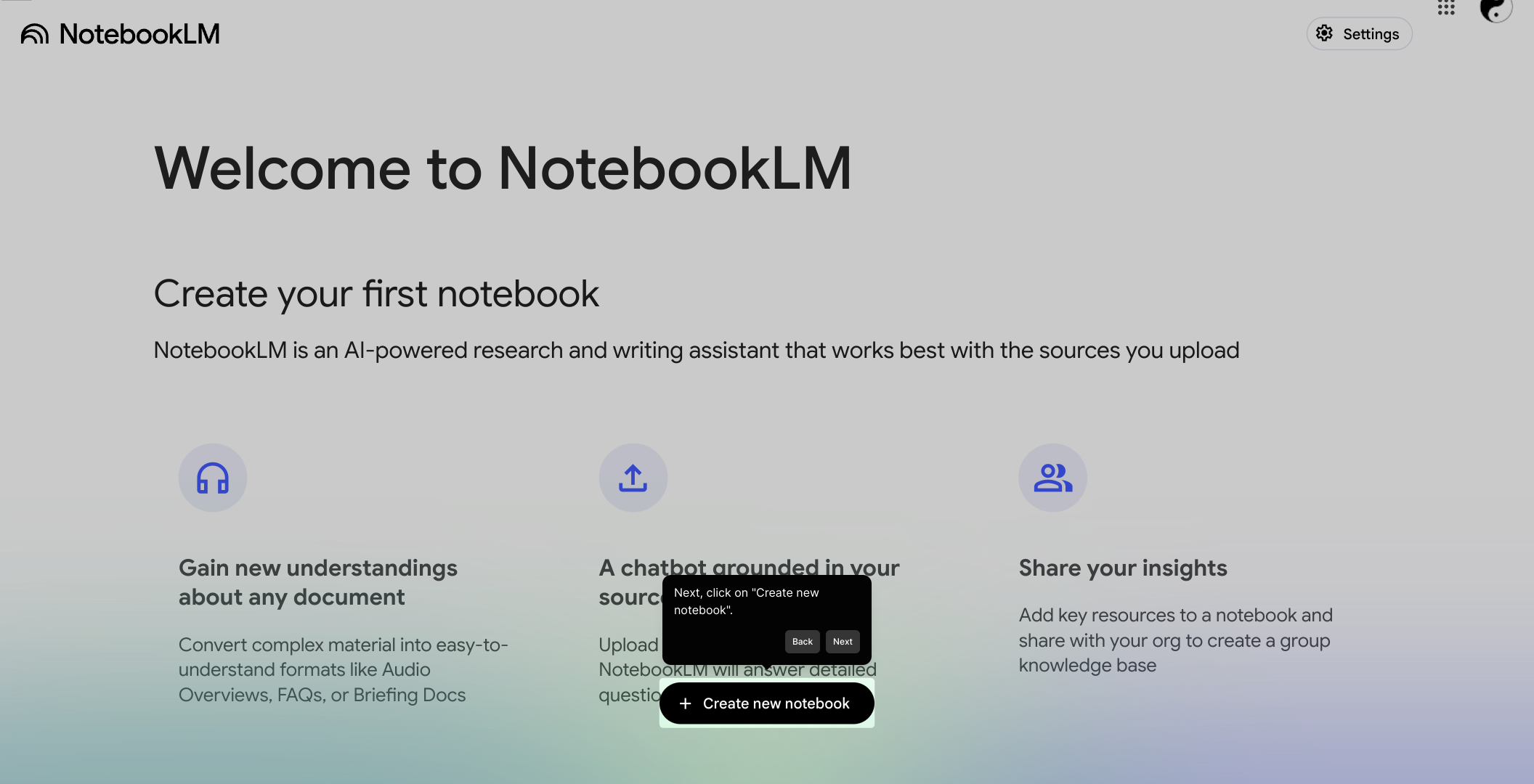
2. Next, click on "Create new notebook".
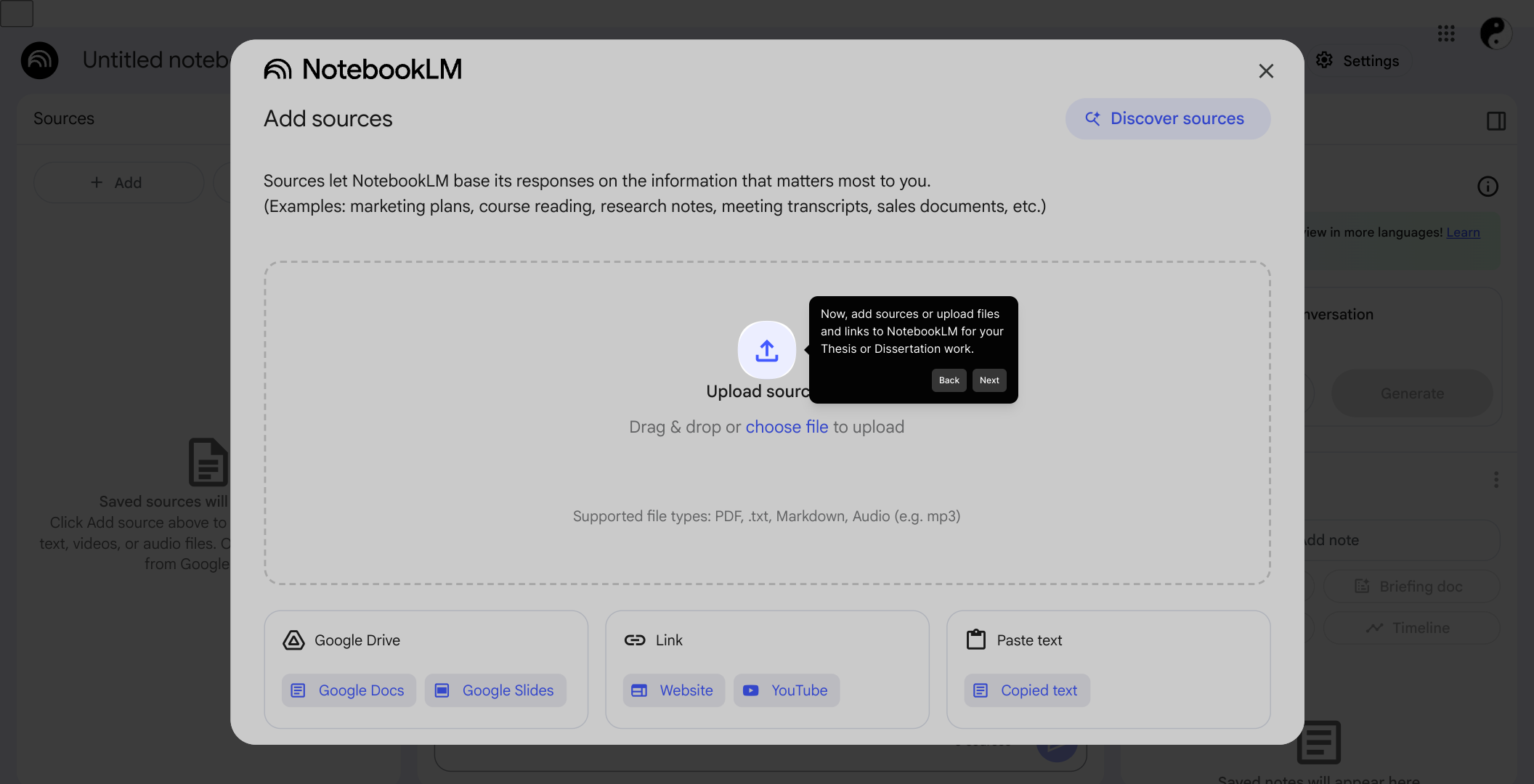
3. Now, add sources or upload files and links to NotebookLM for your Thesis or Dissertation work.
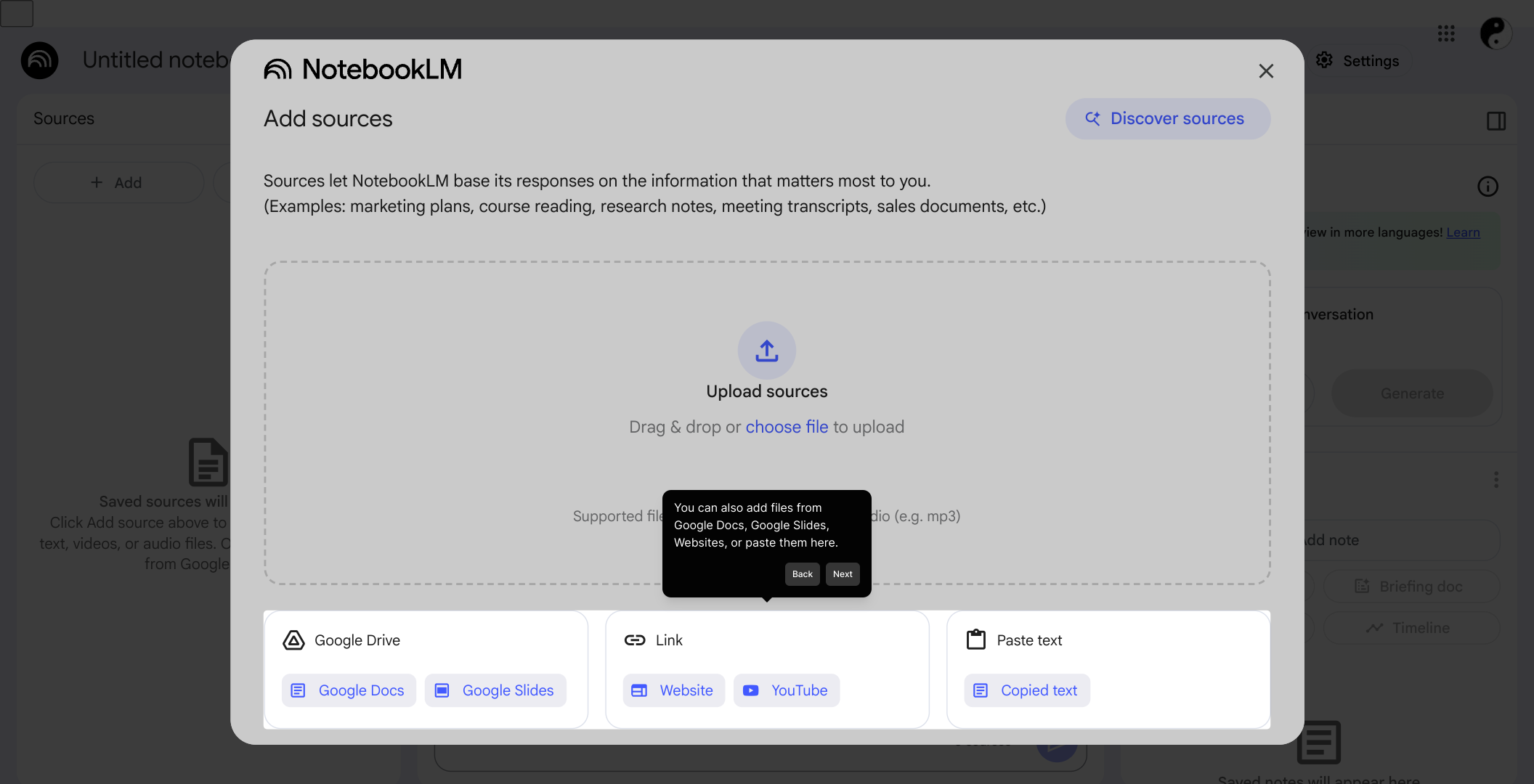
4. You can also add files from Google Docs, Google Slides, Websites, or paste them here.
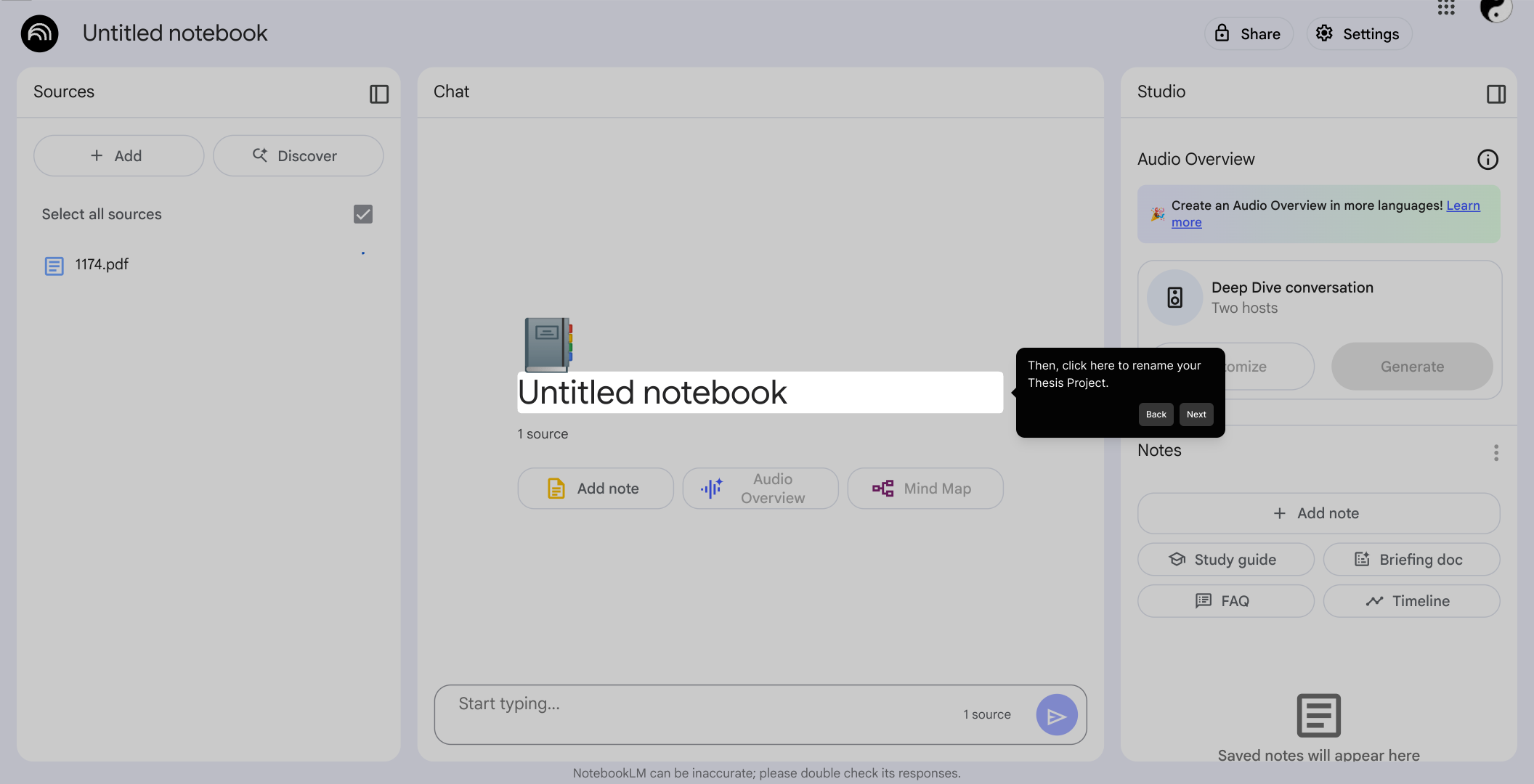
5. Then, click here to rename your Thesis Project.
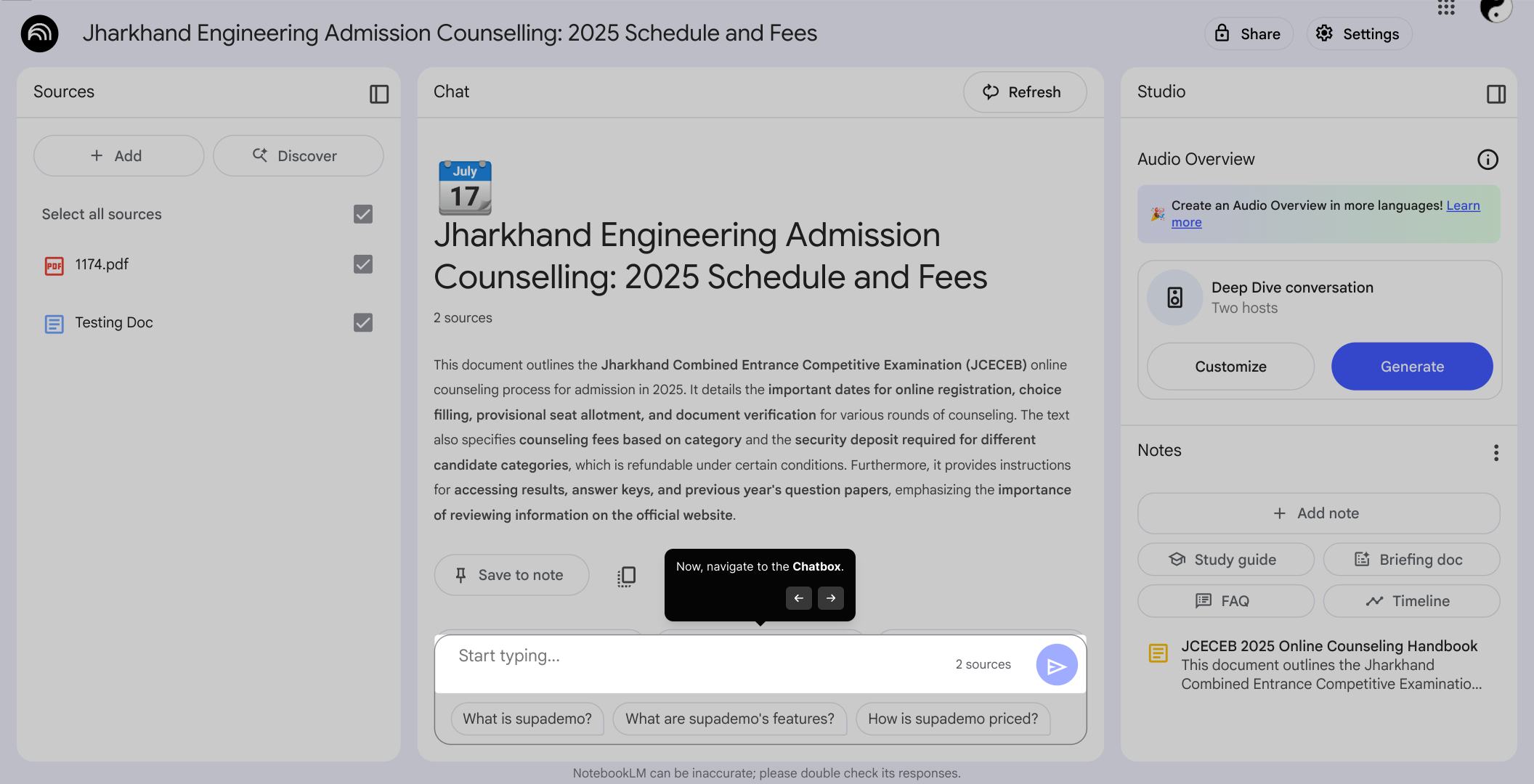
6. Now, navigate to the Chatbox.
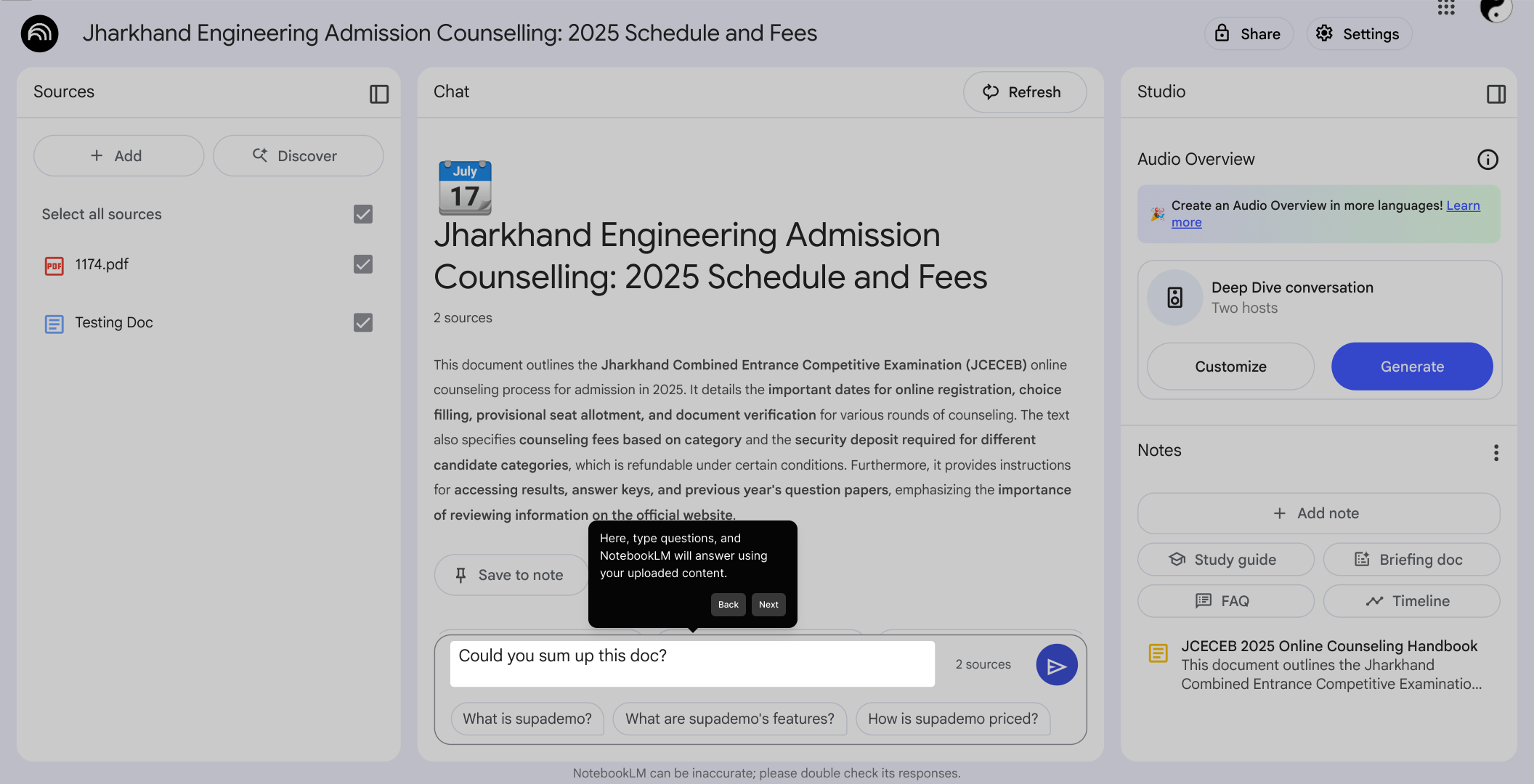
7. Here, type questions, and NotebookLM will answer using your uploaded content.
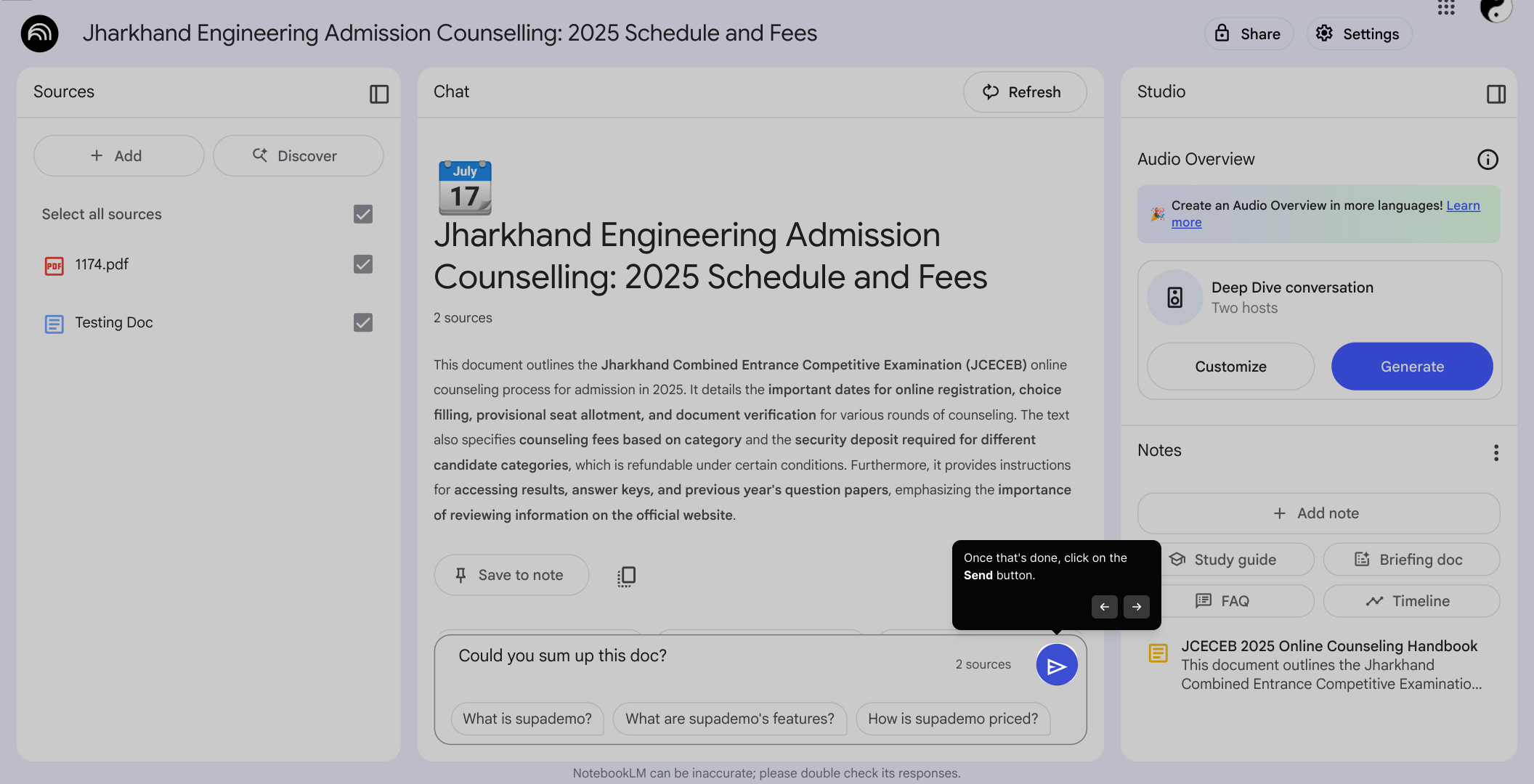
8. Once that's done, click on the Send button.
9. Your answer is ready.
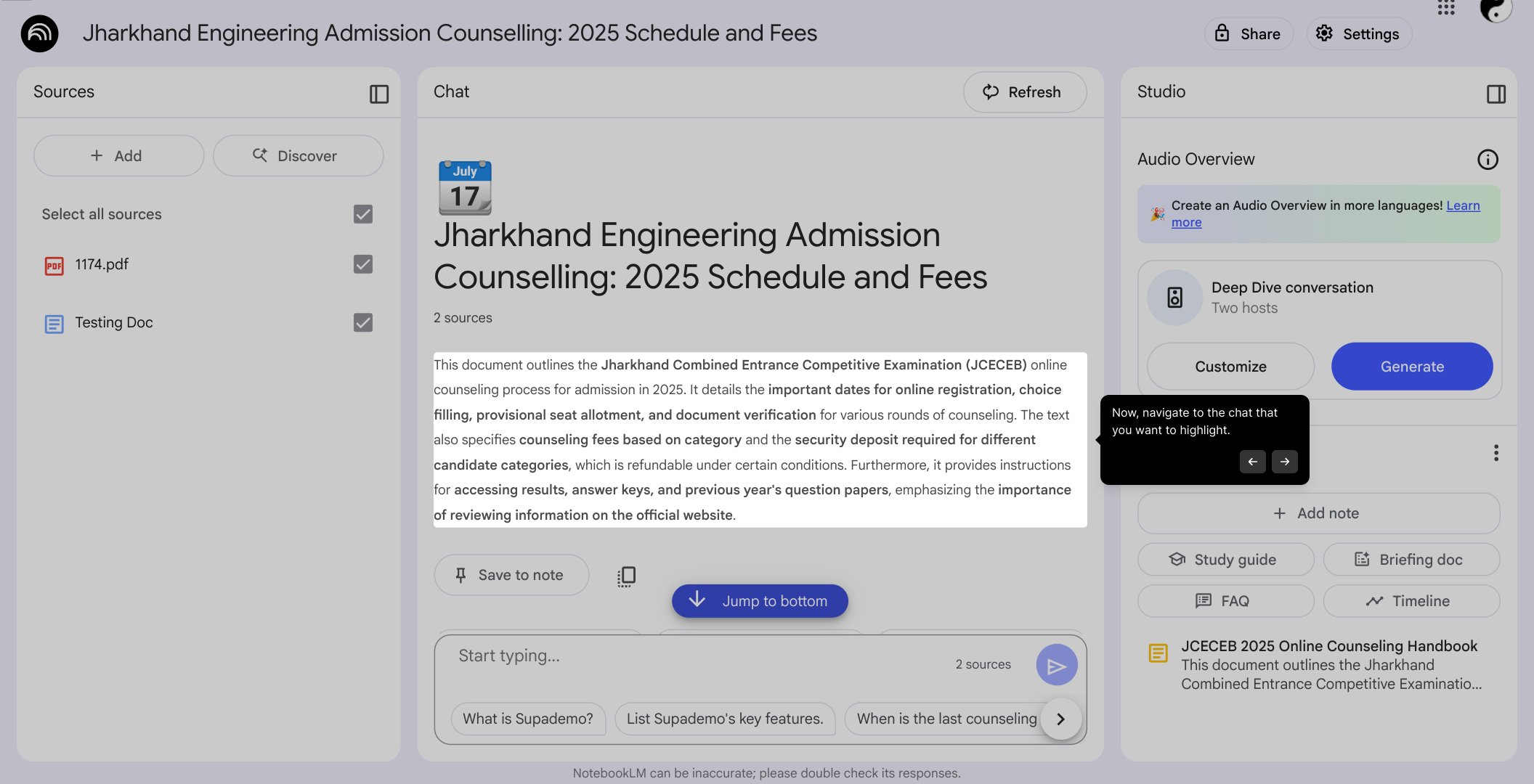
10. Now, navigate to the chat that you want to highlight.
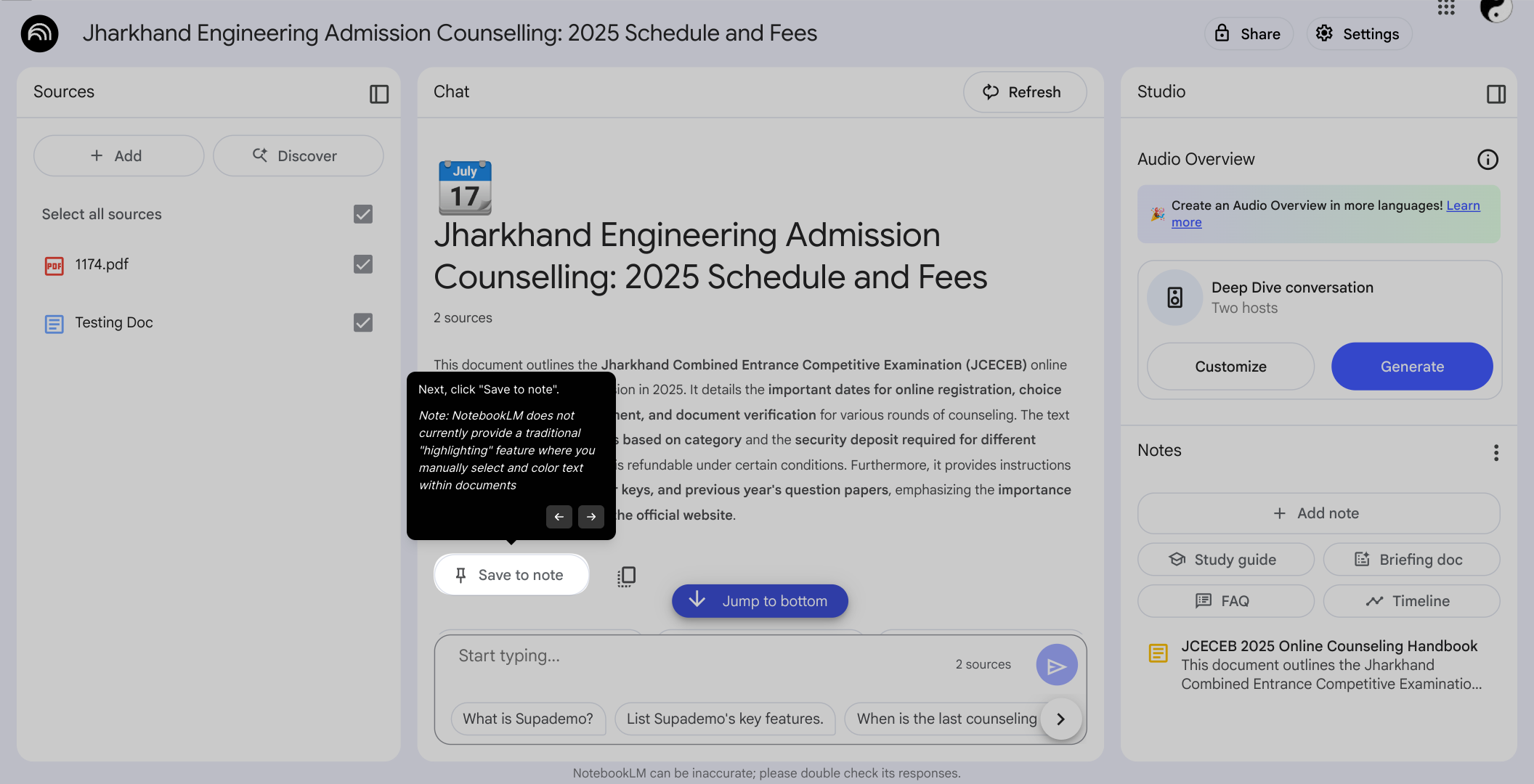
11. Next, click "Save to note".
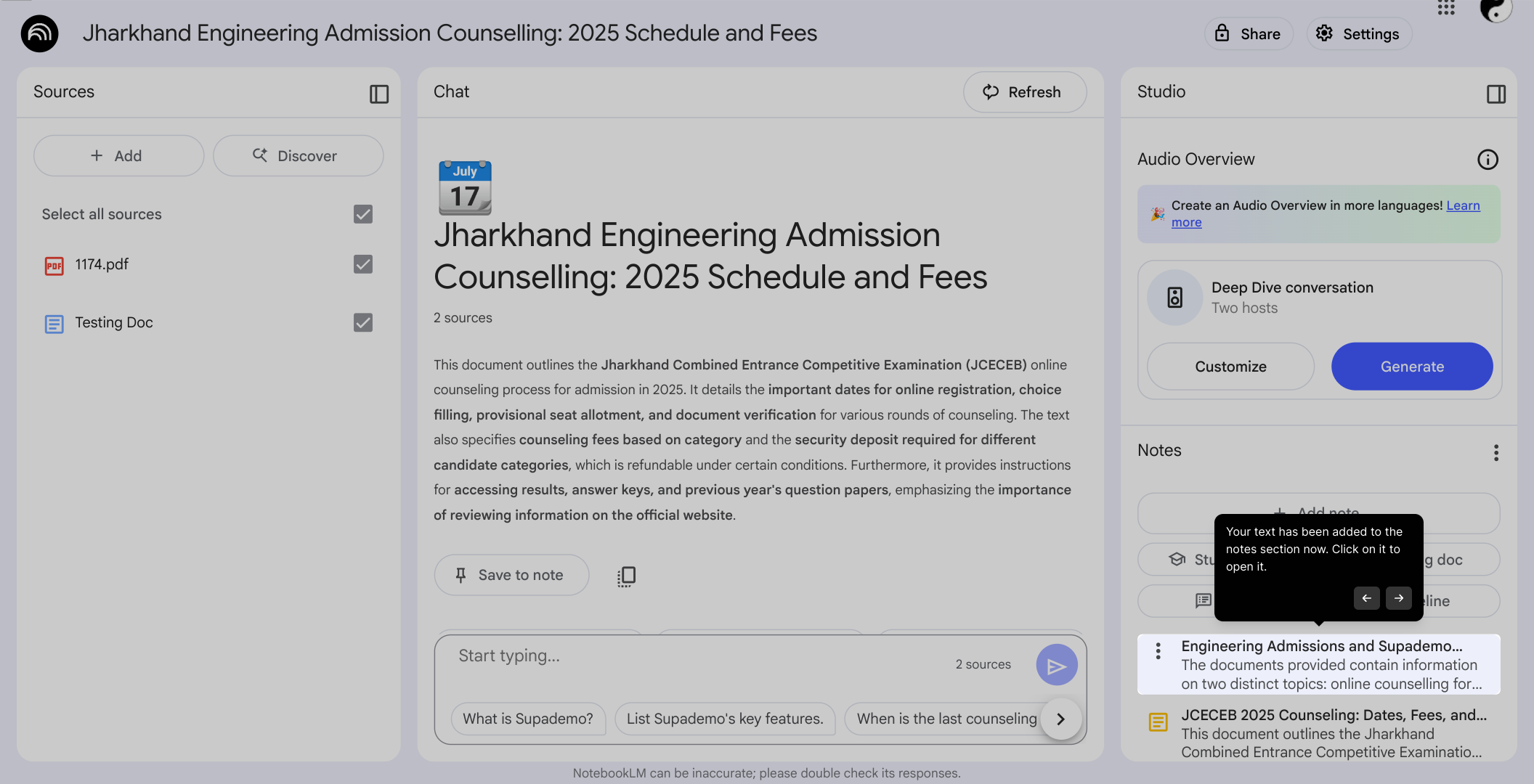
12. Your text has been added to the notes section now. Click on it to open it.
13. Highlight critical text or NotebookLM responses to pin them—this helps build a collection of useful insights.
14. Create a Supademo in seconds
This interactive demo/guided walkthrough on How to Use NotebookLM for Thesis or Dissertation Work was created using Supademo.
How to Use NotebookLM for Thesis or Dissertation Work : Step-by-Step Guide
Begin by visiting the NotebookLM website in your preferred browser. This is your starting point for organizing and interacting with your research materials.
Once on the homepage, look for the option labeled "Create new notebook" and select it. This action initiates the setup of a fresh workspace where you'll gather your research content.
In this step, start adding your research materials by uploading files, links, or other sources relevant to your Thesis or Dissertation. This is where you compile all your important references in one place.
To expand your workspace, you can also bring in content directly from Google Docs, Google Slides, websites, or by pasting text. This ensures all your critical information is easily accessible within NotebookLM.
After adding your sources, personalize your project by clicking on the project title area to rename your Thesis. Giving your project a clear name helps keep your work organized and focused.
Next, head over to the Chatbox section within NotebookLM, where you can interact with the system and ask questions about your research materials.
Inside the Chatbox, type in your questions related to your uploaded content. NotebookLM will analyze the information and provide answers to assist your research process.
When you’re ready, simply click the Send button to submit your question. This triggers NotebookLM to process your query and retrieve relevant insights from your materials.
After a moment, your answer will appear in the chat window. This response is generated based on the content you’ve uploaded, helping clarify your research queries.
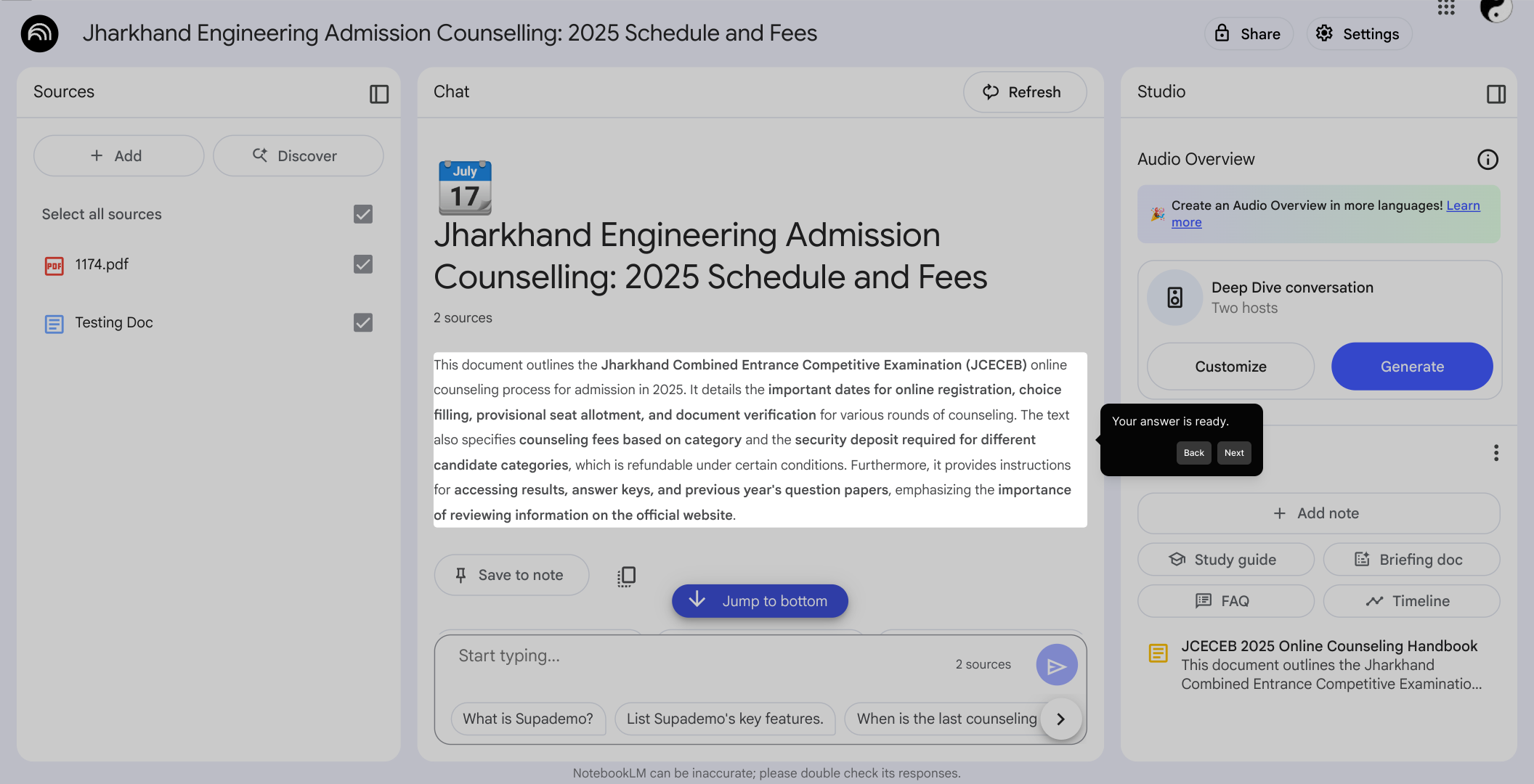
To focus on specific insights, navigate to the particular chat entry that contains the information you find valuable and want to keep track of.
Then, select the "Save to note" option. This action helps you organize key excerpts from your chats into the notes section for easier reference later.
Your selected text is now stored in the notes section. Click on the saved note to open and review it whenever you need to revisit those insights.
For organizing your research better, highlight crucial parts of the text or helpful NotebookLM responses by pinning them. This feature helps you build a collection of valuable information over time.
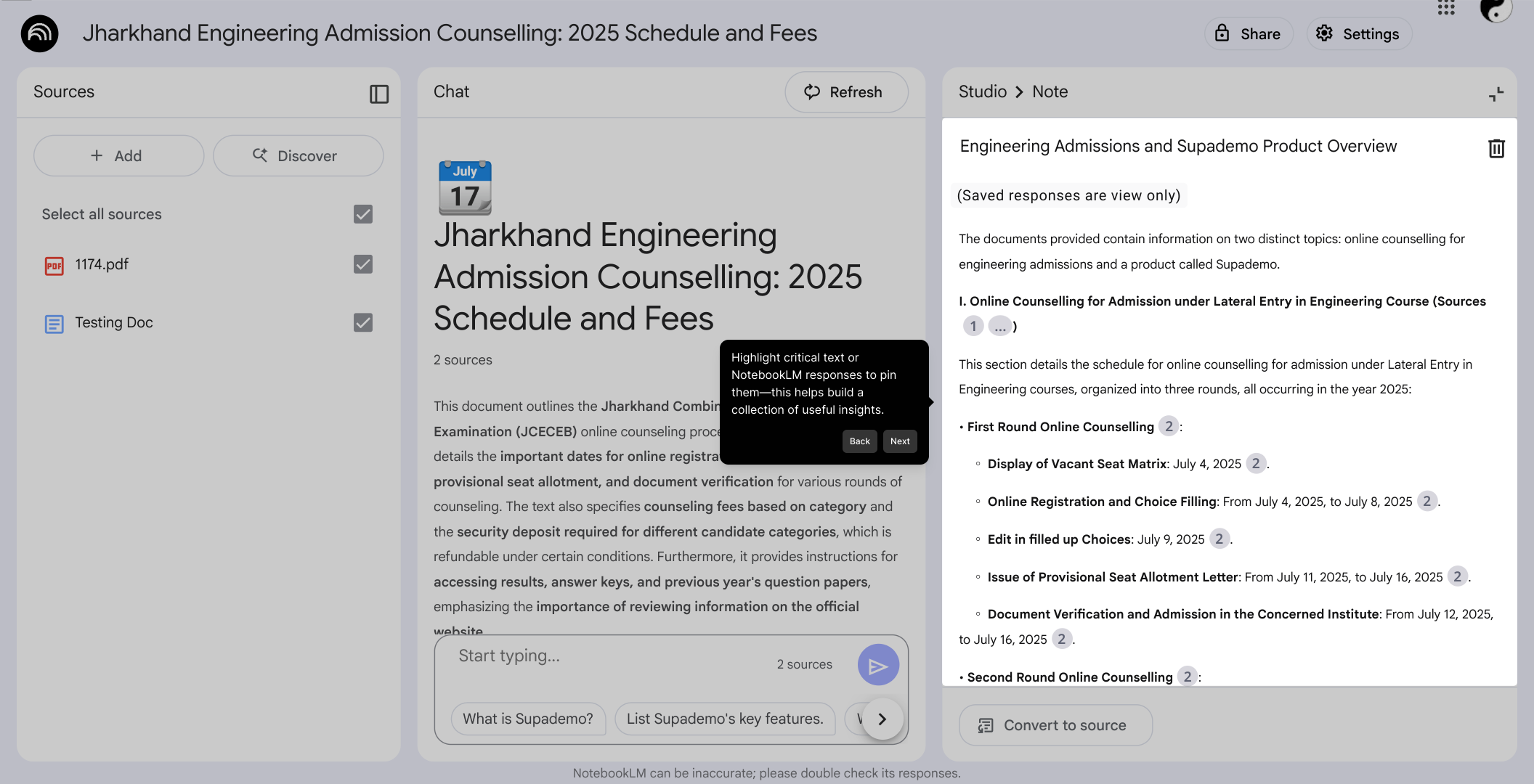
Finally, you can quickly create a Supademo to showcase your work and findings. This tool streamlines the process of sharing your research summary in just a few clicks.
Create your own interactive demos in < 5 mins with Supademo
Ready to elevate your presentations? You can create your own interactive product demo in minutes using Supademo. Drive growth, scale enablement, and supercharge product-led onboarding with Supademo. Sign up for free here with no credit card required.
FAQs
Commonly asked questions about this topic.
What is NotebookLM and how does it help with thesis work?
Can I upload multiple file formats to NotebookLM for my dissertation?
How do I ask questions to NotebookLM about my uploaded content?
Does NotebookLM offer a traditional text highlighting feature?
How can I organize important information within NotebookLM?
Is it possible to rename my thesis project in NotebookLM?
Can NotebookLM handle information from websites directly?
How secure is my thesis data in NotebookLM?
Can I share my NotebookLM thesis workspace with advisors or collaborators?
What makes NotebookLM different from traditional note-taking tools?

Product Operations Associate
Vimal Kumar helps build and grow Supademo’s team and GTM efforts, with a focus on figuring out growth levers and improving product traction.


