
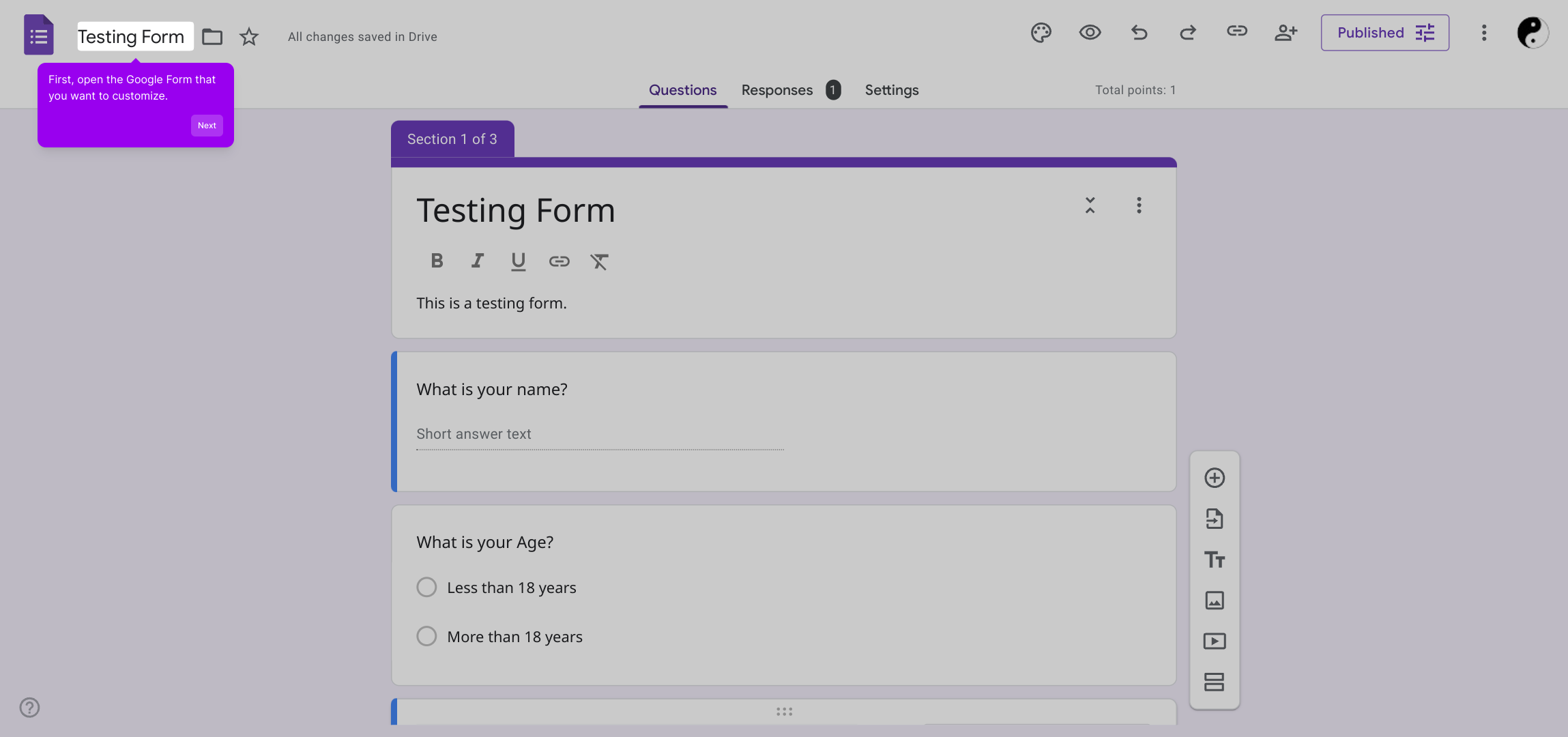
1. First, open the Google Form that you want to customize.
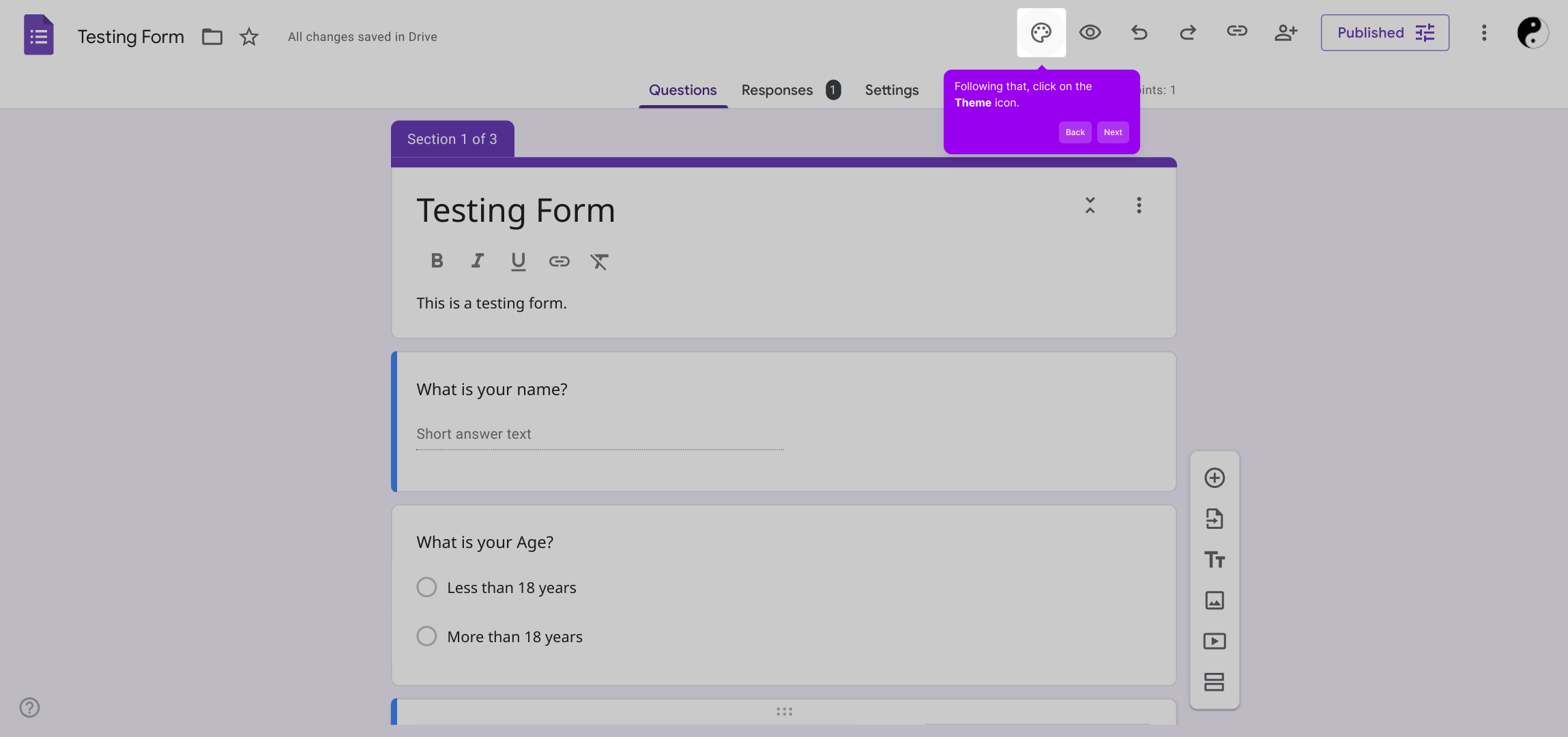
2. Following that, click on the Theme icon.
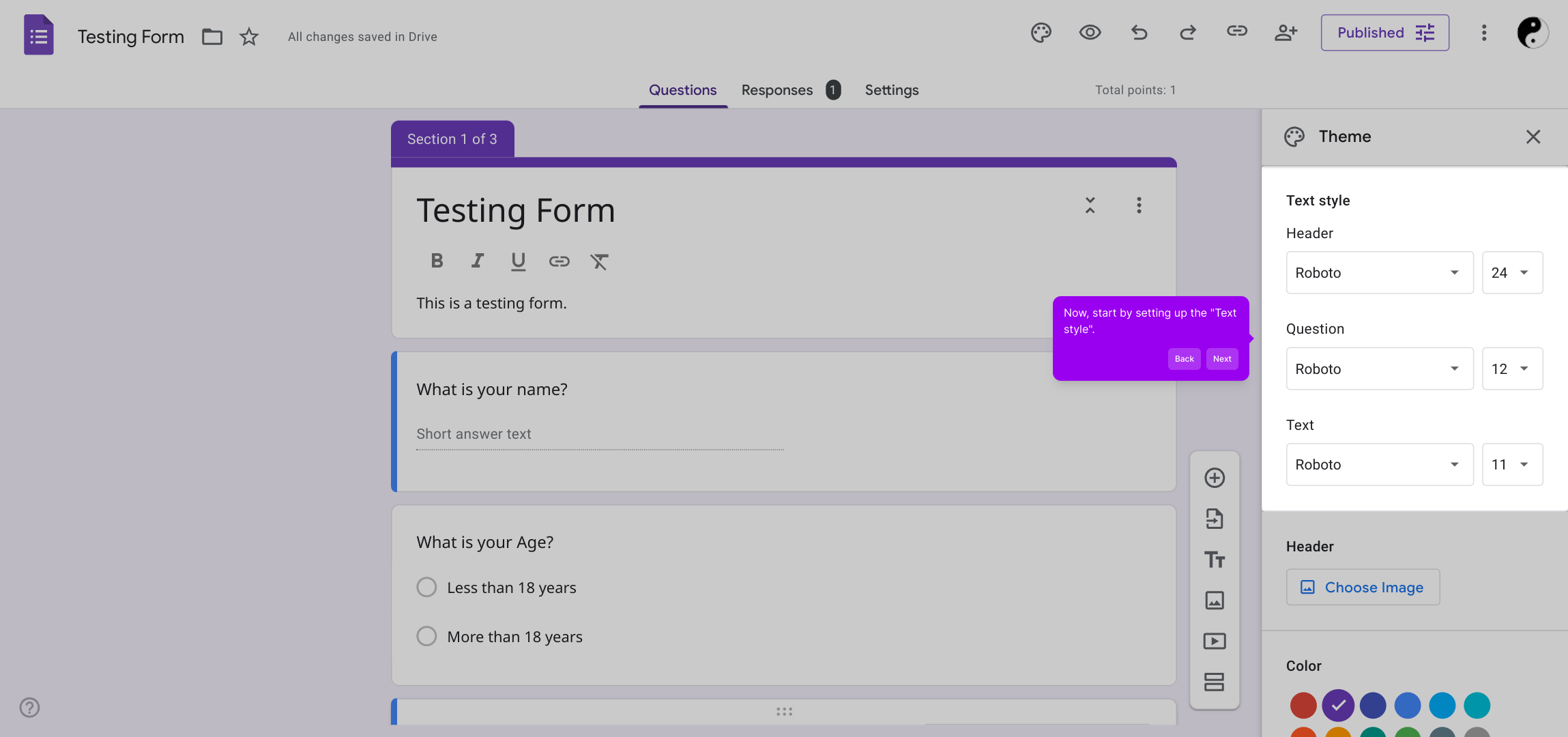
3. Now, start by setting up the "Text style".
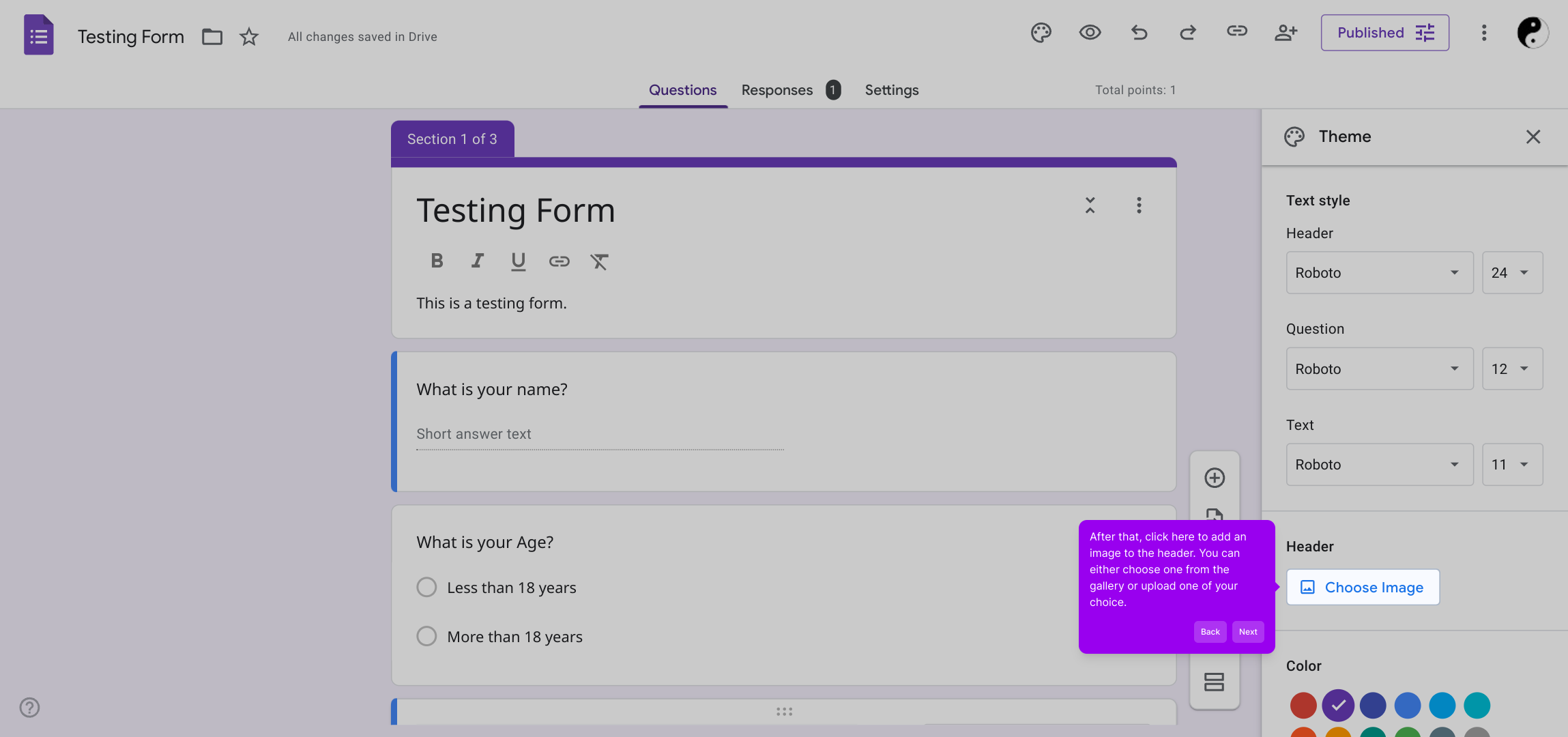
4. After that, click here to add an image to the header. You can either choose one from the gallery or upload one of your choice.
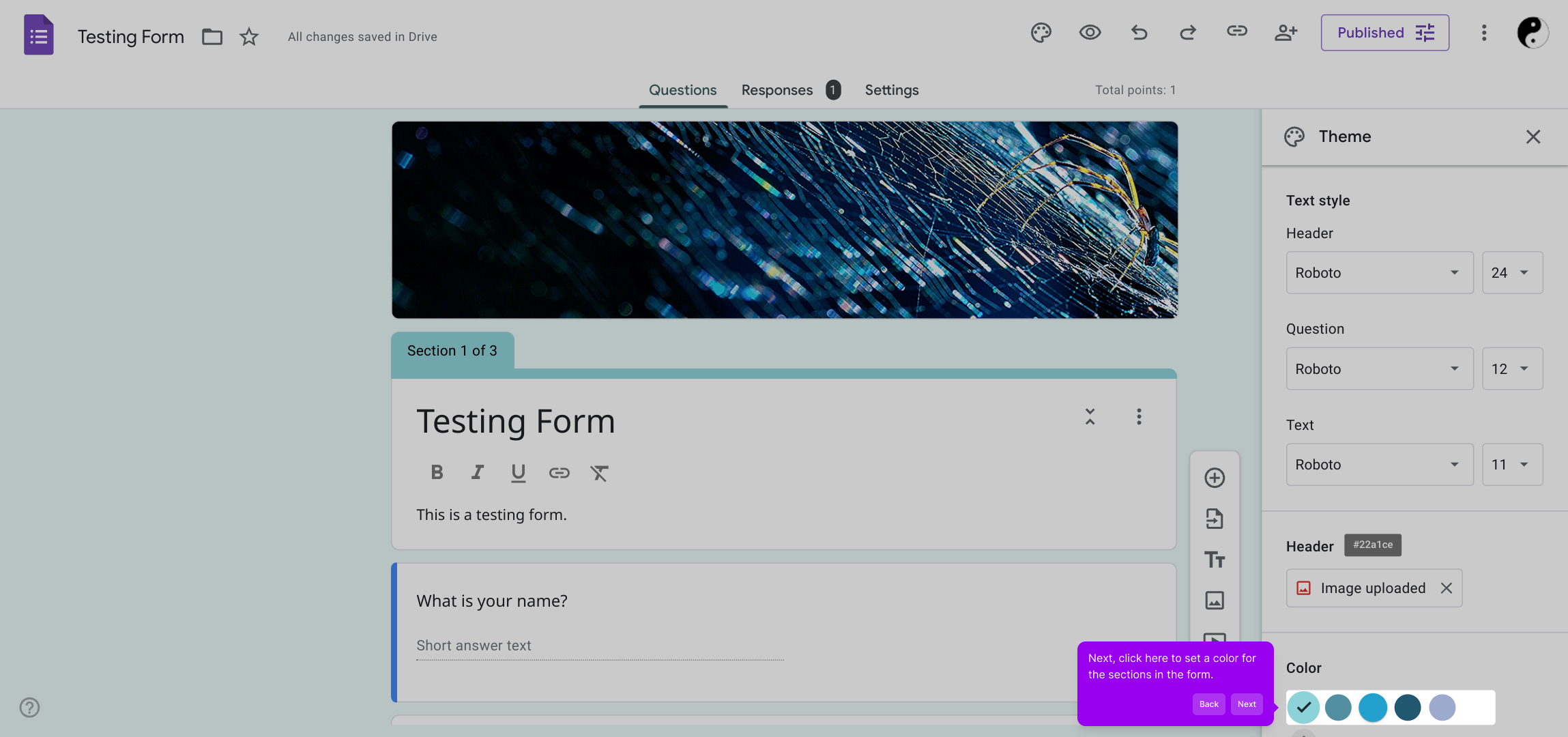
5. Next, click here to set a color for the sections in the form.
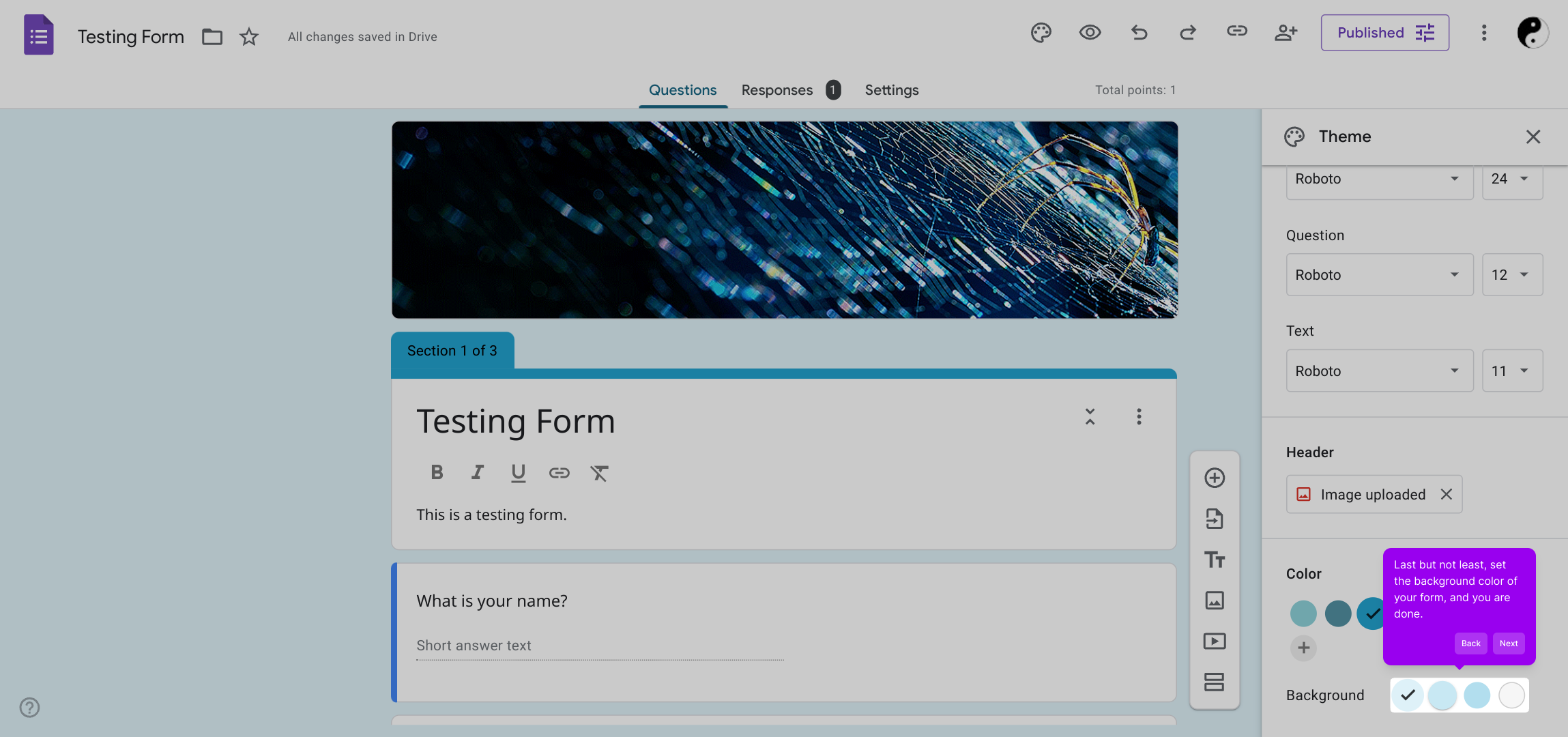
6. Last but not least, set the background color of your form, and you are done.
7. Create a Supademo in seconds
This interactive demo/guided walkthrough on How to Customize the Theme of a Google Form was created using Supademo.
How to Customize the Theme of a Google Form : Step-by-Step Guide
To begin customizing your form, start by opening the specific Google Form you’d like to work on. This will bring you to the form’s editing interface where you can make your desired changes.
Once your form is open, look towards the top of the screen for the Theme icon. Clicking this will open the design settings panel where you can personalize your form’s look and feel.
In the theme panel, you’ll find options to adjust the text style. Take your time to choose fonts, sizes, and colors that suit your form’s purpose and branding, ensuring your questions are both readable and attractive.
Next, personalize your form further by adding a header image. Click on the designated area in the theme panel to either select an image from Google’s gallery or upload one from your own collection, giving your form a unique and engaging introduction.
After setting your header, explore the options to customize the colors used in different sections of your form. Selecting harmonious colors can help organize your content visually and enhance the overall user experience.
Finally, finish off by choosing a background color for your entire form. This final touch can tie your theme together, making your form feel polished and inviting to respondents.
With your form customized, you’re ready to create a Supademo quickly and effortlessly, showcasing your work or sharing your form with others in just moments.
Create your own interactive demos in < 5 mins with Supademo
You can create your own interactive product demo in minutes using Supademo. Drive growth, scale enablement, and supercharge product-led onboarding with Supademo.
Sign up for free here with no credit card required.
FAQs
Commonly asked questions about this topic.
What is the Theme icon in Google Forms?
Can I upload my own images for the Google Form header?
How do I change the background color of my Google Form?
Is it possible to customize the font style in Google Forms?
Can colors be applied to specific sections in Google Forms?
Will my theme changes affect the form’s functionality?
Are theme changes visible immediately to respondents?
Can I revert the theme to default after customizing?
Does Google Forms support custom font uploads?
Is there a way to preview theme changes before publishing the form?

Product Operations Associate
Vimal Kumar helps build and grow Supademo’s team and GTM efforts, with a focus on figuring out growth levers and improving product traction.


