
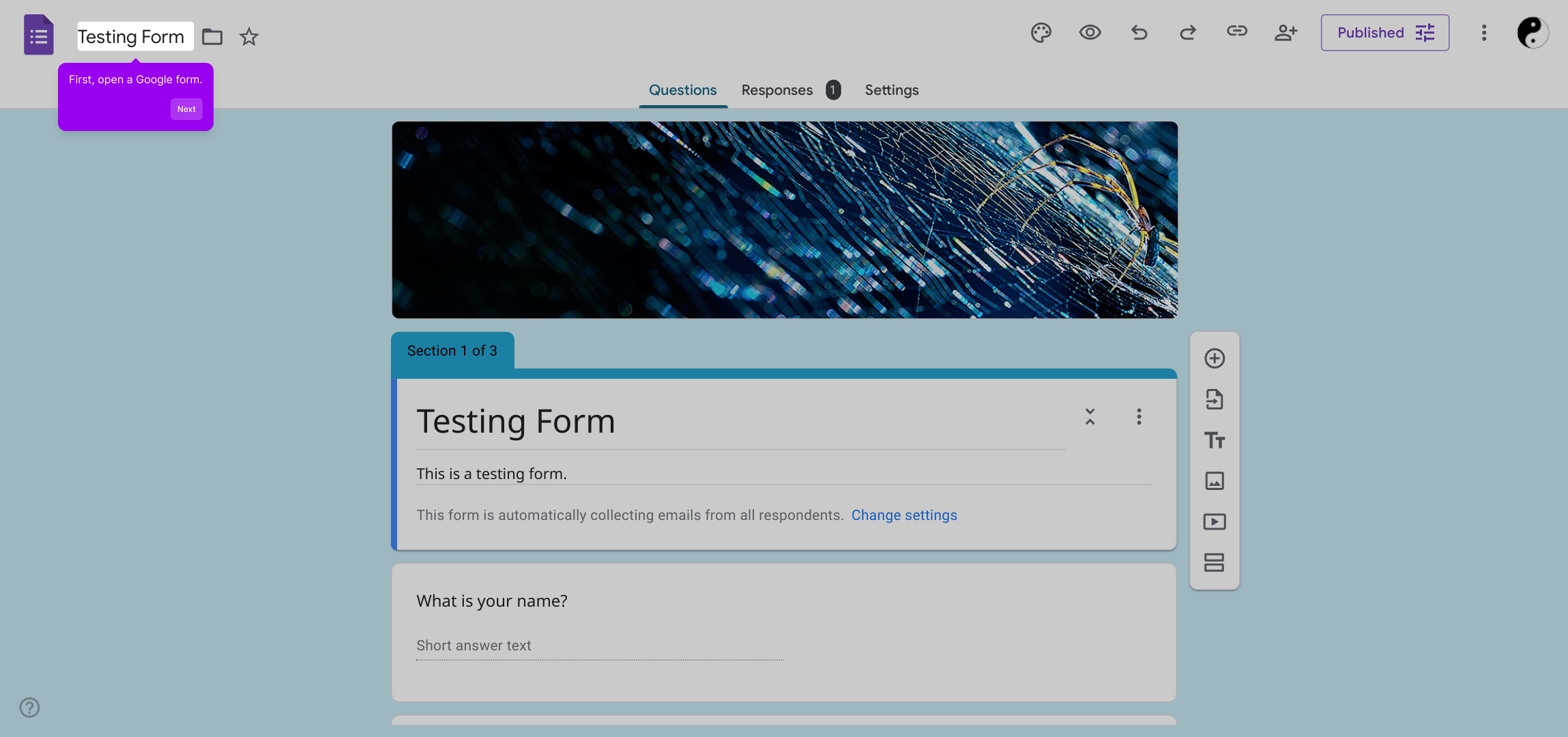
1. First, open a Google form.
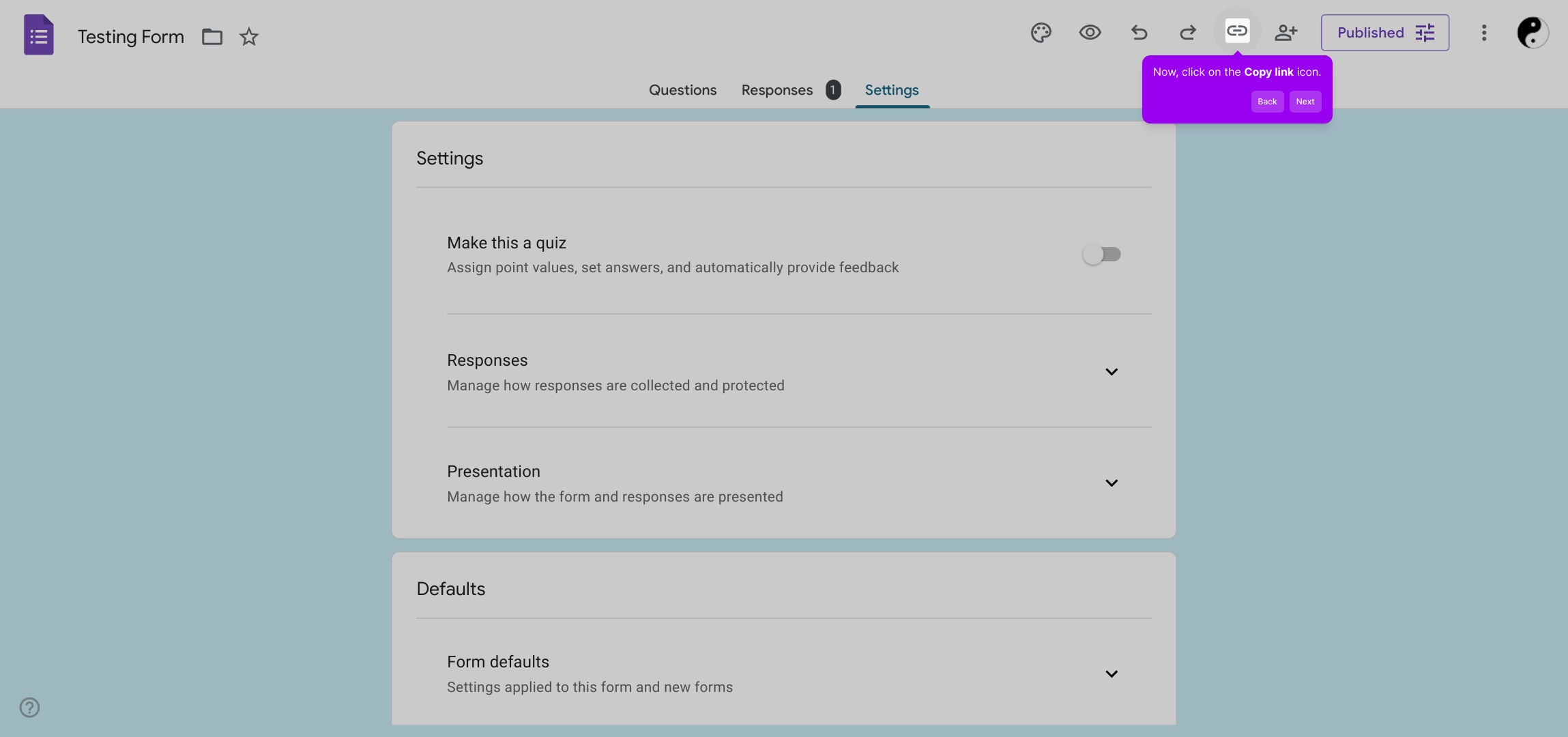
2. Now, click on the Copy link icon.
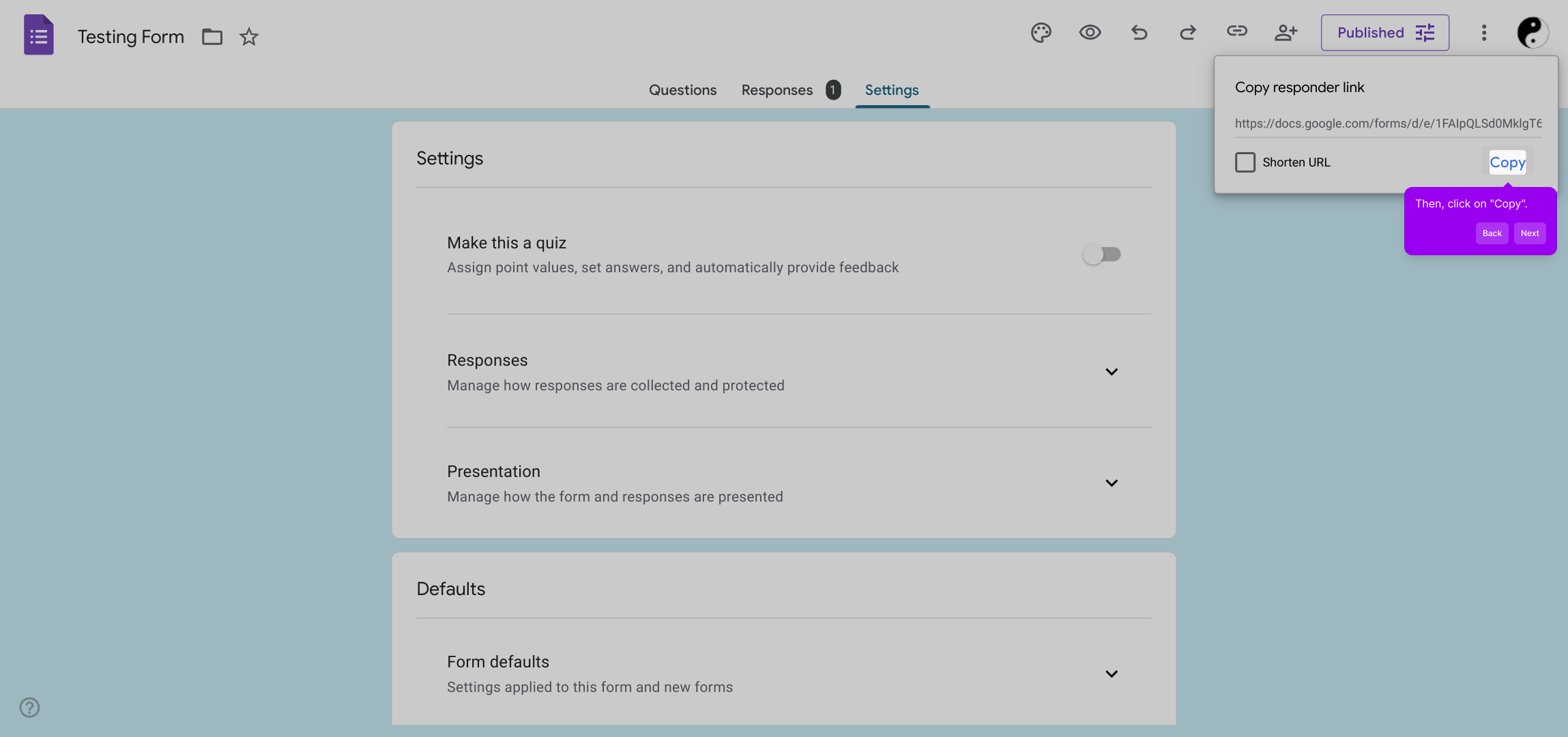
3. Then, click on "Copy".
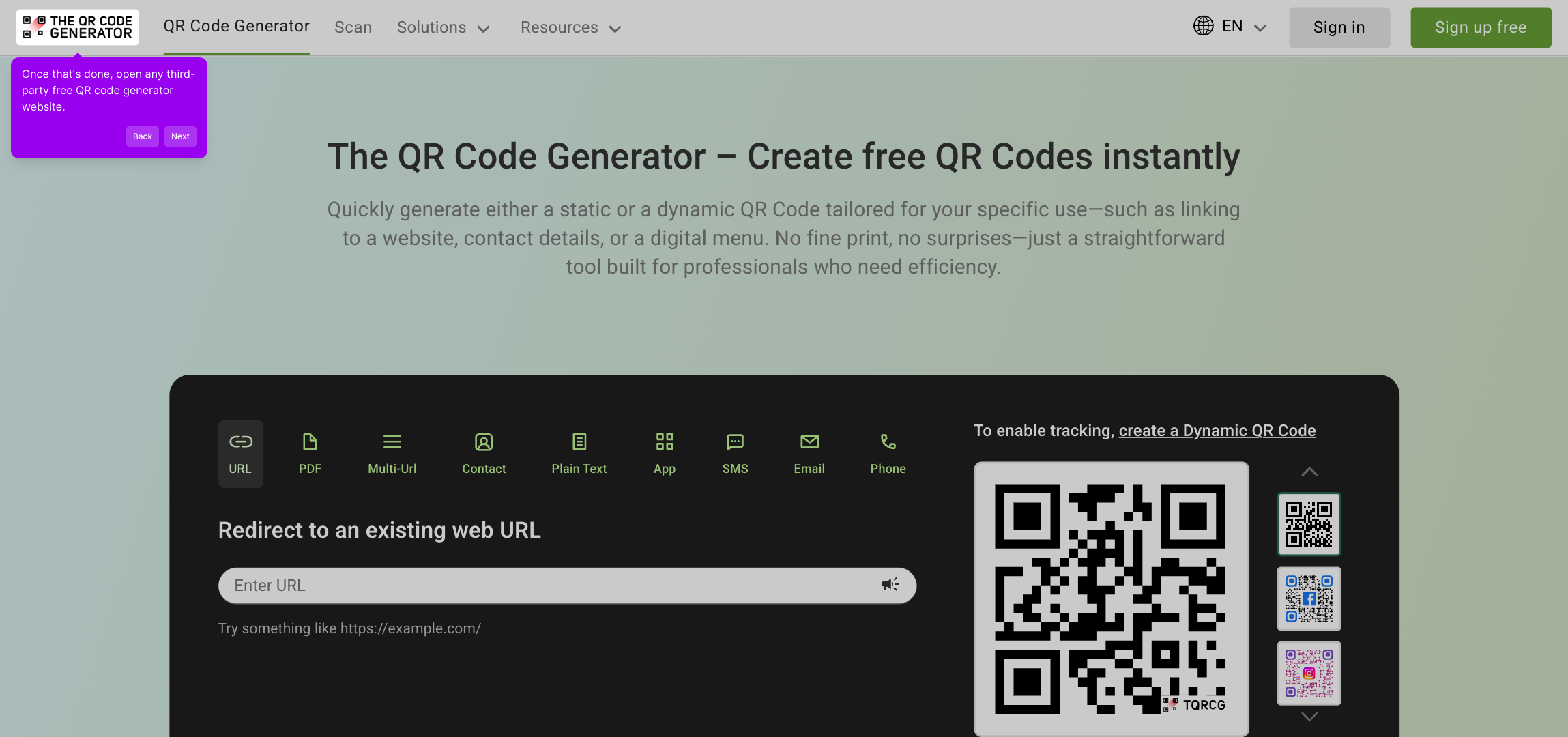
4. Once that's done, open any third-party free QR code generator website.
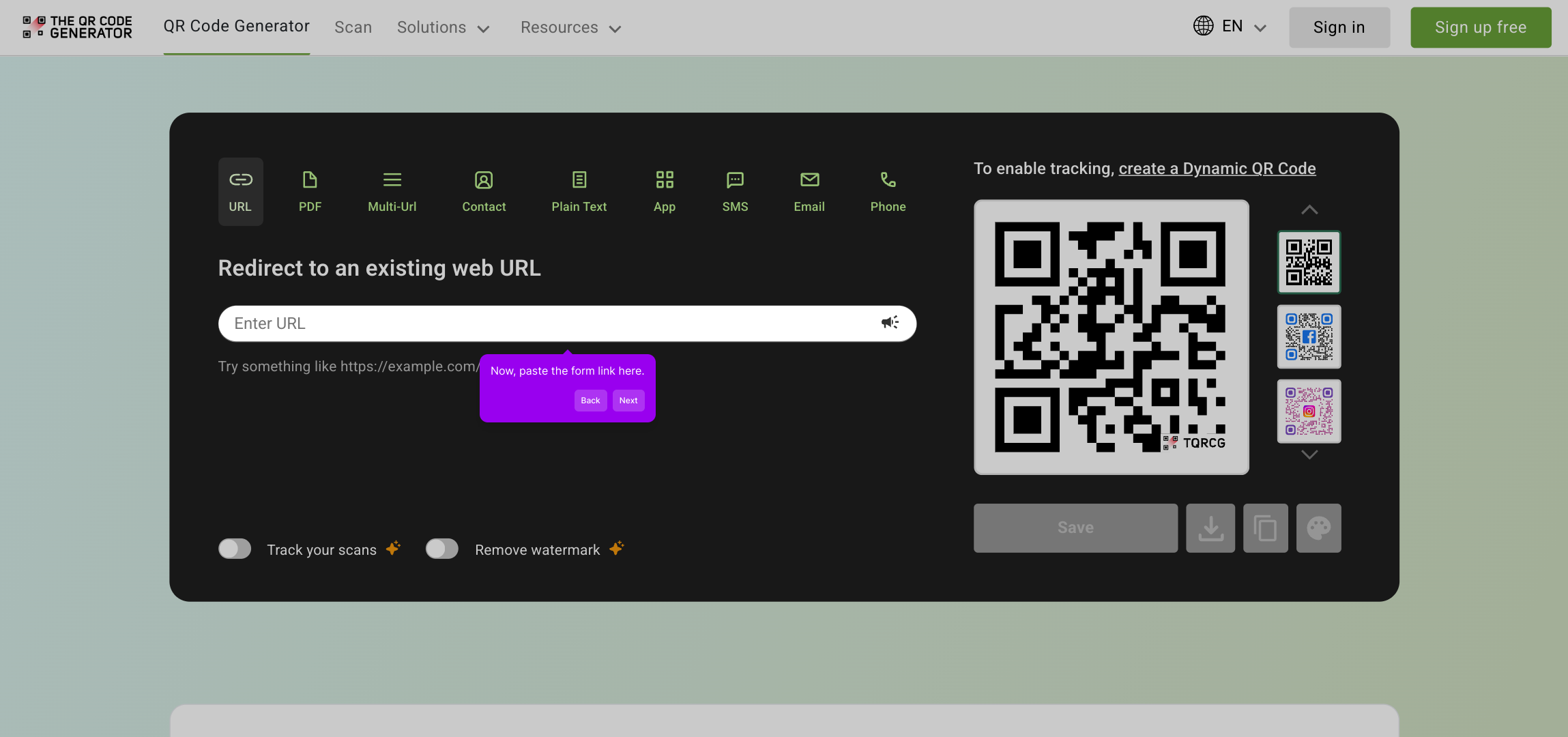
5. Now, paste the form link here.
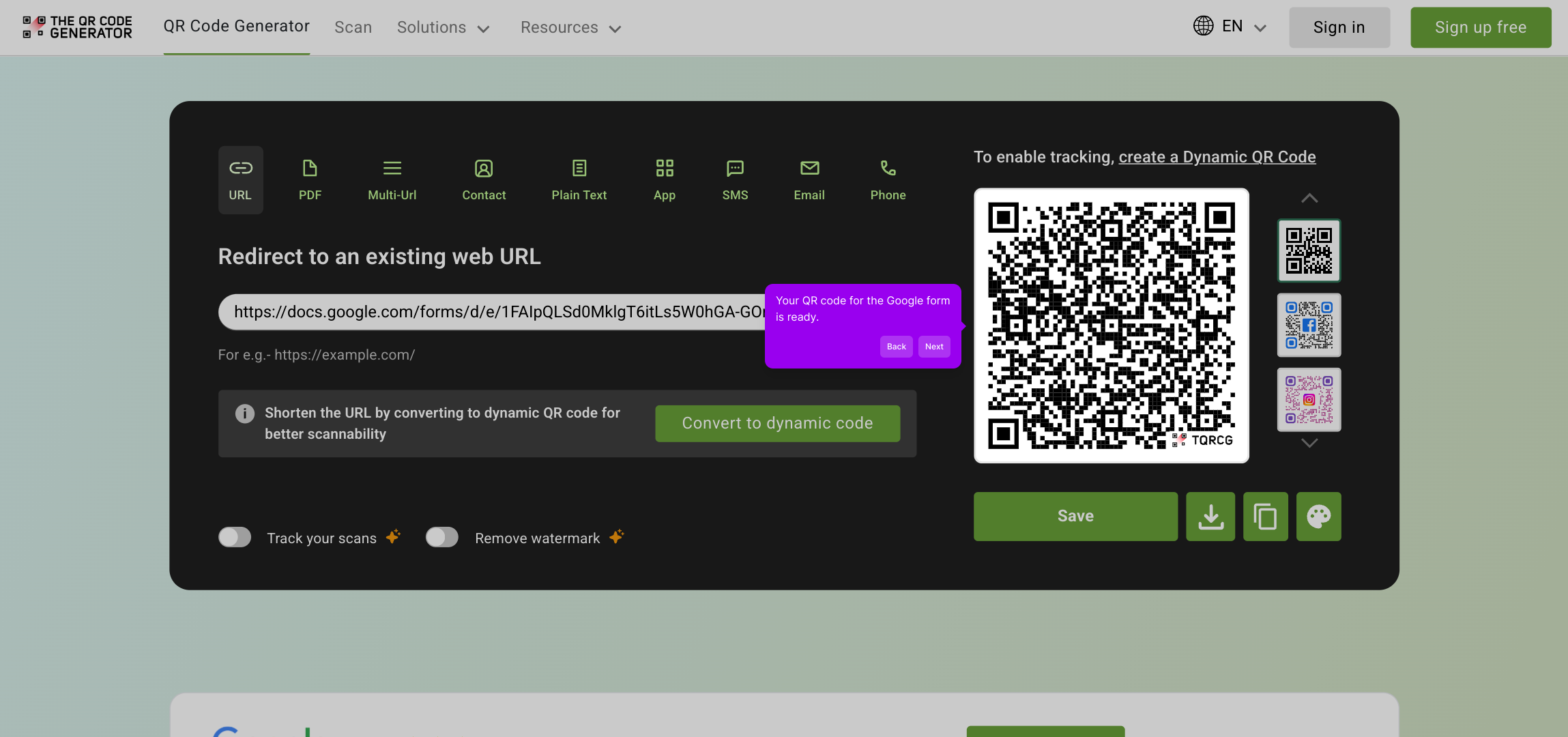
6. Your QR code for the Google form is ready.
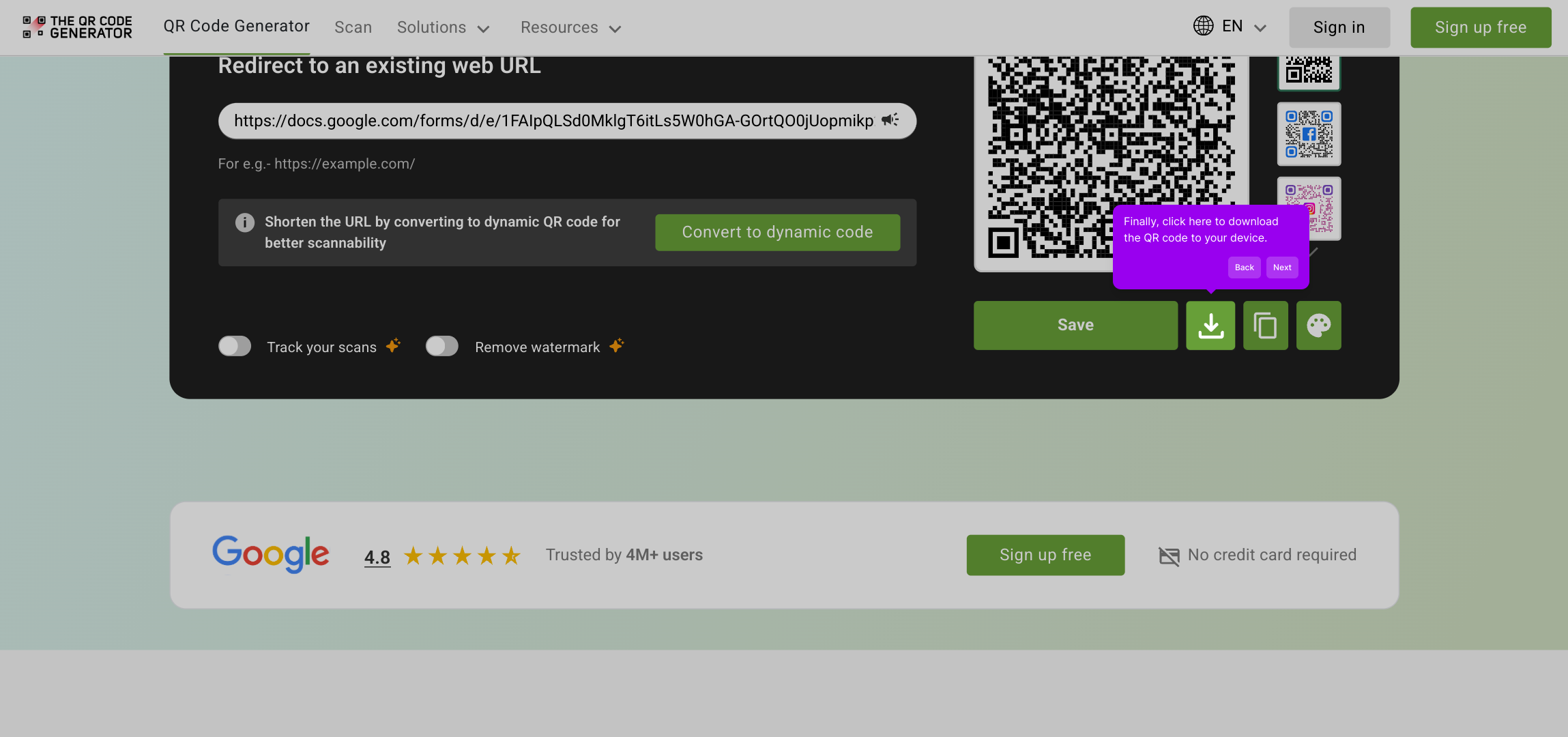
7. Finally, click here to download the QR code to your device.
8. Create a Supademo in seconds
This interactive demo/guided walkthrough on How to Make a QR Code for a Google Form was created using Supademo.
How to Make a QR Code for a Google Form : Step-by-Step Guide
To get started, navigate to Google Forms and open the specific form you want to turn into a QR code. This is where you'll grab the link that leads directly to your form.
Next, look for the share options and select the Copy link icon. This will prepare the URL of your form so you can use it in the QR code generator.
After clicking the icon, confirm by selecting “Copy” to store the form’s link on your clipboard. This is essential for easily transferring the link to the next step.
Now that you have the link, open a free QR code generator website of your choice. These tools convert URLs into scannable QR codes that anyone can use to access your form quickly.
Once on the QR code generator site, paste your copied Google Form link into the designated field. This tells the generator exactly which page you want to link to the QR code.
With your link entered, the tool will create a QR code instantly. This visual code can be scanned to open your form, making it easy for others to access without typing the URL.
When you’re happy with the QR code, use the download button to save an image of it directly to your device. This way, you can print or share it wherever you need.
And that’s it — in just a few moments, you’ve transformed your Google Form into a QR code, ready to share and engage your audience effortlessly.
Create your own interactive demos in < 5 mins with Supademo
You can create your own interactive product demo in minutes using Supademo. Drive growth, scale enablement, and supercharge product-led onboarding with Supademo. Sign up for free here with no credit card required.
FAQs
Commonly asked questions about this topic.
What is a QR code for a Google Form?
Do I need any special software to create a QR code for my Google Form?
Can I customize the appearance of my QR code?
Is it safe to share a Google Form link as a QR code?
Will the QR code update if I change the Google Form?
Can I track how many people use the QR code to access my Google Form?
What are the best free QR code generators to use?
Can I use the QR code on printed materials?
What if the QR code doesn’t scan properly?
Can I create QR codes for multiple Google Forms easily?

Product Operations Associate
Vimal Kumar helps build and grow Supademo’s team and GTM efforts, with a focus on figuring out growth levers and improving product traction.


