How to Embed a Loom Video in Google Slides

Vimal Kumar
Vimal Kumar·
How to Embed a Loom Video in Google Slides

What is Loom?


Loom is a video messaging tool that allows users to quickly and easily capture their screen, voice, and face to create and share short videos. It is often used for providing feedback, demonstrating products, or engaging with colleagues and customers in a more personal way than text alone.
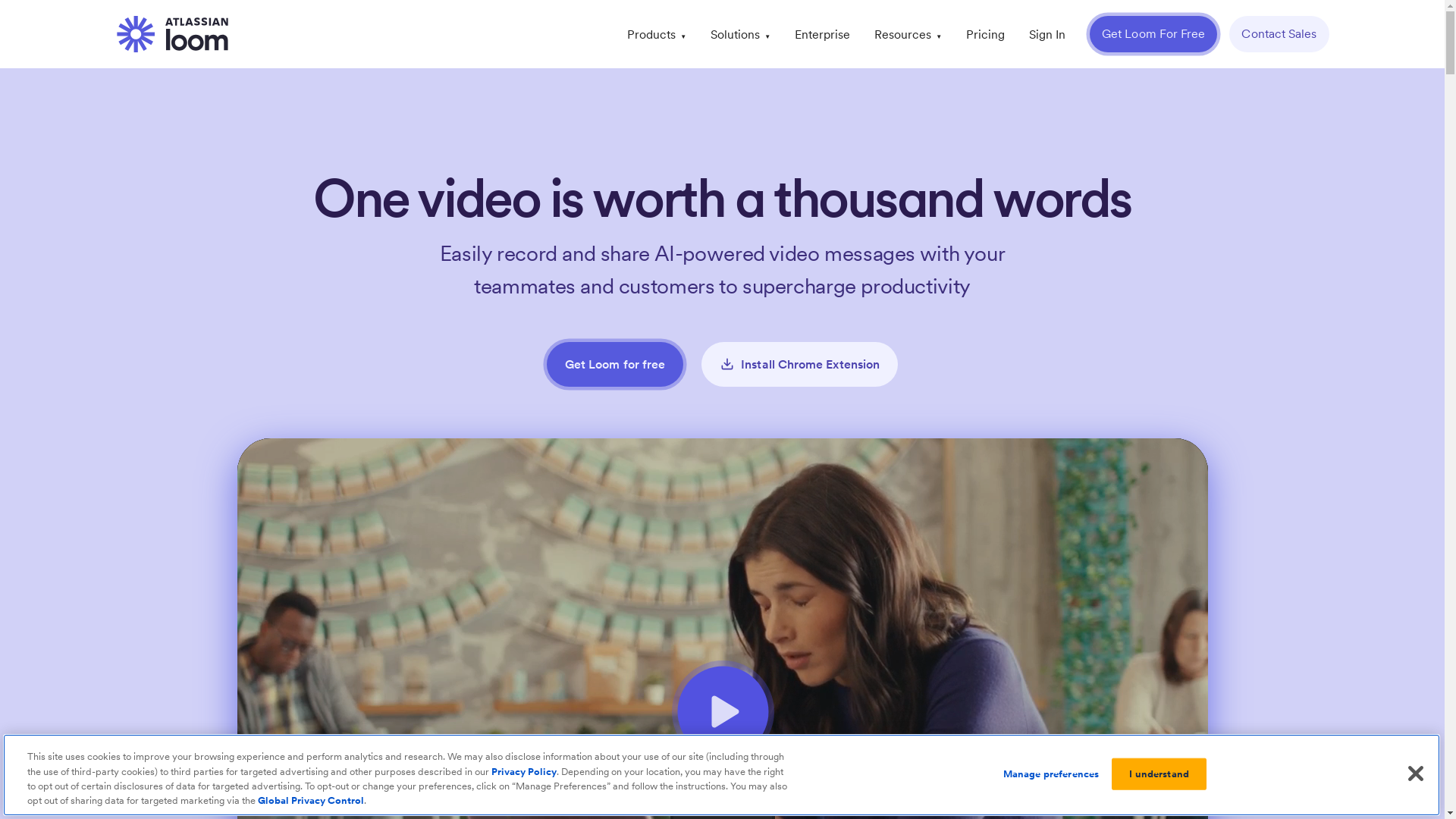
Loom Screenshot

Who is Loom best suited for?


Loom is particularly beneficial for Product Marketers, customer success teams, and sales professionals. For Product Marketers, it can be used to create compelling product demonstrations, share marketing strategies with remote teams, and ensure consistent communication. Customer success teams can leverage Loom for personalized tutorials and onboarding sessions, enhancing client engagement and problem-solving efficiency.

How to Embed a Loom Video in Google Slides

Interactive demo powered by Supademo

Common FAQs on How to Embed a Loom Video in Google Slides

Commonly asked questions about this topic.

How do I start embedding a Loom video into Google Slides?

To embed a Loom video in Google Slides, first ensure your video is public or has the correct sharing permissions set. Then, copy the video link or embed code.

Can I embed a Loom video directly from Loom?

Yes, you can. Once your video is open in Loom, click "Share" and then choose the option to embed the video. Copy the provided embed code.

Is there a size limitation for videos embedded in Google Slides?

Google Slides does not have a specific size limitation for embedded videos, but they should be optimized for web viewing to ensure smooth playback.

Will the Loom video play automatically when I present my slides?

No, you need to click on the video during your presentation to start playing it. There is currently no option for automatic playback in Google Slides.

Do I need an internet connection to view embedded Loom videos in Google Slides?

Yes, an active internet connection is required to stream the video from Loom since it is not stored within the Google Slides file.

Enjoyed this interactive product demo of Loom?

Create your own interactive product demo in minutes. Drive growth, scale enablement and supercharge product led-onboarding with Supademo. Sign up for free here with no credit card required.
Vimal Kumar
Vimal Kumar

Product Operations Associate

Vimal Kumar helps build and grow Supademo’s team and GTM efforts, with a focus on figuring out growth levers and improving product traction.

More from the blog

How to Remove 'Powered by Shopify'

How to Remove 'Powered by Shopify'

Learn how to easily remove the 'Powered by Shopify' text from your online store with step-by-step instructions and tips to customize your Shopify storefront.

Vimal Kumar
Vimal KumarJan 3, 2026
How to Create a Stripe Account

How to Create a Stripe Account

Learn how to create a Stripe account quickly and easily with our step-by-step guide, perfect for beginners looking to start accepting online payments.

Vimal Kumar
Vimal KumarDec 17, 2025
How to Contact Stripe Support

How to Contact Stripe Support

Learn the easiest ways to contact Stripe support for quick assistance with your payment processing, account issues, and technical questions.

Vimal Kumar
Vimal KumarDec 16, 2025
How to Delete Your Stripe Account

How to Delete Your Stripe Account

Learn step-by-step how to delete your Stripe account securely and permanently. Follow our easy guide to close your account and manage your data effectively.

Vimal Kumar
Vimal KumarDec 16, 2025
How to Create a Poll in Microsoft Teams

How to Create a Poll in Microsoft Teams

Learn how to create a poll in Microsoft Teams quickly and easily with our step-by-step guide, perfect for boosting team engagement and gathering instant feedback.

Vimal Kumar
Vimal KumarDec 12, 2025
How to Clear MS Teams Cache

How to Clear MS Teams Cache

Learn how to quickly clear the MS Teams cache to resolve common issues and improve app performance with our simple step-by-step guide.

Vimal Kumar
Vimal KumarDec 12, 2025