How to Find Your Microsoft Teams Meeting ID

Vimal Kumar
Vimal Kumar·
How to Find Your Microsoft Teams Meeting ID
Interactive demo powered by Supademo

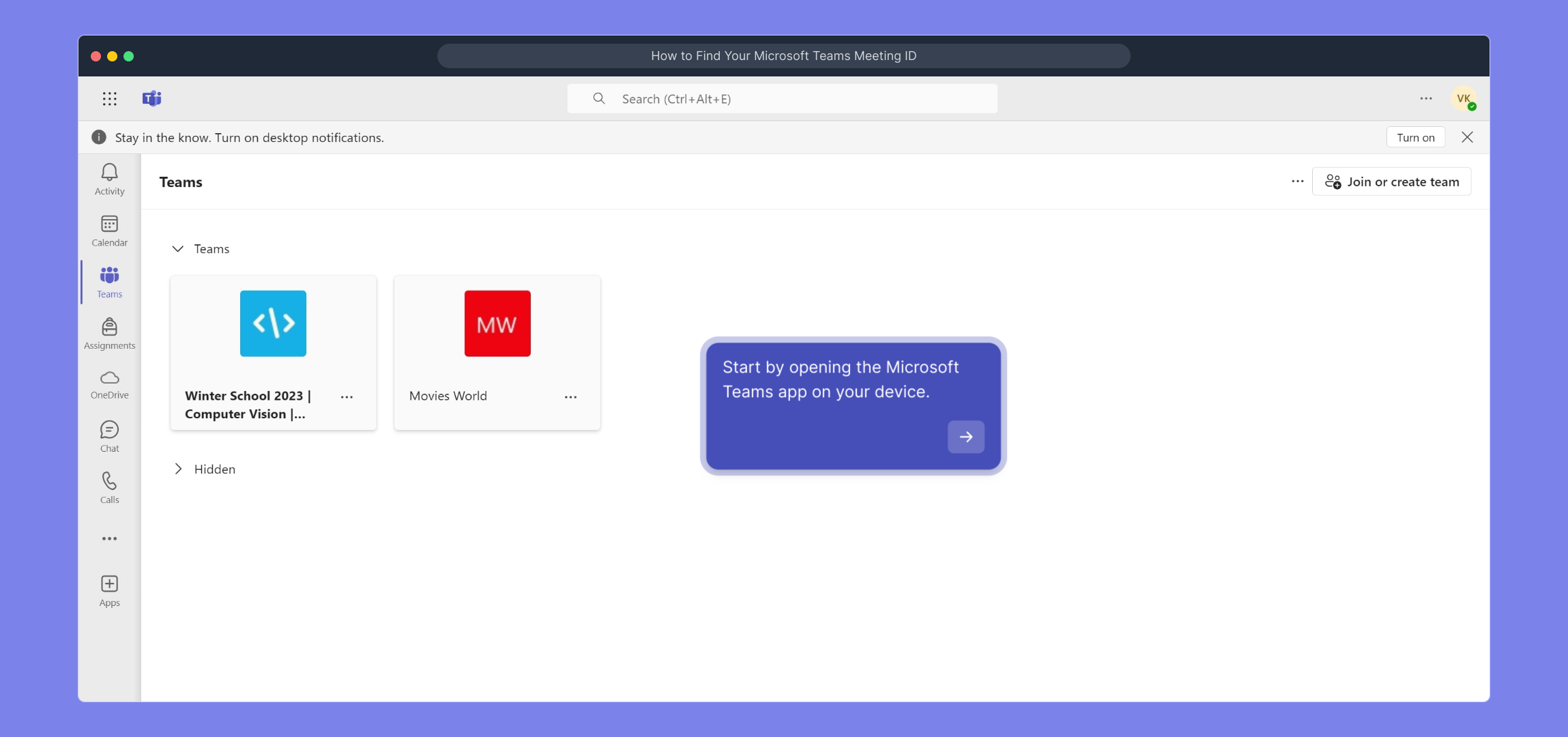
1. Start by opening the Microsoft Teams app on your device.

2. Following that, click on "Calendar".

3. After that, click on the meeting for which need the meeting id.

4. Now, click on "Edit".

5. Video Step (

Play Now
)

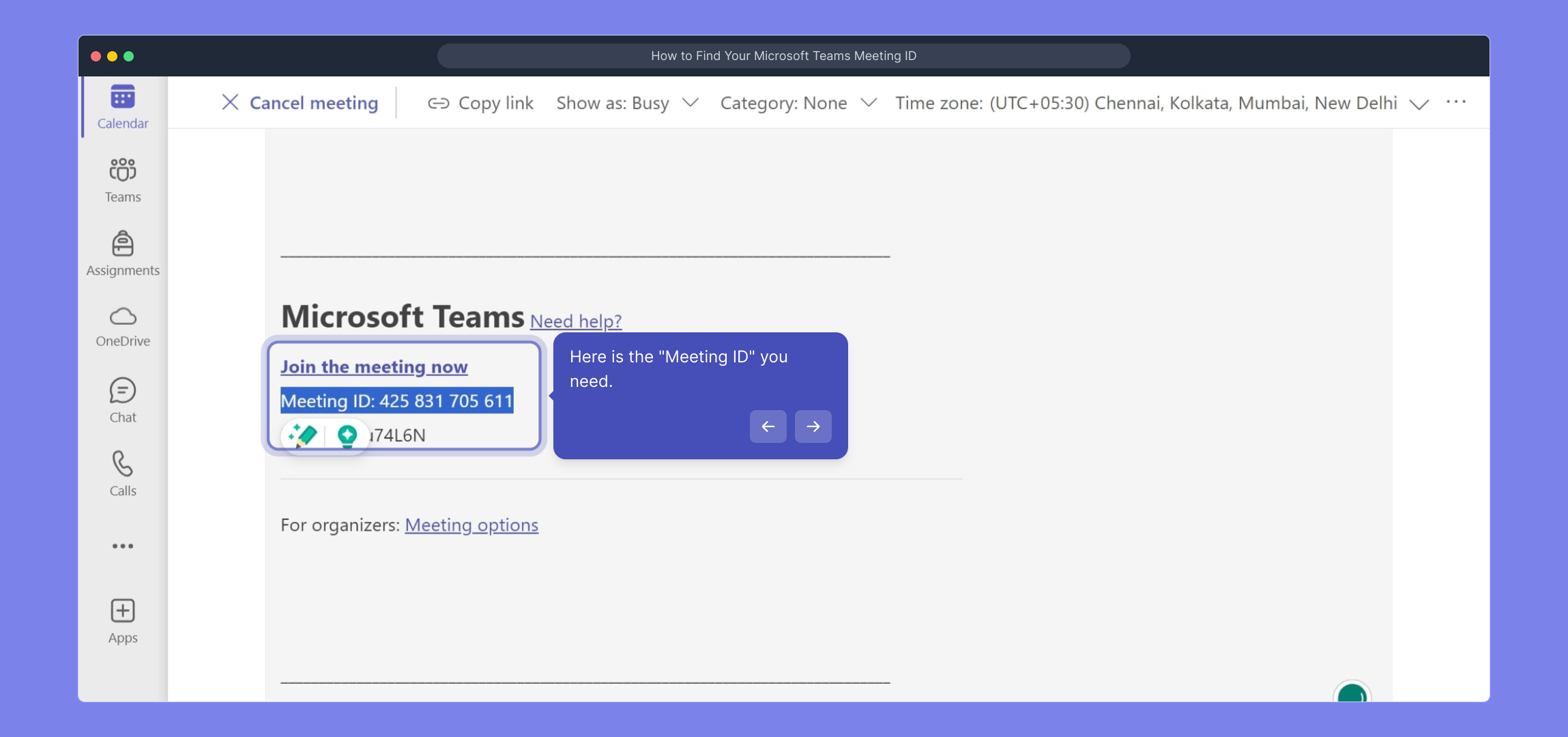
6. Here is the "Meeting ID" you need.

7. Create a Supademo in seconds

This interactive demo/guided walkthrough on How to Find Your Microsoft Teams Meeting ID was created using Supademo.


How to Find Your Microsoft Teams Meeting ID : Step-by-Step Guide

To get started, launch the Microsoft Teams application on your device. This will bring you to the main interface where you can access all your Teams features.
1

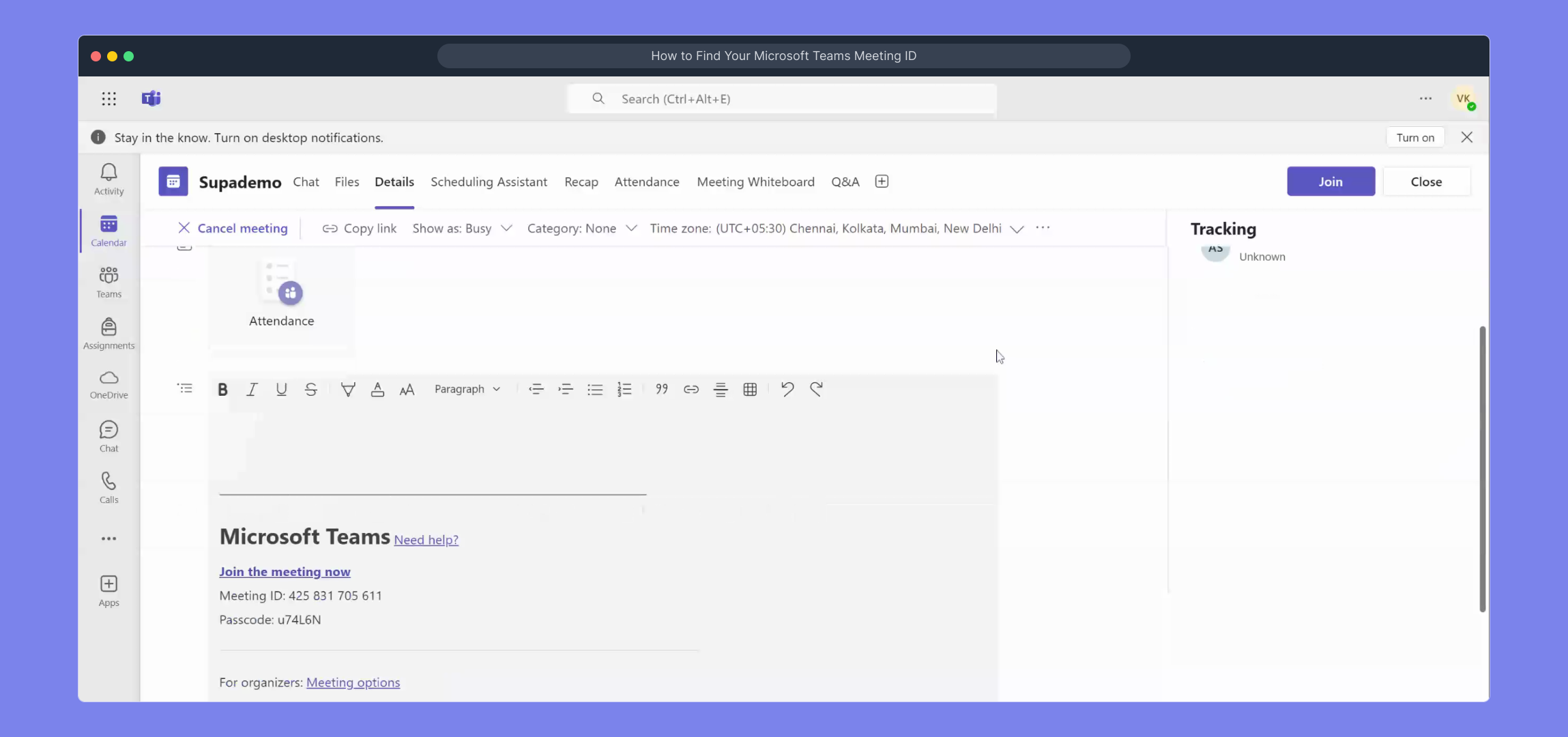
Next, locate and select the "Calendar" tab from the sidebar. This is where all your scheduled meetings and events are organized.

2

Browse through your calendar to find the specific meeting you want to get the Meeting ID for. Click on that meeting entry to view its details.

3

Once the meeting details open, look for the "Edit" option and click it so you can access the full meeting information and settings.

4

Watch this helpful video for a visual walkthrough of the steps involved.

(
Play Now
)

5

Here you will find the "Meeting ID" displayed prominently — this is the unique code you’ll need for joining or sharing the meeting.
6

Finally, quickly create a Supademo to streamline your process right from here — it’s fast, simple, and effective.
7

Create your own interactive demos in < 5 mins with Supademo

You can create your own interactive product demo in minutes using Supademo. Drive growth, scale enablement, and supercharge product-led onboarding with Supademo. Sign up for free here with no credit card required.


FAQs

Commonly asked questions about this topic.

What is a Microsoft Teams Meeting ID?

The Microsoft Teams Meeting ID is a unique identifier assigned to a scheduled meeting. It helps participants join the correct meeting and share the specific meeting details with others easily.

Where can I find my Microsoft Teams Meeting ID?

You can find your Meeting ID by opening the Microsoft Teams app, navigating to the "Calendar", selecting the specific meeting, clicking "Edit", and locating the Meeting ID within the meeting details.

Can I share the Meeting ID with people outside my organization?

Yes, you can share the Meeting ID with external participants to allow them to join the meeting, provided they have the right permissions and access to Teams or the meeting link.

Does every Microsoft Teams meeting have a Meeting ID?

Most scheduled Microsoft Teams meetings have unique Meeting IDs, especially those created via the Calendar. Ad hoc or instant meetings might not display Meeting IDs the same way.

Is the Meeting ID the same as the meeting link?

No, the Meeting ID is a unique numeric code identifying the meeting, while the meeting link is a URL containing this ID and additional information for easy joining.

Can I find the Meeting ID on the Teams web app?

Yes, the Meeting ID is also accessible via the Microsoft Teams web app by following similar steps: go to Calendar, select the meeting, and click "Edit" to see the details.

Why do I need the Meeting ID?

The Meeting ID allows you to join a meeting manually or share it with others to facilitate direct access without needing the full meeting link or invitation email.

Can I use the Meeting ID to join a Teams meeting on different devices?

Yes, the Meeting ID is device-agnostic. You can use it to join meetings from desktops, laptops, tablets, or mobile devices as long as you have Microsoft Teams installed or access via the web.

What should I do if I can’t find the Meeting ID?

If you can’t locate the Meeting ID, verify the meeting was scheduled properly in Teams. You may also contact the meeting organizer to provide the ID or a direct meeting link.

Is the Meeting ID visible to all participants?

Typically, only meeting organizers and those with edit permissions can see the Meeting ID in the meeting details. Attendees usually access meetings via the invitation link instead.
Vimal Kumar
Vimal Kumar

Product Operations Associate

Vimal Kumar helps build and grow Supademo’s team and GTM efforts, with a focus on figuring out growth levers and improving product traction.

More from the blog

How to Remove 'Powered by Shopify'

How to Remove 'Powered by Shopify'

Learn how to easily remove the 'Powered by Shopify' text from your online store with step-by-step instructions and tips to customize your Shopify storefront.

Vimal Kumar
Vimal KumarJan 3, 2026
How to Create a Stripe Account

How to Create a Stripe Account

Learn how to create a Stripe account quickly and easily with our step-by-step guide, perfect for beginners looking to start accepting online payments.

Vimal Kumar
Vimal KumarDec 17, 2025
How to Contact Stripe Support

How to Contact Stripe Support

Learn the easiest ways to contact Stripe support for quick assistance with your payment processing, account issues, and technical questions.

Vimal Kumar
Vimal KumarDec 16, 2025
How to Delete Your Stripe Account

How to Delete Your Stripe Account

Learn step-by-step how to delete your Stripe account securely and permanently. Follow our easy guide to close your account and manage your data effectively.

Vimal Kumar
Vimal KumarDec 16, 2025
How to Create a Poll in Microsoft Teams

How to Create a Poll in Microsoft Teams

Learn how to create a poll in Microsoft Teams quickly and easily with our step-by-step guide, perfect for boosting team engagement and gathering instant feedback.

Vimal Kumar
Vimal KumarDec 12, 2025
How to Clear MS Teams Cache

How to Clear MS Teams Cache

Learn how to quickly clear the MS Teams cache to resolve common issues and improve app performance with our simple step-by-step guide.

Vimal Kumar
Vimal KumarDec 12, 2025