How to set up an alert in Apollo.ai

Alerts in Apollo.ai help you stay on top of important prospect and company changes without manual monitoring. Setting up a targeted alert ensures you capture the right leads at the right time based on your specific criteria.
Quick summary
In this tutorial, you'll learn how to create and configure an alert in Apollo.ai from start to finish. You'll set up filters, define your call-to-action, and add matching prospects to a sequence automatically.
Why this matters
Alerts streamline your outreach workflow by automatically flagging prospects that match your ideal customer profile. This reduces manual prospecting work and ensures your team responds quickly to high-quality leads entering the market.
Step-by-step guide
- 1
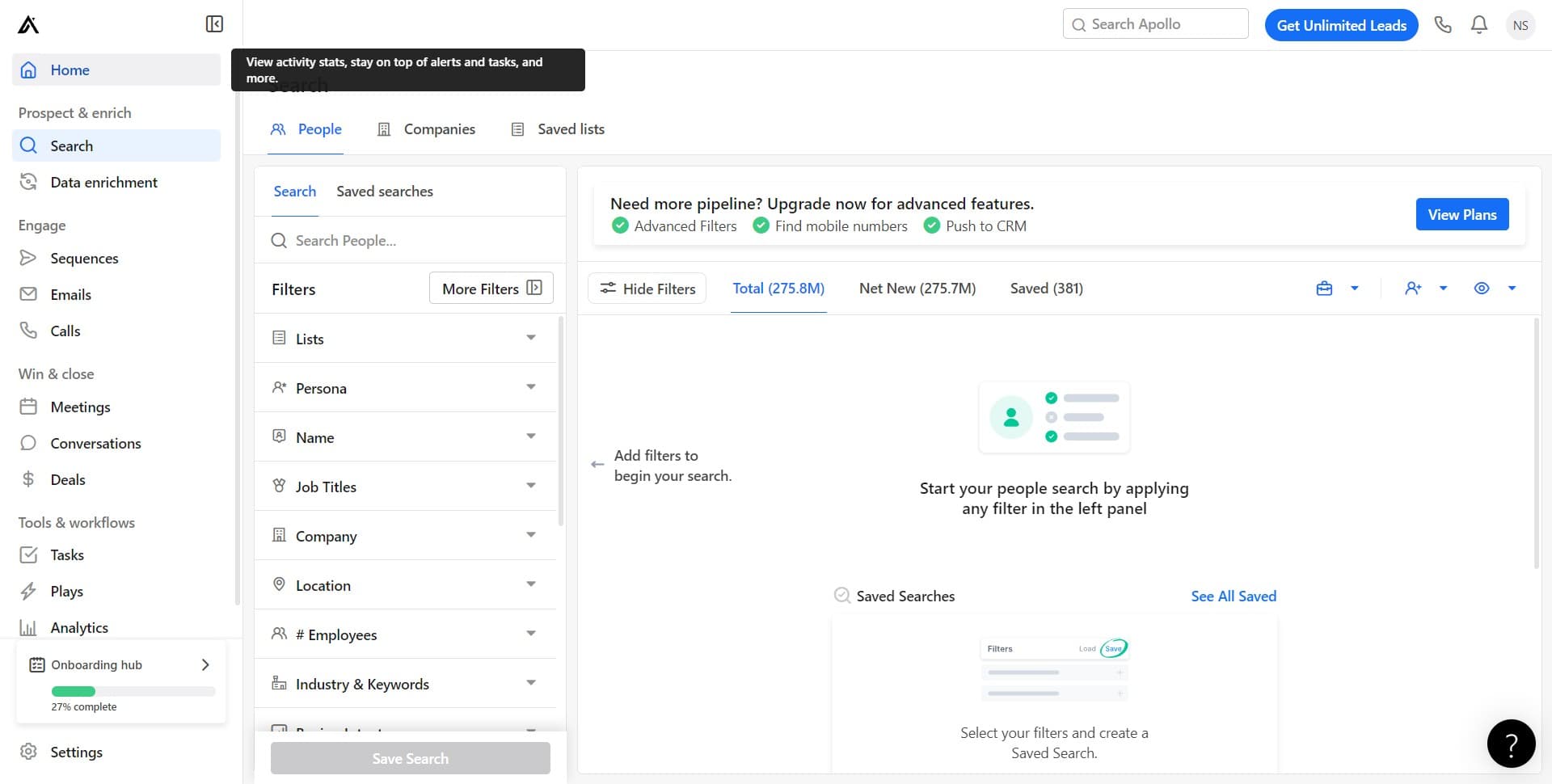
Navigate to the Home page
Click on 'Home' to access the main dashboard. This is your starting point for accessing all Apollo.ai features.
- 2
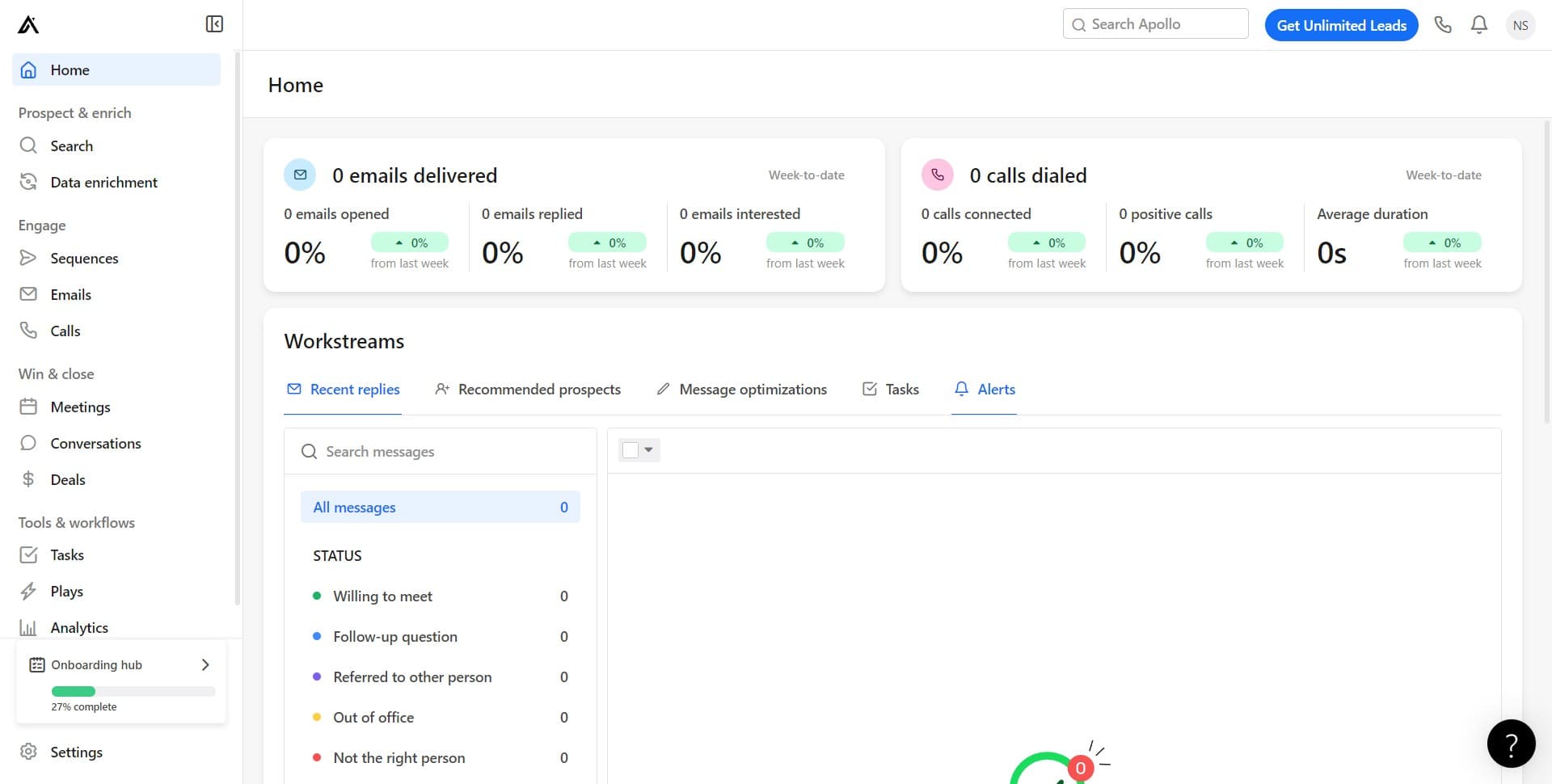
Access the Alerts section
Click on 'Alerts' in the navigation menu. This opens the alerts management area where you can create new alerts or manage existing ones.
- 3
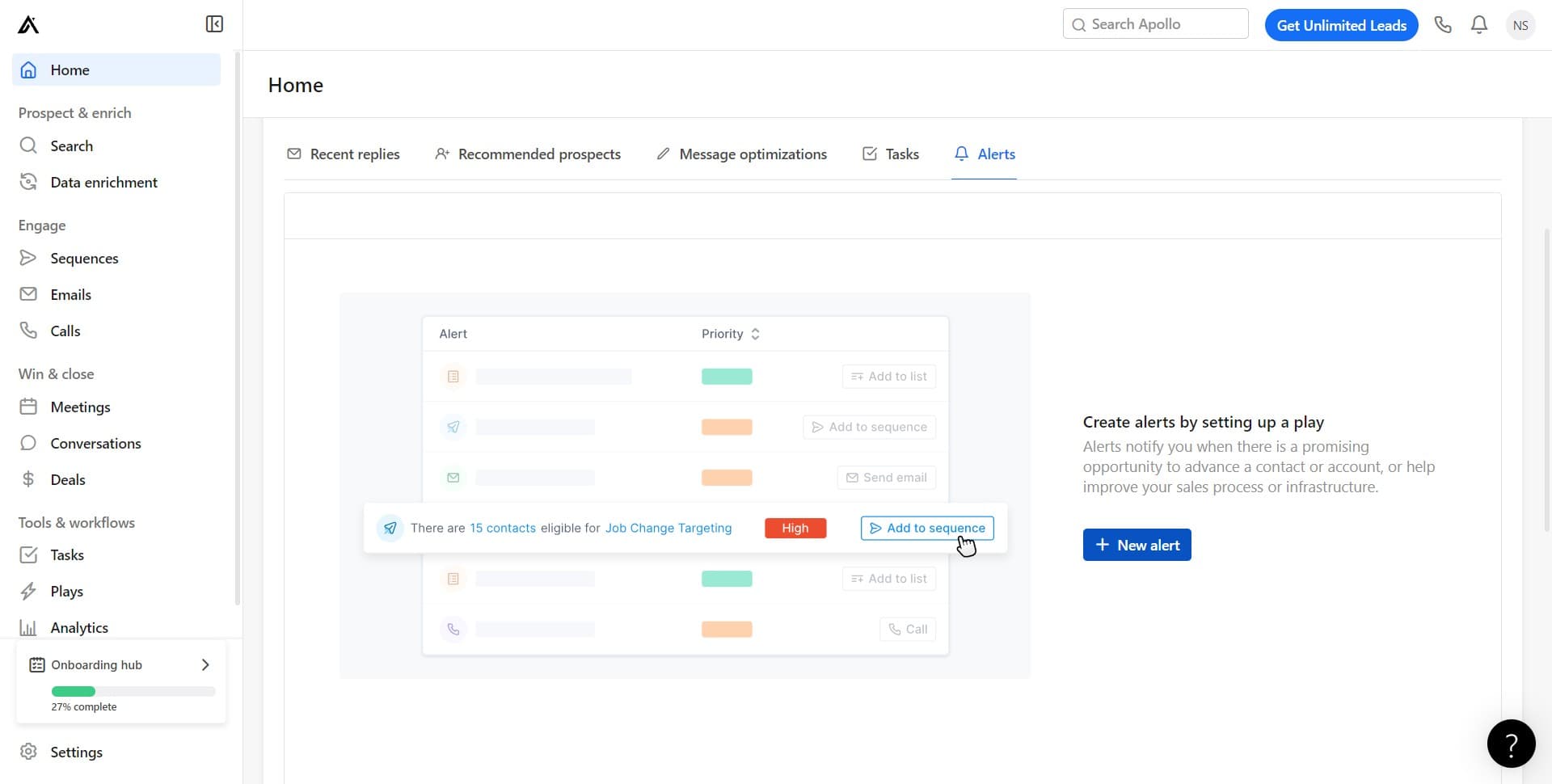
Initiate a new alert
Click the prompt to begin setting up a new alert. You'll be guided through the alert configuration process.
- 4
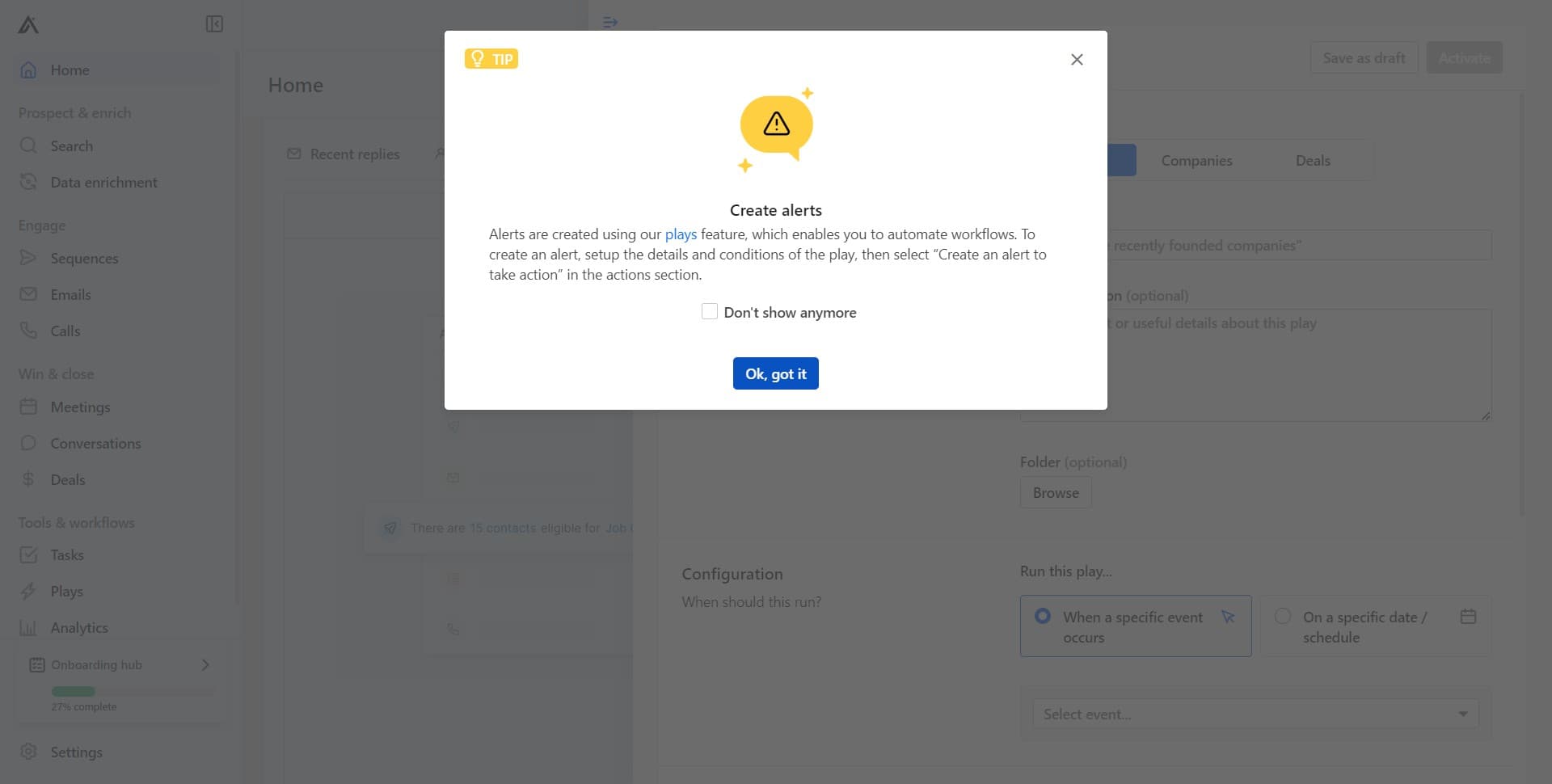
Confirm the alert setup
Click 'Ok, got it' to acknowledge the introduction and proceed with alert configuration. This confirms you understand the next steps.
- 5
Configure alert parameters
Click on the next field to begin setting your alert parameters. This section allows you to define the criteria that will trigger your alert.
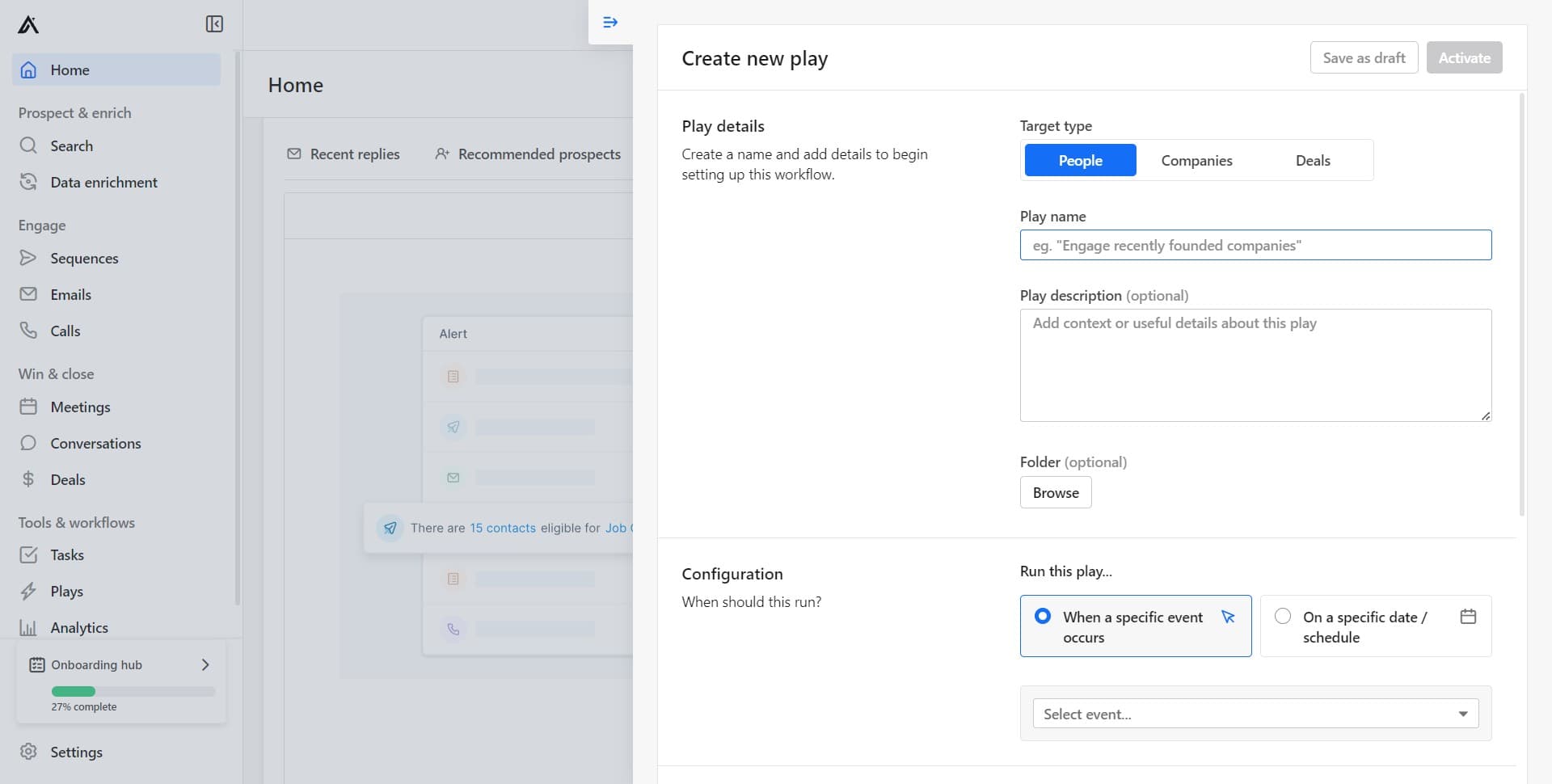
- 6
Set additional alert criteria
Click to continue configuring your alert settings. Each step refines the specificity of your alert to match your target prospects.
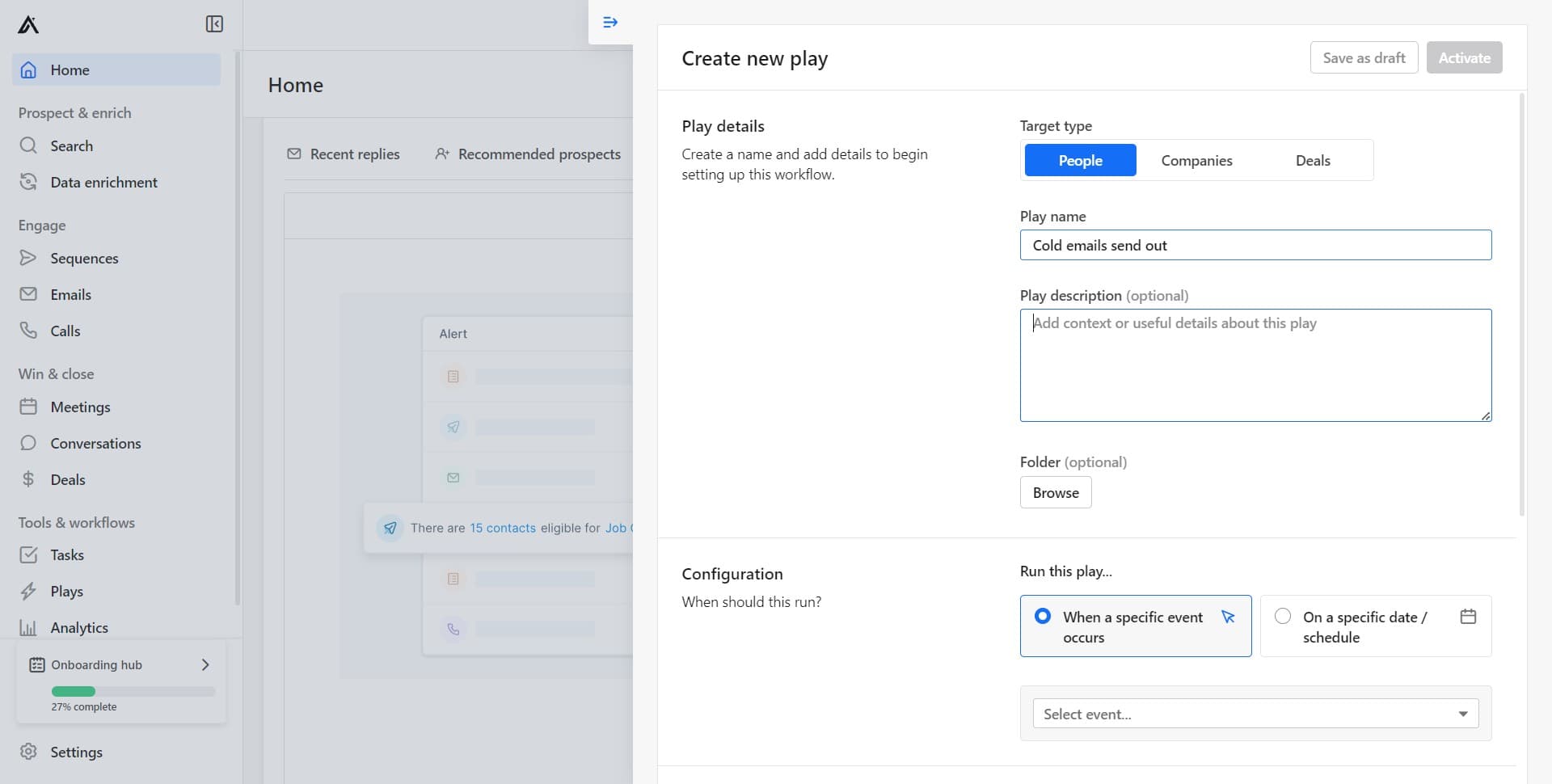
- 7
Complete alert baseline setup
Click to finalize the basic alert configuration. This prepares your alert for more advanced filtering options.
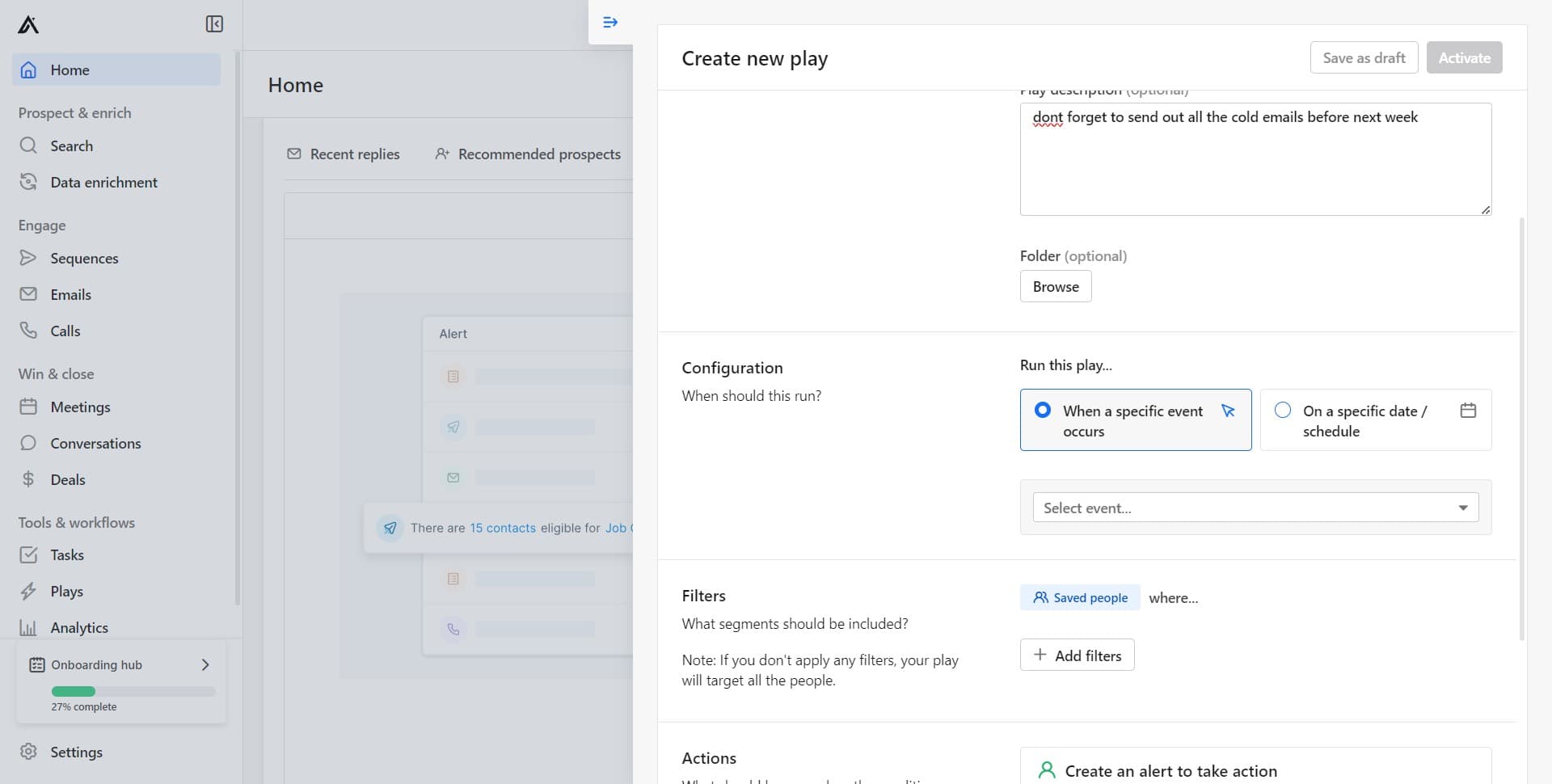
- 8
Expand advanced filtering options
Click 'Show advanced options' to reveal additional filtering and targeting capabilities. These options allow you to create more sophisticated alert criteria.
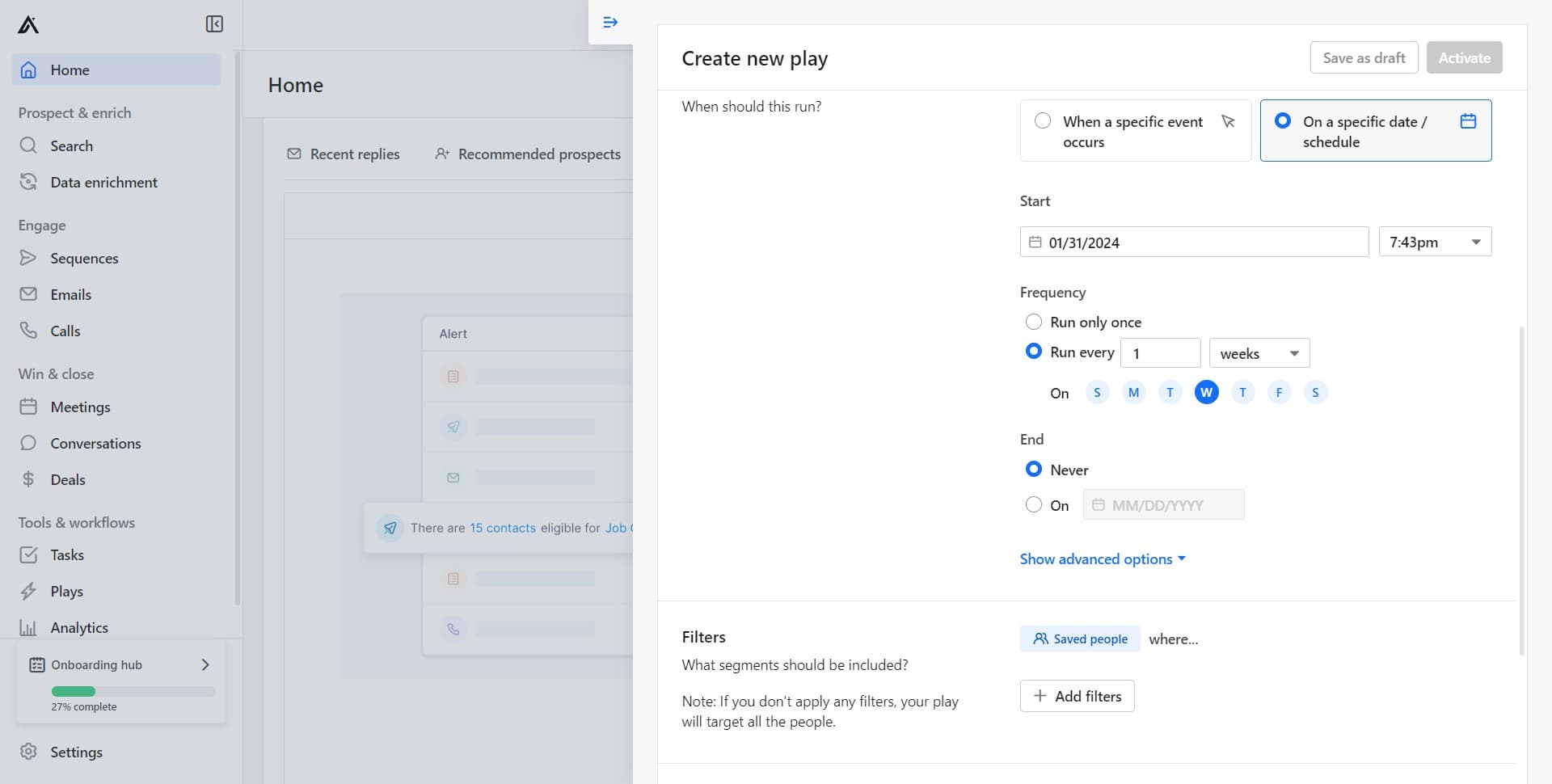
- 9
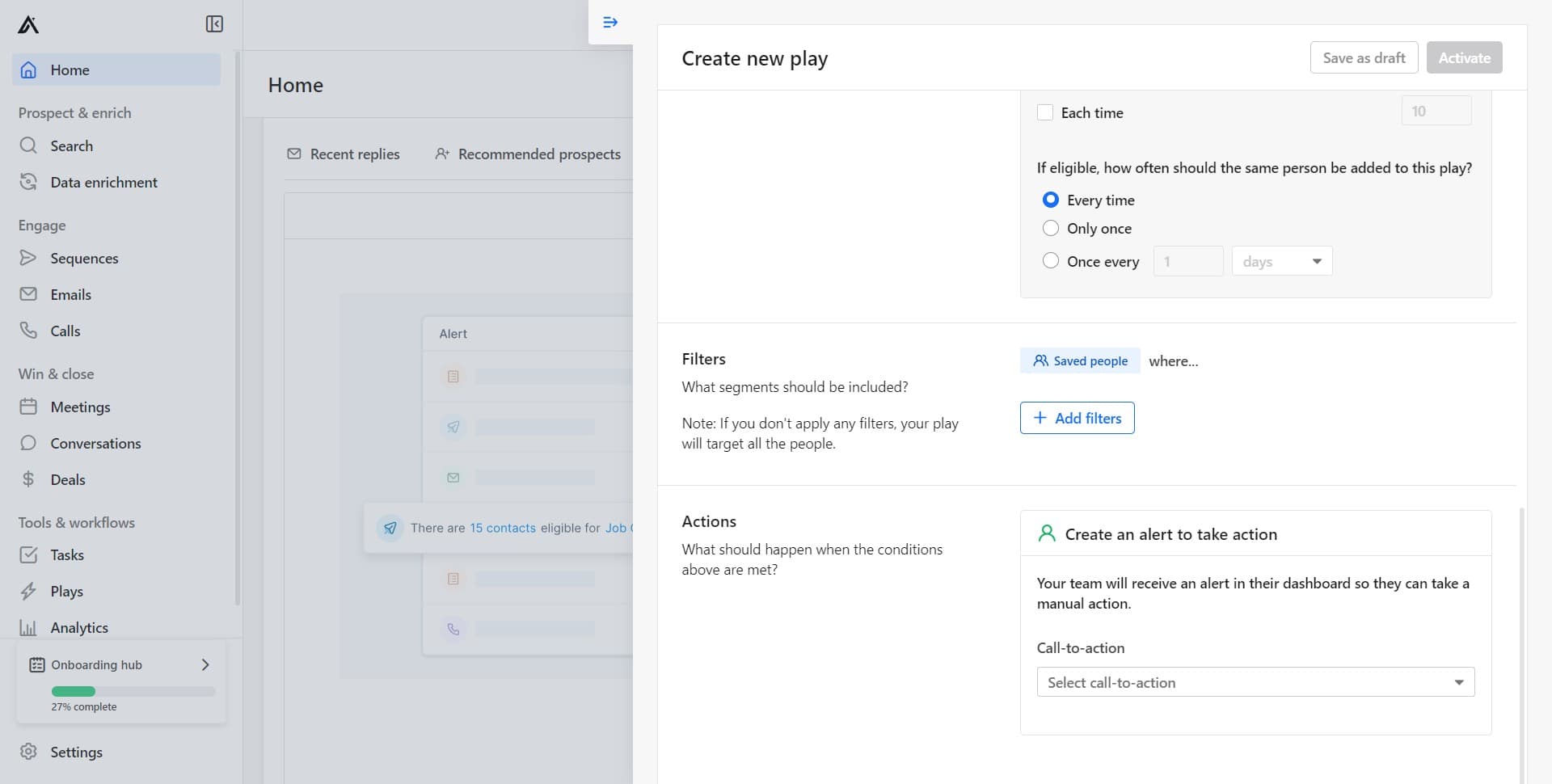
Add custom filters
Click 'Add filters' to specify additional conditions for your alert. Filters let you narrow down which prospects trigger the alert based on attributes like company size, industry, or location.
- 10
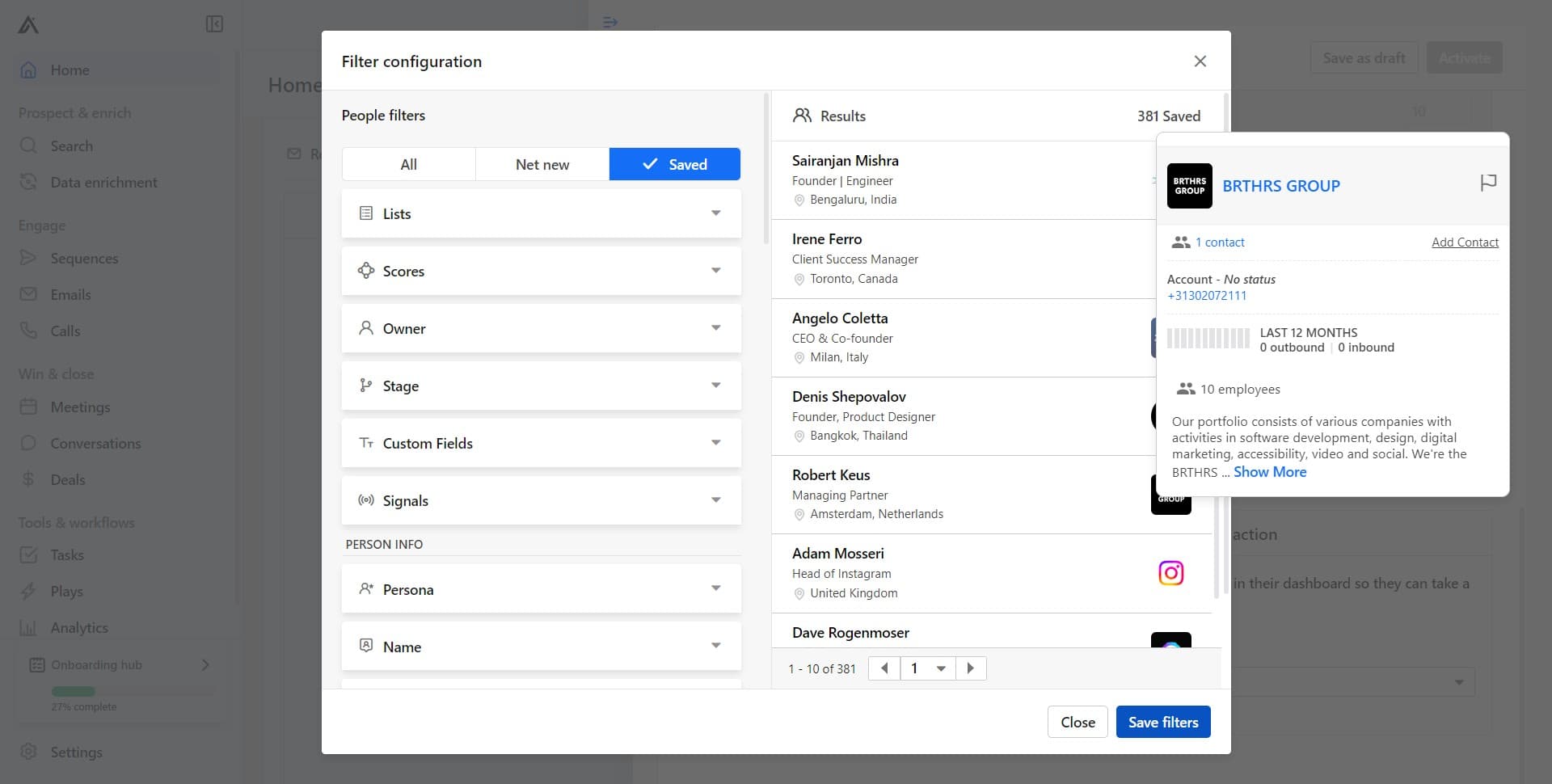
Save your filter configuration
Click 'Save filters' to apply and store your custom filter settings. Your filters are now active for this alert.
- 11
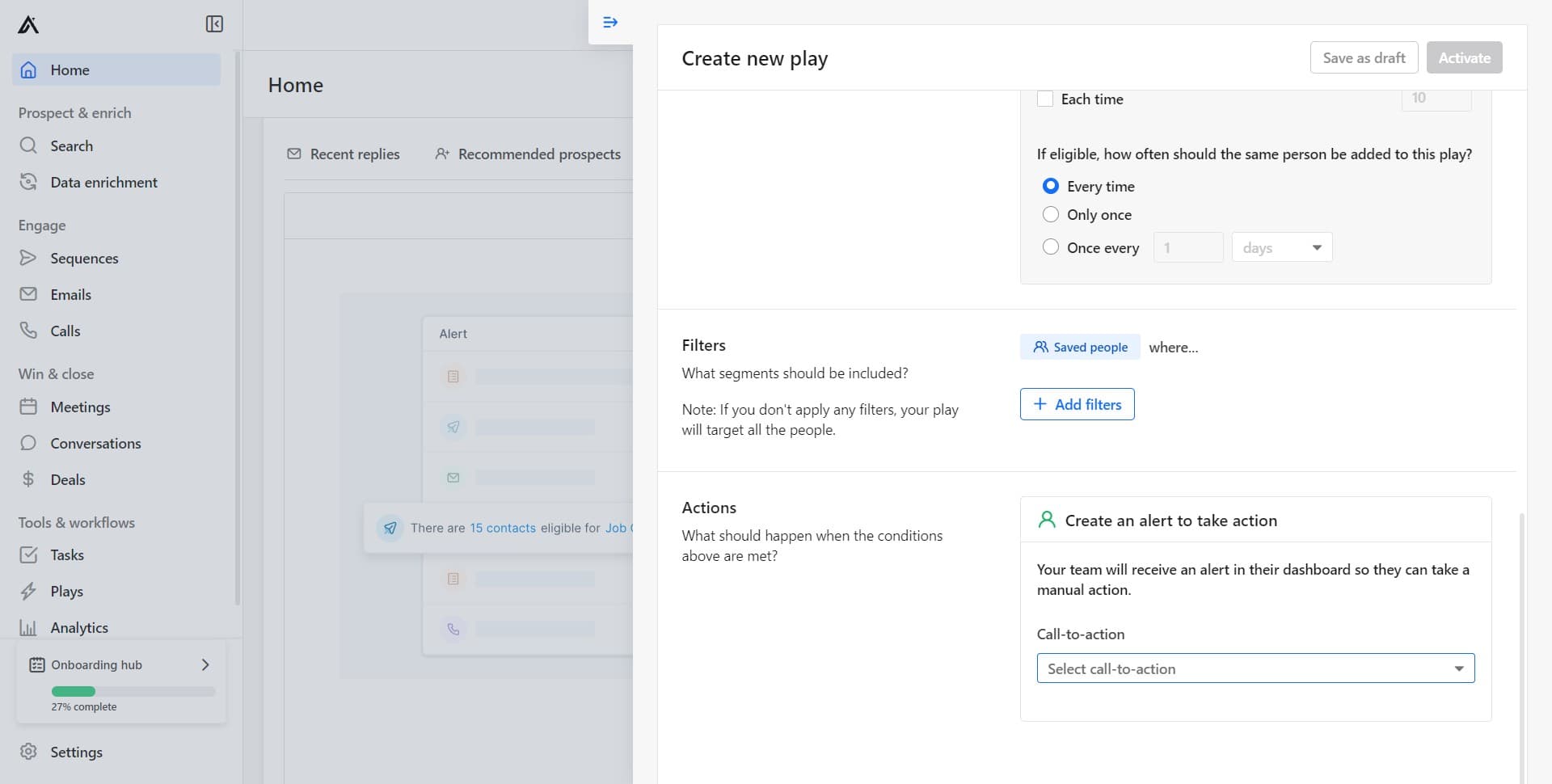
Define the alert action
Click 'Select call-to-action' to choose what happens when your alert criteria are met. This determines the next step for matching prospects.
- 12
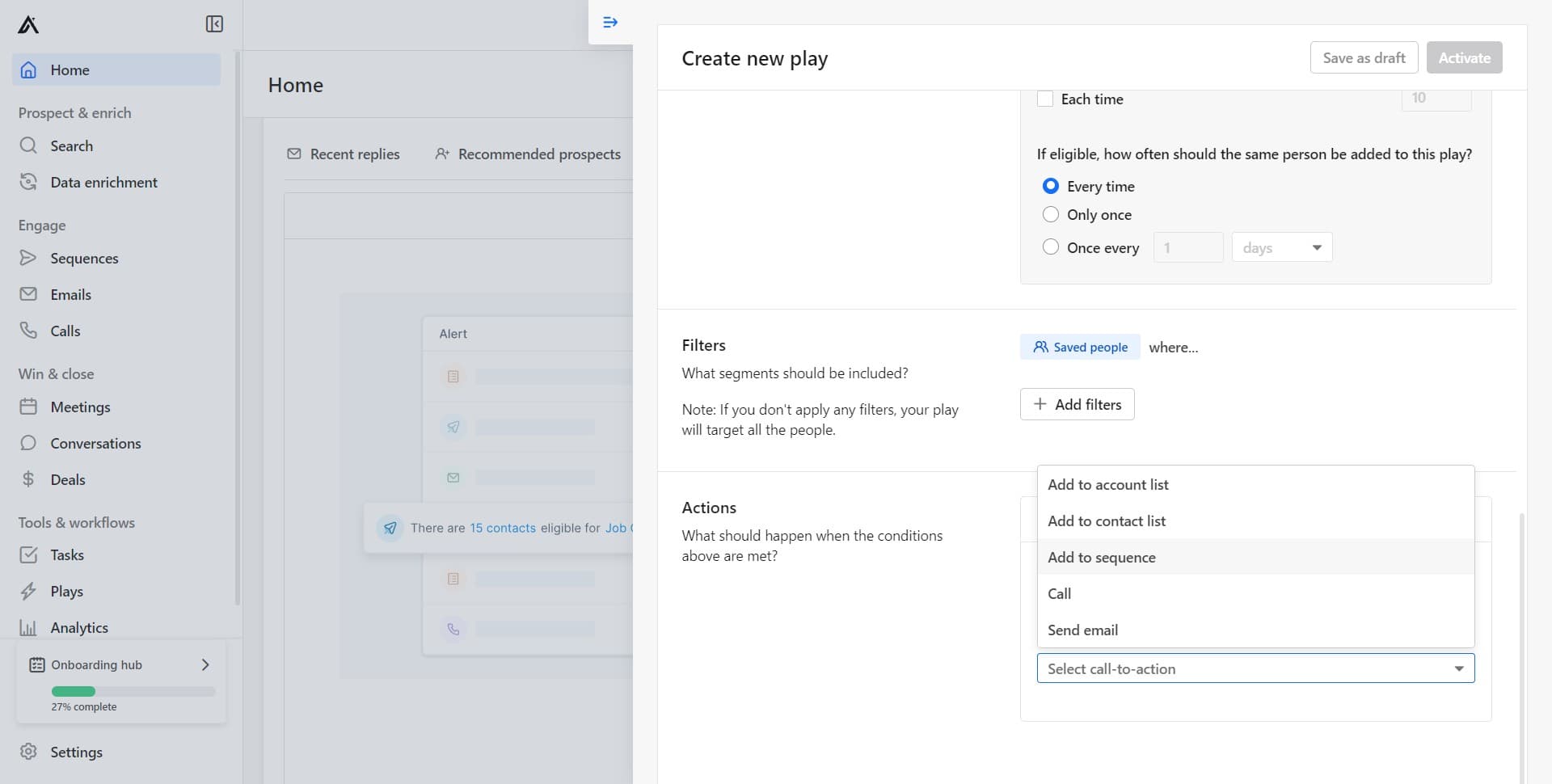
Assign prospects to a sequence
Click 'Add to sequence' to automatically enroll matching prospects in a defined outreach sequence. This automates follow-up for triggered alerts.
- 13
Specify the target company list
Click 'Companies' to select which company database or list your alert should monitor. This focuses your alert on relevant prospects within your chosen companies.
Frequently asked questions
Common questions about how to set up an alert in apollo.ai.
When a prospect matches your alert criteria, Apollo.ai automatically adds them to the sequence you specified in the 'Add to sequence' step. Your team will then begin the outreach workflow you've defined, ensuring timely engagement with qualified leads.
Yes, you can edit your alert at any time by returning to the Alerts section and selecting your alert. You can update filters, change the call-to-action, or modify the sequence without needing to create a new alert from scratch.
The specificity depends on your sales strategy and capacity. Too broad and you'll get many leads to manage; too narrow and you might miss opportunities. Start with 3-4 key criteria like industry, company size, and job title, then adjust based on results.
Apollo.ai offers several actions including adding prospects to a sequence, creating tasks, or sending notifications. The 'Add to sequence' option is the most common, as it automates your outreach workflow when prospects match your alert criteria.
Absolutely. You can create multiple alerts targeting different segments, industries, or company profiles. This allows you to run parallel prospecting campaigns with customized outreach sequences for each alert type.