How to View History in Arc Browser

Vimal Kumar
Vimal Kumar·
How to View History in Arc Browser
Interactive demo powered by Supademo

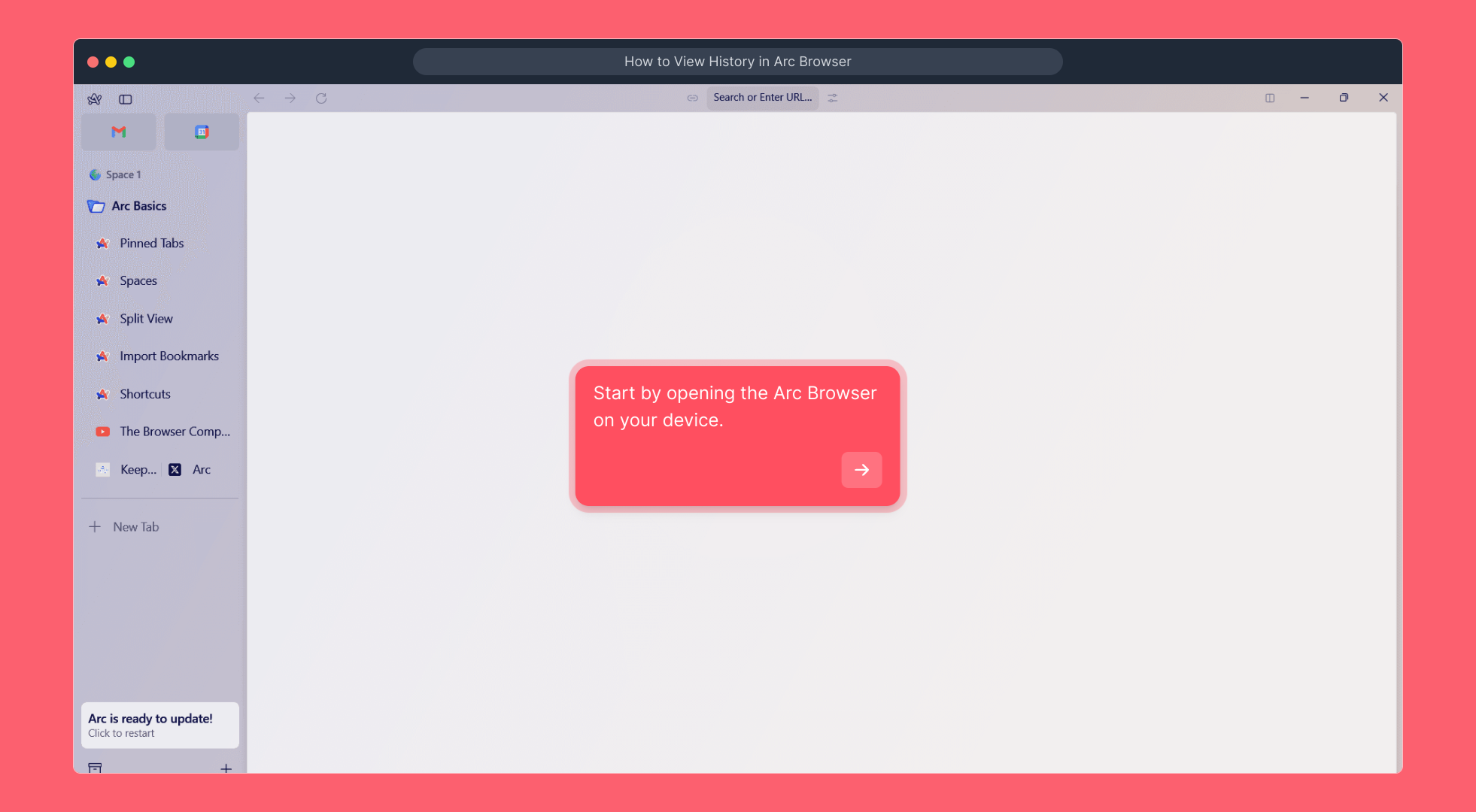
1. Start by opening the Arc Browser on your device.

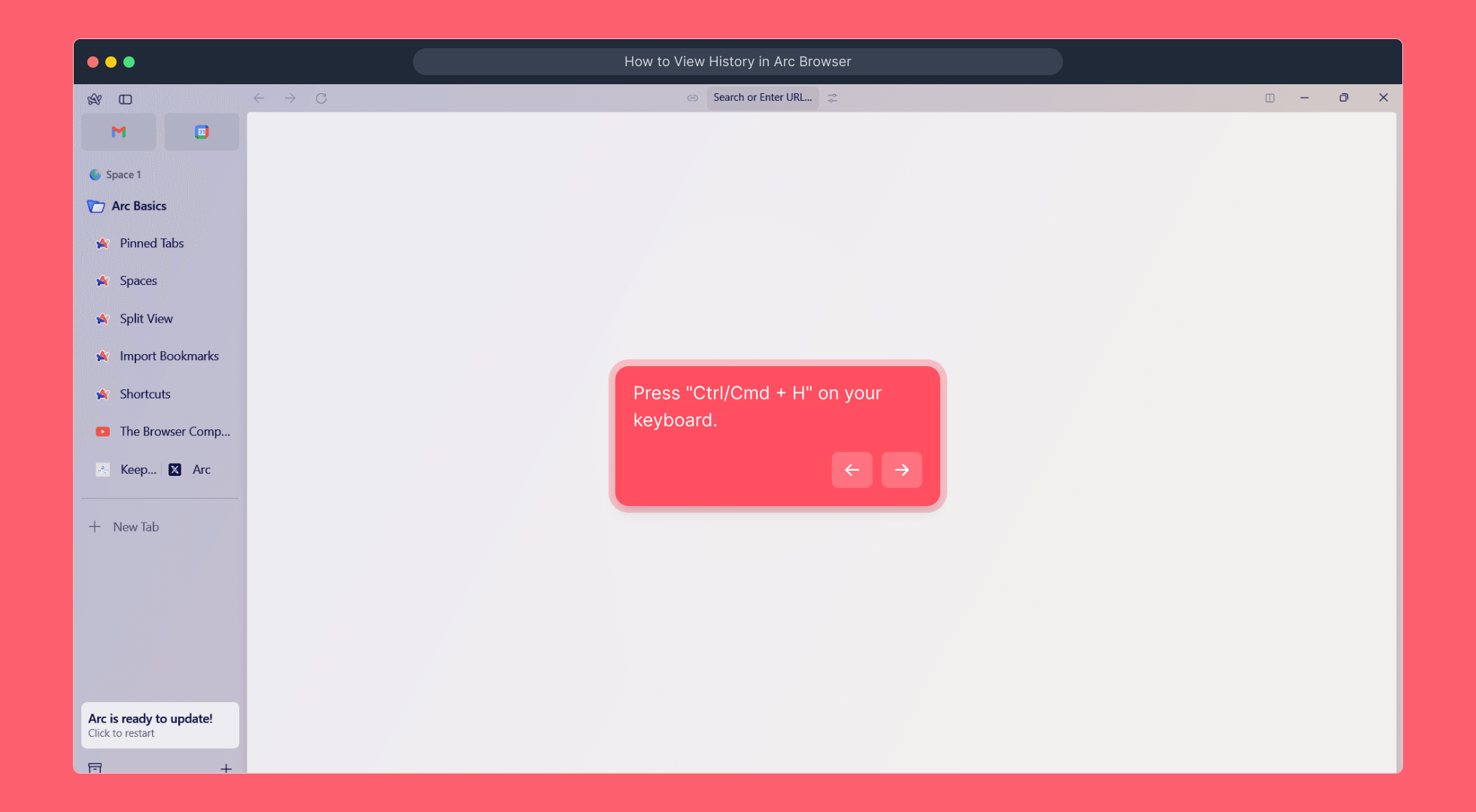
2. Press "Ctrl/Cmd + H" on your keyboard.

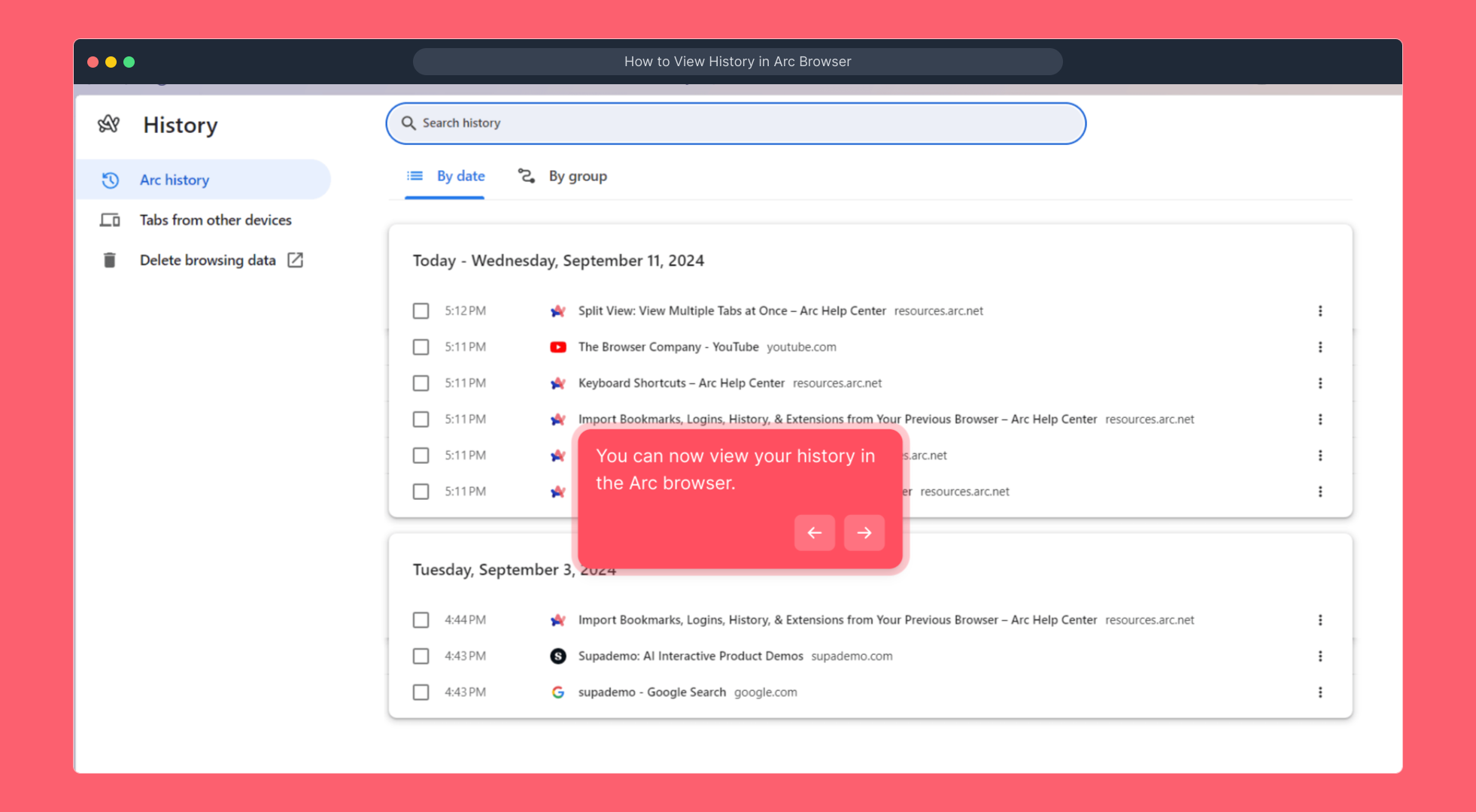
3. You can now view your history in the Arc browser.

4. Enjoyed the guided demo?

This interactive demo/guided walkthrough on How to View History in Arc Browser was created using Supademo.


How to View History in Arc Browser : Step-by-Step Guide

Begin by launching the Arc Browser on your device. This will bring you to the main interface where you can start exploring its features.
1

Next, press the keyboard shortcut "Ctrl + H" if you’re using Windows, or "Cmd + H" on a Mac. This action opens your browsing history, letting you quickly access previously visited pages.
2

Now you’ll see a detailed list of your past browsing activity presented clearly within Arc. Use this view to revisit or manage websites you’ve previously browsed.
3

We hope you found this walkthrough helpful and that it gives you a better understanding of how to navigate your history in Arc. If you have any questions, feel free to explore further or reach out for support.
4

Create your own interactive demos in < 5 mins with Supademo

You can create your own interactive product demo in minutes using Supademo. Drive growth, scale enablement, and supercharge product-led onboarding with Supademo. Sign up for free here with no credit card required.


FAQs

Commonly asked questions about this topic.

How do I access my browsing history in Arc Browser?

You can access your browsing history in Arc Browser by opening the browser and pressing "Ctrl + H" on Windows or "Cmd + H" on Mac. This shortcut instantly displays your history within the browser interface.

Can I clear my browsing history in Arc Browser?

Yes, Arc Browser allows you to clear your browsing history through its settings. Simply go to the browser settings, find the privacy or history section, and select the option to clear your browsing data.

Is there a way to view history for a specific day in Arc Browser?

Arc Browser’s history view lets you see your browsing activity sorted by date, enabling you to locate history from a specific day easily. Use the timeline or search feature within the history page to narrow down entries.

Does Arc Browser sync history across devices?

If you sign into Arc Browser with your account and enable sync, your browsing history can be shared across devices. This keeps your history accessible whether you're on a desktop, laptop, or mobile device.

Can I search for specific websites in my Arc browsing history?

Yes, Arc Browser features a search bar within the history section. You can type keywords, URLs, or site names to quickly find specific pages you previously visited.

What keyboard shortcuts help with viewing history in Arc Browser?

The primary shortcut to view history in Arc Browser is "Ctrl + H" for Windows users and "Cmd + H" for Mac users. This quickly opens the history panel without navigating menus.

Is it possible to export browsing history from Arc Browser?

Currently, Arc Browser does not have a built-in feature to export browsing history. However, you can use third-party tools or browser extensions if you need to save your history externally.

How often is browsing history updated in Arc Browser?

Browsing history in Arc Browser updates in real-time as you visit new websites. Your latest activity is immediately reflected in the history section accessible via the shortcut.

Can I recover deleted history in Arc Browser?

Once browsing history is deleted in Arc Browser, it is generally not recoverable through the browser itself. You might try using system backups or recovery software, but this can be complex and is not guaranteed.

Does Arc Browser provide private or incognito history?

Browsing in Arc's private or incognito mode does not save history in the browser. Any visited pages during private sessions will not appear in your regular browsing history.

Vimal Kumar

Vimal Kumar

Product Operations Associate

Vimal Kumar helps build and grow Supademo’s team and GTM efforts, with a focus on figuring out growth levers and improving product traction.

More from the blog

How to Add Products to Shopify

How to Add Products to Shopify

Learn step-by-step how to add products to your Shopify store effortlessly, including tips on product details, images, pricing, and inventory management to boost your online sales.

Vimal Kumar
Vimal KumarDec 17, 2025
How to Deactivate Your Shopify Store

How to Deactivate Your Shopify Store

Learn step-by-step how to deactivate your Shopify store easily, including important considerations and tips to pause or close your shop without losing data.

Vimal Kumar
Vimal KumarDec 17, 2025
How to Remove 'Powered by Shopify'

How to Remove 'Powered by Shopify'

Learn how to easily remove the 'Powered by Shopify' text from your online store with step-by-step instructions and tips to customize your Shopify storefront.

Vimal Kumar
Vimal KumarDec 17, 2025
How to Create a Shopify Account

How to Create a Shopify Account

Learn step-by-step how to create a Shopify account quickly and easily, set up your online store, and start selling your products in no time.

Vimal Kumar
Vimal KumarDec 17, 2025
How to Create a Stripe Account

How to Create a Stripe Account

Learn how to create a Stripe account quickly and easily with our step-by-step guide, perfect for beginners looking to start accepting online payments.

Vimal Kumar
Vimal KumarDec 17, 2025
How to Contact Stripe Support

How to Contact Stripe Support

Learn the easiest ways to contact Stripe support for quick assistance with your payment processing, account issues, and technical questions.

Vimal Kumar
Vimal KumarDec 16, 2025
