How to Remove a Google Chrome Profile

Vimal Kumar
Vimal Kumar·
How to Remove a Google Chrome Profile
Interactive demo powered by Supademo

1. Begin by opening your Google Chrome browser.

2. Click on your profile icon at the top right corner of the browser window.

3. In the drop-down menu, click on the Settings icon.

4. Now click on the 3 dots to open more options for the profile that you want to remove.

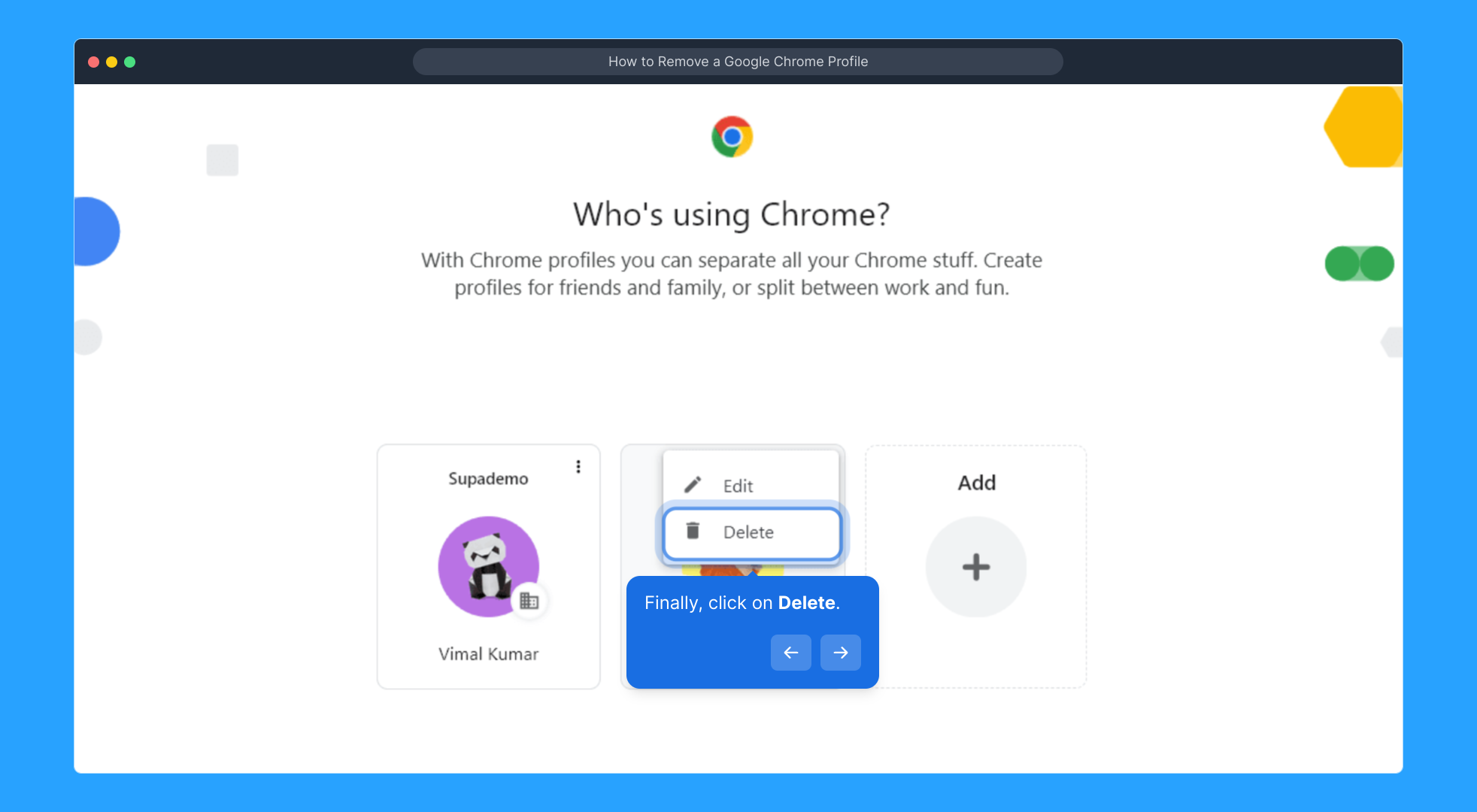
5. Finally, click on Delete.

6. Enjoyed the guided demo?

This interactive demo/guided walkthrough on How to Remove a Google Chrome Profile was created using Supademo.


How to Remove a Google Chrome Profile : Step-by-Step Guide

To get started, launch the Google Chrome browser on your device. This is where you'll manage your profiles and make any necessary changes.
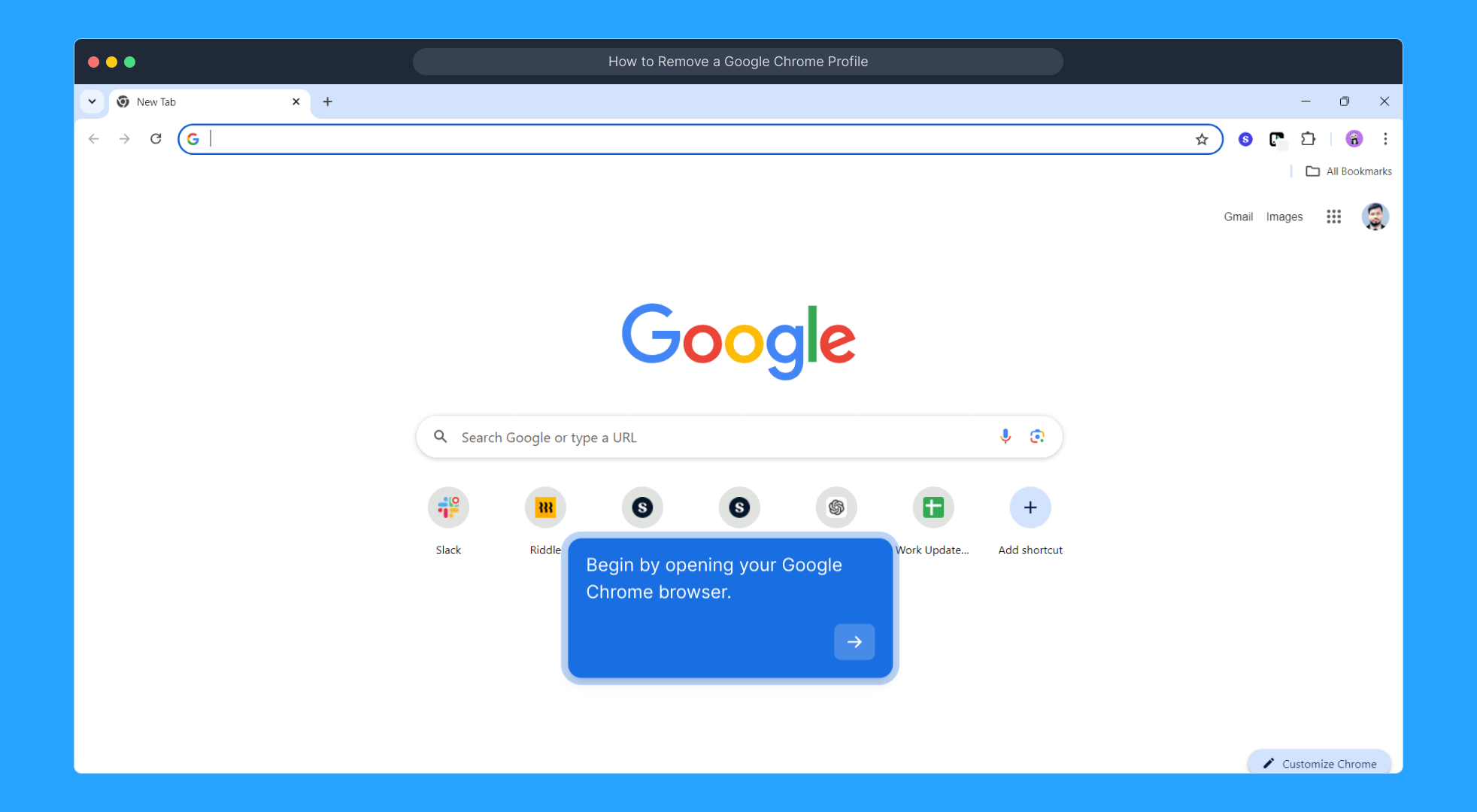
1

Next, look towards the top right corner of the Chrome window and click on your profile picture. This gives you access to profile-related settings and options.
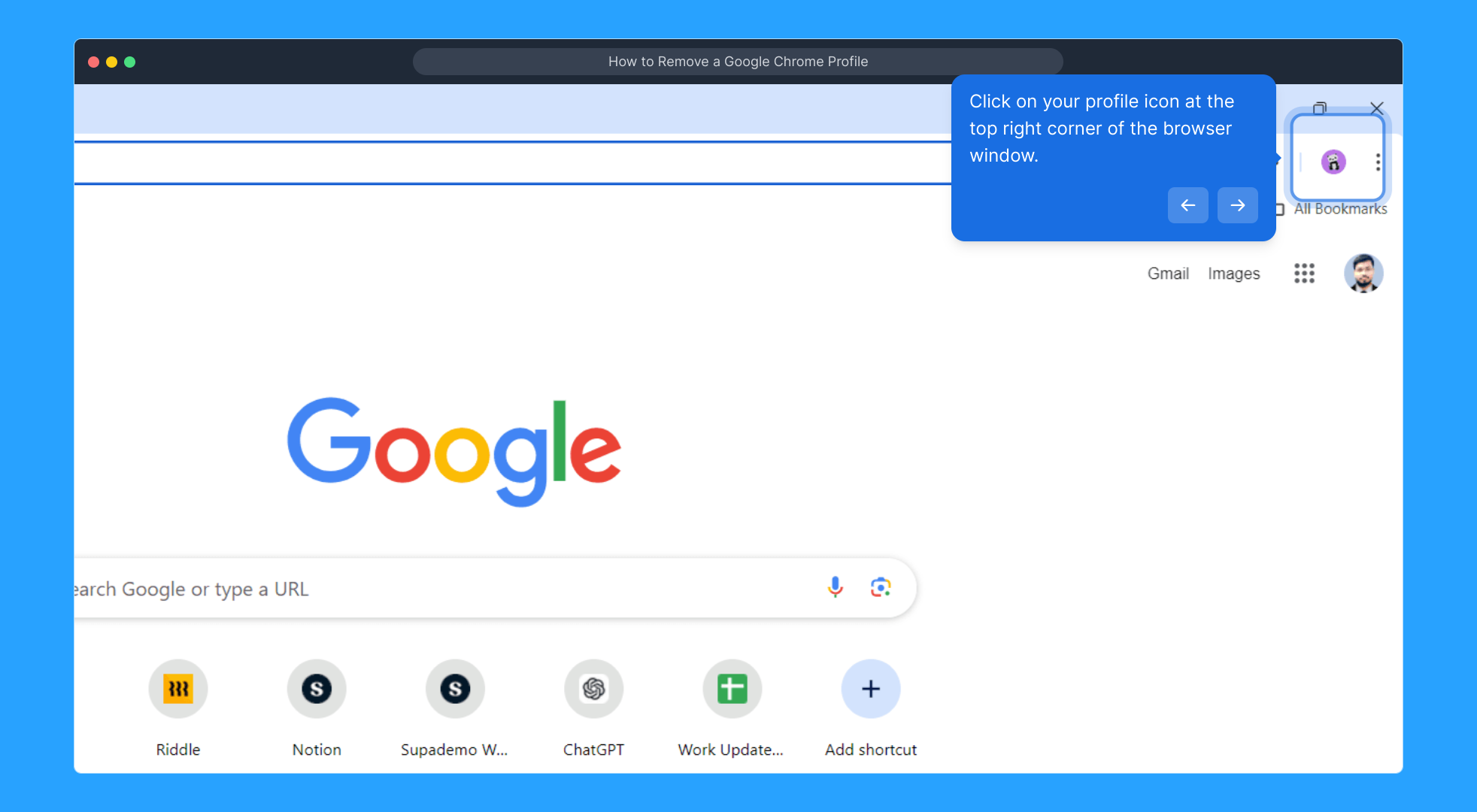
2

From the menu that appears, select the Settings icon. This will open the area where you can customize and manage your Chrome profiles.
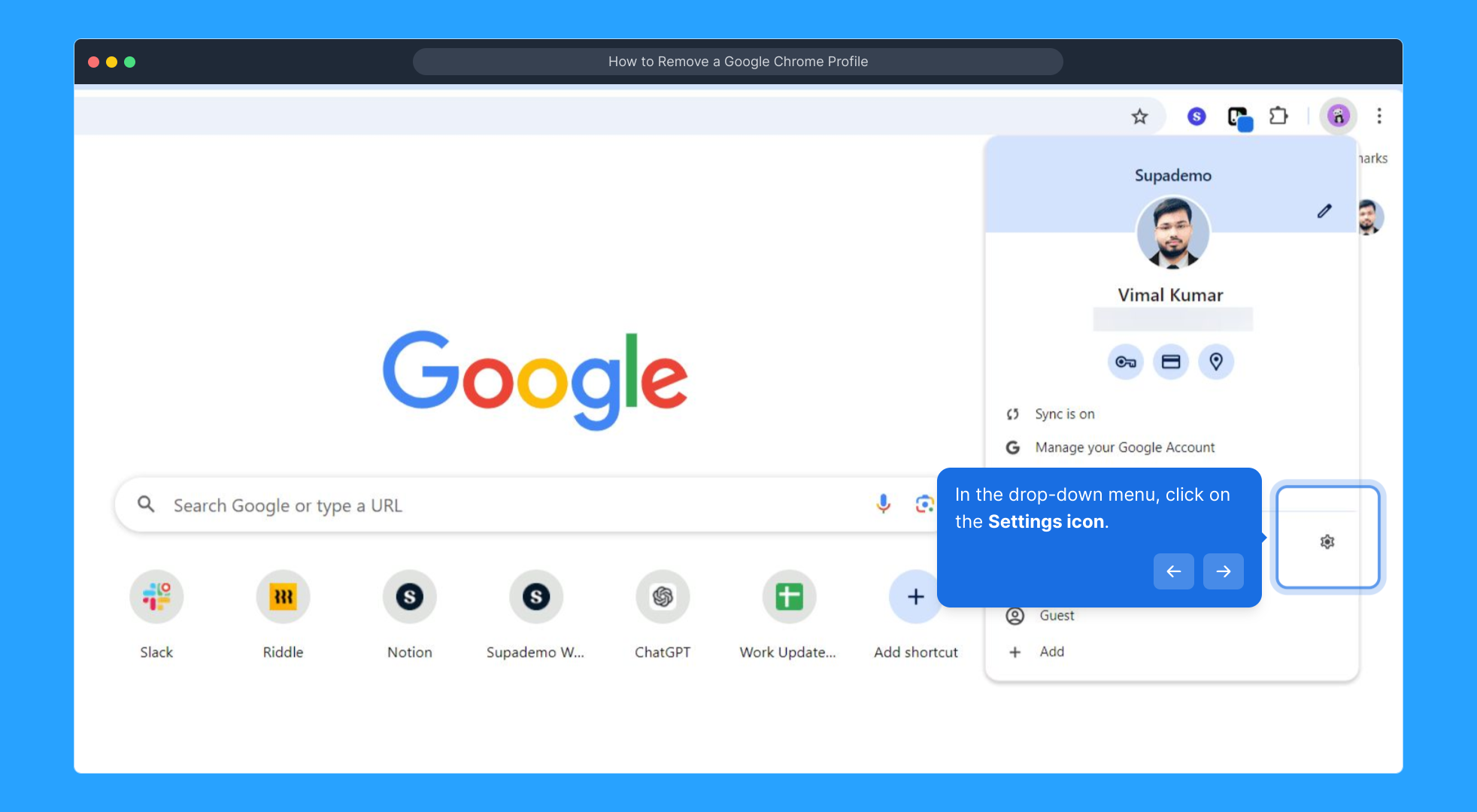
3

Within your profile settings, find the three vertical dots next to the profile you want to remove. Clicking these dots reveals additional options specific to that profile.
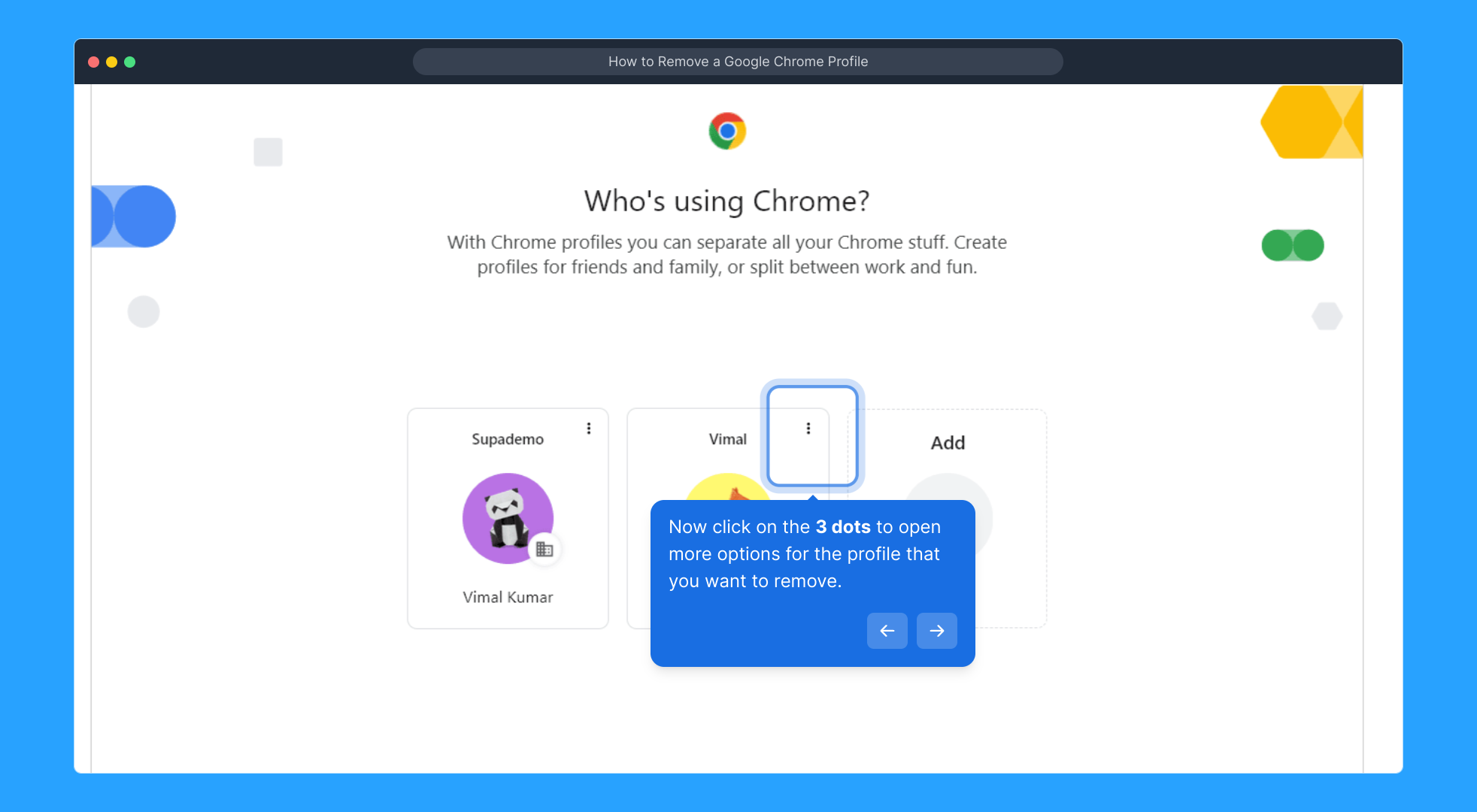
4

Finally, select Delete to permanently remove the chosen profile from Chrome. Confirm any prompts to complete the removal process.
5

We hope you found this walkthrough helpful! If you have any questions or want to explore more features, feel free to continue navigating through our demo.
6

Create your own interactive demos in < 5 mins with Supademo

You can create your own interactive product demo in minutes using Supademo. Drive growth, scale enablement, and supercharge product-led onboarding with Supademo. Sign up for free here with no credit card required.


FAQs

Commonly asked questions about this topic.

How do I remove a Google Chrome profile?

Open Chrome, click your profile icon at the top right, go to settings, click the three dots next to the profile you want to remove, and select Delete. Confirm any prompts to complete the removal.

Will deleting a Chrome profile delete my browsing data?

Yes, deleting a Chrome profile removes its browsing data, history, bookmarks, and saved passwords from that profile. Make sure to back up important data before deletion.

Can I undo removing a Chrome profile?

No, once you delete a Chrome profile, the data is permanently removed. You cannot undo the removal, so proceed with caution and backup data if needed.

Does removing a Chrome profile affect other profiles?

No, deleting one Chrome profile does not affect other profiles. Each profile's data and settings are kept separate.

Can I remove the profile I’m currently using?

Chrome does not allow you to delete the profile you are currently signed into. Switch to another profile or sign out before deleting the targeted profile.

How do I switch profiles in Chrome before deleting one?

Click the profile icon at the top right and select a different profile from the dropdown. Once switched, you can access the targeted profile’s settings for removal.

Will deleting a Chrome profile delete my Google account?

No, deleting a Chrome profile only removes the browsing profile locally on your device. Your Google account remains active and unaffected.

Is it necessary to sign out of a Google account before deleting its Chrome profile?

It’s recommended but not required. Signing out ensures none of your synced data is inadvertently lost or unsynced before profile deletion.

Can Chrome profiles be recovered after deletion?

Deleted Chrome profiles cannot be recovered through the browser. However, if you backed up data manually or synced with a Google account, you can restore info by signing in again.

Why should I remove a Google Chrome profile?

Removing unused or outdated Chrome profiles declutters your browser, improves performance, and protects privacy by deleting associated browsing data.

Vimal Kumar

Vimal Kumar

Product Operations Associate

Vimal Kumar helps build and grow Supademo’s team and GTM efforts, with a focus on figuring out growth levers and improving product traction.

More from the blog

How to Add Products to Shopify

How to Add Products to Shopify

Learn step-by-step how to add products to your Shopify store effortlessly, including tips on product details, images, pricing, and inventory management to boost your online sales.

Vimal Kumar
Vimal KumarDec 17, 2025
How to Deactivate Your Shopify Store

How to Deactivate Your Shopify Store

Learn step-by-step how to deactivate your Shopify store easily, including important considerations and tips to pause or close your shop without losing data.

Vimal Kumar
Vimal KumarDec 17, 2025
How to Remove 'Powered by Shopify'

How to Remove 'Powered by Shopify'

Learn how to easily remove the 'Powered by Shopify' text from your online store with step-by-step instructions and tips to customize your Shopify storefront.

Vimal Kumar
Vimal KumarDec 17, 2025
How to Create a Shopify Account

How to Create a Shopify Account

Learn step-by-step how to create a Shopify account quickly and easily, set up your online store, and start selling your products in no time.

Vimal Kumar
Vimal KumarDec 17, 2025
How to Create a Stripe Account

How to Create a Stripe Account

Learn how to create a Stripe account quickly and easily with our step-by-step guide, perfect for beginners looking to start accepting online payments.

Vimal Kumar
Vimal KumarDec 17, 2025
How to Contact Stripe Support

How to Contact Stripe Support

Learn the easiest ways to contact Stripe support for quick assistance with your payment processing, account issues, and technical questions.

Vimal Kumar
Vimal KumarDec 16, 2025