テクニカルサポートとMailchimpアシスタントへの問い合わせ方法

Vimal Kumar
Vimal Kumar·
テクニカルサポートとMailchimpアシスタントへの問い合わせ方法

概要:

技術サポートへのアクセス方法やMailchimp Assistantの活用法に関する包括的なガイドで、あなたの経験をスムーズにしましょう。迅速なサポートを受けるために技術サポートに連絡する手順をスムーズに進めます。Mailchimp Assistantを活用するためのステップバイステップの指示を通じて、メールキャンペーンとマーケティング業務を効率的に管理し、明確に理解できるよう支援します。

Mailchimpは誰に最適ですか?

Mailchimpは、Email Marketers、小規模ビジネスオーナー、E-commerce Managersを含む幅広い専門家に最適です。例えば、Email MarketersはMailchimpを使用してターゲットとするメールキャンペーンをデザインし送信し、小規模ビジネスオーナーは顧客リストを管理し、コミュニケーションを自動化するために活用できます。また、E-commerce Managersはプロモーションメールを作成し、キャンペーンのパフォーマンスを追跡するために使用できます。全てのユーザーは、Mailchimpの使いやすいインターフェースと強力な分析ツールの恩恵を受けられます。

Mailchimpで技術サポートにメールを送る方法

Interactive demo powered by Supademo

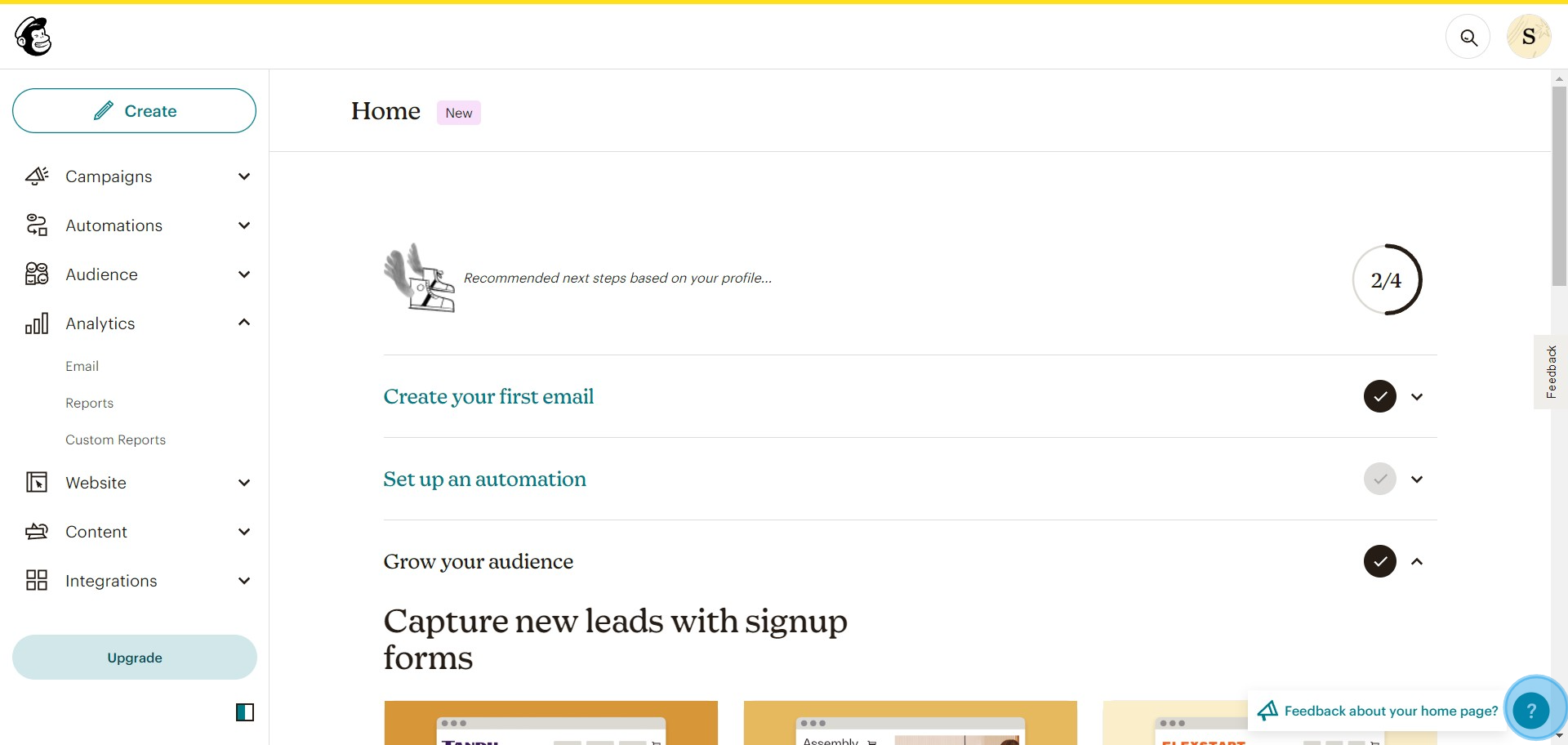
1. 画面のヘルプ機能に移動します。

1 Click here

2. 提供されたオプションの中から「ヘルプ&サポート」を探して選択します。
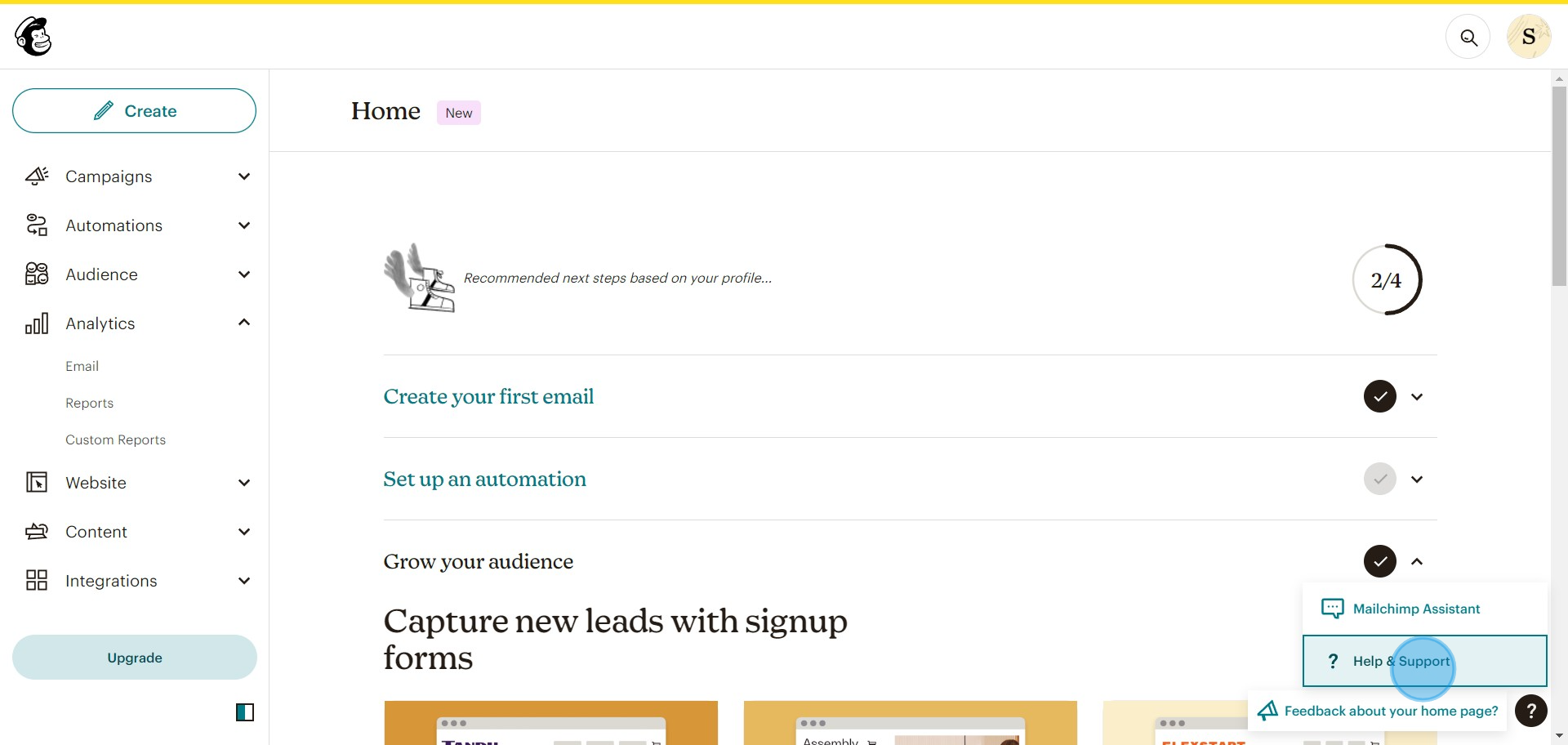
2 Click on "Help & Support"

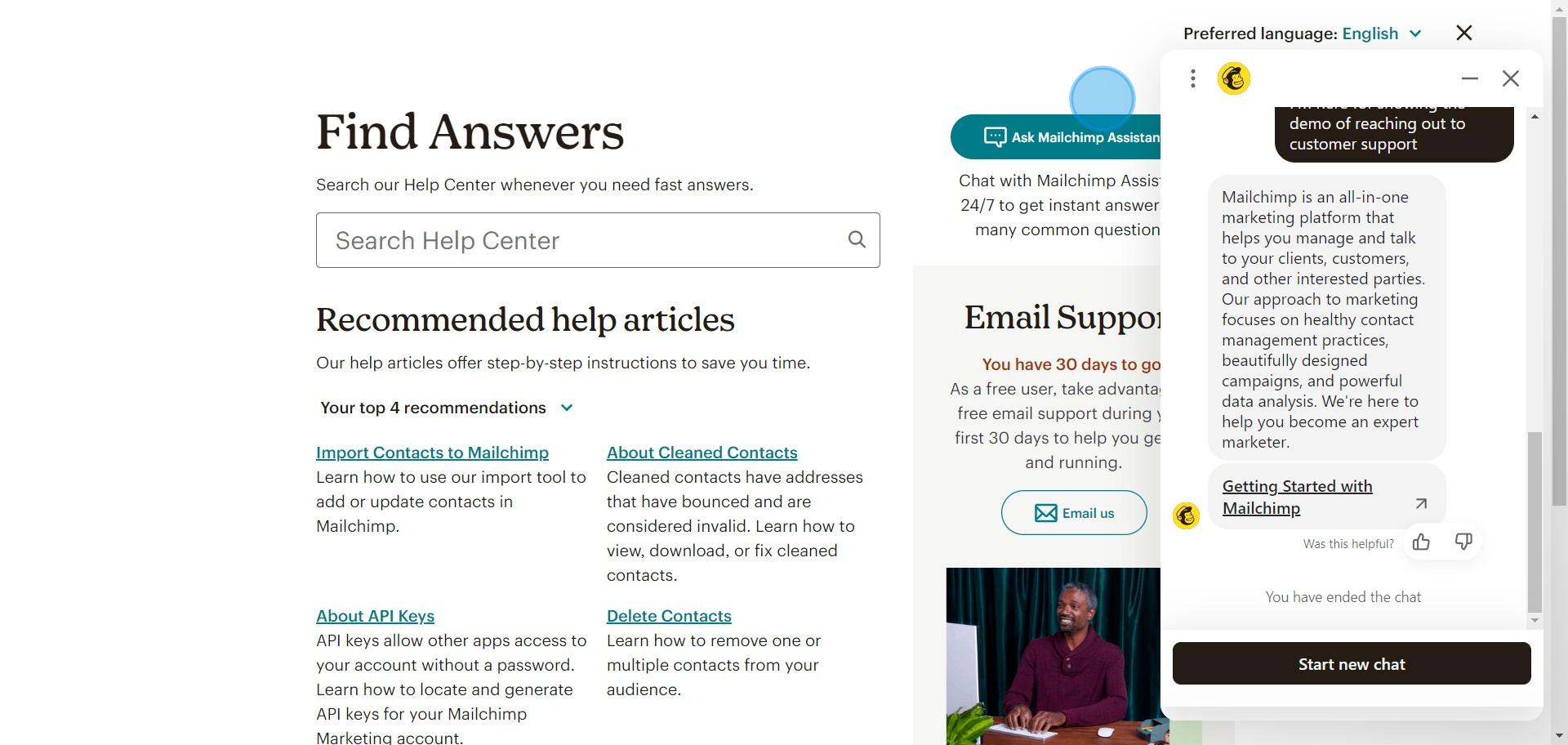
3.「Mailchimp Assistantに問い合わせる」オプションが表示されたらクリックします。
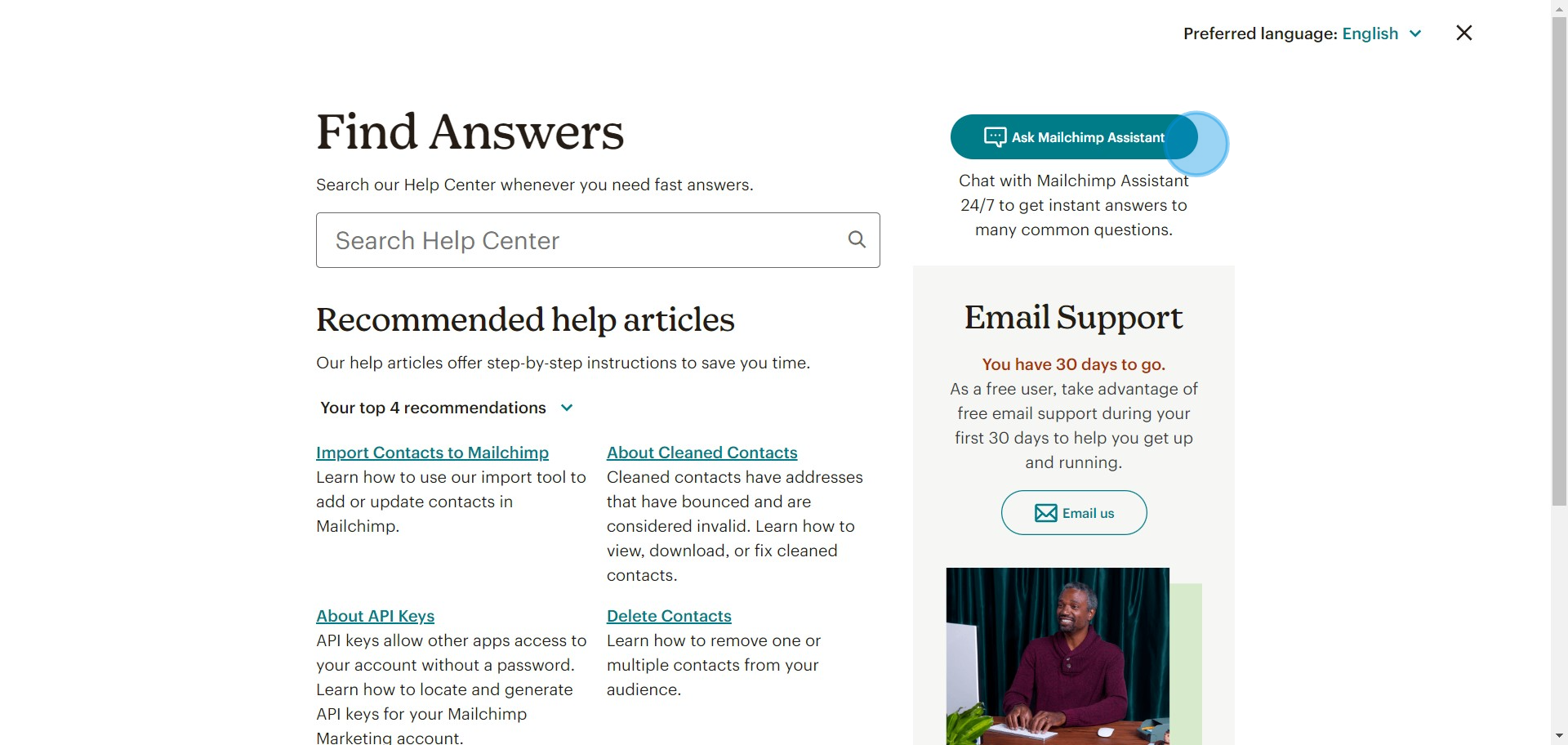
3 Click on "Ask Mailchimp Assistant"

4. 検索バーにキーワードを入力して関連する記事を検索します。

4 Click on "Ask Mailchimp Assistant"

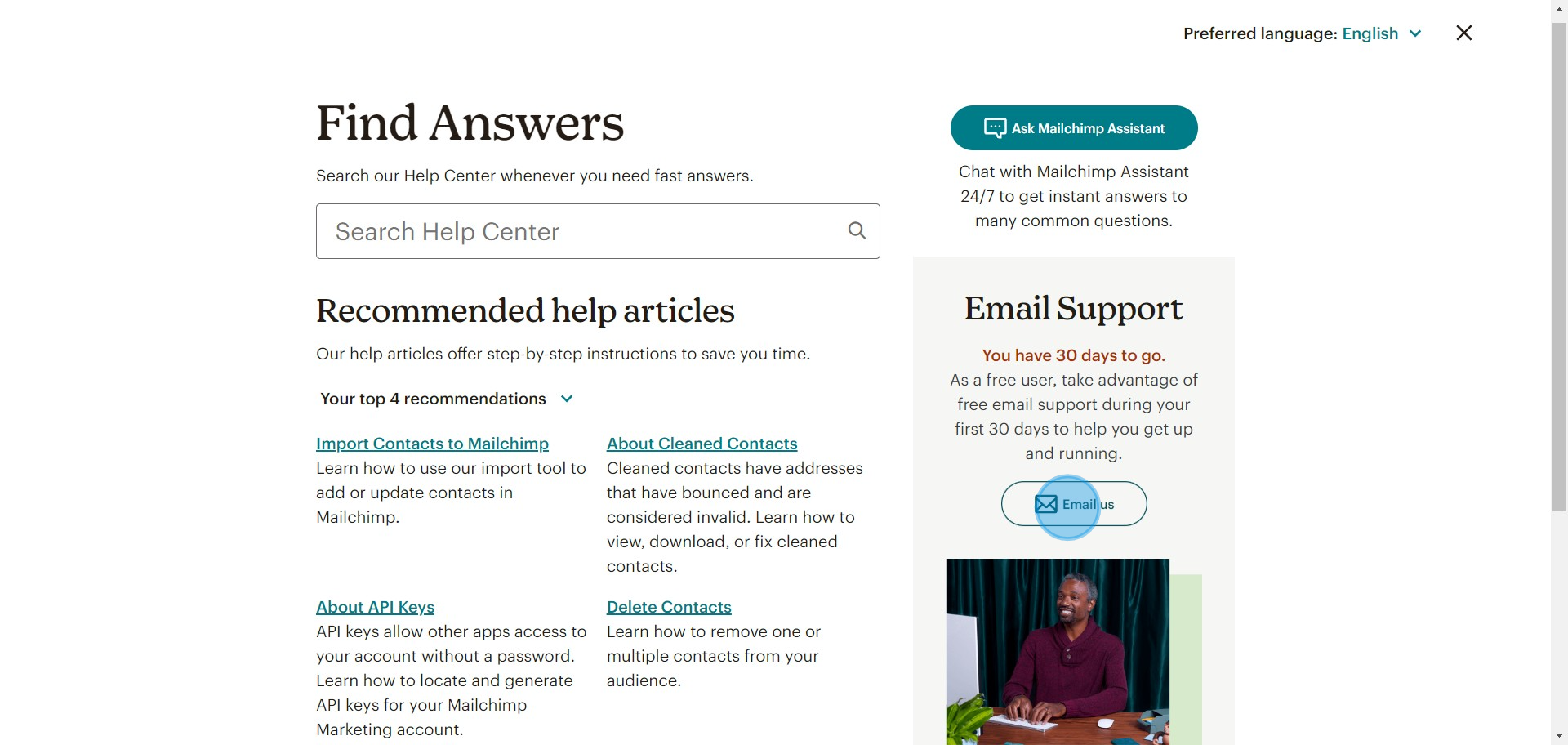
5. 「Email Us」オプションを探して選択します。

5 Click on "Email us"

6. 提供されたフォームに問題を詳細に記述し、詳しいメール応答を受け取ります。
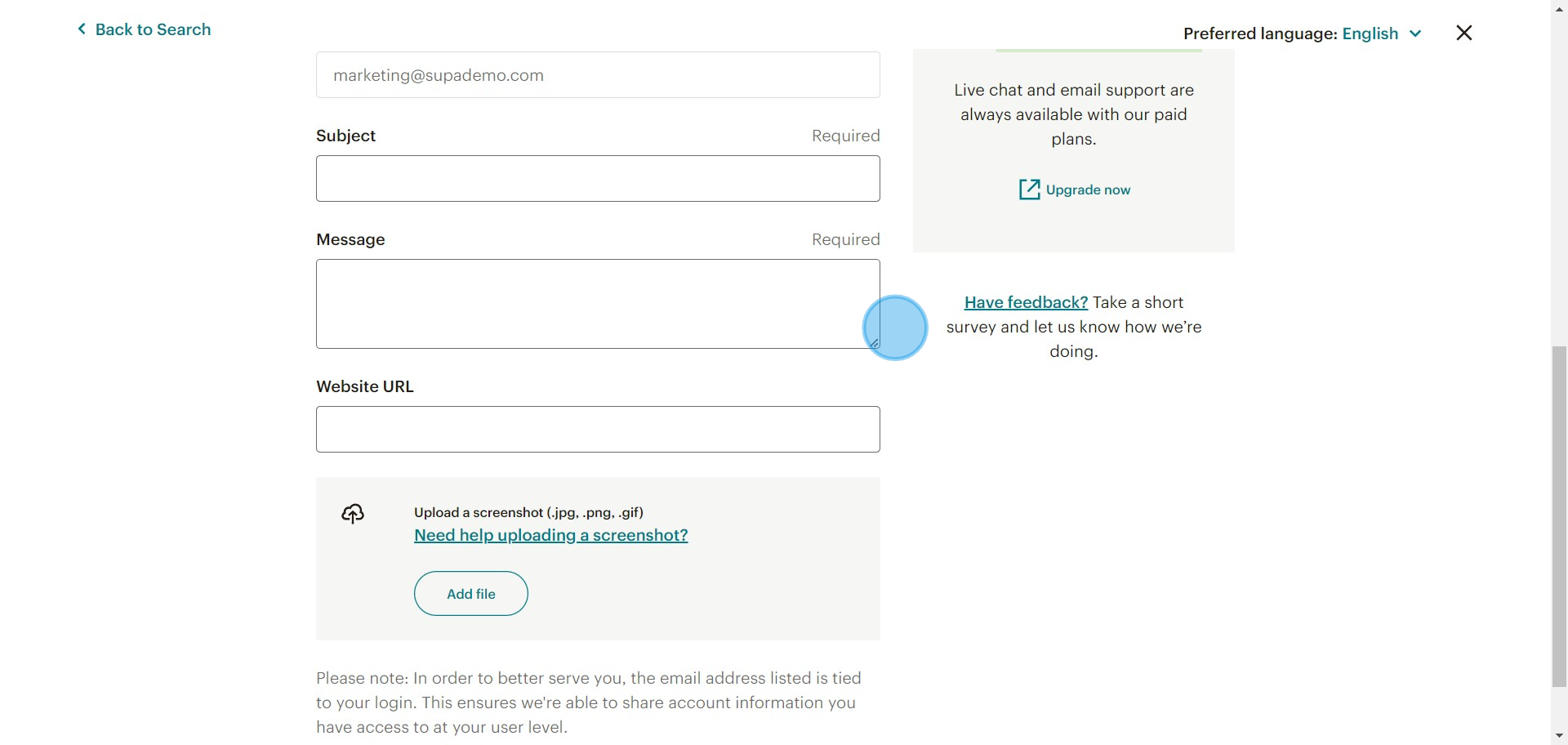
6 Click on "Contact Technic..."

7. 最後に、パーソナライズされたサポートを受けるためにサービスのアップグレードを検討してください。
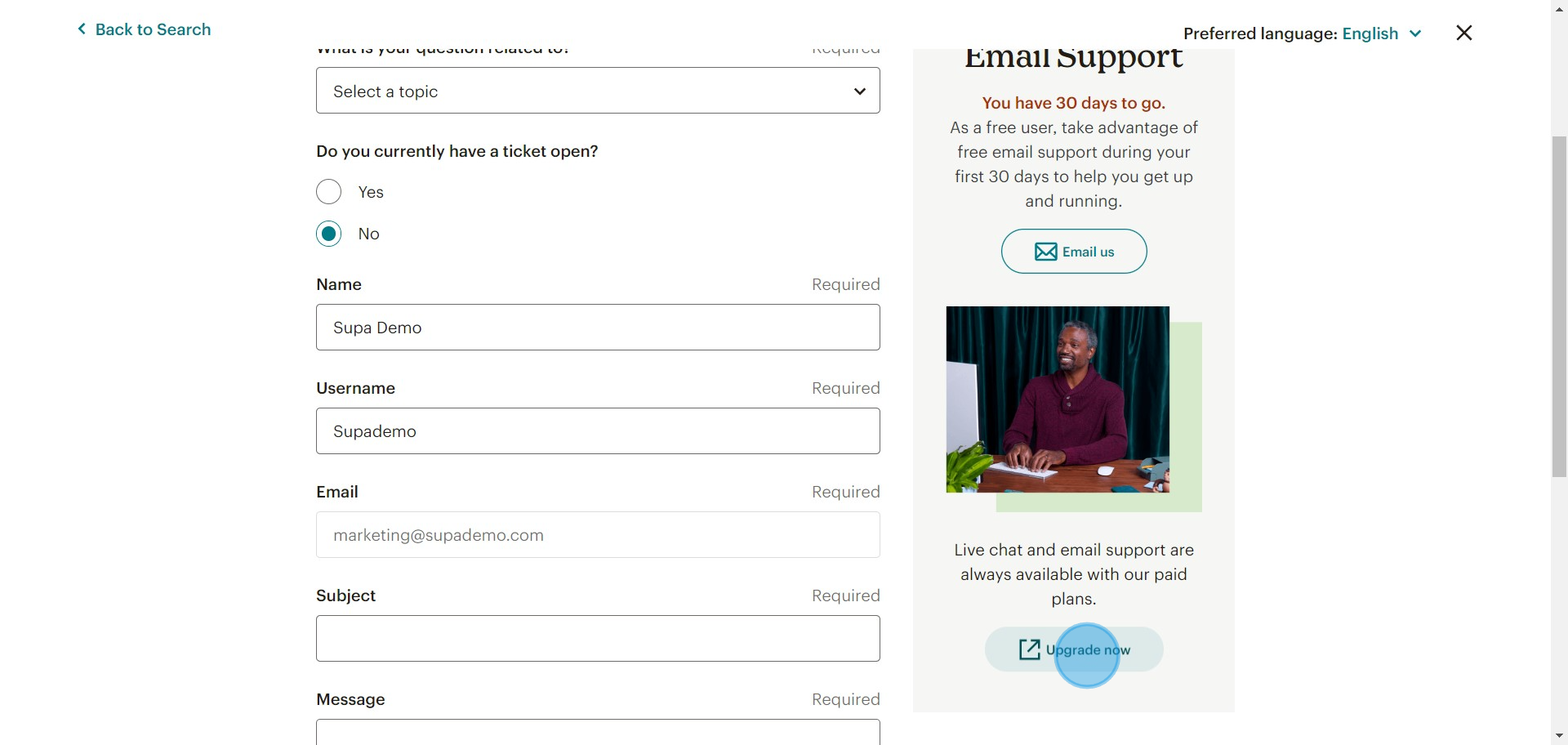
7 Click on "Upgrade now"

Mailchimpに関するよくある質問

Mailchimpでオーディエンスをセグメント化できますか?

はい、Mailchimpではオーディエンスをセグメント化できます。「オーディエンス」タブに移動して「セグメント」を選択し、新しいセグメントを作成します。人口統計、行動、エンゲージメントレベルなどの基準に基づいてセグメントを定義できます。セグメント化により、オーディエンス内の特定のグループにターゲットを絞ったコンテンツを送信することができます。

Mailchimpで新しいメールキャンペーンを作成するにはどうすればいいですか?

新しいメールキャンペーンを作成するには、Mailchimpアカウントにログインし、「キャンペーン」タブに移動します。「キャンペーンを作成」ボタンをクリックし、オプションから「メール」を選択します。テンプレートの選択、コンテンツの追加、キャンペーン設定の構成など、キャンペーンを設定する手順に従います。準備ができたら、キャンペーンをプレビューして送信するか、後で送信するようにスケジュールすることができます。

Mailchimpでメールキャンペーンのパフォーマンスを追跡するにはどうすればいいですか?

メールキャンペーンのパフォーマンスを追跡するには、「キャンペーン」タブに移動してレビューしたいキャンペーンを選択します。「レポート」オプションをクリックして、オープン率、クリック率、全体的なエンゲージメントを含む詳細な分析にアクセスします。このデータを使用してキャンペーンの有効性を評価し、将来のメールの意思決定を行うことができます。

ステップバイステップのデモを自分で作成

美しいAI対応のインタラクティブデモとガイドで、トレーニングと製品導入を拡大しましょう。数秒で最初のSupademoを無料で作成してください。

Frequently Asked Questions about テクニカルサポートとmailchimpアシスタントへの問い合わせ方法

Commonly asked questions about this topic.

How do I contact Mailchimp support if I encounter technical issues?

AI-assisted automation, real-time analytics, and personalization at scale are reshaping mailchimp email technical support in 2026. Organizations are moving from manual, one-size-fits-all approaches to adaptive systems that adjust based on user behavior and outcomes. The winners are teams that adopt new capabilities incrementally rather than attempting wholesale transformation. Top-performing demos typically have 10-12 steps with 15-18 word hotspots and achieve 80%+ completion rates.

How do I access Mailchimp assistant features for support?

Effective mailchimp email technical support typically involves clear strategy, the right tools, trained people, and measurable outcomes. The specific components vary by organization size and maturity — early-stage teams should focus on fundamentals before adding complexity. Regularly reassess which components deliver the most value and double down on those. As a reference point, 78% of teams now use interactive demos in 2 or more use cases, according to the State of Interactive Demos 2026 report.

What should I do before contacting Mailchimp support?

Define 3-5 key metrics that directly tie to business outcomes — avoid vanity metrics that look good but don't drive decisions. Common approaches include time-to-value, adoption rates, cost savings, error reduction, and stakeholder satisfaction scores. Review metrics monthly and use trend data rather than individual data points to evaluate progress. 45% of teams adopted interactive demos specifically to solve onboarding friction.

How can I resolve common Mailchimp issues without contacting support?

Begin with an audit of your current state — identify gaps, redundancies, and quick wins. Select one or two focus areas rather than trying to improve everything simultaneously. Assign clear ownership for each initiative and set 90-day milestones to maintain accountability without over-planning. Companies using top arcade alternatives 2026s report an average 28% reduction in customer acquisition cost.

When should I escalate my Mailchimp issue to technical support?

mailchimp email technical support helps organizations improve efficiency, reduce costs, and deliver better outcomes. Understanding the fundamentals is critical before investing in tools or processes — many teams jump to solutions without clearly defining the problem they're solving. Start by mapping your current state and identifying the highest-impact opportunities. As a real-world example, Processmaker saved hundreds of hours by replacing manual walkthroughs with self-service interactive demos. Teams save an average of 85% of the time previously spent on demo creation.

What information should I provide when contacting Mailchimp support?

The most common challenges are stakeholder alignment, tool fragmentation, and inconsistent execution across teams. Address alignment by documenting shared goals and success metrics. Reduce tool fragmentation by standardizing on platforms that integrate well together. Improve execution consistency through clear playbooks, templates, and regular calibration sessions. 96.8% of top-performing demos use custom branding to maintain brand consistency.

What KPIs should I track for mailchimp email technical support?

Focus on leading indicators (predictive metrics) rather than only lagging indicators (results after the fact). For mailchimp email technical support, useful KPIs often include adoption rate, time-to-completion, quality scores, and cost-per-outcome. Limit your dashboard to 5-7 KPIs — tracking too many dilutes focus and makes it harder to identify what's actually driving results. 81% of teams rate onboarding impact from Supademo as high or very high.
Vimal Kumar

Vimal Kumar

Product Operations Associate

Vimal Kumar helps build and grow Supademo’s team and GTM efforts, with a focus on figuring out growth levers and improving product traction.

More from the blog

How to Remove 'Powered by Shopify'

How to Remove 'Powered by Shopify'

Learn how to easily remove the 'Powered by Shopify' text from your online store with step-by-step instructions and tips to customize your Shopify storefront.

Vimal Kumar
Vimal KumarJan 3, 2026
How to Add Products to Shopify

How to Add Products to Shopify

Learn step-by-step how to add products to your Shopify store effortlessly, including tips on product details, images, pricing, and inventory management to boost your online sales.

Vimal Kumar
Vimal KumarDec 17, 2025
How to Deactivate Your Shopify Store

How to Deactivate Your Shopify Store

Learn step-by-step how to deactivate your Shopify store easily, including important considerations and tips to pause or close your shop without losing data.

Vimal Kumar
Vimal KumarDec 17, 2025
How to Remove 'Powered by Shopify'

How to Remove 'Powered by Shopify'

Learn how to easily remove the 'Powered by Shopify' text from your online store with step-by-step instructions and tips to customize your Shopify storefront.

Vimal Kumar
Vimal KumarDec 17, 2025
How to Create a Shopify Account

How to Create a Shopify Account

Learn step-by-step how to create a Shopify account quickly and easily, set up your online store, and start selling your products in no time.

Vimal Kumar
Vimal KumarDec 17, 2025
How to Create a Stripe Account

How to Create a Stripe Account

Learn how to create a Stripe account quickly and easily with our step-by-step guide, perfect for beginners looking to start accepting online payments.

Vimal Kumar
Vimal KumarDec 17, 2025