Cómo contactar con el soporte técnico y el asistente de Mailchimp

Vimal Kumar
Vimal Kumar·
Cómo contactar con el soporte técnico y el asistente de Mailchimp

Resumen:

Optimice su experiencia con nuestras guías completas sobre cómo acceder al soporte técnico y utilizar el Asistente de Mailchimp. Navegue sin problemas a través del proceso de contactar al soporte técnico para recibir asistencia rápida. Mejore su experiencia con Mailchimp con instrucciones paso a paso sobre cómo aprovechar el Asistente de Mailchimp, asegurando eficiencia y claridad en la gestión de sus campañas de correo electrónico y esfuerzos de marketing.

¿Para quién es más adecuado Mailchimp?

Mailchimp es más adecuado para una amplia gama de profesionales, incluidos los Email Marketers, Pequeños Empresarios y Gerentes de Comercio Electrónico. Por ejemplo, los Email Marketers pueden utilizar Mailchimp para diseñar y enviar campañas de correo electrónico dirigidas, los Pequeños Empresarios pueden aprovecharlo para gestionar listas de clientes y automatizar las comunicaciones, y los Gerentes de Comercio Electrónico pueden usarlo para crear correos electrónicos promocionales y seguir el rendimiento de las campañas. Todos se benefician de la interfaz fácil de usar de Mailchimp y de sus potentes herramientas de análisis.

Cómo enviar un correo electrónico al soporte técnico en Mailchimp

Interactive demo powered by Supademo

1. Comience navegando a la función de ayuda en su pantalla.
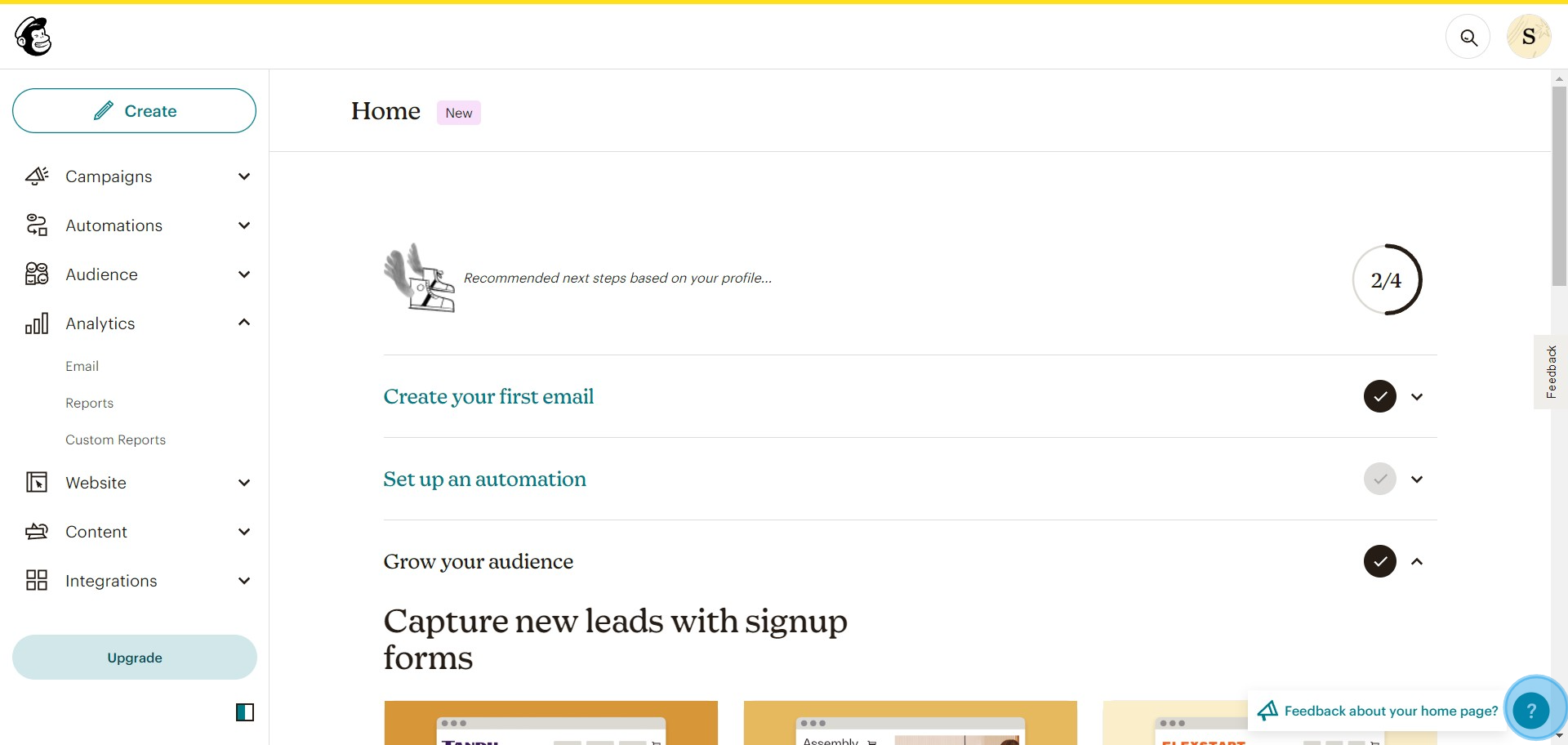
1 Click here

2. En las opciones proporcionadas, busque y seleccione Ayuda y Soporte.
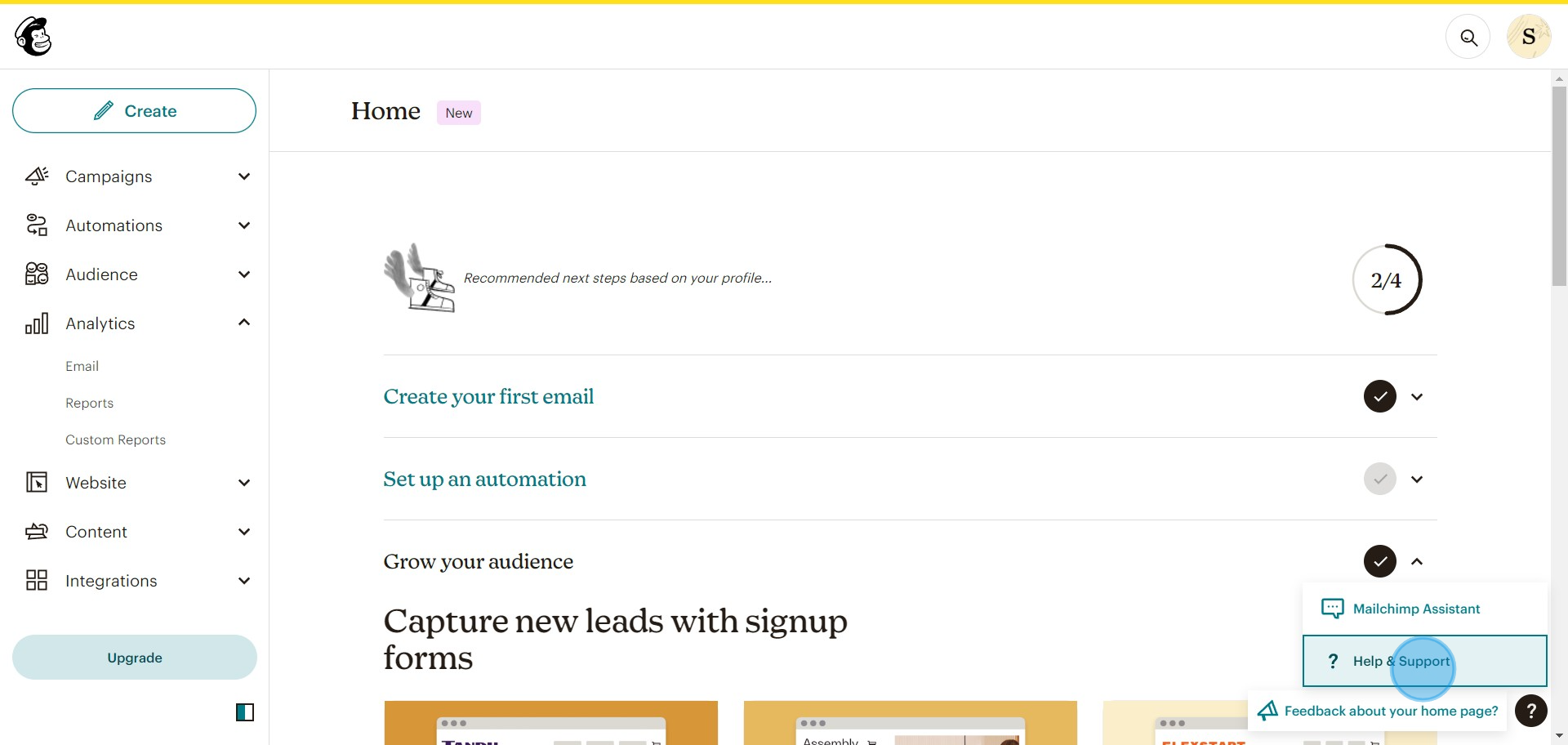
2 Click on "Help & Support"

3. Verá una opción "Preguntar al Asistente de Mailchimp", haga clic en ella.
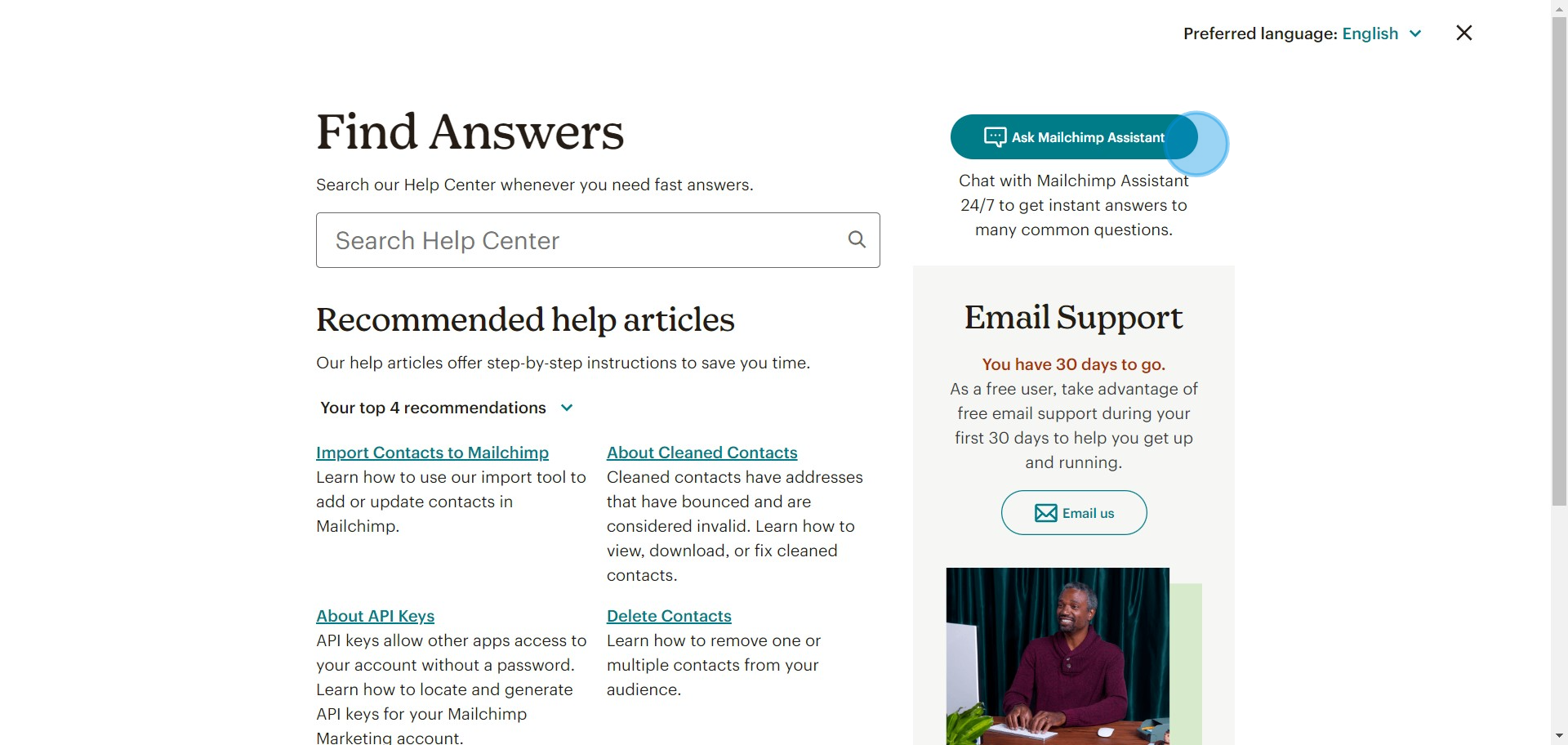
3 Click on "Ask Mailchimp Assistant"

4. En la barra de búsqueda, escriba palabras clave para buscar artículos relacionados.
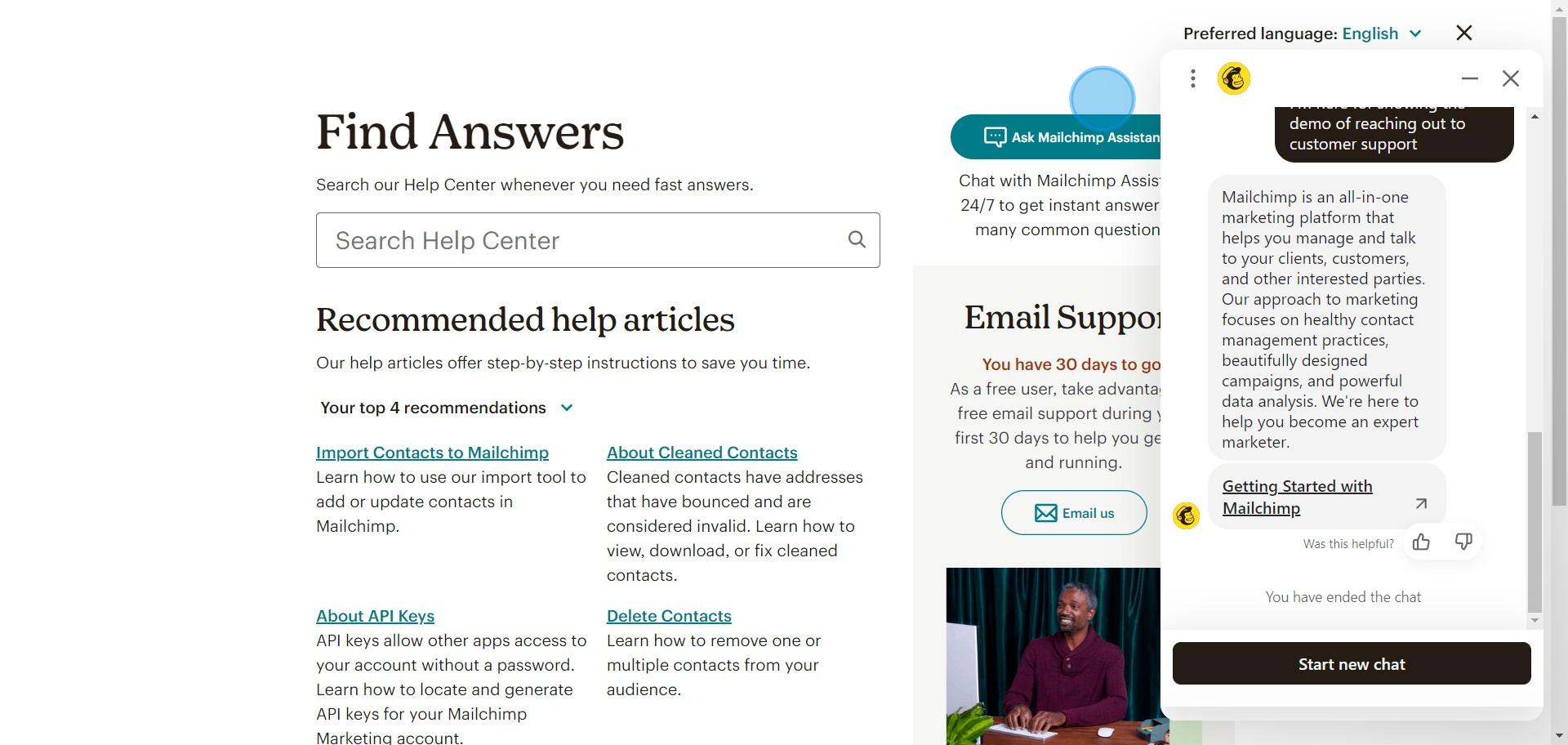
4 Click on "Ask Mailchimp Assistant"

5. Busque y seleccione la opción "Envíanos un correo electrónico".
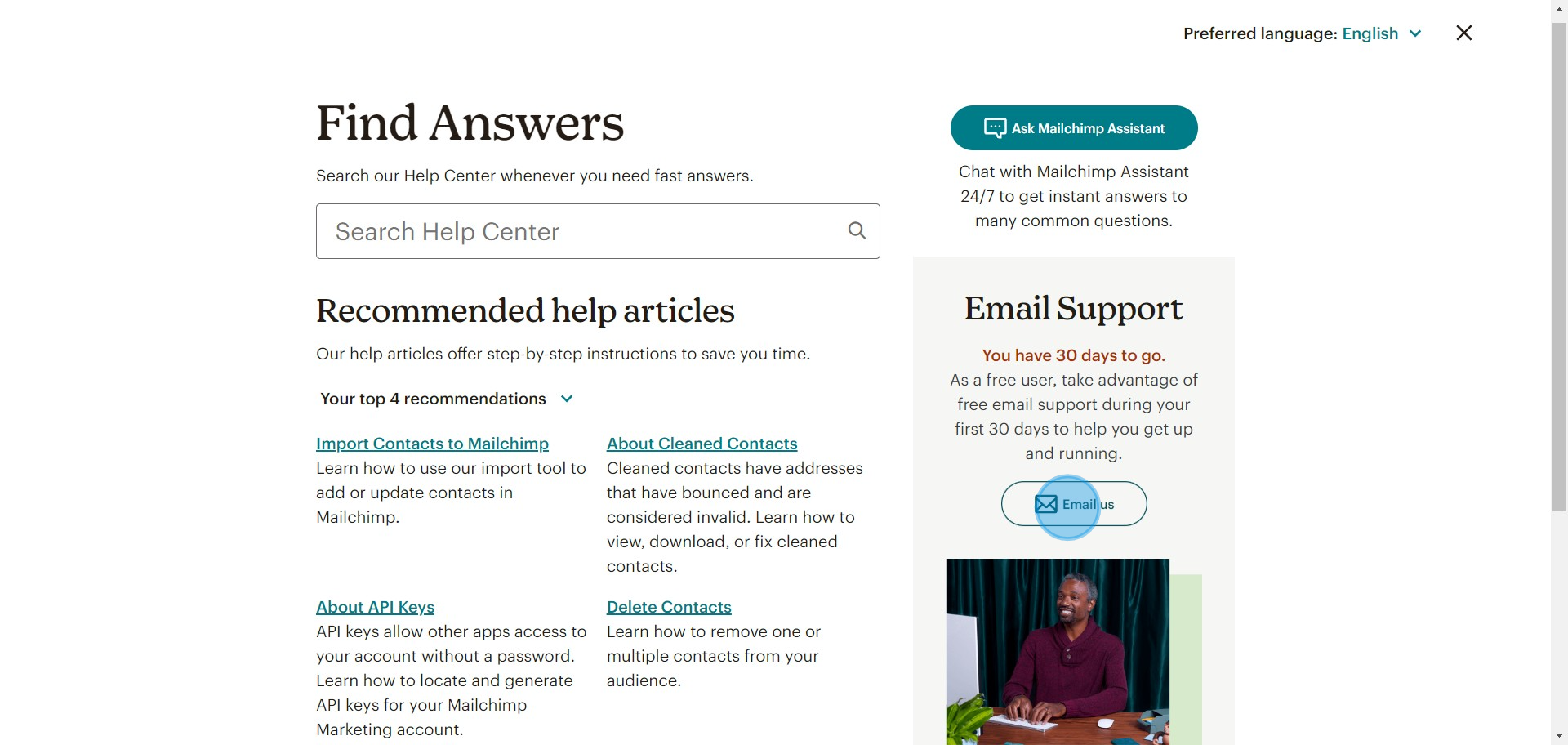
5 Click on "Email us"

6. Describa su problema con detalle en el formulario proporcionado para recibir una respuesta por correo electrónico detallada.
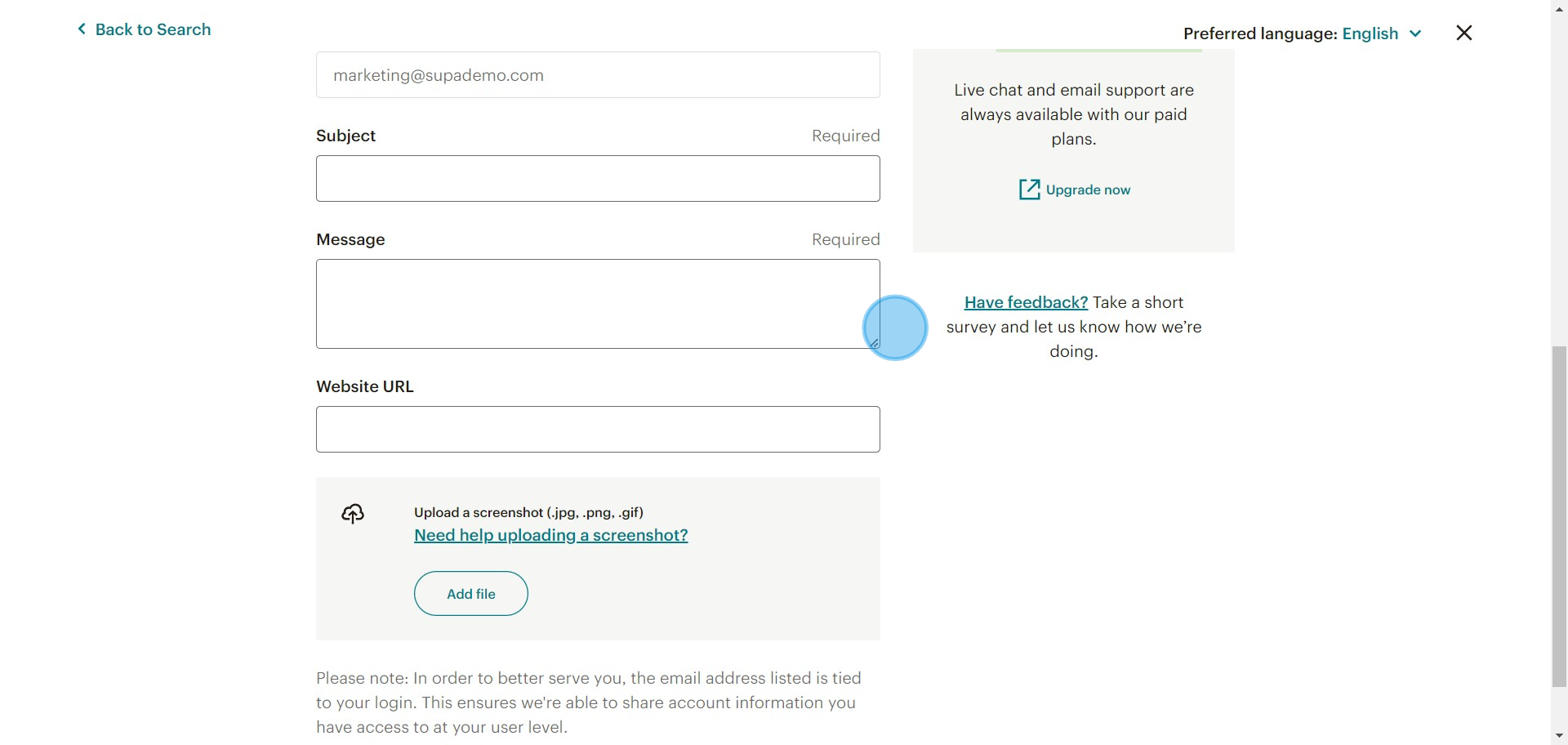
6 Click on "Contact Technic..."

7. Finalmente, considere actualizar su servicio para obtener soporte personalizado
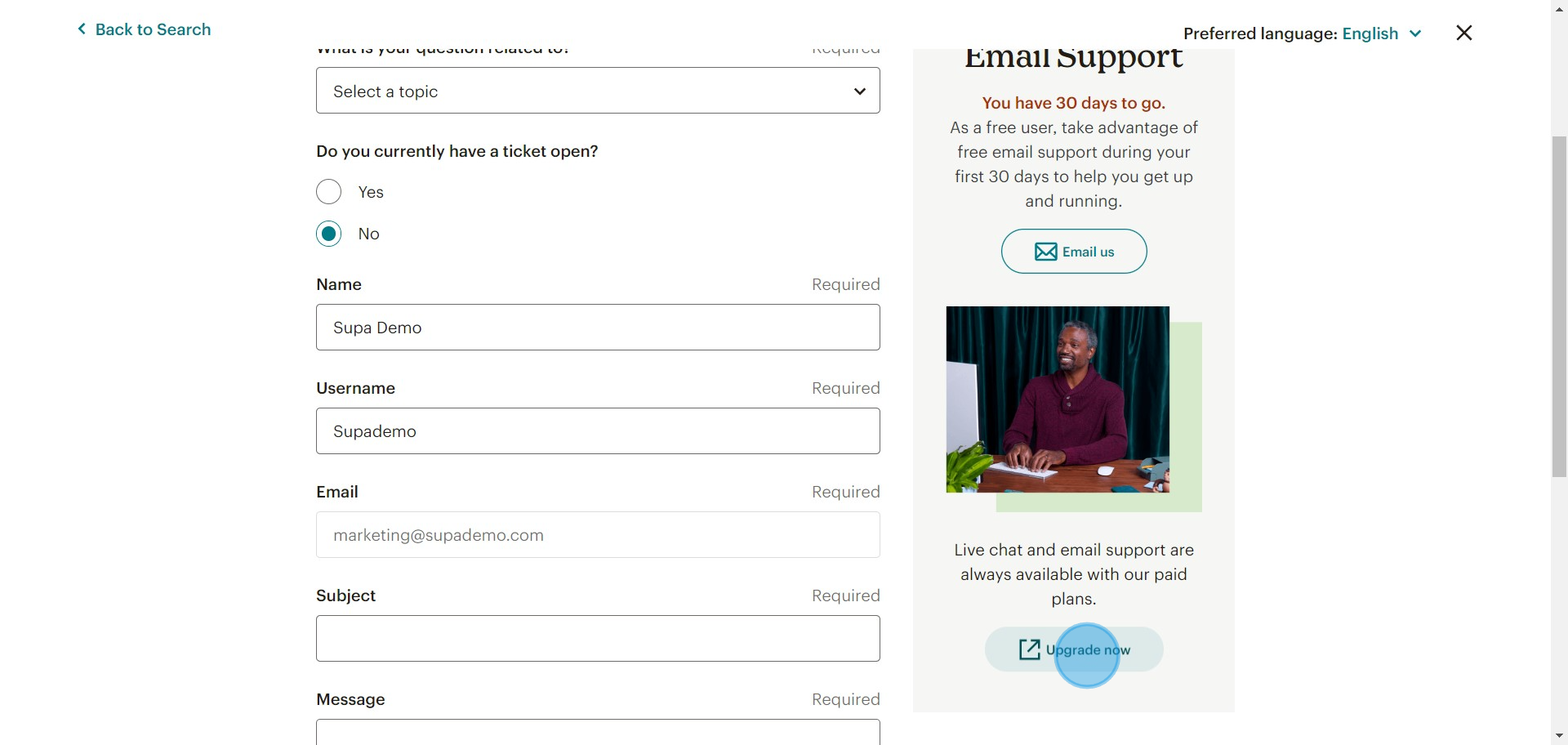
7 Click on "Upgrade now"

Preguntas frecuentes sobre Mailchimp

¿Puedo segmentar mi audiencia en Mailchimp?

Sí, Mailchimp le permite segmentar su audiencia. Vaya a la pestaña "Audiencia" y seleccione "Segmentos" para crear un nuevo segmento. Puede definir su segmento según criterios como datos demográficos, comportamiento o niveles de participación. La segmentación le ayuda a enviar contenido dirigido y relevante a grupos específicos dentro de su audiencia.

¿Cómo crear una nueva campaña de correo electrónico en Mailchimp?

Para crear una nueva campaña de correo electrónico, inicie sesión en su cuenta de Mailchimp y vaya a la pestaña "Campañas". Haga clic en el botón "Crear campaña" y elija "Correo electrónico" de las opciones. Siga las indicaciones para configurar su campaña, incluyendo la selección de una plantilla, la adición de su contenido y la configuración de los ajustes de la campaña. Una vez listo, puede previsualizar y enviar la campaña o programarla para más tarde.

¿Cómo puedo hacer un seguimiento del rendimiento de mis campañas de correo electrónico en Mailchimp?

Para hacer un seguimiento del rendimiento de sus campañas de correo electrónico, vaya a la pestaña "Campañas" y seleccione la campaña que desea revisar. Haga clic en la opción "Informes" para acceder a análisis detallados, incluidos las tasas de apertura, las tasas de clics y el compromiso general. Puede utilizar estos datos para evaluar la efectividad de su campaña y tomar decisiones informadas para futuros correos electrónicos.

Cree su propia demostración paso a paso

Aumente su capacitación y adopción de productos con hermosas demostraciones interactivas y guías impulsadas por IA. Cree su primer Supademo en segundos de forma gratuita.

Frequently Asked Questions about cómo contactar con el soporte técnico y el asistente de mailchimp

Commonly asked questions about this topic.

How can interactive demos and walkthroughs support Mailchimp email technical support?

Interactive demo platforms like Supademo let you create clickable, step-by-step guides that standardize training and reduce time-to-proficiency. Teams use them for onboarding, process documentation, and stakeholder presentations — anywhere static screenshots or long documents fall short. The visual format typically sees higher completion rates than traditional documentation. 76% of teams rate internal enablement impact from interactive demos as high or very high.

How do I prepare my account details before reaching out to Mailchimp support?

The top mistakes are starting without clear goals, buying tools before defining process, and failing to measure results consistently. Many teams also underestimate the change management required — new approaches fail not because the strategy is wrong but because adoption is poor. Invest as much in training and communication as you do in technology. Interactive walkthroughs can help bridge the adoption gap by making new processes easy to follow. VRIFY saved over $100k by switching to interactive demos for enablement. 68% of teams rate support and self-service impact from interactive demos as high or very high.

What are the fastest ways to get help from Mailchimp's technical support team?

Effective Mailchimp email technical support typically involves clear strategy, the right tools, trained people, and measurable outcomes. The specific components vary by organization size and maturity — early-stage teams should focus on fundamentals before adding complexity. Regularly reassess which components deliver the most value and double down on those. 68% of teams rate support and self-service impact from interactive demos as high or very high.

How do you measure success with Mailchimp email technical support?

Define 3-5 key metrics that directly tie to business outcomes — avoid vanity metrics that look good but don't drive decisions. Common approaches include time-to-value, adoption rates, cost savings, error reduction, and stakeholder satisfaction scores. Review metrics monthly and use trend data rather than individual data points to evaluate progress. 81% of teams rate onboarding impact from Supademo as high or very high.

How quickly can I expect a response from Mailchimp support?

AI-assisted automation, real-time analytics, and personalization at scale are reshaping Mailchimp email technical support in 2026. Organizations are moving from manual, one-size-fits-all approaches to adaptive systems that adjust based on user behavior and outcomes. Tools like Supademo reflect this shift — enabling teams to create personalized, interactive content without engineering resources. 96.8% of top-performing demos use custom branding to maintain brand consistency.

What information should I prepare before contacting Mailchimp support?

Map your current state, define your target state, and identify the gaps between them. Prioritize initiatives by impact and feasibility — quick wins build credibility for larger investments. Review the roadmap quarterly and adjust based on what's working, market changes, and shifting organizational priorities. Learn more about Supademo's features. Supademo integrates with 30+ tools including HubSpot, Salesforce, Slack, and more. 45% of teams adopted interactive demos specifically to solve onboarding friction.

Which Mailchimp support channels are available for Spanish speakers?

The right tool depends on your team size, technical maturity, and integration requirements. Look for platforms that solve your specific bottleneck rather than all-in-one solutions that do everything adequately but nothing exceptionally. Interactive demo platforms can help standardize training and documentation across teams, reducing onboarding time and support burden. beehiiv saw 50% better conversion rates after implementing interactive product demos. Supademo is rated #1 for easiest setup and fastest implementation on G2.
Vimal Kumar
Vimal Kumar

Product Operations Associate

Vimal Kumar helps build and grow Supademo’s team and GTM efforts, with a focus on figuring out growth levers and improving product traction.

More from the blog

How to Remove 'Powered by Shopify'

How to Remove 'Powered by Shopify'

Learn how to easily remove the 'Powered by Shopify' text from your online store with step-by-step instructions and tips to customize your Shopify storefront.

Vimal Kumar
Vimal KumarJan 3, 2026
How to Add Products to Shopify

How to Add Products to Shopify

Learn step-by-step how to add products to your Shopify store effortlessly, including tips on product details, images, pricing, and inventory management to boost your online sales.

Vimal Kumar
Vimal KumarDec 17, 2025
How to Deactivate Your Shopify Store

How to Deactivate Your Shopify Store

Learn step-by-step how to deactivate your Shopify store easily, including important considerations and tips to pause or close your shop without losing data.

Vimal Kumar
Vimal KumarDec 17, 2025
How to Remove 'Powered by Shopify'

How to Remove 'Powered by Shopify'

Learn how to easily remove the 'Powered by Shopify' text from your online store with step-by-step instructions and tips to customize your Shopify storefront.

Vimal Kumar
Vimal KumarDec 17, 2025
How to Create a Shopify Account

How to Create a Shopify Account

Learn step-by-step how to create a Shopify account quickly and easily, set up your online store, and start selling your products in no time.

Vimal Kumar
Vimal KumarDec 17, 2025
How to Create a Stripe Account

How to Create a Stripe Account

Learn how to create a Stripe account quickly and easily with our step-by-step guide, perfect for beginners looking to start accepting online payments.

Vimal Kumar
Vimal KumarDec 17, 2025