How to add contacts to your sequence in Apollo.io

Apollo.io's sequence feature allows you to automate outreach campaigns by adding contacts in bulk. This tutorial walks you through uploading a CSV file to add multiple contacts to your sequence at once, streamlining your prospecting workflow.
Quick summary
In this tutorial, you'll learn how to upload a CSV file of contacts directly into Apollo.io and add them to a sequence for automated outreach. You'll navigate through the contacts section, link your mailbox, and complete the import process step by step.
Why this matters
Manually adding contacts one by one is time-consuming and doesn't scale. By uploading a CSV file, you can add hundreds of prospects to your sequence in minutes, enabling you to run consistent, automated campaigns across your entire prospect list.
Step-by-step guide
- 1
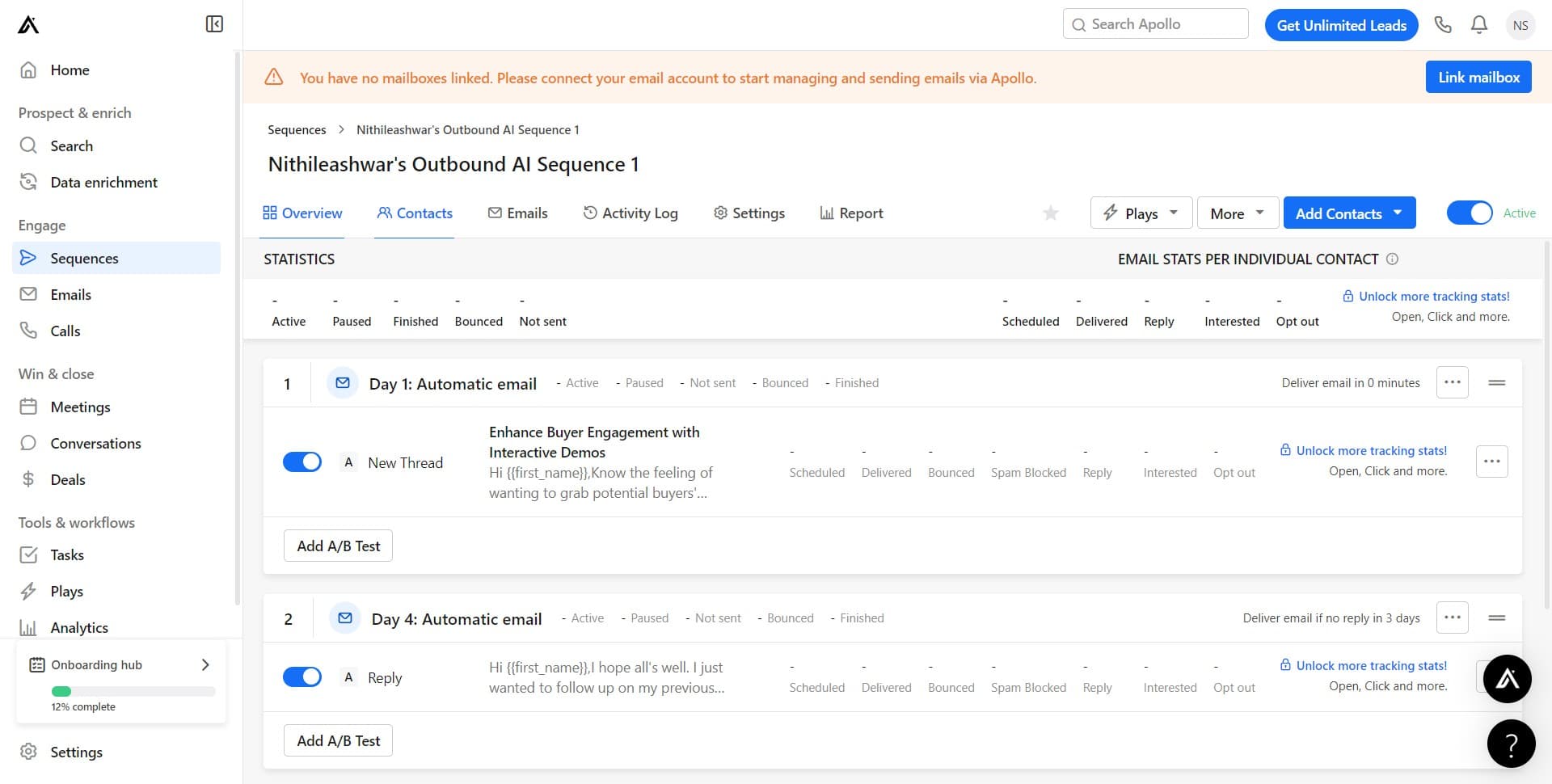
Click on Contacts
Start by navigating to the Contacts section in Apollo.io's main menu. This is where you'll manage and organize all your prospect data.
- 2
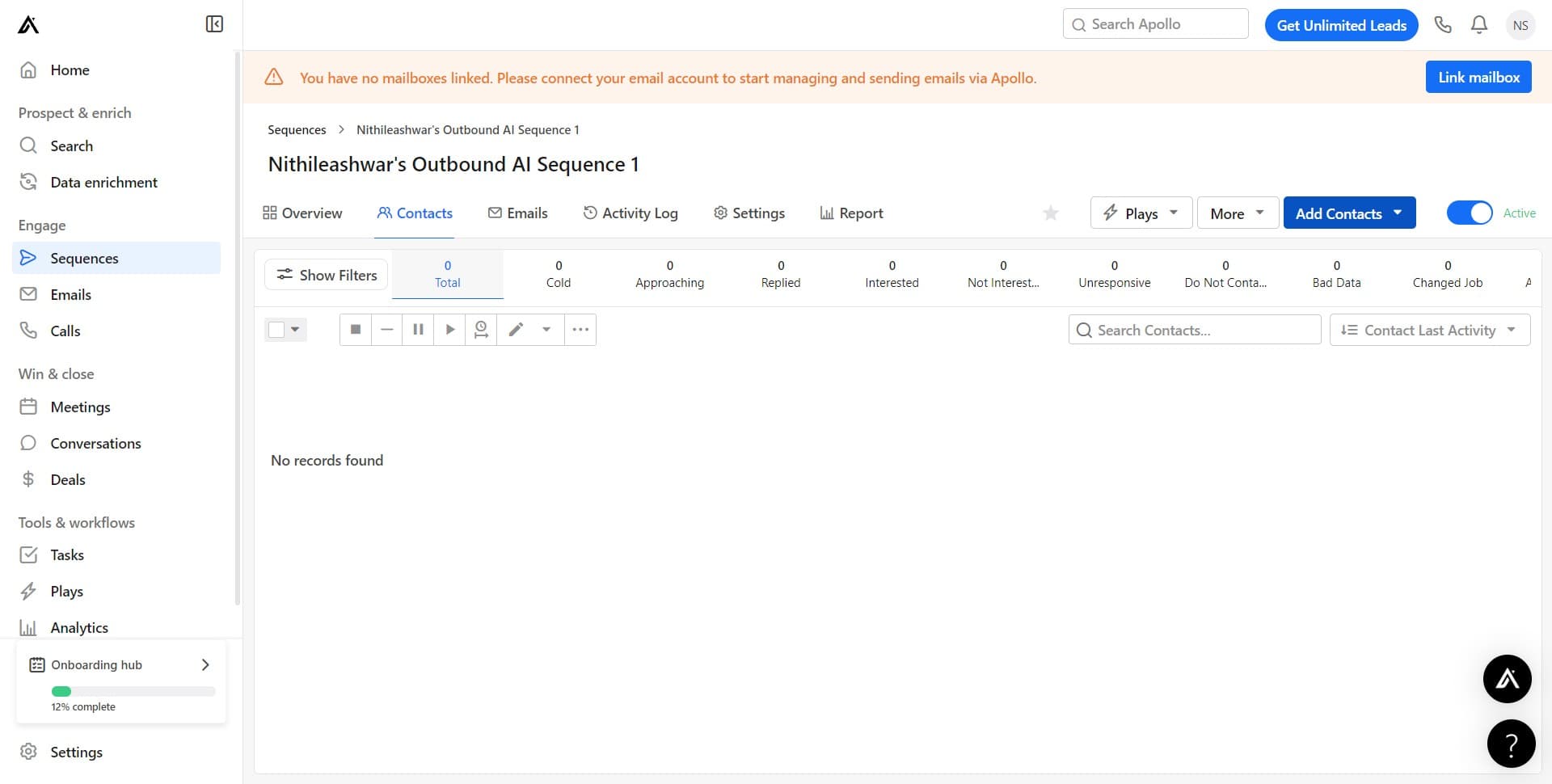
Access the contact management area
Click on the indicated area to proceed. This will take you to the next section of the contact management interface.
- 3
Navigate to the next panel
Click here to continue moving through the workflow. You're getting closer to the upload and sequence options.
- 4
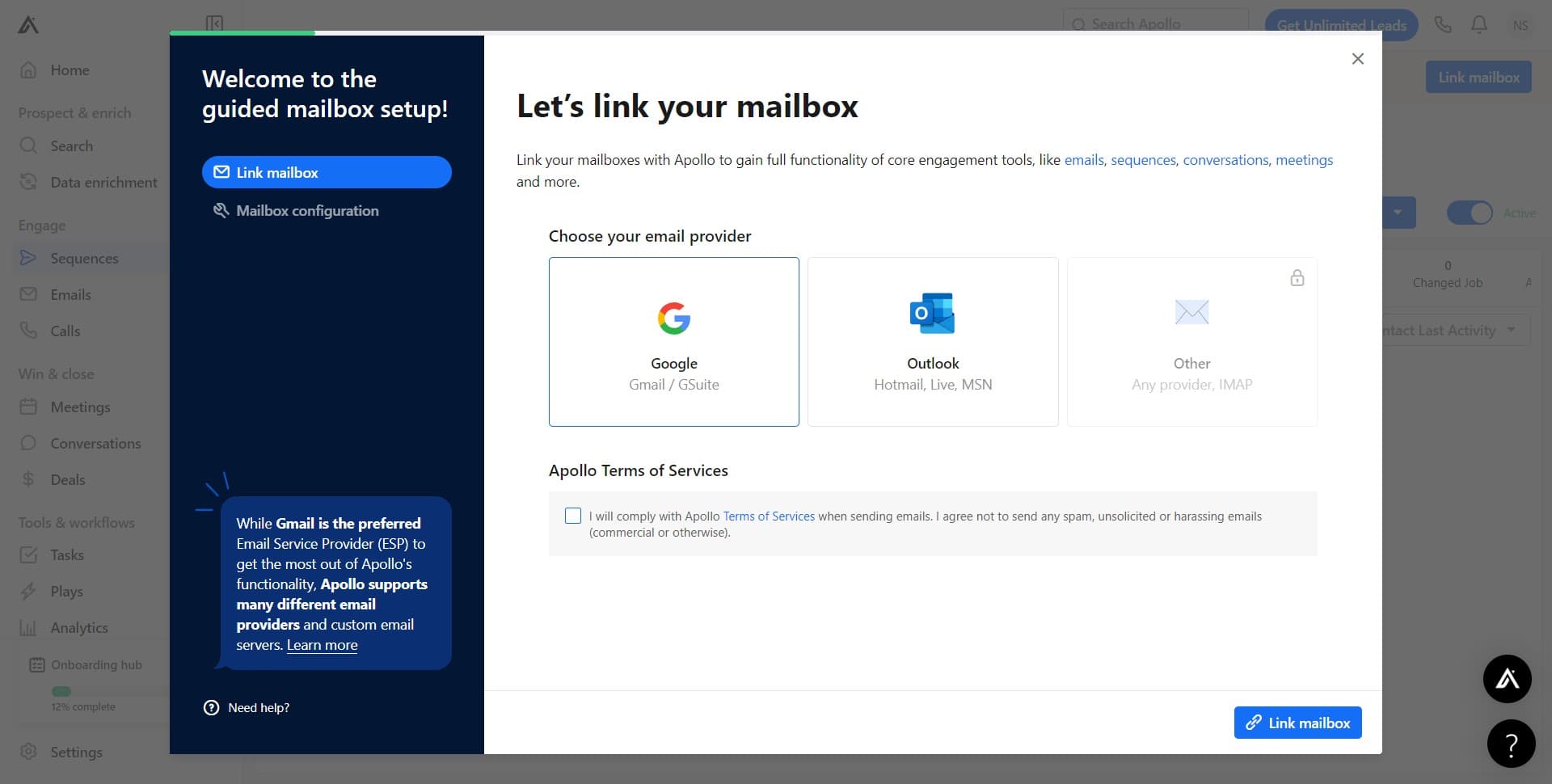
Link your mailbox
Click on 'Link mailbox' to connect your email account to Apollo.io. This step is necessary to enable sequence functionality and email tracking for your contacts.
- 5
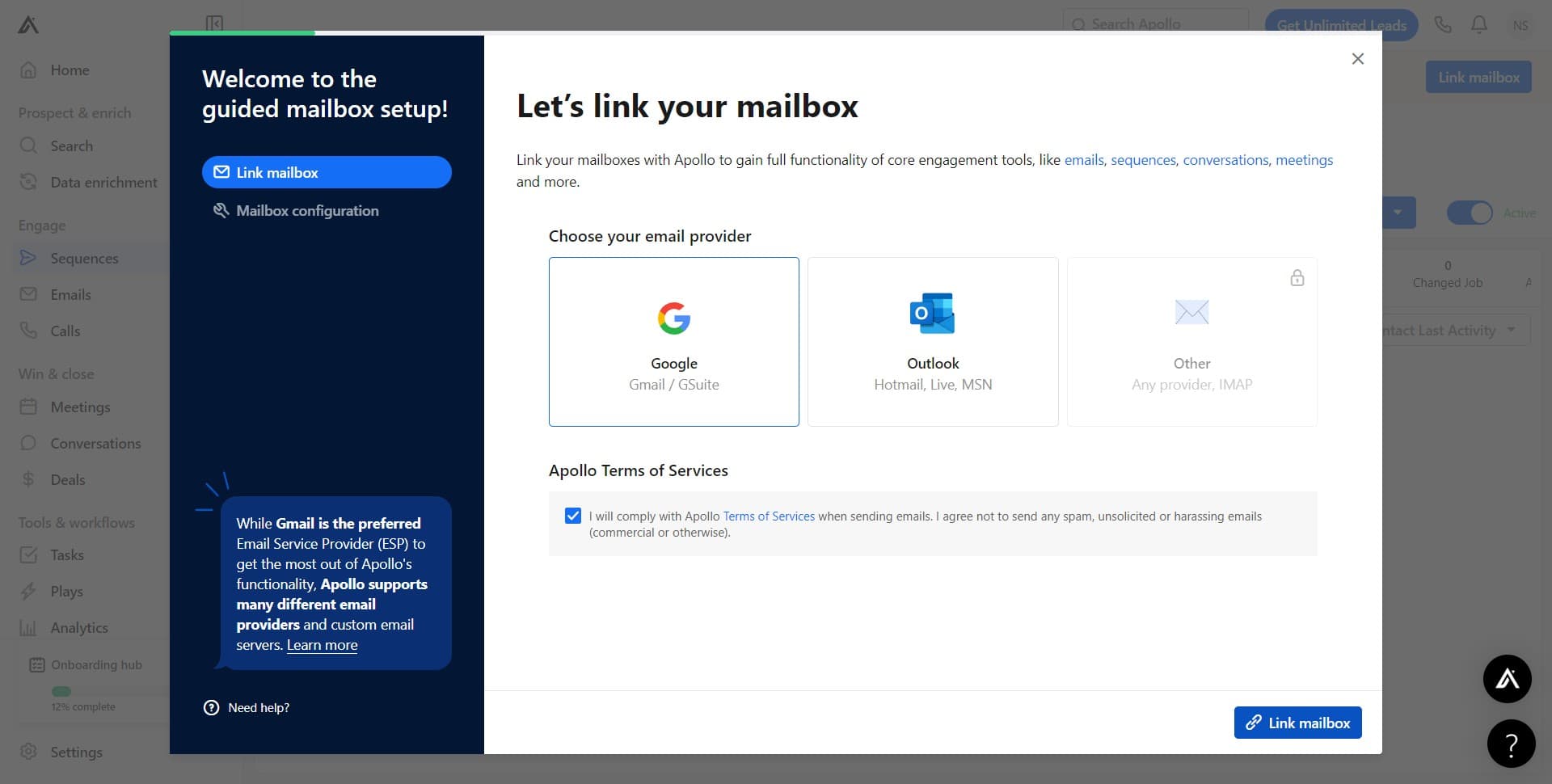
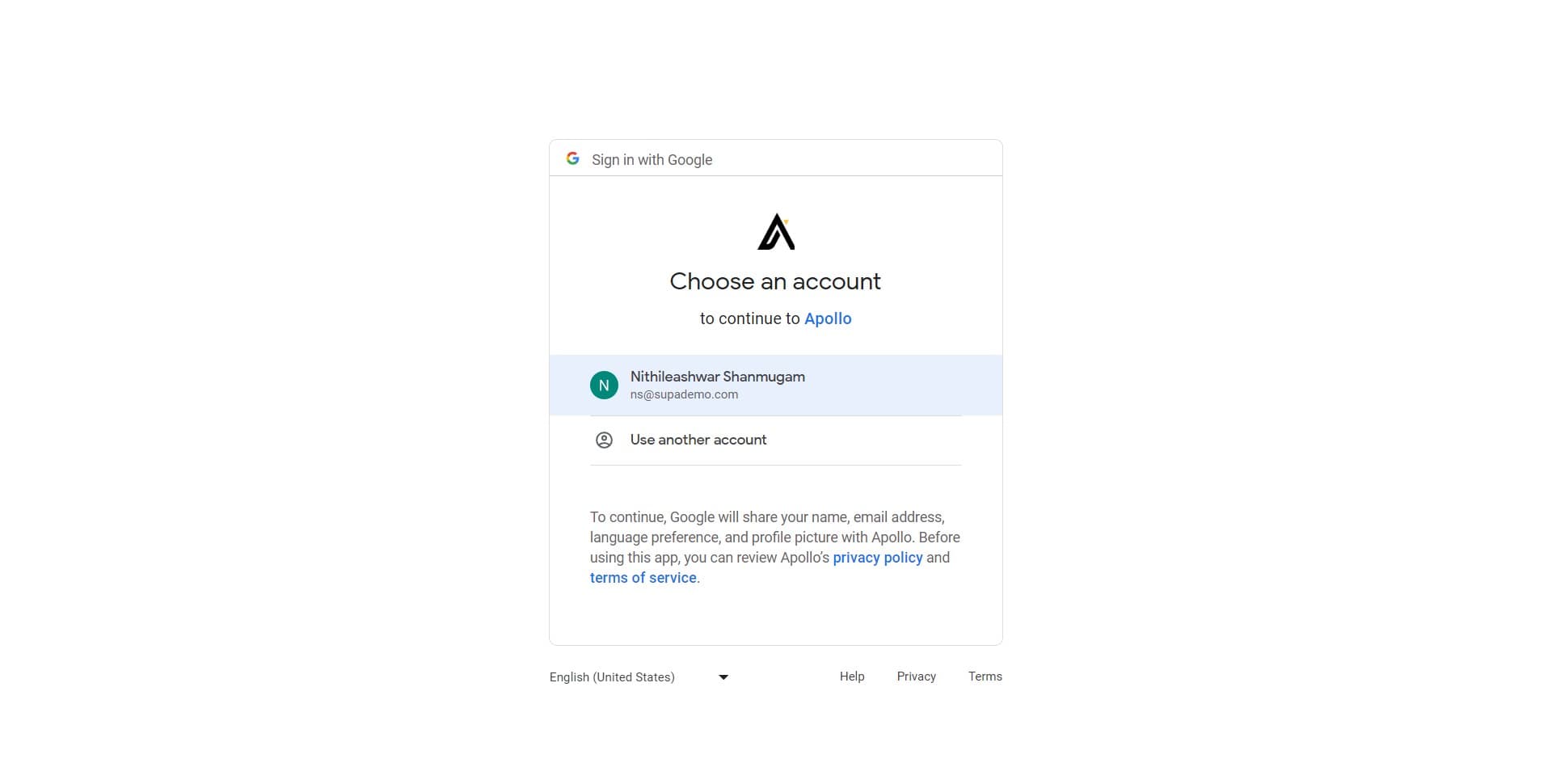
Select your email address
Click on 'ns@supademo.com' to specify which email account will be used for sending sequences. You can select from any linked email addresses in your Apollo.io account.
- 6
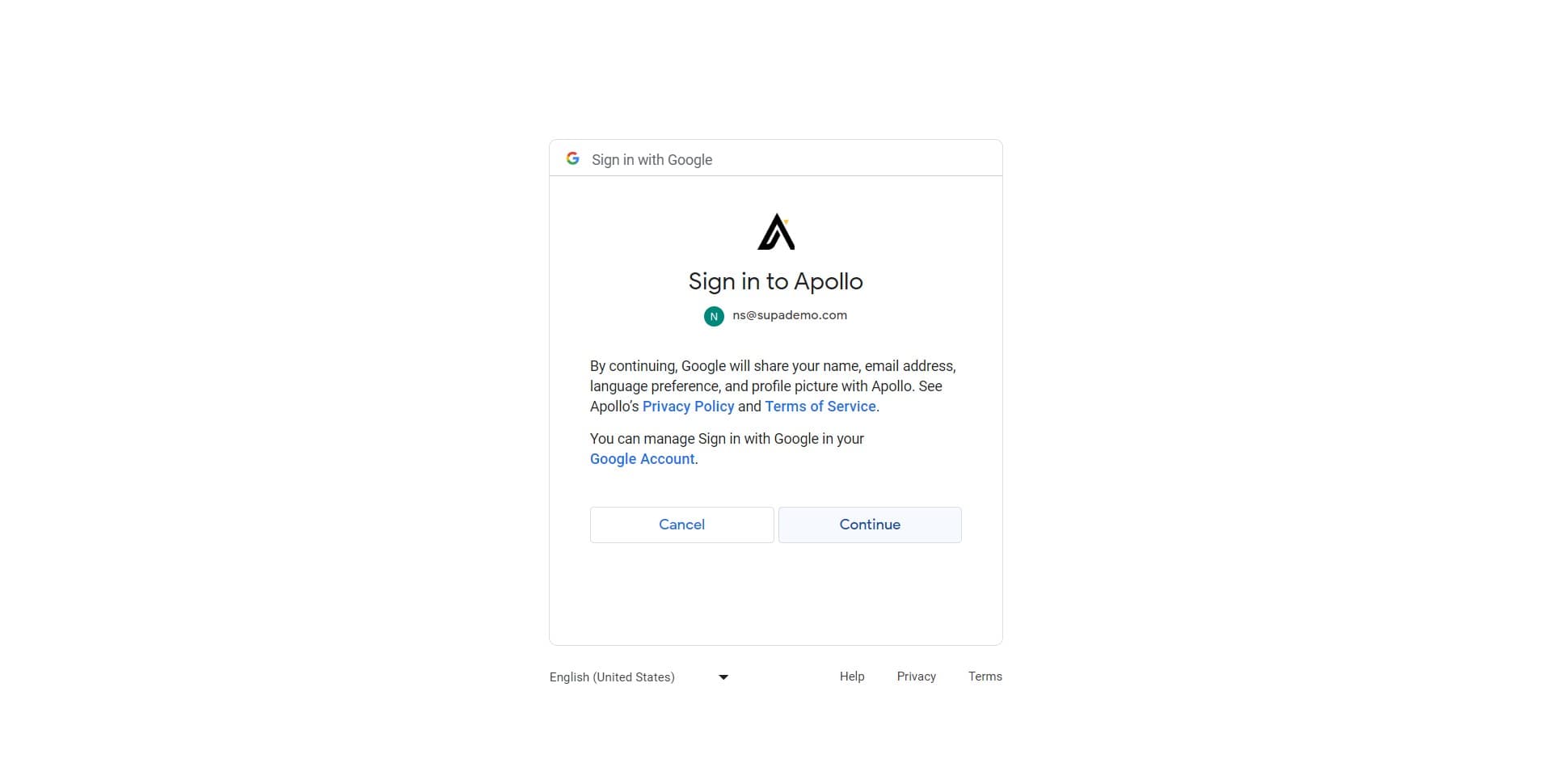
Confirm the mailbox connection
Click on 'Continue' to finalize the mailbox selection. Apollo.io will now use this email address for your outreach sequences.
- 7
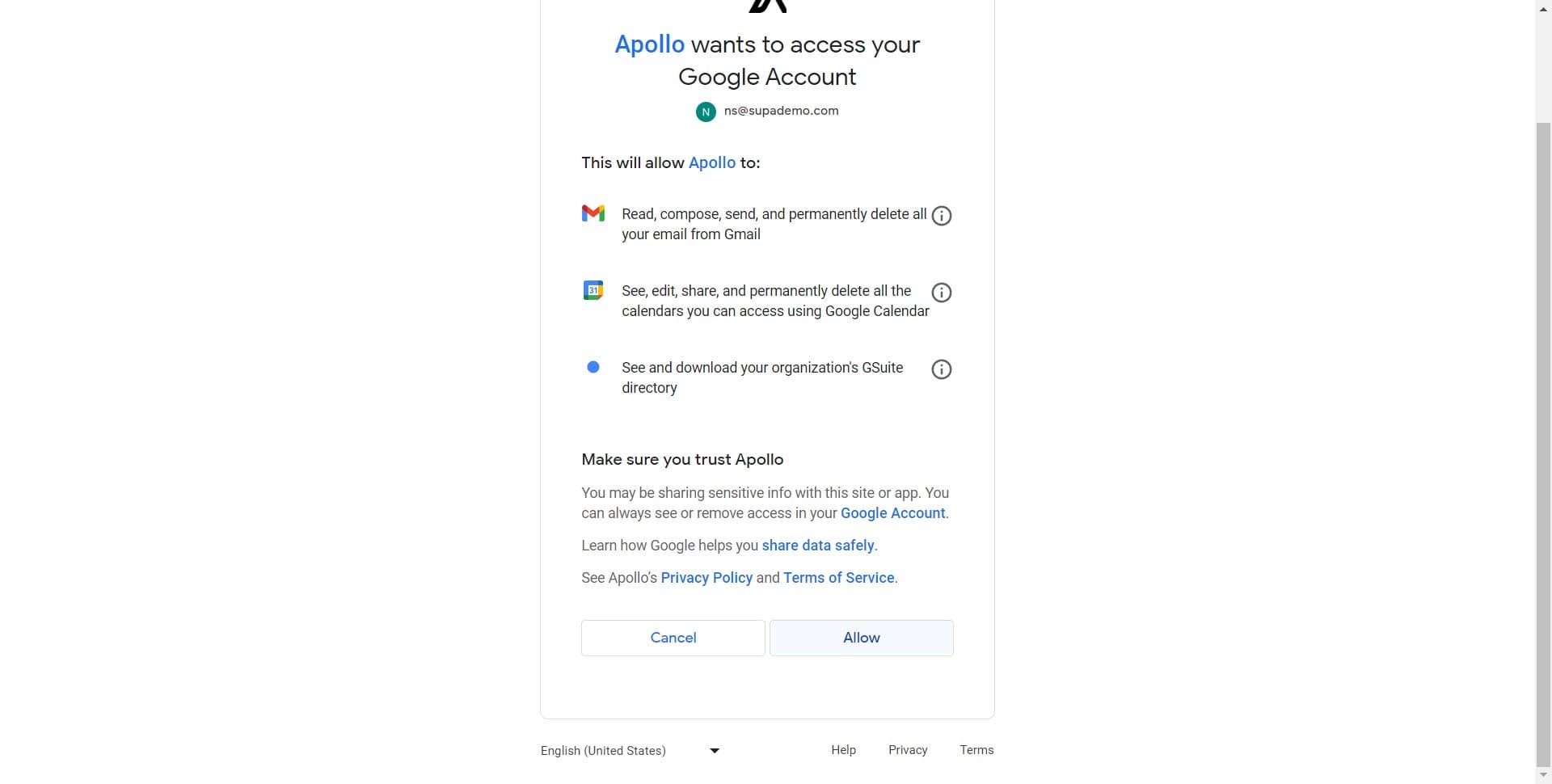
Access the add contacts option
Click here to open the contacts upload interface. This section will allow you to import your prospect list into the sequence.
- 8
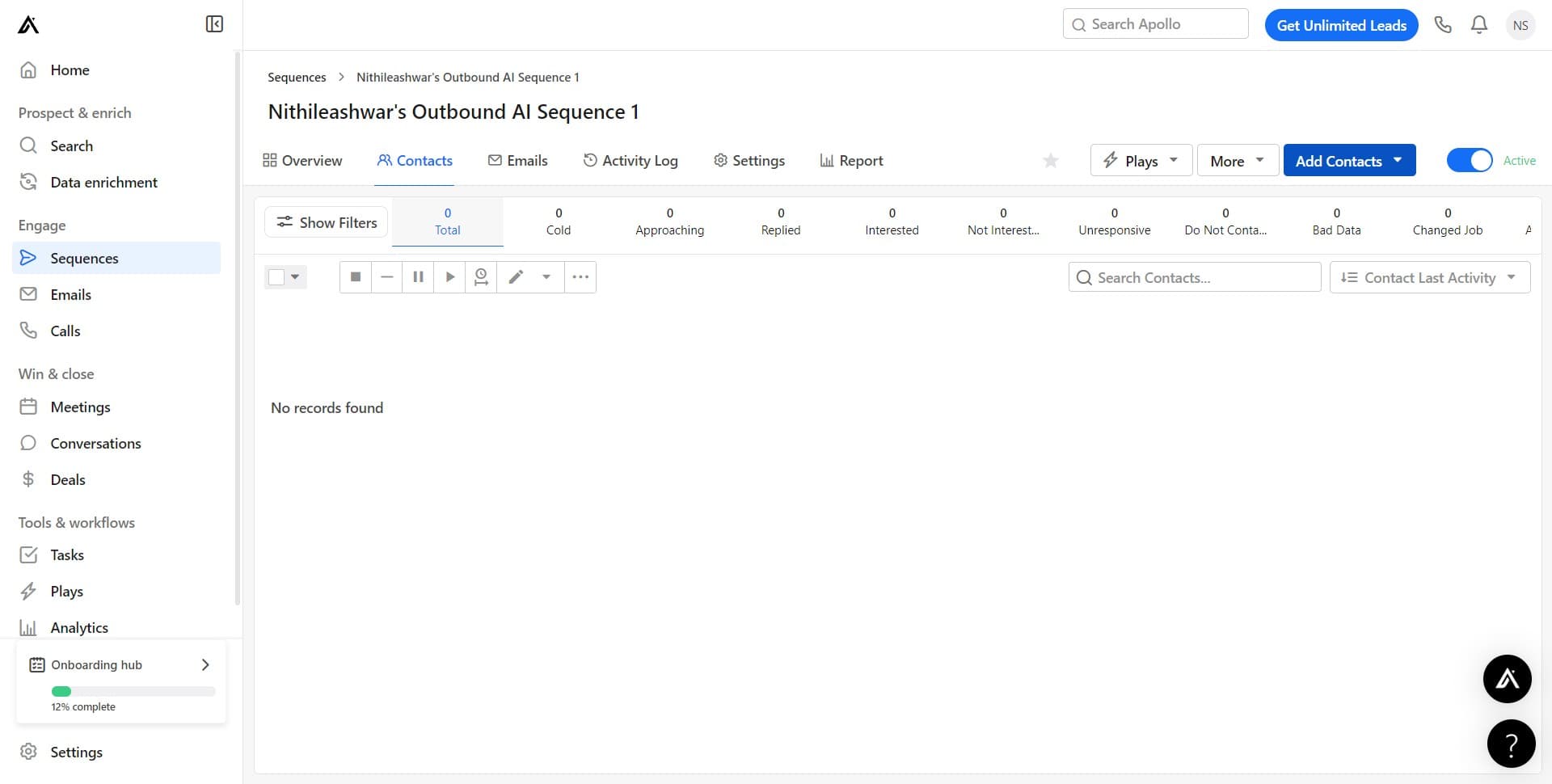
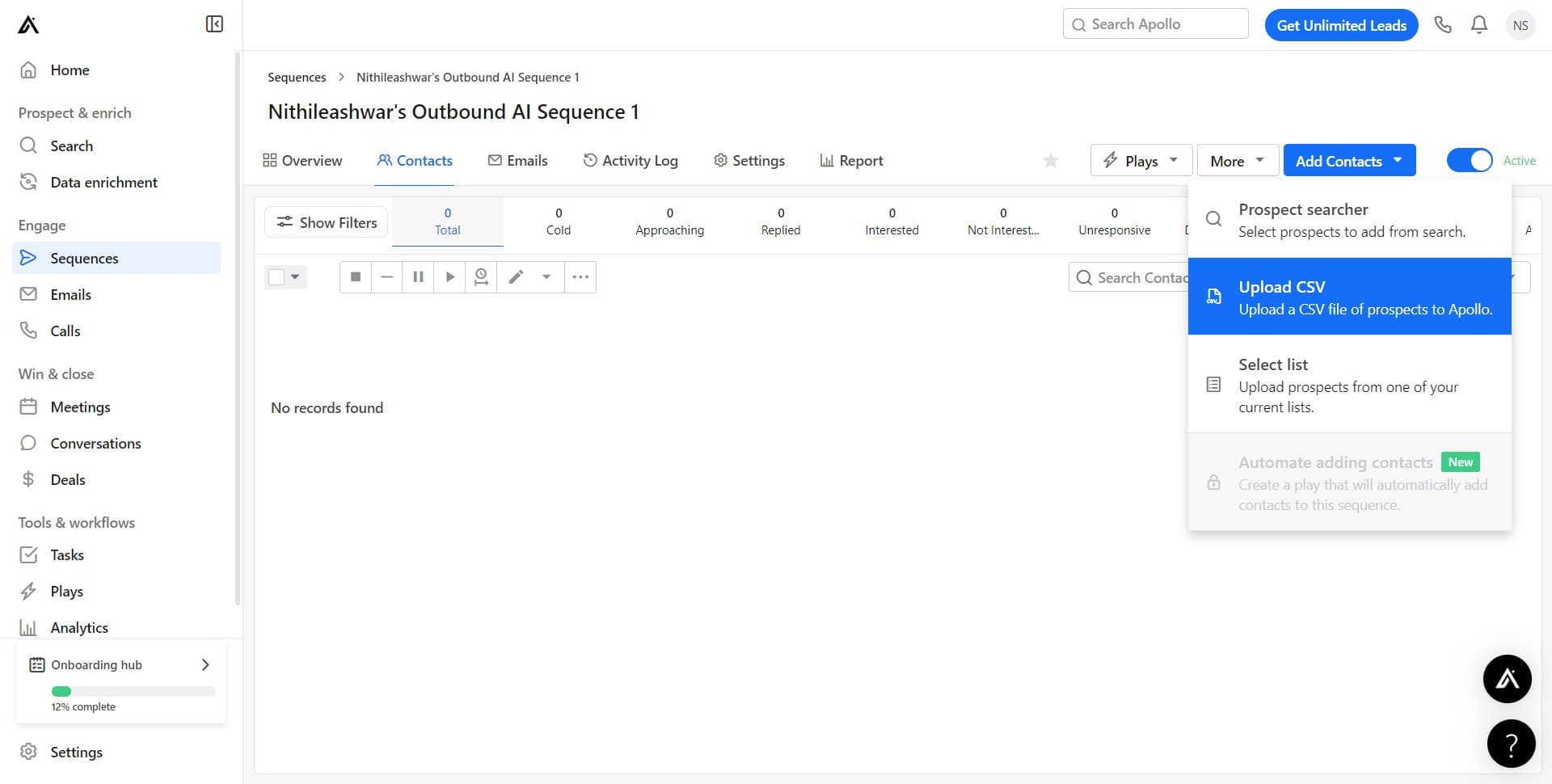
Click on Add Contacts
Click the 'Add Contacts' button to begin the import process. This opens options for how you want to add contacts to your sequence.
- 9
Select Upload a CSV file
Click on 'Upload a CSV fi...' to choose the bulk upload option. This allows you to import multiple contacts at once from a spreadsheet file.
- 10
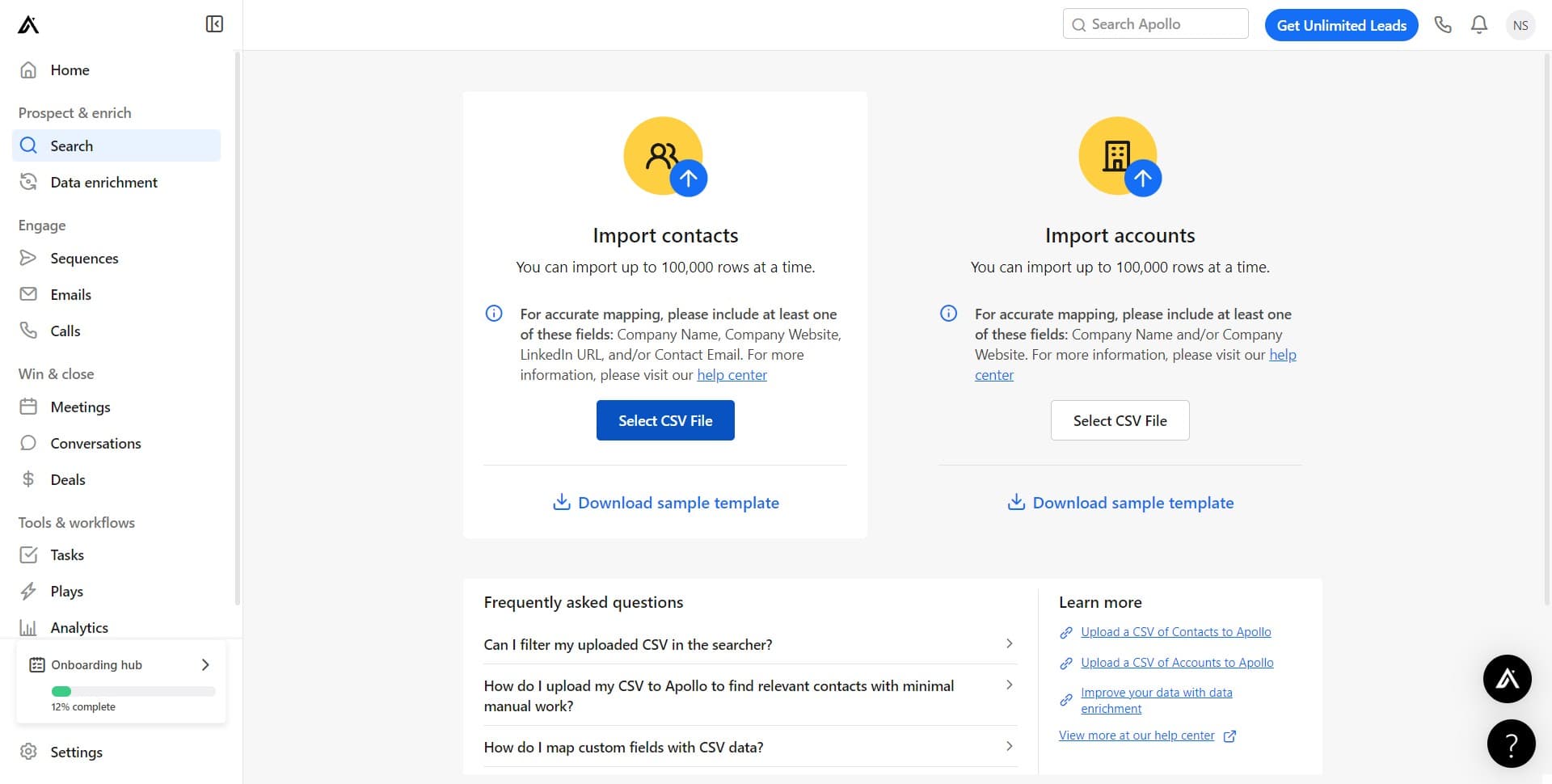
Click Select CSV File
Click on 'Select CSV File' to browse your computer for the CSV file containing your contact list. Make sure your file is properly formatted with necessary fields like email, first name, and company.
- 11
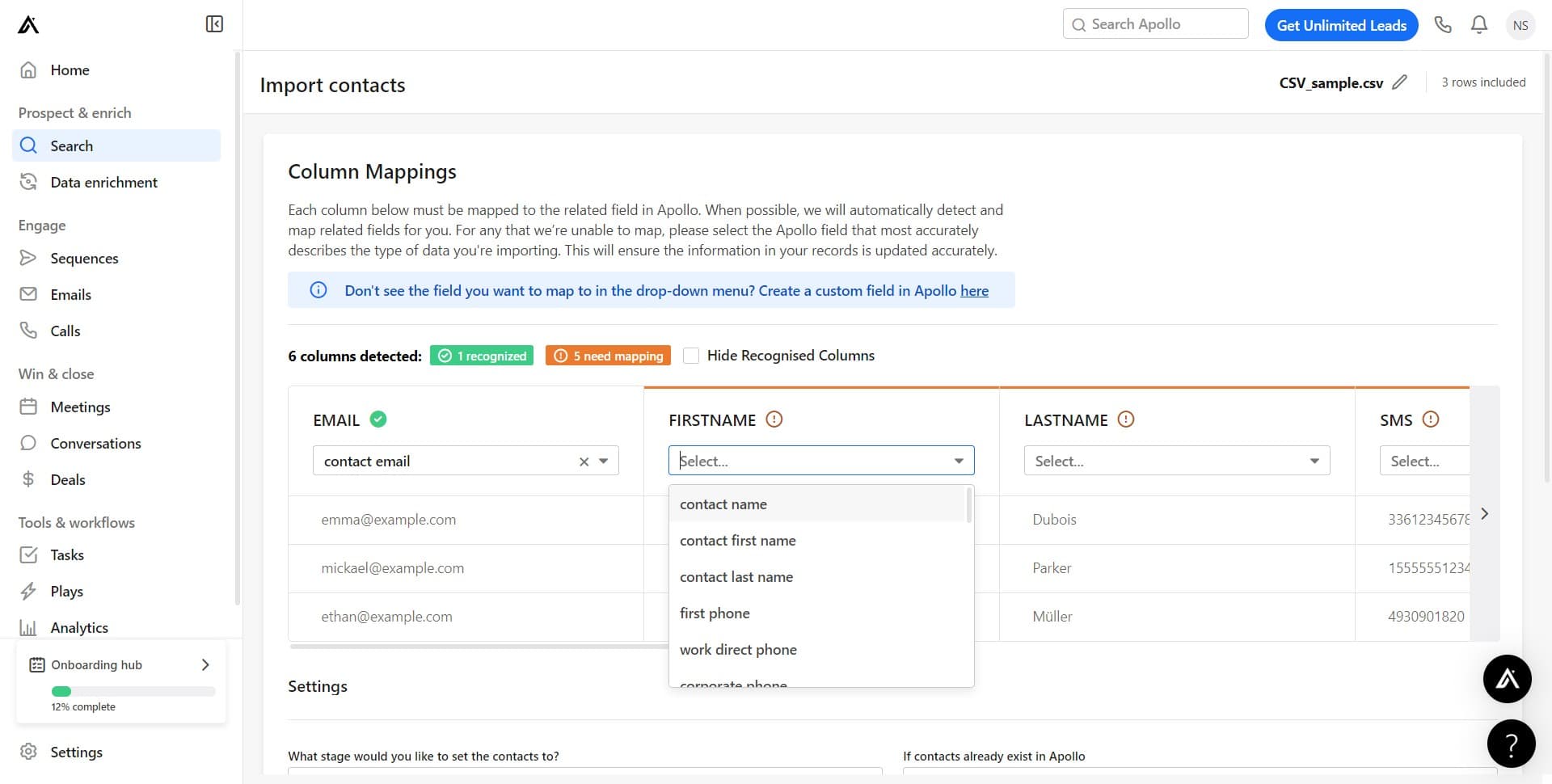
Choose your file
Click on 'Select...' to open the file browser and navigate to your CSV file. Select the file and confirm your choice to load it into Apollo.io.
- 12
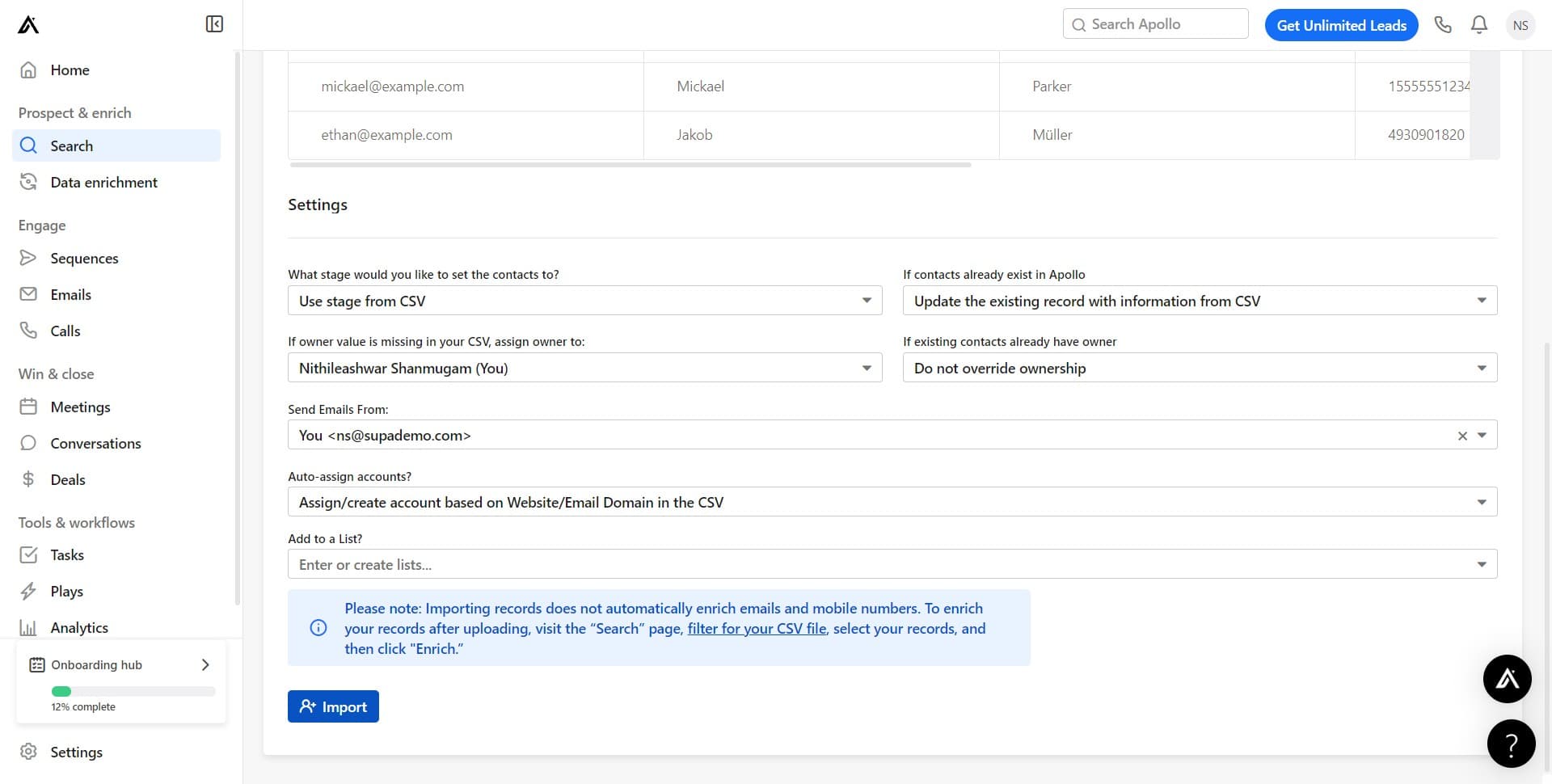
Complete the import
Click on 'Import' to finalize the upload process. Apollo.io will now add all contacts from your CSV file to your sequence and prepare them for automated outreach.
Frequently asked questions
Common questions about how to add contacts to your sequence in apollo.io.
Your CSV file should include standard columns such as email address, first name, last name, and company. Apollo.io will guide you through mapping your CSV columns to the correct fields during import. Ensure your file is saved as a .csv file and uses standard comma or semicolon delimiters.
When uploading a CSV file, you're adding contacts to a single sequence in that import operation. If you need to add the same contacts to multiple sequences, you can repeat this process or manage sequences separately after the initial import.
Apollo.io will detect duplicate email addresses and prevent adding the same contact twice. If a contact already exists in your Apollo.io account, the system will skip that entry during import to maintain data integrity.
Yes, linking your mailbox is required before adding contacts to a sequence. This enables Apollo.io to send automated emails on your behalf and track engagement metrics for your outreach campaign.
Yes, you can edit contact details at any time in Apollo.io, even after they've been added to a sequence. Click on individual contacts to update their information, and any changes will apply immediately.