How to change the video conferencing channel in Apollo.io

Apollo.io allows you to configure your preferred video conferencing platform for seamless meeting scheduling and management. This guide walks you through changing your video conferencing channel to ensure all your meetings use your chosen provider.
Quick summary
In this tutorial, you'll learn how to navigate to your Apollo.io conferencing settings and select a new default video conferencing channel. By the end, you'll have configured your preferred video provider for all future meetings.
Why this matters
Selecting the correct video conferencing channel in Apollo.io ensures consistency across your team's meetings and eliminates the need to manually switch between platforms. This streamlines your meeting workflow and improves productivity by reducing setup friction.
Step-by-step guide
- 1
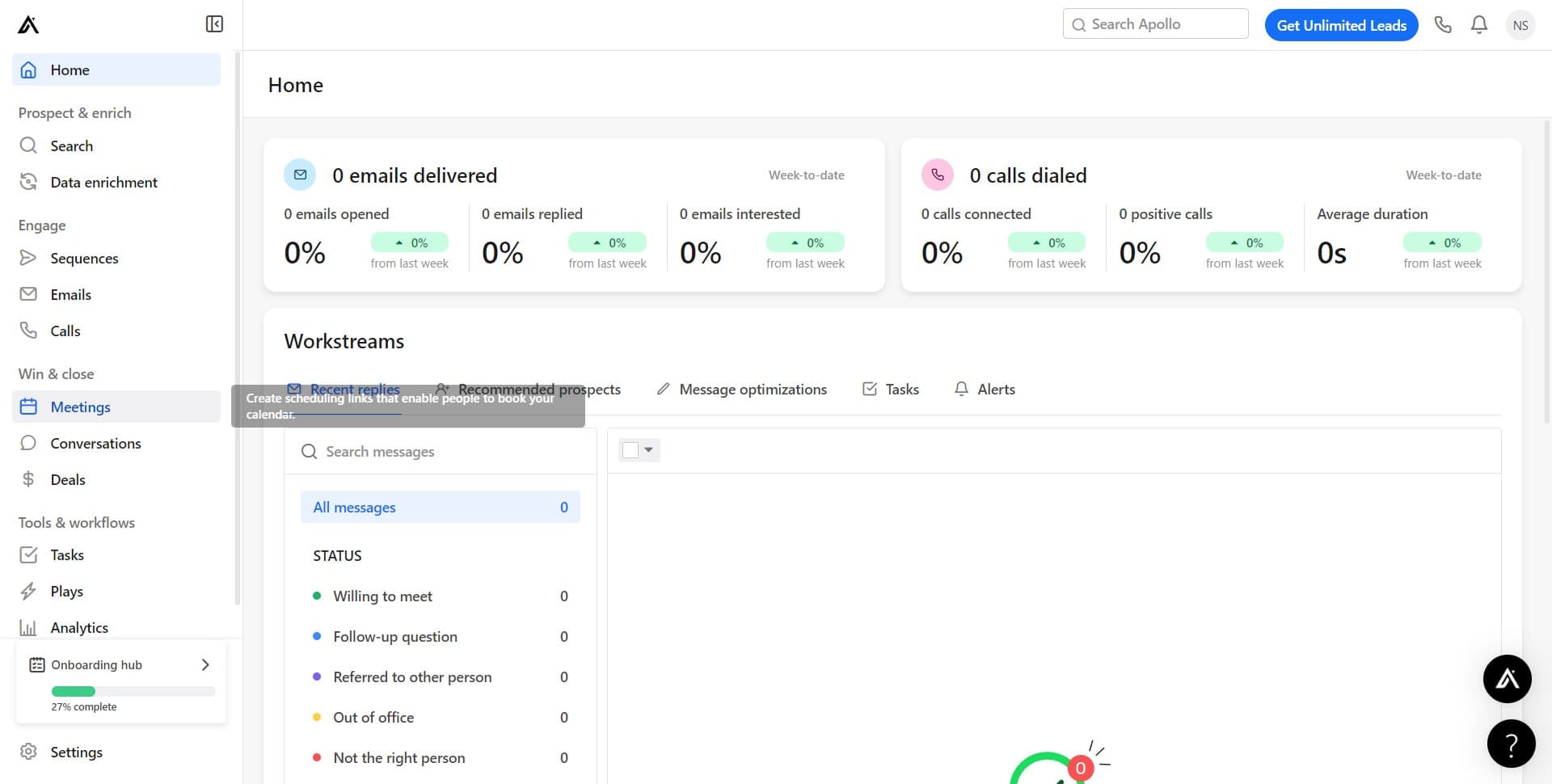
Click on Meetings
Start by locating and clicking the Meetings option in your Apollo.io navigation menu. This will open your meetings dashboard where you can access conference settings.
- 2
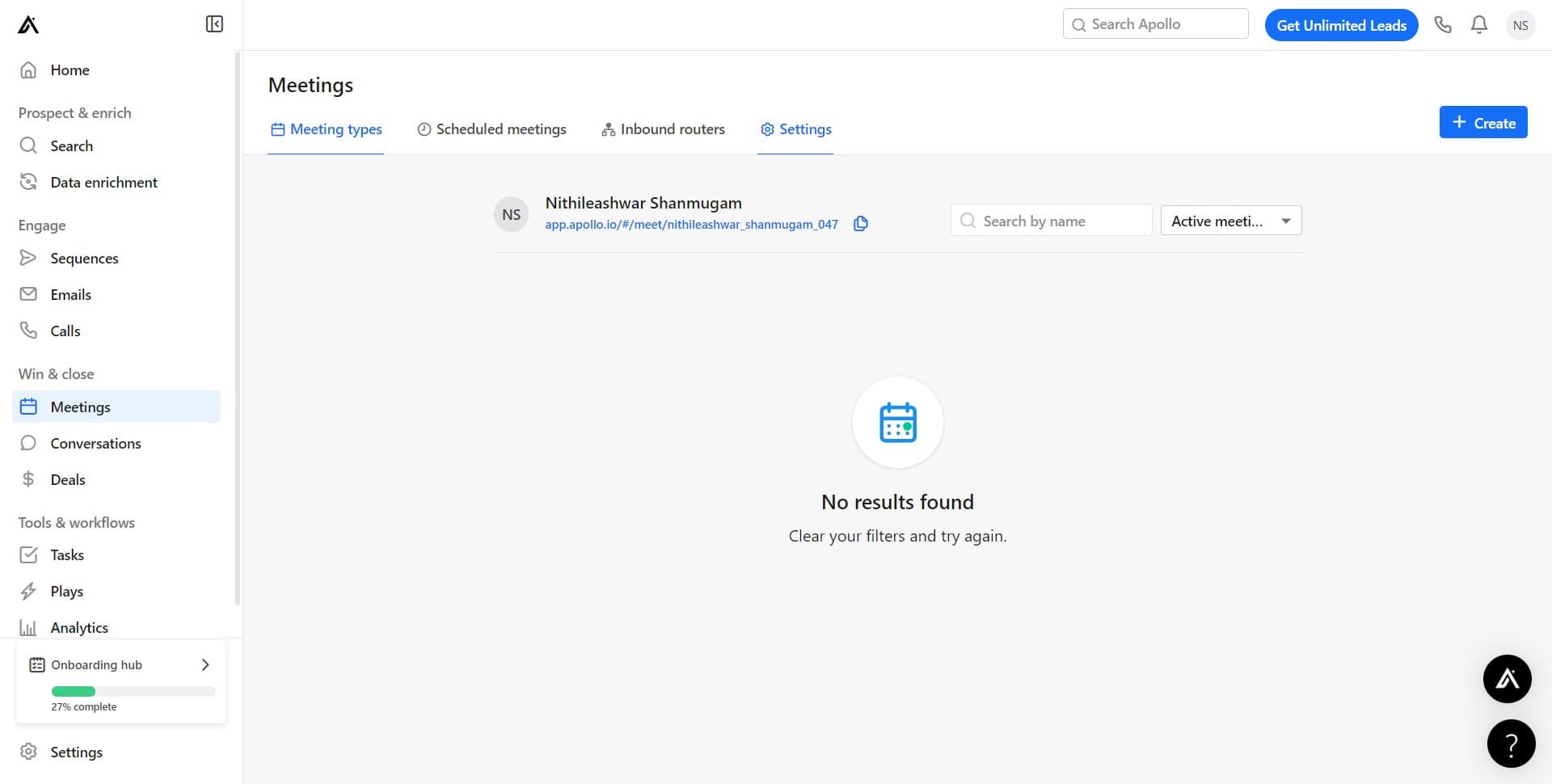
Click on Settings
Within the Meetings section, find and click the Settings option. This opens the configuration panel for your meeting preferences.
- 3
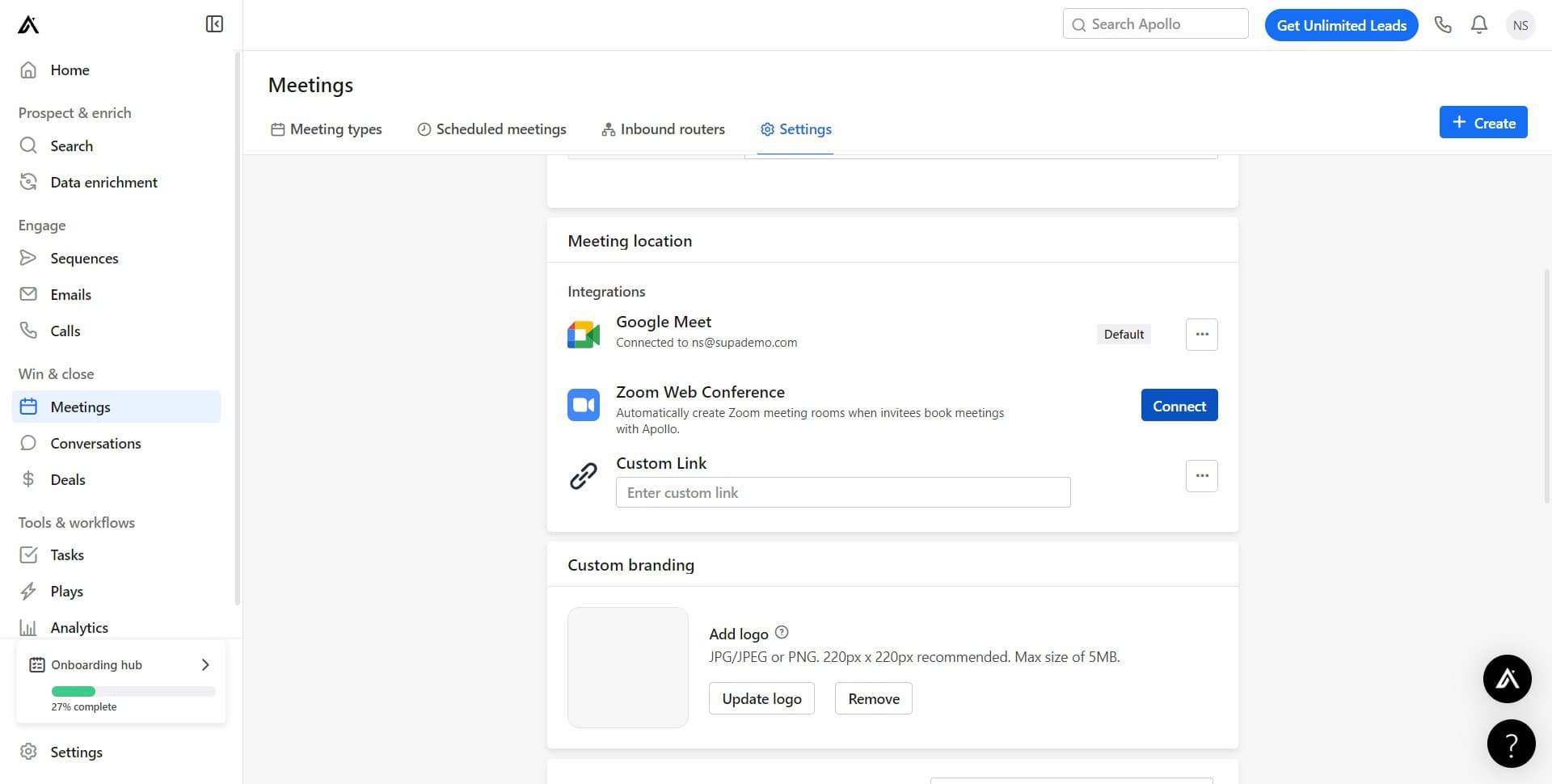
Click on Connect
Select the Connect option to access the video conferencing integrations. Here you'll find all available conferencing platforms that can be linked to your account.
- 4
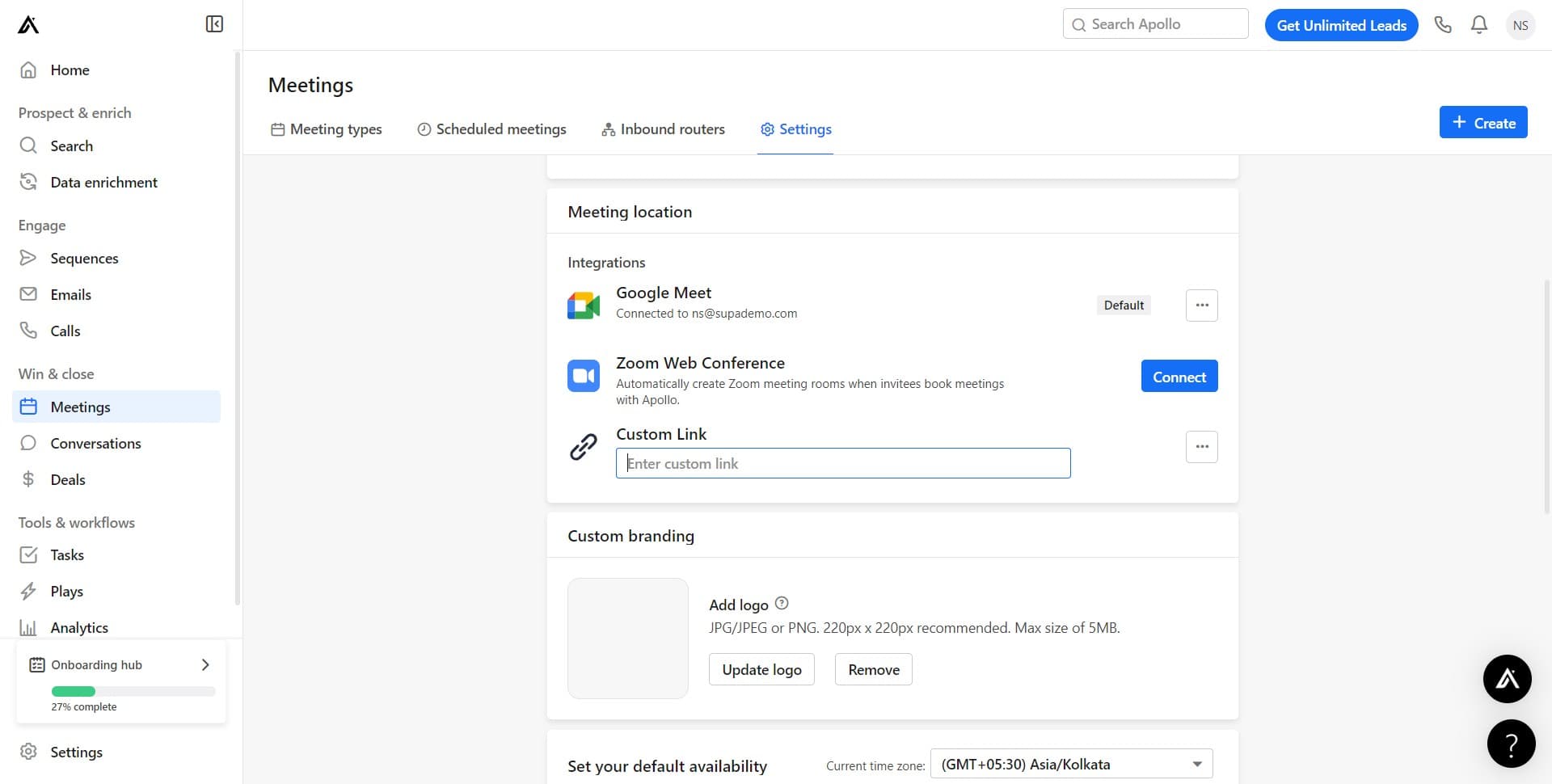
Select your video conferencing provider
Click on the video conferencing platform you want to use. Apollo.io supports multiple providers, so choose the one that best fits your team's needs.
- 5
Authorize the integration
Follow the authorization prompts to connect your chosen video conferencing account to Apollo.io. You may be redirected to the provider's login page to grant permission.
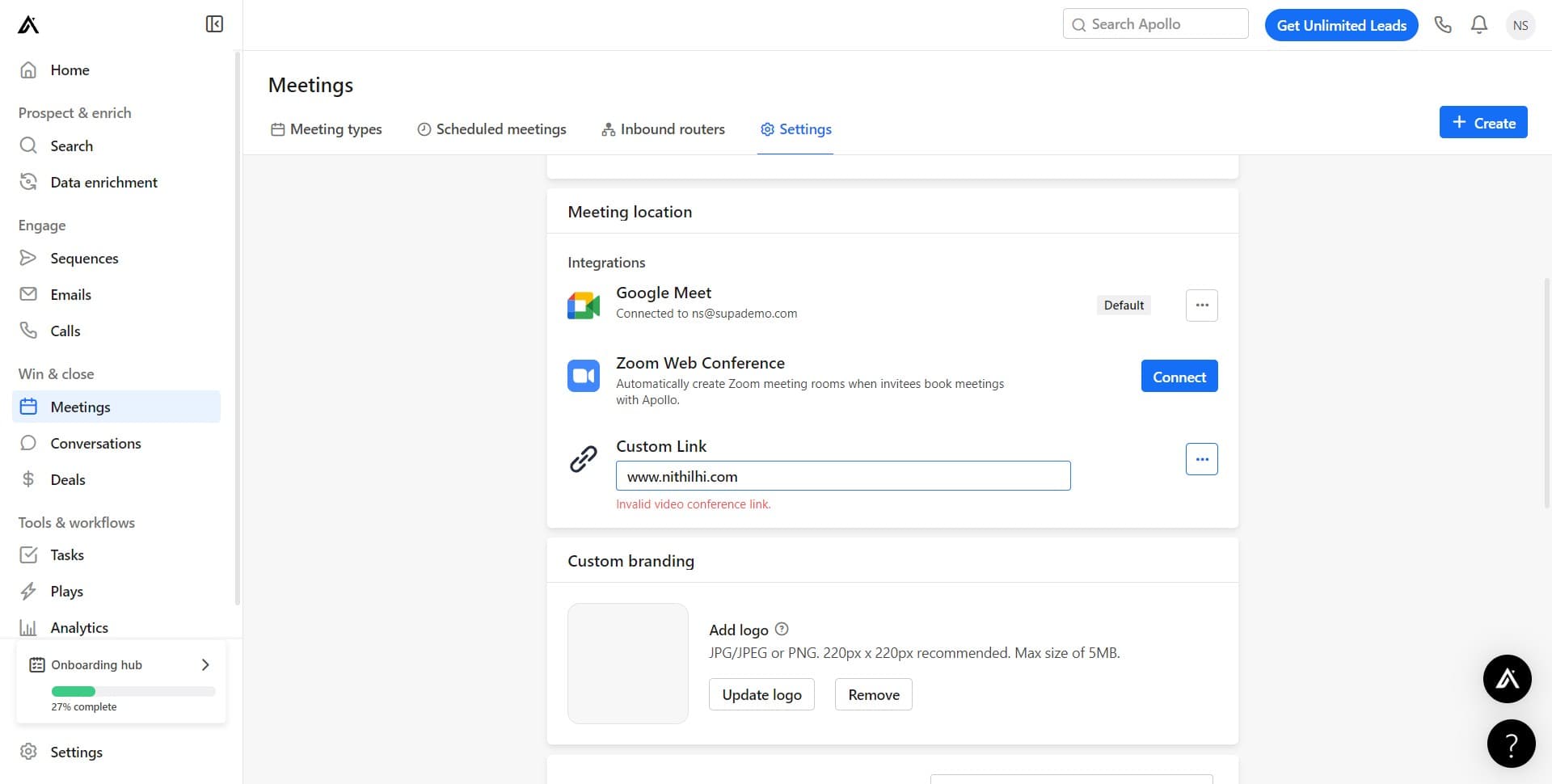
- 6
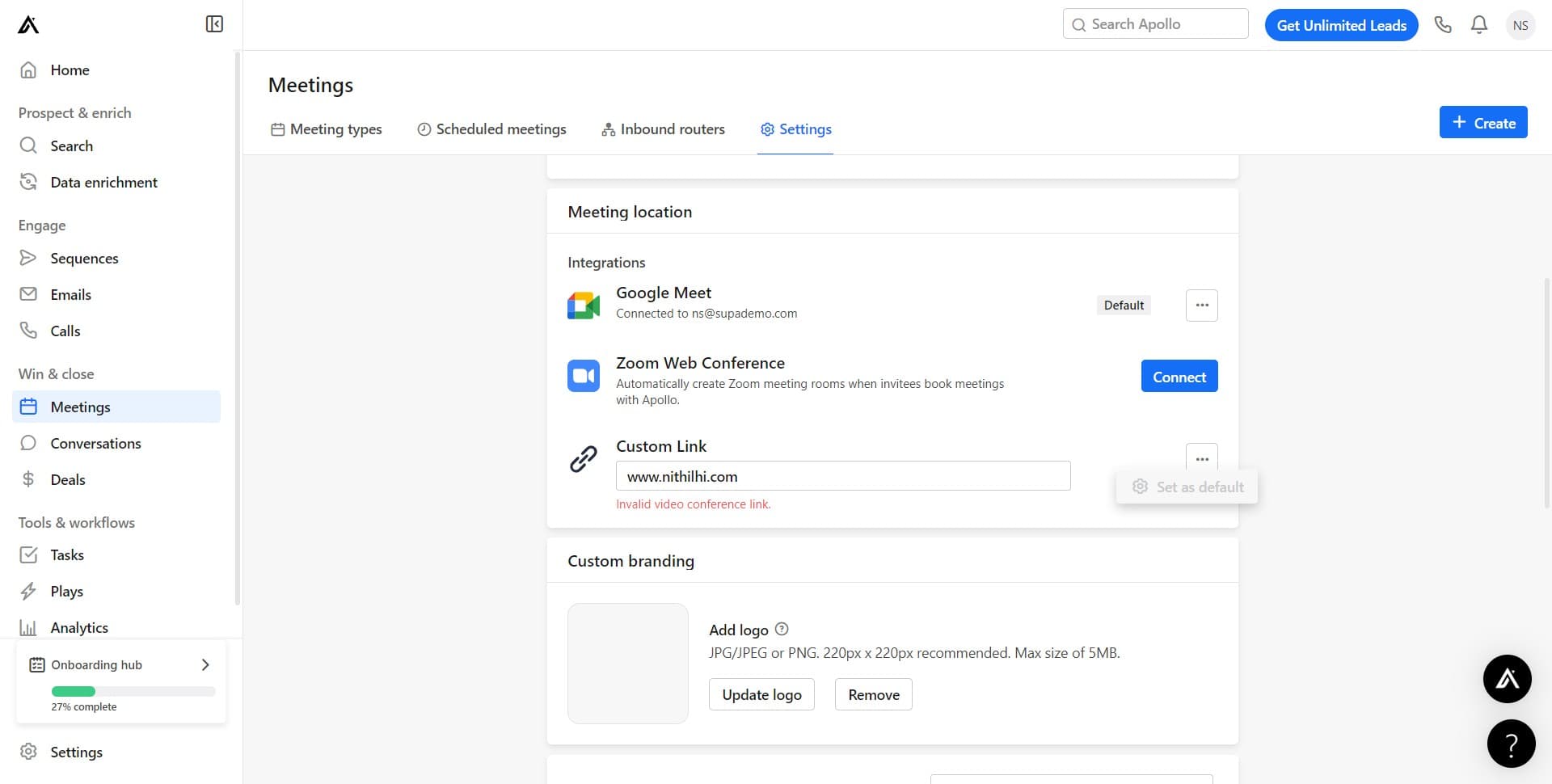
Click Set as default
Once authorized, click the Set as default button to make this your primary video conferencing channel. All new meetings created in Apollo.io will now use this platform by default.
Frequently asked questions
Common questions about how to change the video conferencing channel in apollo.io.
Yes, you can change your default conferencing channel at any time by returning to Settings > Connect and selecting a different provider. Simply click Set as default on your preferred platform, and future meetings will use that channel instead.
Apollo.io supports major video conferencing platforms including Zoom, Google Meet, Microsoft Teams, and others. The available options will be displayed in your Connect settings, and you can integrate multiple providers if needed.
Yes, each video conferencing platform requires separate authorization to connect to your Apollo.io account. This ensures secure access to your conferencing credentials and meeting data.
Changing your default video conferencing channel only affects new meetings you create going forward. Previously scheduled meetings will continue to use their original conferencing platform.
Yes, each user in Apollo.io can set their own default video conferencing channel independently. This allows team members to use their preferred platforms while working within the same Apollo.io account.