How to connect your calendar meetings to Apollo.io

Connecting your calendar to Apollo.io streamlines your sales workflow by syncing meetings directly into your Apollo account. This integration allows you to track prospect interactions and maintain a unified view of all your scheduled engagements without manual data entry.
Quick summary
In this tutorial, you'll learn how to connect your calendar to Apollo.io by navigating to the Meetings section, authorizing calendar access, and configuring your timezone and meeting location preferences. By the end, your calendar meetings will be automatically synced to your Apollo account.
Why this matters
Calendar integration is essential for sales teams because it eliminates duplicate entry work and ensures all client interactions are logged in one centralized location. This visibility helps your team better track deal progress, prepare for meetings, and maintain accurate activity records for compliance and forecasting purposes.
Step-by-step guide
- 1
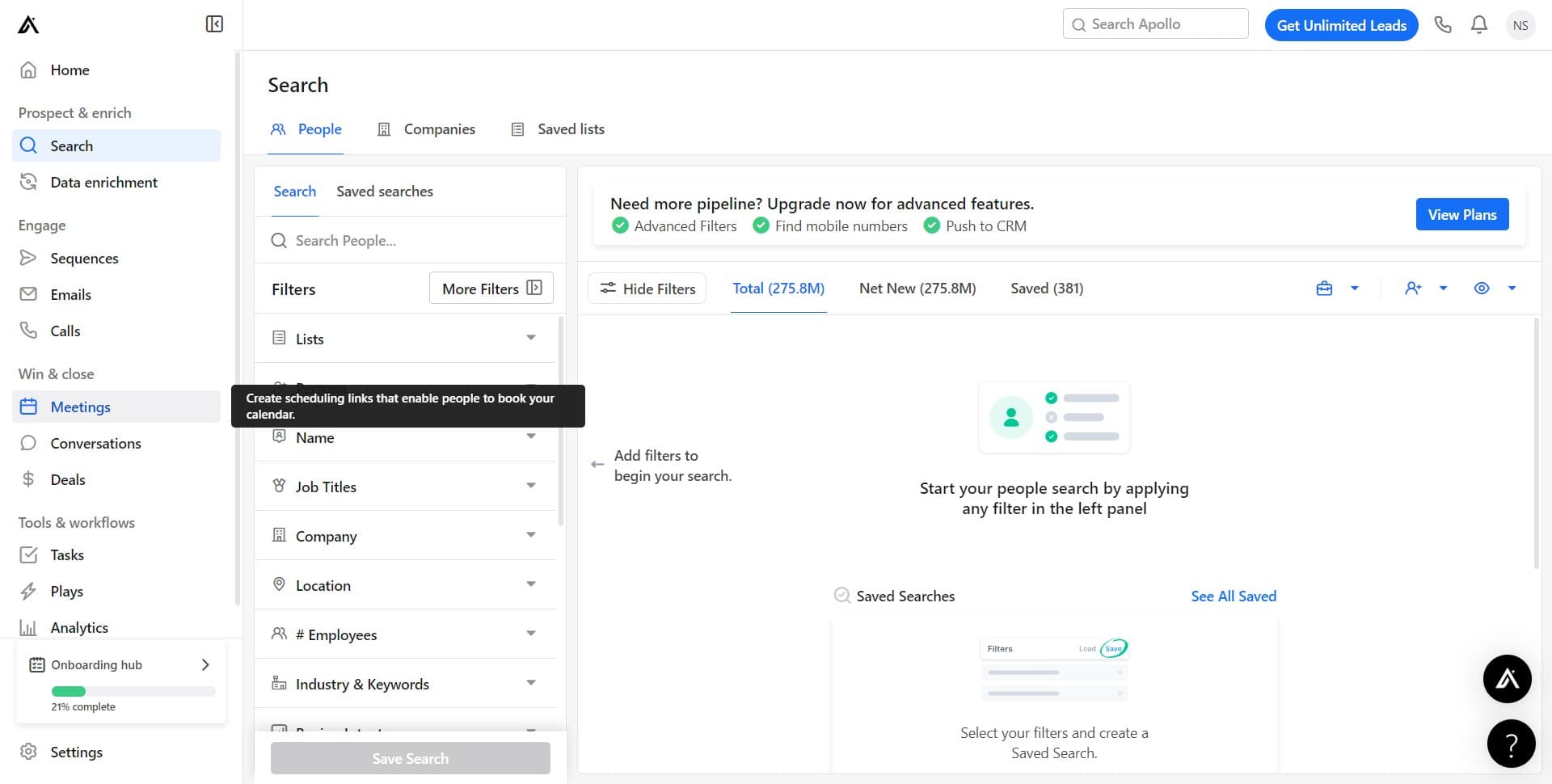
Access the Meetings section
Navigate to the Meetings tab in your Apollo.io dashboard. This is where you'll manage all calendar-related settings and integrations.
- 2
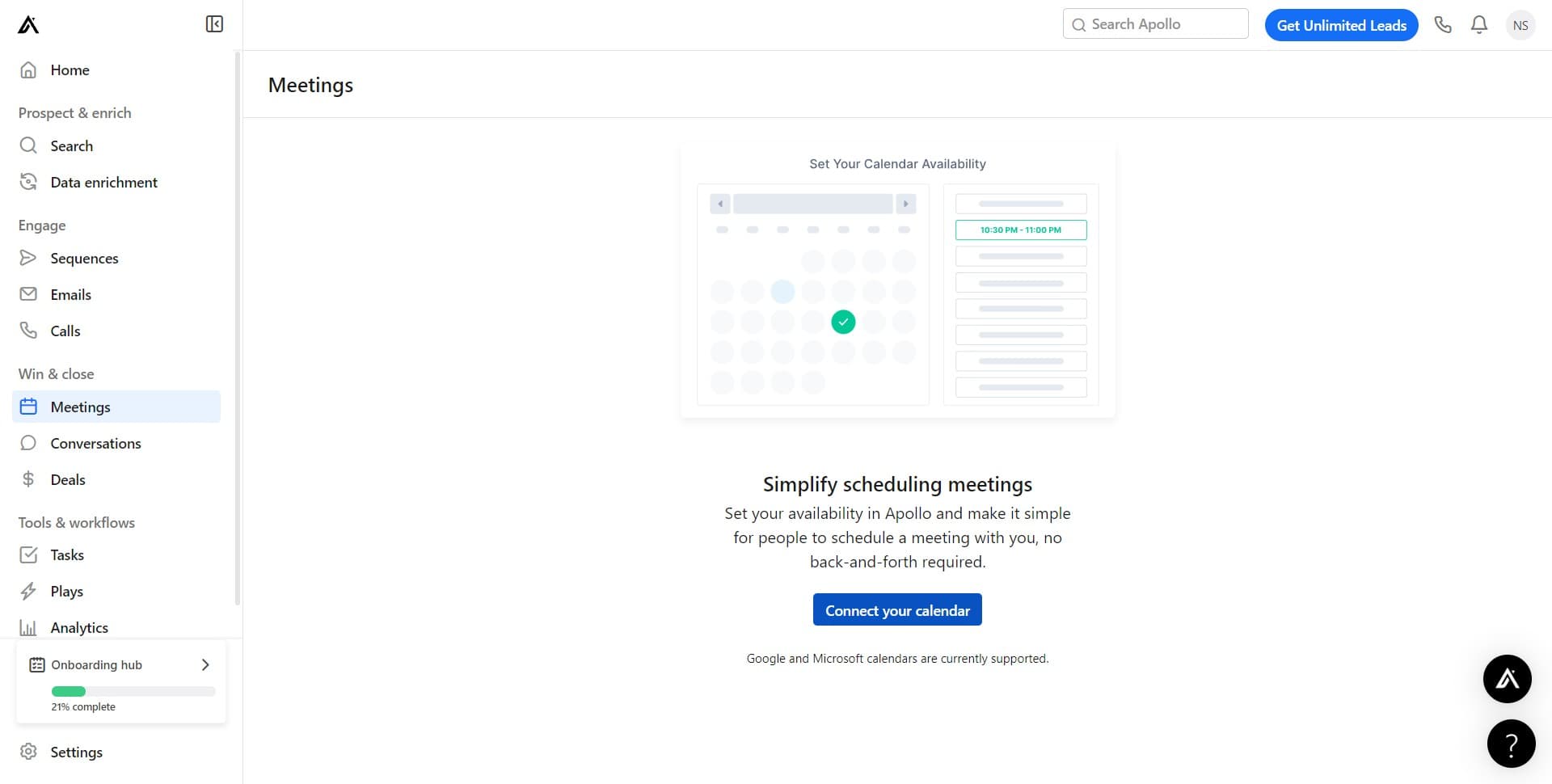
Click 'Connect your calendar'
Look for and click the 'Connect your calendar' option. This will initiate the calendar authorization process.
- 3
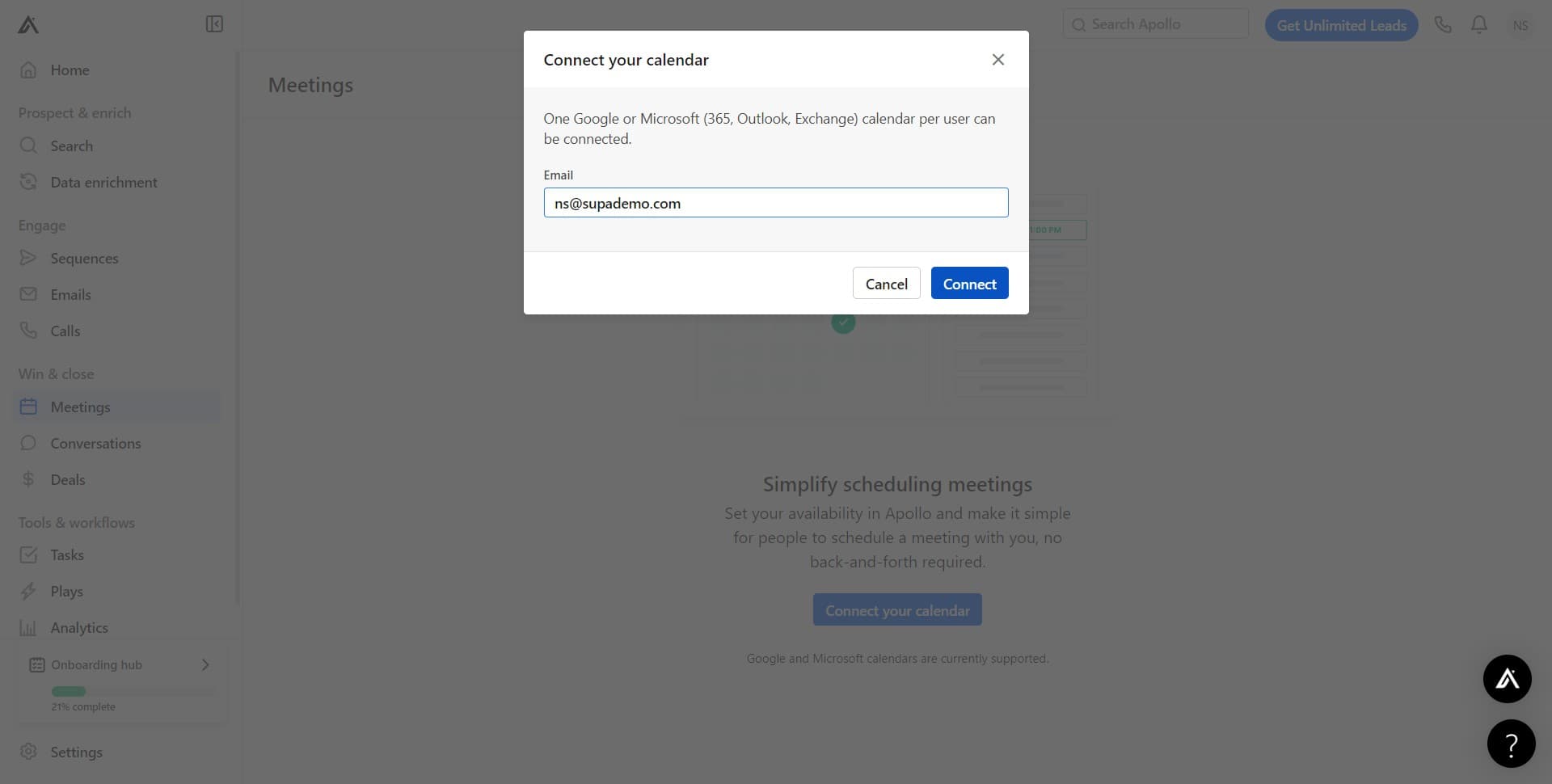
Click 'Connect' to authorize
Click the 'Connect' button to proceed with granting Apollo.io access to your calendar. You may be prompted to log into your calendar provider.
- 4
Upload your calendar data
Complete the upload process to sync your calendar events. Apollo will begin pulling meeting data from your calendar once this step is confirmed.
- 5
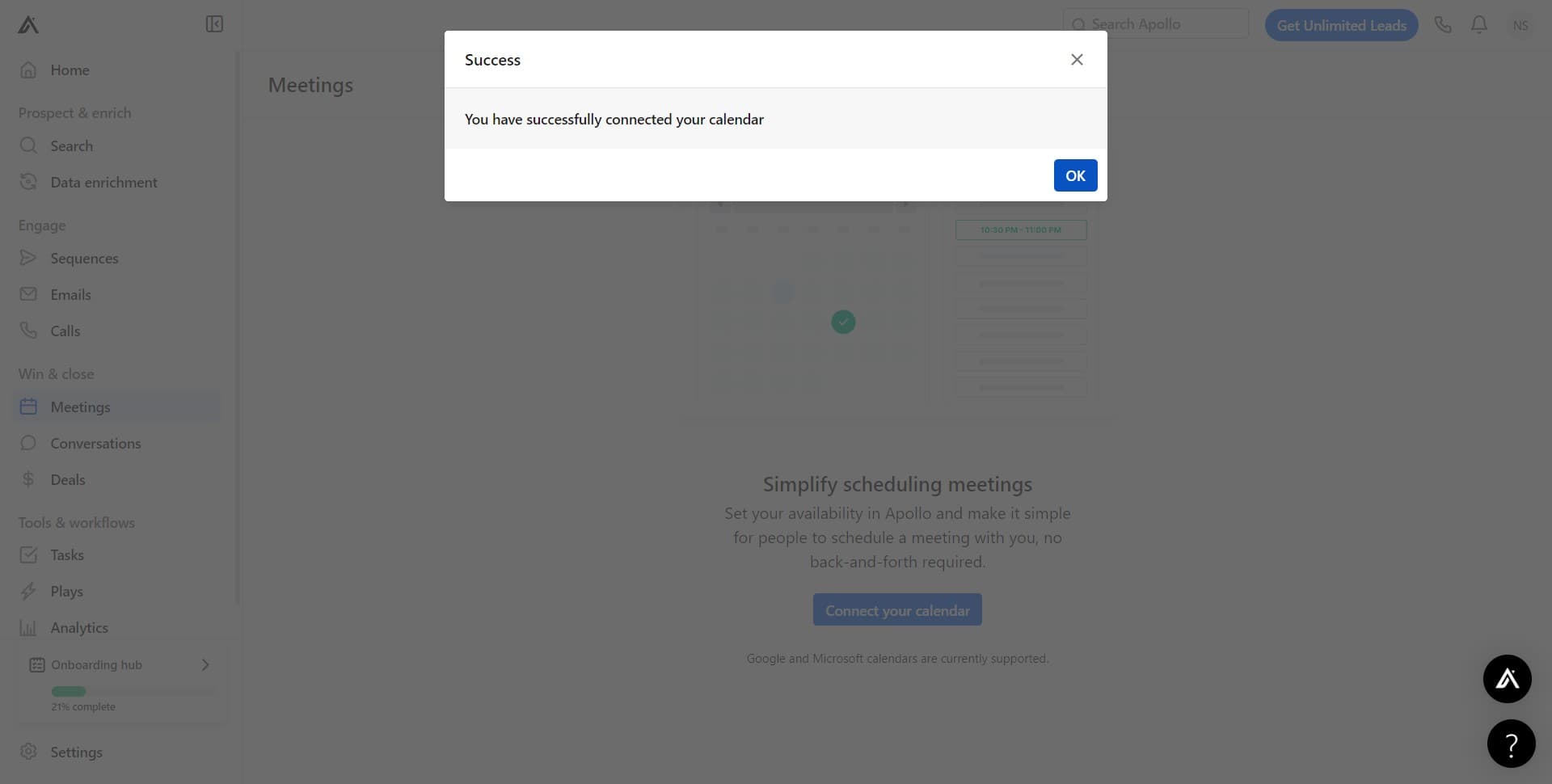
Confirm the connection
Click 'OK' to acknowledge successful calendar connection. Your calendar is now linked to Apollo.io.
- 6
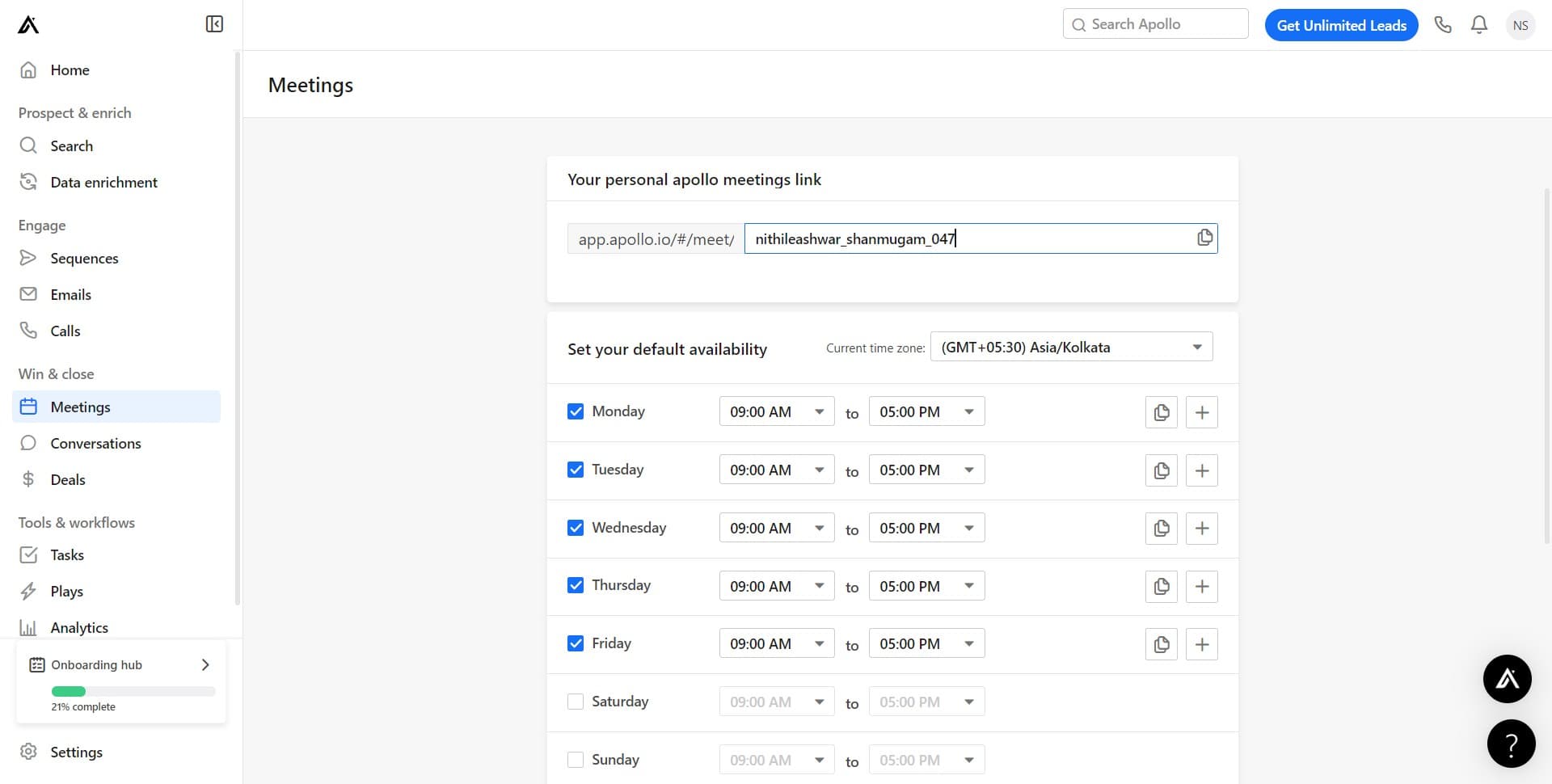
Proceed to timezone settings
Click the designated area to advance to timezone configuration. This ensures your meetings are displayed in the correct time zone.
- 7
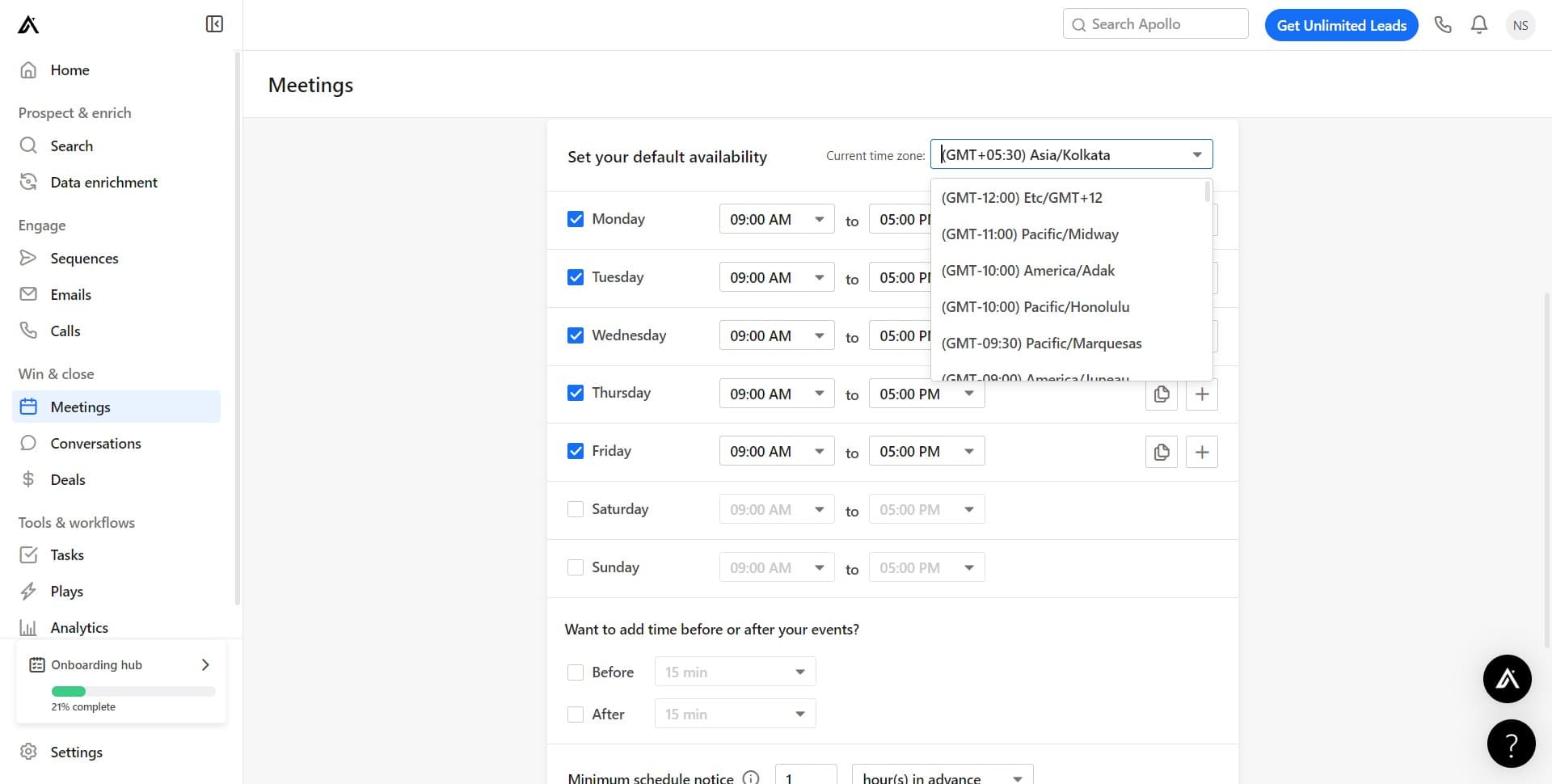
Select your timezone
Choose your timezone from the dropdown menu—in this example, select '(GMT+05:30) Asia/Kolkata' or your appropriate timezone. Apollo will use this to accurately display all meeting times.
- 8
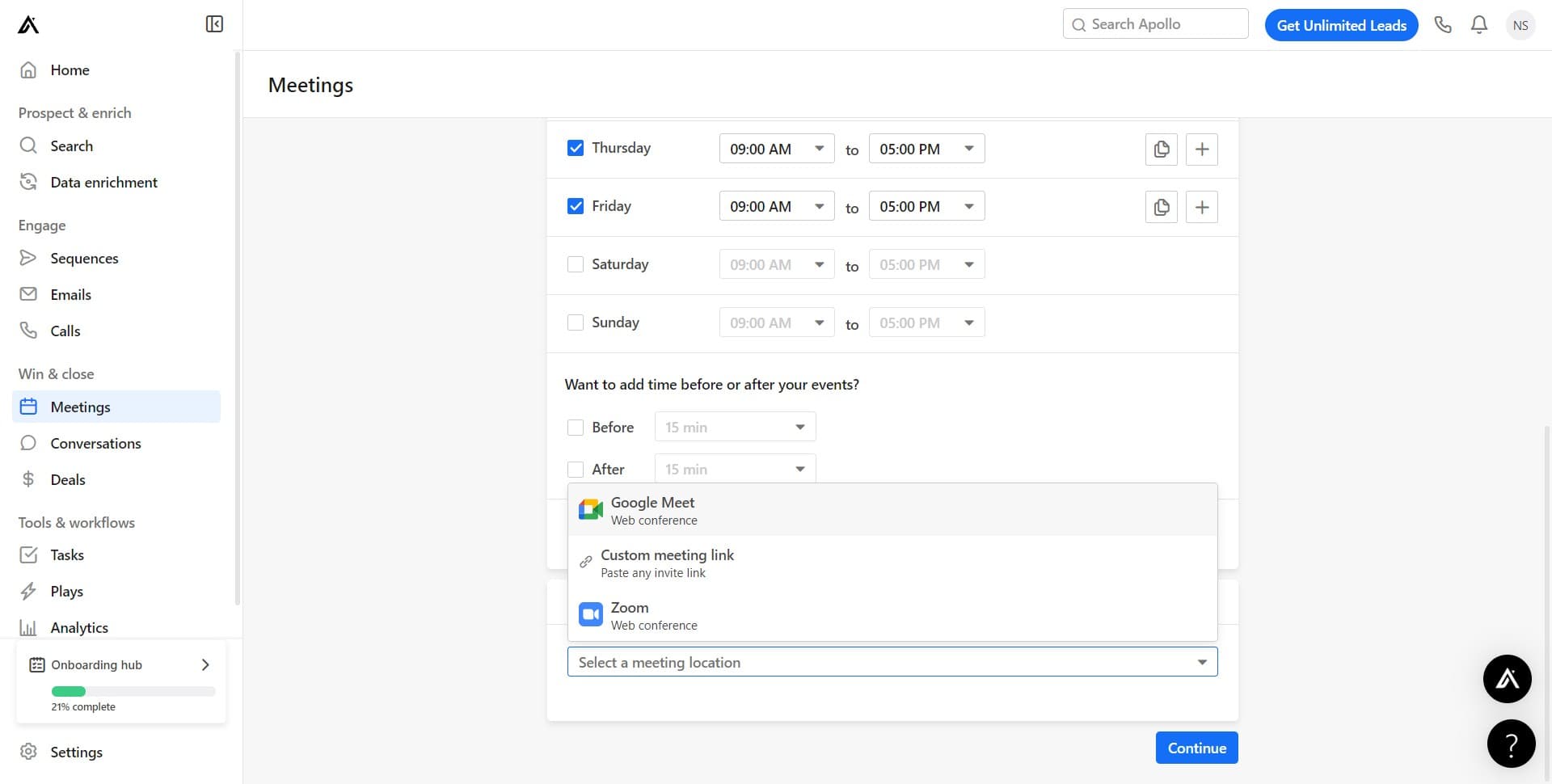
Configure meeting location
Click on 'Select a meeting location' to specify where your meetings take place by default. This helps organize and categorize your calendar events within Apollo.
- 9
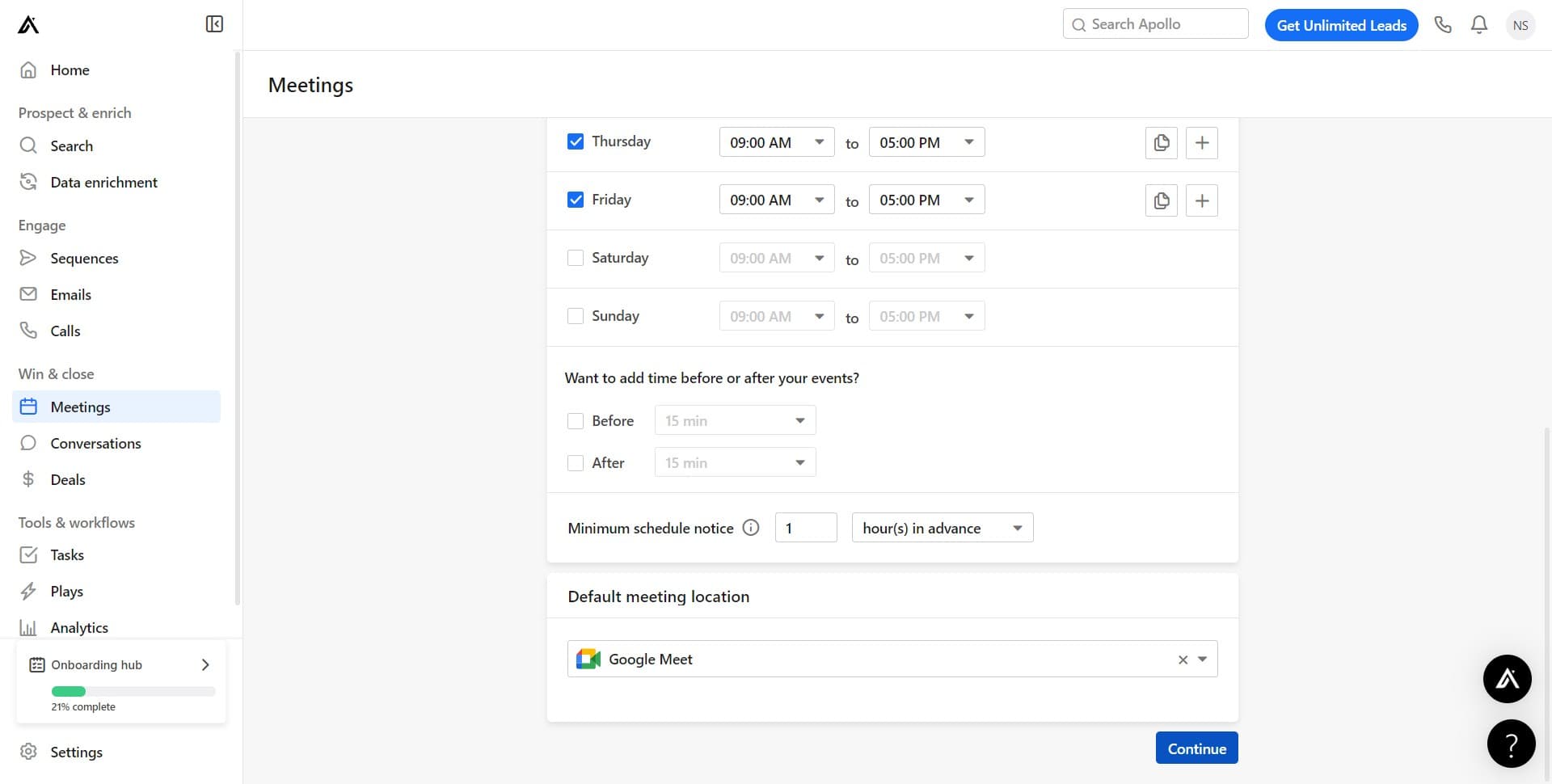
Complete the setup
Click 'Continue' to finalize all calendar connection settings. Your calendar is now fully integrated with Apollo.io and ready to use.
Frequently asked questions
Common questions about how to connect your calendar meetings to apollo.io.
Connecting your calendar to Apollo.io creates a single source of truth for all your sales activities and meetings. This integration automatically logs calendar events in Apollo, eliminating manual data entry, improving accuracy, and giving your team visibility into prospect interactions without extra work.
Yes, you can modify your timezone settings in the Meetings configuration area at any time. Simply access the timezone settings and select your preferred timezone to ensure all meetings display with accurate times.
Apollo.io integrates with major calendar providers including Google Calendar, Outlook, and other standard calendar systems. During the connection process, you'll be directed to authorize access through your specific calendar provider.
During the initial connection, Apollo.io will sync your calendar events. The exact historical data available depends on your calendar provider's data access permissions and Apollo's import settings at the time of connection.
Calendar synchronization typically occurs within a few minutes of completing the connection process. If you don't see your meetings immediately, refresh your Apollo dashboard or wait a few minutes for the sync to complete.