How to create a task in Apollo.ai

Creating tasks in Apollo.ai helps you stay organized and track important actions with your contacts. This guide walks you through the process of setting up a new task, from accessing the Tasks section to configuring task details like contact type, communication method, and scheduled time.
Quick summary
In this tutorial, you'll learn how to create a task in Apollo.ai by navigating to the Tasks section, selecting a contact, choosing a communication type, and scheduling a specific time. By following these steps, you'll be able to set up organized, time-bound tasks that keep your workflow running smoothly.
Why this matters
Tasks in Apollo.ai help you prioritize follow-ups and ensure no contact falls through the cracks. Scheduling tasks with specific times and contact types enables better time management and increases the likelihood of meaningful customer interactions. This structured approach to task management directly improves sales productivity and relationship management.
Step-by-step guide
- 1
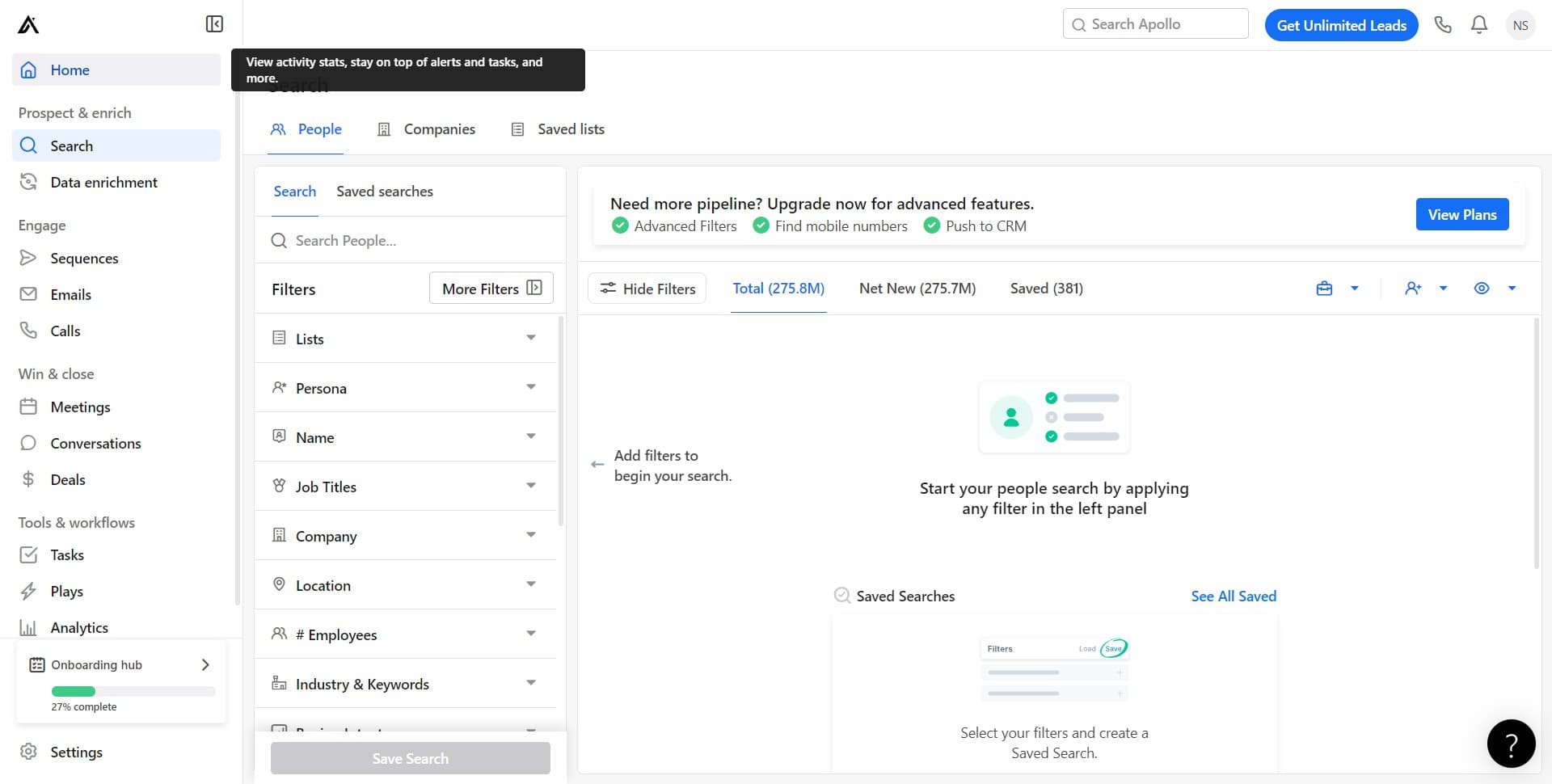
Click on Home
Start by navigating to the Home section of Apollo.ai. This is your main dashboard where you can access all primary features and functions.
- 2
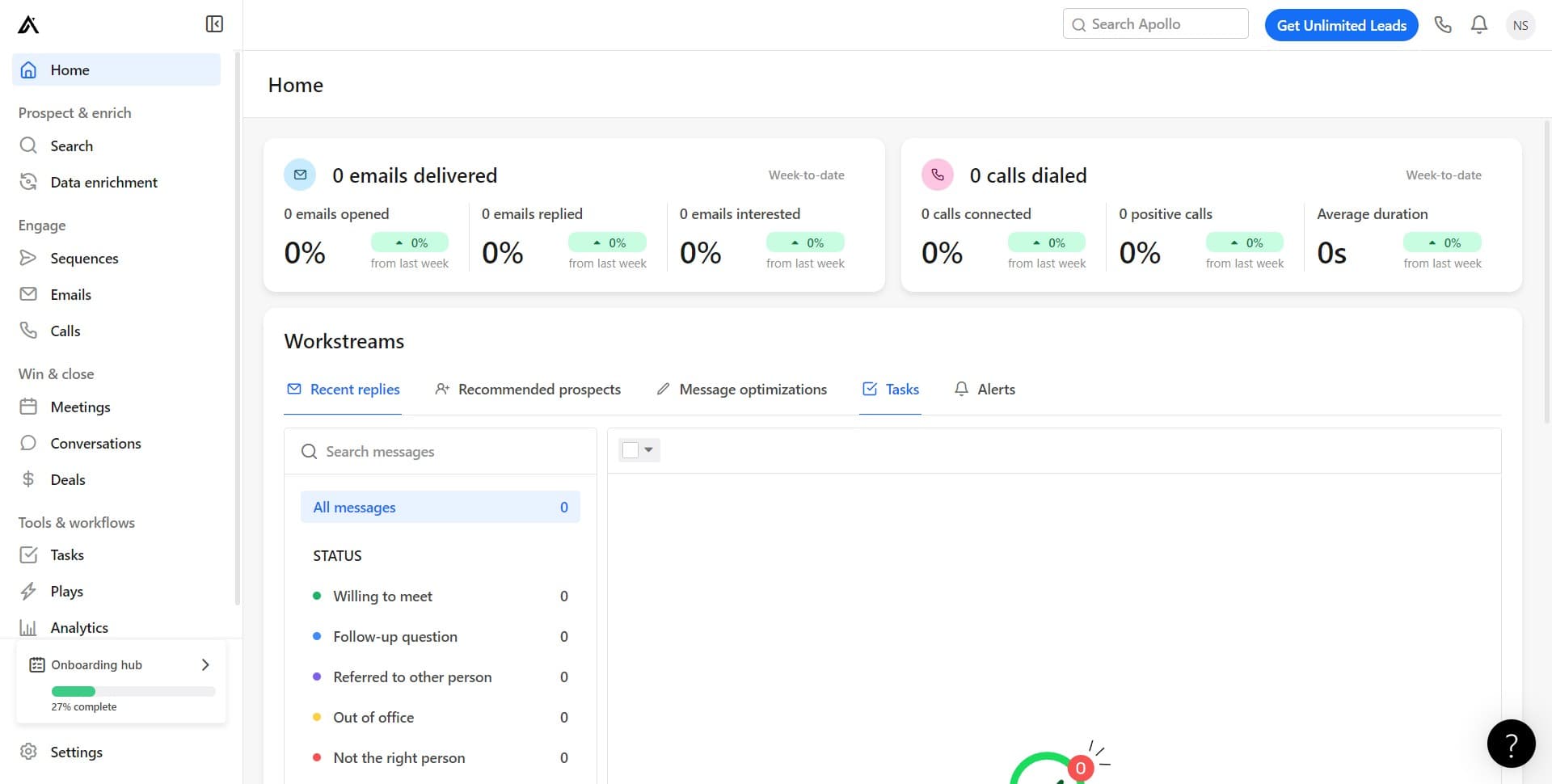
Click on Tasks
From the Home section, select the Tasks option. This will take you to your task management area where you can view, edit, and create new tasks.
- 3
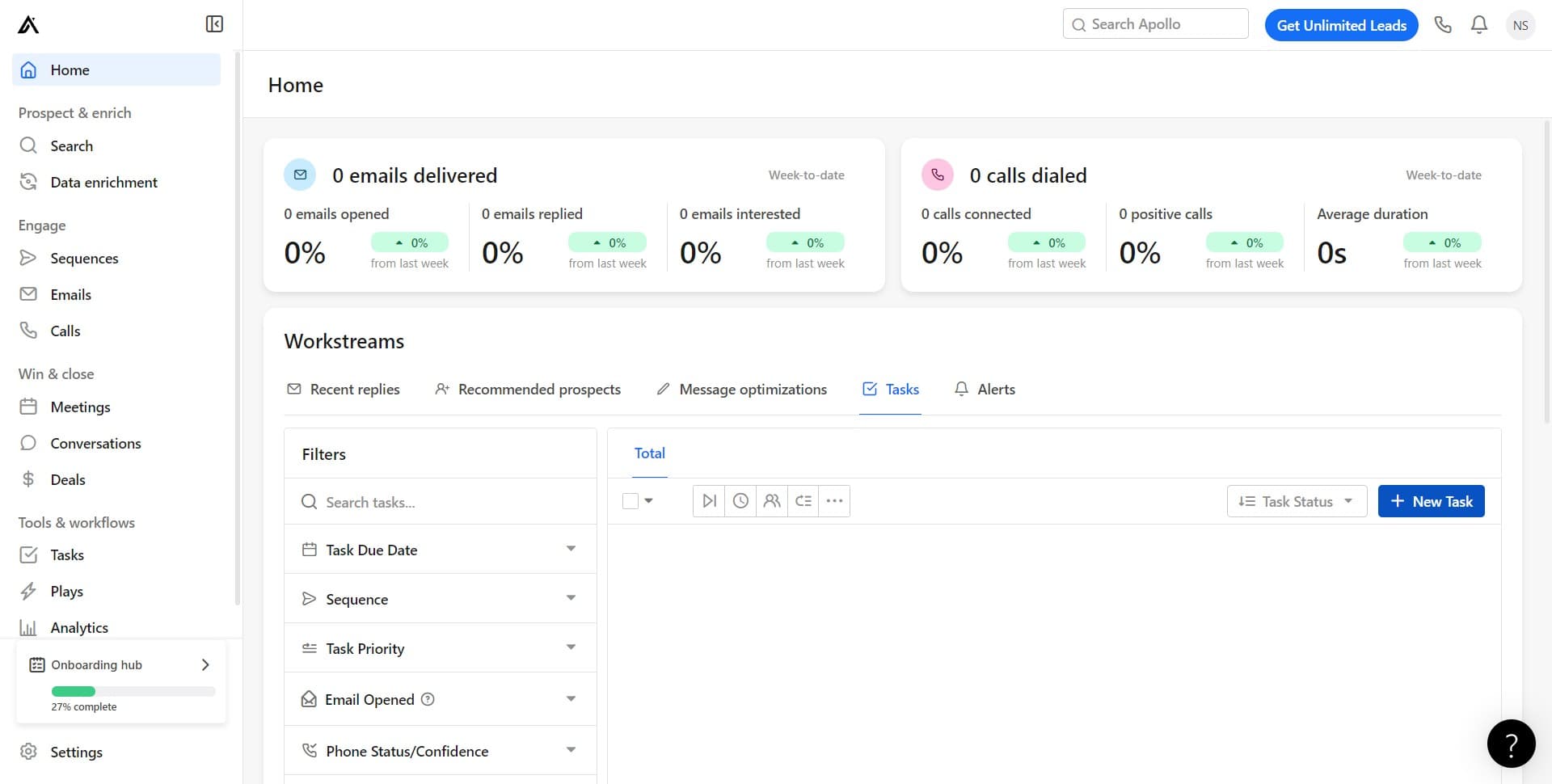
Click on New Task
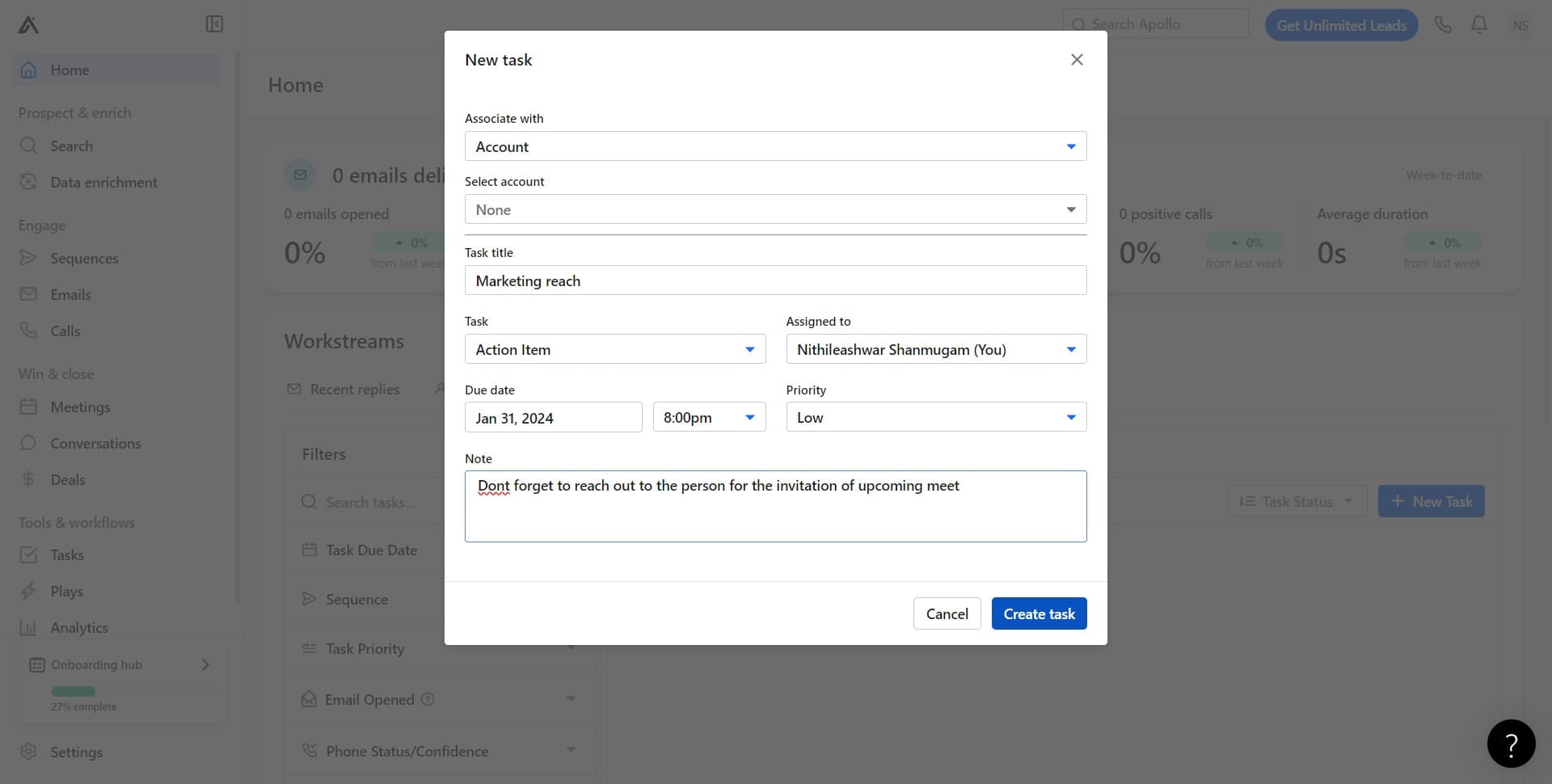
Click the New Task button to begin creating a fresh task. This will open the task creation form where you'll configure all the details.
- 4
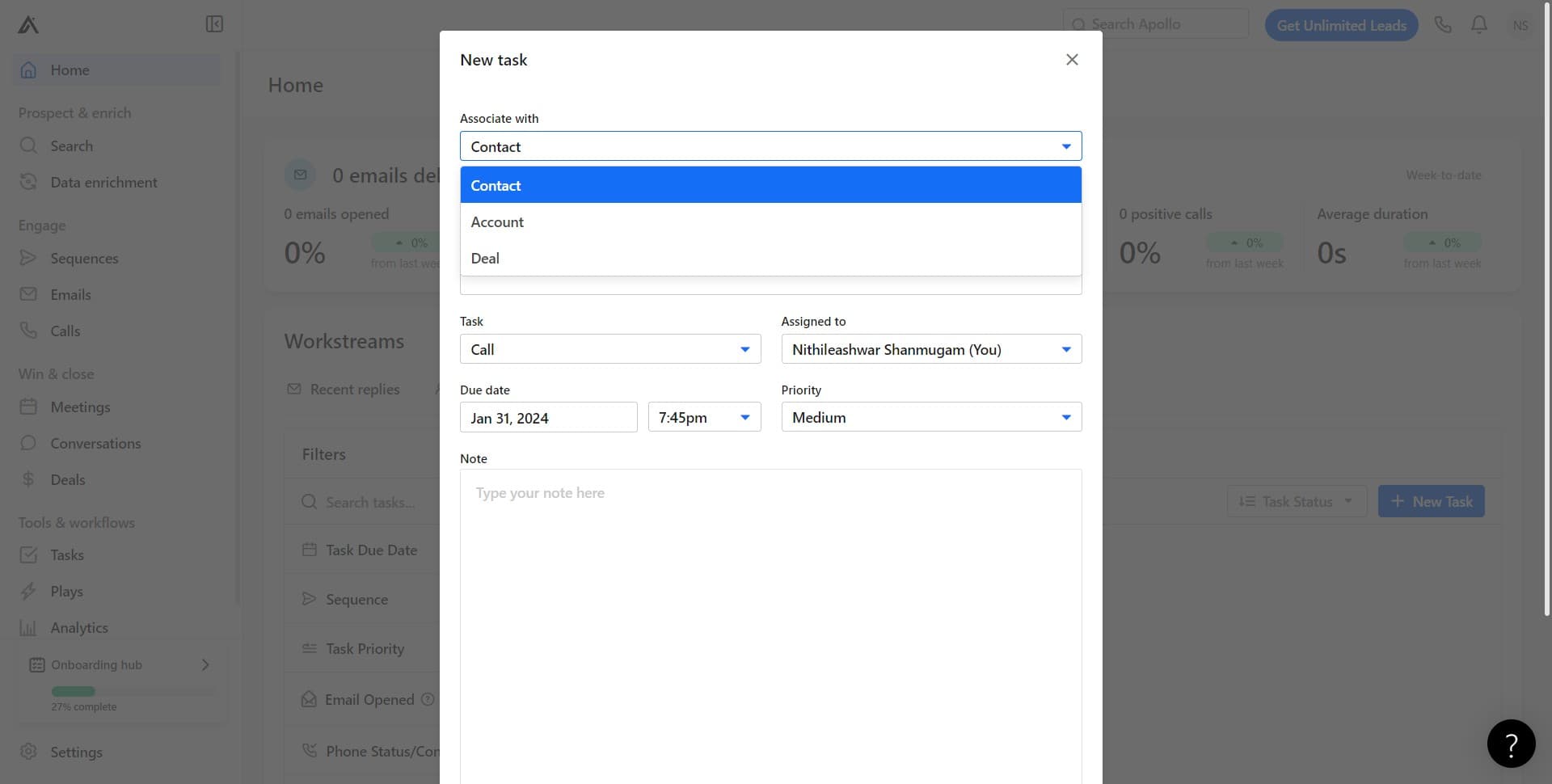
Click on Contact
Select the Contact field to specify which contact this task is related to. You'll be able to search for and select an existing contact from your Apollo.ai database.
- 5
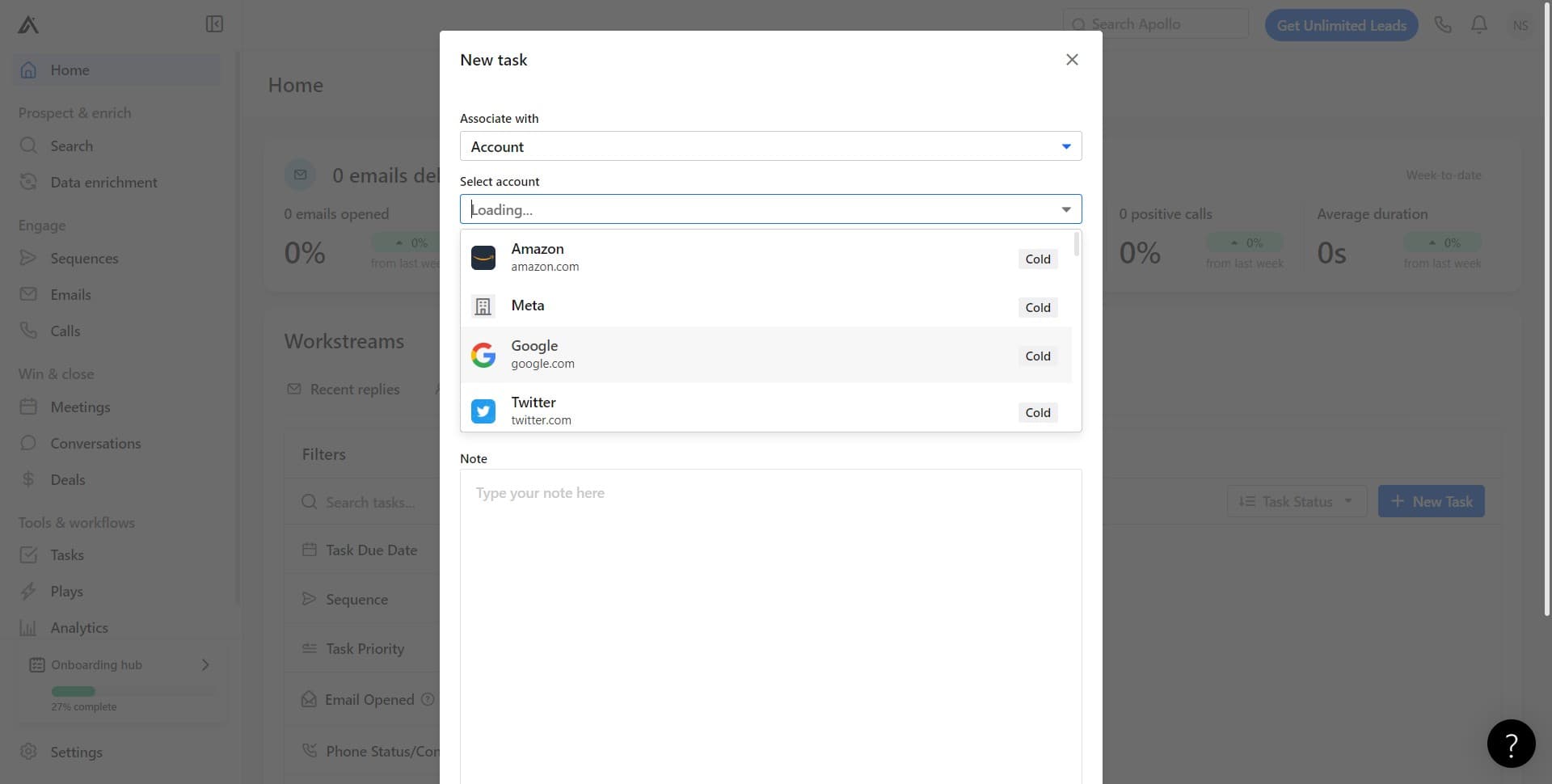
Click on Google
Choose Google as the contact source or integration method. This determines how the contact information is managed and synced within your task.
- 6
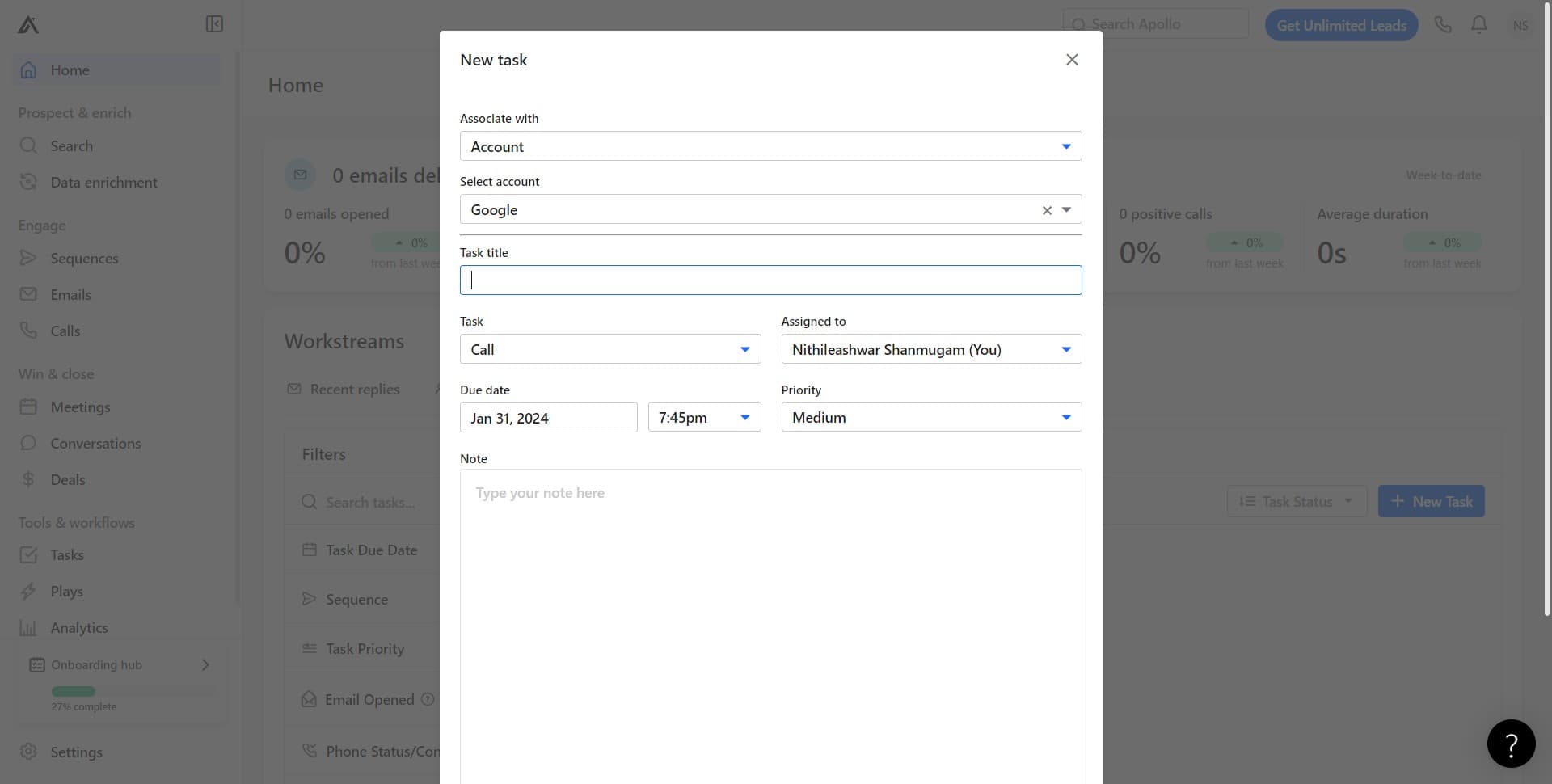
Confirm the selection
Complete the contact selection by confirming your choice. The system will register your selected contact for this task.
- 7
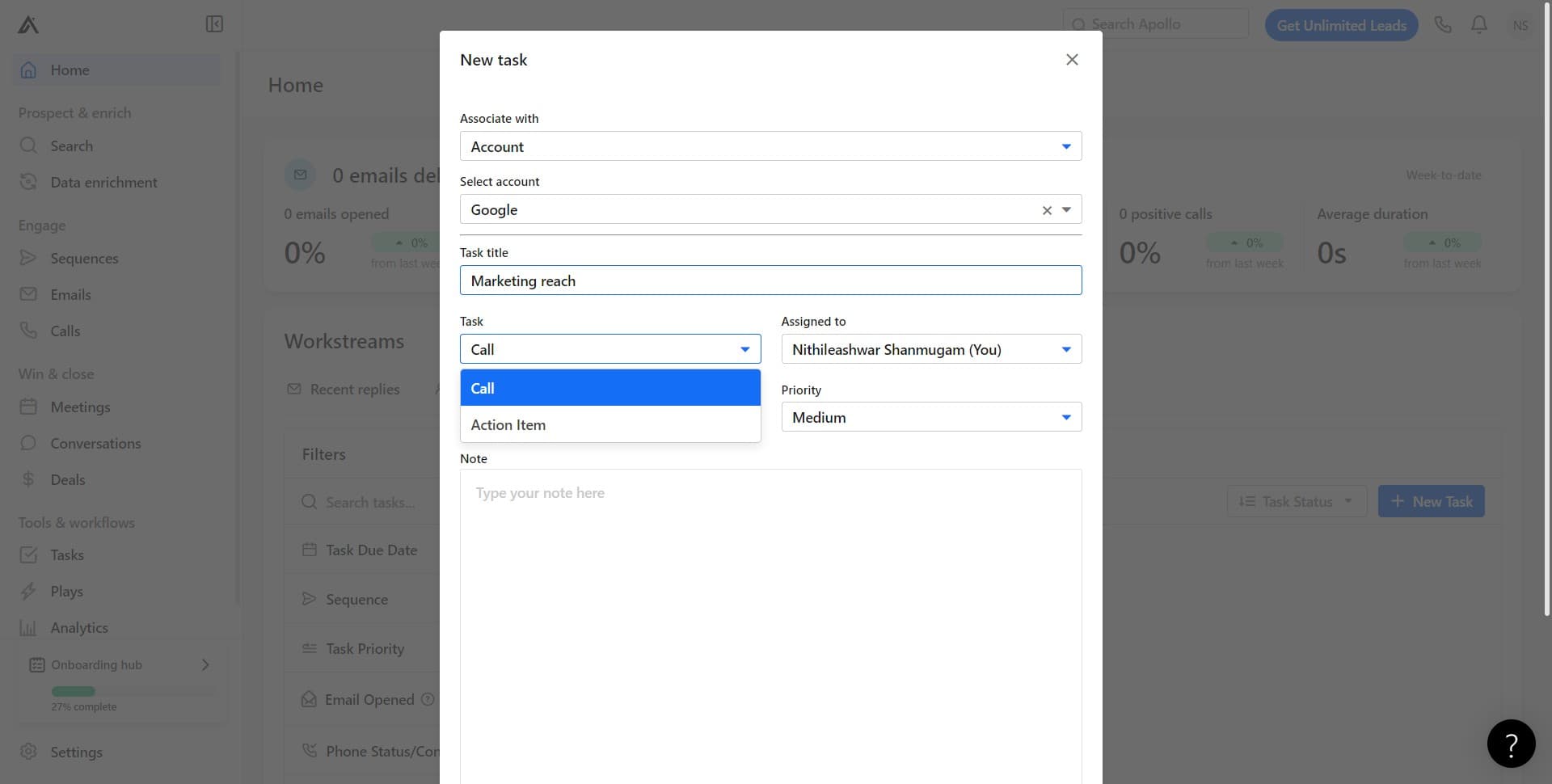
Click on Call
Select Call as the task type or communication method. This indicates that your planned action involves a phone conversation with the contact.
- 8
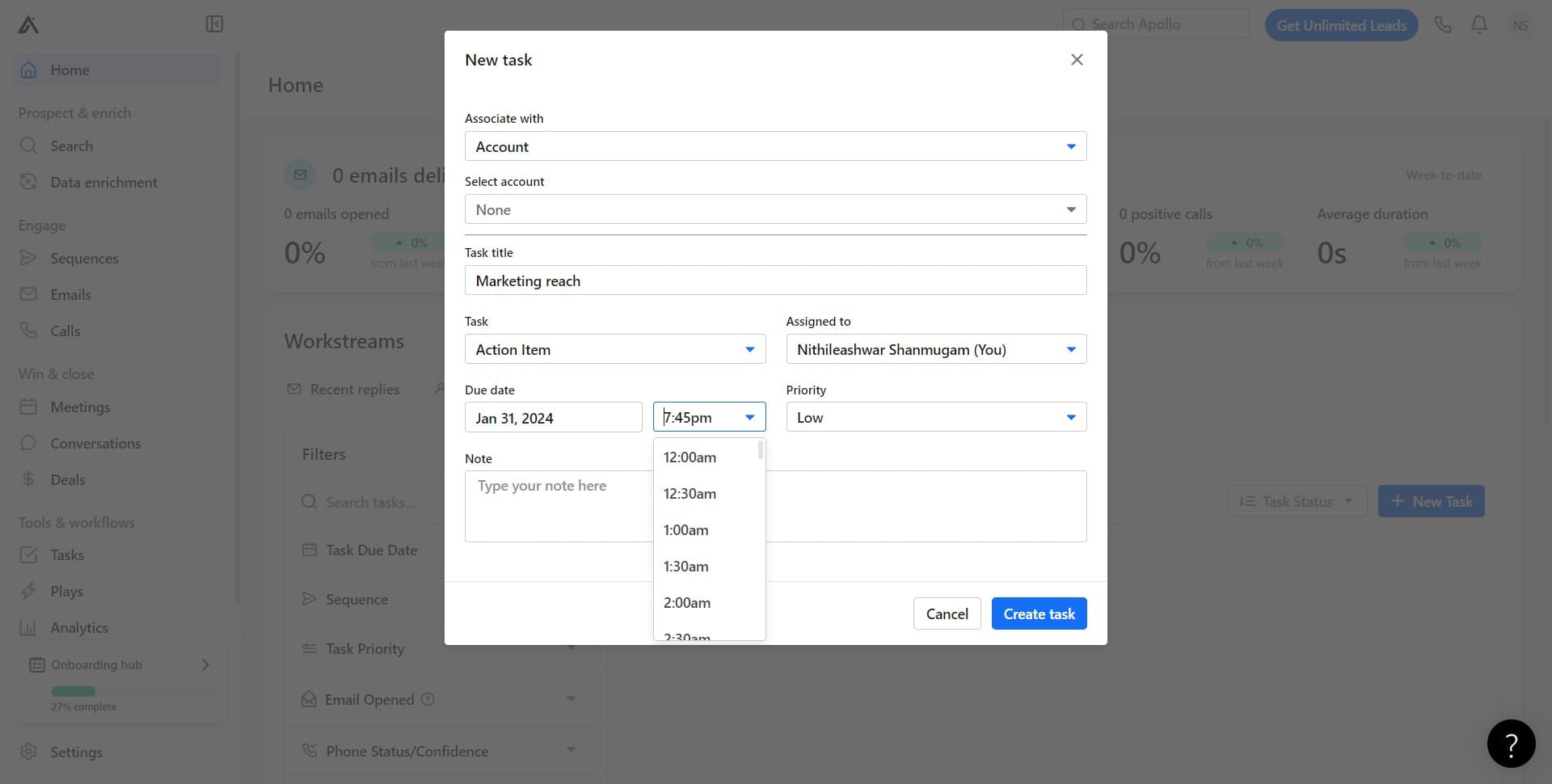
Click on 7:45pm
Set the task time to 7:45pm. This schedules when you plan to complete the task and ensures it appears in your calendar at the designated time.
- 9
Click on Create task
Finally, click the Create task button to save your new task. Your task is now active and will appear in your task list with all the details you configured.
Frequently asked questions
Common questions about how to create a task in apollo.ai.
Yes, you can edit task details after creation by opening the task and modifying the time or other settings. Apollo.ai allows you to update any task parameter to match your changing schedule or priorities.
Apollo.ai typically offers multiple communication types such as Call, Email, LinkedIn message, and other contact methods. The specific options available depend on your Apollo.ai plan and the contact's available communication channels.
Yes, Apollo.ai allows you to create tasks for contacts from various sources and integrations. You can select different contact sources beyond Google depending on what's integrated with your account.
Apollo.ai typically sends notifications or reminders for tasks at their scheduled time. Check your notification settings to ensure you're receiving alerts for upcoming tasks.
This depends on your Apollo.ai account setup and team collaboration features. If your plan includes team management capabilities, you should be able to assign tasks to colleagues through the task creation form or by editing an existing task.