How to create an email template in Apollo.io

Email templates in Apollo.io allow you to standardize your outreach and save time on repetitive messaging. This guide walks you through creating a professional email template that you can reuse across your campaigns.
Quick summary
In this tutorial, you'll learn how to navigate to Apollo's template builder, create a new email template, preview it with a test contact, and save it for future use. By the end, you'll have a ready-to-use template that maintains consistent messaging across your outreach efforts.
Why this matters
Creating email templates streamlines your sales process by eliminating the need to write similar emails repeatedly. Well-crafted templates ensure consistent branding and messaging, while allowing quick customization for individual prospects. This efficiency directly improves your team's productivity and response rates.
Step-by-step guide
- 1
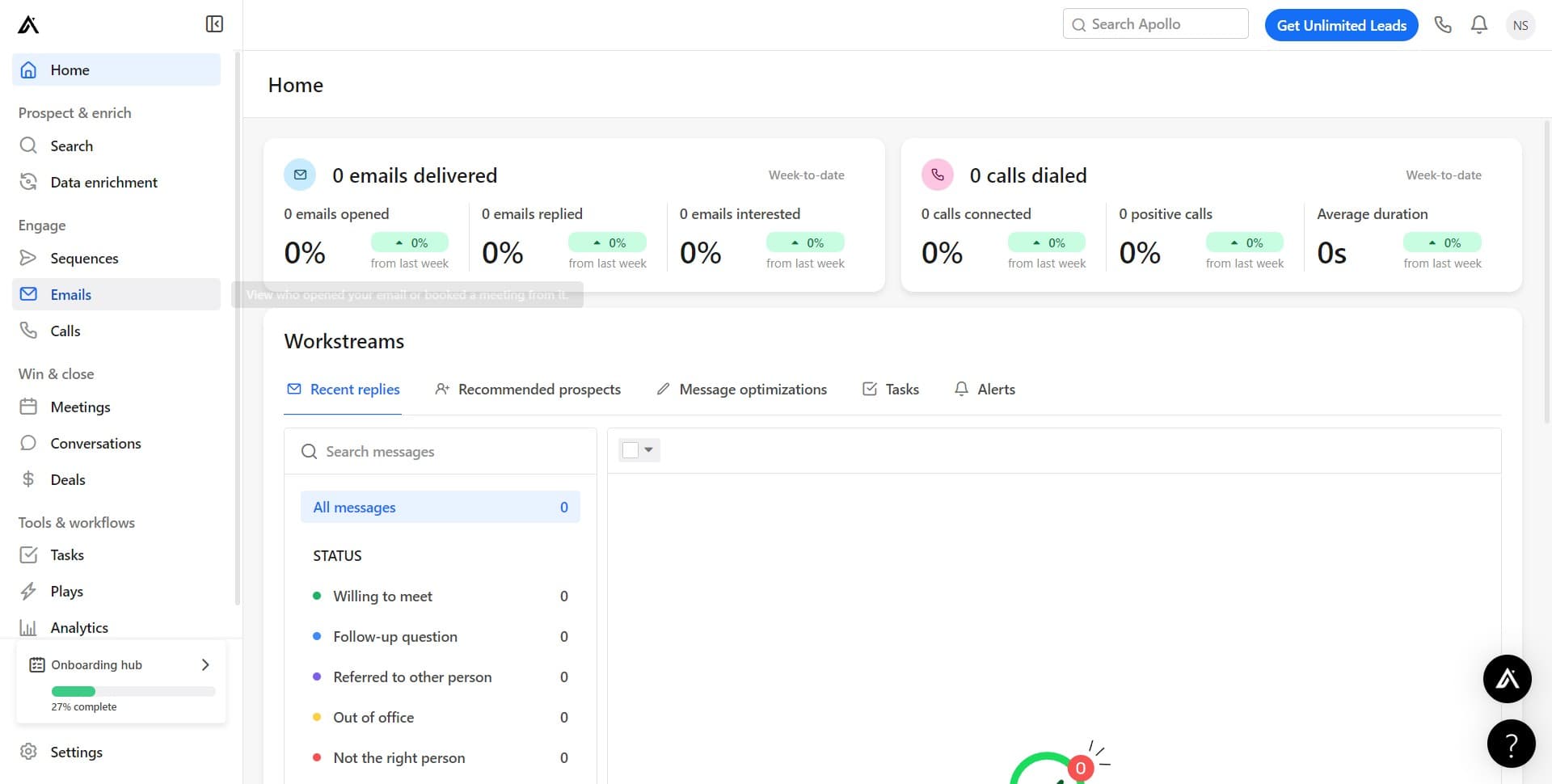
Open the Emails section
Click on the 'Emails' menu item in Apollo's main navigation. This takes you to the email management hub where you can access all email-related features.
- 2
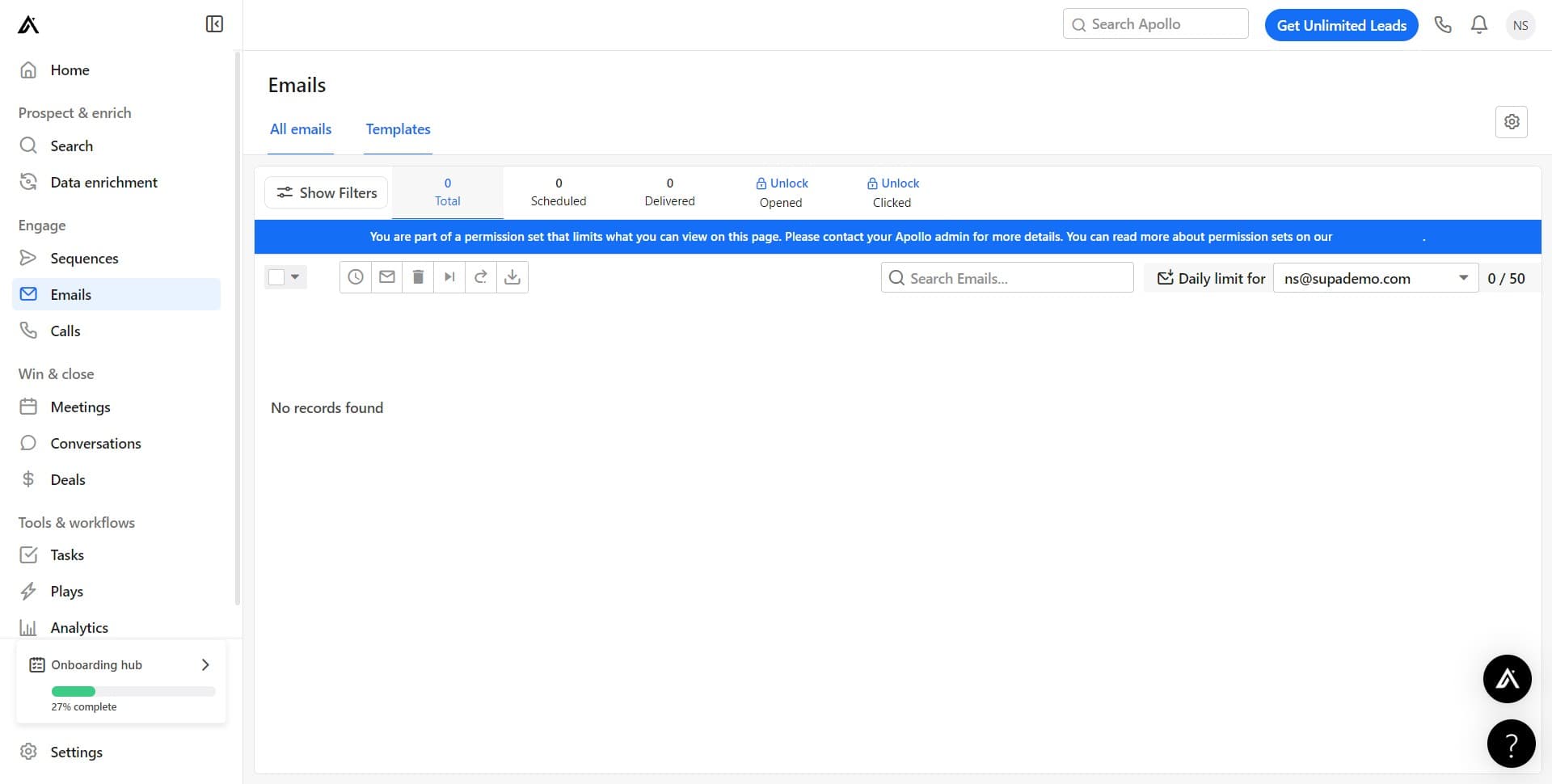
Navigate to Templates
Click on the 'Templates' tab to view your existing templates and access template management tools. This is where all your saved email templates are stored.
- 3
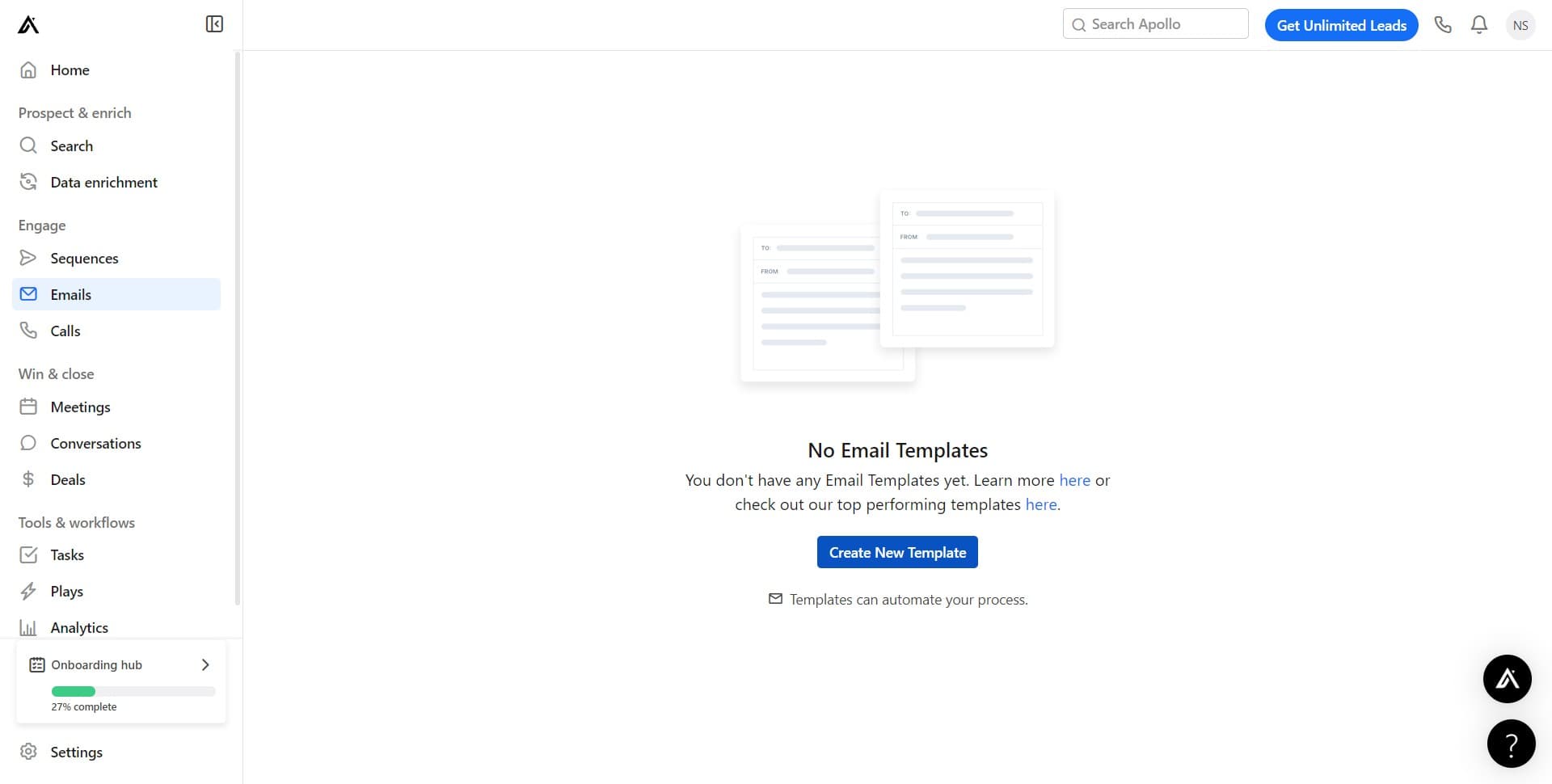
Start a new template
Click on 'Create New Template' to begin building your email template. Apollo will open the template editor where you can write and format your email content.
- 4
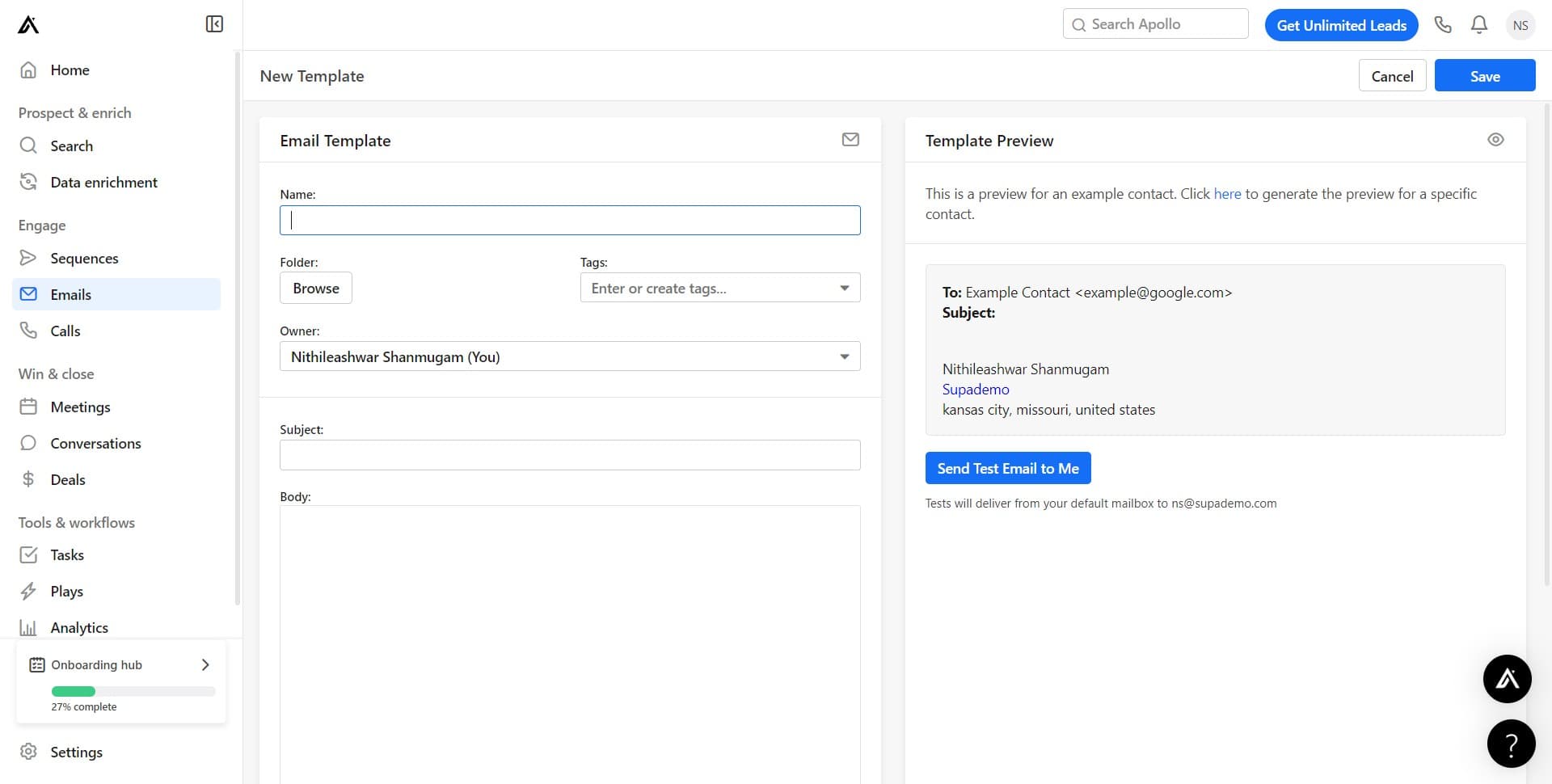
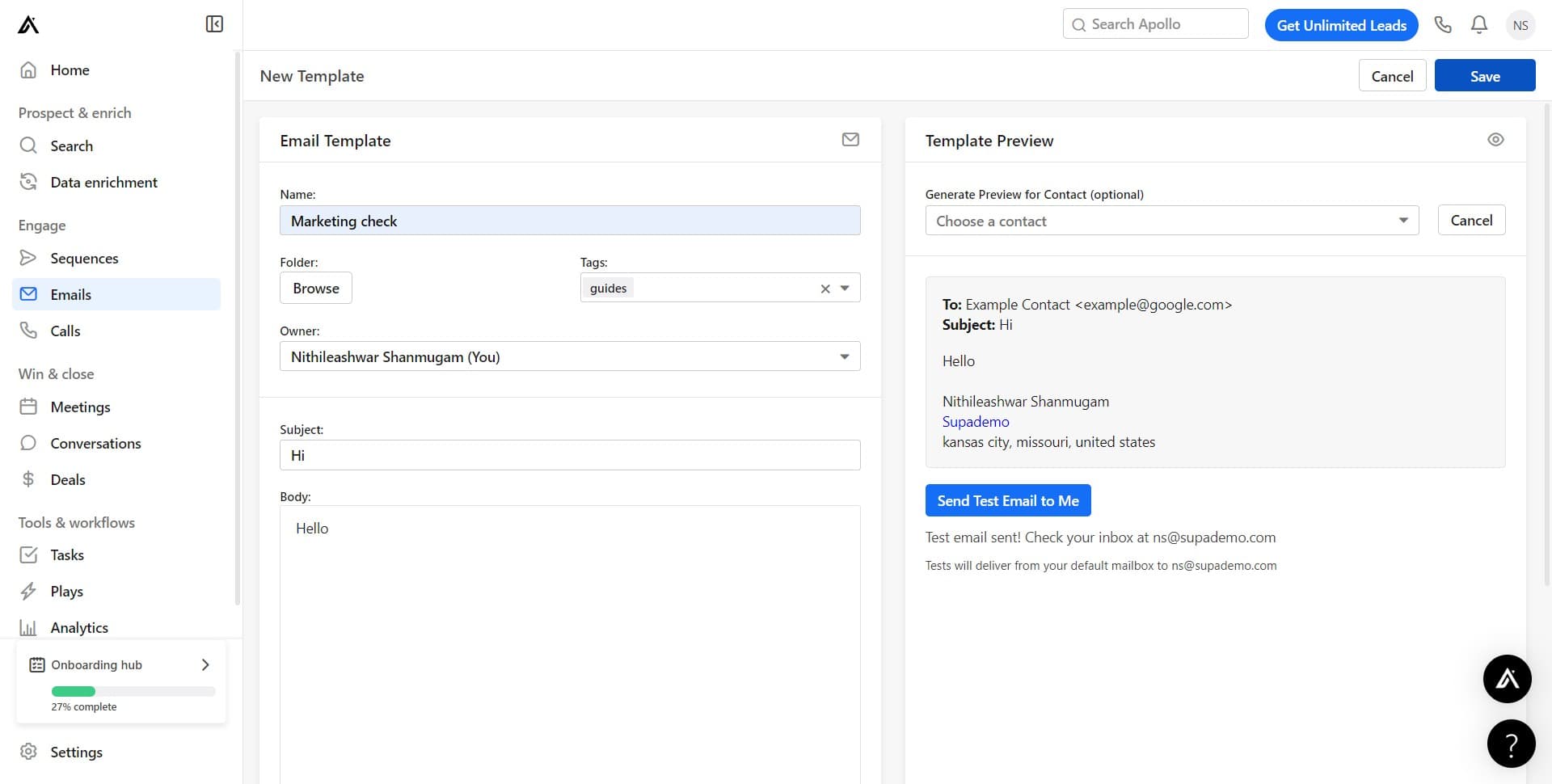
Configure template settings
Click on the indicated field to set up your template's basic configuration. This step prepares the template for content input and customization.
- 5
Add template content
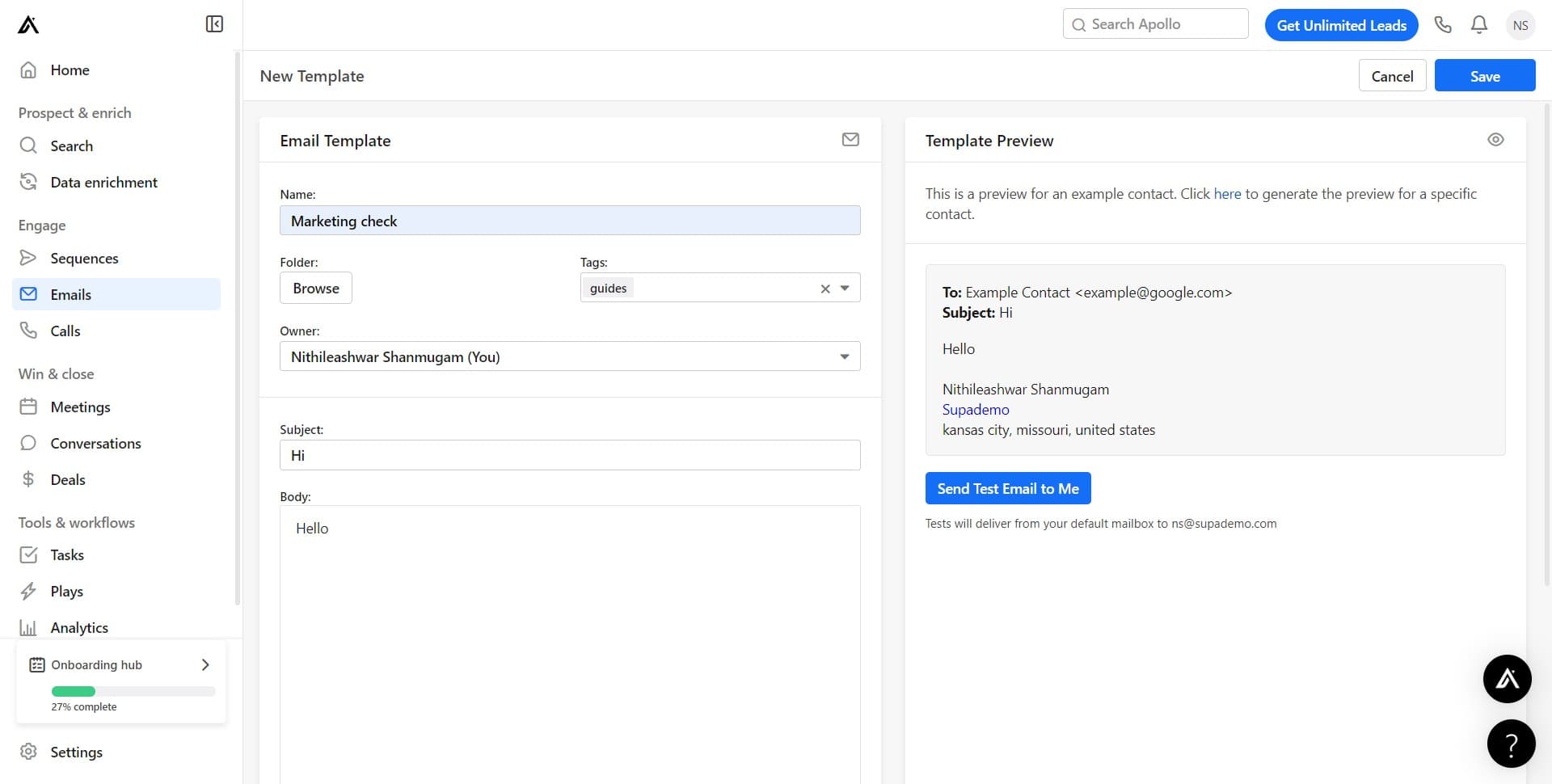
Click on the specified area to begin adding your email subject line and body text. Enter the content you want to use as your reusable template.
- 6
Generate a preview
Click on 'Generate Previe...' to see how your email template will appear to recipients. This allows you to review formatting and content before testing.
- 7
Select a test contact
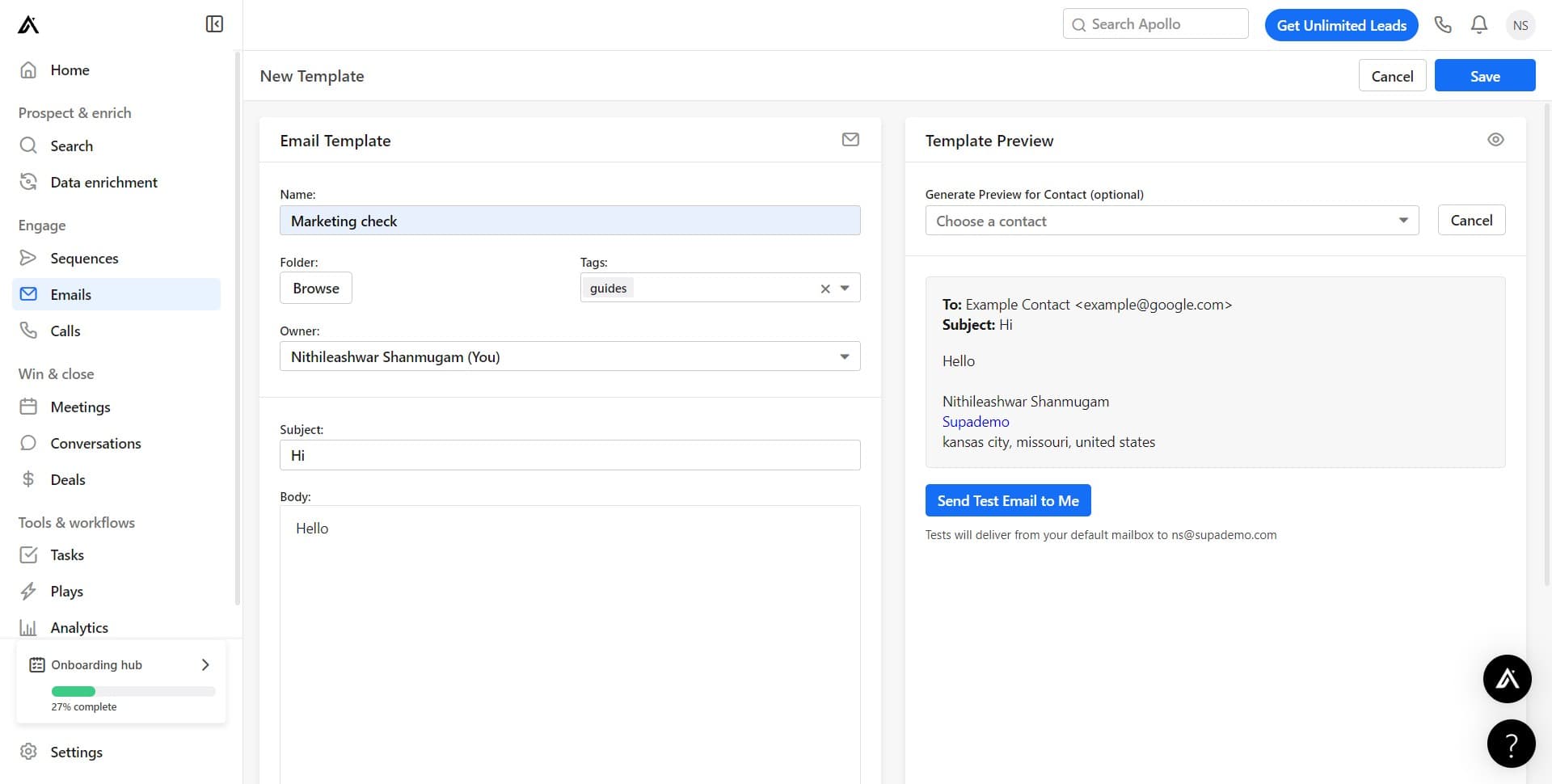
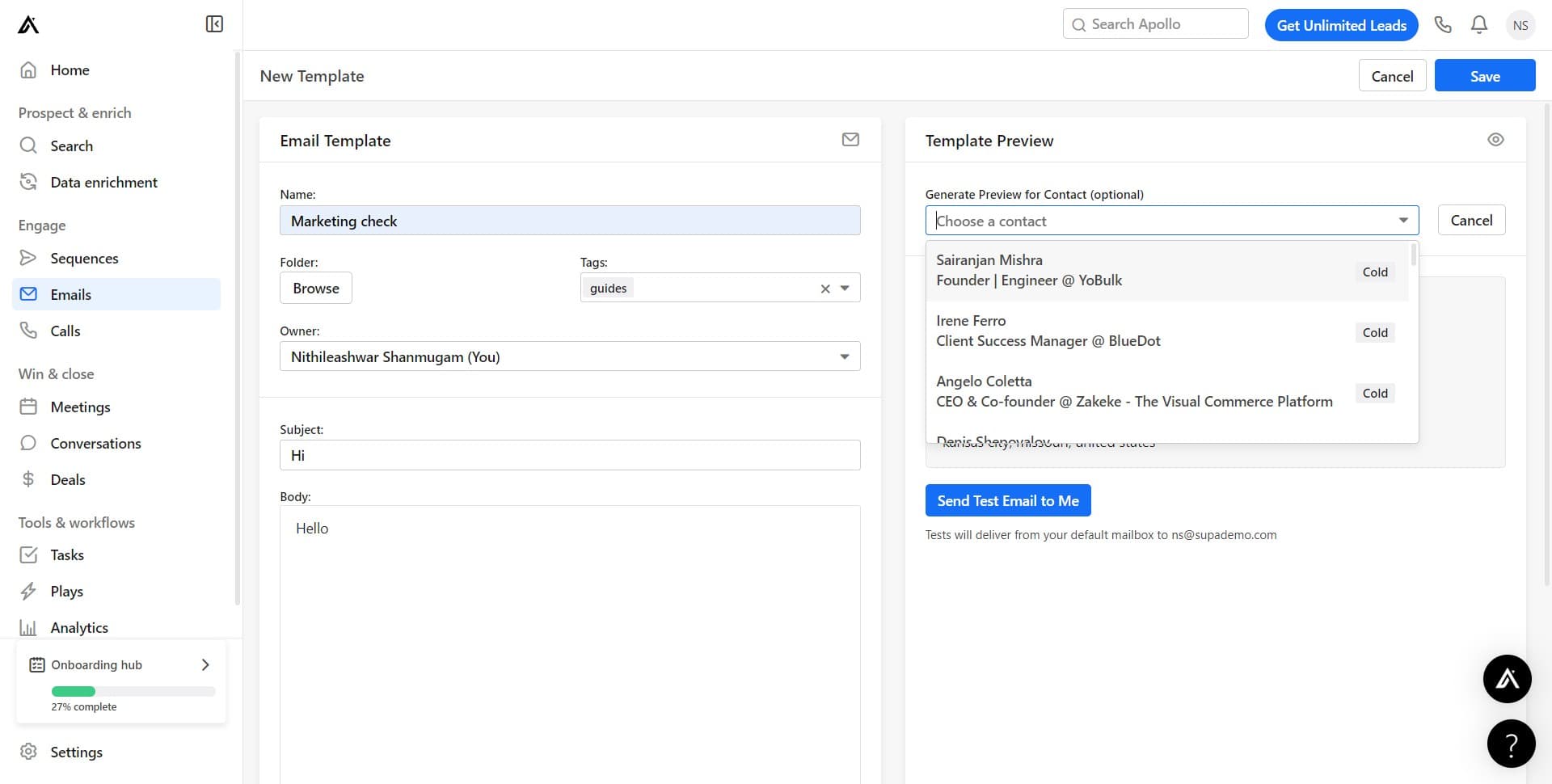
Click on 'Choose a contact' to pick a prospect for testing your template. Apollo will use this contact's information to populate any dynamic fields in your preview.
- 8
Send a test email
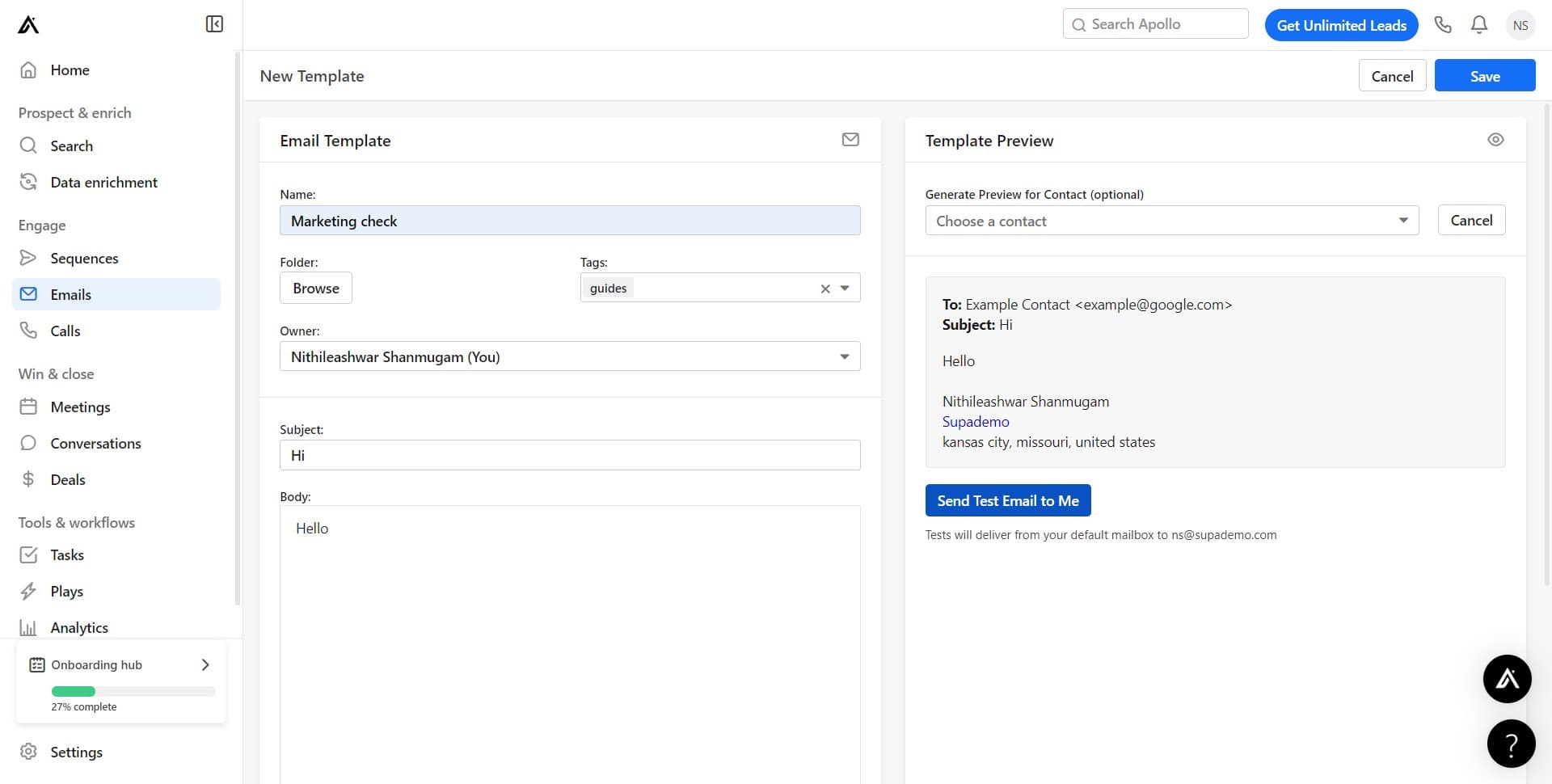
Click on 'Send Test Email to Me' to receive a sample of your template in your own inbox. This lets you review the email exactly as it will appear to your contacts.
- 9
Save your template
Click on 'Save' to store your email template in Apollo. Once saved, your template is ready to use in campaigns and can be accessed anytime from the Templates section.
Frequently asked questions
Common questions about how to create an email template in apollo.io.
Yes, Apollo supports dynamic variables like {firstName}, {companyName}, and other contact fields that automatically populate when you use the template. These variables help personalize each email while maintaining a consistent template structure.
Go to the Templates section and click on the template you want to modify. Make your changes in the editor and click Save to update the template. Any future emails using this template will include your updates.
Apollo's template editor supports standard formatting options like bold, italics, links, and lists. For advanced customization, check if Apollo allows direct HTML editing or consider using their visual formatting tools to achieve your desired layout.
Use the preview and test email features to review your template thoroughly. Send a test email to yourself to see how it renders in your email client, and verify that all dynamic variables populate correctly with real contact data.
Apollo typically allows you to create multiple templates without a strict limit, so you can build a comprehensive library of templates for different use cases and sales scenarios. Check your account plan to confirm any limitations specific to your subscription level.