How to do a sanity check for your sequence in Apollo.ai

Running diagnostics on your Apollo.ai sequences ensures your outreach campaigns are properly configured and ready to deliver results. This sanity check verifies critical integrations, email deliverability settings, and contact verification status before you launch at scale.
Quick summary
In this tutorial, you'll learn how to access Apollo's diagnostic tools, validate your email service provider connection, verify your tracking domain setup, and identify any unverified contacts that could impact campaign performance. By the end, you'll have confirmed all essential components of your sequence are functioning correctly.
Why this matters
A misconfigured sequence can lead to poor deliverability, failed tracking, and wasted outreach efforts. Running diagnostics before launching prevents costly mistakes and ensures your team's time and resources are invested in sequences that actually work. Catching integration issues early saves you from troubleshooting problems after your campaign is live.
Step-by-step guide
- 1
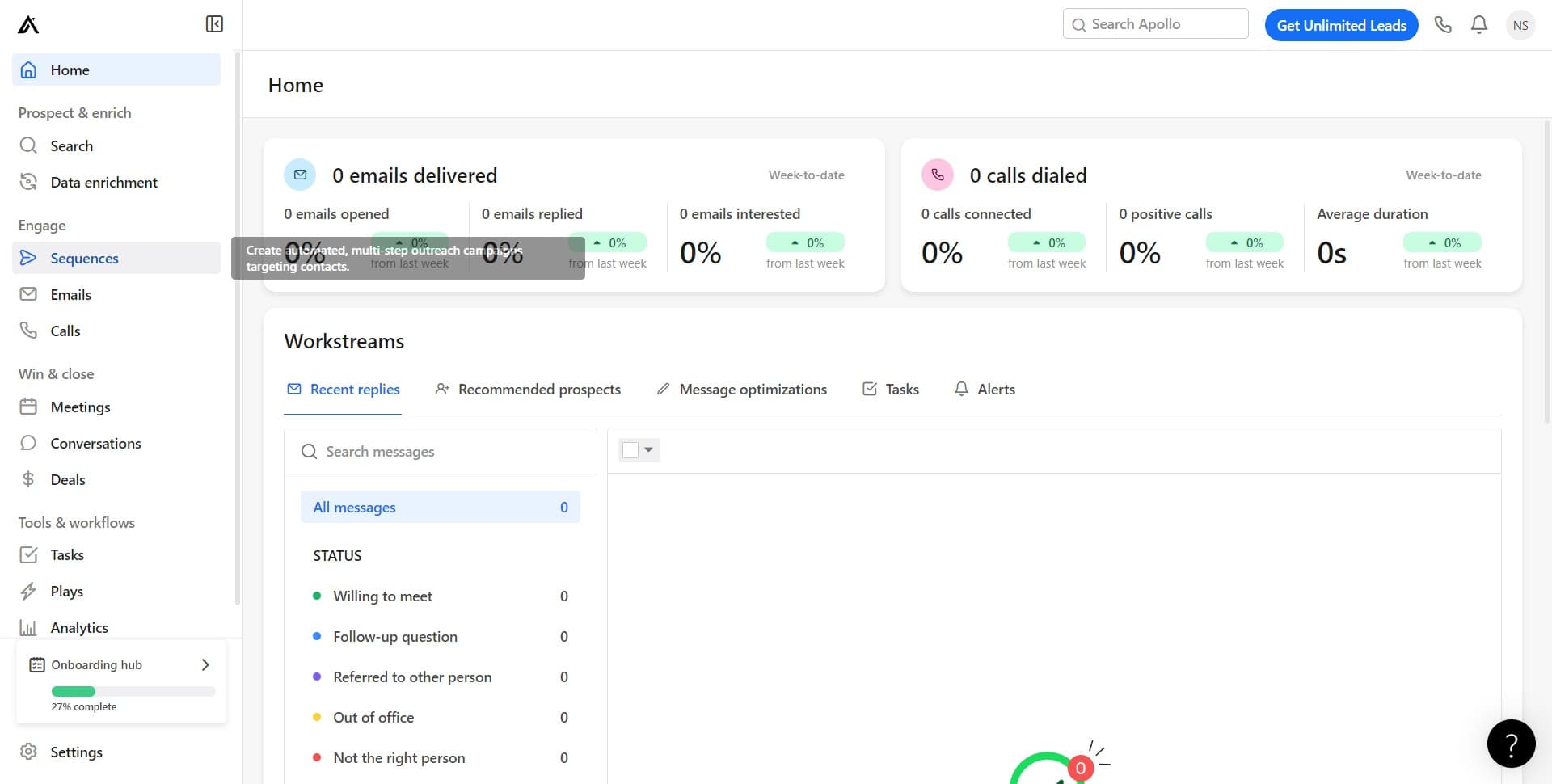
Navigate to Sequences
From your Apollo dashboard, click on the Sequences menu to access all your active and draft sequences. This is your starting point for managing and monitoring outreach campaigns.
- 2
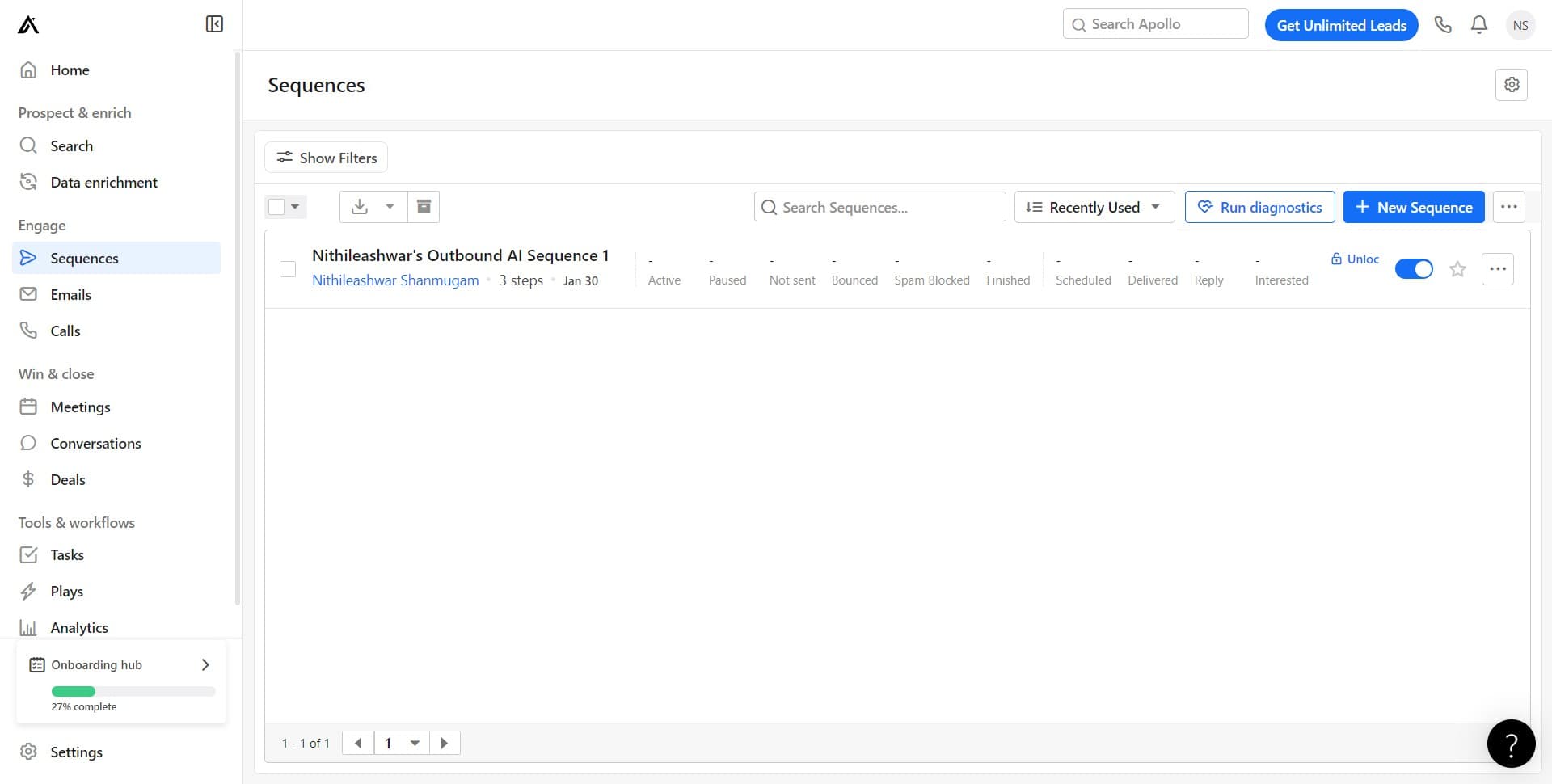
Click Run Diagnostics
Select the Run Diagnostics option to initiate Apollo's built-in health check. This tool will systematically verify all critical components of your sequence configuration.
- 3
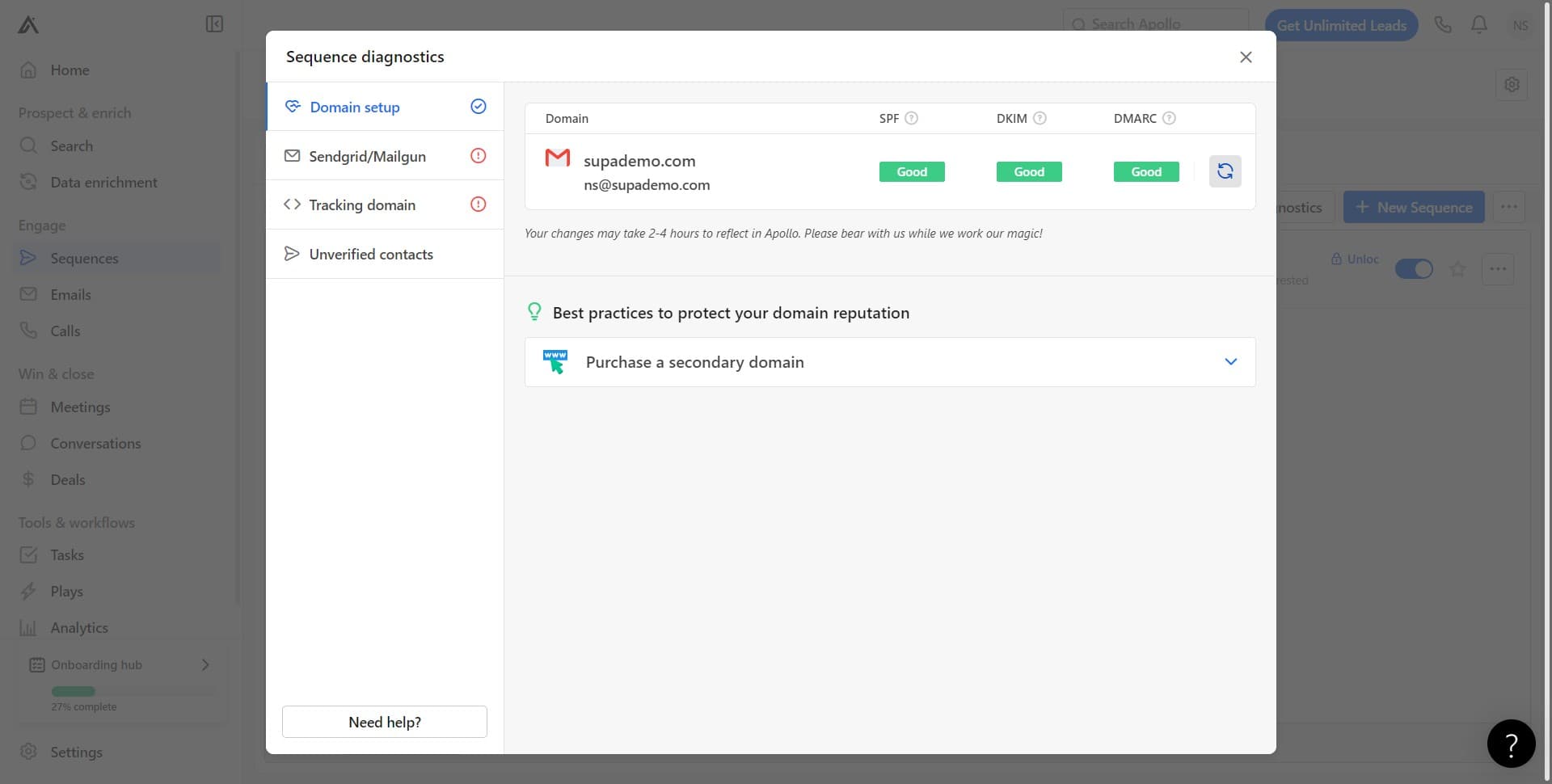
Review Diagnostics Results
Apollo will display a comprehensive report of your sequence setup. Take note of any warnings or errors flagged during this initial scan.
- 4
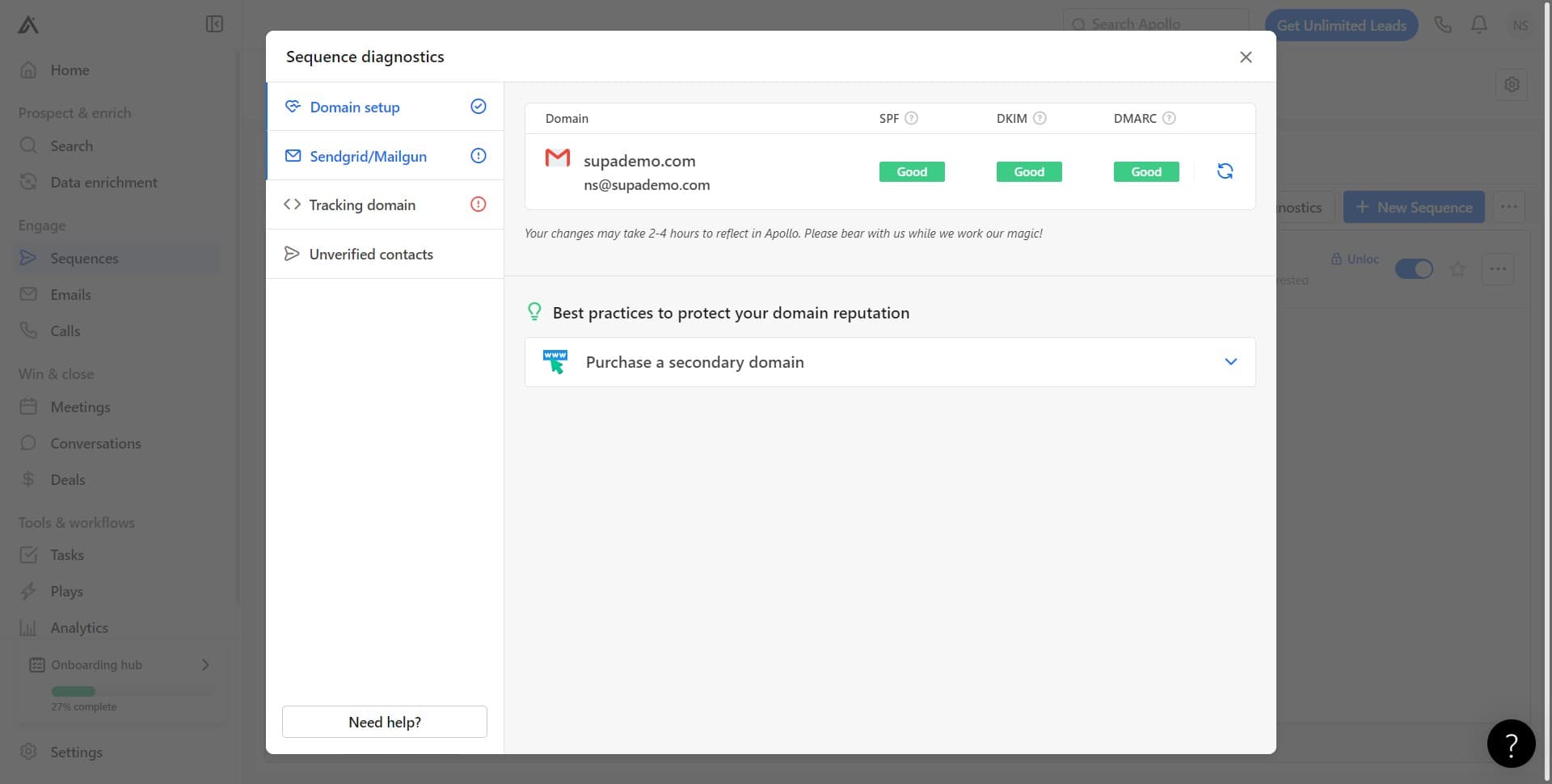
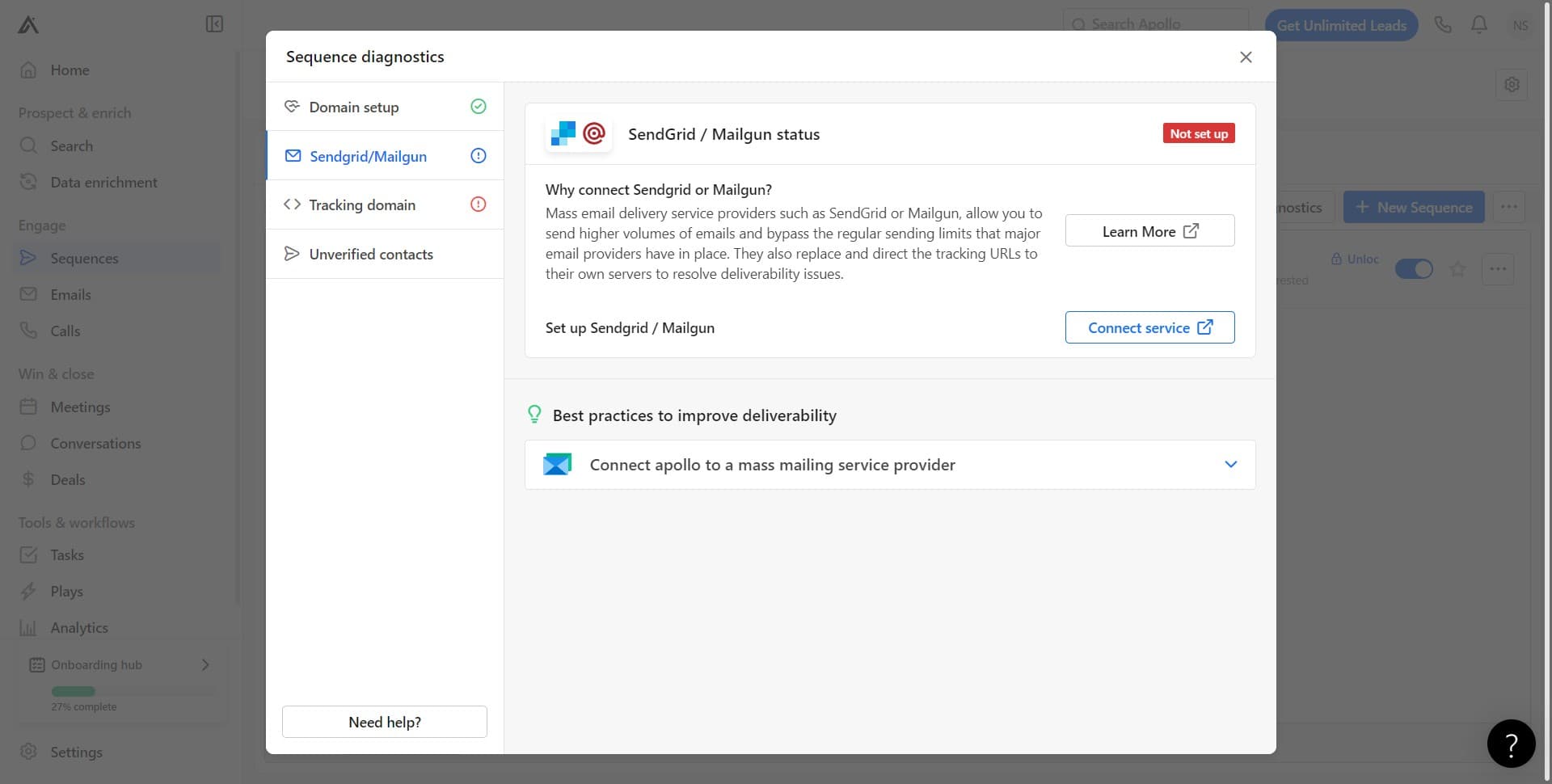
Verify Email Service Provider
Click on Sendgrid/Mailgun to check your email service provider connection. Confirm that your preferred ESP is properly authenticated and ready to send on behalf of your sequence.
- 5
Connect Email Service
Click Connect Service to establish or re-authenticate your connection to your email provider. A successful connection is essential for reliable email delivery.
- 6
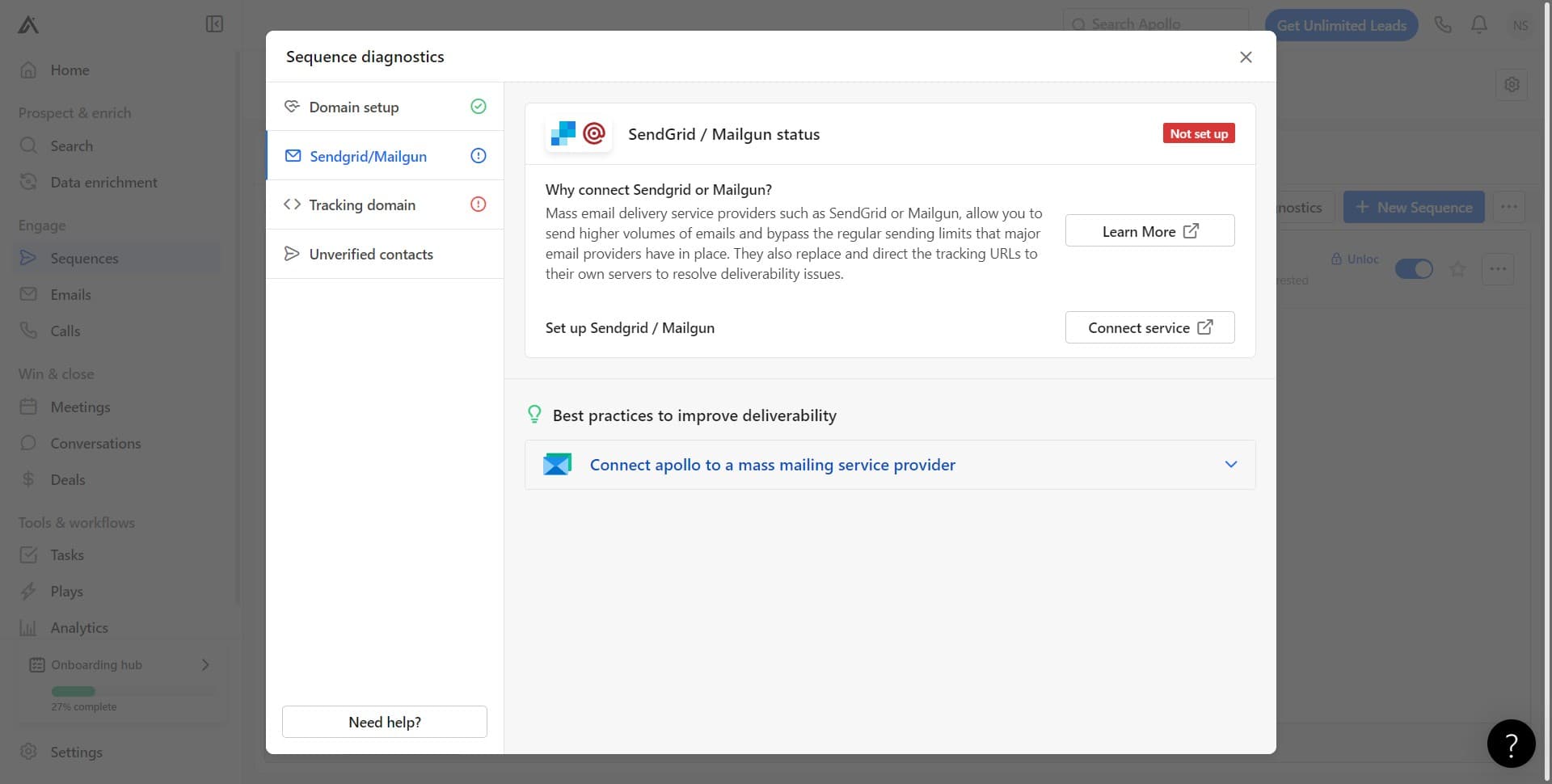
Authorize Apollo Integration
Click Connect Apollo to grant the necessary permissions between Apollo and your email service provider. This step ensures Apollo can send emails and track opens/clicks through your ESP.
- 7
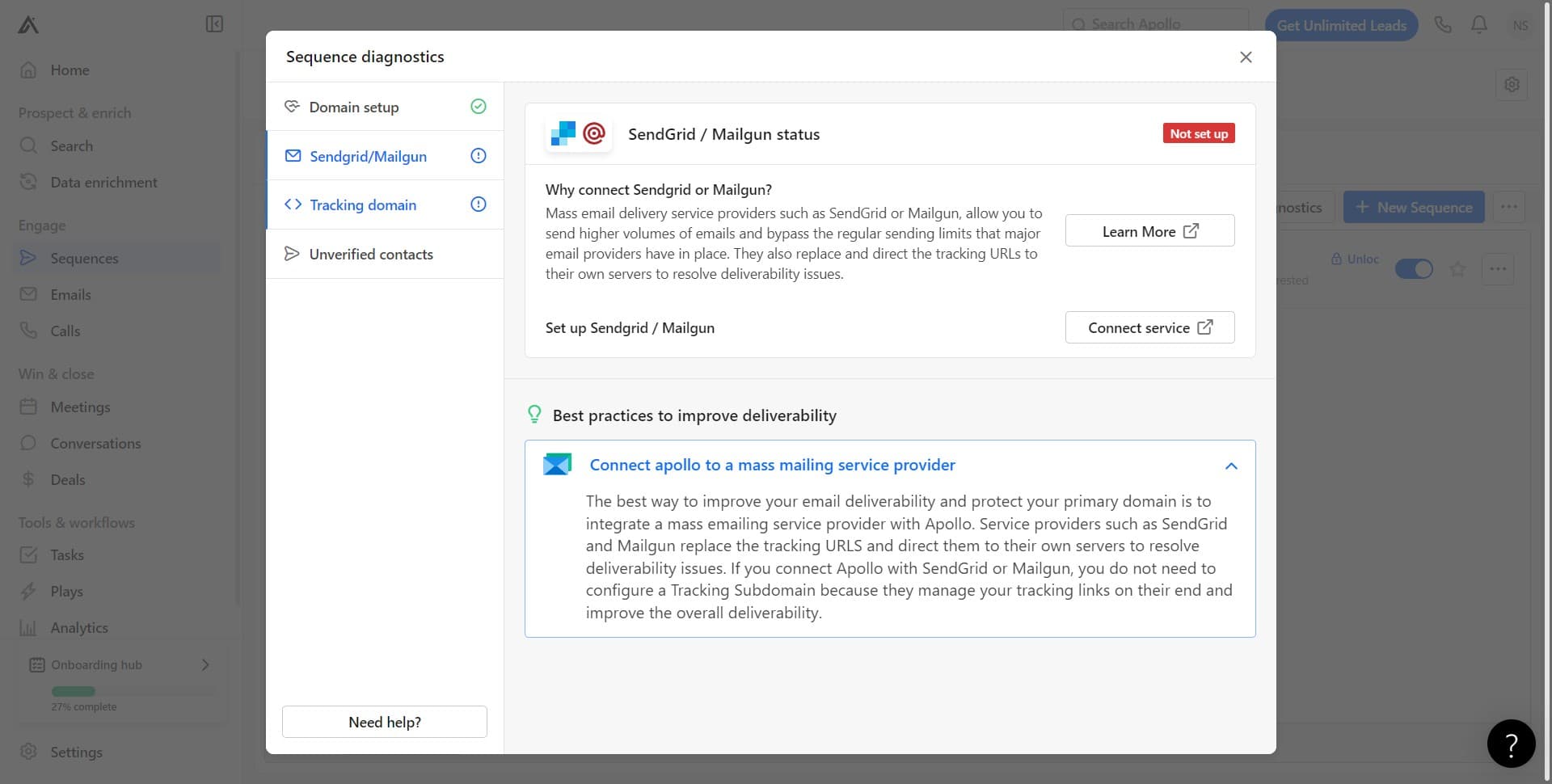
Validate Tracking Domain
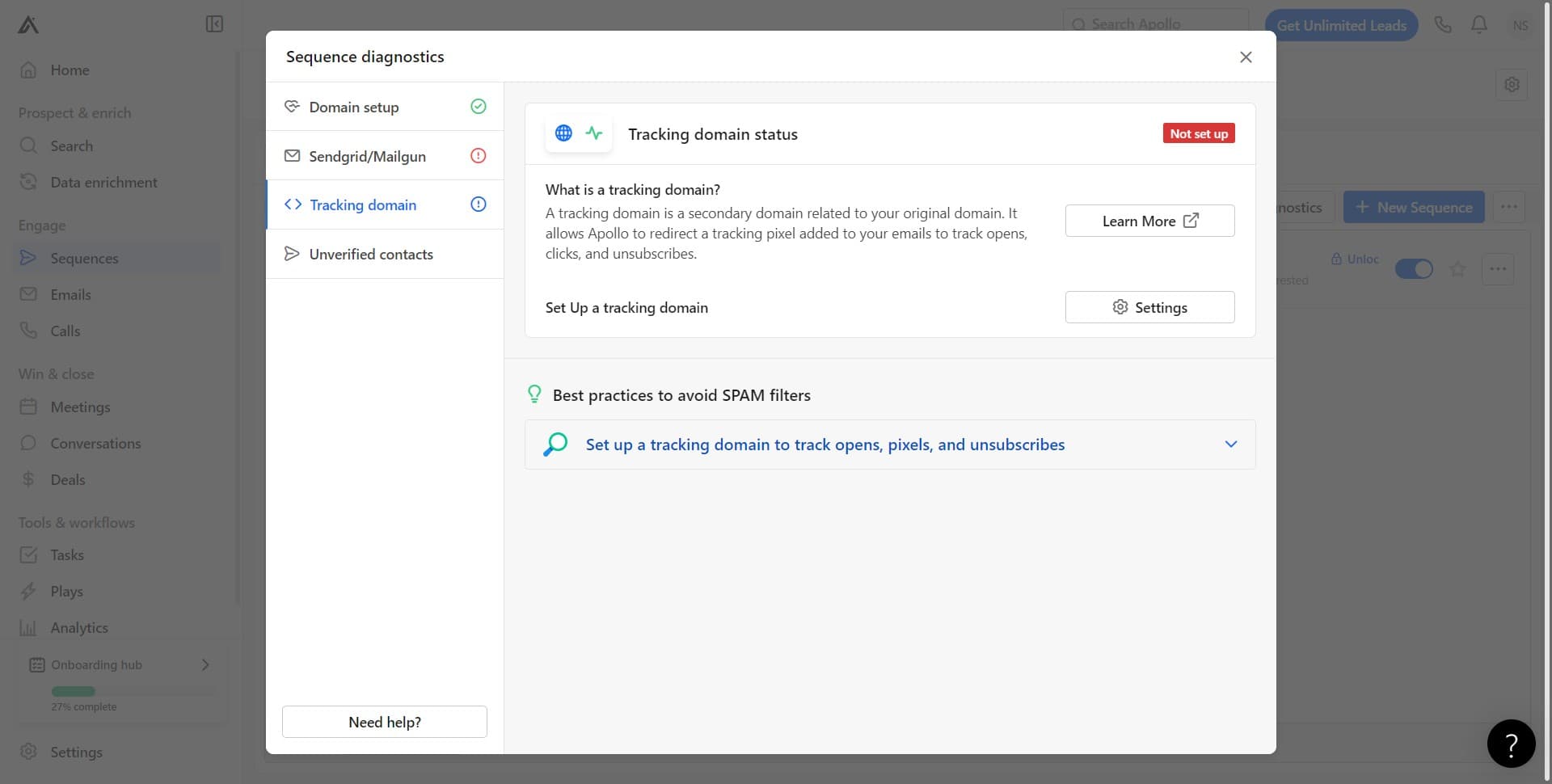
Click on Tracking Domain to review the domain used for email tracking and link clicks. A properly configured tracking domain is critical for accurate campaign analytics.
- 8
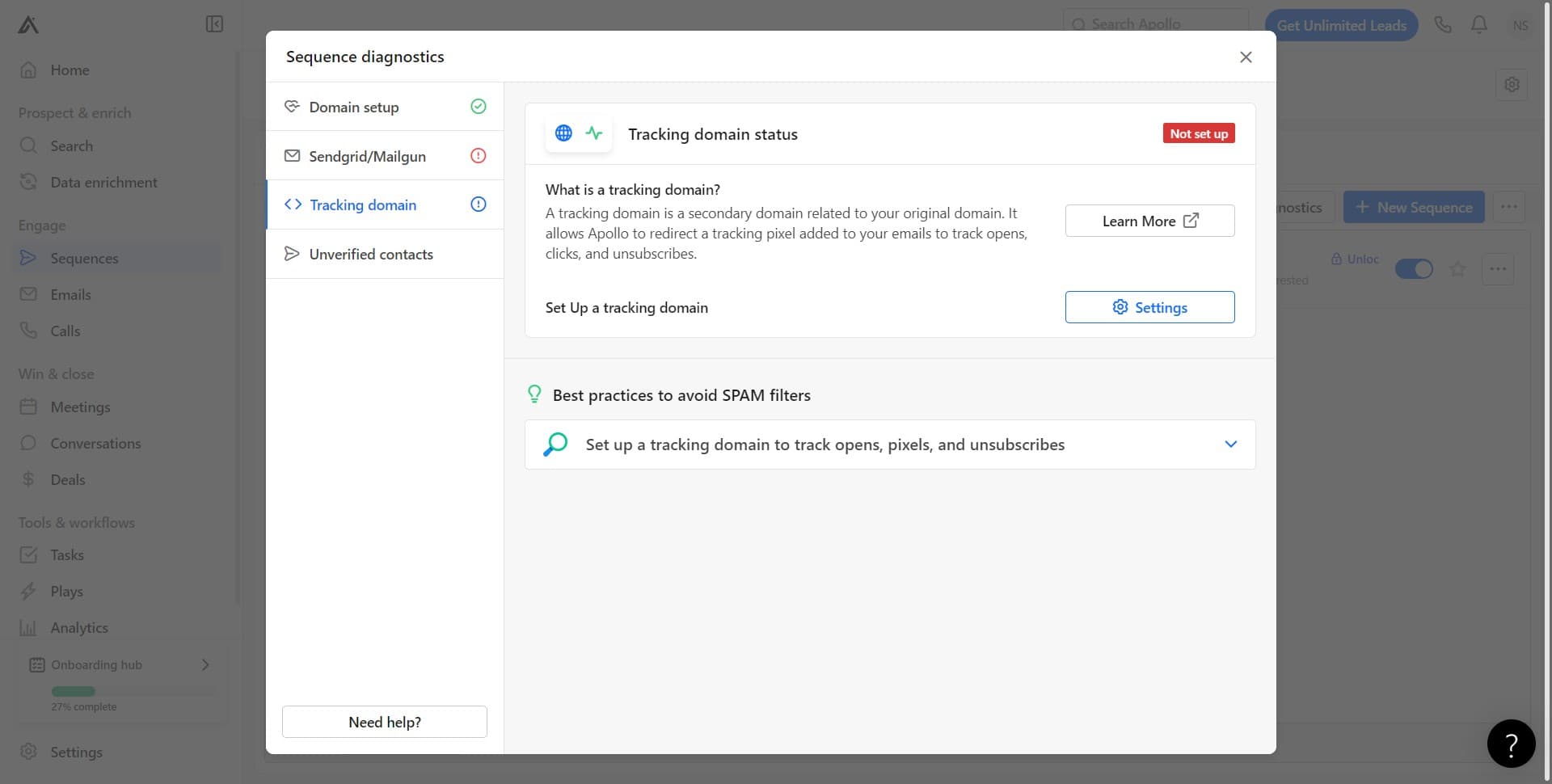
Review Domain Settings
Examine the current tracking domain configuration. Verify that the domain is correctly set up to capture engagement data from your recipients.
- 9
Set Up Tracking Domain
Click Set Up Tracking to configure or update your tracking domain if needed. Follow Apollo's prompts to complete the DNS setup required for email tracking.
- 10
Check Unverified Contacts
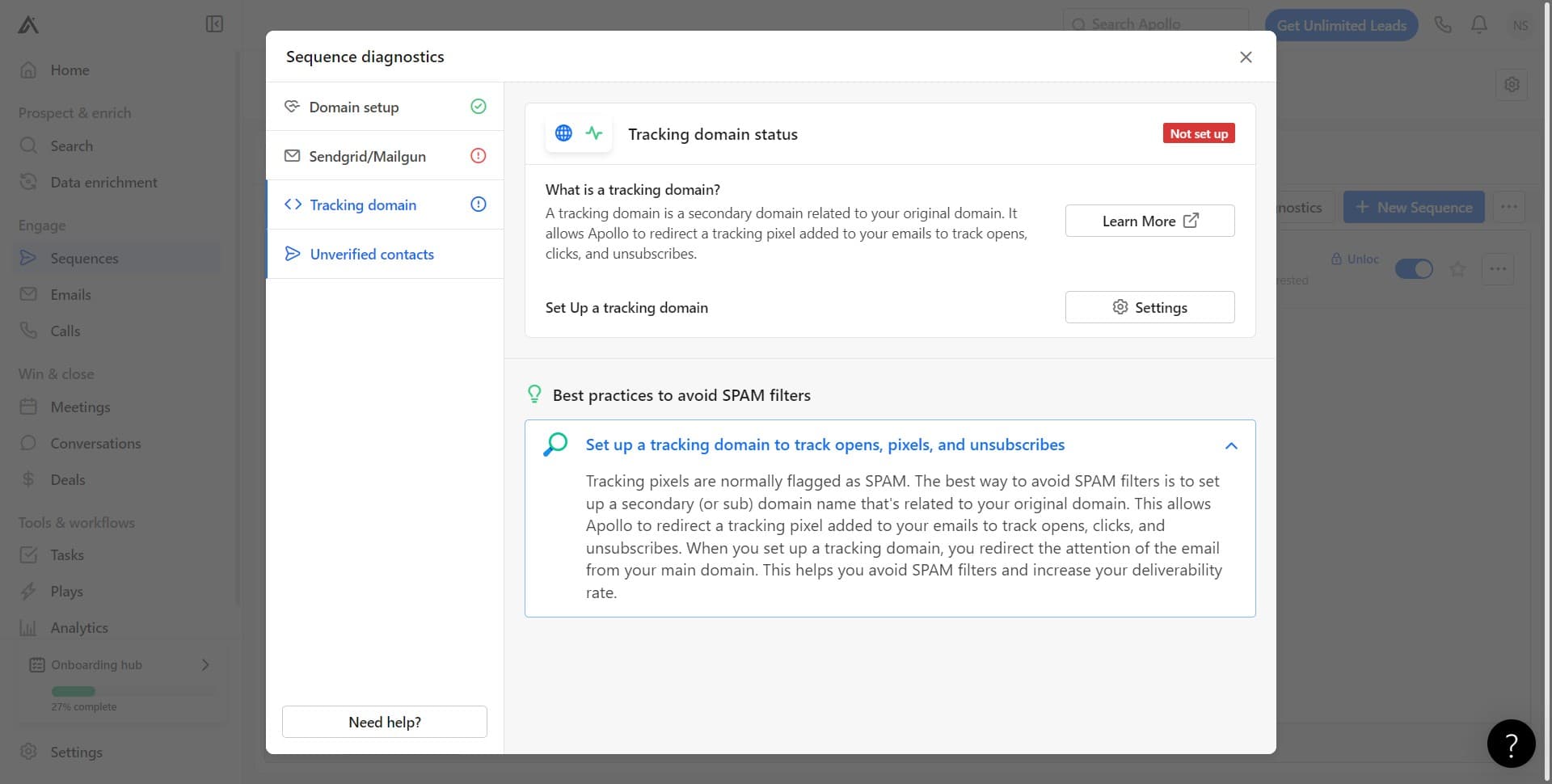
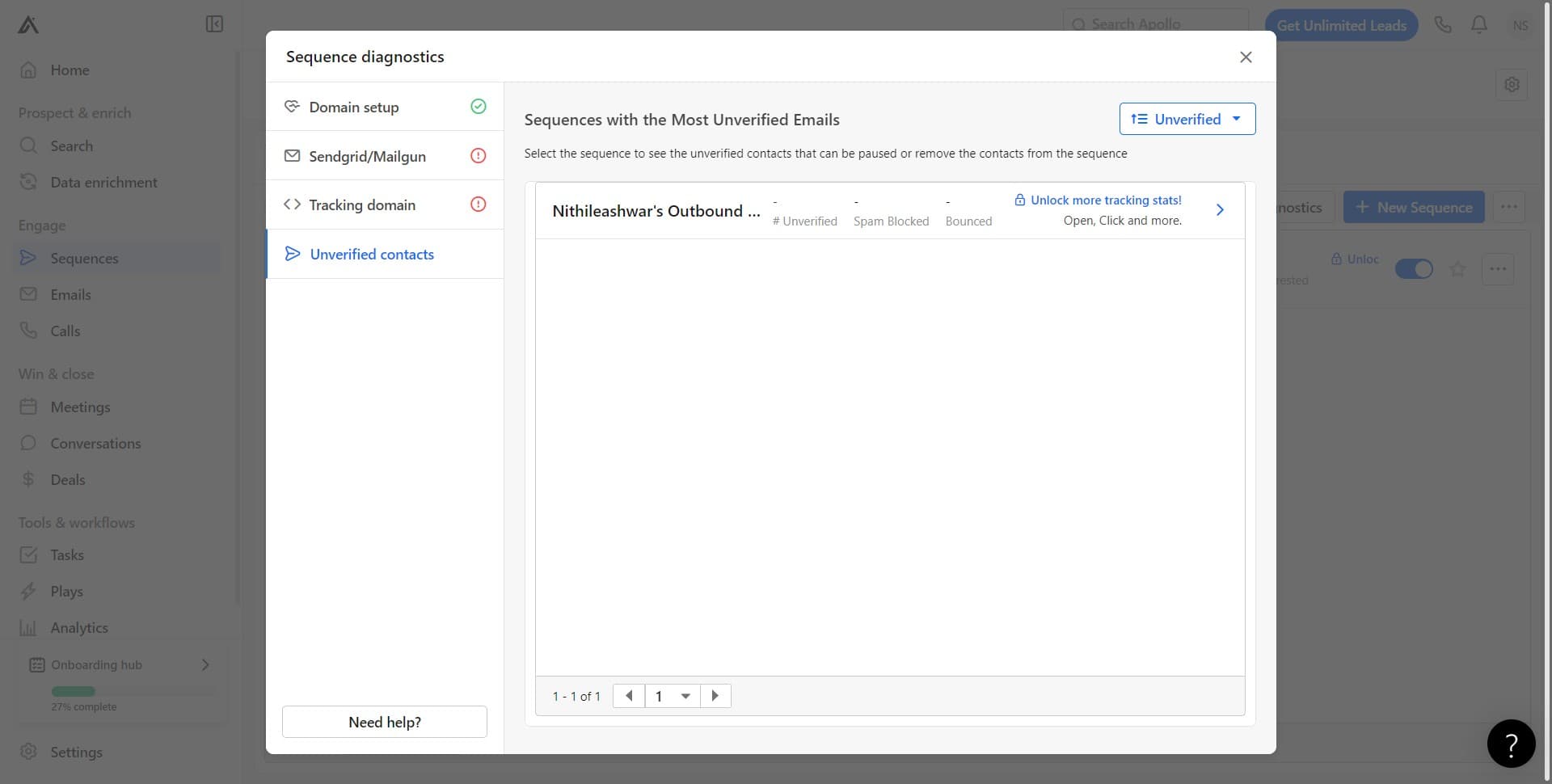
Click on Unverified Contacts to see how many contacts in your sequence lack verified email addresses. Unverified contacts may have lower deliverability rates.
- 11
Review Unverified Status
Click Unverified to filter and view the specific contacts that haven't been verified. Consider removing or re-verifying these contacts before launching your sequence at scale.
Frequently asked questions
Common questions about how to do a sanity check for your sequence in apollo.ai.
First, verify your ESP credentials are correct and that your account is active. Then, re-authenticate the connection through Apollo by clicking Connect Service. If the error persists, check that your ESP account has the necessary permissions and API access enabled, or contact your ESP's support team.
An unverified tracking domain typically means the DNS records haven't been properly configured. Return to the Tracking Domain settings and follow Apollo's setup instructions to add the required DNS entries to your domain provider. DNS changes can take up to 48 hours to propagate.
While there's no strict rule, a high percentage of unverified contacts increases bounce rates and damages sender reputation. Generally, aim to have at least 80-90% of your contacts verified before launching. Remove or re-verify unverified contacts, or consider running a verification campaign first.
Yes, you can run diagnostics on active sequences at any time. This is useful for troubleshooting performance issues or verifying changes you've made. Running diagnostics doesn't affect your currently running campaigns.
While Apollo won't prevent you from launching with incomplete diagnostics, unresolved issues can significantly impact your campaign's success. Incomplete email service provider connections, invalid tracking domains, or high volumes of unverified contacts will likely result in poor deliverability and unreliable tracking data.