How to link an email address to your Apollo.io account

Linking an email address to your Apollo.io account enables you to synchronize your inbox and leverage Apollo's email tracking and engagement features directly from your mailbox. This integration streamlines your workflow by connecting your communication tool with your sales and prospecting platform.
Quick summary
In this tutorial, you'll learn how to connect an email mailbox to Apollo.io by accessing your profile settings, navigating to the mailboxes section, and completing the configuration process. By the end, your email will be fully integrated and ready to use with Apollo's suite of tools.
Why this matters
Linking your email to Apollo.io allows you to track email opens, clicks, and responses in real time, giving you actionable insights into prospect engagement. This integration also enables you to send tracked emails, log activities automatically, and maintain a unified view of your communication history within the platform.
Step-by-step guide
- 1
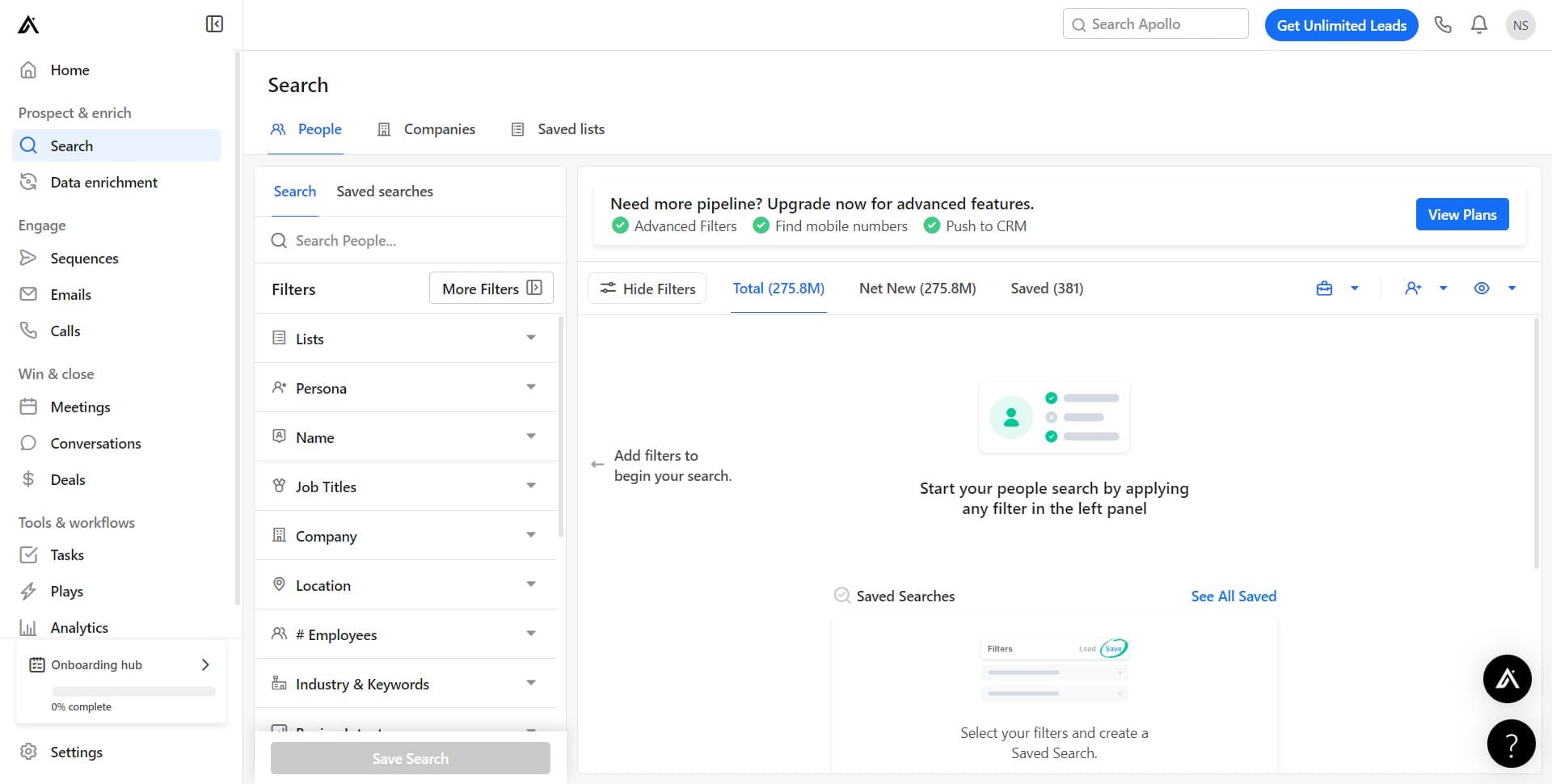
Click on your profile initials
Locate and click the profile icon, typically displayed as your initials (NS in this case) in the upper right corner of the Apollo.io interface. This action opens your account menu.
- 2
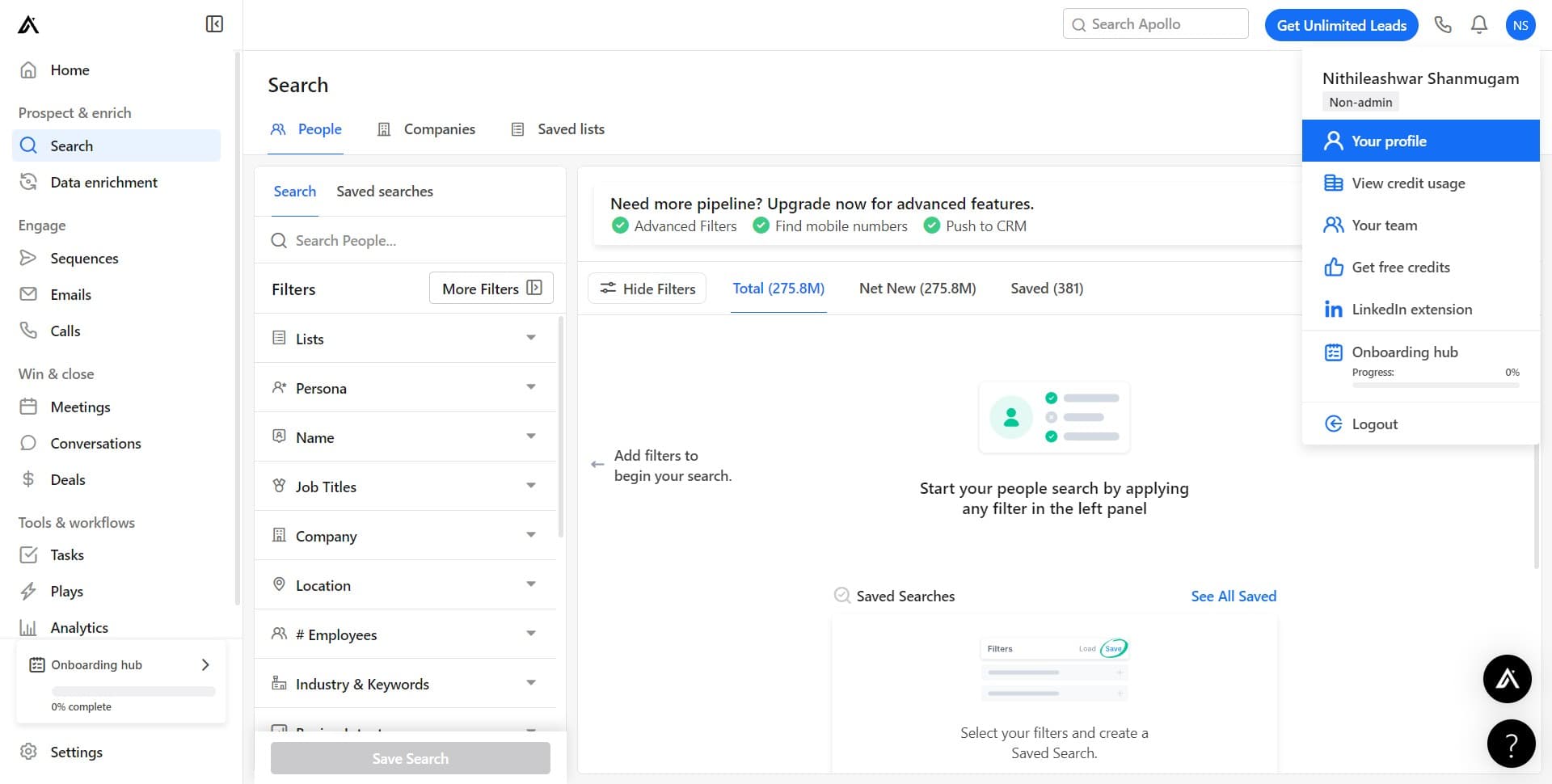
Select Your profile option
From the dropdown menu, click on 'Your profile' to access your account settings and personal configuration options.
- 3
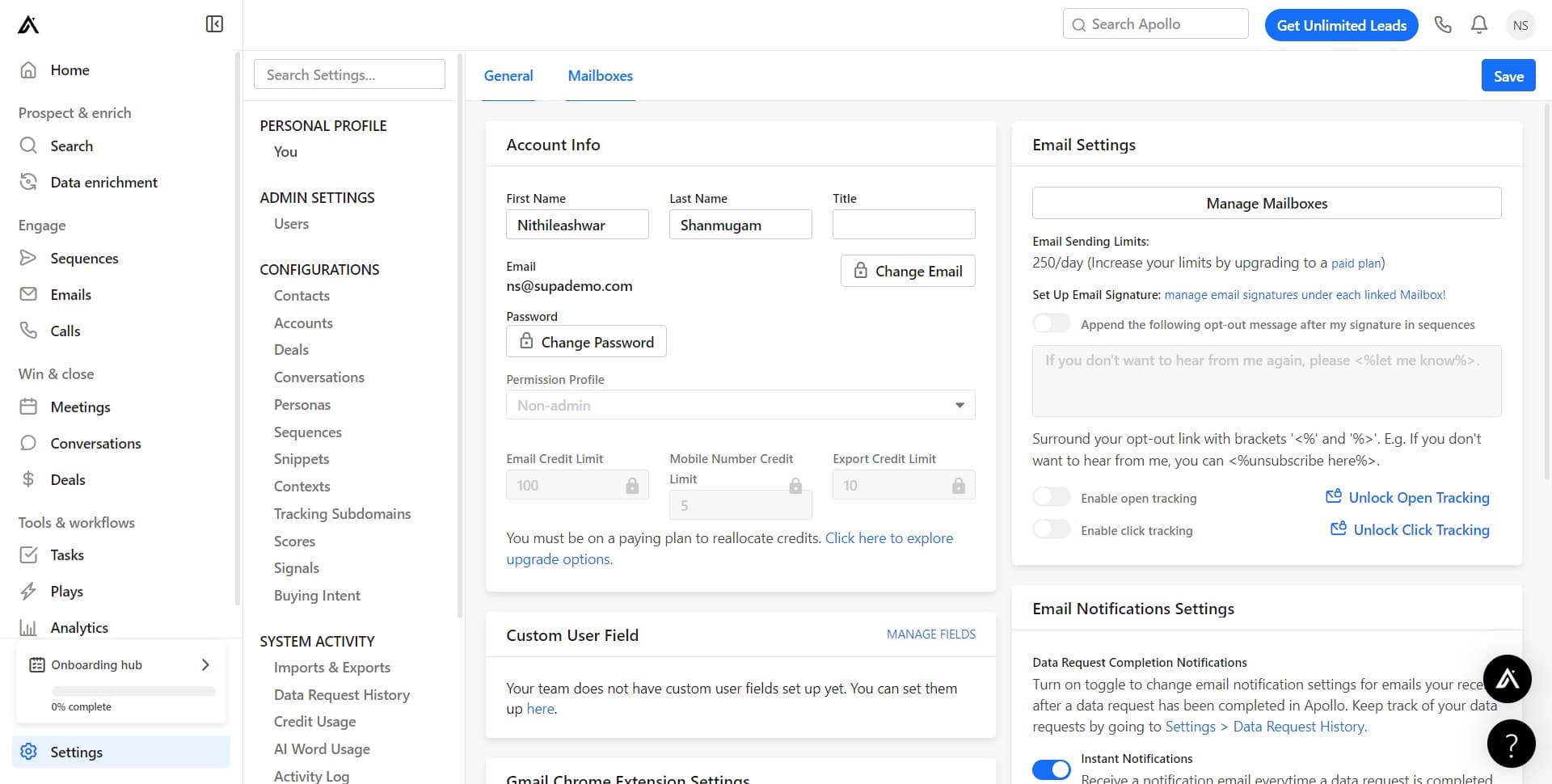
Navigate to Mailboxes section
Within your profile settings, locate and click on the 'Mailboxes' option to view your connected email accounts and mailbox management tools.
- 4
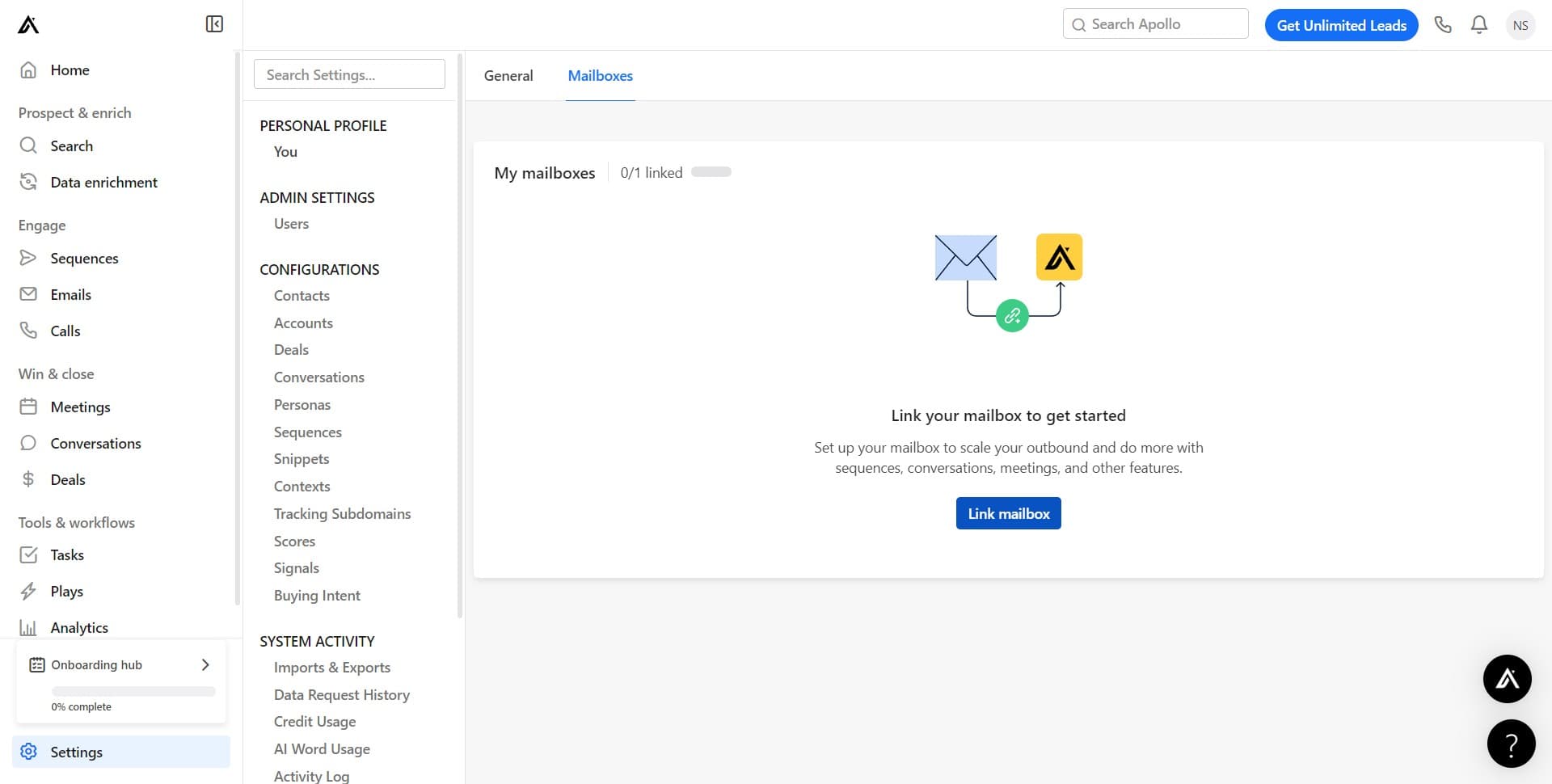
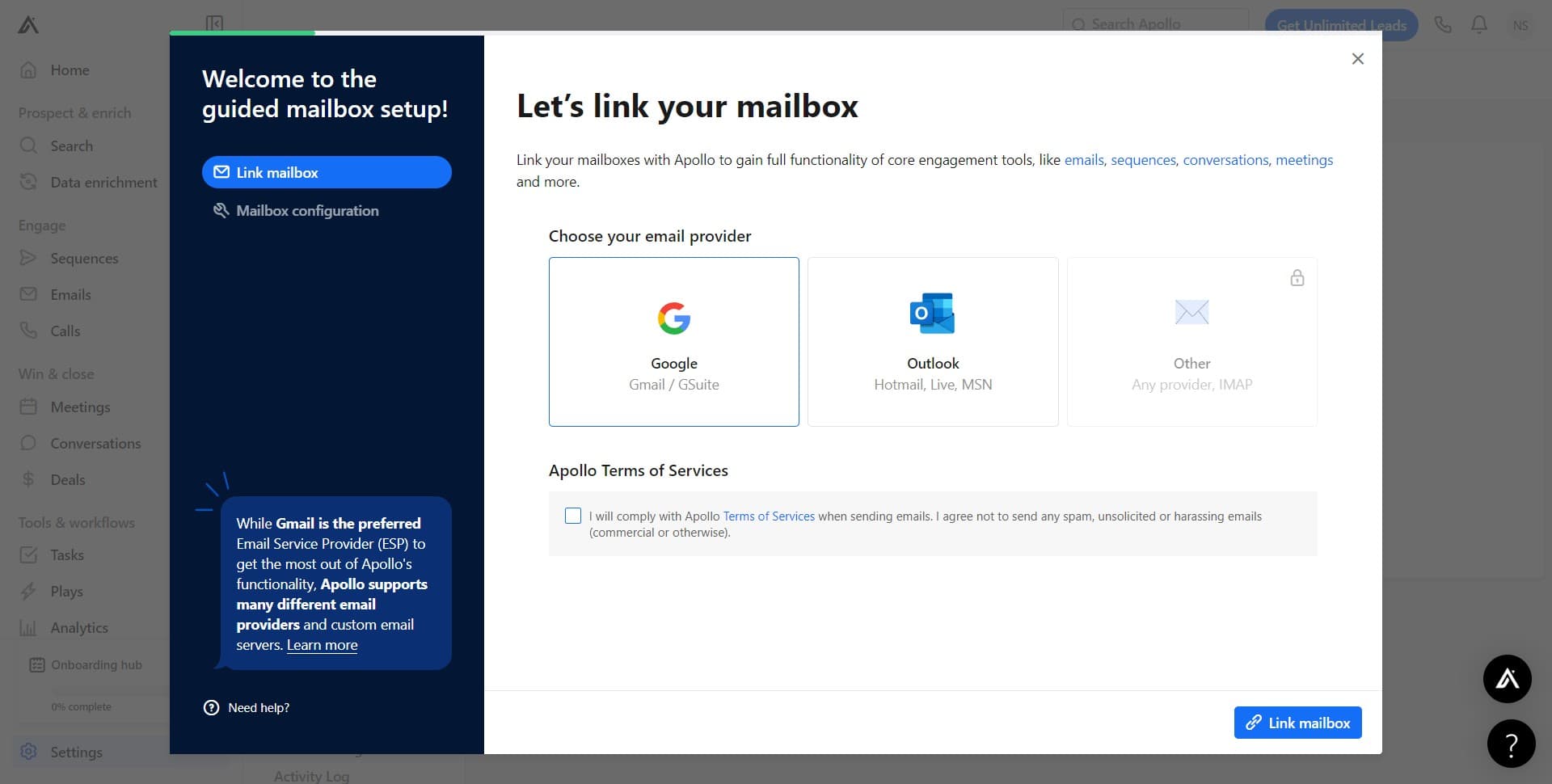
Click on Link mailbox button
Select the 'Link mailbox' button to begin the process of connecting a new email address to your Apollo.io account.
- 5
Enter your email credentials
When prompted, click on the designated field and enter your email address credentials as requested by the system.
- 6
Upload required files or information
Complete the upload step by providing any necessary authentication files, permissions, or additional information required to verify your email account ownership.
- 7
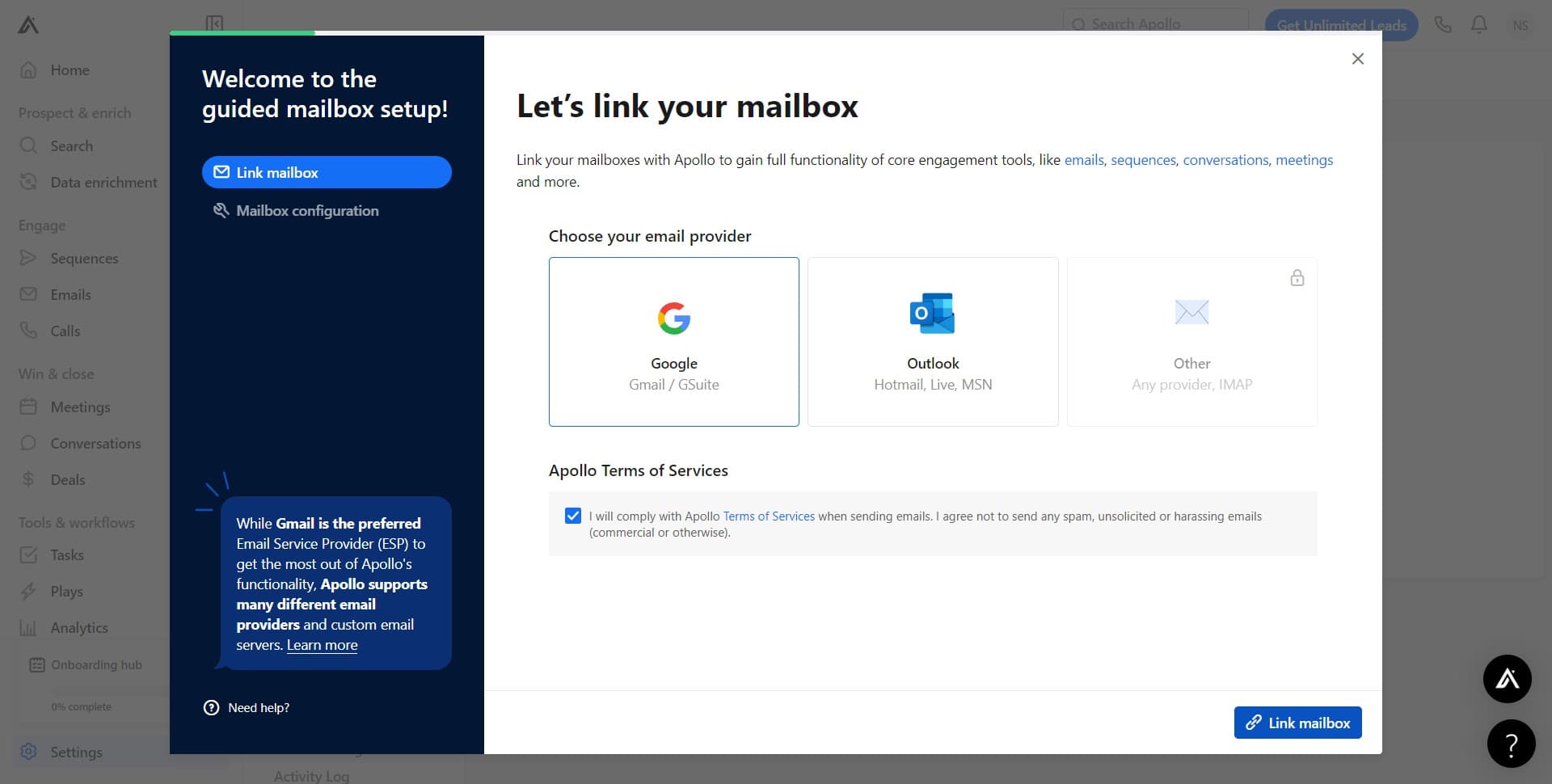
Confirm the Link mailbox action
Click the 'Link mailbox' button again to confirm and finalize the connection of your email address to Apollo.io.
- 8
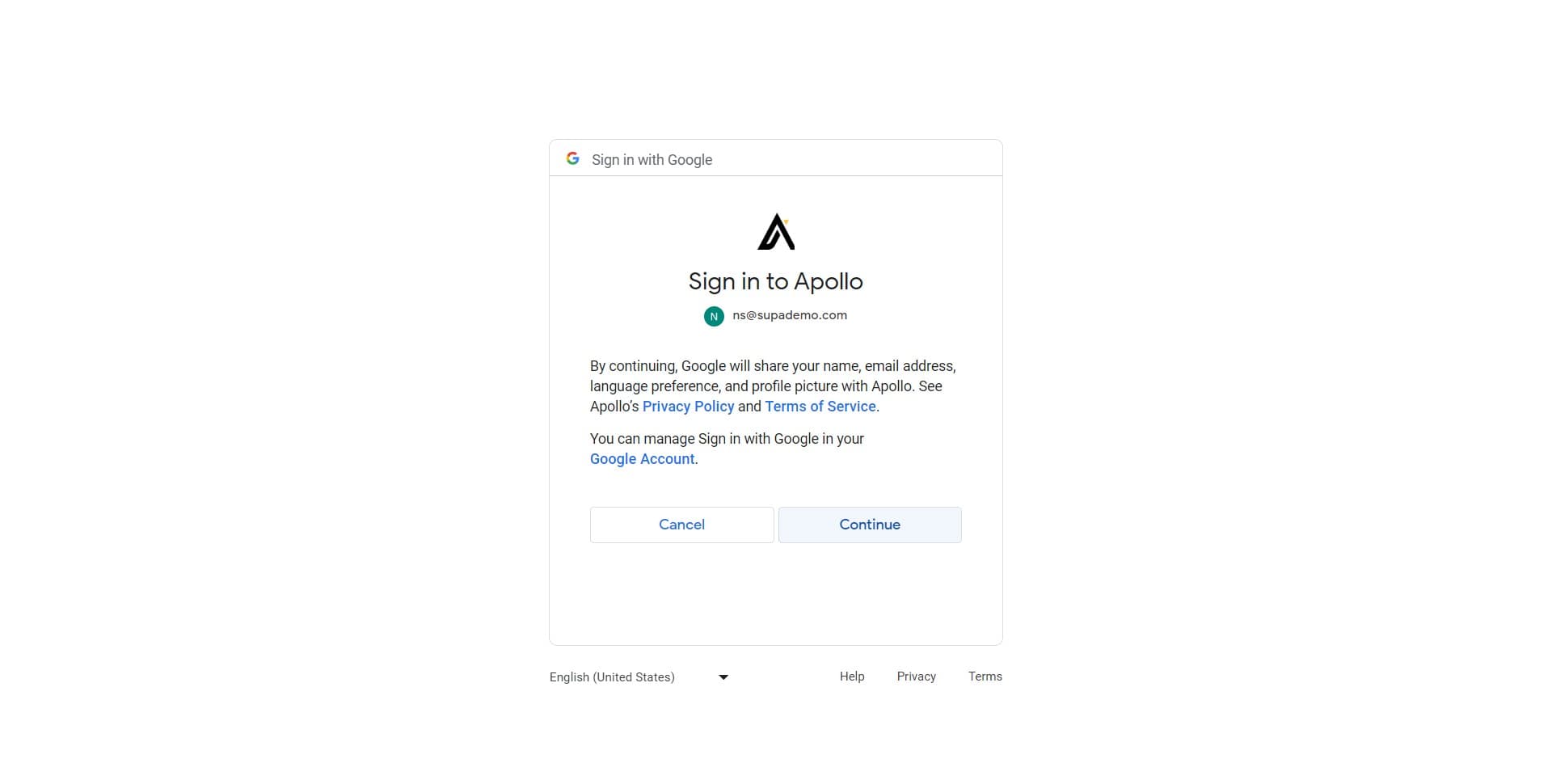
Click Continue to proceed
After confirmation, click the 'Continue' button to move forward in the mailbox linking process and complete any remaining setup steps.
- 9
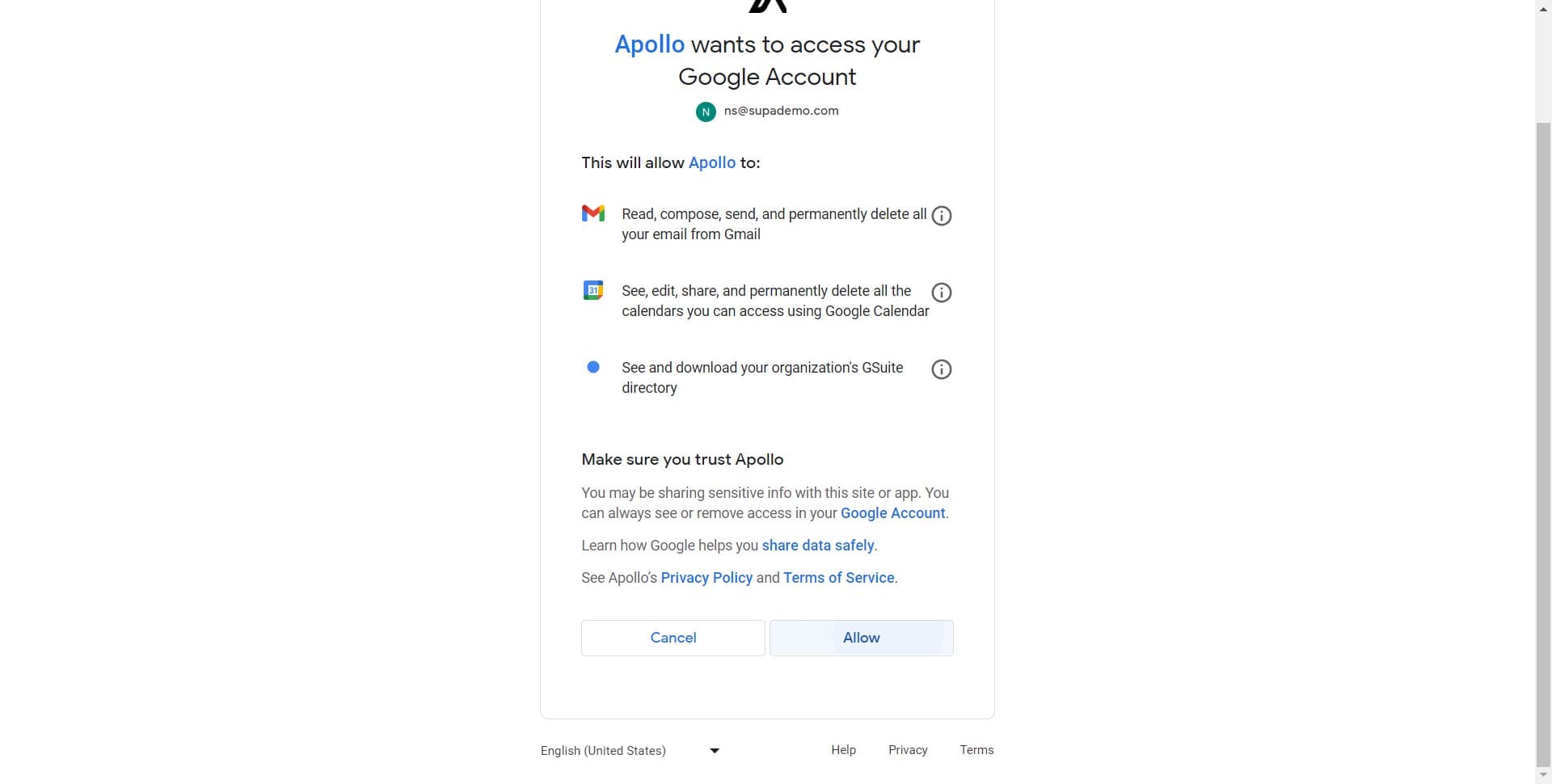
Configure additional settings
Click on the designated field or option to configure any additional mailbox settings or preferences required for your email integration.
- 10
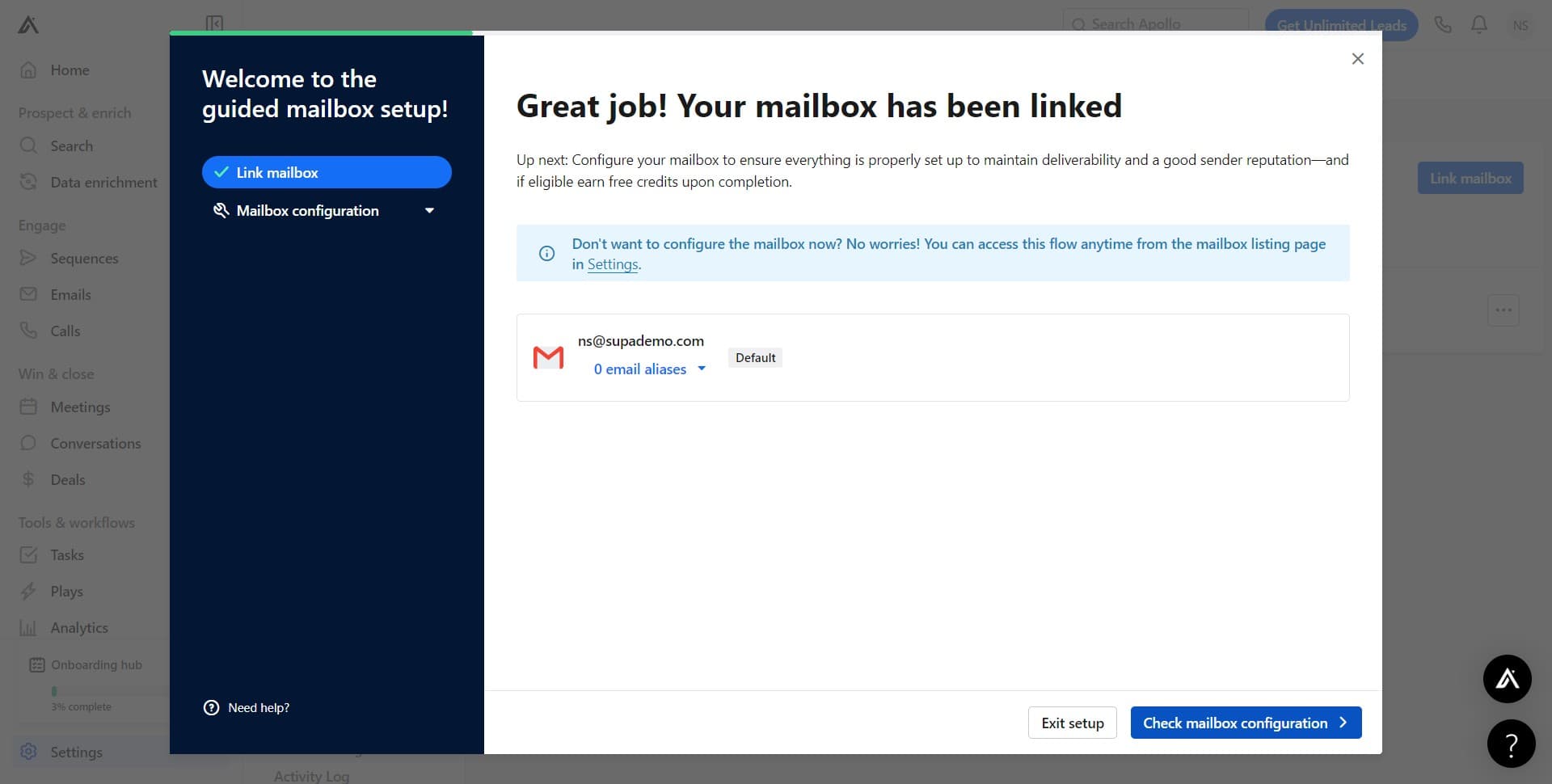
Check mailbox configuration
Click on 'Check mailbox configuration' to verify that your email address has been successfully linked and is properly configured within Apollo.io. This validation step ensures your mailbox is ready for use.
Frequently asked questions
Common questions about how to link an email address to your apollo.io account.
Apollo.io supports integration with major email providers including Gmail, Outlook, and other IMAP-compatible email services. Check Apollo.io's documentation for the complete list of supported providers and any specific requirements for your email service.
Configuration failures often occur due to incorrect credentials, disabled IMAP access, or two-factor authentication settings. Verify that your email account credentials are correct, that IMAP is enabled in your email provider's security settings, and that you've completed any additional authentication steps required by your email service.
Yes, Apollo.io allows you to link multiple mailboxes to a single account. Simply repeat the mailbox linking process for each additional email address you want to connect to your Apollo.io account.
Email tracking typically activates immediately after your mailbox configuration is successfully verified. However, it may take a few moments for the integration to fully sync with Apollo.io's servers, so wait a few minutes before sending your first tracked email.
If the process stalls, try clearing your browser cache and refreshing the page, then restart the linking process. If problems persist, check that your internet connection is stable, verify your email credentials are correct, and consider contacting Apollo.io support for additional troubleshooting assistance.