How to create a meeting poll in Zoom using Calendly

Scheduling meetings across different time zones can be challenging, especially when coordinating with multiple participants. Calendly's meeting poll feature combined with Zoom integration allows you to gather availability from invitees and automatically schedule Zoom calls without the back-and-forth emails. This integration streamlines your meeting setup process and ensures seamless video conferencing.
Quick summary
In this tutorial, you'll learn how to create a meeting poll in Calendly, add available time slots, integrate Zoom, and share the poll with participants. You'll discover how to customize the poll with descriptions and instructions, then distribute it to collect responses. By the end, you'll have a fully configured Zoom meeting poll ready to send to your team or clients.
Why this matters
Meeting polls eliminate scheduling friction by letting participants choose from your available times rather than proposing conflicting options. Combining this with Zoom integration ensures that once attendees select their preferred time, a Zoom link is automatically generated and shared. This workflow saves time, reduces administrative overhead, and improves the attendee experience.
Step-by-step guide
- 1
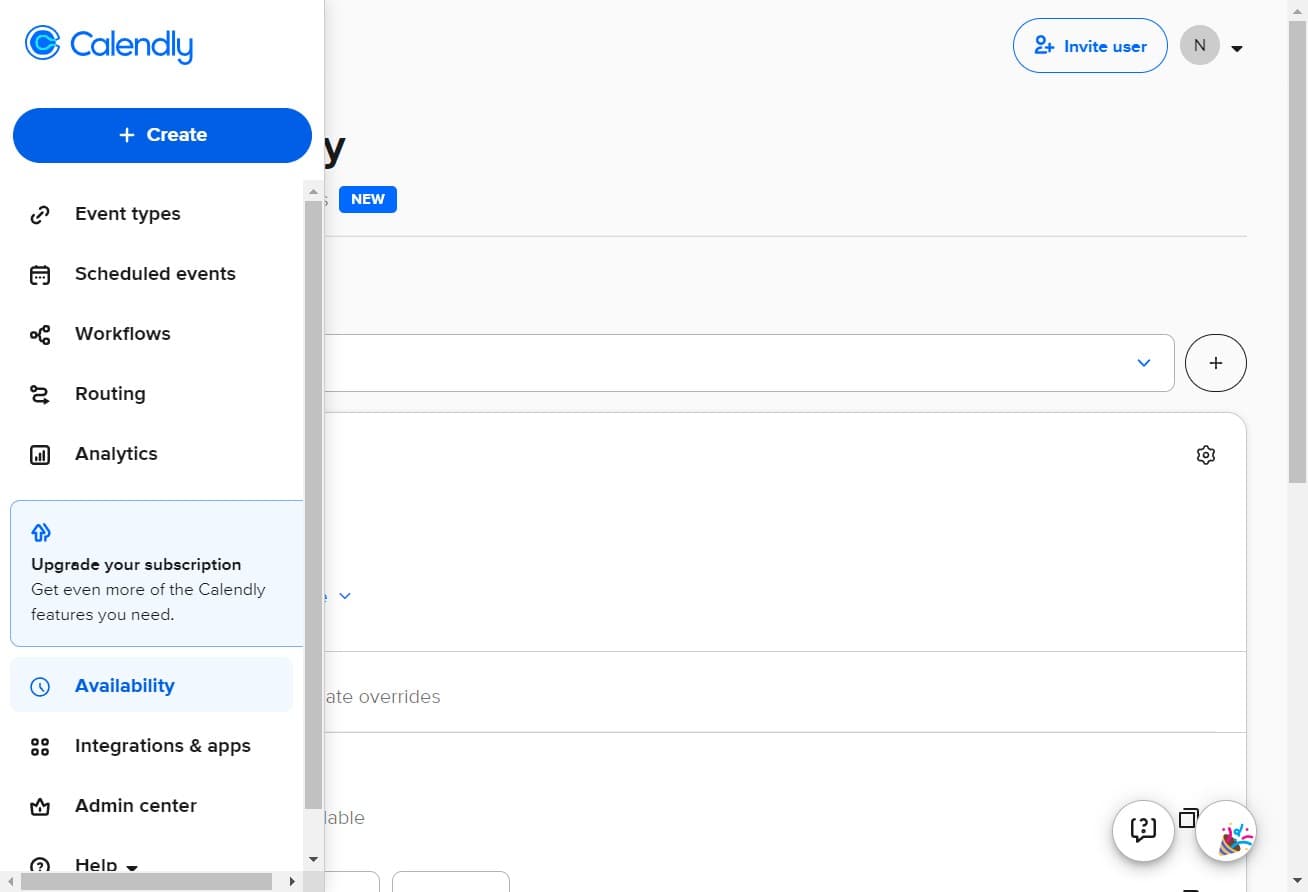
Click on Create
Navigate to your Calendly dashboard and locate the Create button. This is your entry point to building a new scheduling tool or event type.
- 2
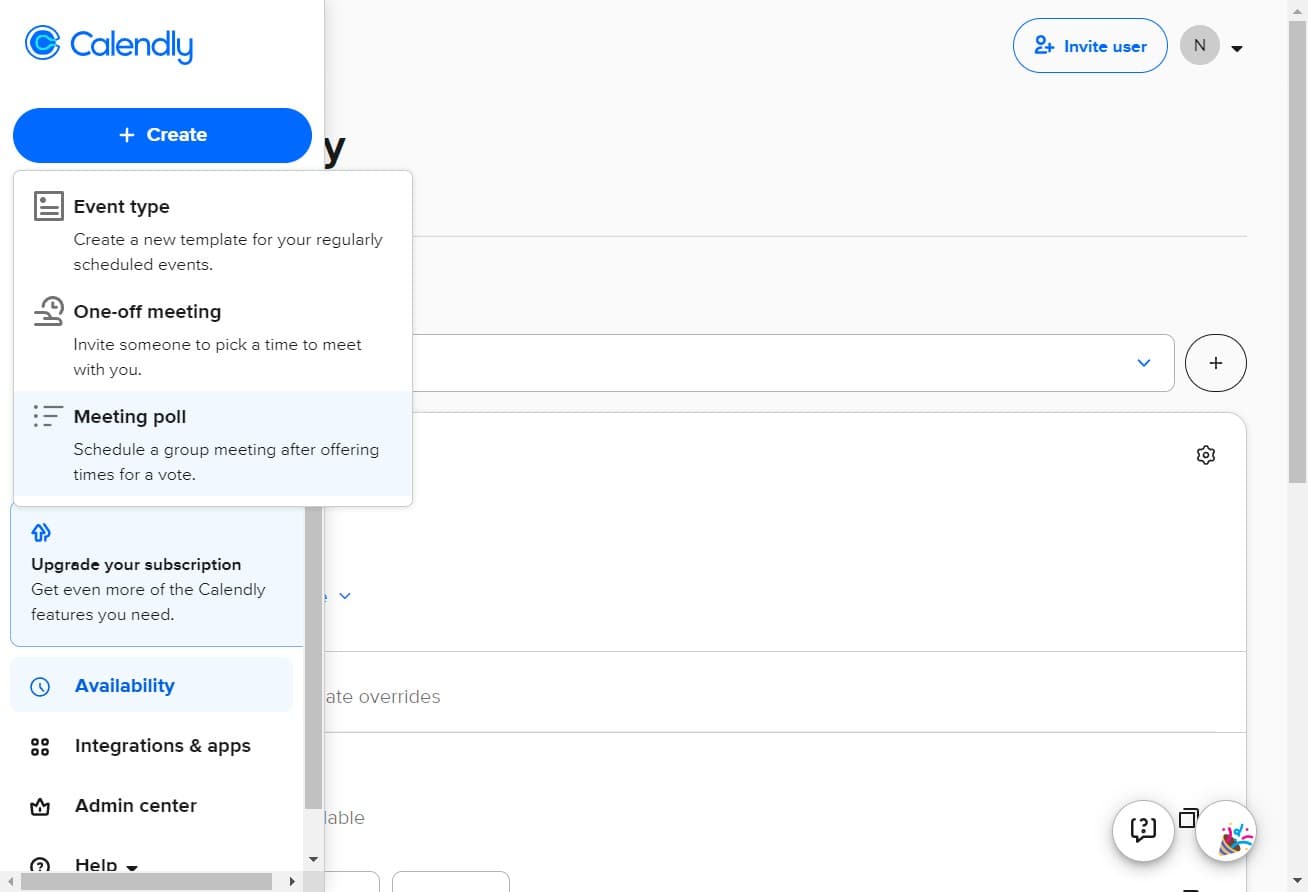
Click on Meeting poll option
From the dropdown menu, select Meeting poll to begin creating a new poll. This option allows you to gather availability from multiple people at once.
- 3
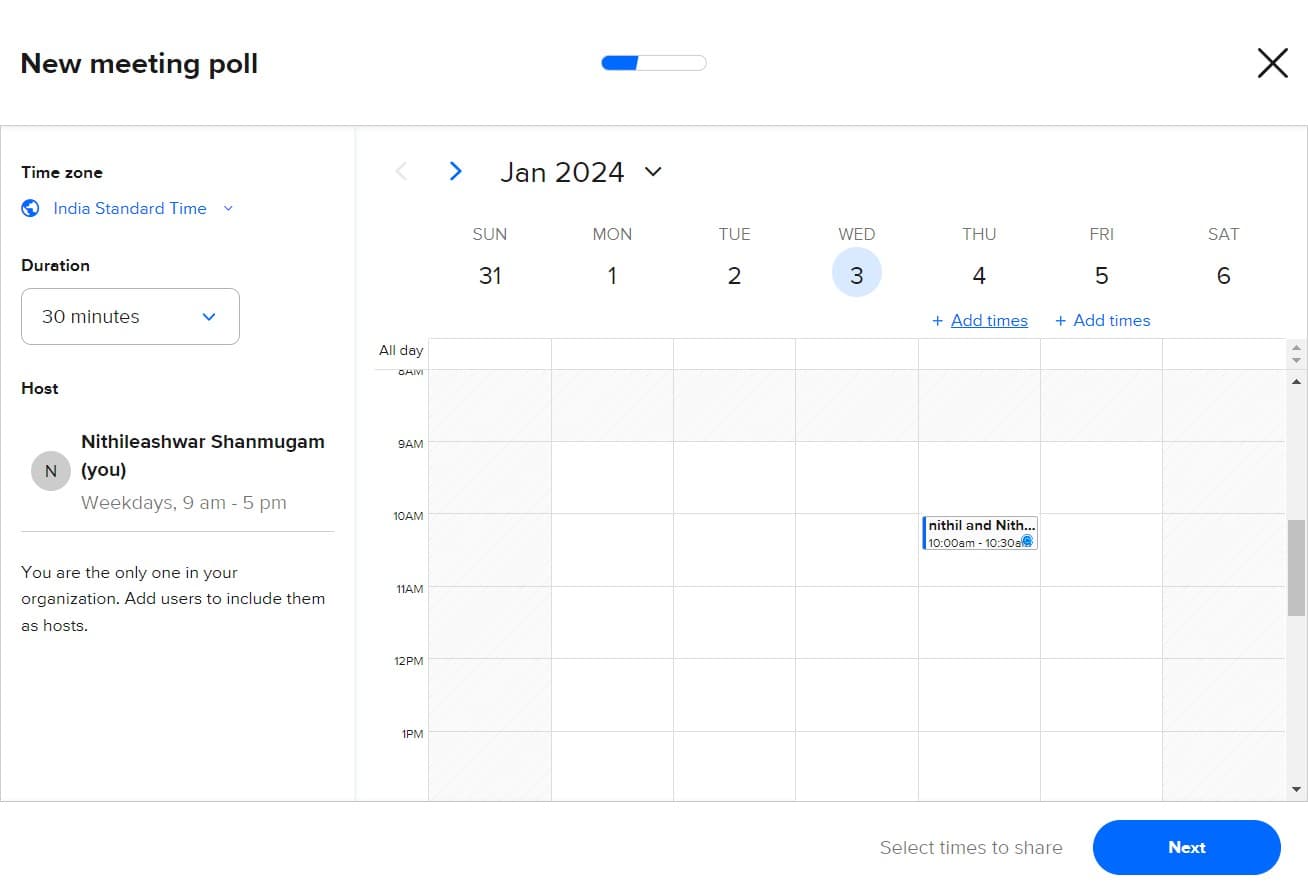
Click on Add times
Set up your available time slots by clicking Add times. You can specify multiple date and time options that participants will choose from.
- 4
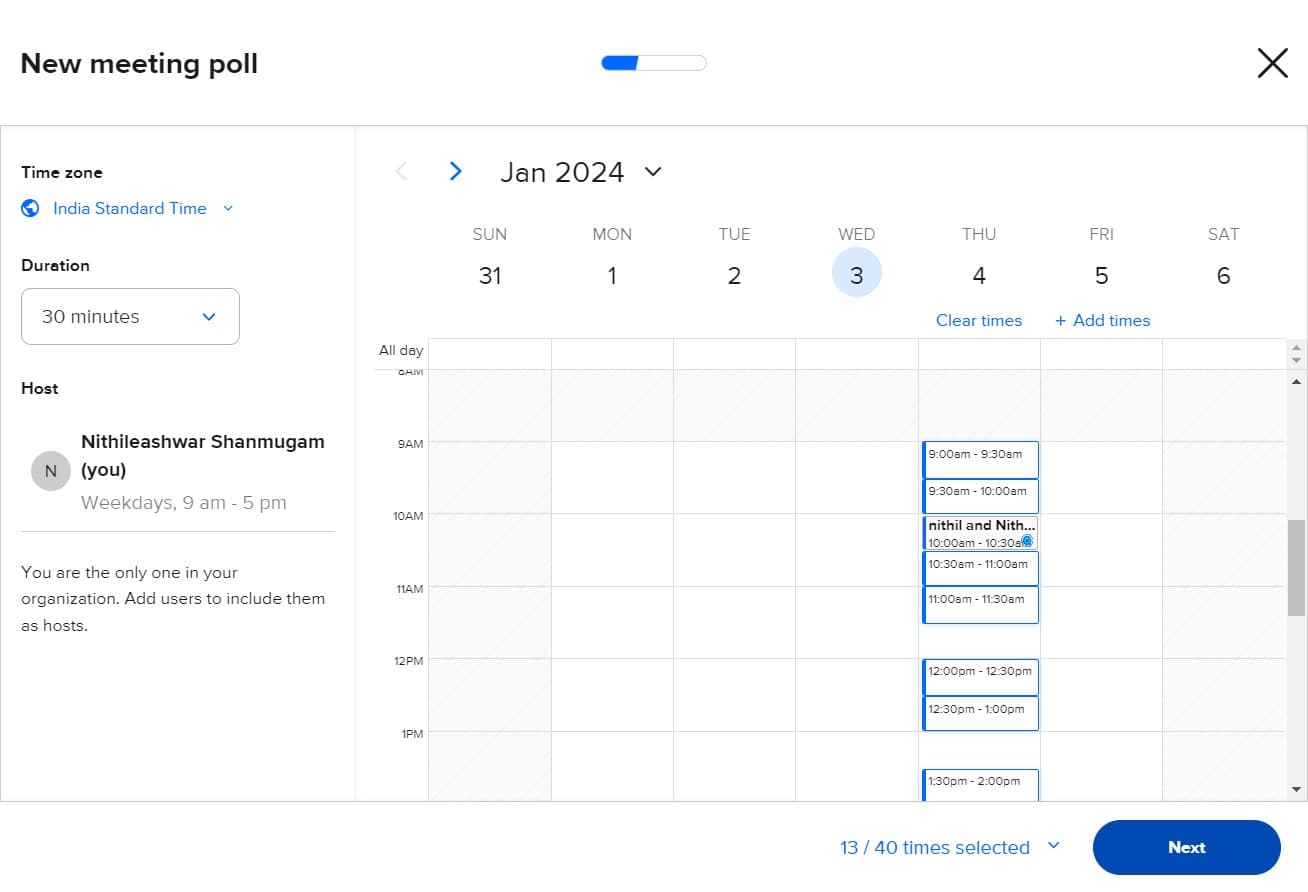
Click on Next
Review your time slots and proceed to the next configuration screen. This confirms your availability window and moves you toward integration settings.
- 5
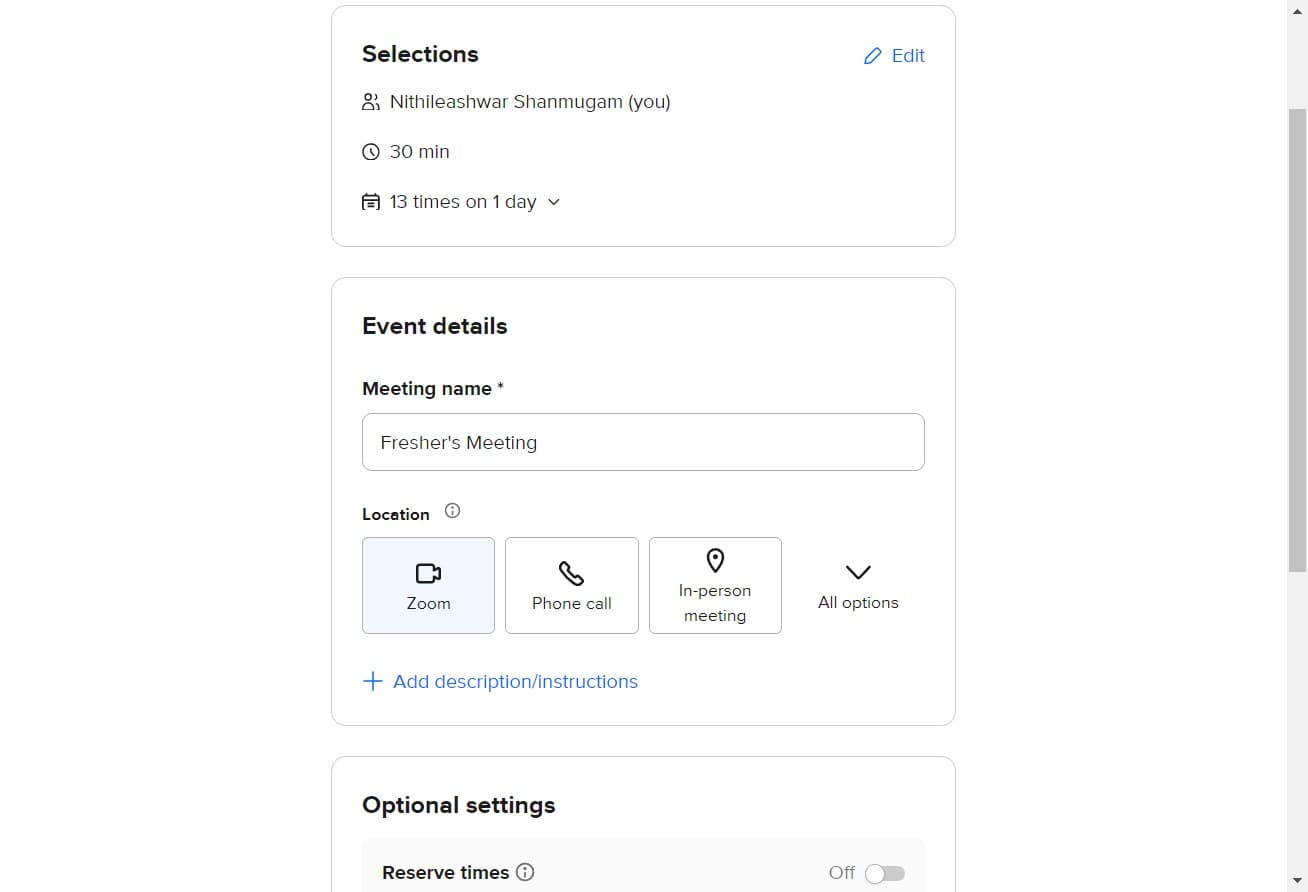
Click on Zoom
Select Zoom as your video conferencing tool for this meeting poll. Calendly will connect your Zoom account to automatically generate meeting links when a time is selected.
- 6
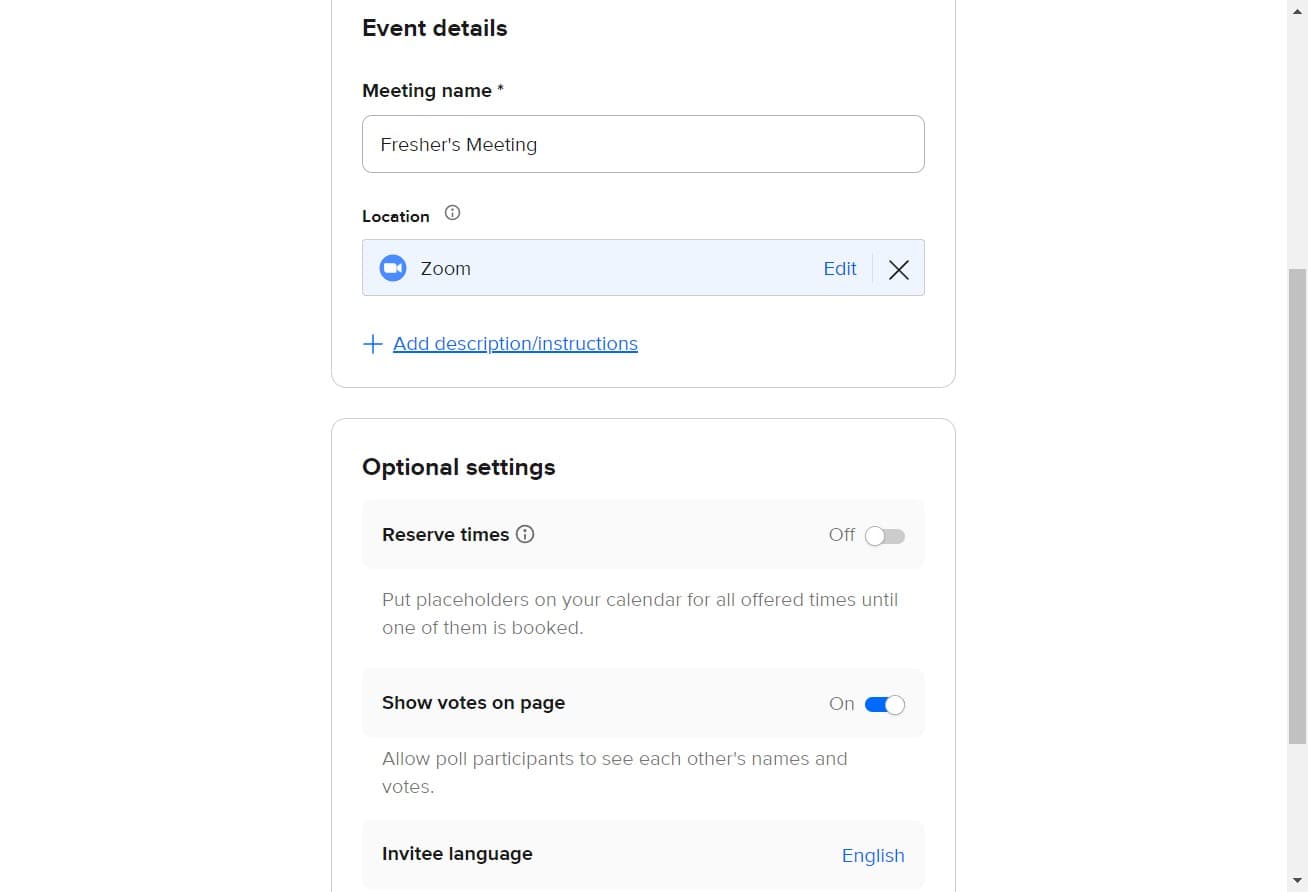
Click on Add description or instructions
Provide context for your meeting by adding a description and any special instructions. This helps participants understand the purpose of the meeting and what to expect.
- 7
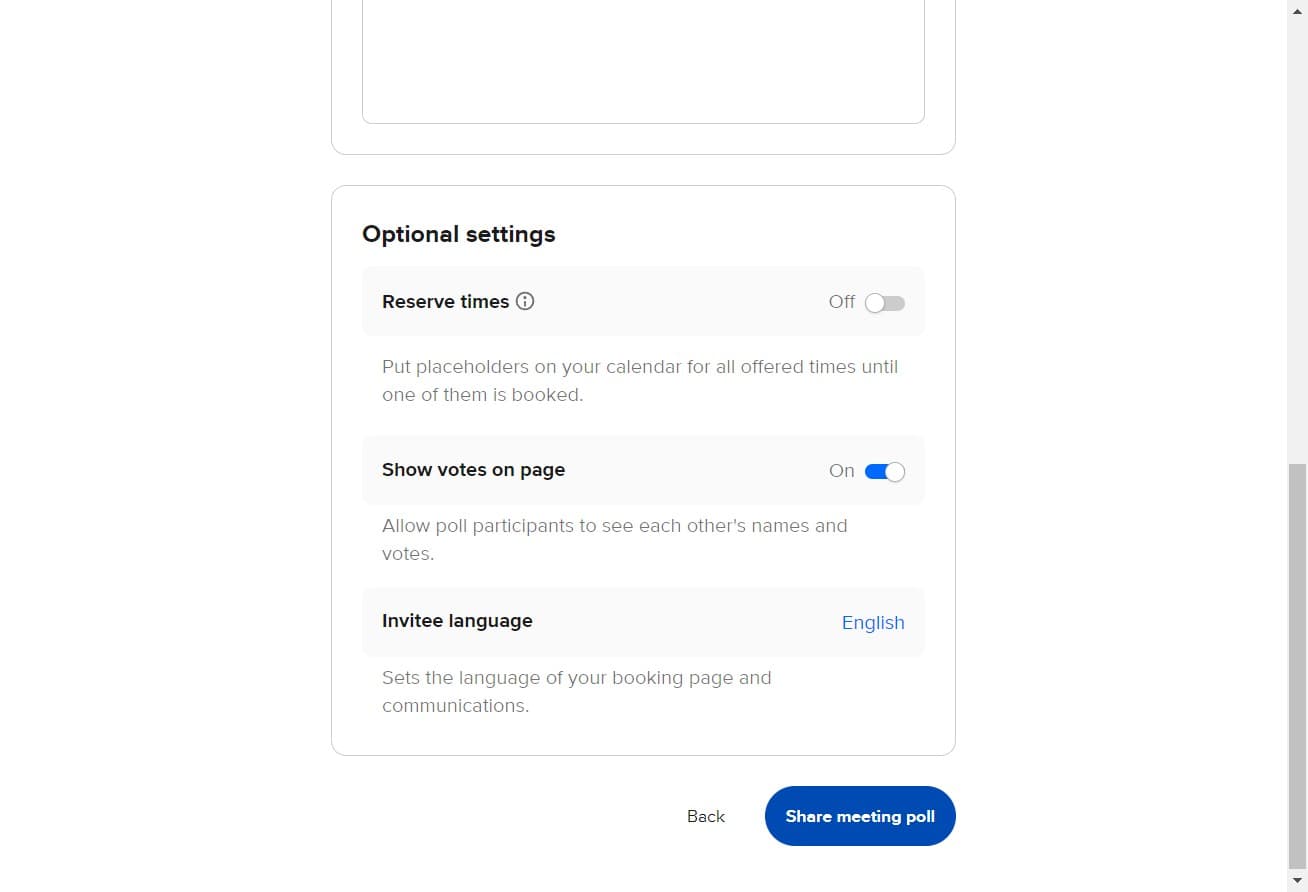
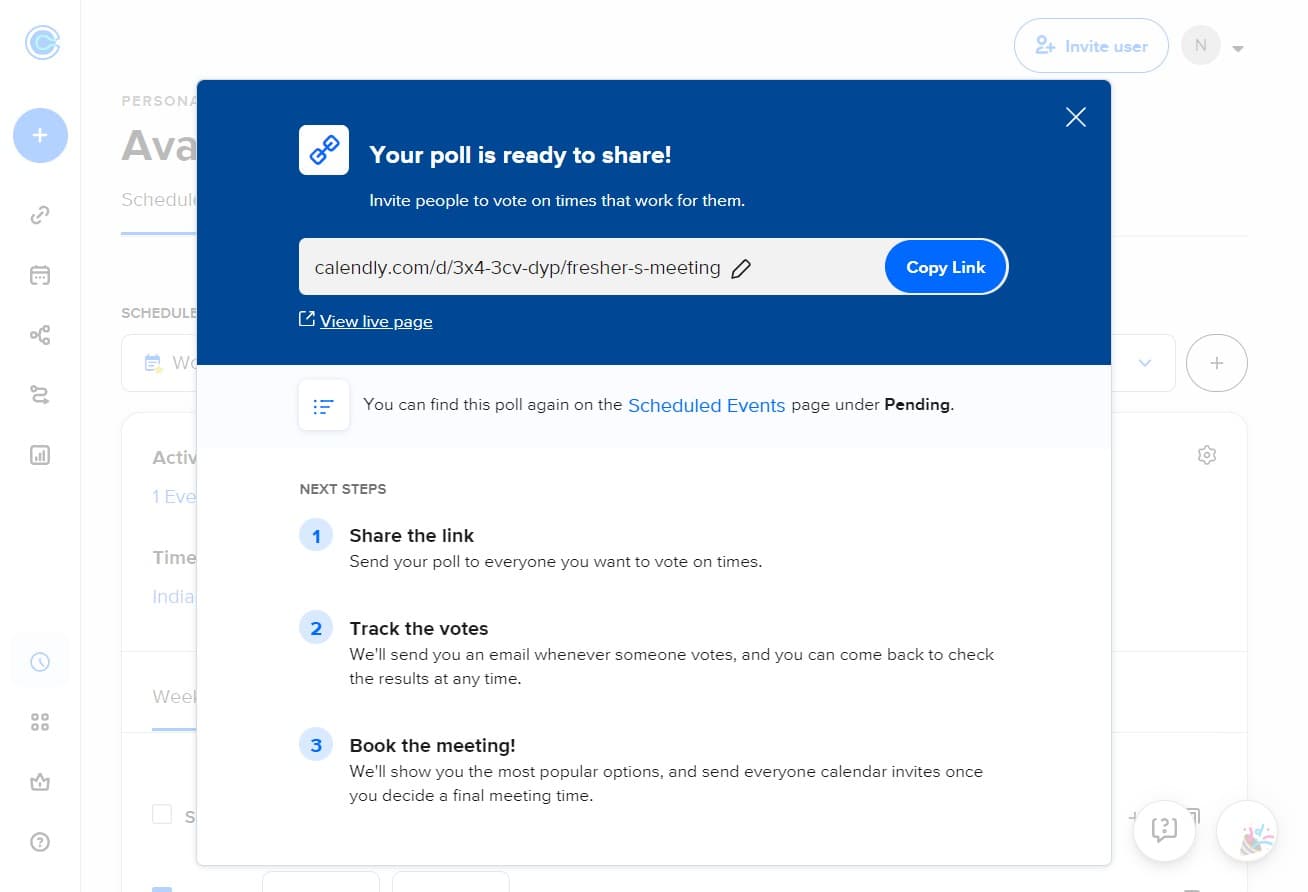
Click on Share meeting poll
Access the sharing options to distribute your poll to invitees. Calendly provides multiple sharing methods including direct links, email, and social media.
- 8
Click on View live page
Preview how your meeting poll will appear to participants on the public page. This ensures all details, time slots, and instructions are correct before sending.
- 9
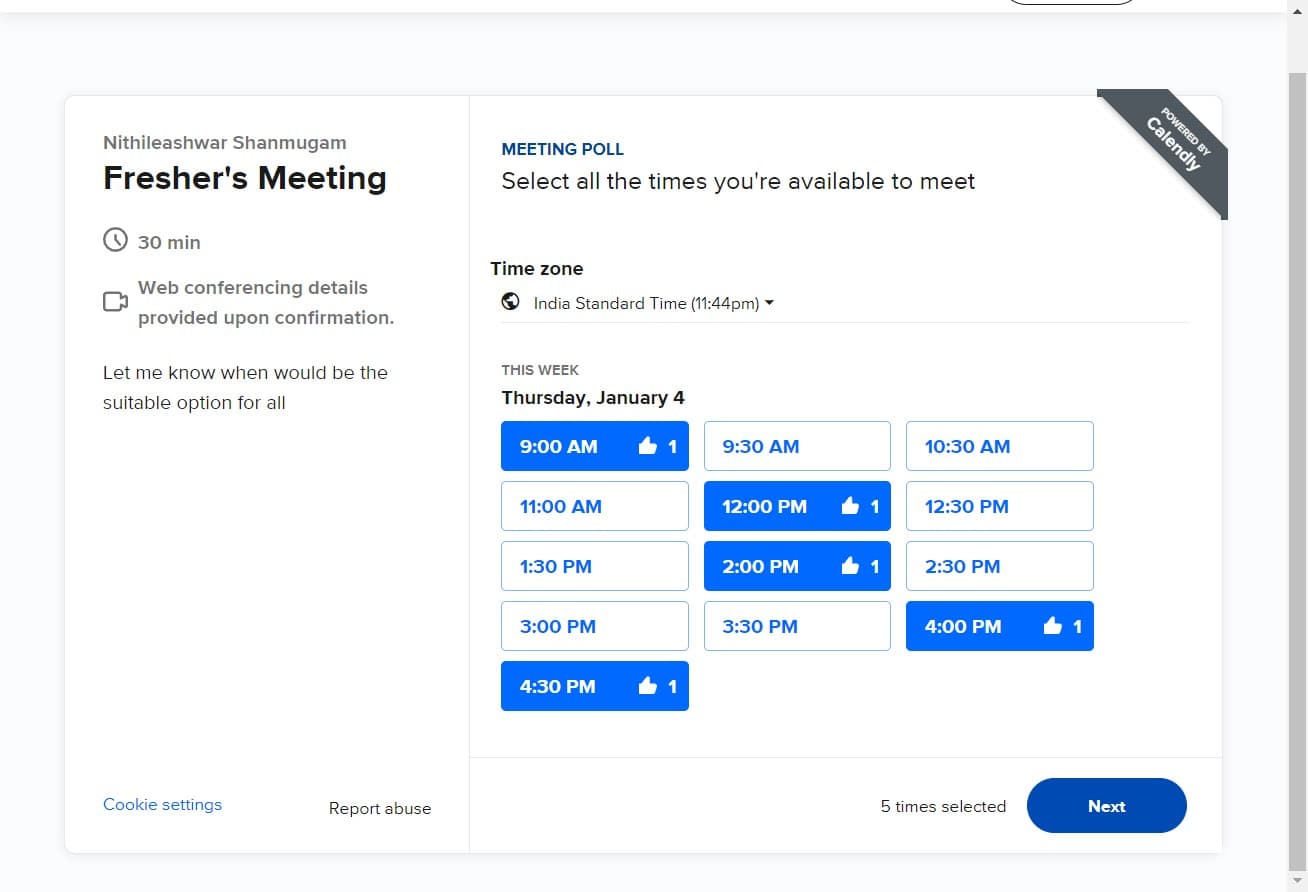
Click on Next
Move to the final step in the sharing workflow. This typically confirms your sharing preferences and finalizes your poll setup.
- 10
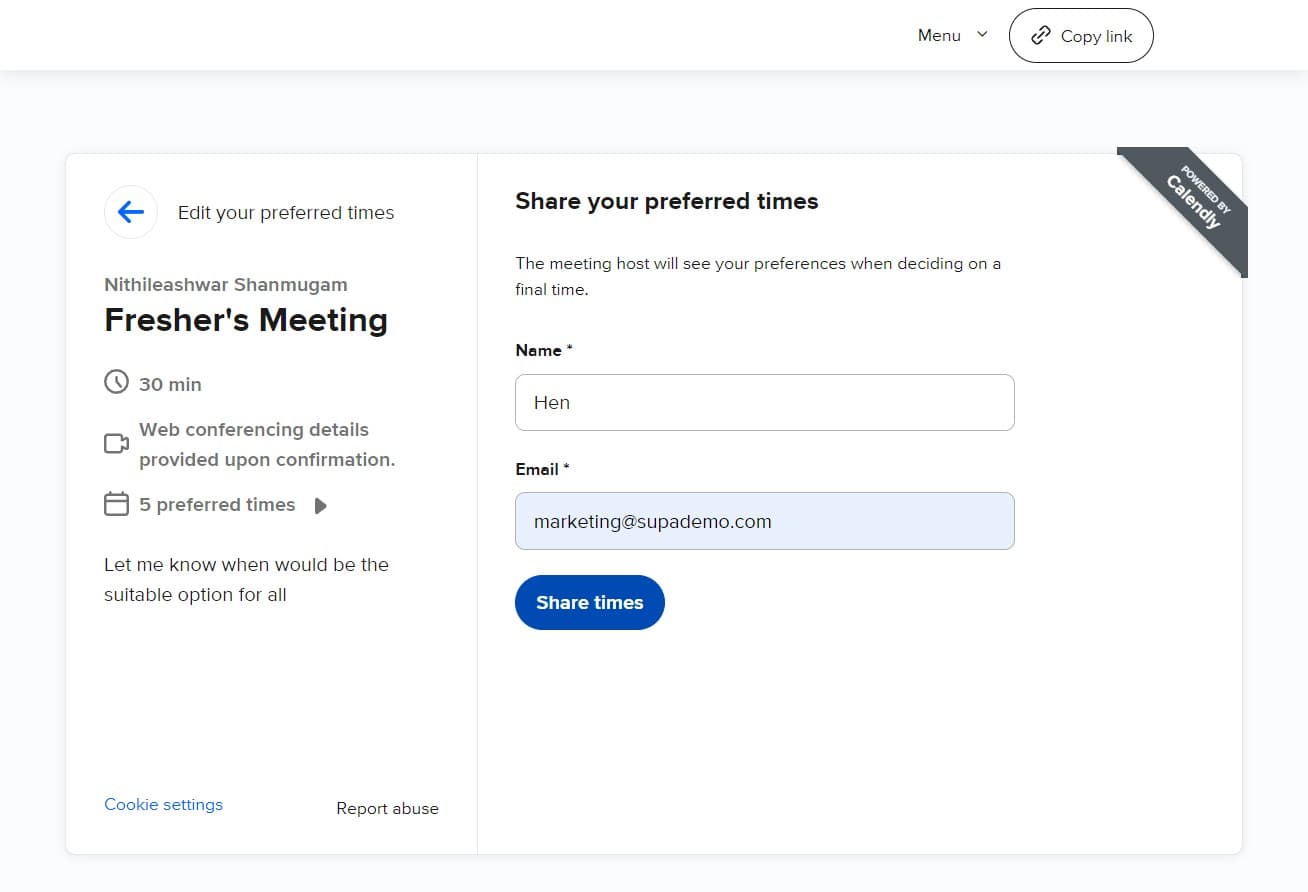
Click on Share times
Complete the process by sending the poll to your recipients. You can now distribute the meeting poll link to collect availability responses from all participants.
Frequently asked questions
Common questions about how to create a meeting poll in zoom using calendly.
Yes, you can edit most aspects of your meeting poll in Calendly even after sharing it. However, changes to time slots or core settings may affect responses already received. It's best to finalize details before sharing widely.
Once a participant selects their preferred time from the poll, Calendly automatically generates a Zoom meeting link and sends confirmation details to both the participant and organizer. The meeting is then scheduled in your calendar.
Calendly allows you to configure poll settings including response deadlines in some plans. Check your account settings and poll configuration options to enable this feature if available on your plan.
No, when you integrate Zoom with your Calendly meeting poll, the platform automatically generates unique Zoom links for each selected time slot. This eliminates manual link creation and reduces errors.
Yes, meeting polls are designed for multiple participants. Each person can indicate their availability, and you can see all responses in your Calendly dashboard to identify the best time that works for everyone.