How to add your schedule in Calendly

Setting up your availability in Calendly ensures that clients can only book meetings during times that work for you. This tutorial walks you through the process of creating and configuring a custom schedule with specific working hours.
Quick summary
In this tutorial, you'll learn how to navigate to Calendly's Availability settings, create a new schedule, and define your working hours by setting start and end times for your availability window.
Why this matters
Establishing clear availability prevents scheduling conflicts and ensures you maintain control over your calendar. By setting specific time blocks, you communicate your working hours to prospects and clients, reducing back-and-forth communication and improving booking efficiency.
Step-by-step guide
- 1
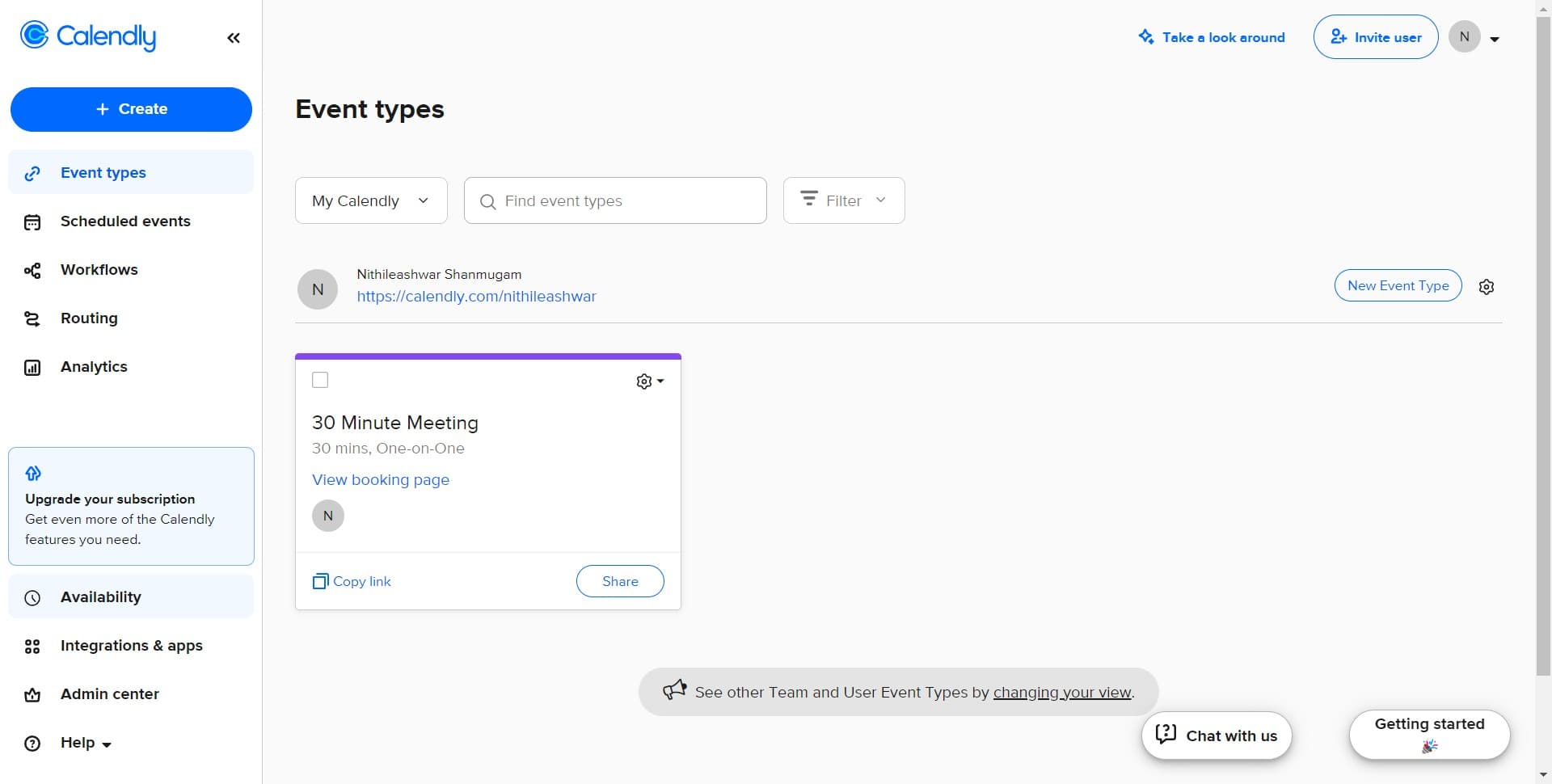
Navigate to Availability settings
From your Calendly dashboard, click on the "Availability" option in the main menu. This section controls when you're open for bookings.
- 2
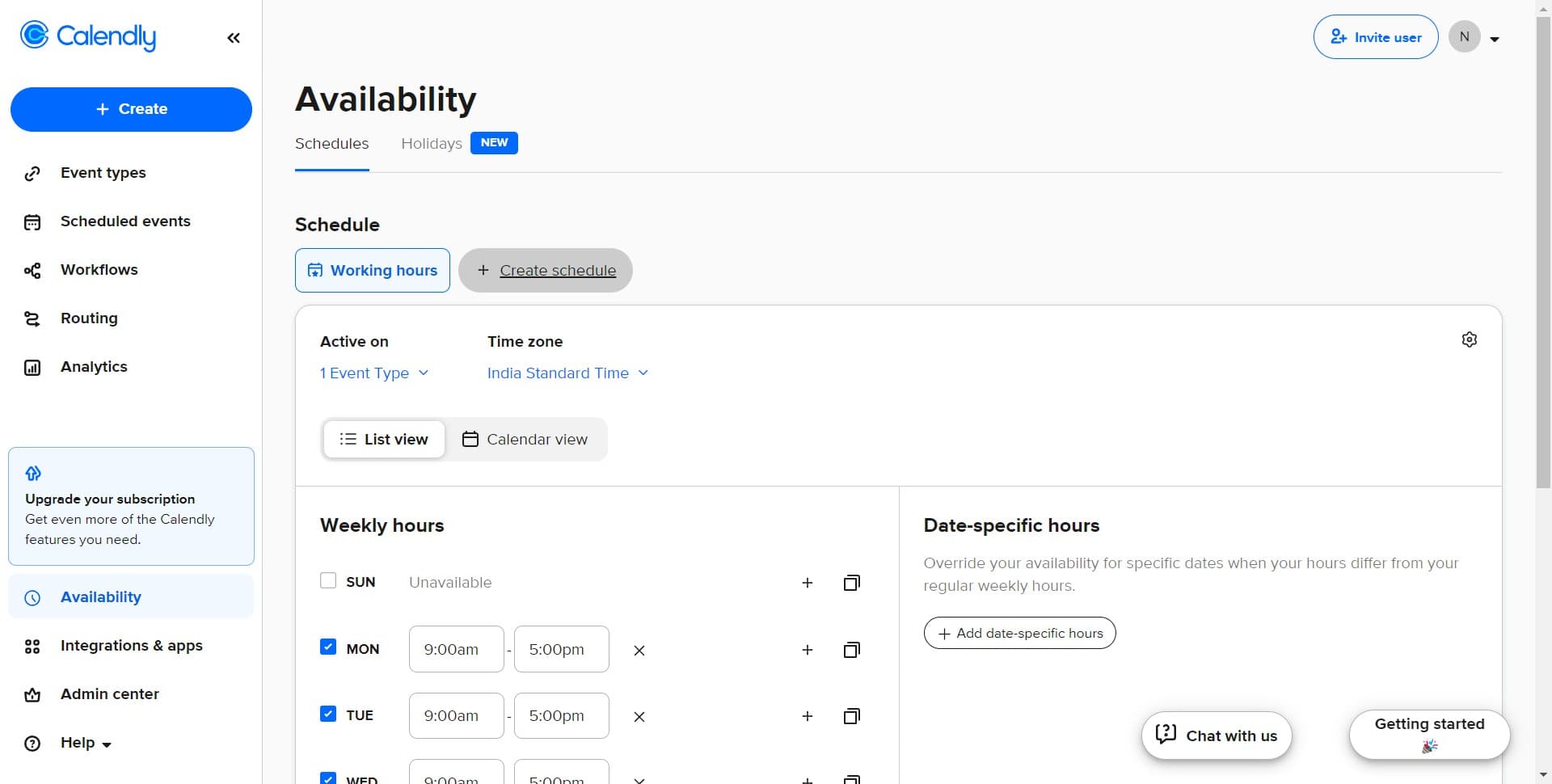
Create a new schedule
Click the "Create schedule" button to start building a custom availability window. You'll be prompted to set up a new time block for your calendar.
- 3
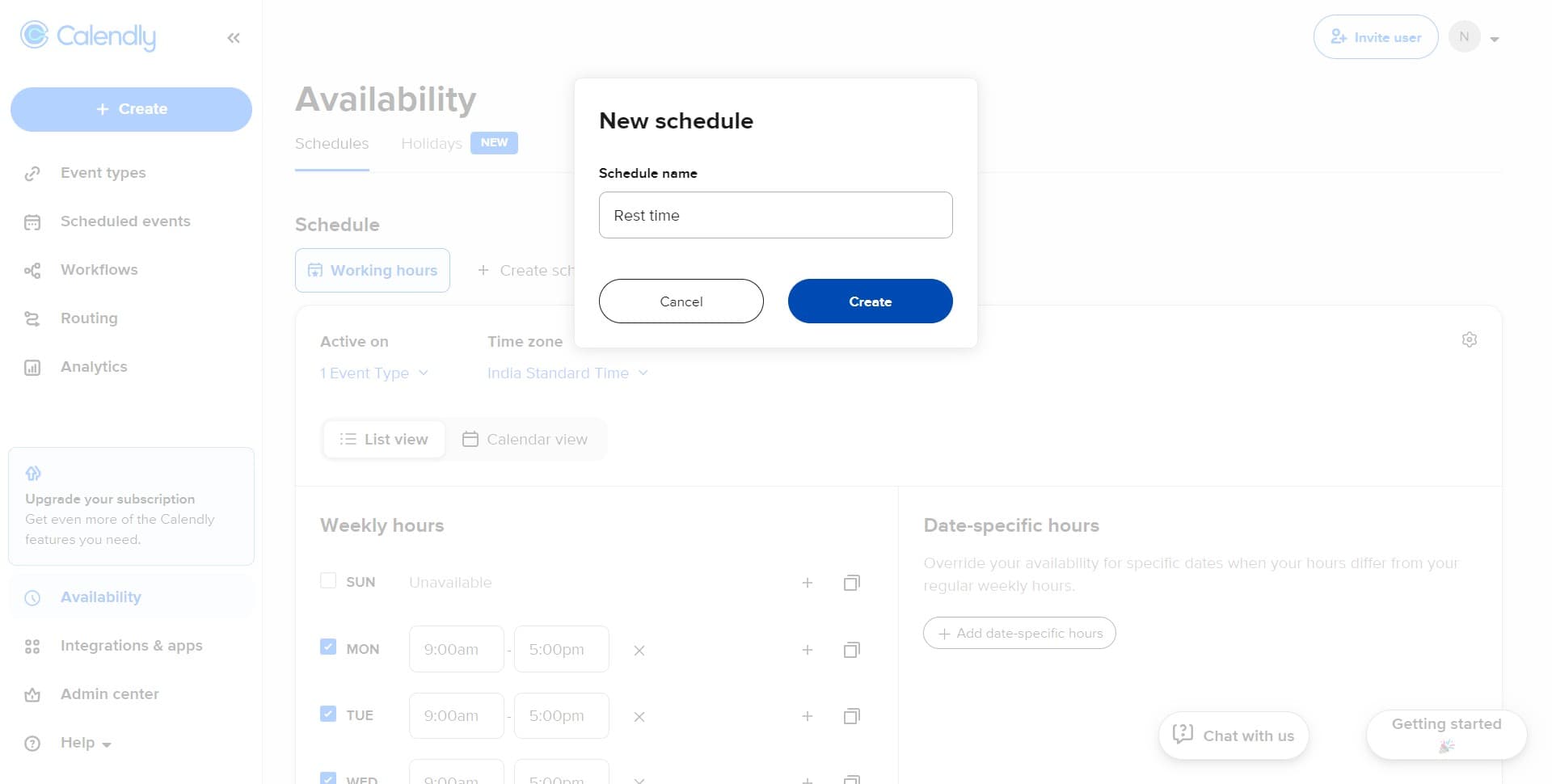
Confirm schedule creation
Click the "Create" button to initialize your new schedule. The system will open the schedule builder interface where you can define specific hours.
- 4
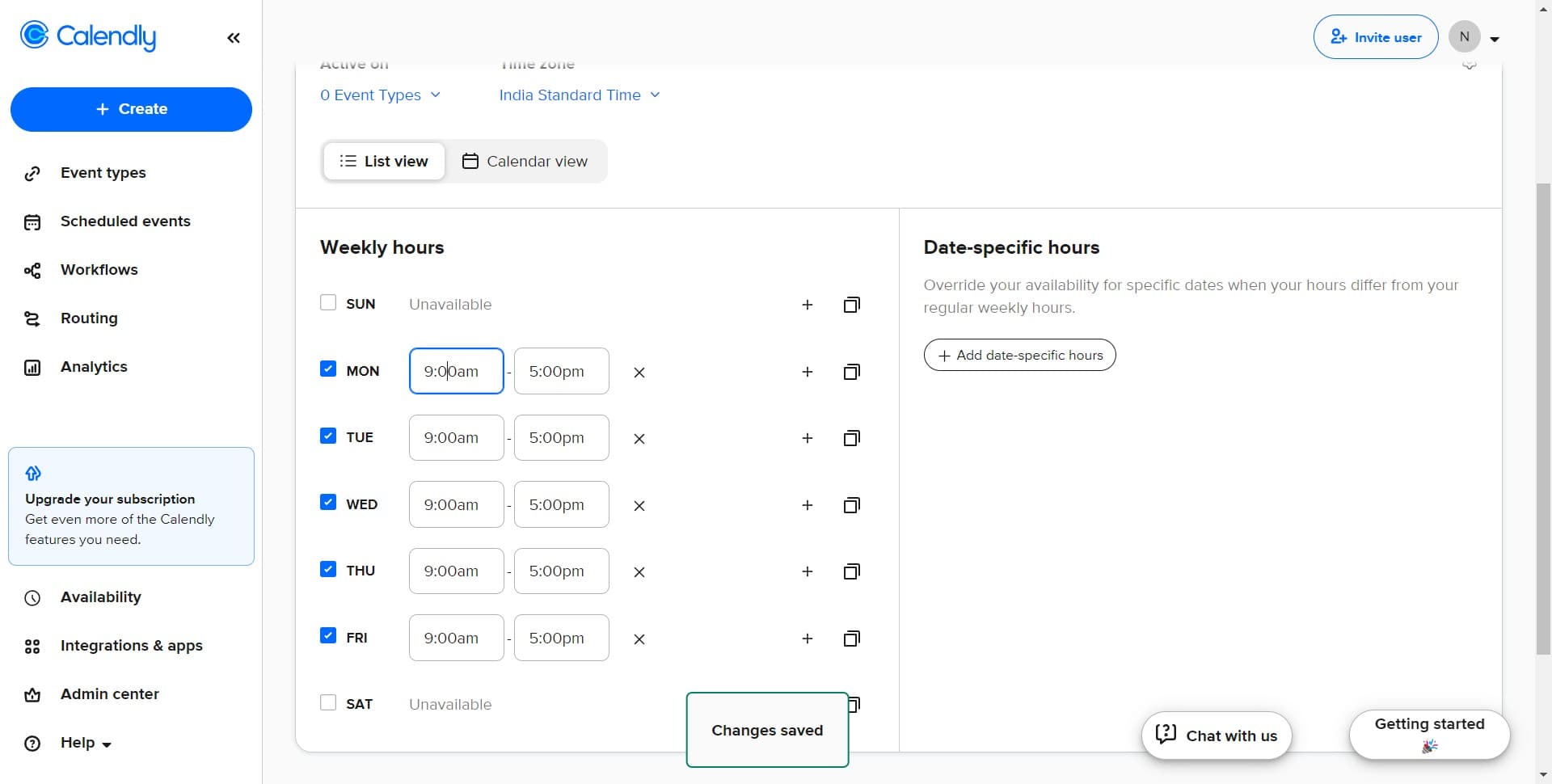
Select start time field
Click on the designated field to begin setting your start time. This is where you'll specify when your availability window opens each day.
- 5
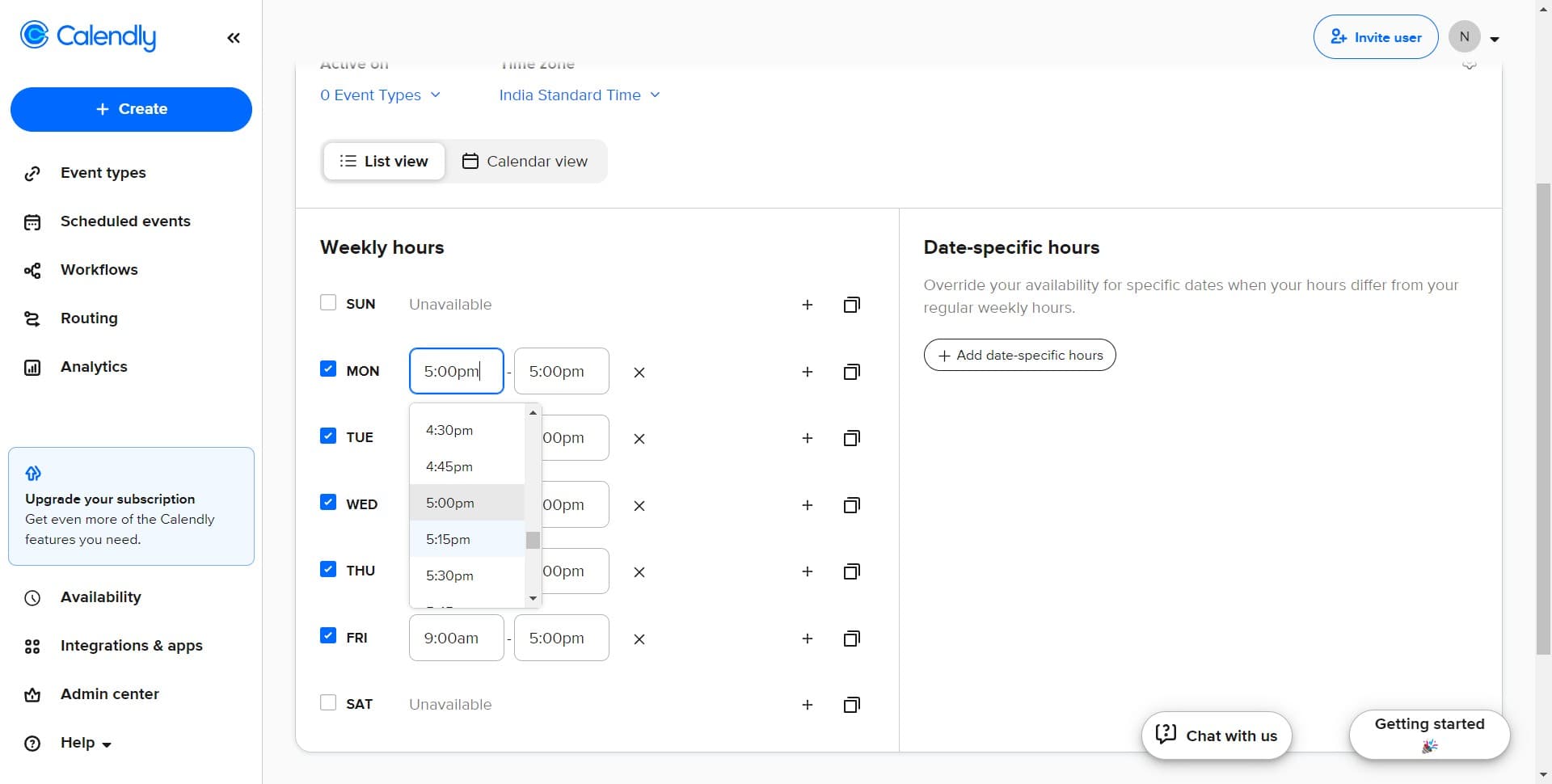
Set opening time to 5:00pm
Click on "5:00pm" from the time picker to set this as your schedule's start time. Your availability will begin at this hour.
- 6
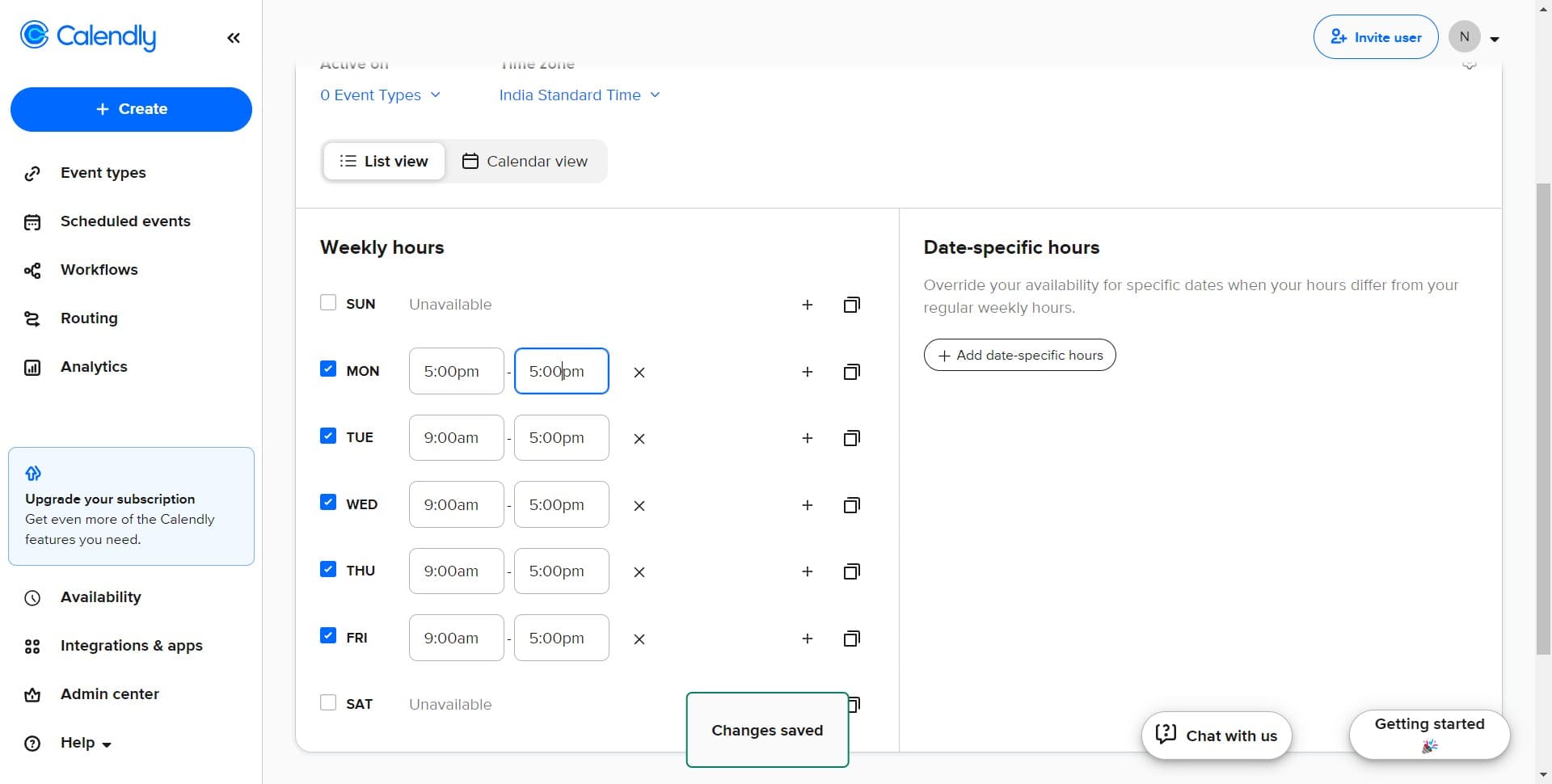
Select end time field
Click on the field to specify your closing time. This is where you'll define when your availability window ends.
- 7
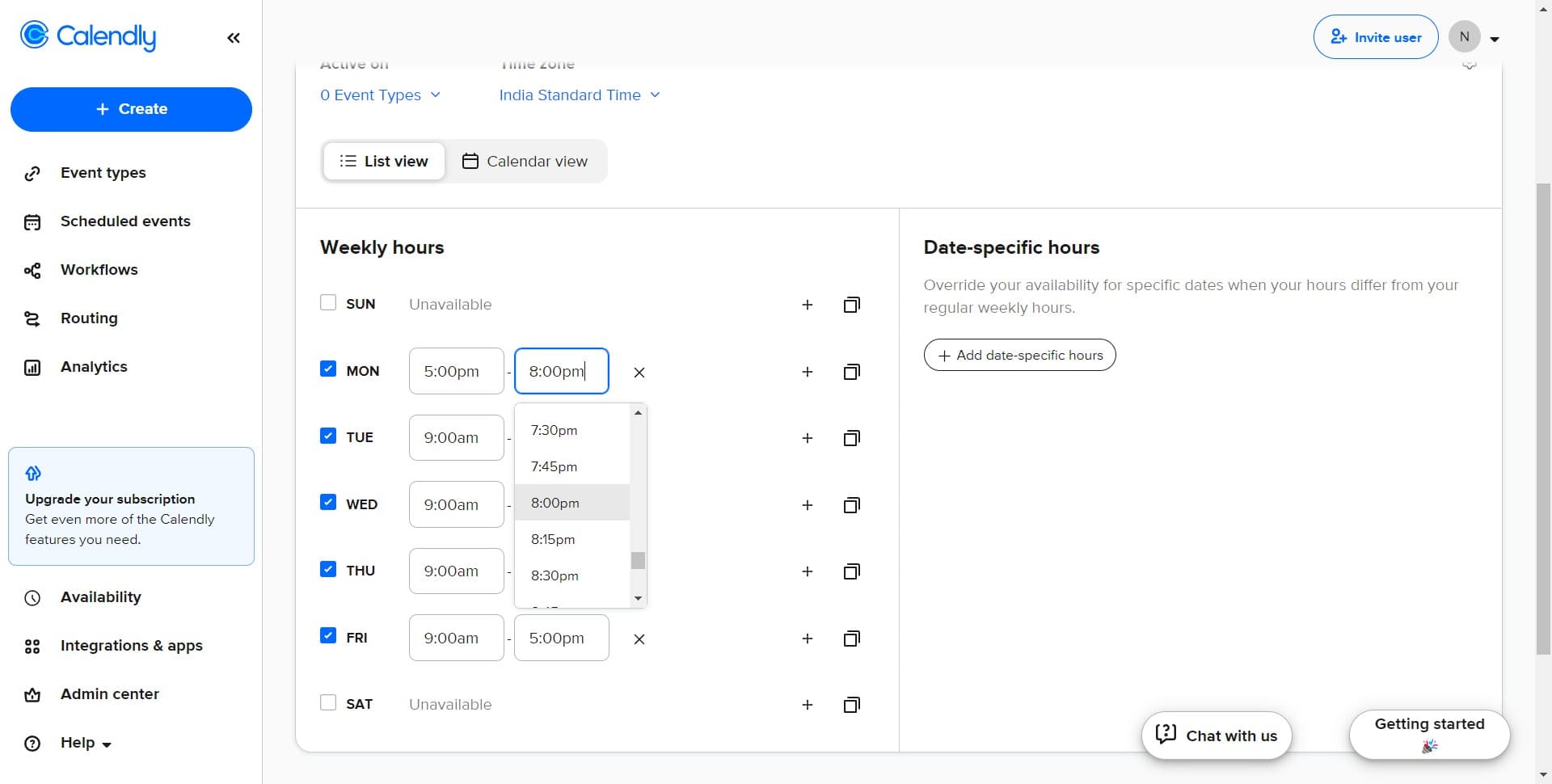
Set closing time to 8:00pm
Click on "8:00pm" from the time picker to establish this as your schedule's end time. Your availability will conclude at this hour.
- 8
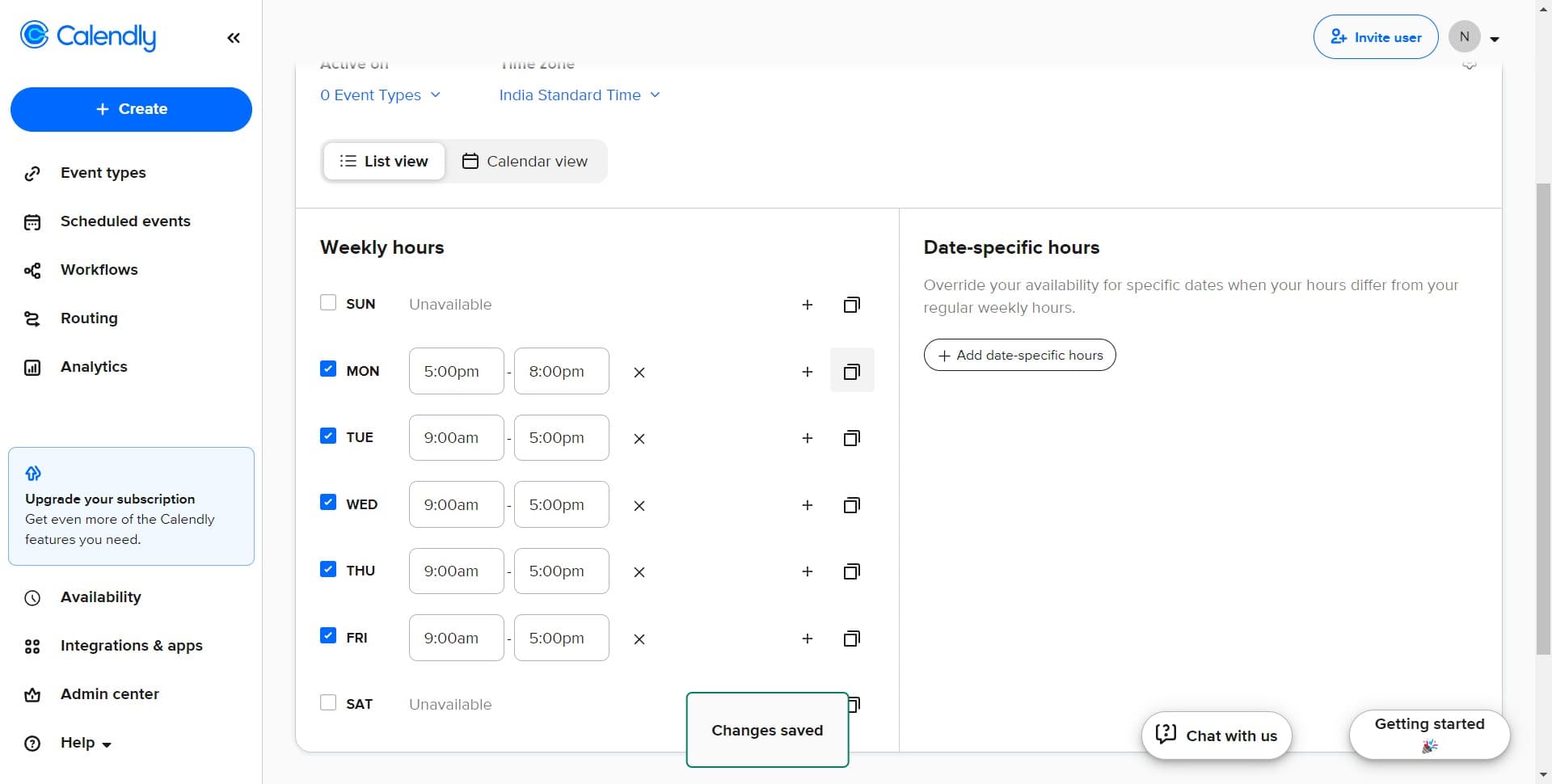
Confirm time configuration
Click on the designated confirmation area to verify your time settings. This ensures your start and end times are properly registered in the system.
- 9
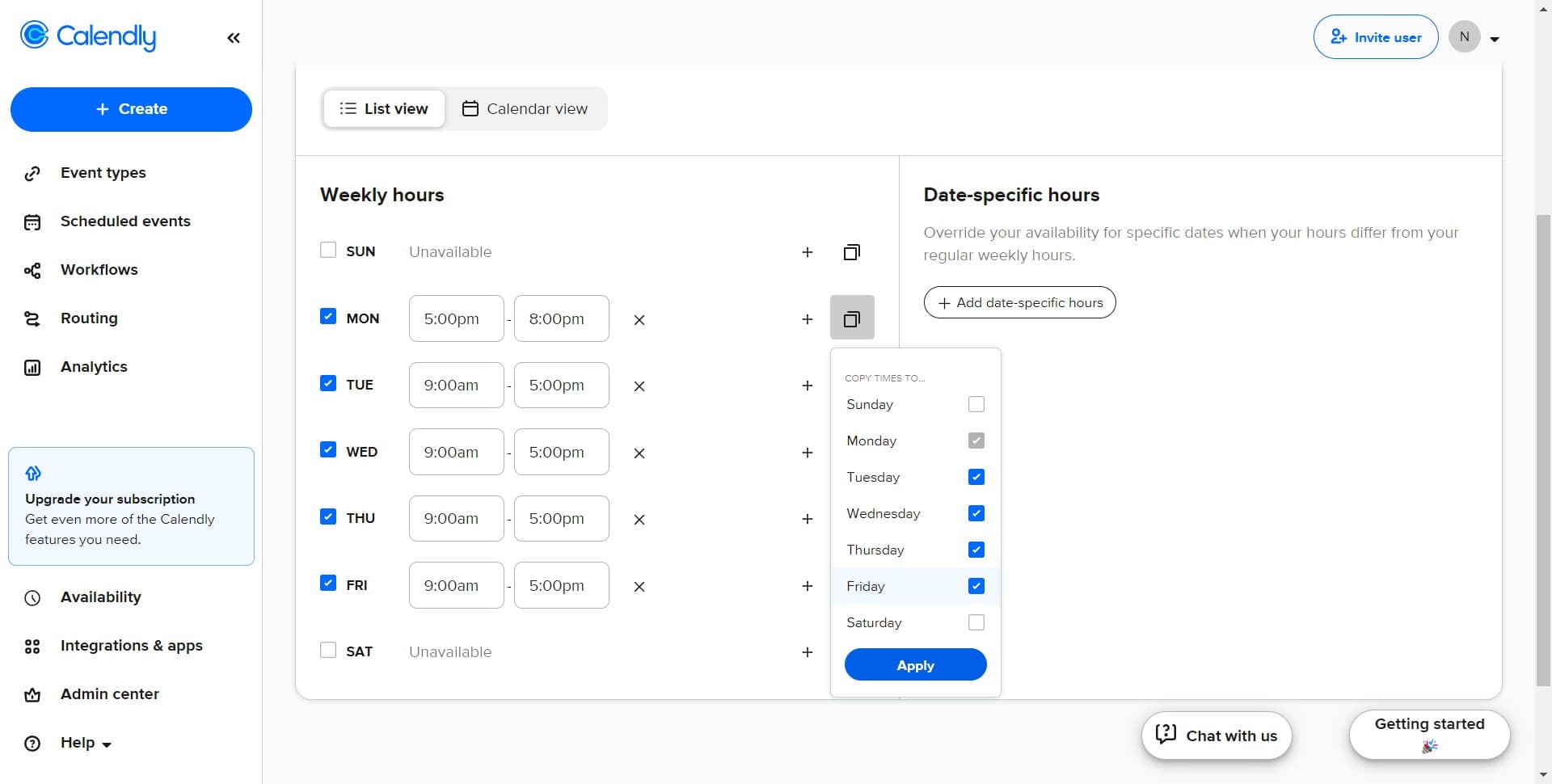
Apply schedule settings
Click the "Apply" button to save and activate your new schedule. Your availability window from 5:00pm to 8:00pm is now live for bookings.
- 10
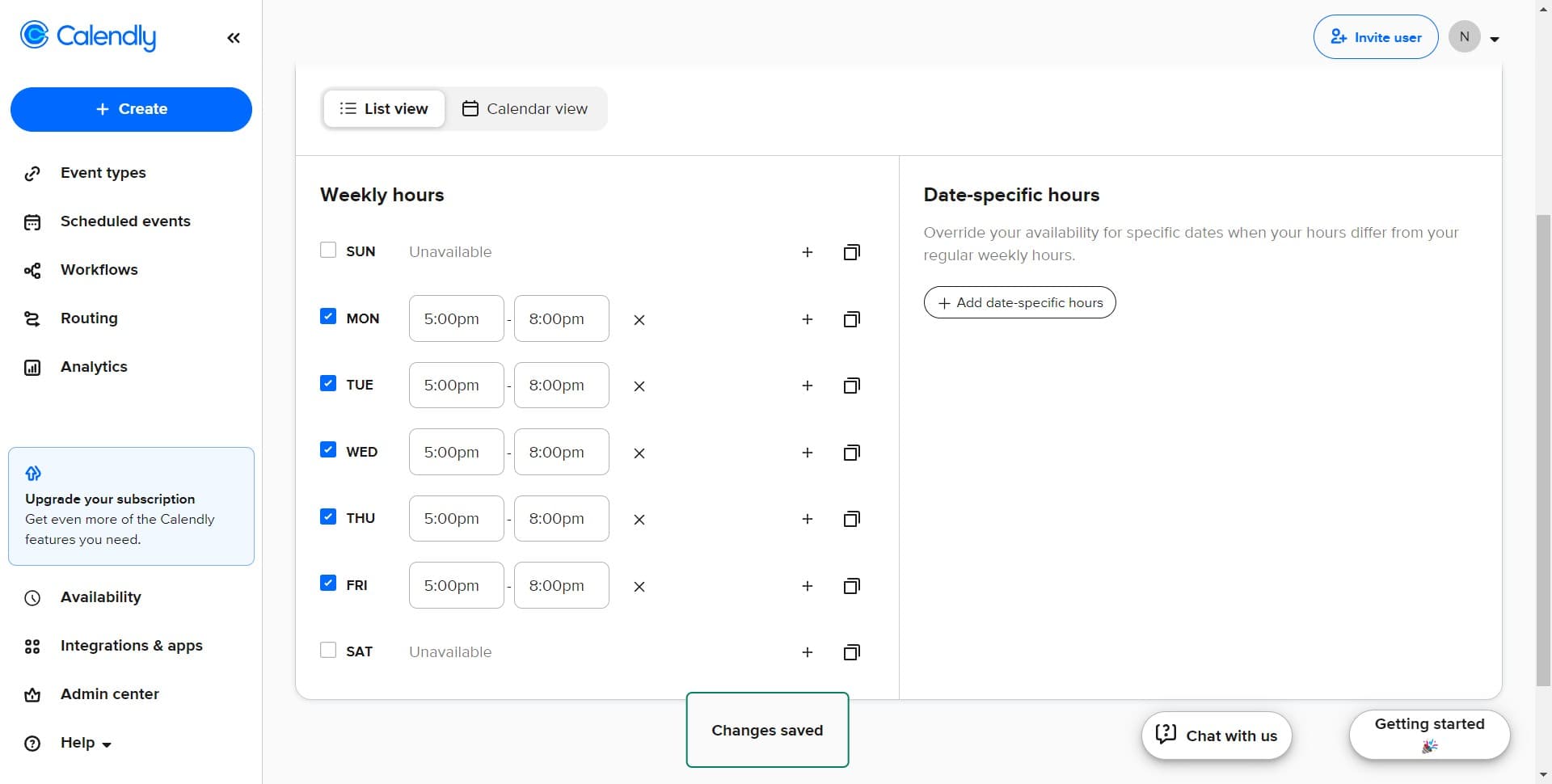
Complete setup process
Click on the final confirmation area to finalize your schedule configuration. Your new availability is now published and ready for clients to book.
Frequently asked questions
Common questions about how to add your schedule in calendly.
Yes, Calendly allows you to customize hours for each day. After creating your initial schedule, you can edit individual days to have varying start and end times, making it easy to accommodate different weekly patterns.
You can create multiple schedules in Calendly for different purposes, such as one-on-one meetings versus group sessions. Each schedule can have its own availability window, and you can assign different meeting types to different schedules.
Clients don't see your raw schedule, but they only see available time slots when they view your booking link. Calendly automatically hides any times outside your availability window, so your schedule remains private while ensuring they can only book when you're free.
Navigate back to the Availability section and select the schedule you want to modify. You can edit the start and end times, apply the changes, and your updated availability will take effect immediately.
Instead of creating a new schedule, you can block off specific dates or use Calendly's "Unavailable" feature to exclude certain days from your standard schedule. This is more efficient than creating multiple schedules.