How to Cancel a Calendly Appointment

Canceling a Calendly appointment is a straightforward process that takes just a few clicks. Whether you need to reschedule or remove a meeting entirely, Calendly makes it easy to manage your calendar without confusion.
Quick summary
In this tutorial, you'll learn how to cancel a Calendly appointment from start to finish. By following these five simple steps, you'll be able to quickly remove any meeting from your calendar and notify the relevant parties.
Why this matters
Canceling appointments promptly helps maintain professional relationships and prevents no-shows or confusion. Managing your calendar effectively ensures that your schedule remains accurate and that attendees receive timely updates about changes.
Step-by-step guide
- 1
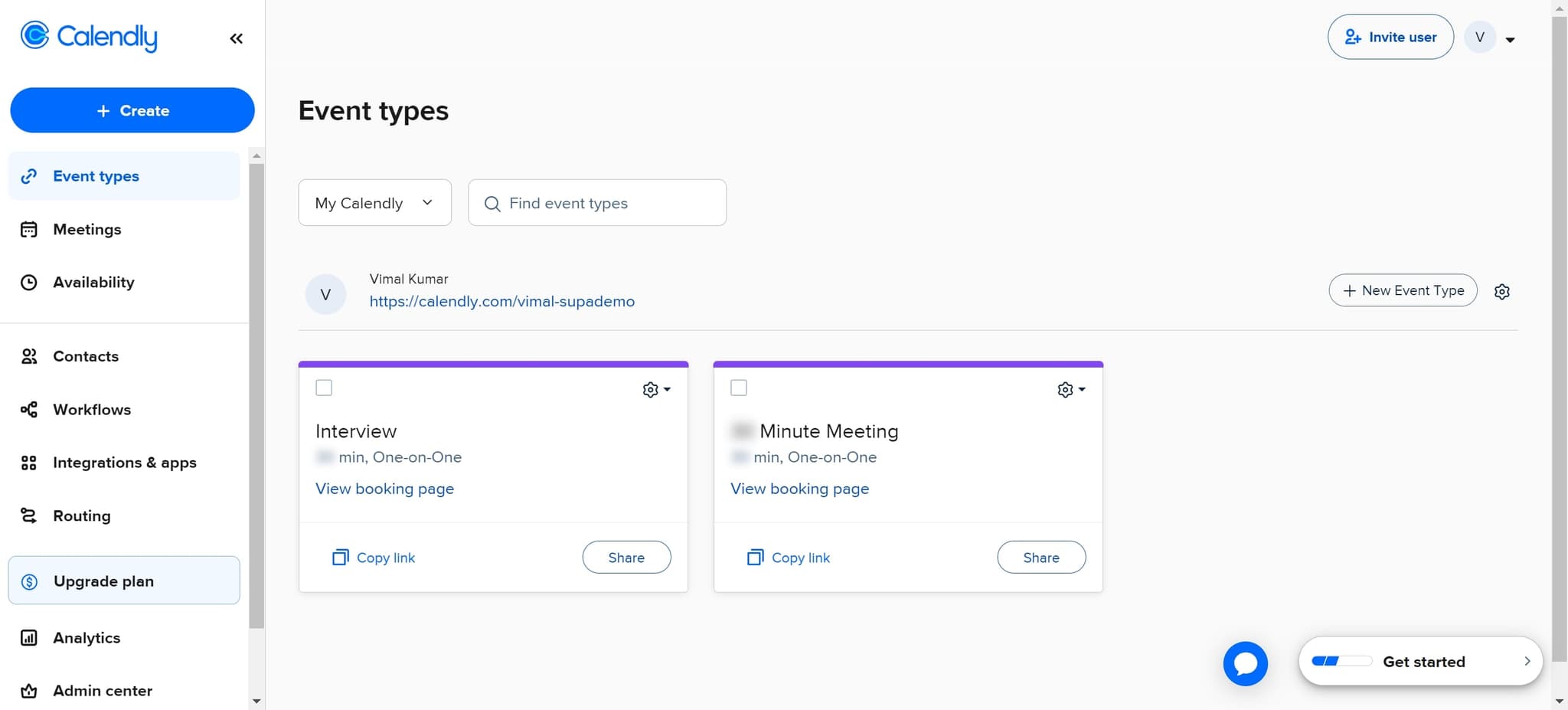
Click on My Calendly
Start by clicking the "My Calendly" option to access your Calendly dashboard. This is your main hub for managing all calendar-related activities.
- 2
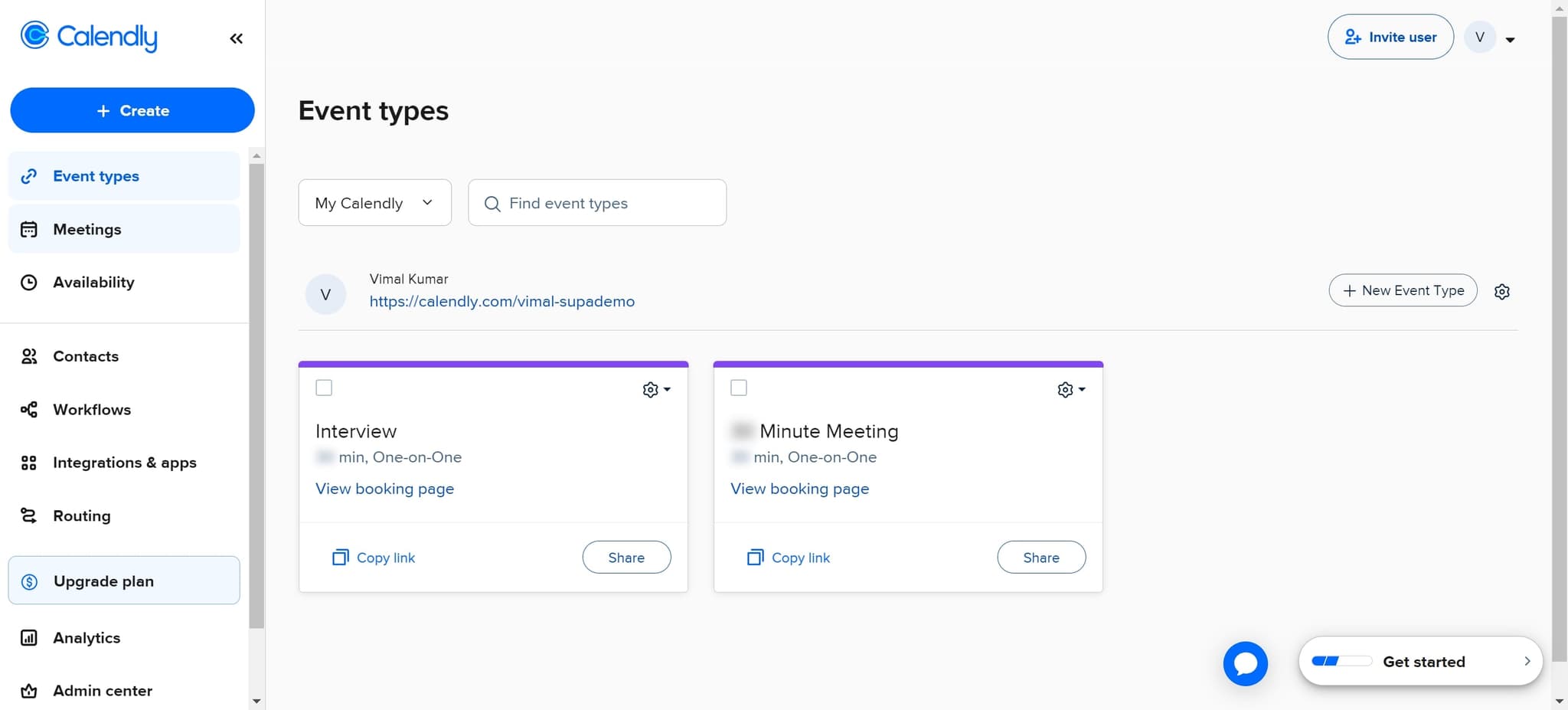
Navigate to Meetings
Next, click on "Meetings" to view all your scheduled appointments. This section displays a complete list of your upcoming and past events.
- 3
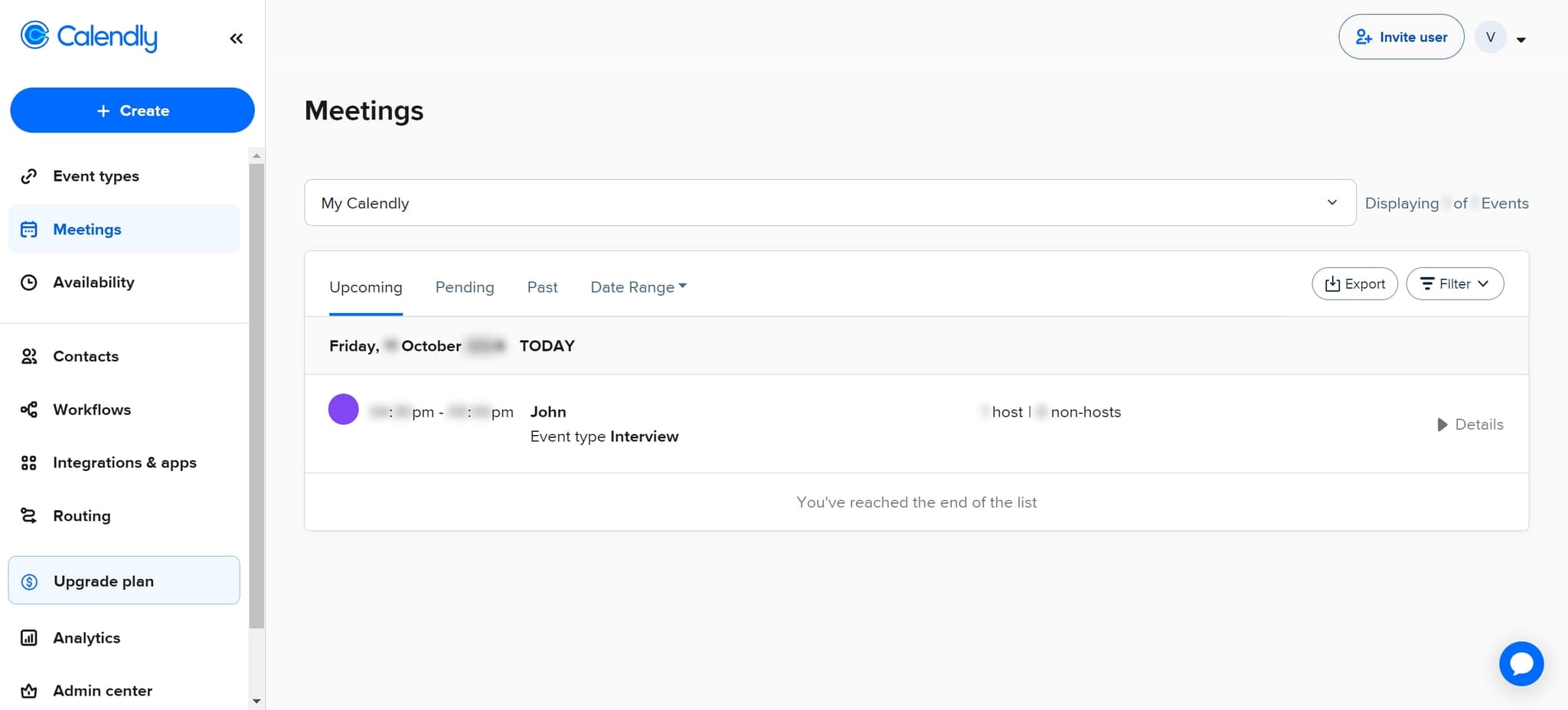
Select the appointment details
Click on "Details" for the specific appointment you want to cancel. This opens a detailed view of the meeting information.
- 4
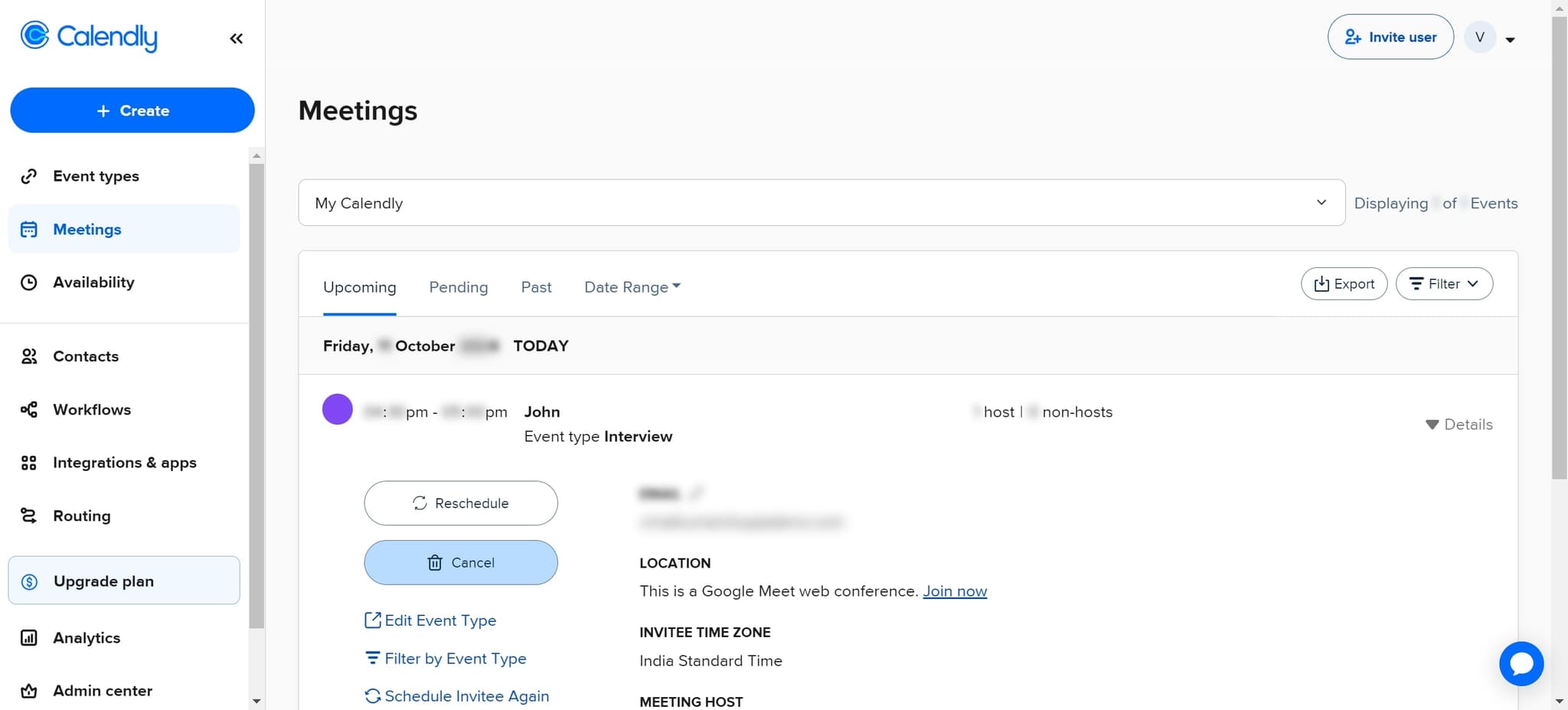
Click on Cancel
Find and click the "Cancel" button within the appointment details. This initiates the cancellation process for the selected meeting.
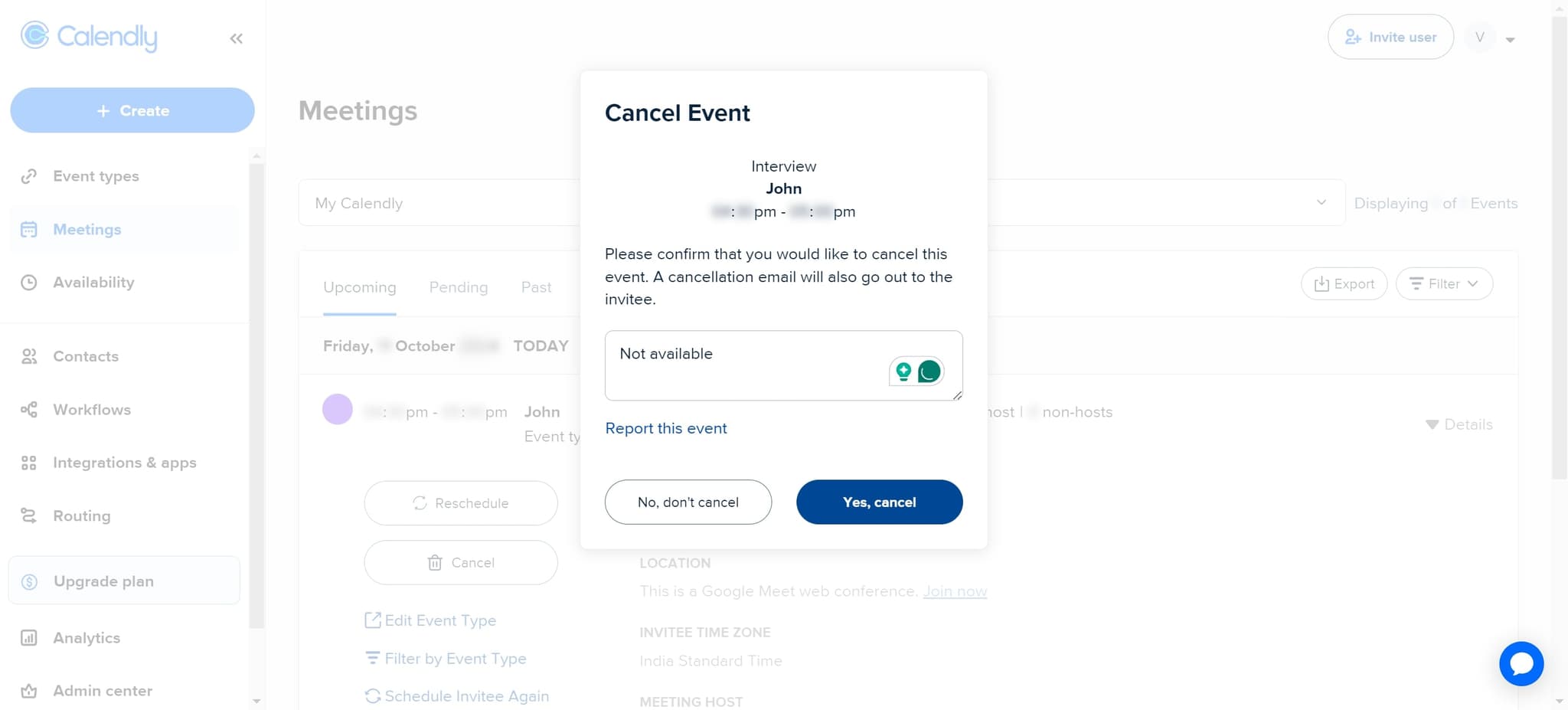
- 5
Confirm the cancellation
Click "Yes, cancel" to confirm that you want to cancel the appointment. Once confirmed, the meeting will be removed from your calendar and the attendee will be notified.
Frequently asked questions
Common questions about how to cancel a calendly appointment.
Yes, Calendly automatically sends a cancellation notification to the attendee when you confirm the cancellation. The notification includes details about the canceled meeting and any relevant information you may have provided.
While you can technically access past appointments in Calendly, canceling completed meetings may not be necessary. If you need to remove a past meeting from your records, you can follow the same process, but the attendee won't receive a cancellation notification.
Once confirmed, a cancellation cannot be automatically undone in Calendly. However, you can manually reschedule with the attendee by having them rebook through your calendar link or by manually creating a new appointment.
After cancellation, the time slot becomes available again on your calendar. This means new attendees can book that time slot if you have a public booking link active.
The standard cancellation process in Calendly sends an automatic notification. For more personalized communication, you may want to send a separate email to the attendee explaining the cancellation before you proceed with removing the meeting.