How to schedule blocks for vacations and time-offs in Calendly

Managing your availability is crucial when you need time away from work. This guide walks you through Calendly's date override feature, which allows you to block off specific dates for vacations, time-offs, and other commitments. By the end, you'll know exactly how to prevent meetings from being scheduled during your unavailable periods.
Quick summary
In this tutorial, you'll learn how to schedule blocks for vacations and time-offs in Calendly using the date override feature. You'll navigate to your availability settings, create a date override, select your unavailable dates, and apply the changes to your calendar. This ensures your invitees can't book time when you're away.
Why this matters
Blocking time for vacations and time-offs prevents double-booking and reduces the back-and-forth communication with potential clients or colleagues. Without these blocks, invitees might schedule meetings during periods when you're unavailable, creating conflicts and unprofessional situations. Setting availability overrides protects your personal time while maintaining a reliable scheduling experience.
Step-by-step guide
- 1
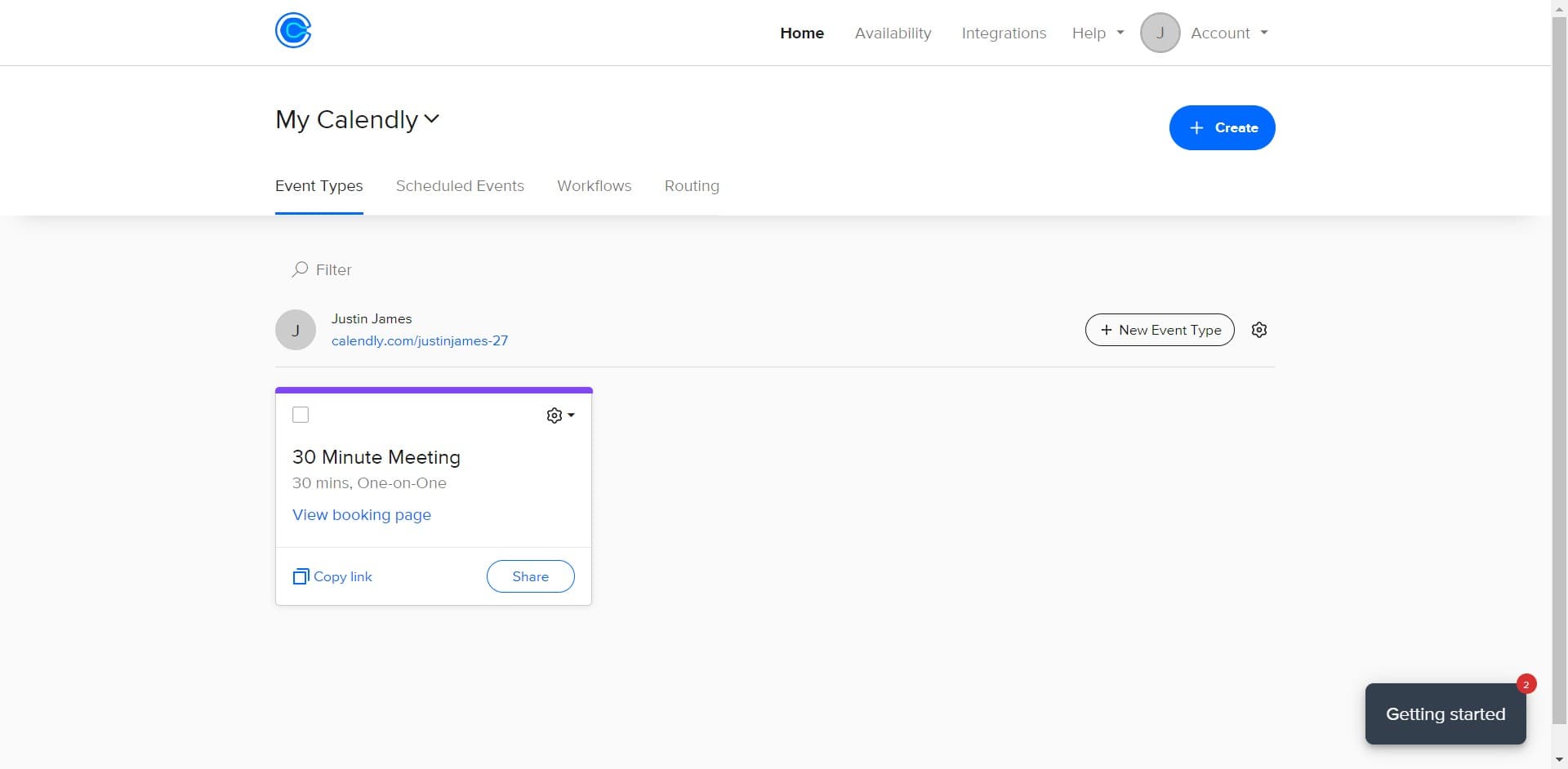
Access My Calendly settings
Click on 'My Calendly' in the top navigation menu to enter your account dashboard. This is your hub for managing all calendar settings and configurations.
- 2
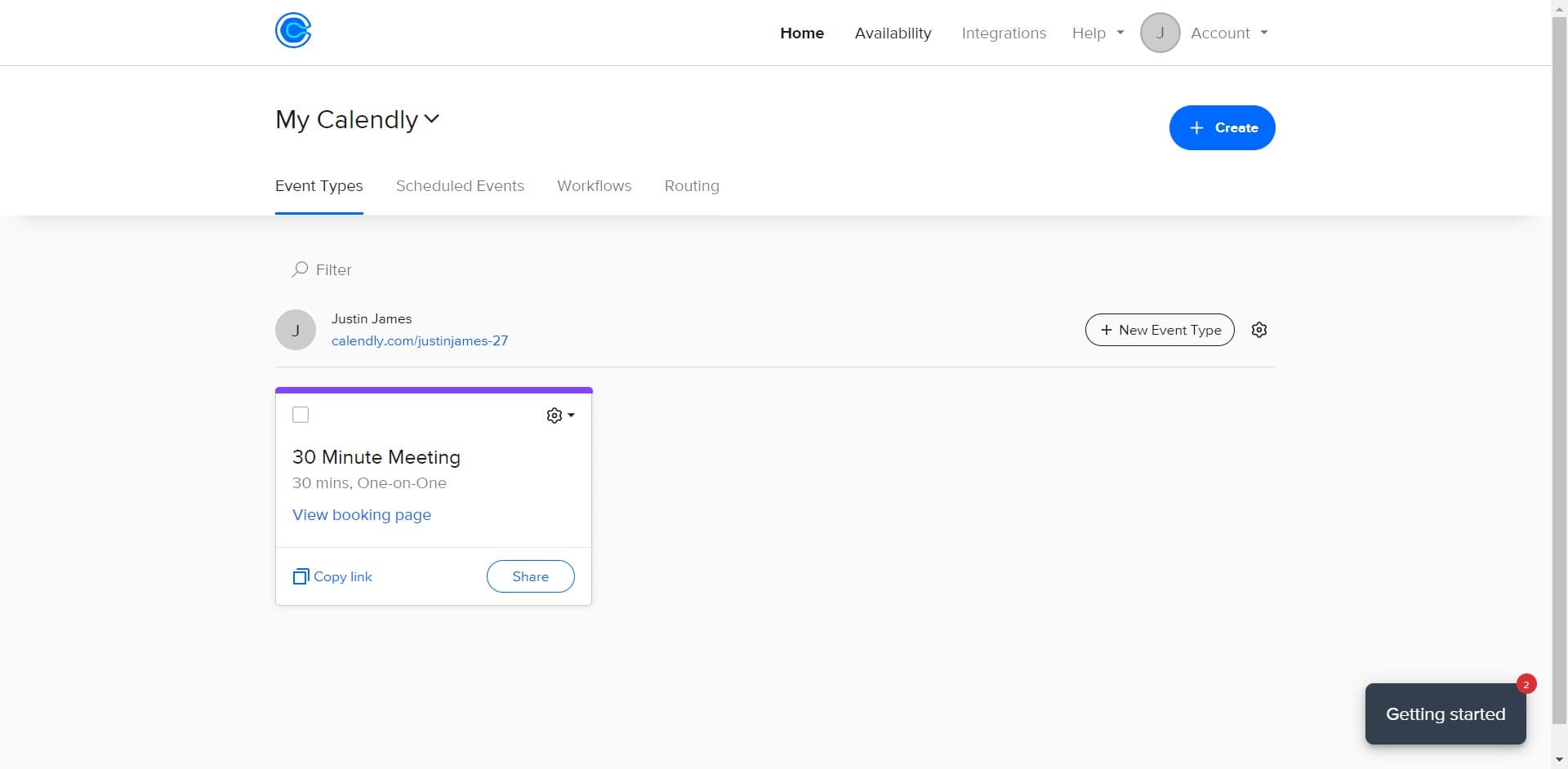
Navigate to Availability settings
Click on the 'Availability' option from the menu. You'll see your current availability rules and options to customize when you can be booked.
- 3
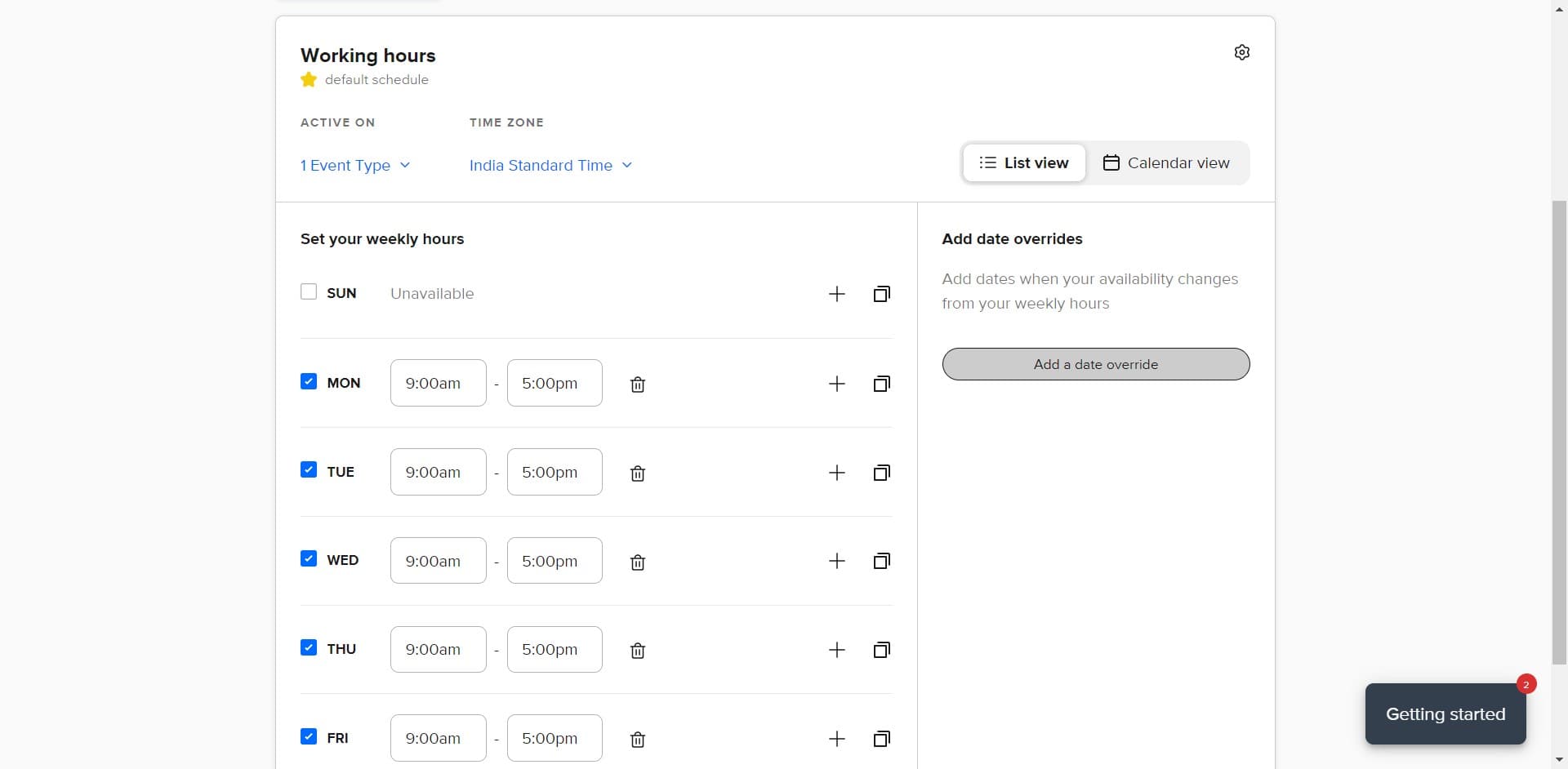
Add a date override
Click on 'Add a date override' to create a new availability exception. This feature lets you block specific dates outside your regular availability schedule.
- 4
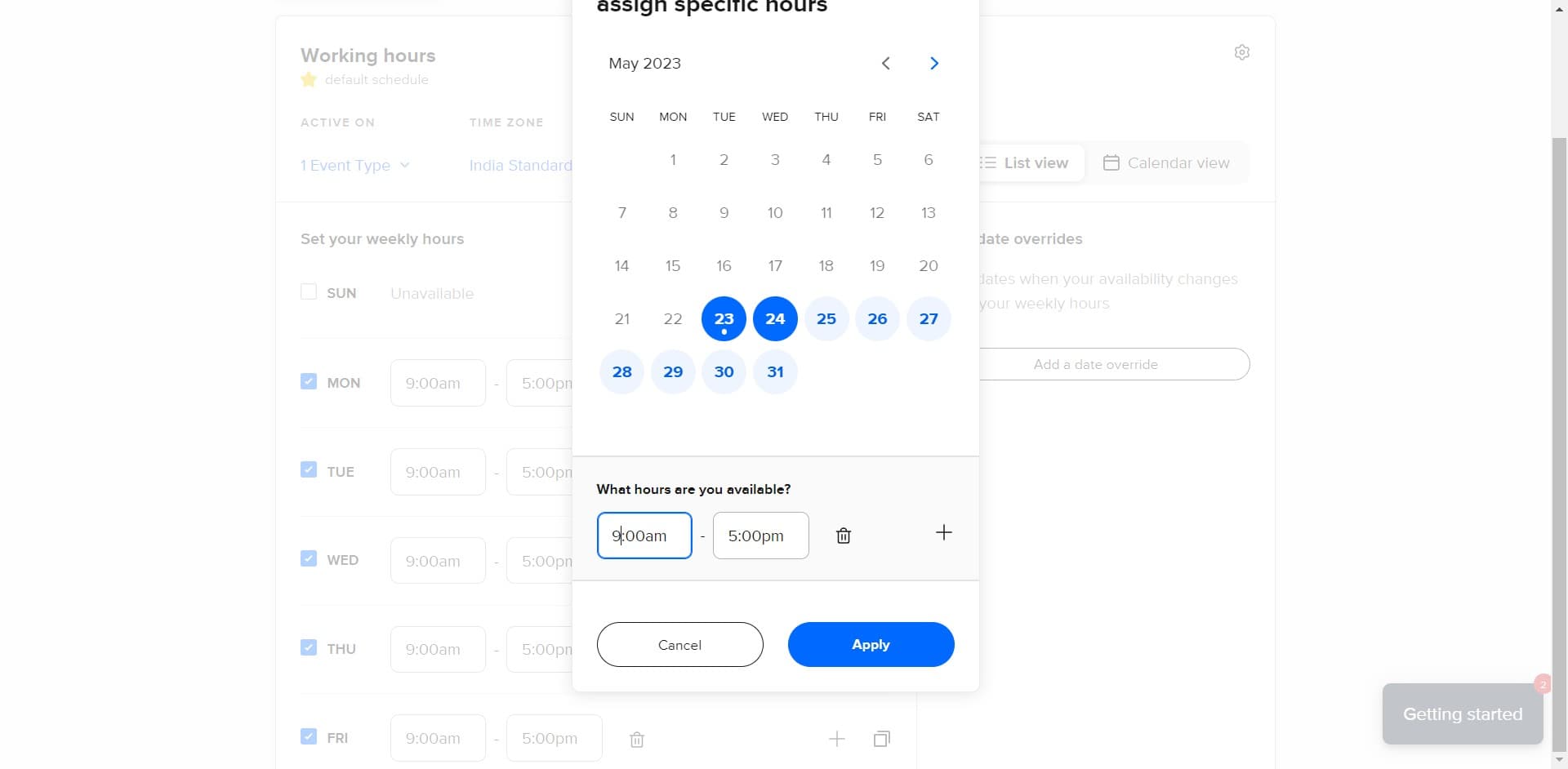
Select your unavailable dates
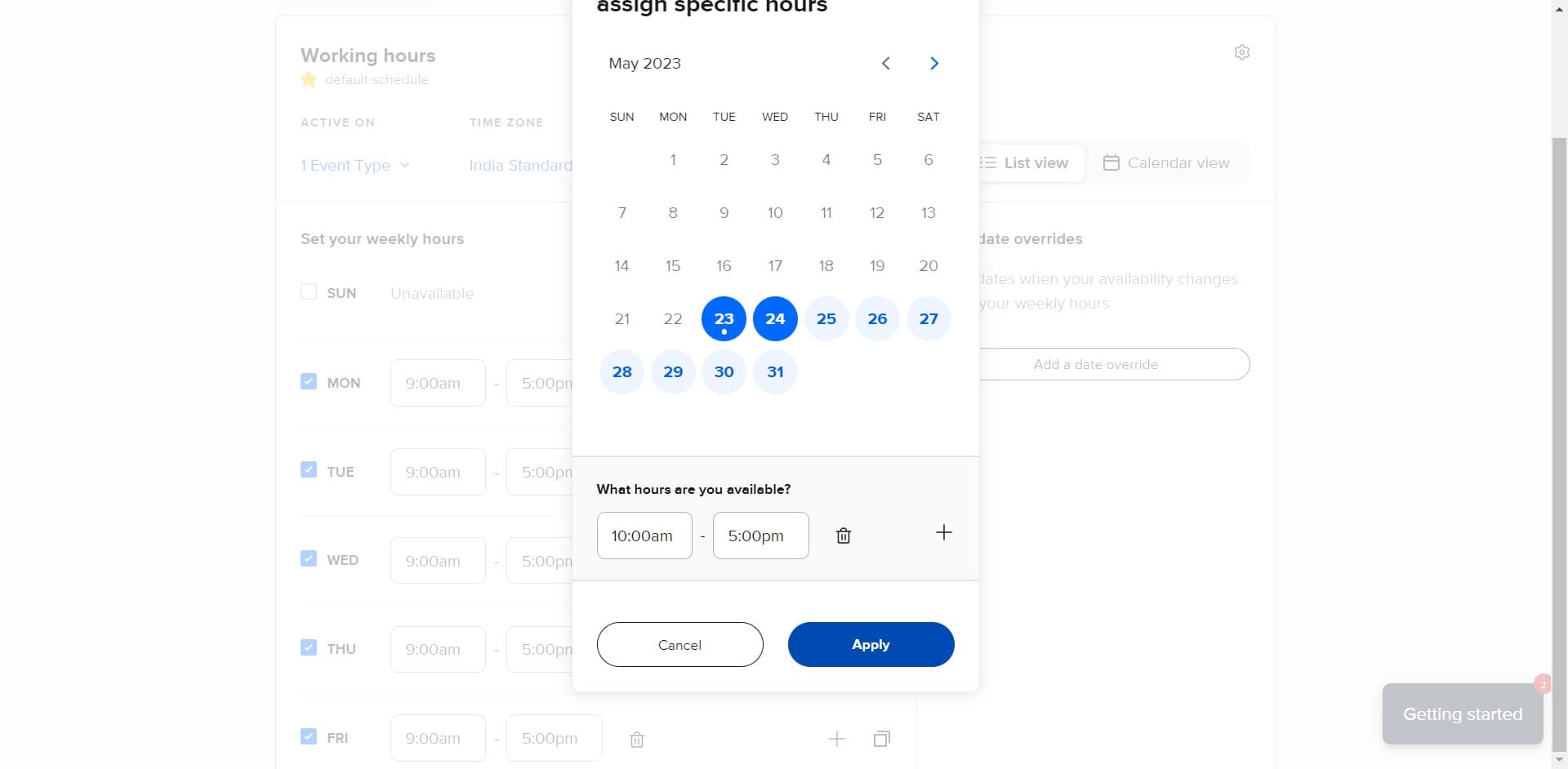
Click on the date picker and select the date or date range when you'll be unavailable. The system will highlight your selection so you can confirm it covers your entire vacation or time-off period.
- 5
Apply the override settings
Click 'Apply' to save your date override. Your calendar will immediately update to prevent new bookings during the selected dates while maintaining your regular availability for other times.
Frequently asked questions
Common questions about how to schedule blocks for vacations and time-offs in calendly.
Yes, you can add as many date overrides as needed for different vacations and time-offs. Each override is independent, so you can create blocks for summer vacation, holidays, and any other periods when you're unavailable. Simply repeat the process for each date range you need to block.
Date overrides only prevent new bookings from being scheduled during the blocked period. Meetings that were already booked before creating the override will remain on your calendar. If necessary, you'll need to cancel those meetings separately and notify the attendees.
Yes, Calendly allows you to set availability overrides for specific calendars if you have multiple calendars connected to your account. When creating a date override, you can select which calendar it applies to. This is useful if you manage different schedules for different purposes.
You can create date overrides as far in advance as you need. Most users set them several months ahead for planned vacations and recurring time-offs. This gives invitees visibility into your availability well in advance.
Yes, you can edit or delete date overrides at any time from your Availability settings. Simply locate the override you want to change, click on it to modify the dates, or remove it entirely if your plans change. Changes take effect immediately.