How to set your availability on Calendly

Setting your availability on Calendly ensures that meetings are only scheduled during times when you're free to meet. This tutorial walks you through accessing and configuring your availability settings so your calendar accurately reflects your working hours and time zones.
Quick summary
In this tutorial, you'll learn how to navigate to your availability settings in Calendly and begin customizing your schedule. You'll discover where to find the availability management tools and how to modify your day-by-day availability preferences.
Why this matters
Properly configured availability prevents scheduling conflicts and reduces the back-and-forth communication needed to find meeting times. By setting clear availability boundaries, you help invitees see only your open time slots, streamlining the scheduling process for everyone involved.
Step-by-step guide
- 1
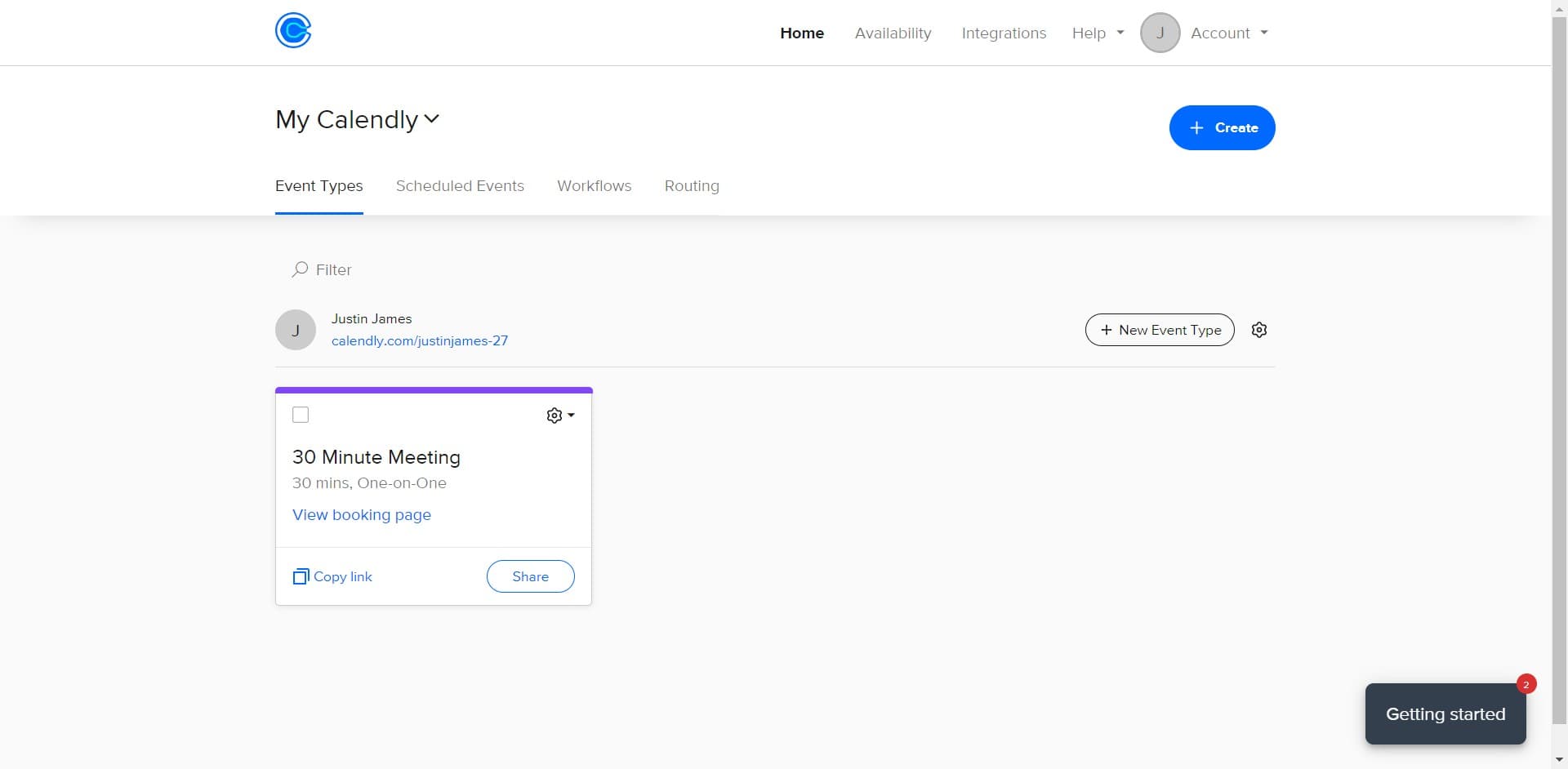
Open the Home Availability menu
Click on the 'Home Availabili...' option in the main navigation menu. This action takes you to your availability management center where you can configure your overall scheduling preferences.
- 2
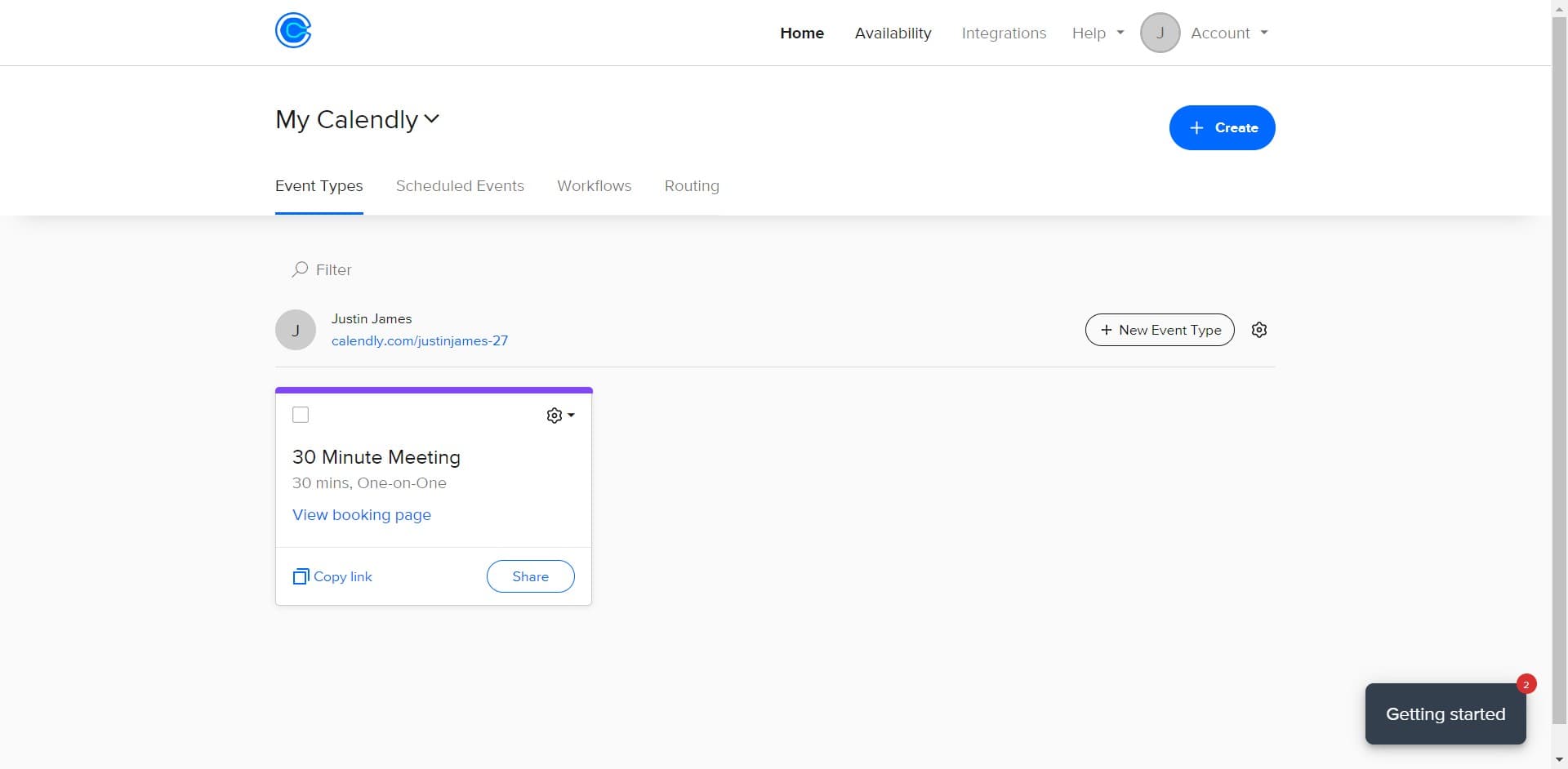
Select Availability settings
Click on 'Availability' to access the full availability configuration panel. This section allows you to set your working hours and manage which days and times are open for bookings.
- 3
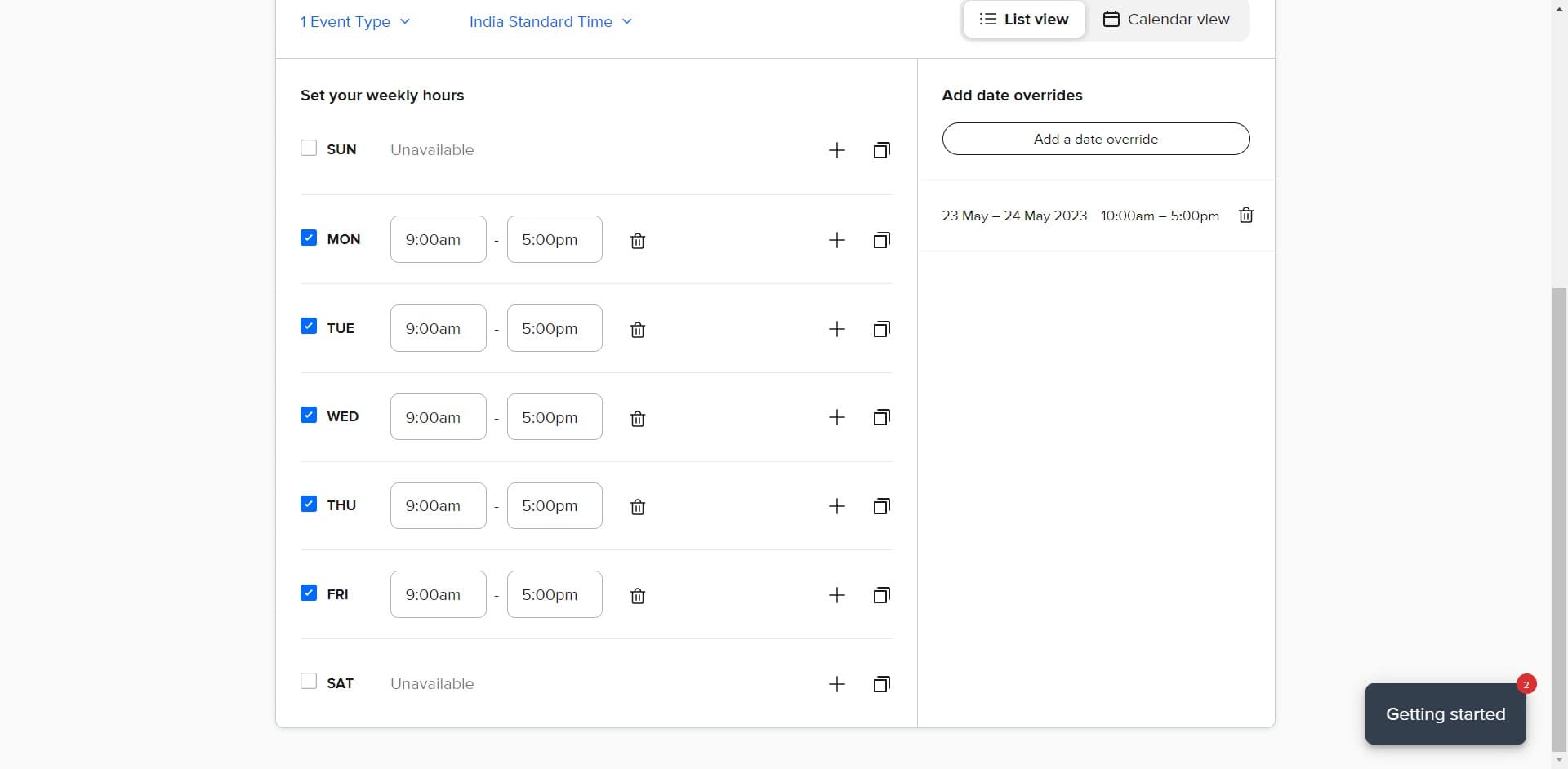
Remove default time slots
Click on the '-' button to remove any existing time slots that don't match your actual availability. This action deletes the selected time block so you can replace it with your correct schedule.
- 4
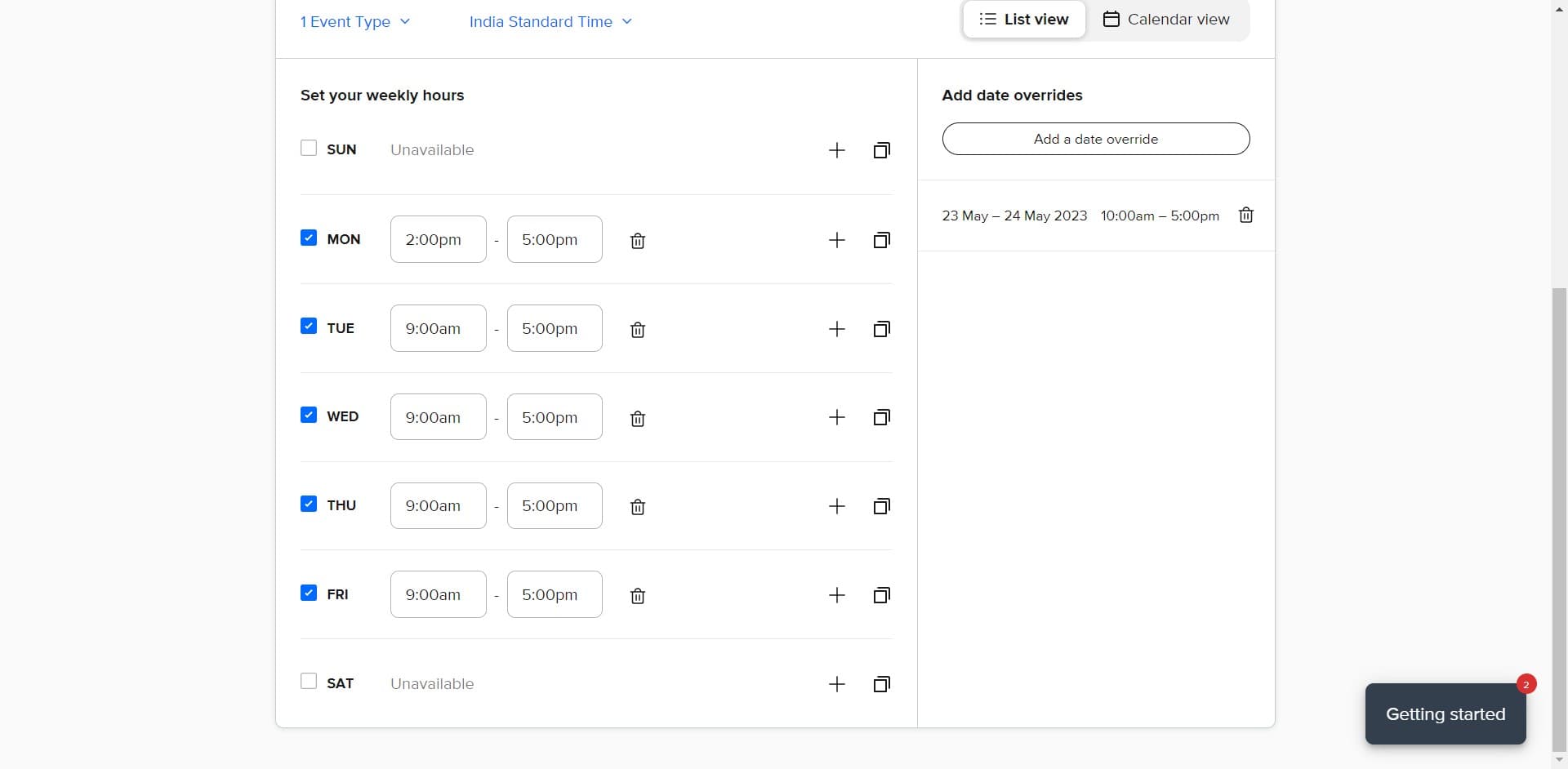
Modify Monday availability
Click on 'MON -' to adjust your Monday schedule settings. This opens the day-specific configuration where you can set your preferred meeting hours for Mondays or disable the day entirely if needed.
Frequently asked questions
Common questions about how to set your availability on calendly.
Setting your availability prevents people from booking you at times when you're unavailable or busy. It reduces scheduling conflicts and the need for follow-up messages to find suitable meeting times. This saves time for both you and your invitees.
Yes, Calendly allows you to customize availability for each day of the week. You can set different hours for Monday through Friday, weekends, or disable specific days entirely. This flexibility ensures your calendar reflects your actual working schedule.
If you don't set availability, your calendar will have no open time slots and people won't be able to book meetings with you. It's important to configure at least some availability periods so invitees can schedule time with you.
Absolutely, you can update your availability settings at any time. Changes take effect immediately for future booking attempts. This means you can adjust your schedule seasonally, during vacation periods, or whenever your working hours change.
Yes, Calendly allows you to set your time zone when configuring availability. Your availability times will automatically adjust based on the invitee's time zone, ensuring meetings are scheduled at accurate times for both parties regardless of location.