How to set your working hours on Calendly

Setting your working hours in Calendly ensures that meeting invitations can only be scheduled during times you're actually available to meet. This prevents scheduling conflicts and helps you maintain a clear boundary between work and personal time. Learn how to configure your availability settings in just a few clicks.
Quick summary
In this tutorial, you'll learn how to access Calendly's availability settings and begin customizing your working hours. You'll navigate to the Availability section and start configuring your schedule by day of the week to reflect when you're open to meetings.
Why this matters
Properly setting your working hours in Calendly is essential for protecting your calendar from being overbooked outside your preferred times. This workflow helps you communicate your availability to others automatically, reducing the need for back-and-forth scheduling emails. By establishing clear working hours, you create a professional scheduling experience for both yourself and your meeting invitees.
Step-by-step guide
- 1
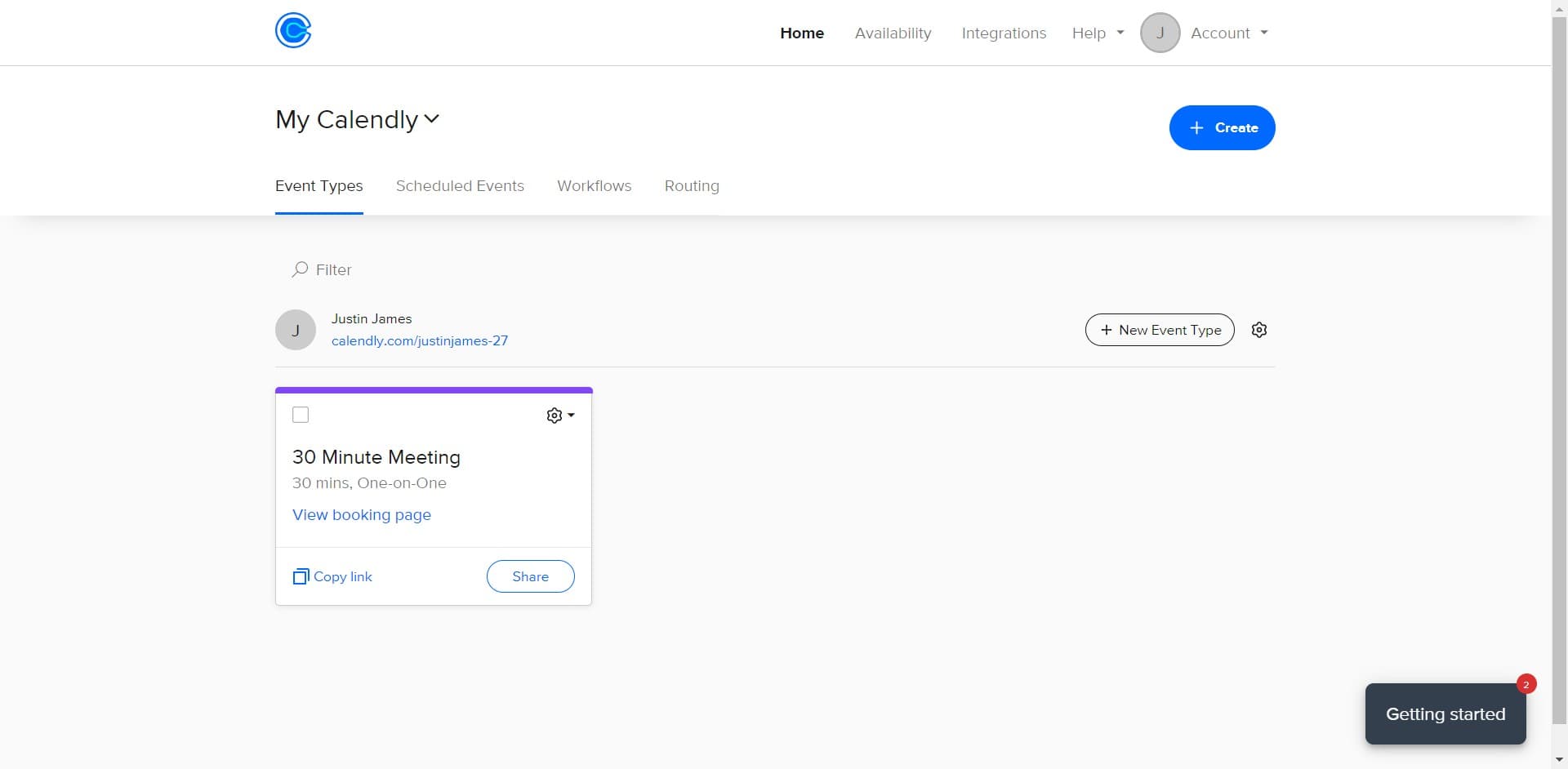
Click on Home Availability section
From your Calendly dashboard, locate and click on the 'Home Availability' option to access your scheduling preferences. This will take you to the main availability management area where you can view and edit your working hours.
- 2
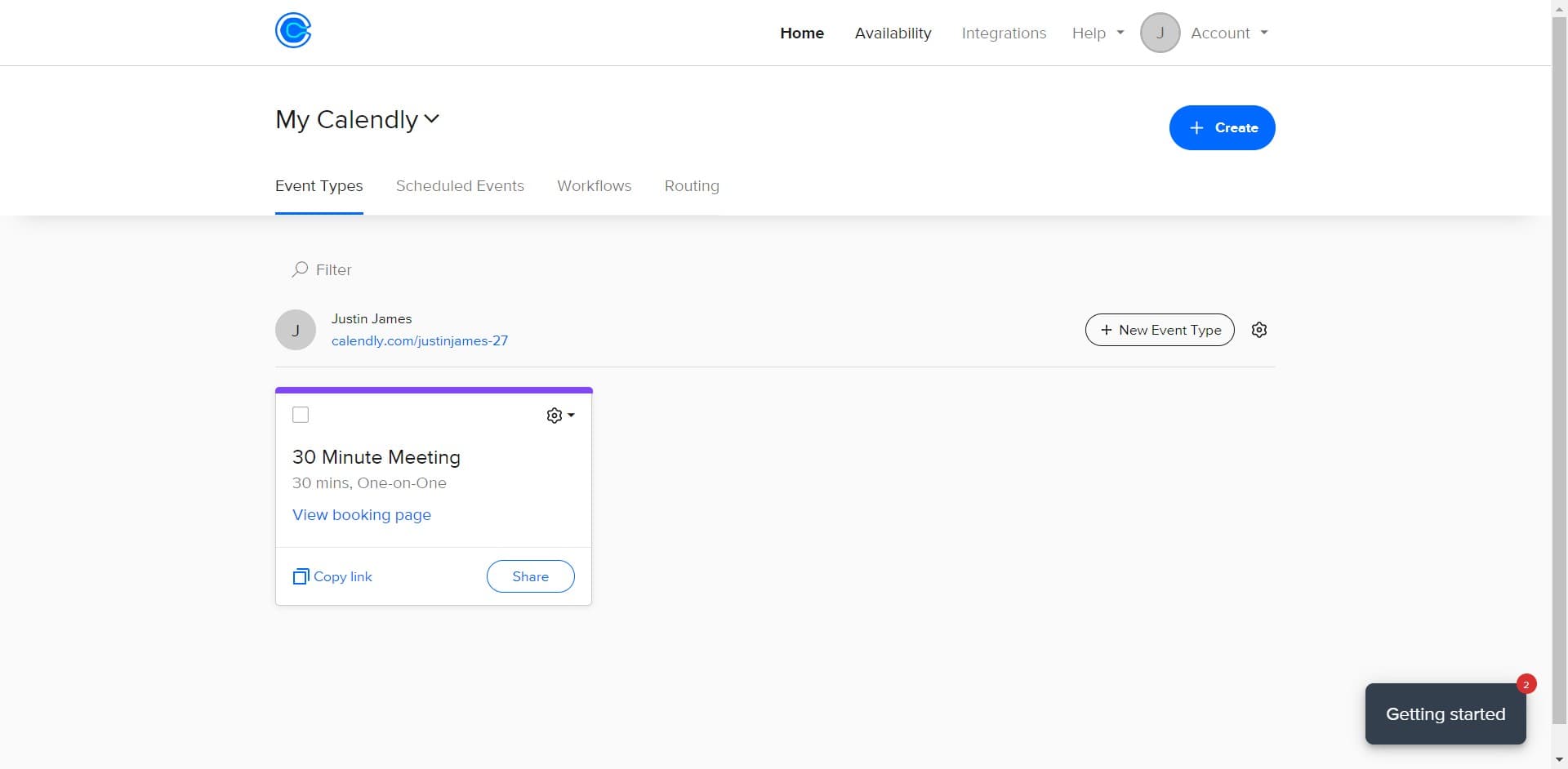
Select Availability settings
Click on the 'Availability' option to open the full availability configuration panel. This section allows you to set your working hours and define when people can book time with you.
- 3
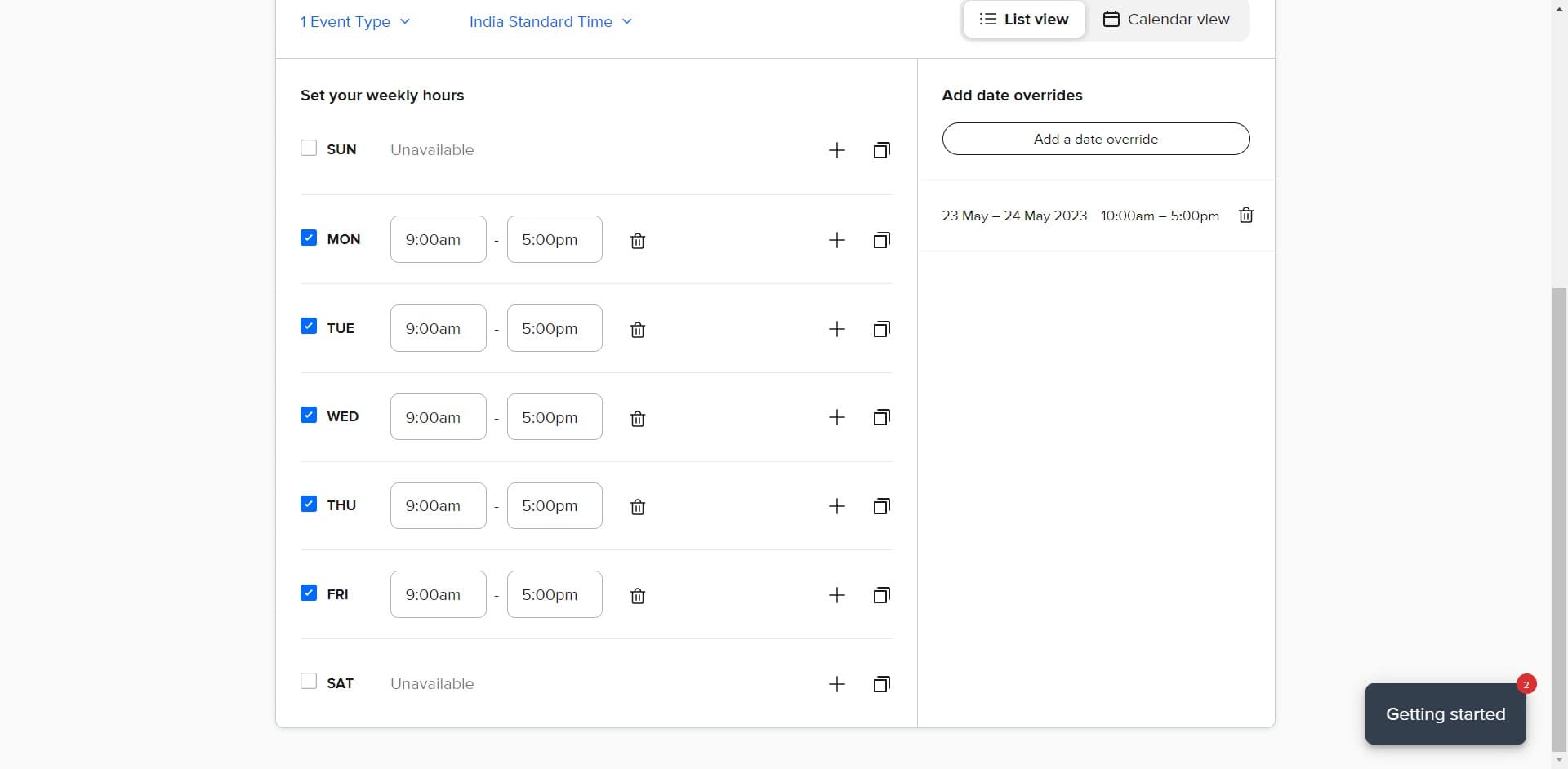
Click the minus button to remove time
To adjust your working hours, click the minus button next to any existing time slot you want to remove or modify. This action will delete that time block from your availability.
- 4
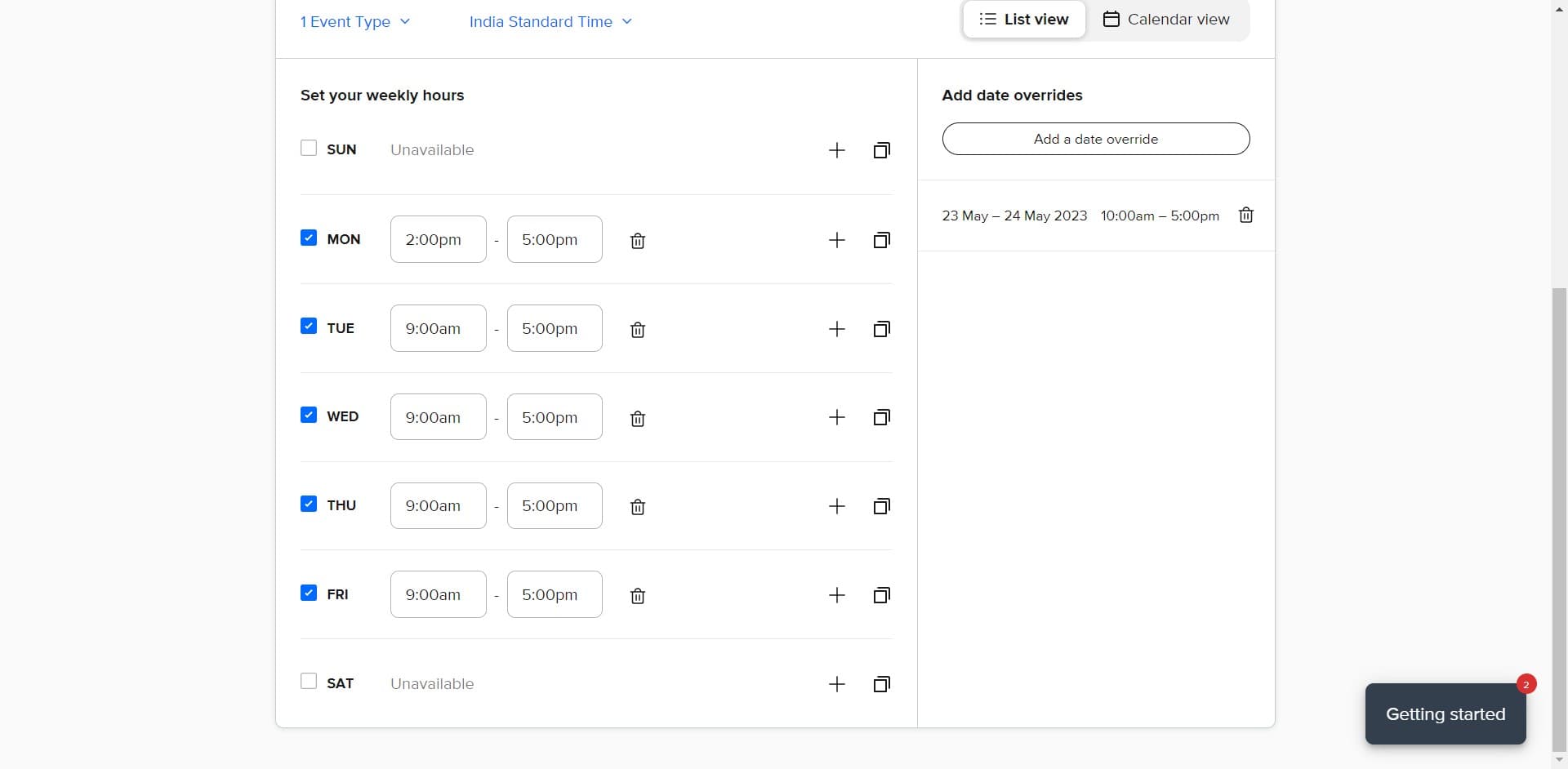
Configure Monday hours
Click on the 'MON' field to set your working hours for Monday. You can now specify your preferred meeting times for this day of the week by adding or removing time blocks as needed.
Frequently asked questions
Common questions about how to set your working hours on calendly.
Yes, Calendly allows you to customize your working hours for each day of the week individually. You can set specific time ranges for Monday through Sunday, or disable scheduling entirely on certain days if needed.
Changing your working hours in Calendly affects future availability only. Meetings that are already scheduled will not be affected, even if they fall outside your newly configured working hours.
Yes, you can create multiple availability windows within a single day. For example, you could set availability from 9 AM to 12 PM and then again from 2 PM to 5 PM to account for a lunch break.
To make yourself completely unavailable on a specific day, you can remove all time blocks for that day by clicking the minus button next to each time slot. Alternatively, some Calendly plans allow you to disable entire days from the availability settings.
Your working hours serve as the foundation for all your event types, but individual event types can have their own additional restrictions. You can further customize availability per event type if needed for more granular control.