How to Use Calendly to Schedule Meetings

Calendly streamlines the meeting scheduling process by allowing you to create customizable scheduling templates and share them with others. This guide walks you through setting up a new event template and sharing your availability with contacts.
Quick summary
In this tutorial, you'll learn how to create a new scheduling template in Calendly, configure event settings, and generate a shareable link to distribute to meeting attendees. By the end, you'll have a fully configured template ready to use for recurring or one-time meetings.
Why this matters
Effective meeting scheduling saves time for both organizers and attendees by eliminating back-and-forth email exchanges. Calendly templates ensure consistency across your scheduling process and reduce administrative overhead when managing multiple meetings or recurring events.
Step-by-step guide
- 1
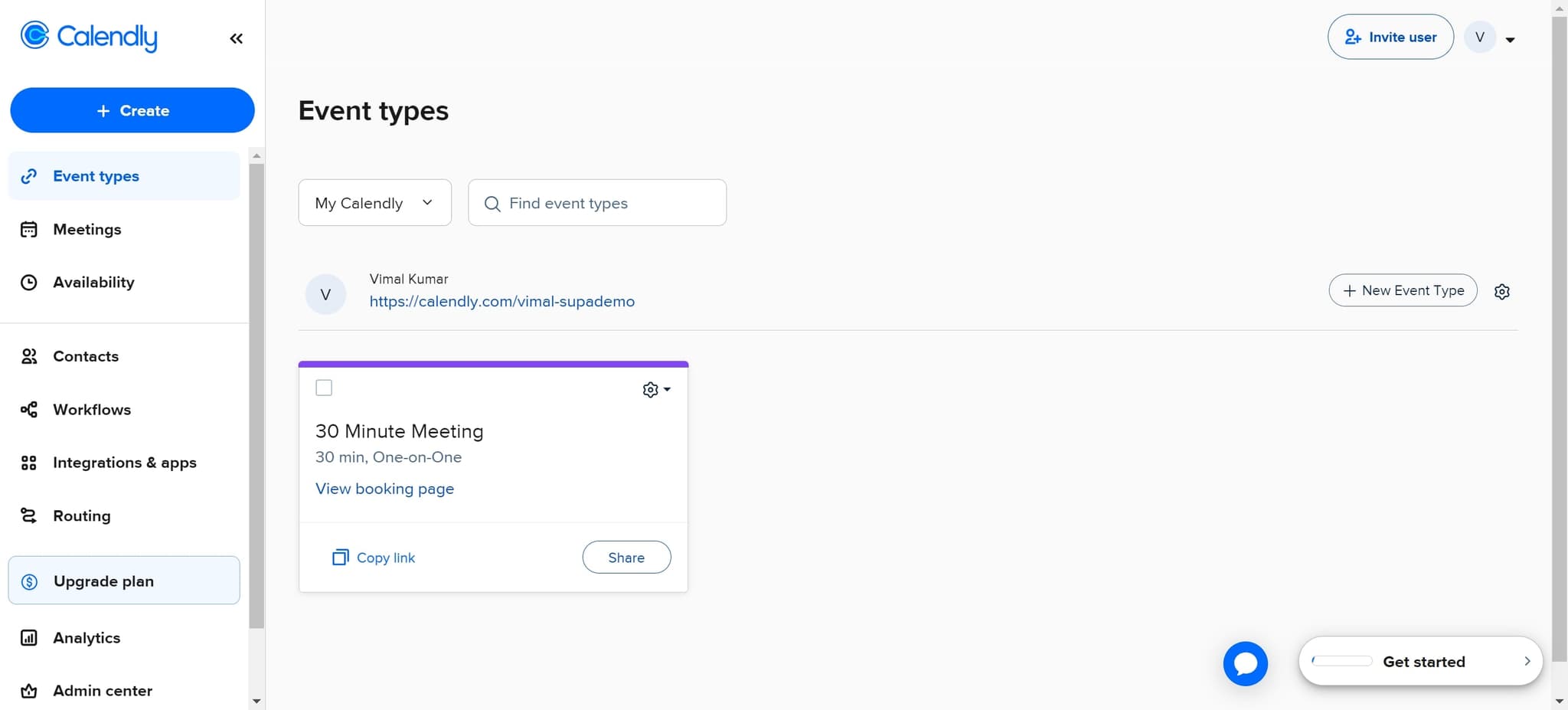
Access the main menu
Click the primary navigation element to begin setting up your new scheduling template. This will open the main interface where you can access template creation tools.
- 2
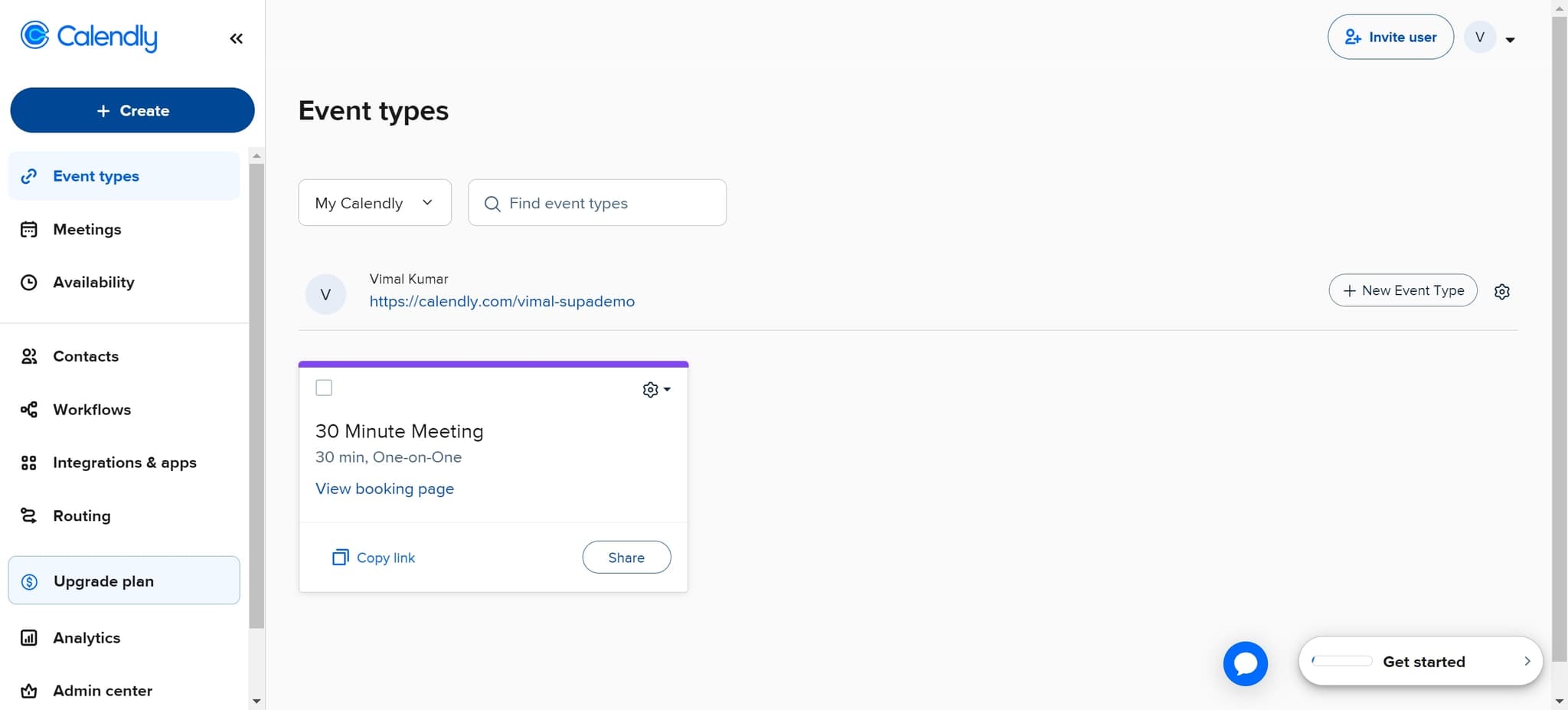
Select the scheduling option
Click on the indicated element to navigate to the template or event management section. You should now see options related to creating and managing your scheduling templates.
- 3
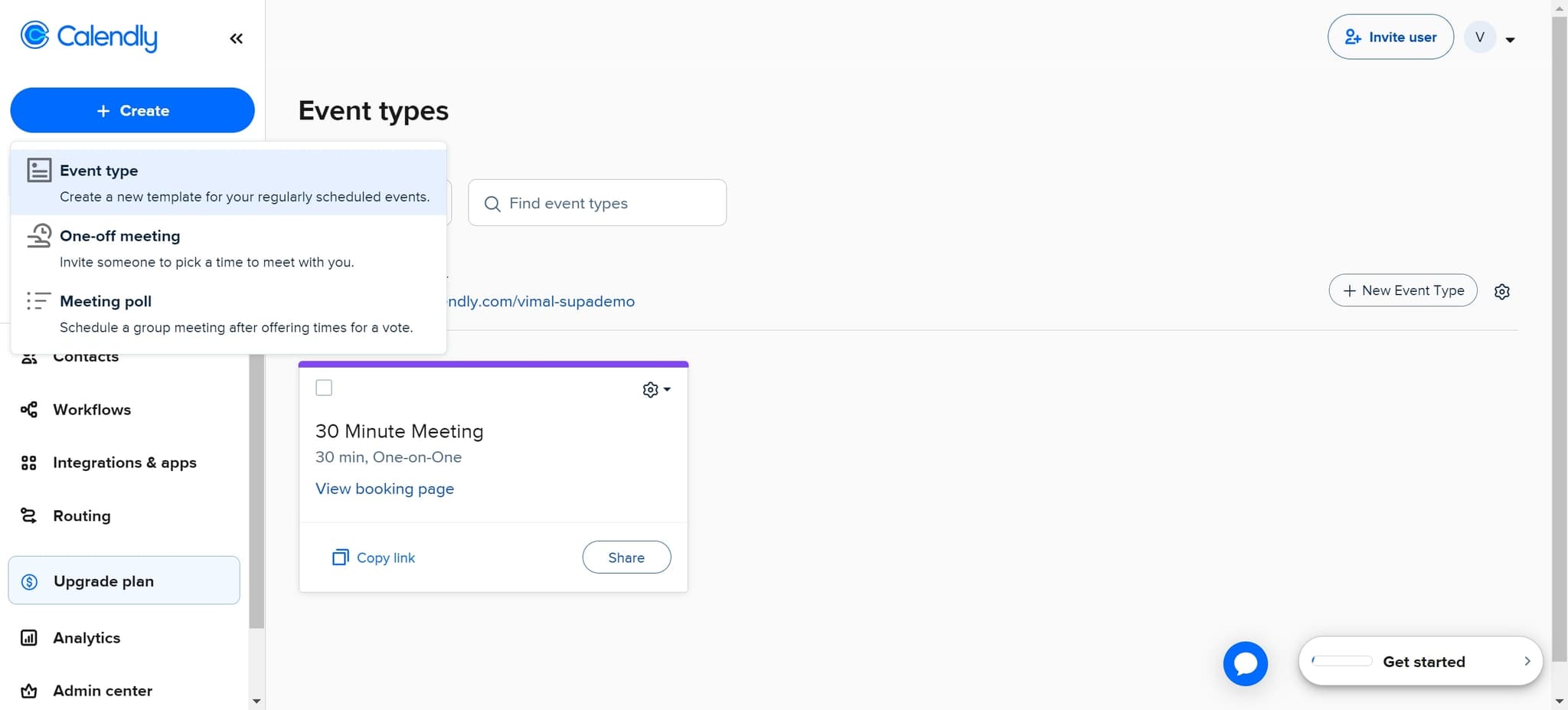
Create a new event template
Click on "Create a new template for your regularly scheduled events." This action initiates the template creation workflow and opens the configuration panel.
- 4
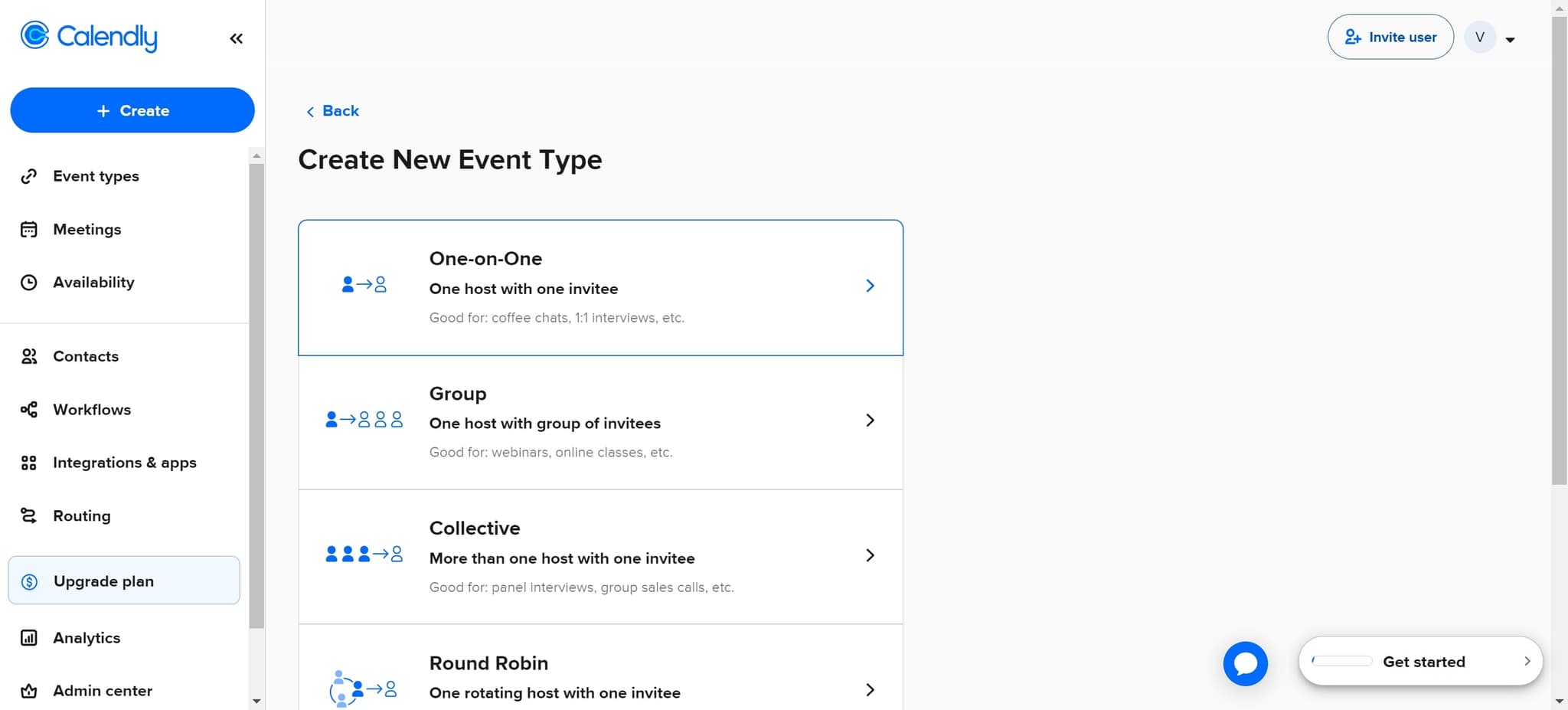
Proceed to template settings
Click the designated area to continue to the next stage of template setup. This will load the core configuration options for your event details.
- 5
Confirm and move forward
Click "Next" to advance to the subsequent configuration screen. Your initial settings have been saved and you're now ready to configure additional event parameters.
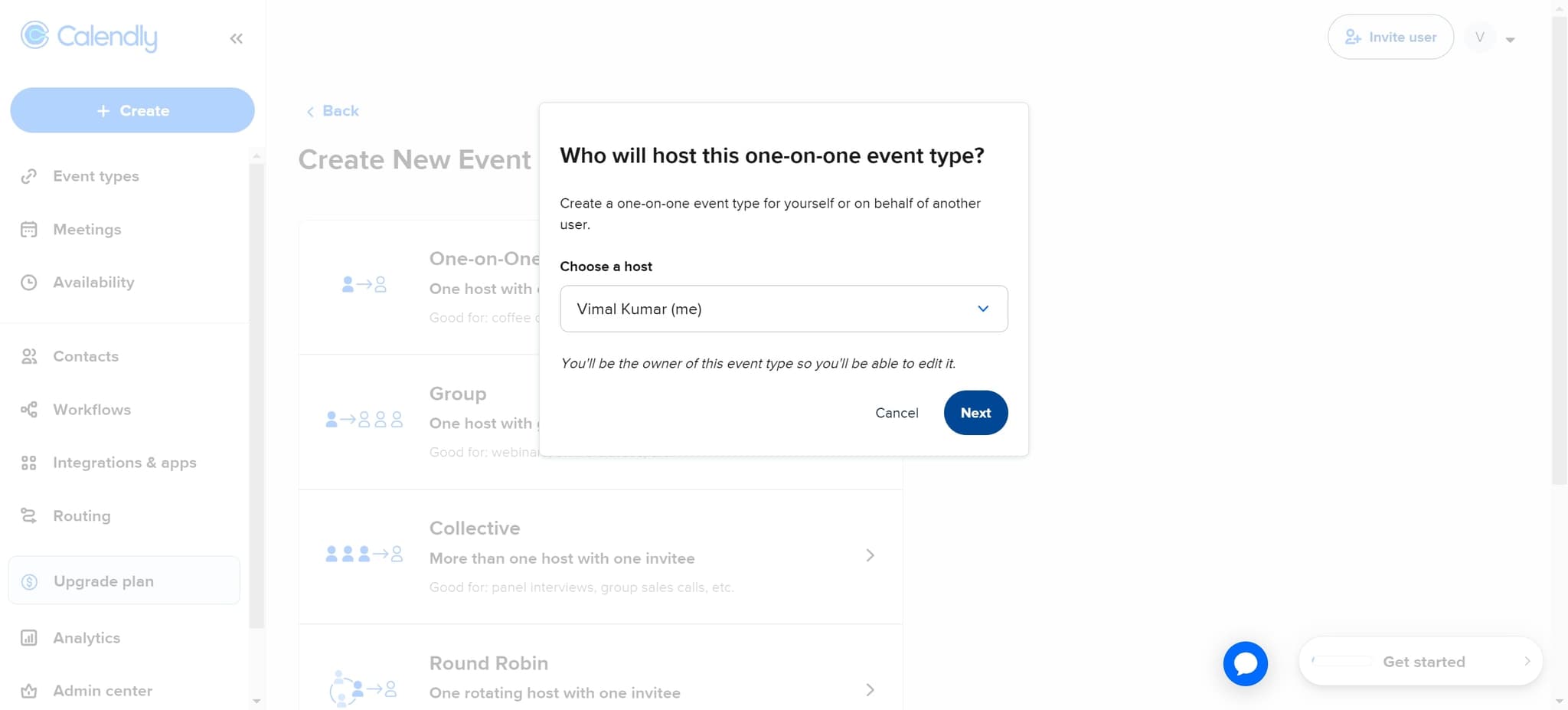
- 6
Access advanced options
Click here to view or modify additional template settings such as event duration, availability rules, or attendee details. This section allows fine-tuning of your scheduling preferences.
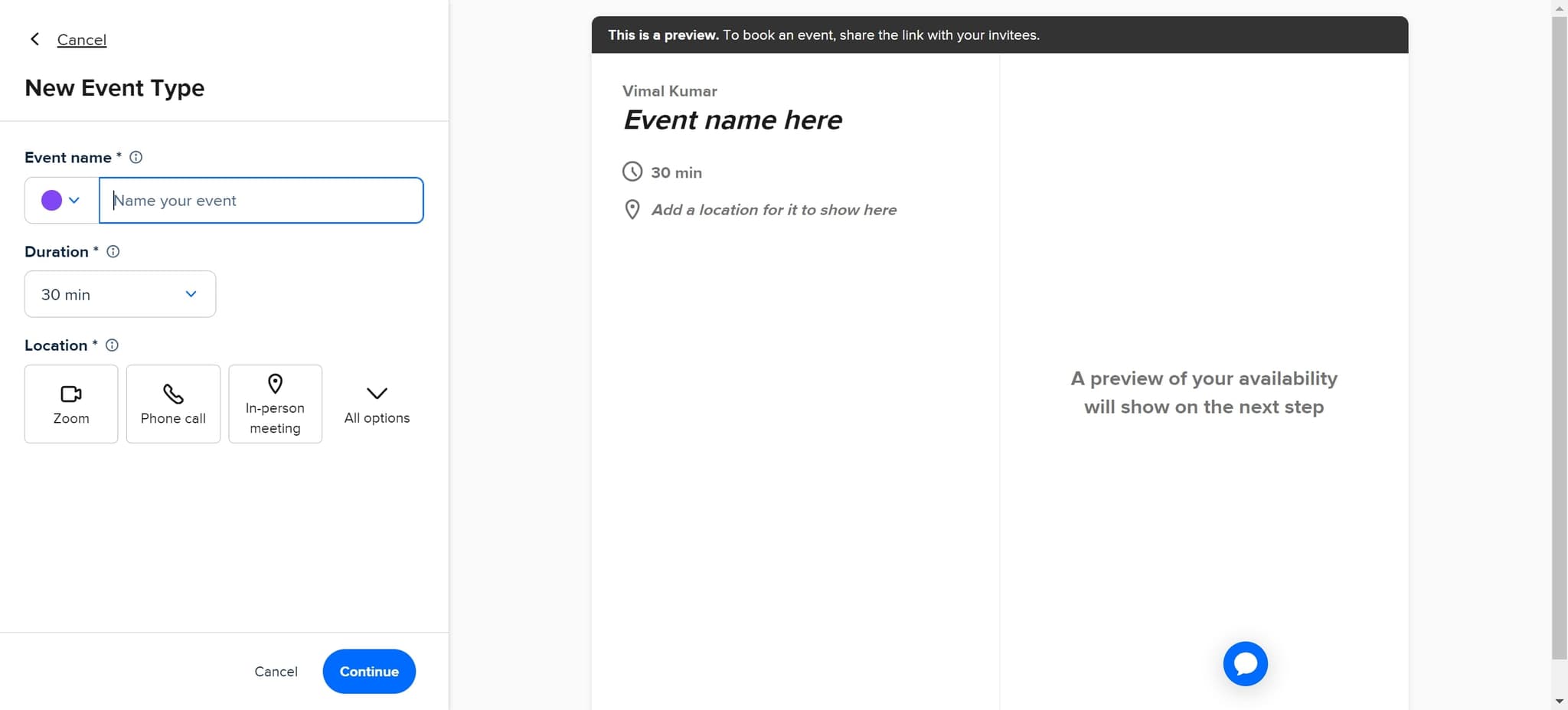
- 7
Select additional elements
Click on the element to configure more aspects of your event template. You may be selecting options related to meeting type, duration, or participant information.
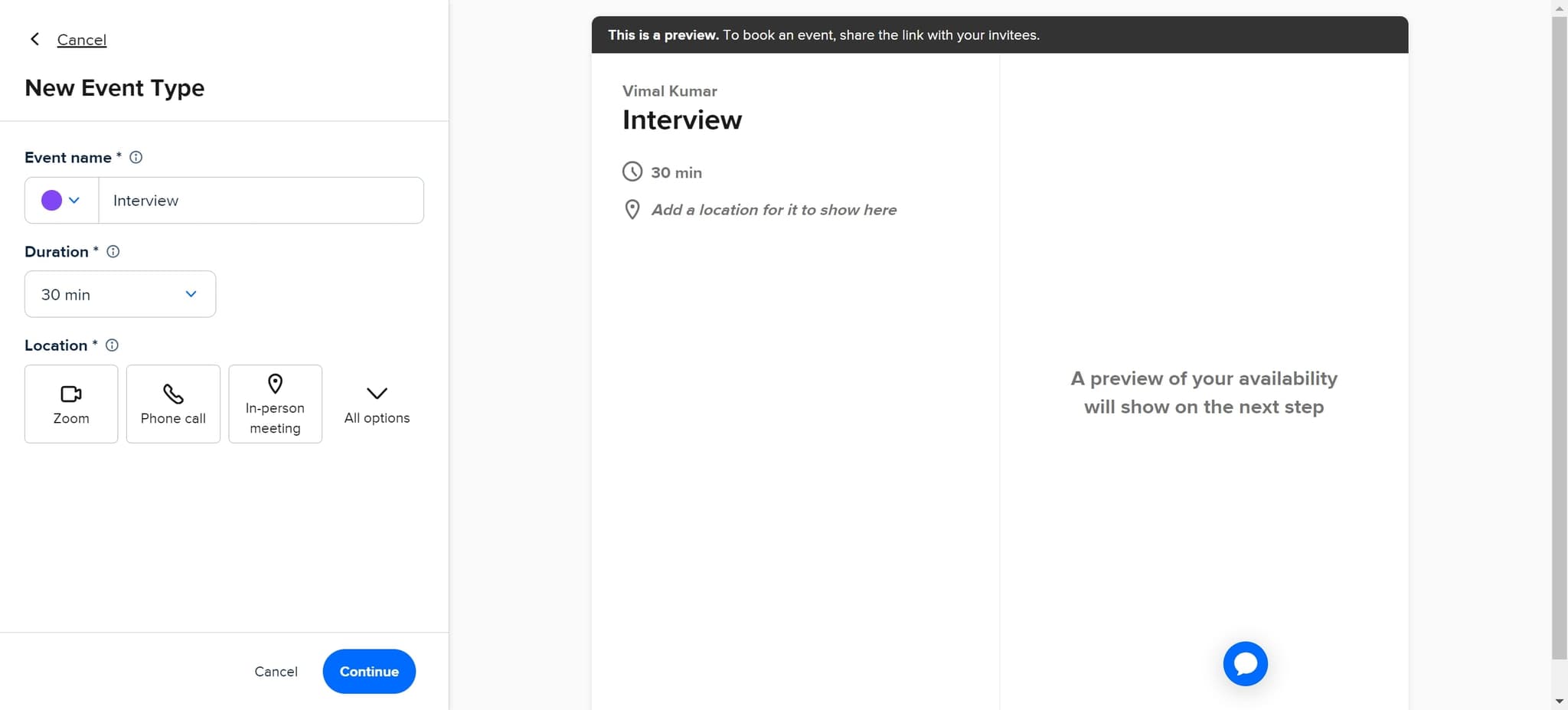
- 8
Finalize configuration
Click "Continue" to save your template settings and proceed to the final steps. Your event template is now configured with all necessary details.
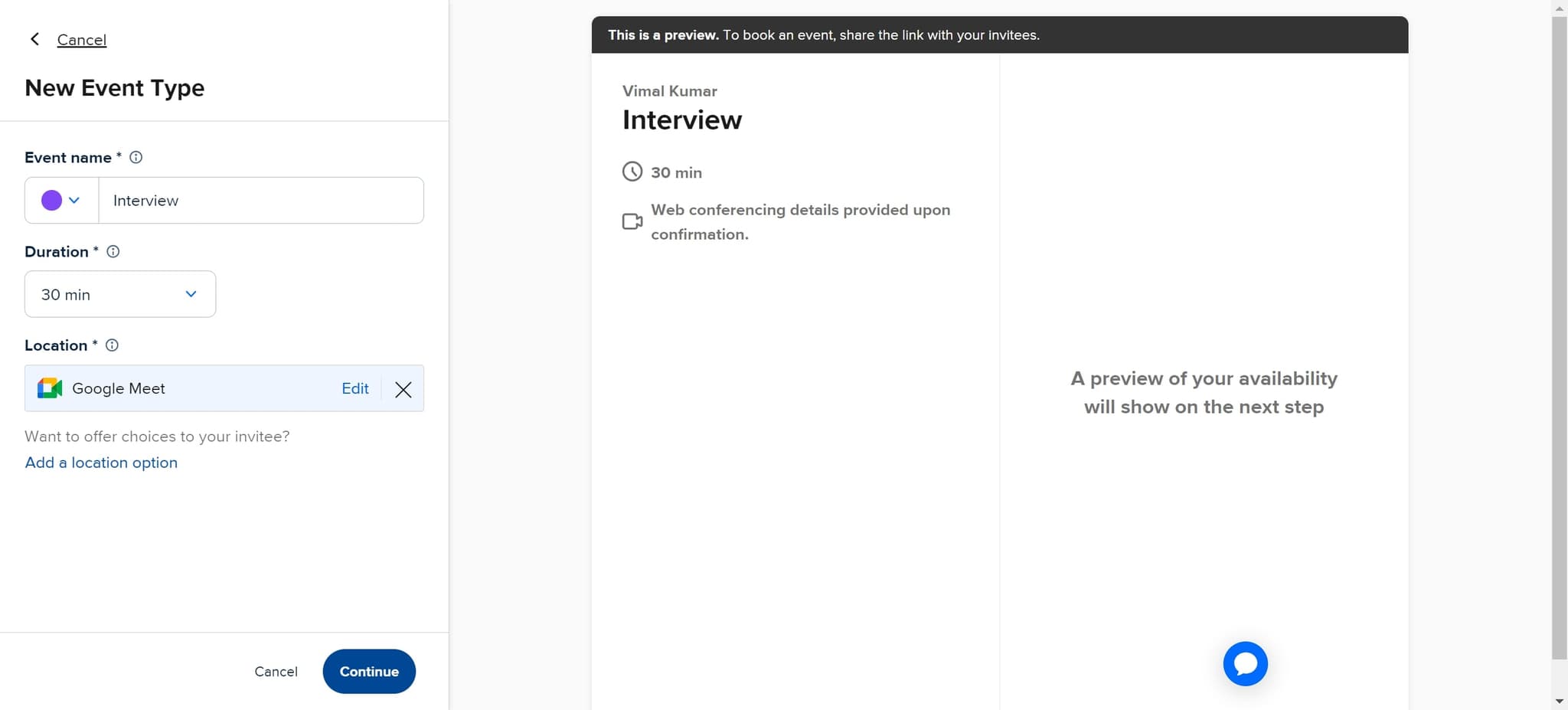
- 9
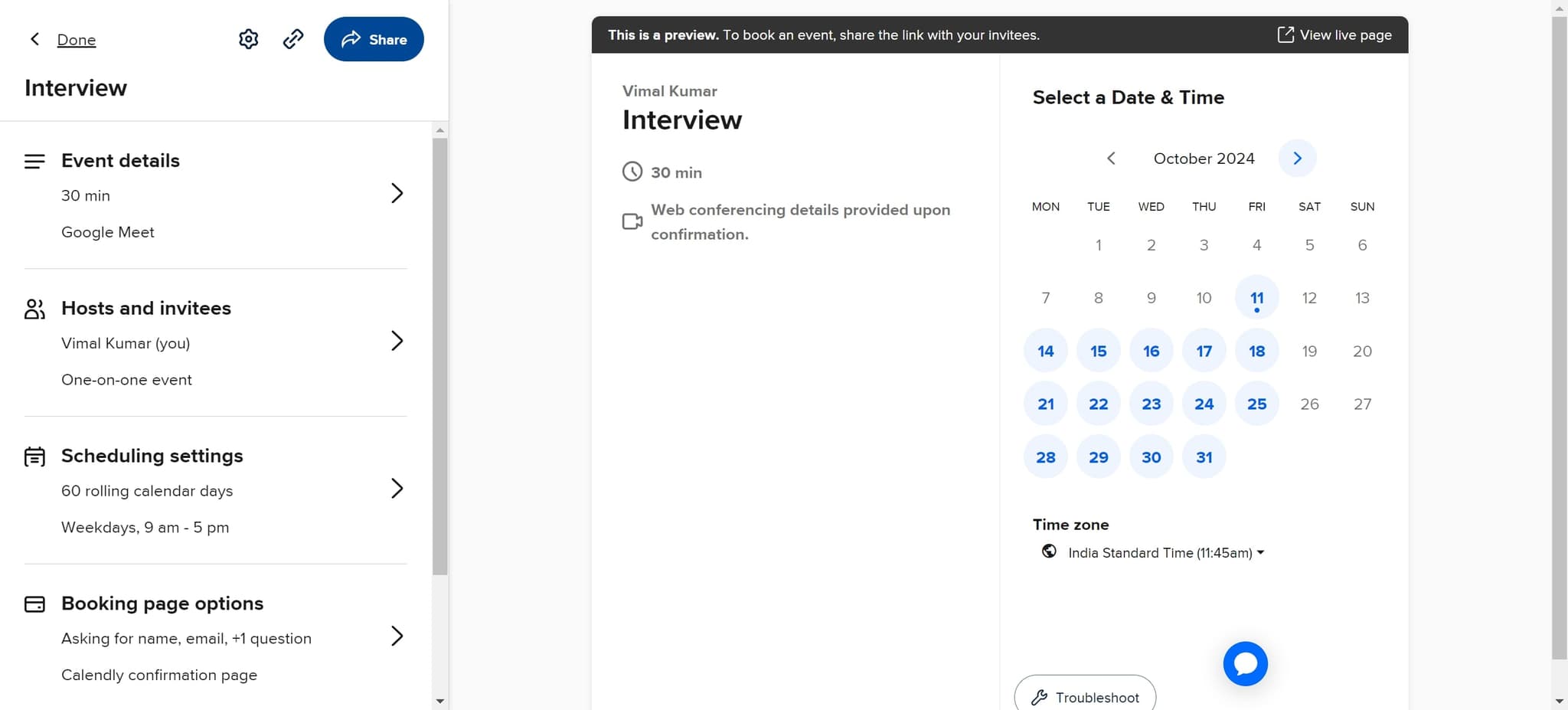
Access sharing options
Click "Share" to open the sharing panel where you can generate and manage links for your scheduling template. This is where you'll create the shareable URL for attendees.
- 10
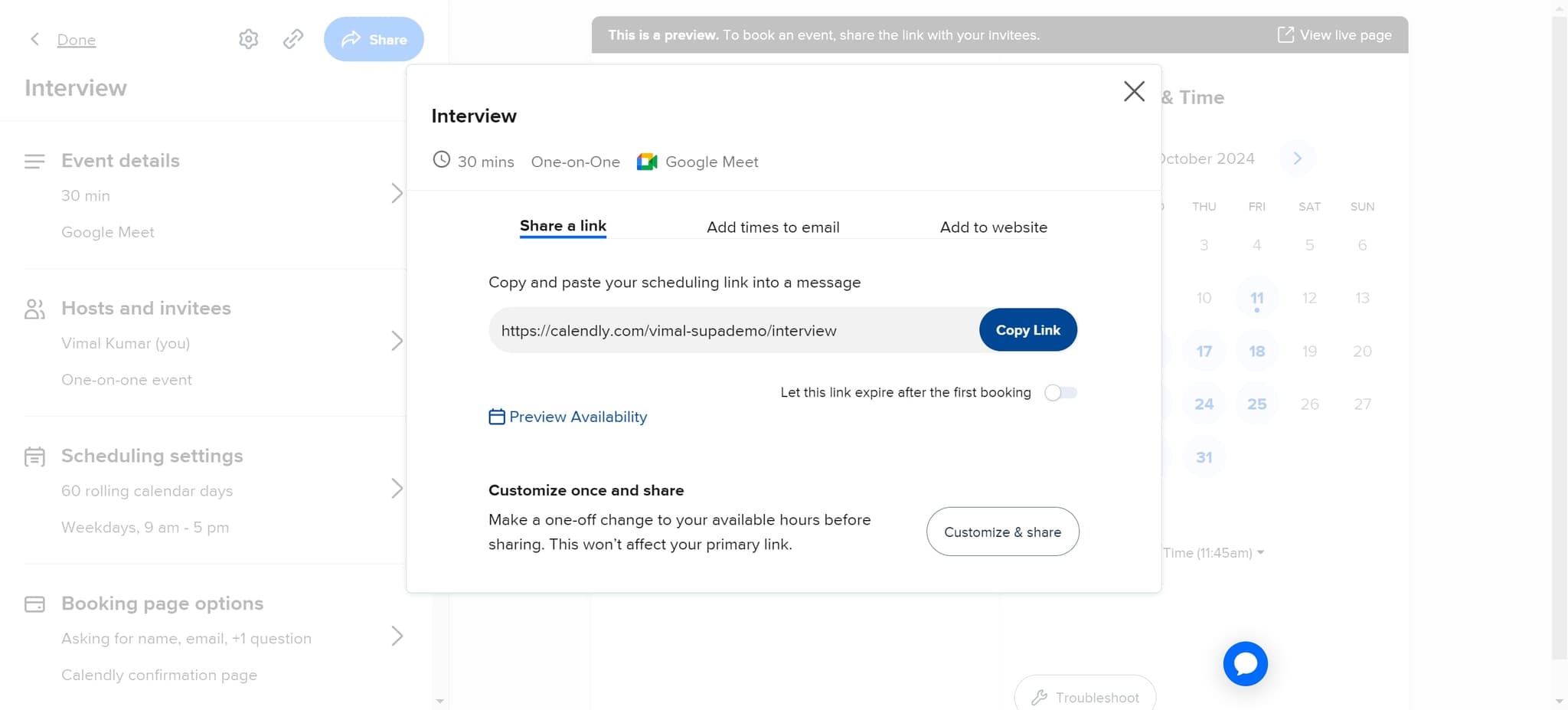
Generate shareable link
Click "Copy Link" to create and copy your unique Calendly scheduling link to the clipboard. You can now paste this link into emails, messages, or other communication channels.
- 11
Upload or finalize
Complete the upload or finalization step to ensure your template is ready for use. Your scheduling template is now live and ready to receive meeting requests.
Frequently asked questions
Common questions about how to use calendly to schedule meetings.
Yes, Calendly allows you to set specific event durations when creating a template. You can configure whether meetings are 30 minutes, 60 minutes, or any custom duration you prefer. This setting is typically found in the event details or advanced options section during template setup.
You can adjust your availability by accessing the template settings in your Calendly account. Calendly syncs with your calendar to show only your free time slots, and you can also manually block out unavailable periods. Changes are reflected immediately for anyone trying to book through your shared link.
Yes, Calendly supports multiple templates so you can have different configurations for various meeting types. For example, you might create one template for 15-minute consultations and another for 60-minute strategy sessions, each with its own settings and availability rules.
Once a meeting is booked, both you and the attendee receive confirmation emails with the meeting details and calendar invitations. The event automatically appears on your connected calendar, and you can track all bookings in your Calendly dashboard.
Your Calendly scheduling link is permanent and remains active as long as your account is active. You only need to regenerate it if you want to change it for security or organizational reasons. You can safely share the same link multiple times without it expiring.