How to add a background in Canva

Adding a background in Canva allows you to customize the visual foundation of your designs, whether you're creating social media graphics, presentations, or marketing materials. A well-chosen background can enhance your message and make your design more visually appealing. This tutorial walks you through the process of accessing and applying backgrounds to your Canva projects.
Quick summary
In this tutorial, you'll learn how to add a background in Canva by navigating to the Apps section, selecting the Background tool, and choosing from available options. You'll discover how to browse and apply backgrounds to instantly elevate your design's visual impact.
Why this matters
Backgrounds are a fundamental design element that sets the tone and context for your content. A thoughtfully selected background can improve readability, reinforce your brand identity, and capture audience attention. Mastering this feature enables you to create polished, professional designs efficiently.
Step-by-step guide
- 1
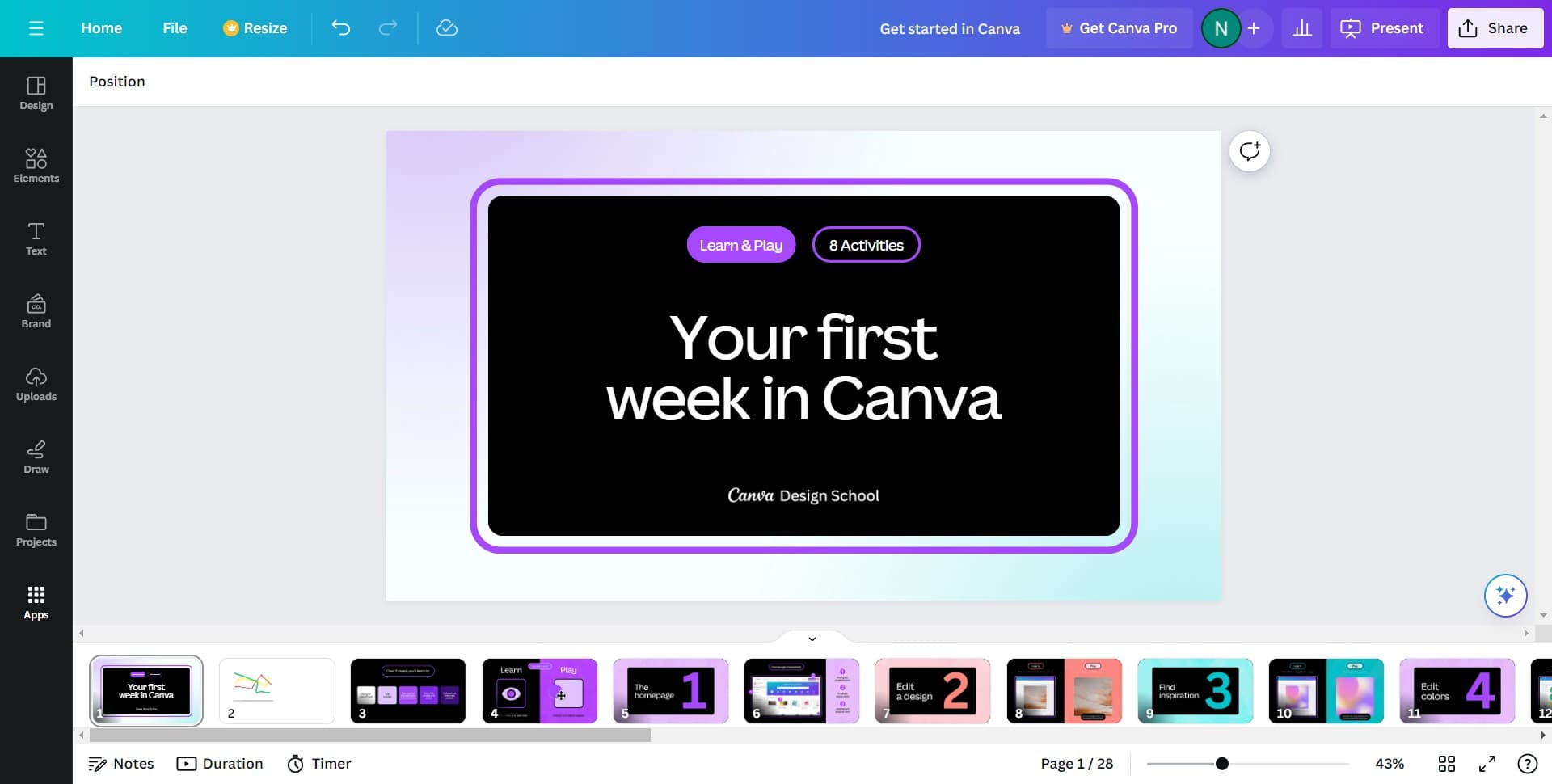
Click on Apps
In the Canva editor, locate and click on the Apps section. This opens access to all available tools and features within Canva, including design elements and effects.
- 2
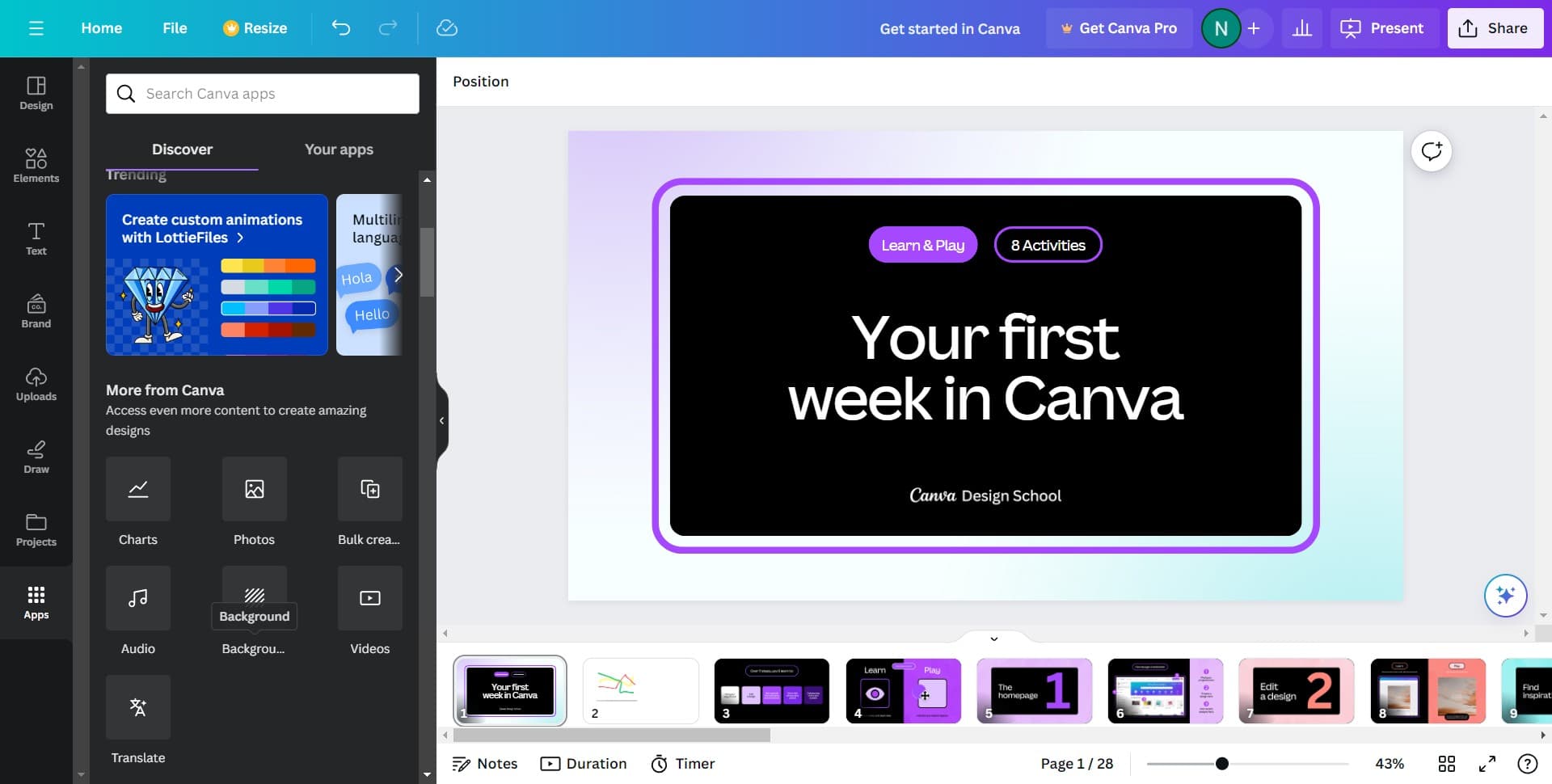
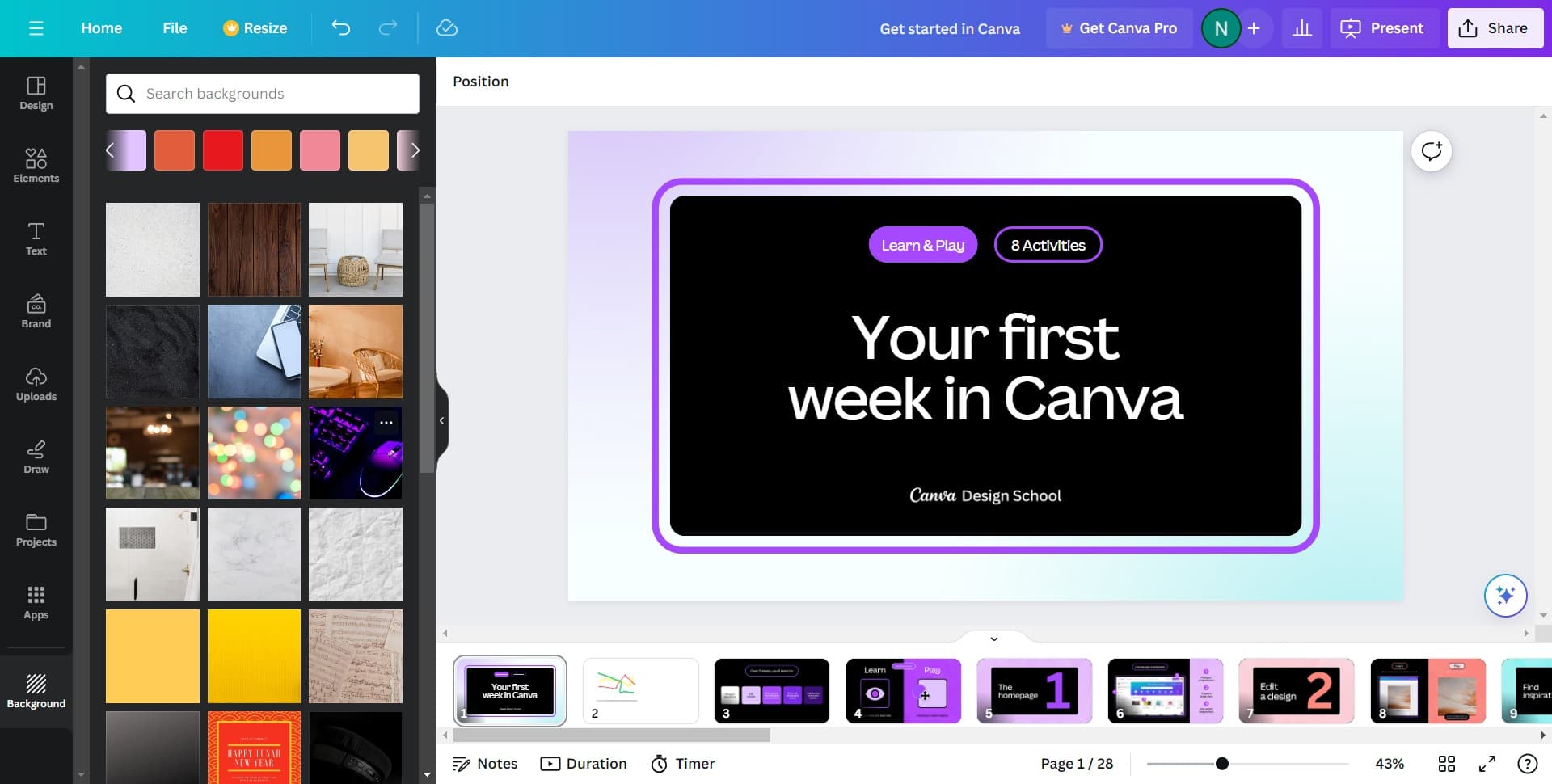
Click on Background
From the Apps menu, find and select the Background option. This will bring up the background library where you can browse available background designs and patterns.
- 3
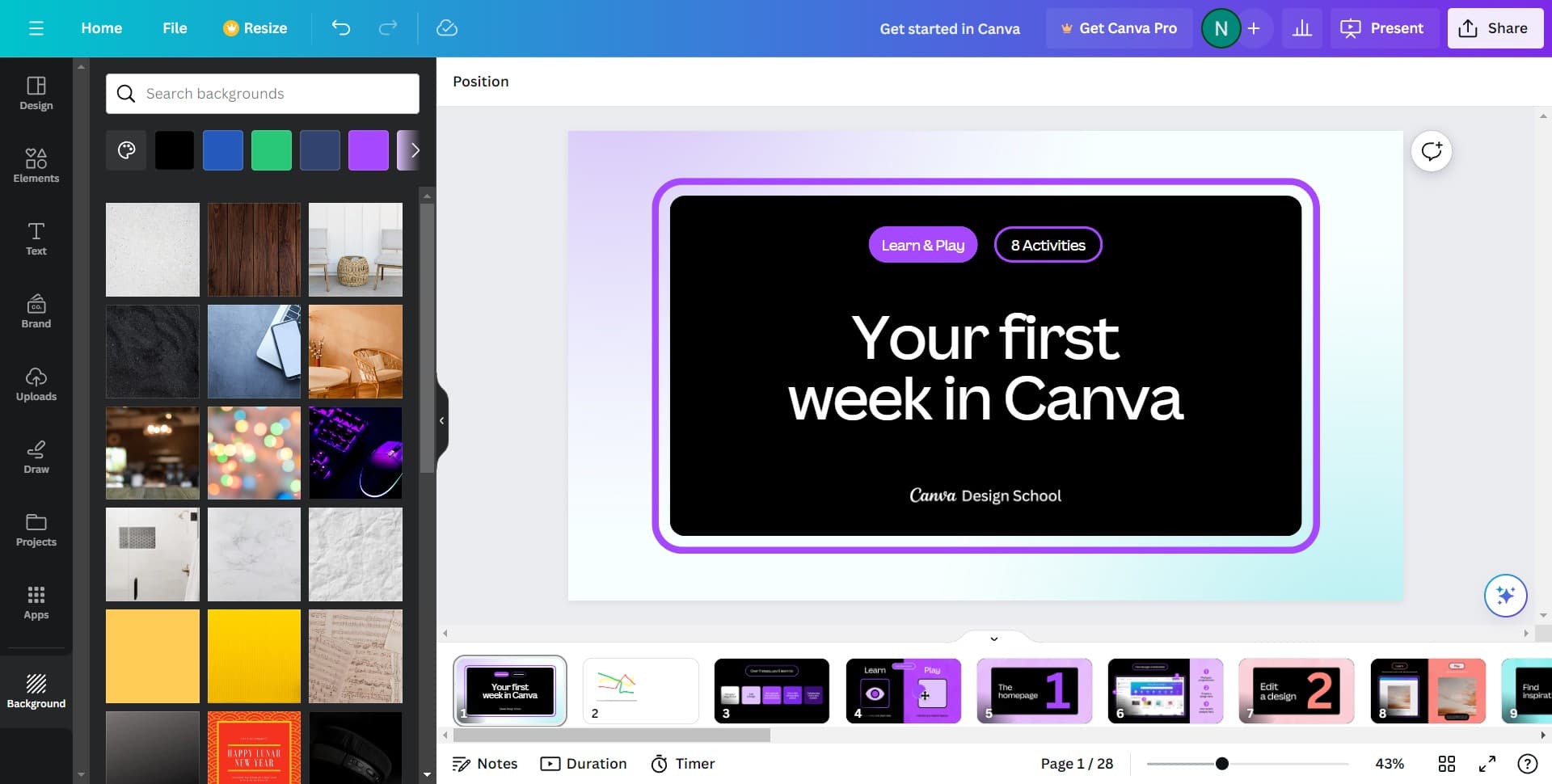
Select a background option
You'll see various background choices displayed. Click on any background that interests you to preview how it will look in your design.
- 4
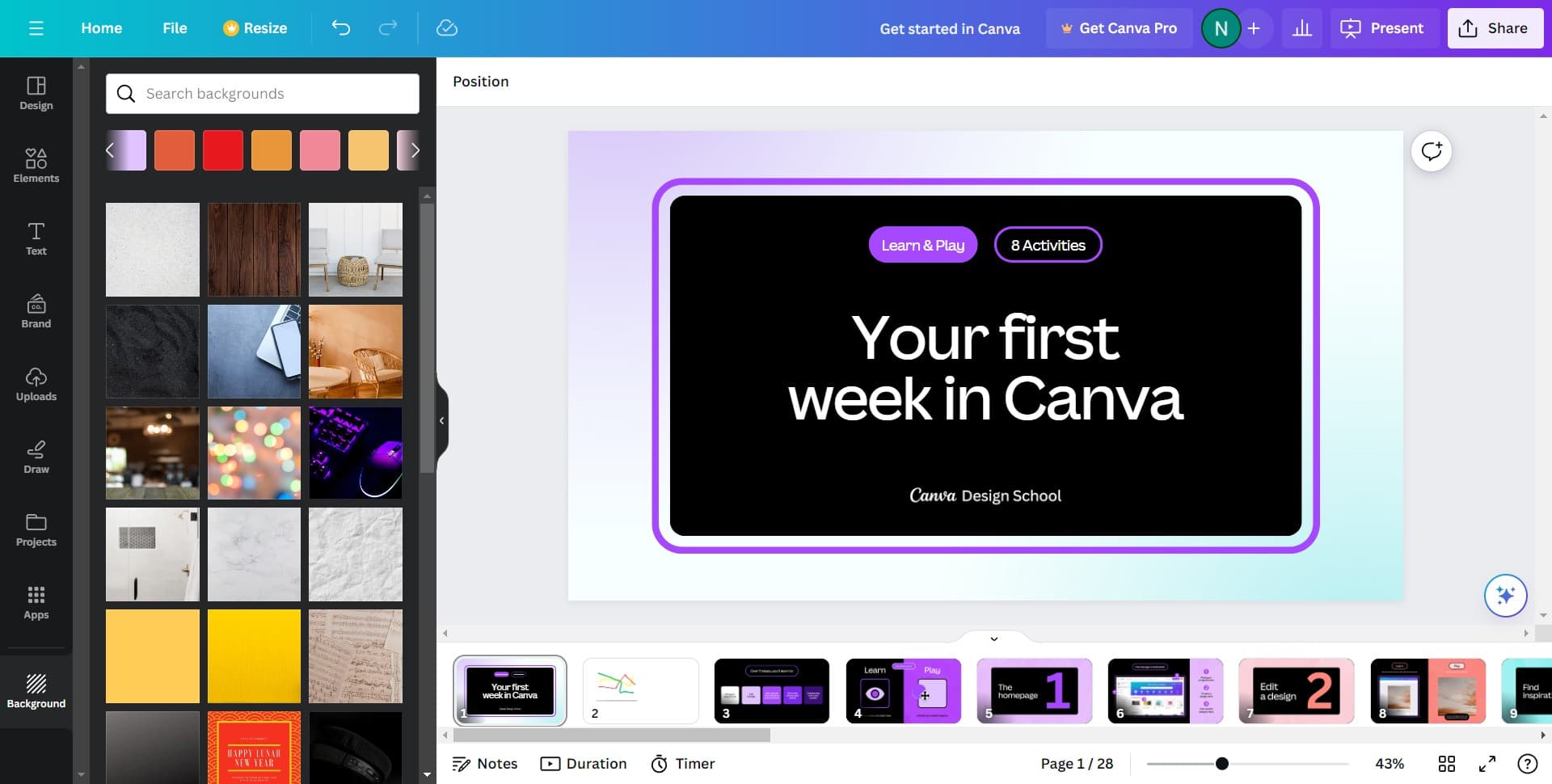
Navigate to the start of the list
Use the navigation controls to return to the beginning of the background library. This allows you to view all available options from the start and ensure you haven't missed any backgrounds.
- 5
Apply your chosen background
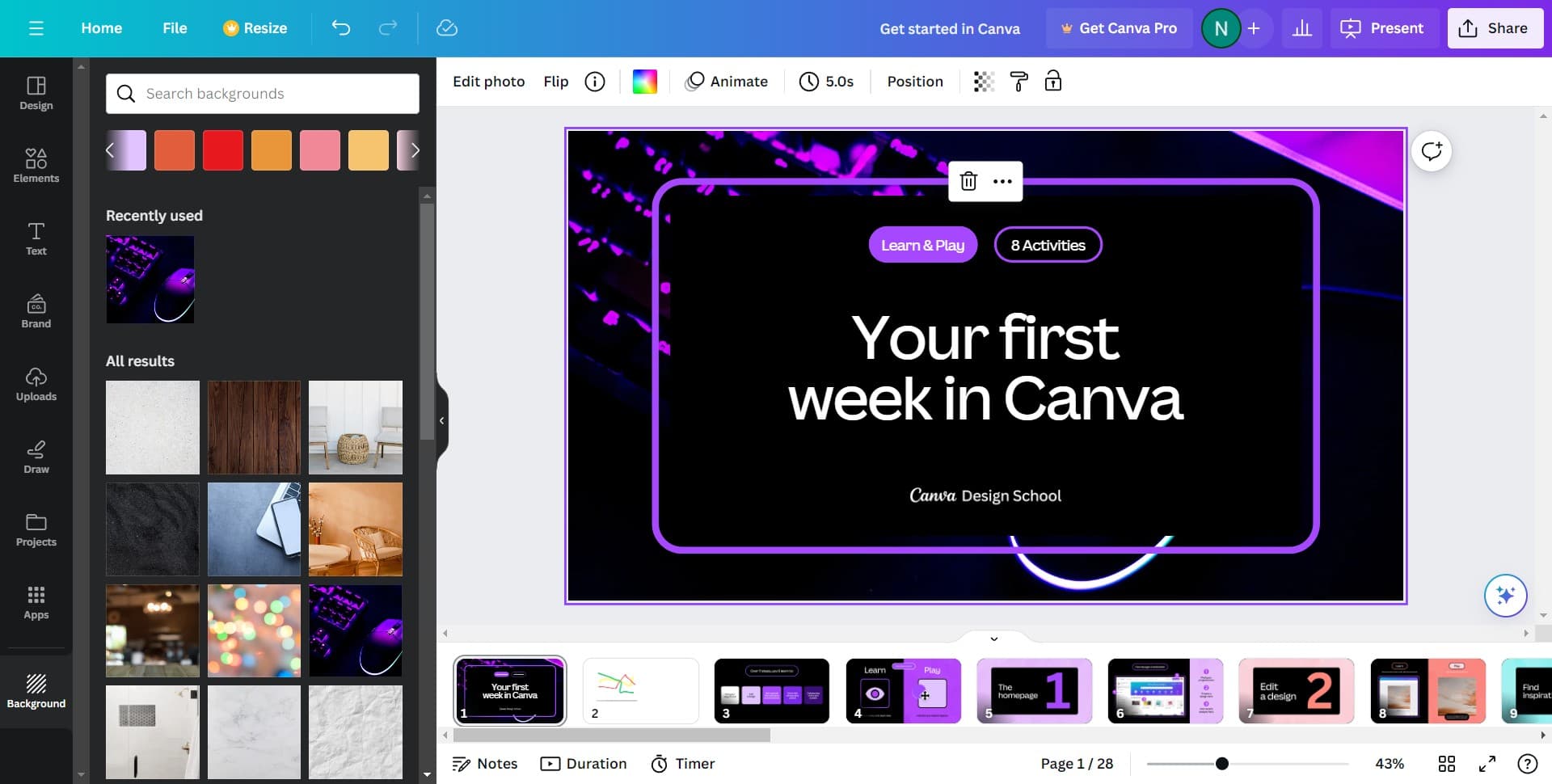
Once you've selected your preferred background, click to apply it to your design. The background will immediately appear behind your existing design elements.
- 6
Confirm the background is applied
Verify that your selected background now appears in your canvas and matches your design vision. You can always return to the Background tool to make changes if needed.
Frequently asked questions
Common questions about how to add a background in canva.
Yes, Canva allows you to upload custom images to use as backgrounds. You can do this through the Uploads section in the editor sidebar, then drag your image onto the canvas and position it behind other elements.
Canva offers a mix of free and premium backgrounds. Free backgrounds are available to all users, while premium backgrounds may require a Canva Pro subscription. You can filter your search to show only free options if desired.
Yes, after selecting a background, you can adjust its transparency by clicking on it and using the opacity slider. This allows you to create layered effects and ensure text remains readable over the background.
Simply return to the Background tool in the Apps section and select a different background, or click on the current background and delete it. You can swap backgrounds as many times as needed during your design process.
Canva supports multiple download formats including PNG, PDF, JPG, and MP4 for videos. PNG format preserves transparency if you haven't applied a background, while JPG is ideal for designs with solid backgrounds.