How to add a border to a design in Canva

Adding a border to your design in Canva is a simple way to frame your content and make it stand out. Whether you're creating social media graphics, presentations, or print materials, borders provide polish and definition to your work. This guide walks you through the process step by step.
Quick summary
In this tutorial, you'll learn how to access Canva's border tools, select from available border styles, and apply them to your design. By the end, you'll be able to quickly add professional-looking borders to any Canva project.
Why this matters
Borders enhance visual hierarchy and draw attention to important content in your designs. They're particularly useful for creating framed layouts, separating sections, and adding a finished, professional appearance to graphics meant for web or print. Mastering this feature helps you create more polished and visually appealing designs.
Step-by-step guide
- 1
Open Canva in your browser
Navigate to Canva by clicking the provided link, which will open in a new tab or window. You'll be taken to the Canva homepage where you can start creating or editing a design.

- 2
Select or create your design
Click on the area indicated to either open an existing design or start a new project. This will load your design canvas where you can begin adding borders.
- 3
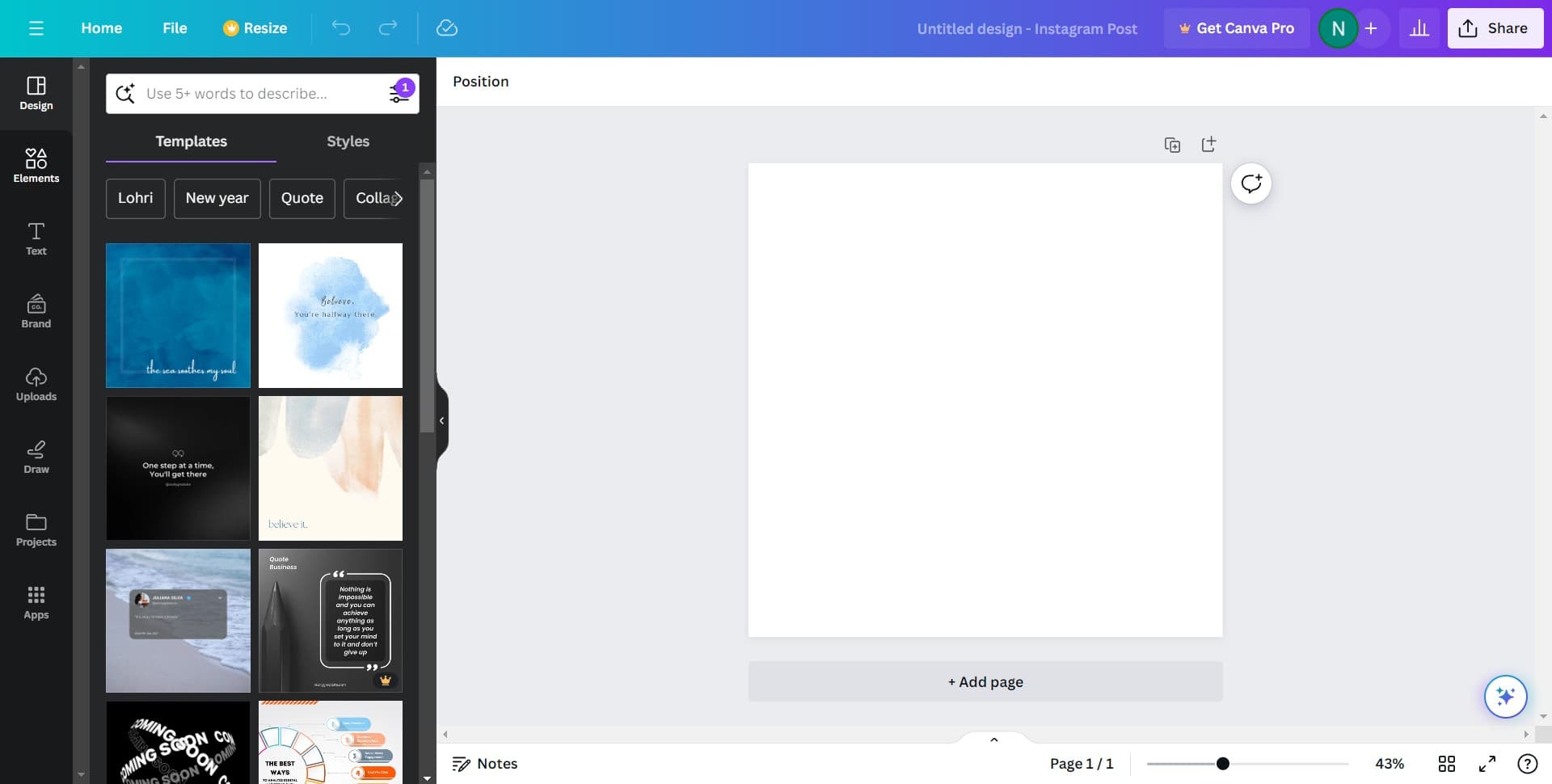
Access the design canvas
Click the designated area to enter the main editing interface. This is where you'll have access to all design tools, including the border options.
- 4
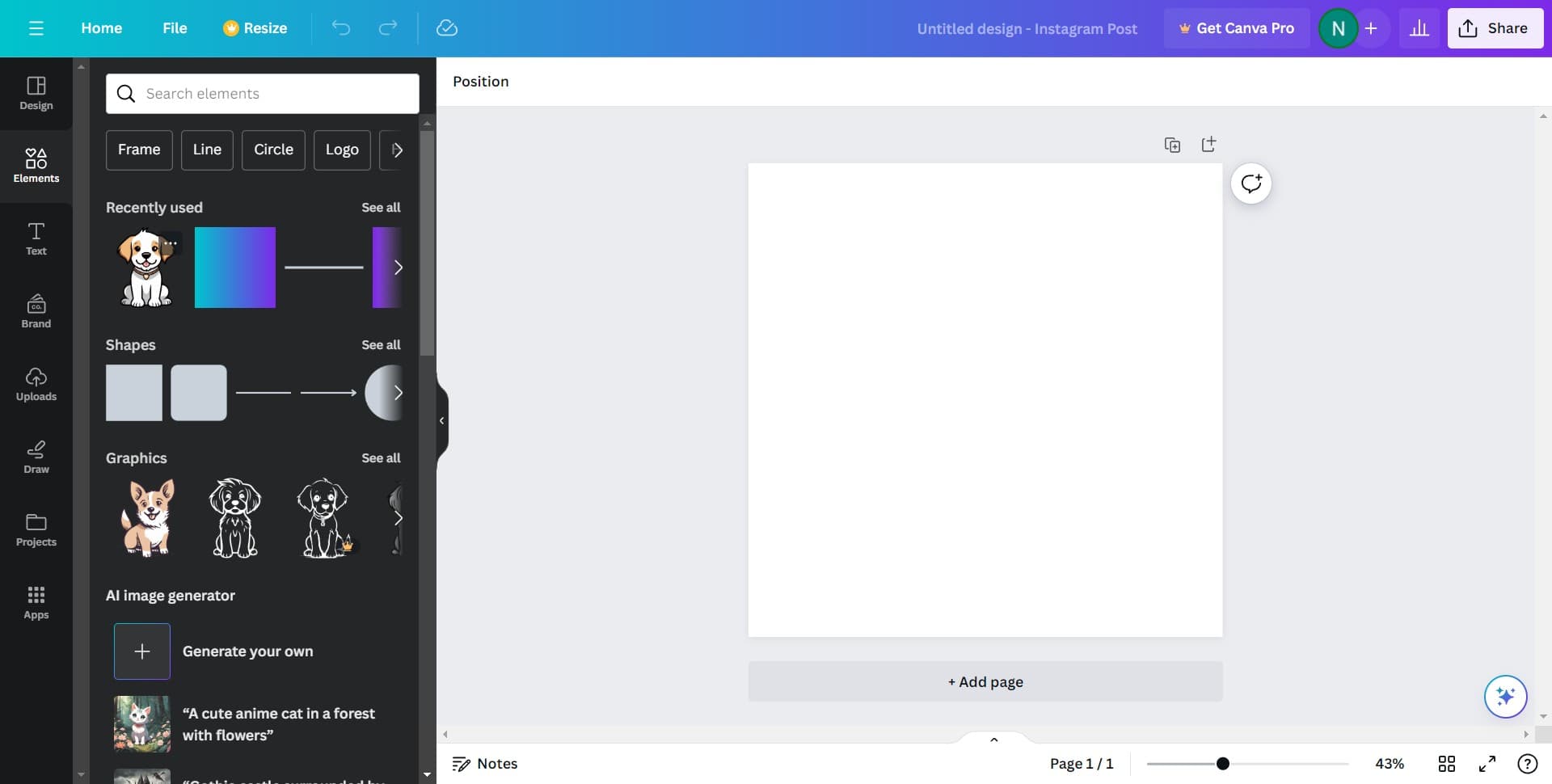
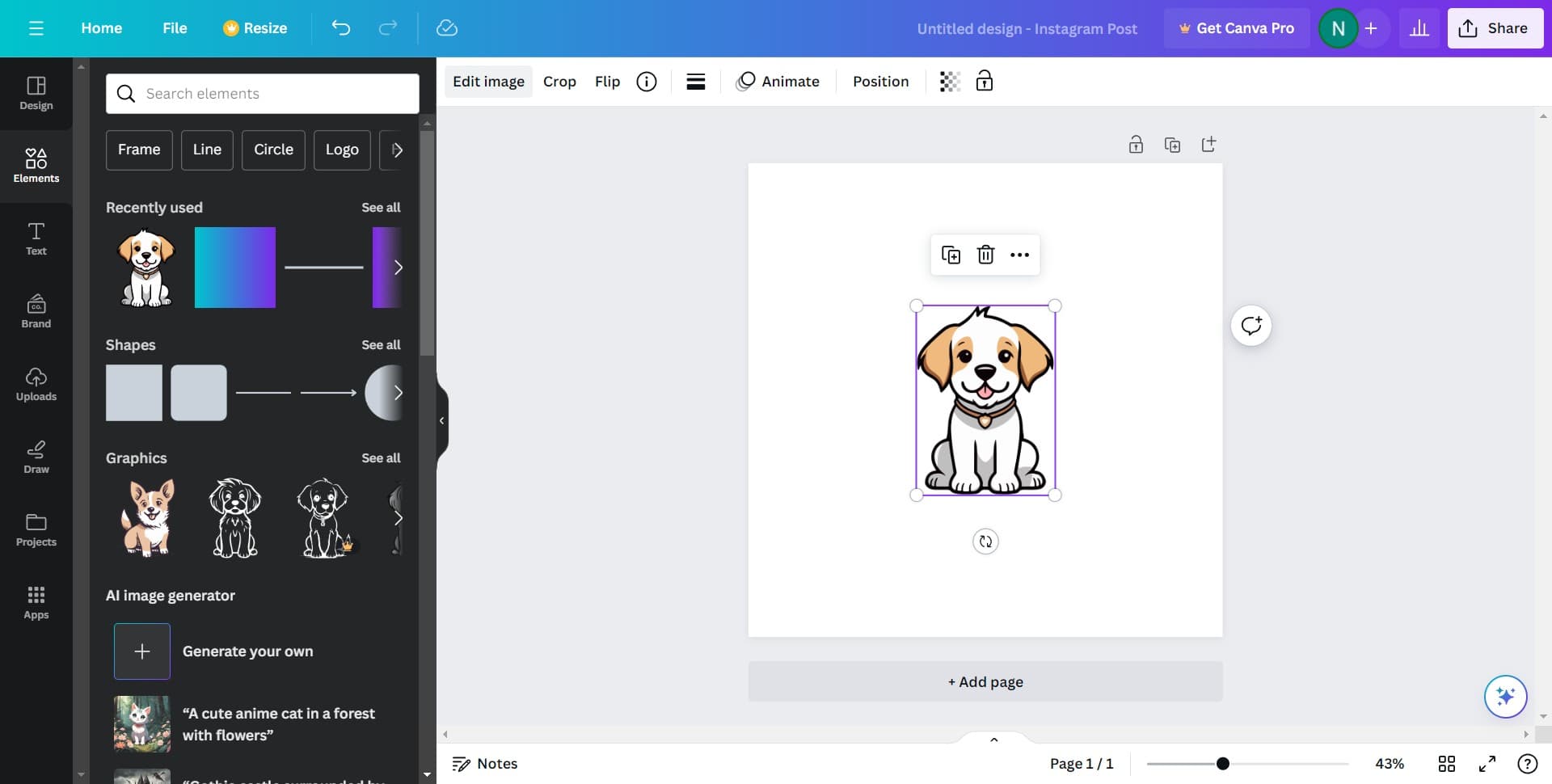
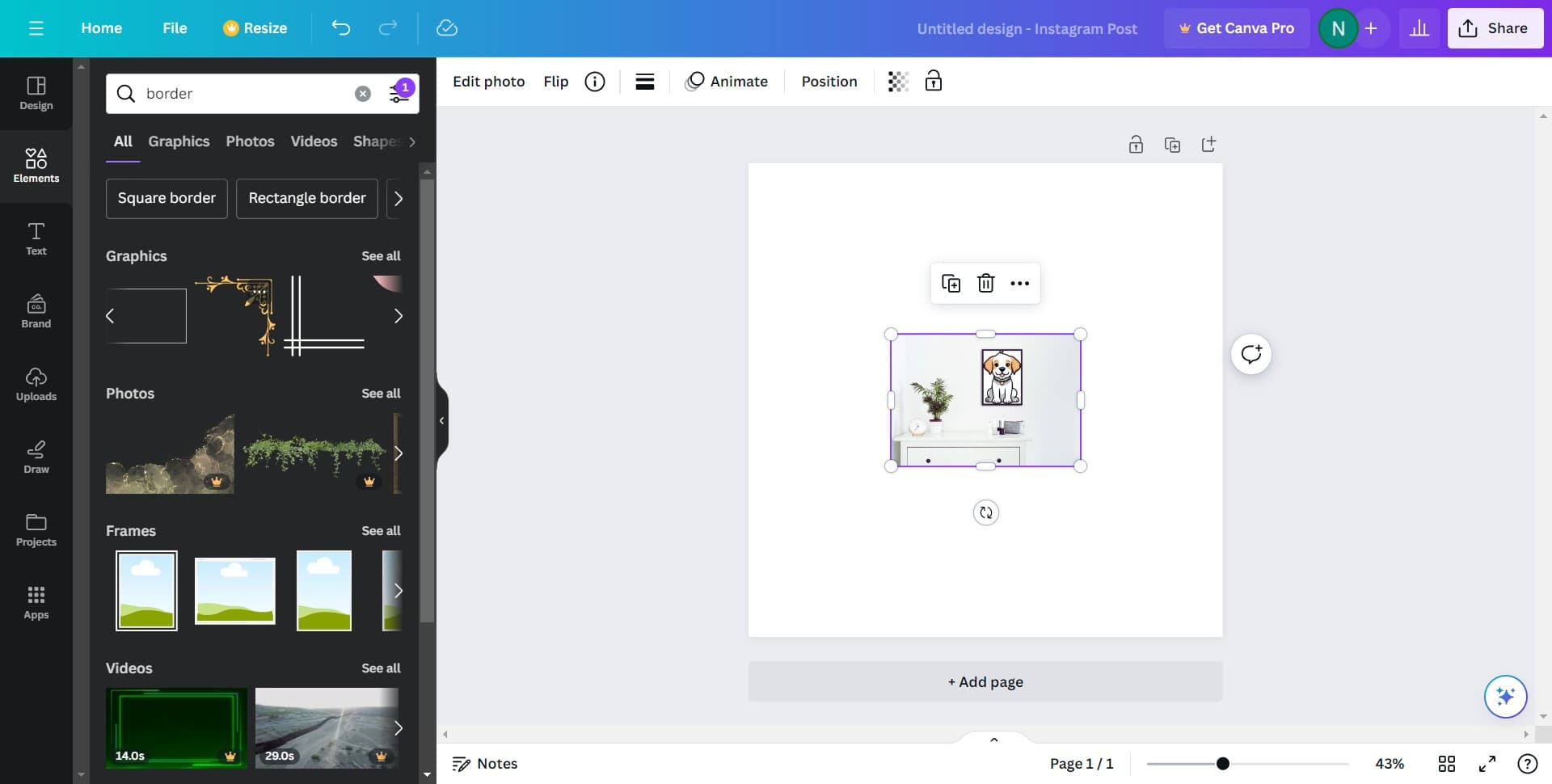
Click on Edit image
Select the 'Edit image' option to access the image editing features. This will unlock additional design tools specific to working with images and elements on your canvas.
- 5
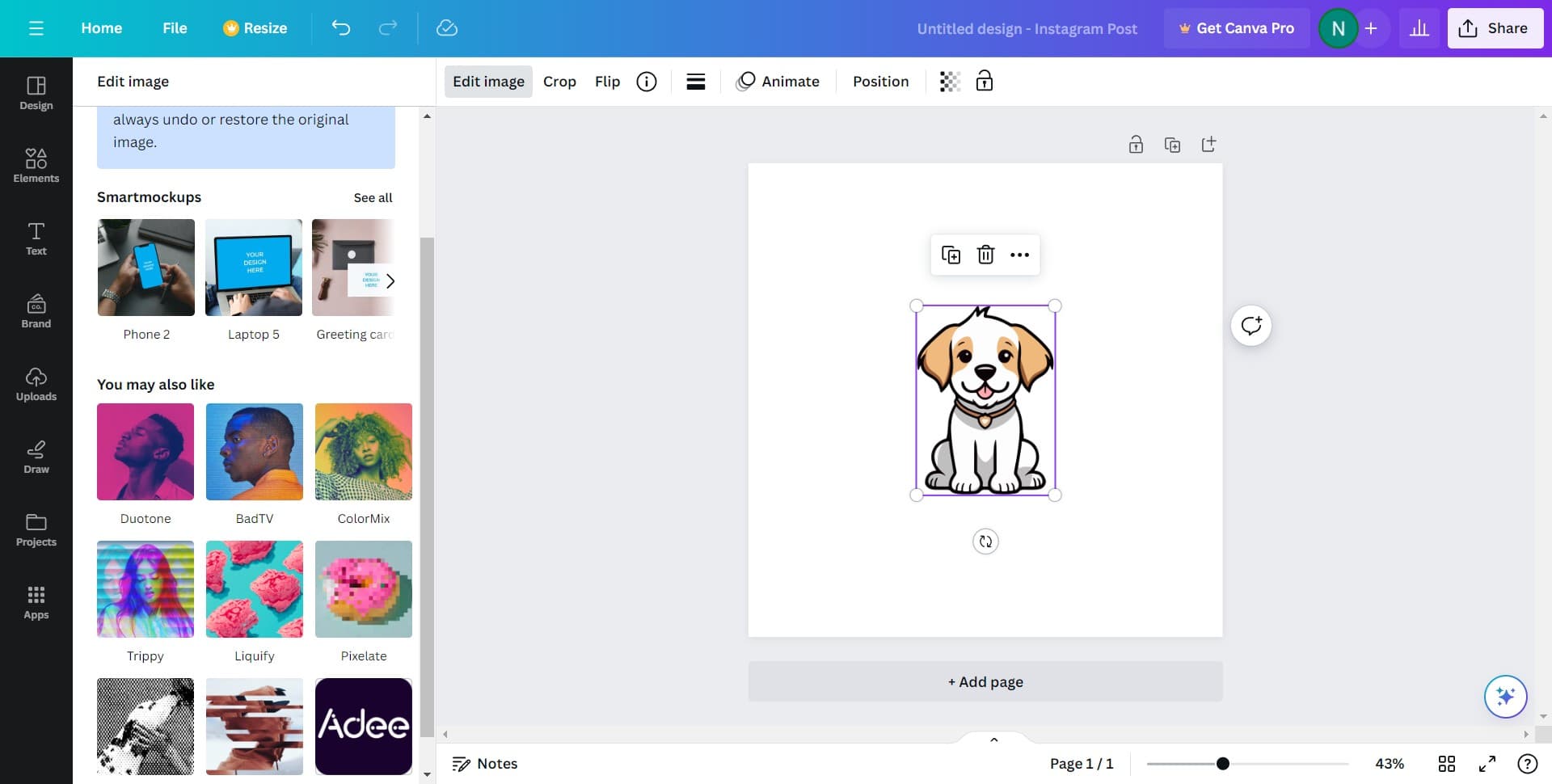
View all border options
Click on 'See all' to display the complete collection of available border styles. This will show you every border option Canva offers for your design.
- 6
Select your preferred border
Click on the border style you want to use for your design. Canva offers various styles ranging from simple lines to decorative and ornamental borders.
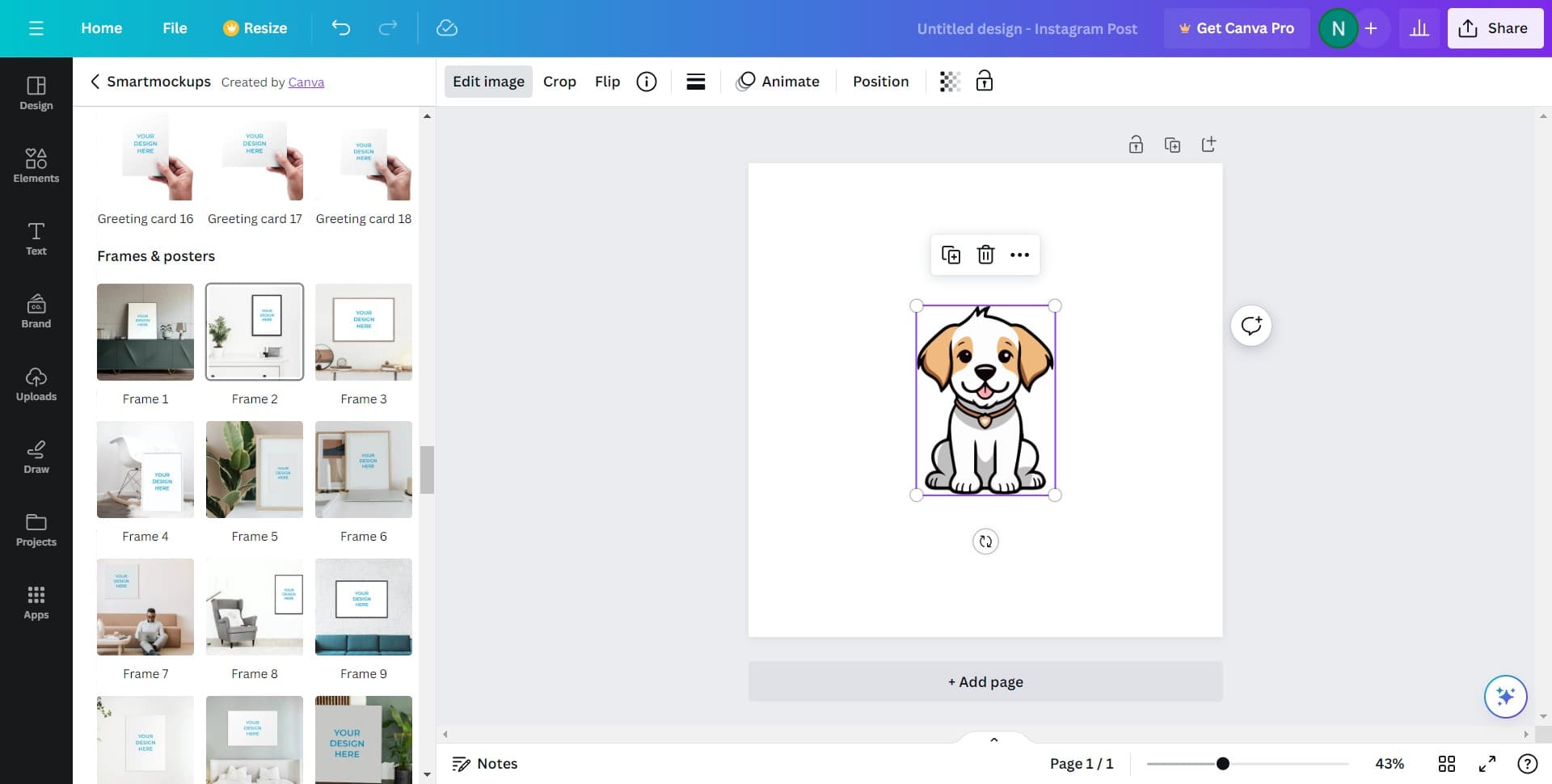
- 7
Apply the border to your design
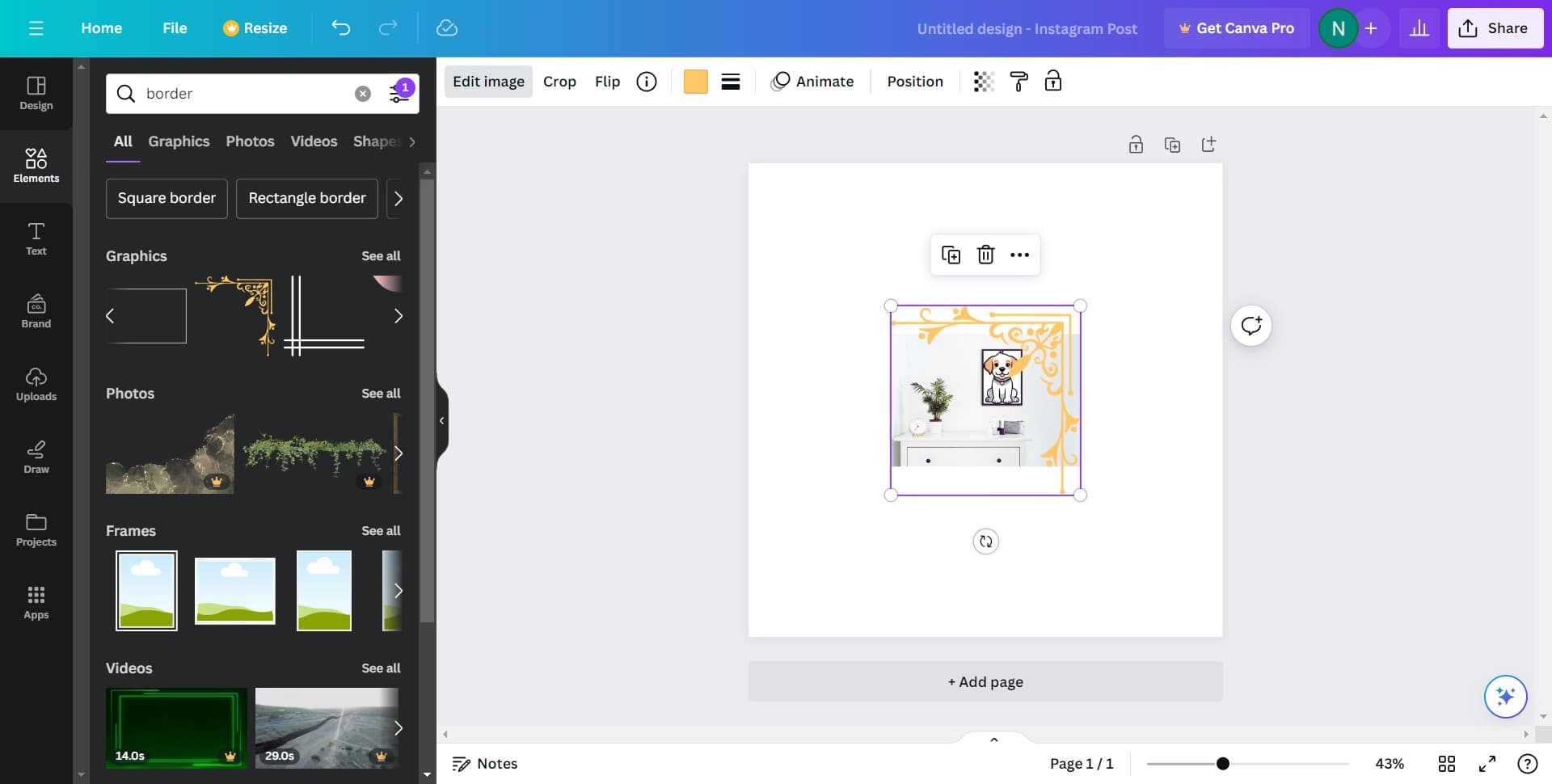
Click the 'Apply' button to add the selected border to your design. The border will be instantly applied to your canvas.
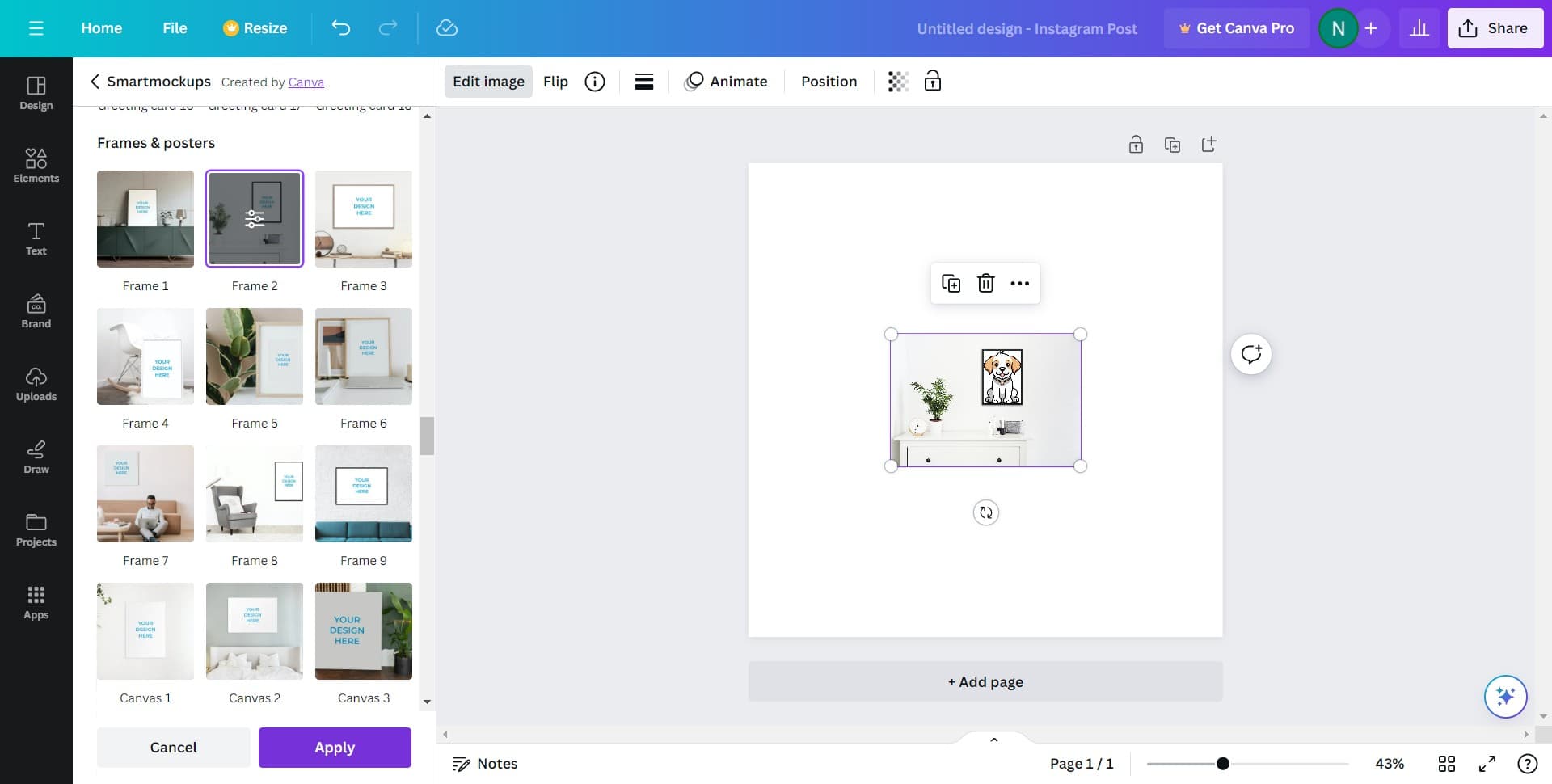
- 8
Adjust border settings if needed
Click on the indicated area to access any additional border customization options. You may be able to modify color, thickness, or other properties depending on the border type.
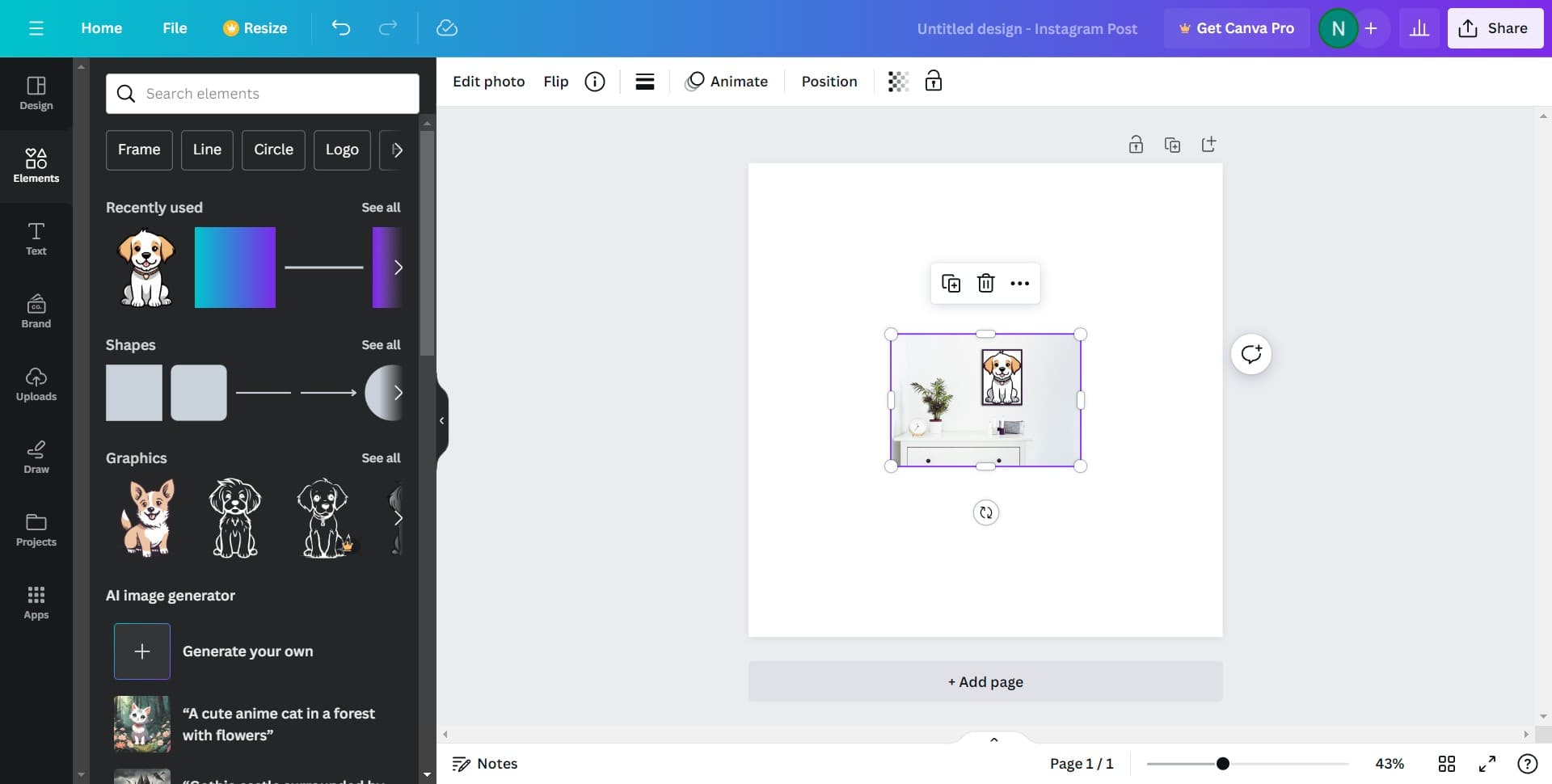
- 9
Fine-tune border appearance
Use the available controls to adjust the border to match your design preferences. This might include changing colors, opacity, or positioning.
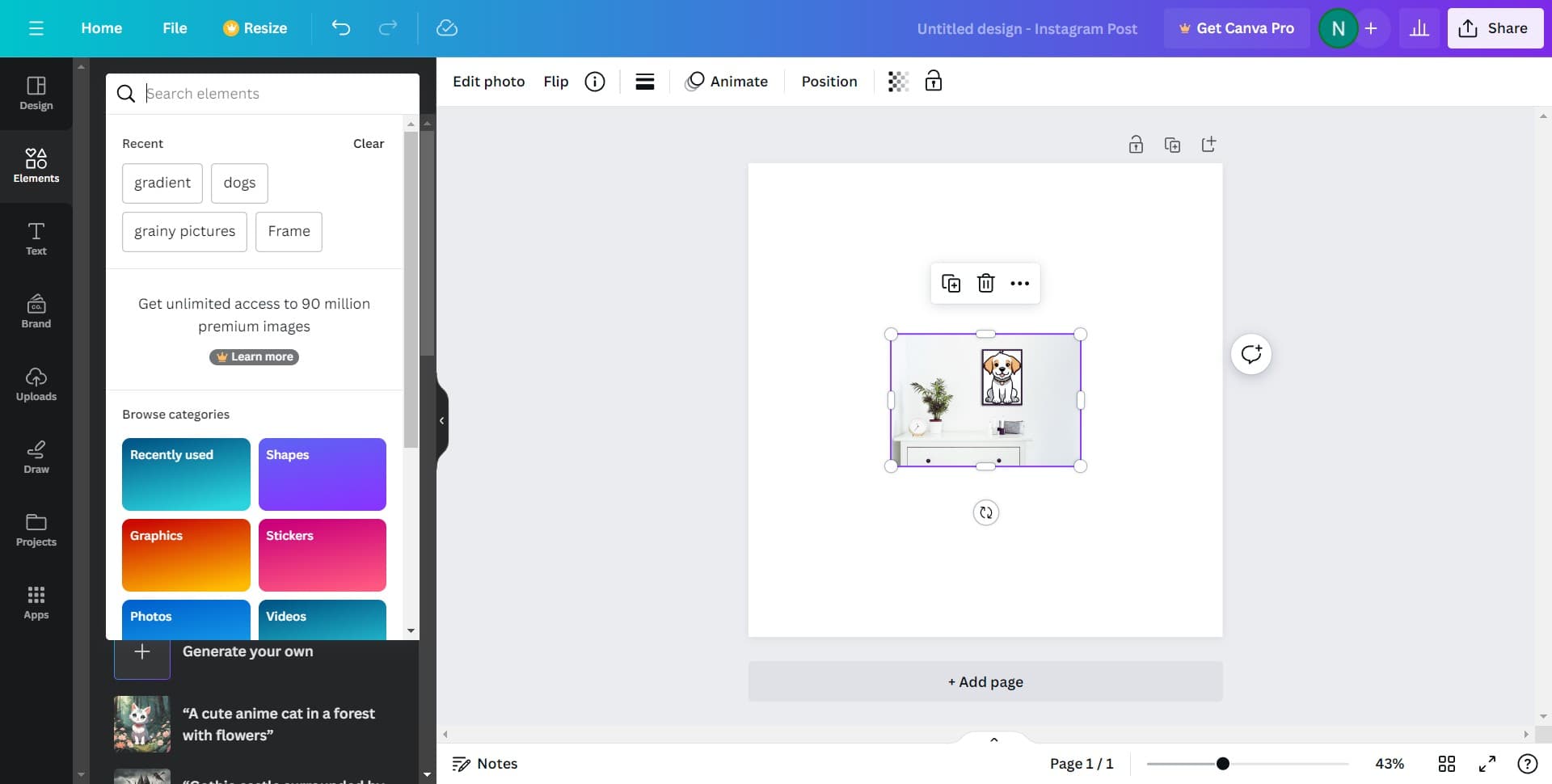
- 10
Review your bordered design
Click to preview how the border looks on your overall design. Take a moment to ensure the border complements your content and layout.
- 11
Save or download your work
Click to finalize your changes and save or download your design with the border applied. Your design is now ready to use across your desired platform.
Frequently asked questions
Common questions about how to add a border to a design in canva.
Yes, most borders in Canva allow color customization. After selecting a border, look for color adjustment options in the editing panel. You can typically change the border color to match your design's color scheme or brand guidelines.
Canva offers a variety of border styles including simple lines, decorative frames, ornamental borders, and themed designs. The full collection can be viewed by accessing the 'See all' option in the border menu, giving you dozens of choices for different design needs.
While the border feature primarily works with images and frames, you can create the effect of bordered text by placing text within a bordered frame or shape. Canva's flexibility allows you to combine elements creatively to achieve your desired look.
To remove a border, select the bordered element and look for a delete or remove option in the editing panel. You can also simply undo your last action using the keyboard shortcut or the undo button in the toolbar.
Many borders in Canva offer adjustable properties such as thickness and size. Check the editing options available after applying a border to see what customization controls are offered for your selected border style.