How to add a video to my design in Canva

Adding videos to your Canva designs elevates your content and captures audience attention in ways static images cannot. Whether you're creating social media content, presentations, or marketing materials, Canva makes it simple to embed videos directly into your designs. This guide walks you through the process step by step.
Quick summary
In this tutorial, you'll learn how to add videos to your Canva designs using Canva's built-in video library and upload features. By the end, you'll be able to insert, position, and customize videos to enhance your creative projects.
Why this matters
Videos increase engagement and help your message stand out in crowded feeds. Adding videos directly in Canva eliminates the need for external editing tools and keeps your entire design workflow in one platform. This capability is essential for creators who want to produce dynamic, multimedia-rich content without technical complexity.
Step-by-step guide
- 1
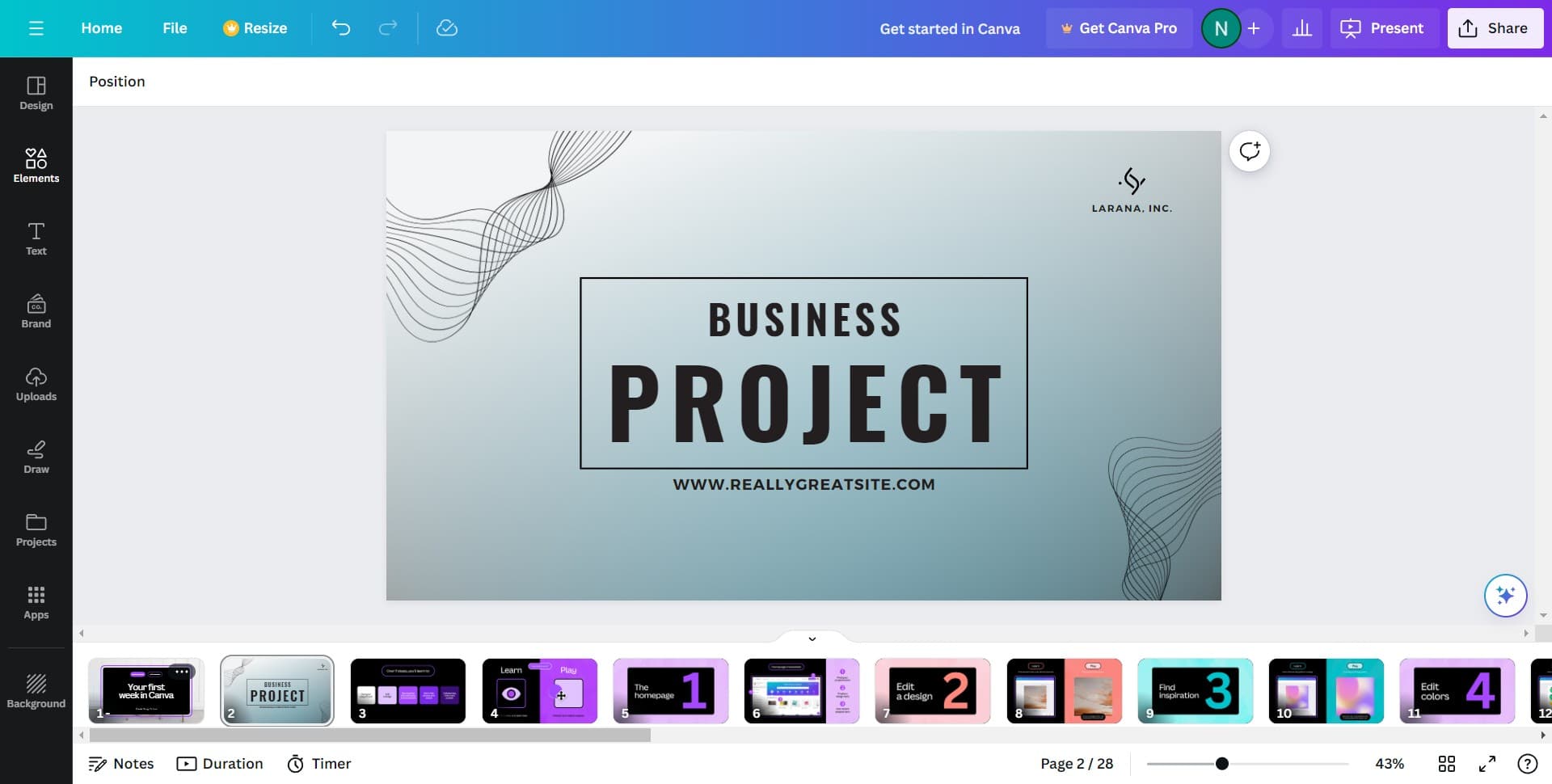
Access the media insertion menu
Click on the designated area in the Canva editor to open the media options. This is typically located in the left sidebar or top toolbar, depending on your Canva interface version.
- 2
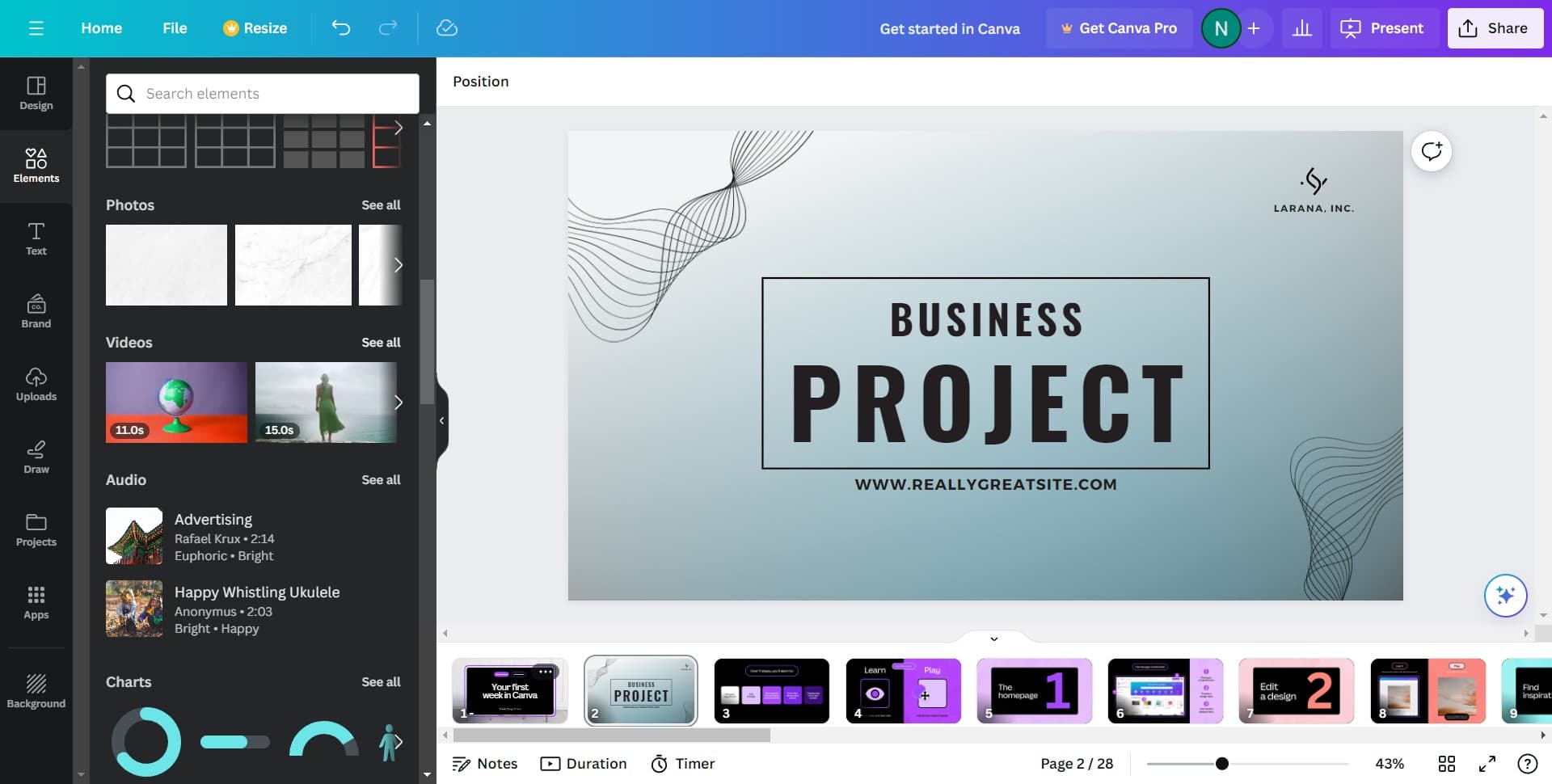
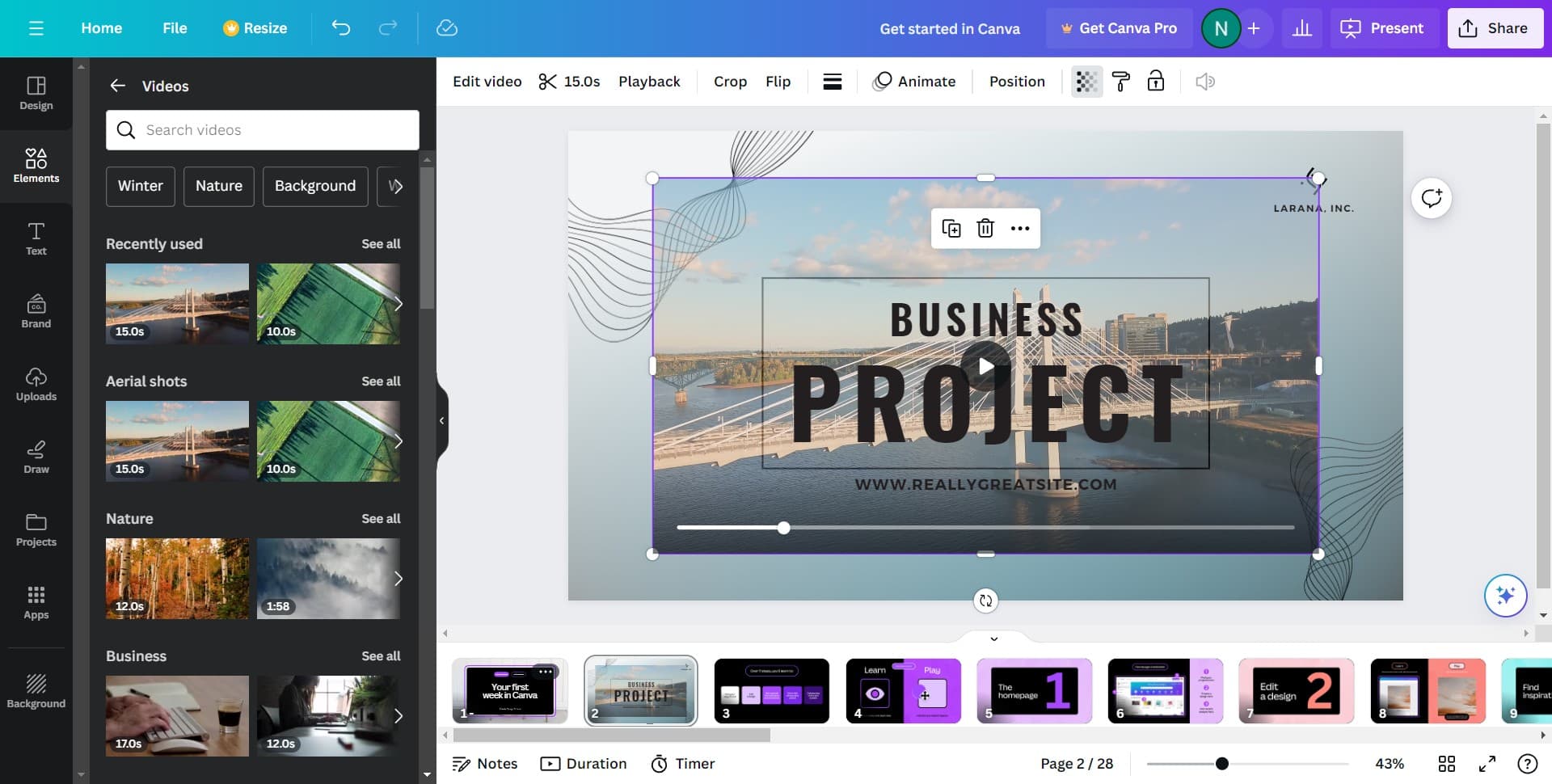
Click on See all
Select the 'See all' option to view the complete library of available media types. This expands your options beyond basic elements and gives you access to Canva's full video collection.
- 3
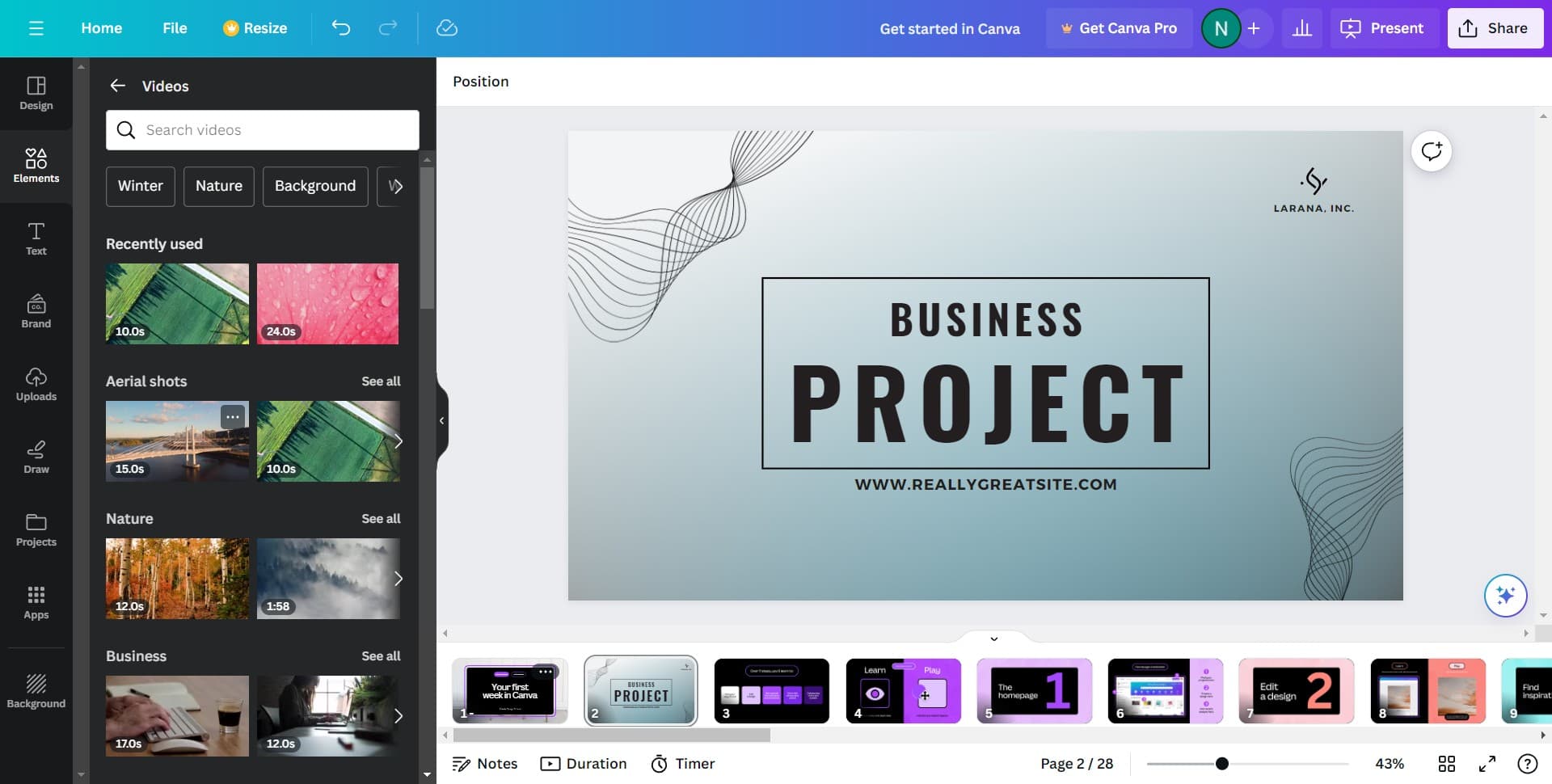
Select the video option
Click on the video category or icon to browse available videos. Canva's library includes stock videos, animations, and transitions you can use in your design.
- 4
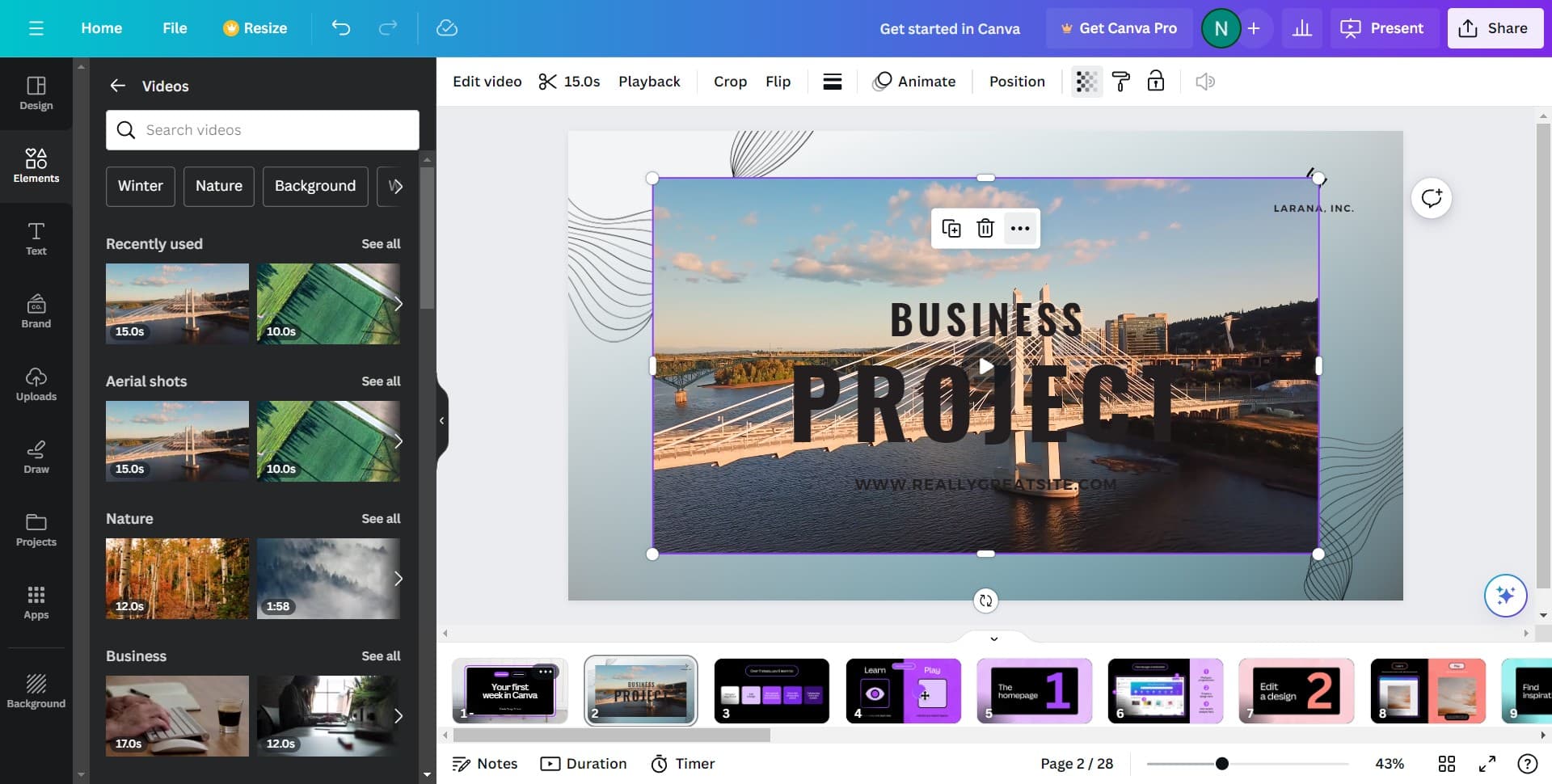
Choose your video
Browse and select the video that best fits your design. Click on the video thumbnail to preview it before adding it to your canvas.
- 5
Confirm and add to design
Click to add your selected video to your design. The video will appear on your canvas where you can resize, reposition, and adjust it to match your layout.
Frequently asked questions
Common questions about how to add a video to my design in canva.
Yes, Canva allows you to upload your own video files in most supported formats. Click on the Uploads section in the media menu and select your video file from your device. Canva will process and add it to your design library for use across projects.
Canva supports common video formats including MP4, WebM, and MOV. For best results, ensure your video is under the file size limit specified in Canva's documentation. If you encounter format issues, consider converting your video using a free online converter before uploading.
Canva offers basic video editing features including trimming and adjusting playback speed. Select your video on the canvas to access the editing toolbar, where you'll find options to customize your video's length and timing.
Canva's stock videos are licensed for use in your designs. However, always check the specific license terms for premium videos, as some may require attribution or have restrictions on commercial use. Free videos generally have fewer limitations for most projects.
After adding your video, click the Download button and select your desired format. Canva will export your design as a video file if it contains video elements. Note that exports with videos may take longer to process and result in larger file sizes.