How to add a frame in Canva

Adding frames in Canva is a simple way to enhance your designs with stylish borders and decorative elements. Whether you're creating social media graphics, presentations, or printed materials, frames help you establish visual hierarchy and draw attention to your content.
Quick summary
In this tutorial, you'll learn how to add a frame to your Canva design by accessing the frames library, selecting from a variety of options, and applying your chosen frame to your project. By the end, you'll be able to customize your designs with professional-looking frames in just a few clicks.
Why this matters
Frames are a powerful design tool that instantly elevate the appearance of your work, making it look more polished and intentional. They help organize content, create visual boundaries, and add personality to your designs without requiring advanced design skills.
Step-by-step guide
- 1
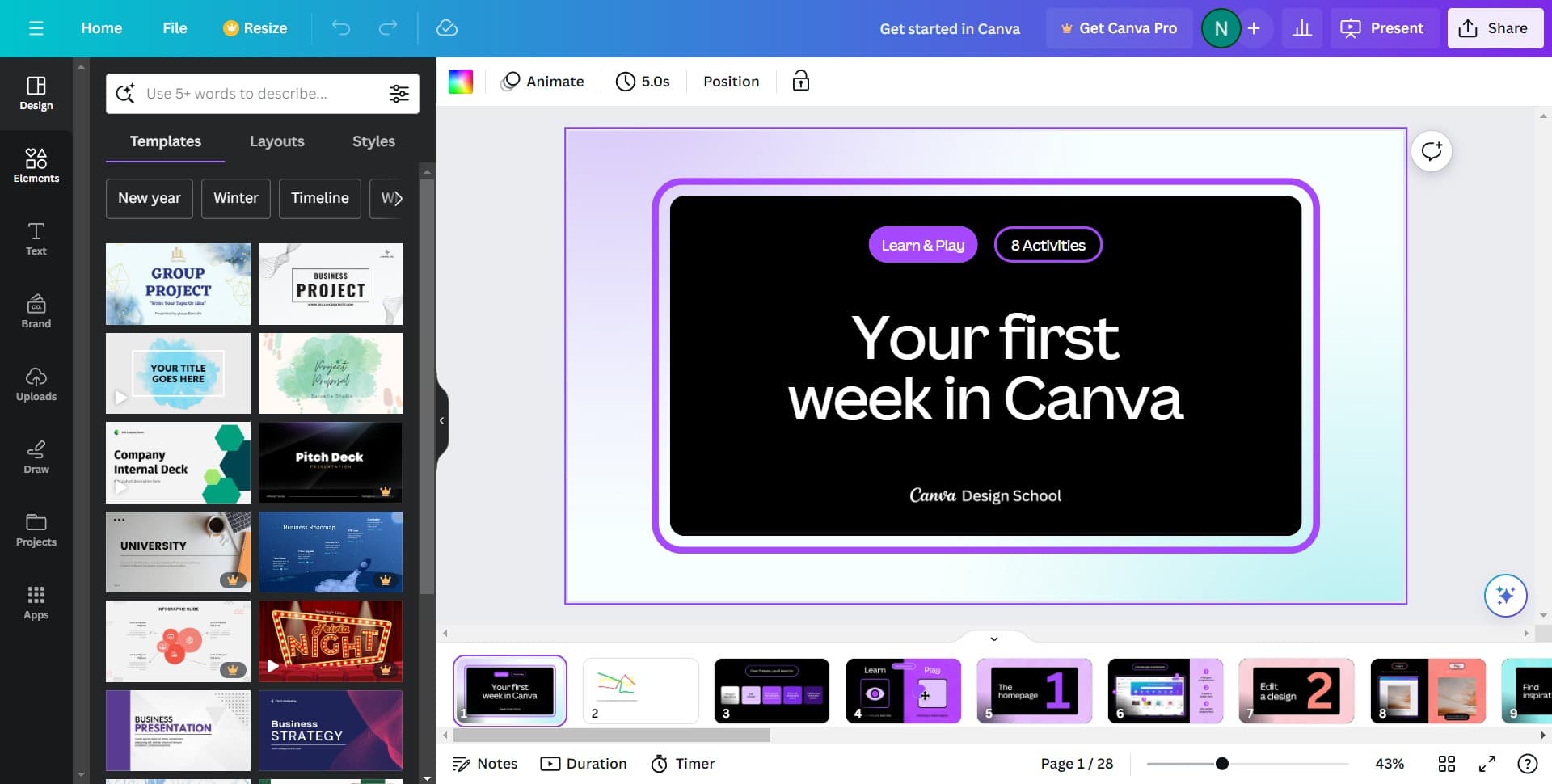
Access the Canva design interface
Start by opening Canva and selecting your design project or creating a new one. You'll be working from the main canvas where your design is displayed.
- 2
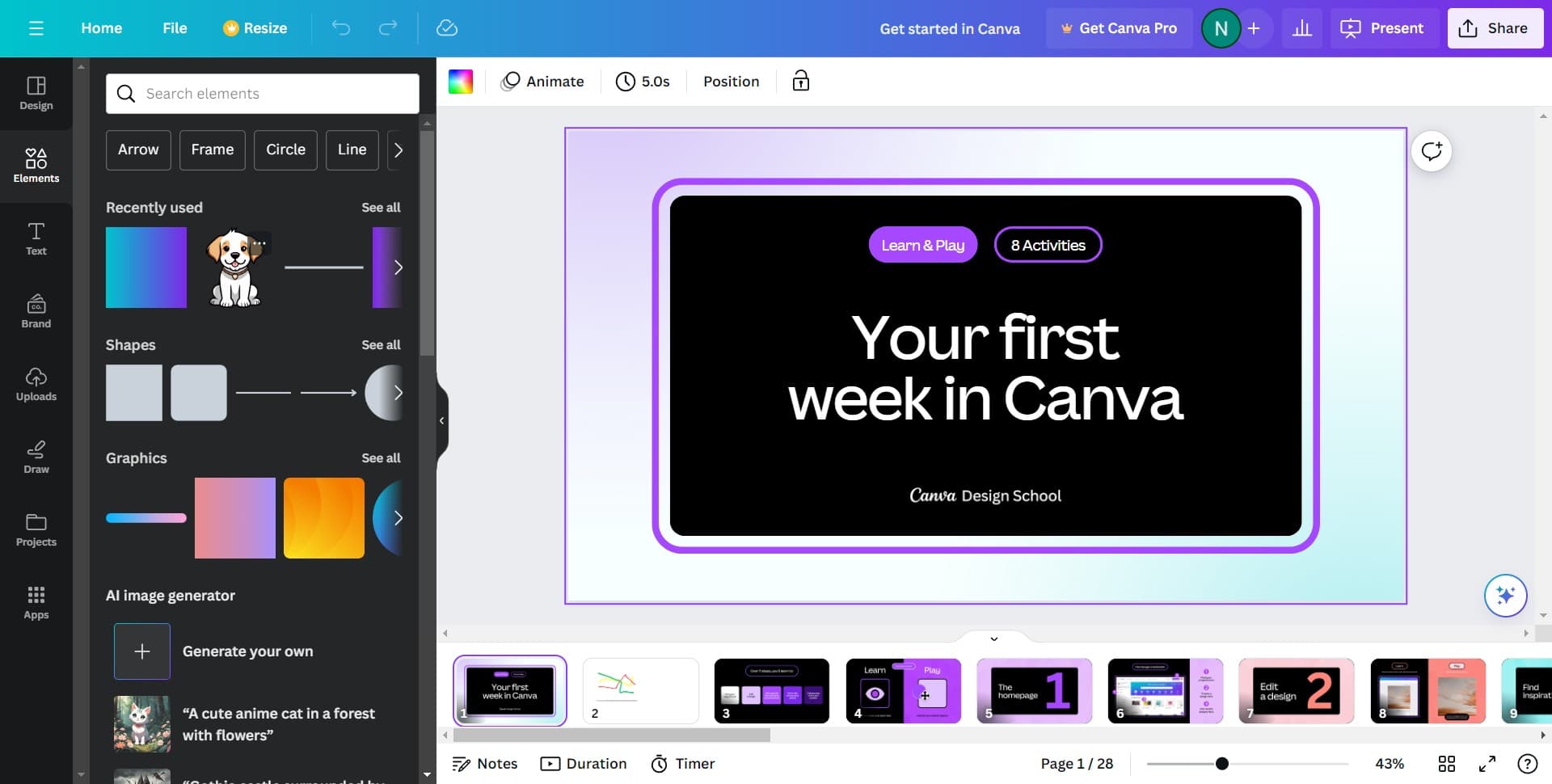
Locate the elements menu
Look for the elements panel on the left sidebar of your Canva workspace. This is where you'll find frames and other design components to add to your project.
- 3
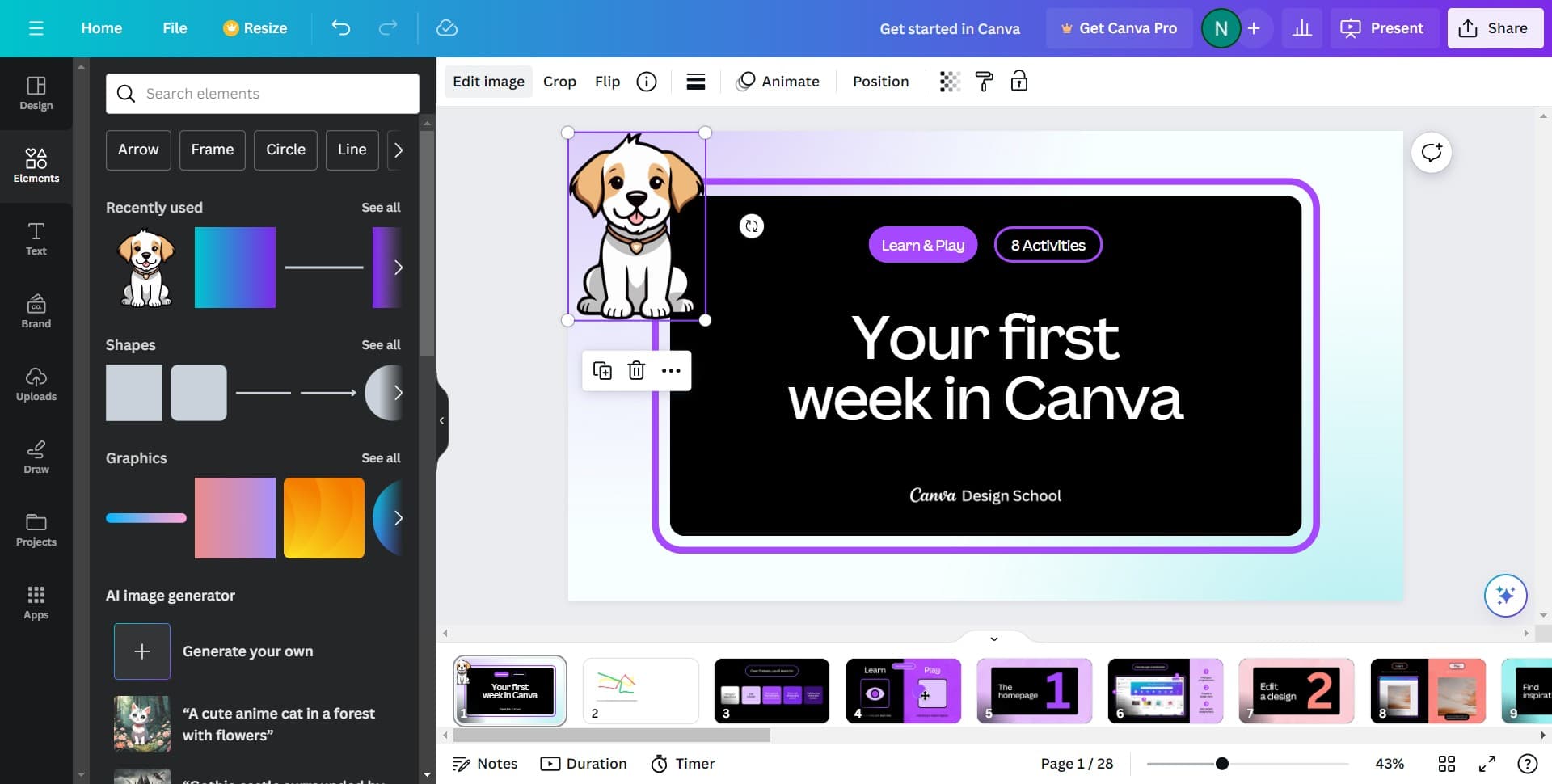
Click on Edit image option
Select the 'Edit image' option to access image-specific editing features. This allows you to apply frames directly to your image or design element.
- 4
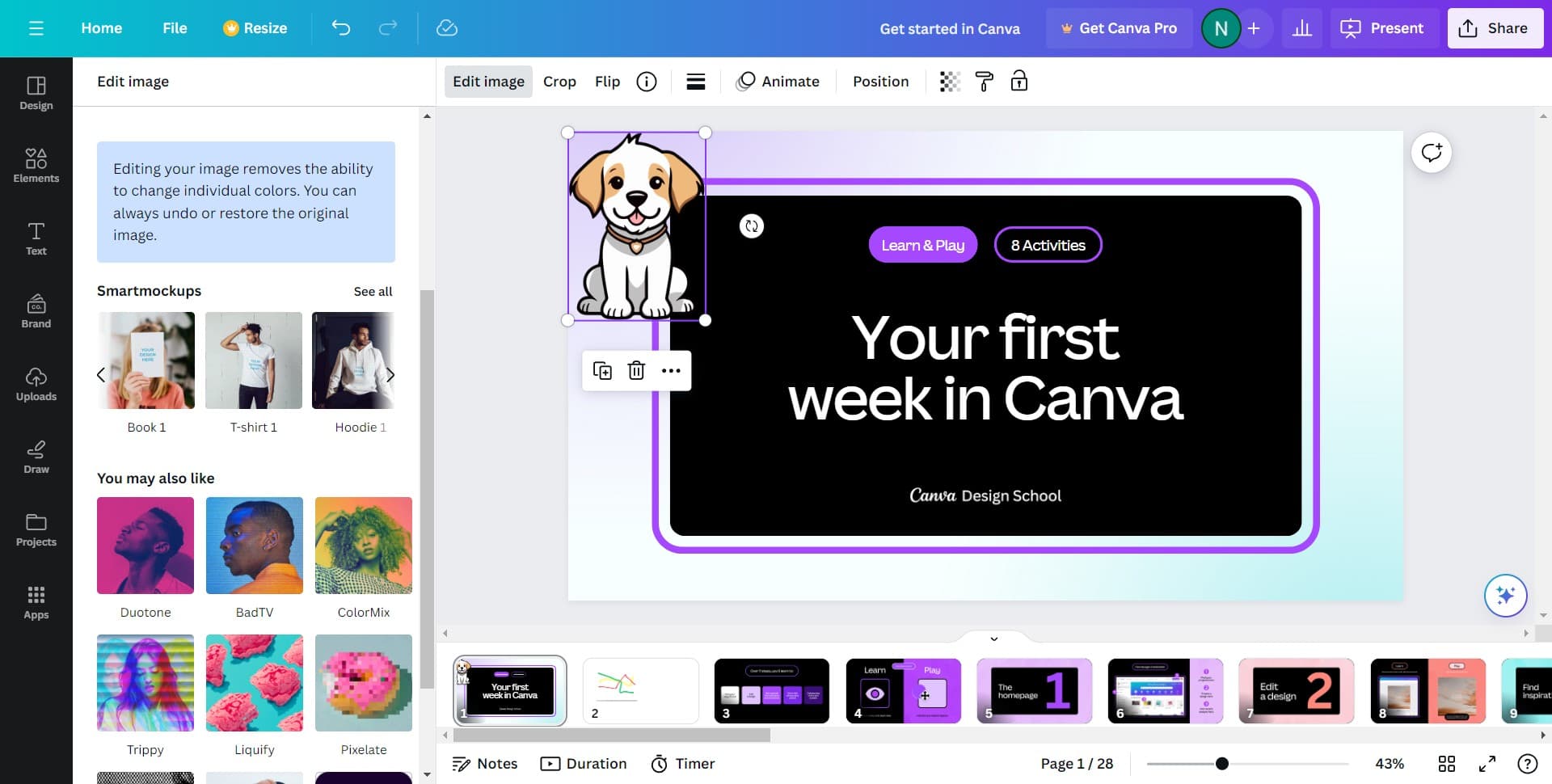
Expand the frames collection
Click on 'See all' to view the complete library of available frames. This will display all frame options that Canva offers for your design.
- 5
Browse and select a frame
Scroll through the frames library and click on the frame that best matches your design aesthetic. You'll see a preview of how the frame will look with your content.
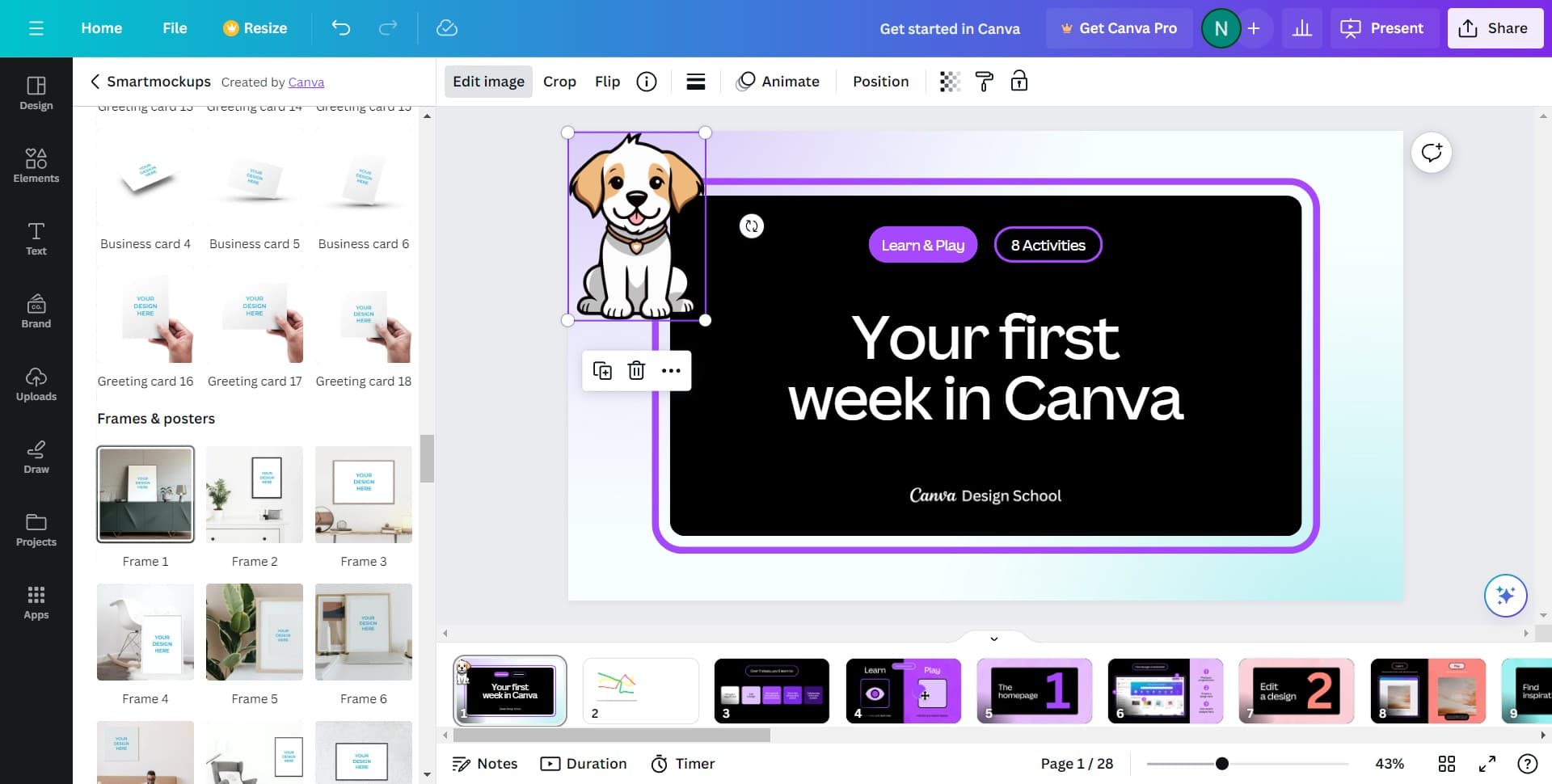
- 6
Apply the selected frame
Click on 'Apply' to add your chosen frame to your design. The frame will be immediately applied to your image or design element.
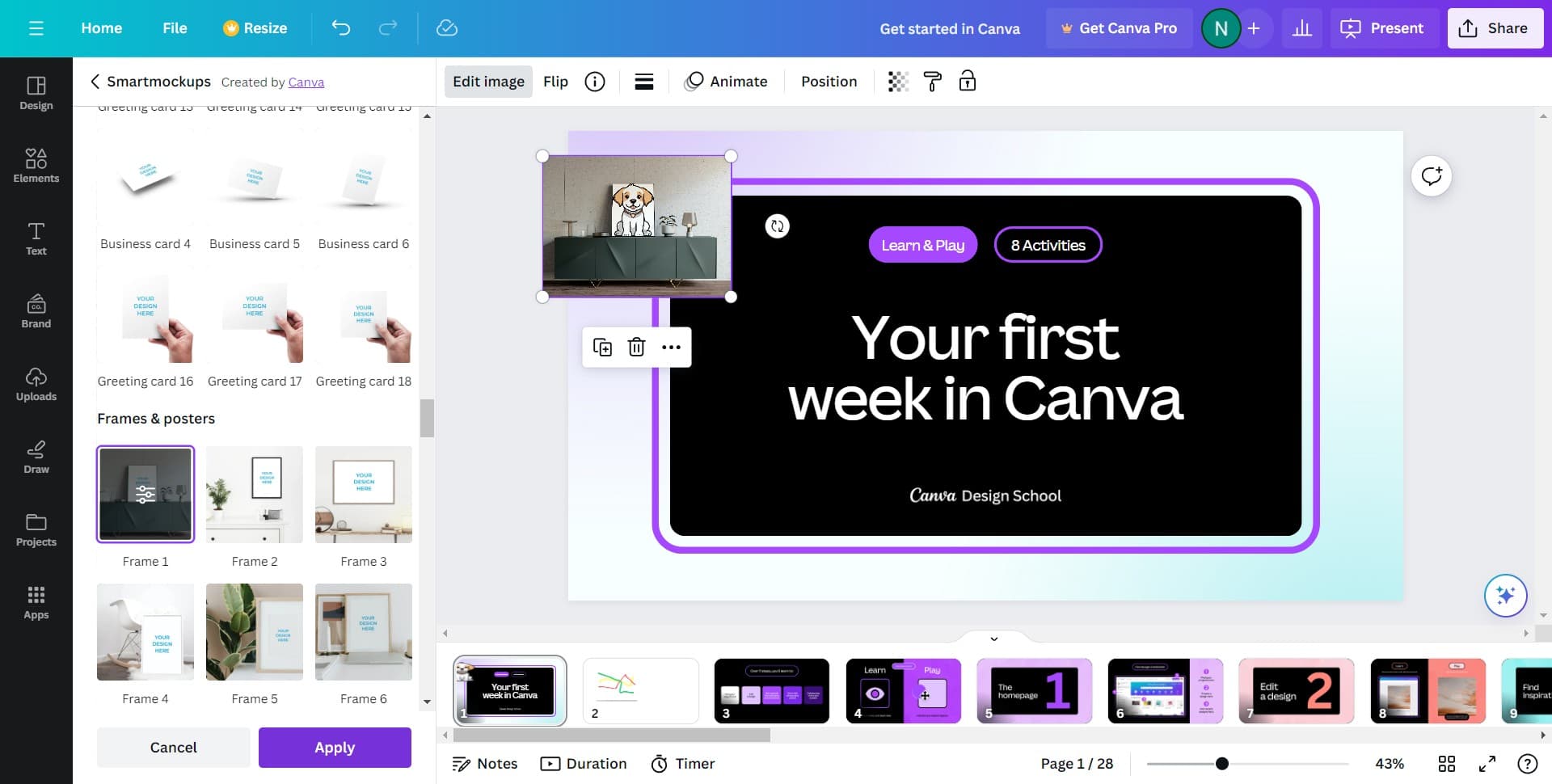
- 7
Finalize your design
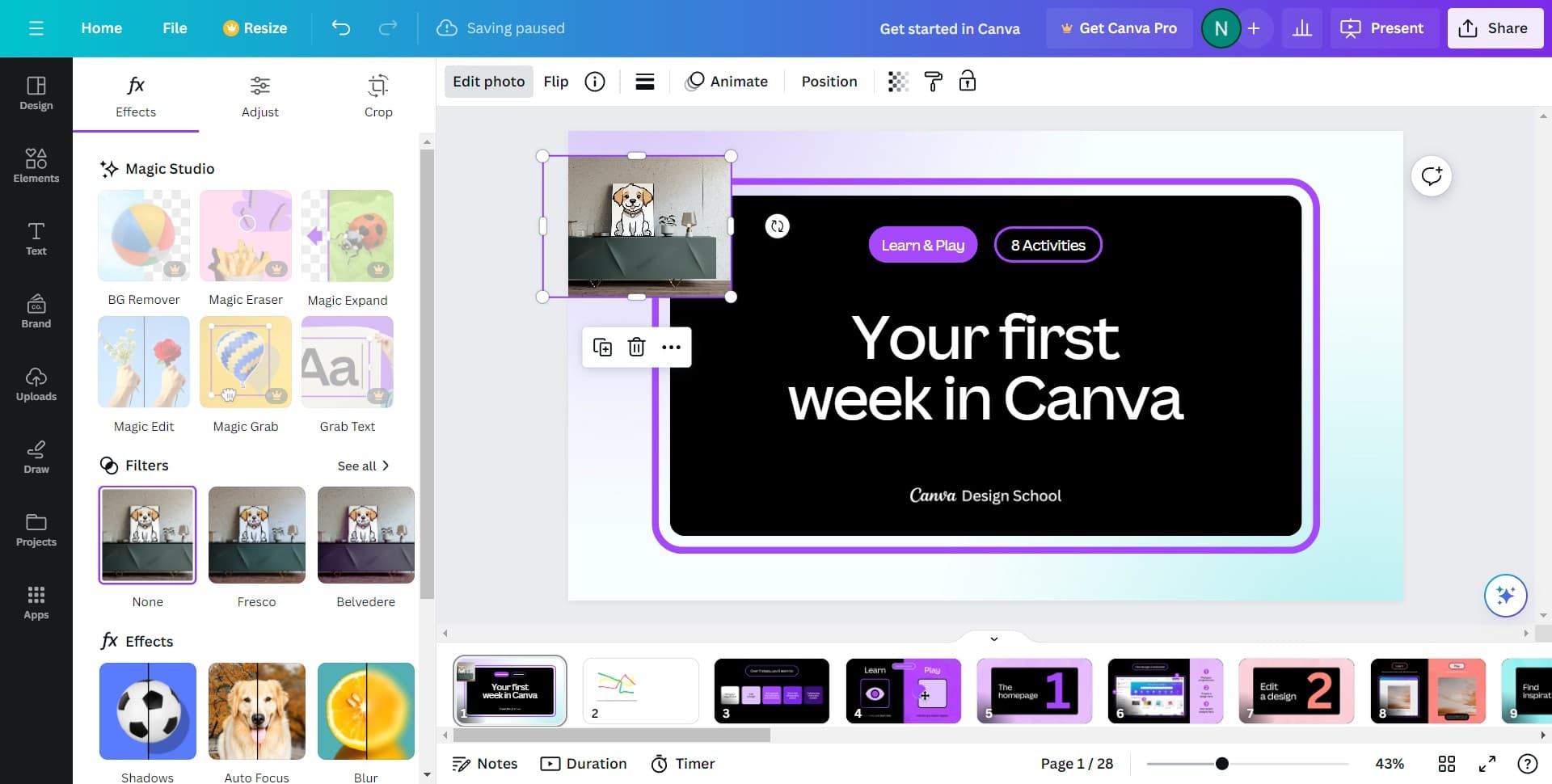
Review your design with the frame applied and make any additional adjustments as needed. You can resize, reposition, or modify the frame properties using Canva's editing tools.
Frequently asked questions
Common questions about how to add a frame in canva.
Yes, most frames in Canva can be customized. After applying a frame, you can usually click on it to access color options and adjust the frame to match your design's color scheme. Some frames may have limited customization options depending on their design.
Frames are available across most Canva templates and designs. However, availability may depend on your subscription level. Free Canva accounts have access to a selection of free frames, while premium accounts unlock additional frame options.
To remove a frame, click on it to select it and then press the Delete key on your keyboard. Alternatively, you can use the undo function (Ctrl+Z or Cmd+Z) if you just applied it.
Yes, once a frame is applied, you can click on it and drag the corner or edge handles to resize it. You can also move the frame around your canvas to reposition it as needed.
Frames are pre-designed graphic elements that typically include decorative borders and styling, while borders are simple lines that outline an element. Frames offer more visual complexity and design variety, making them ideal for creating polished, professional-looking designs.