How to add shapes to my design in Canva

Adding shapes to your Canva design is a fundamental skill for creating custom visuals and layouts. Whether you're building presentations, social media graphics, or infographics, shapes help you organize content and enhance your design's visual appeal.
Quick summary
In this tutorial, you'll learn how to access Canva's shape library and add shapes to your whiteboard design. By following these steps, you'll gain the ability to customize your designs with various geometric and decorative shapes.
Why this matters
Shapes are essential building blocks in design that help establish visual hierarchy, draw attention to key information, and create professional-looking compositions. Mastering shape insertion in Canva empowers you to design faster and create more polished, cohesive visuals without relying solely on text and images.
Step-by-step guide
- 1
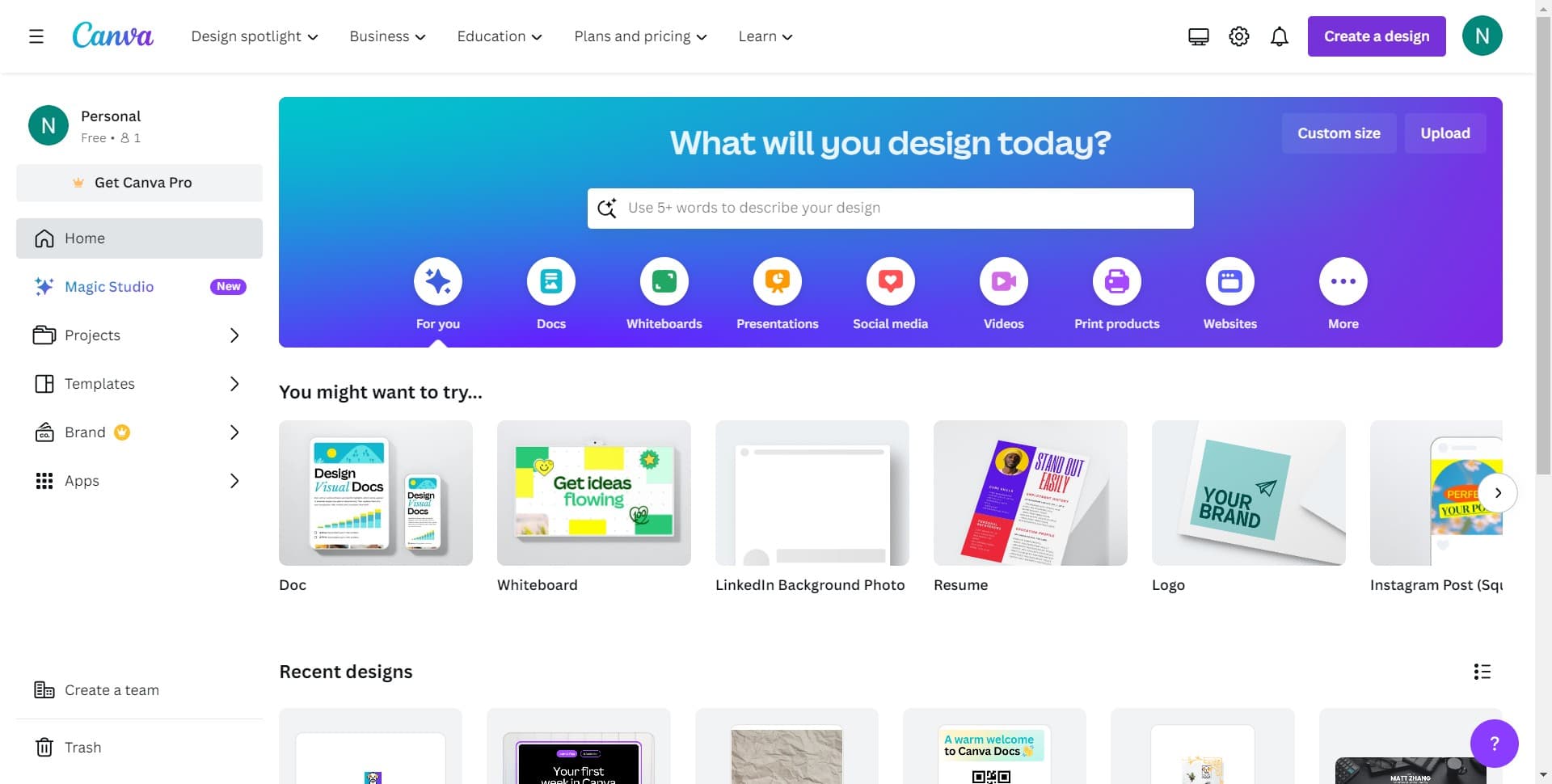
Click on Create a design
Start by accessing Canva's design creation interface. This button will take you to the template and workspace selection screen where you can choose what type of design you want to create.
- 2
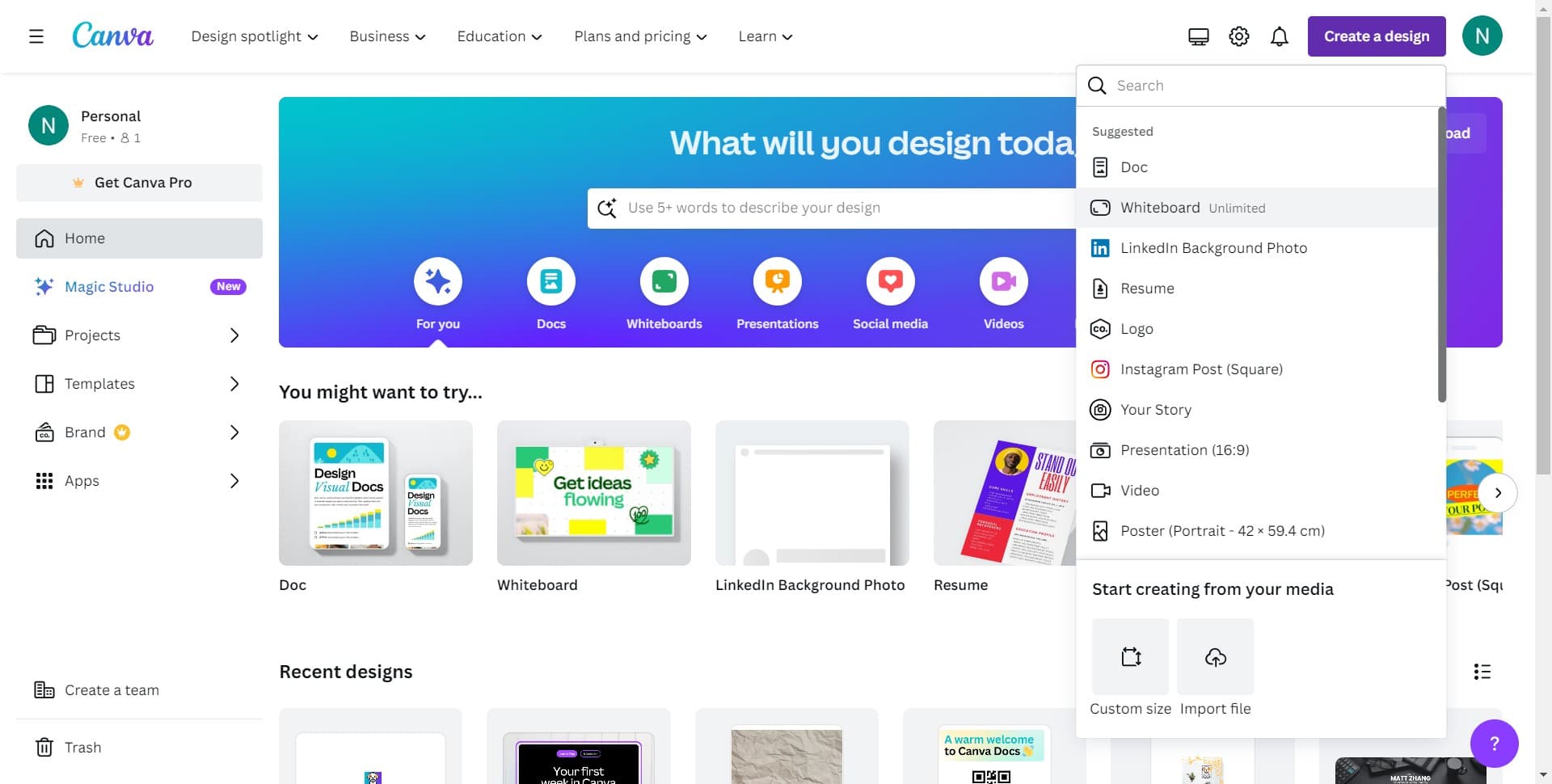
Select Whiteboard Unlimited
Choose the Whiteboard Unlimited option from the available templates. This gives you a blank canvas with unlimited space to add and arrange shapes freely.
- 3
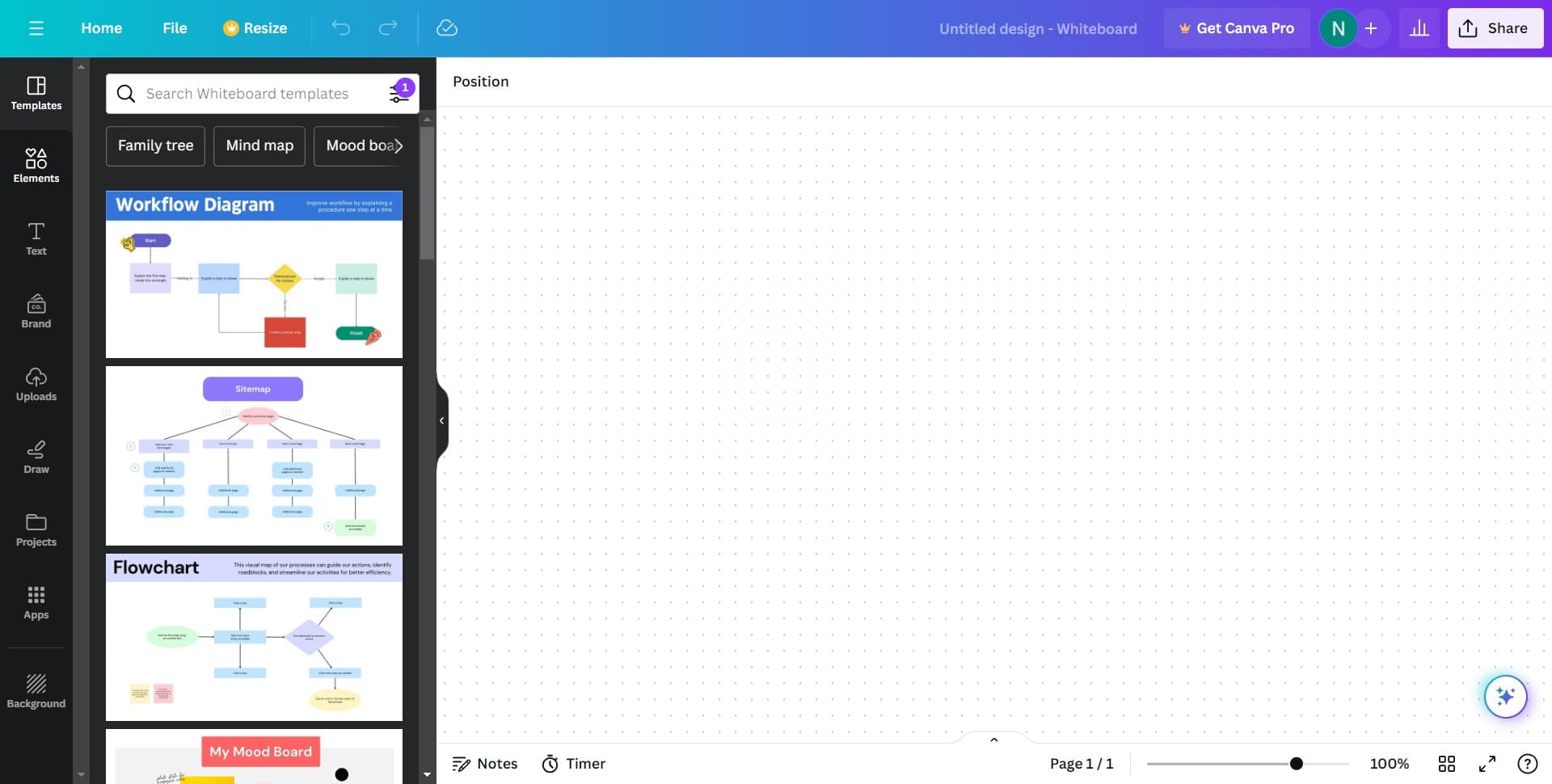
Access the shapes panel
Look for and click the shapes icon or menu option in your workspace. This will open the shapes panel where you can browse available shapes.
- 4
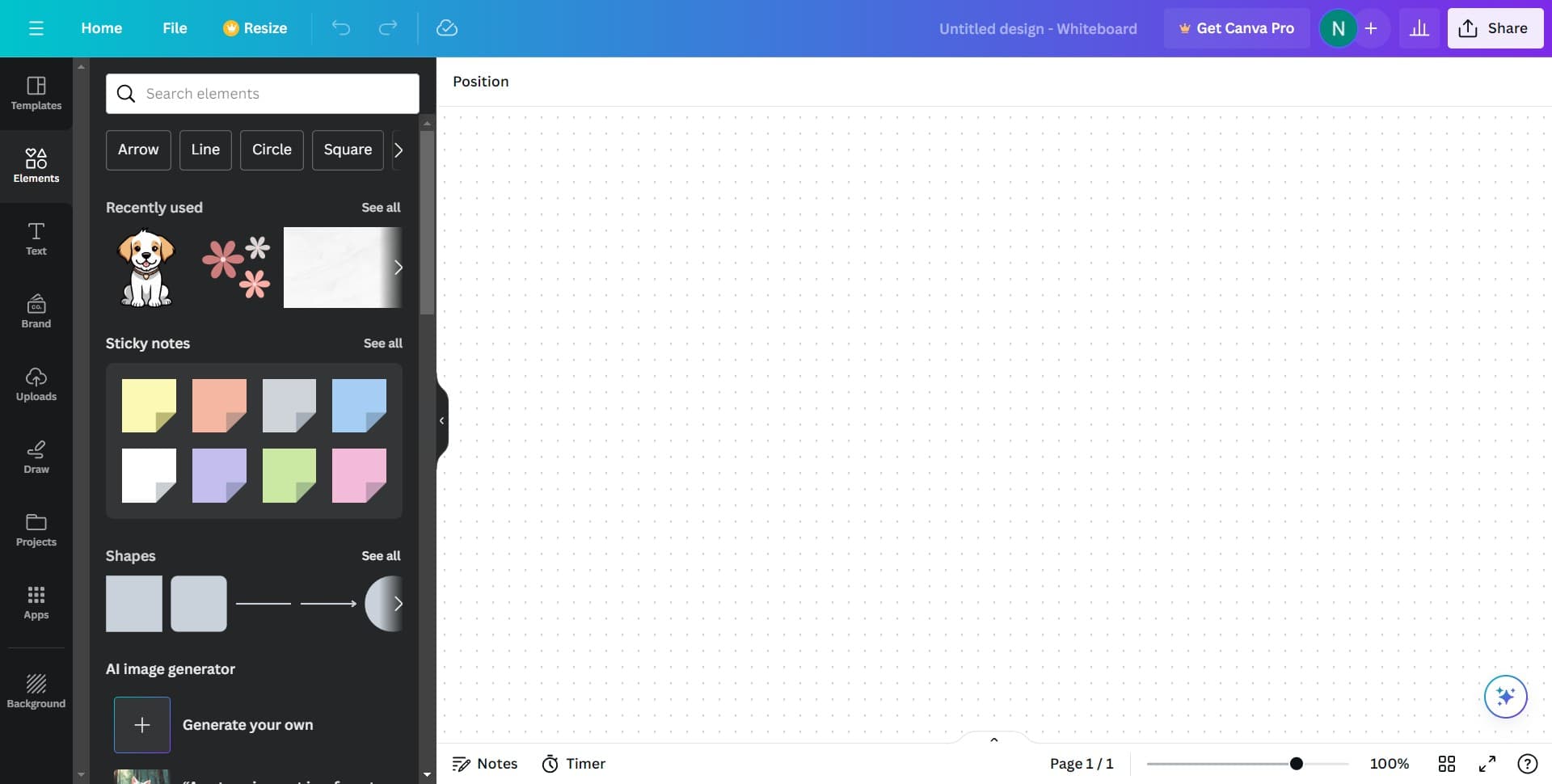
Click on See all
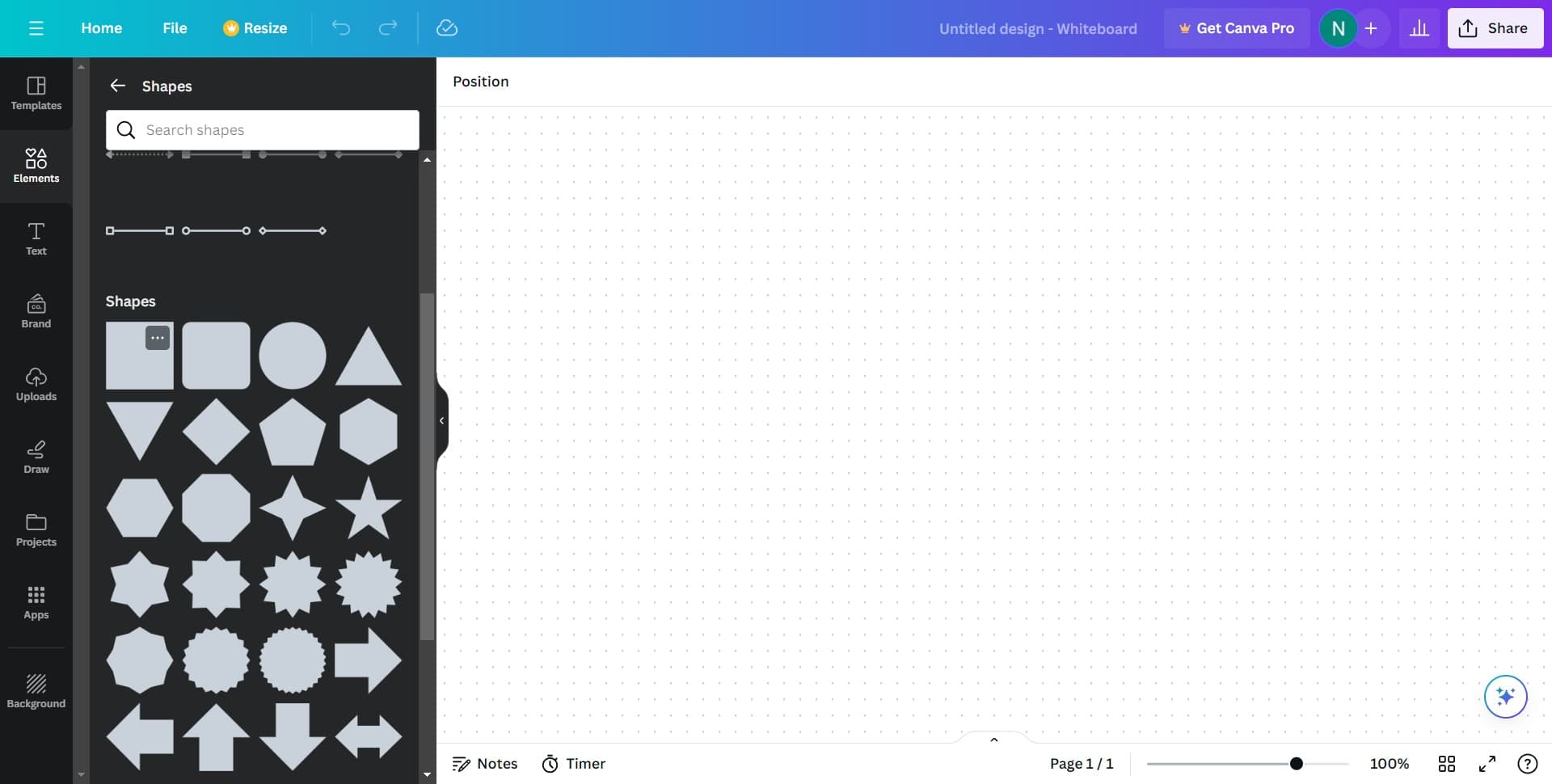
Select the See all option to view the complete shape library. This expands your options beyond the default shapes shown and gives you access to Canva's full collection.
- 5
Browse and select your shape
Explore the shape library and click on the shape you want to add to your design. The shape will appear on your canvas ready for positioning and customization.
- 6
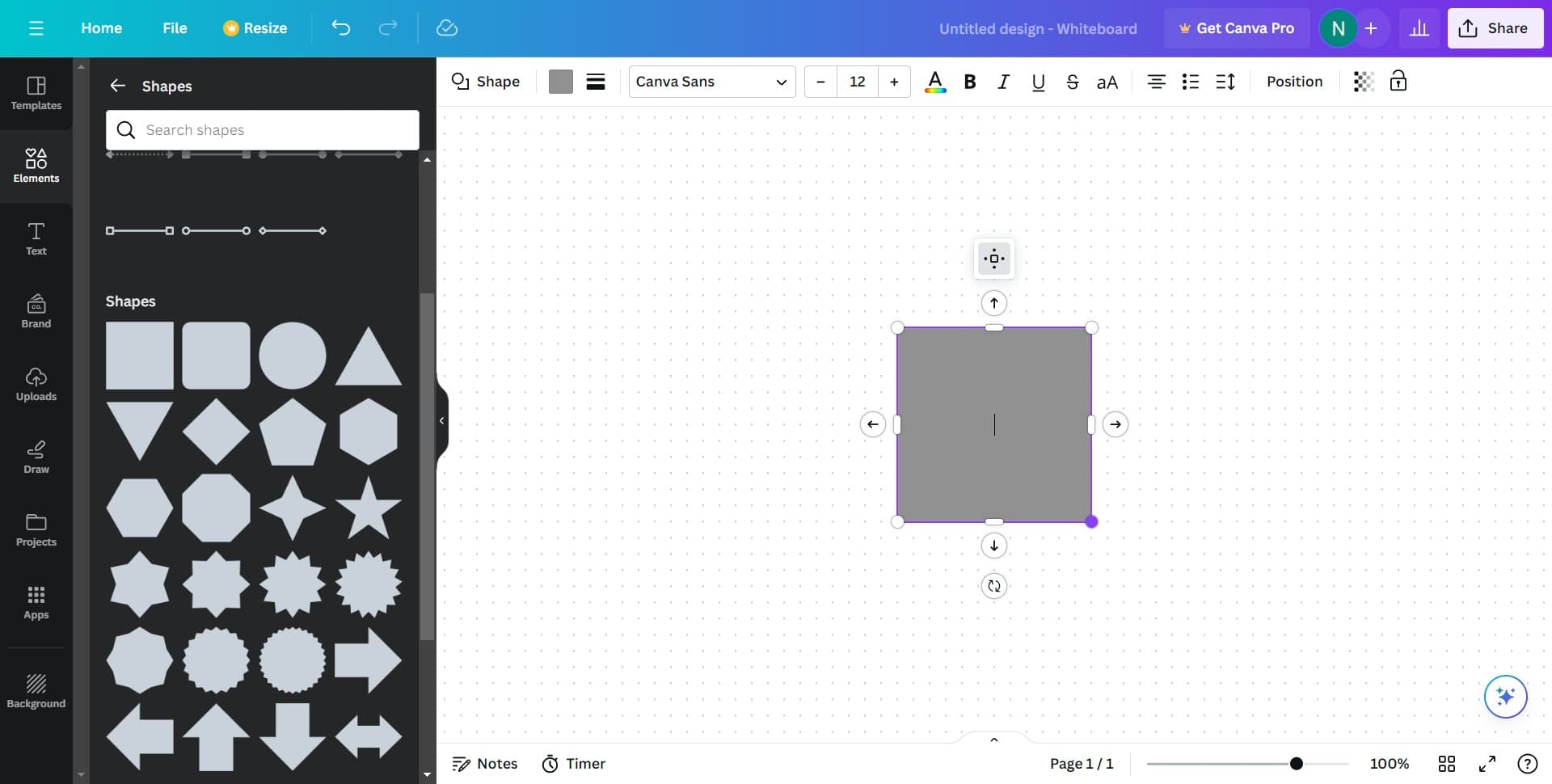
Position your shape on the canvas
Click and drag the shape to place it exactly where you want it in your design. You can move it around freely until you achieve your desired layout.
- 7
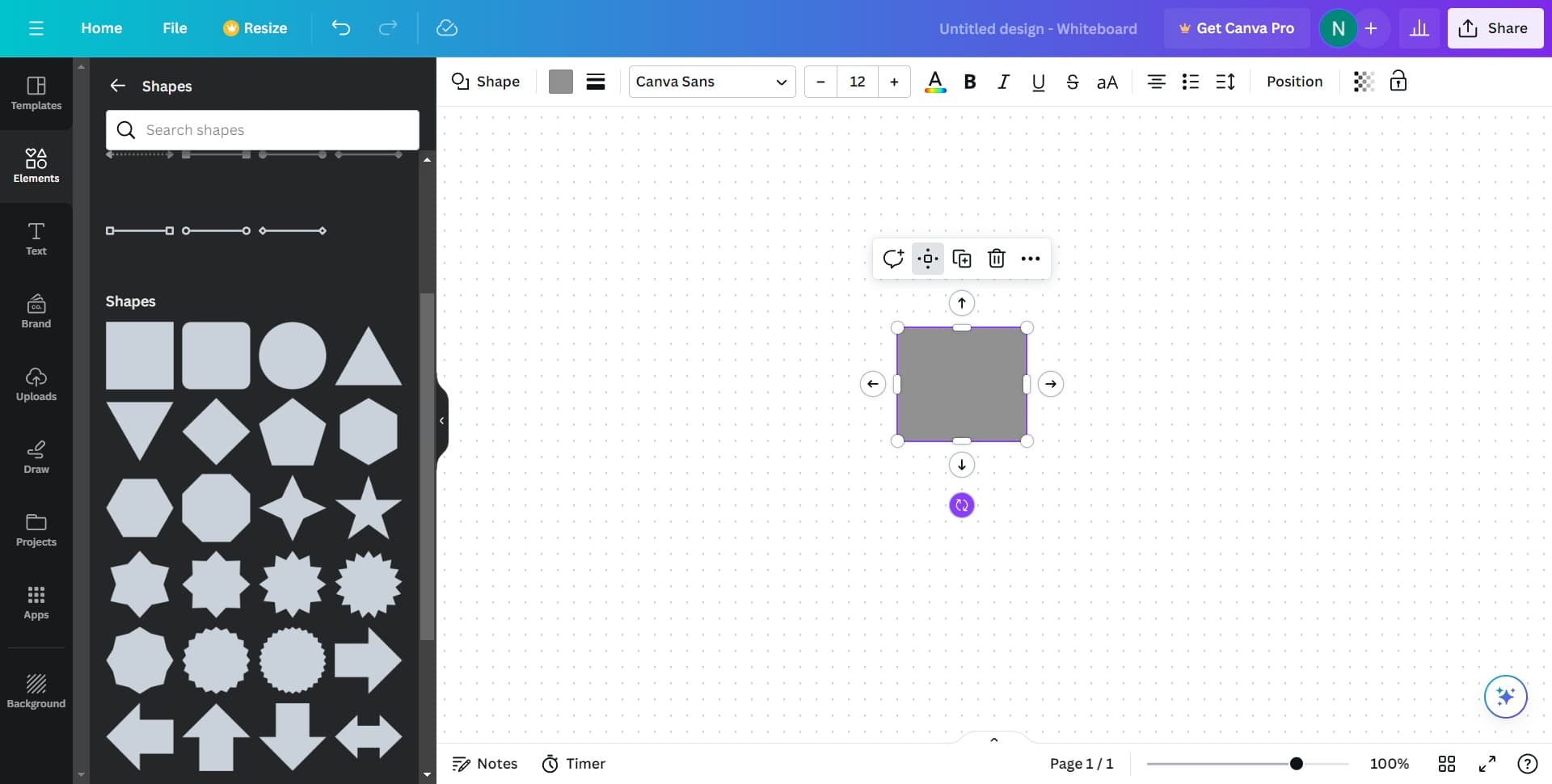
Customize your shape
Adjust the shape's size, color, rotation, and other properties using the editing options. These customization tools let you match the shape to your design's style and requirements.
Frequently asked questions
Common questions about how to add shapes to my design in canva.
Yes, you can easily resize shapes by clicking and dragging the corner handles. Drag outward to make the shape larger or inward to make it smaller, allowing you to fit shapes perfectly into your layout.
Once a shape is selected on your canvas, look for the color option in the toolbar or editing panel. Click on the color field to open the color picker, where you can choose from presets or create a custom color.
Yes, Canva organizes shapes into categories such as basic shapes, arrows, callouts, and decorative elements. When you click See all, you can browse through these categories to find the exact shape you need for your design.
Absolutely. After selecting a shape, you'll see rotation and flip options in the toolbar or right-click menu. These allow you to adjust the angle or mirror the shape to achieve your desired orientation.
Canva allows you to arrange shapes by using send forward and send backward options. Right-click on a shape to access these layering controls, which let you control which shapes appear in front or behind others.