How to add tables in Canva

Tables are a powerful way to organize and present data in Canva designs. Whether you're creating a pricing chart, comparison guide, or schedule, adding a table can help structure your content clearly and professionally. This guide walks you through the process of inserting and customizing tables in Canva.
Quick summary
In this tutorial, you'll learn how to add tables to your Canva designs by accessing the table insertion tools and selecting from available table templates. You'll discover where to find table options and how to explore the full range of table styles available to match your design needs.
Why this matters
Tables are essential for presenting structured information in a visually organized format that's easy for your audience to scan and understand. Using tables in Canva allows you to create professional-looking presentations, reports, and infographics without needing external design software. This skill is particularly valuable when you need to compare data, display pricing options, or organize hierarchical information.
Step-by-step guide
- 1
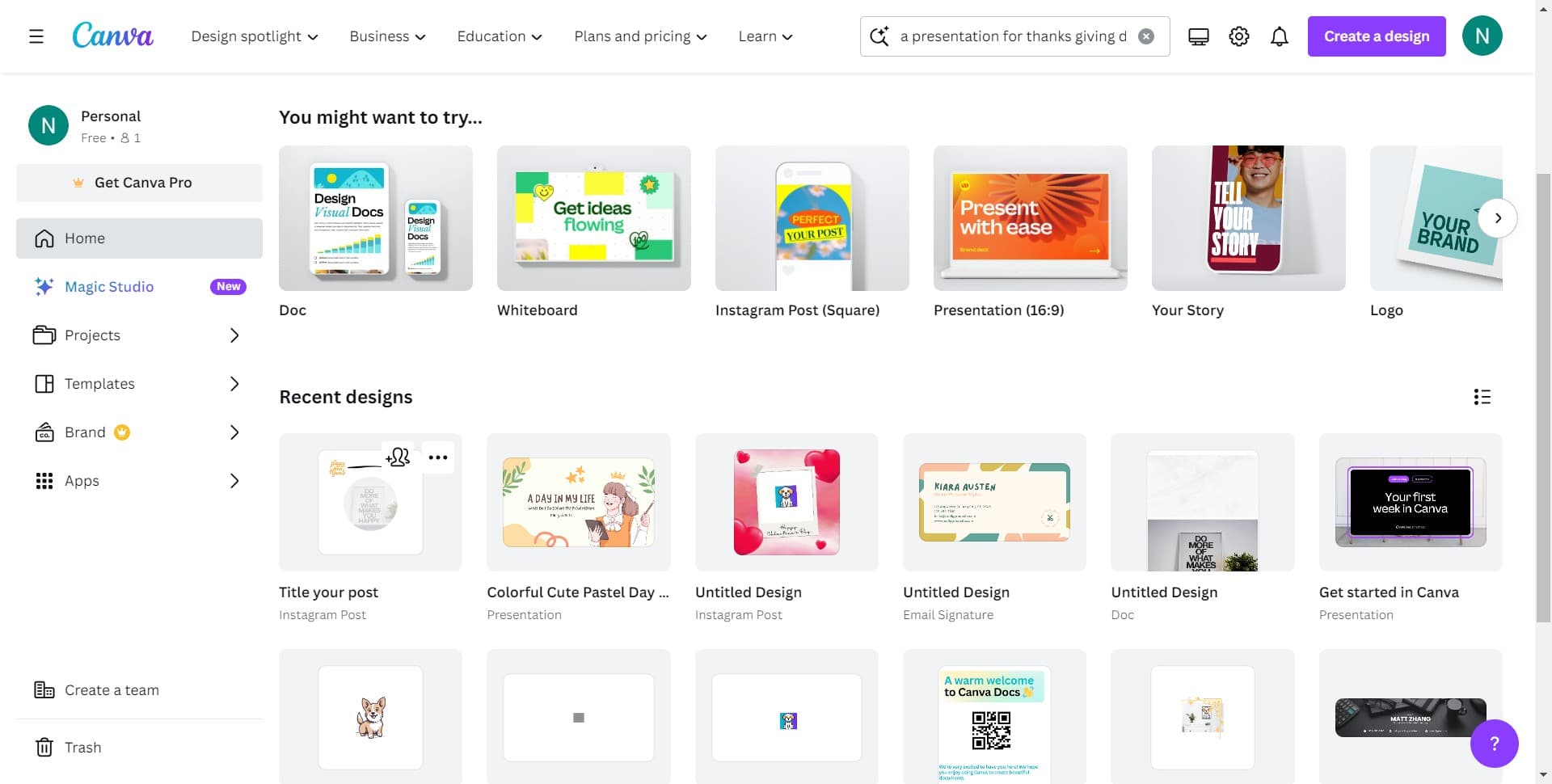
Click on the Image element
Start by clicking the 'Image' option in Canva's toolbar or element panel. This will open the image and content insertion menu where you can access various design elements.
- 2
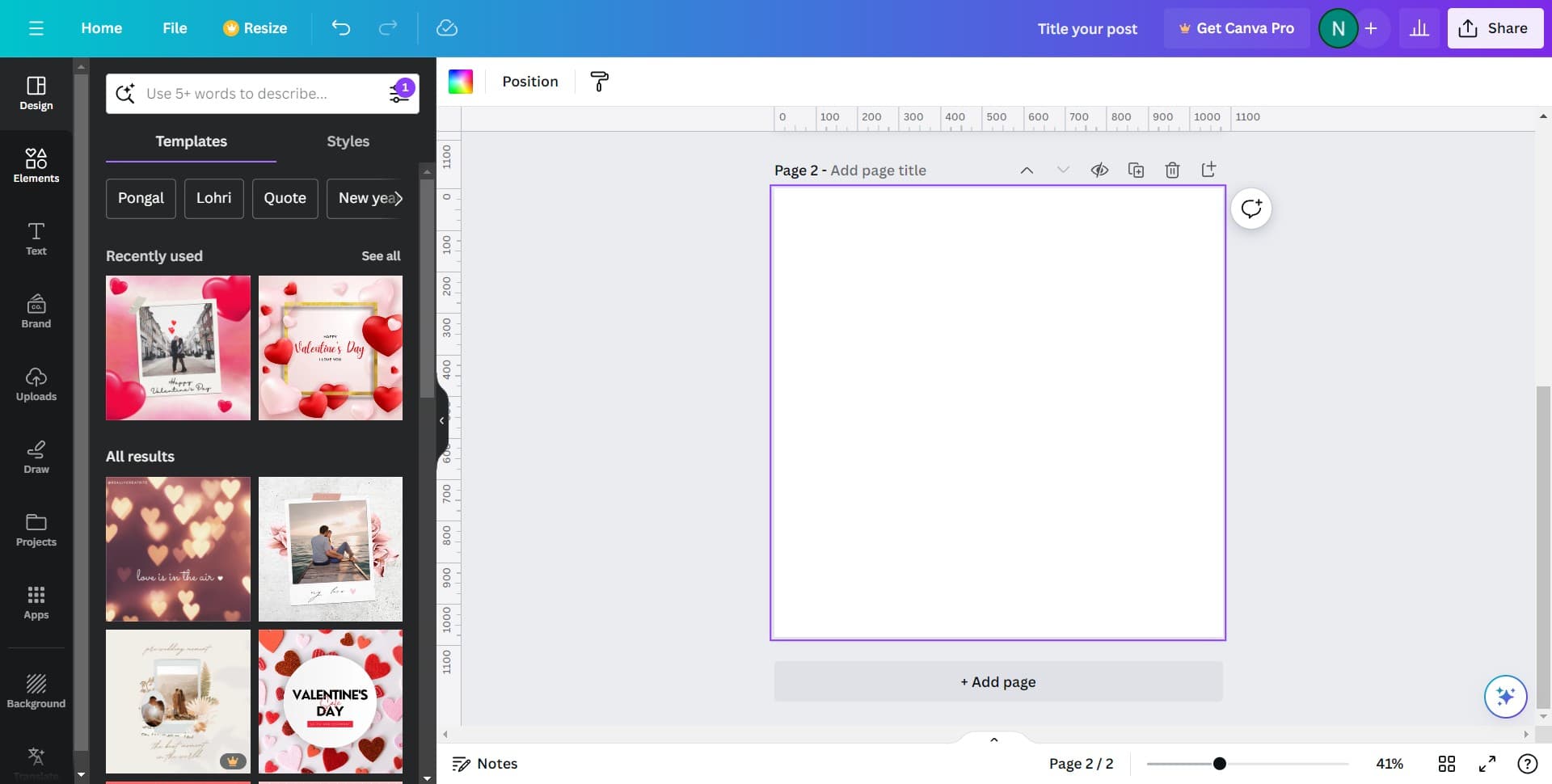
Navigate to the elements section
Locate and click on the appropriate menu or tab that displays available design elements. This will expand your options for adding different types of content to your canvas.
- 3
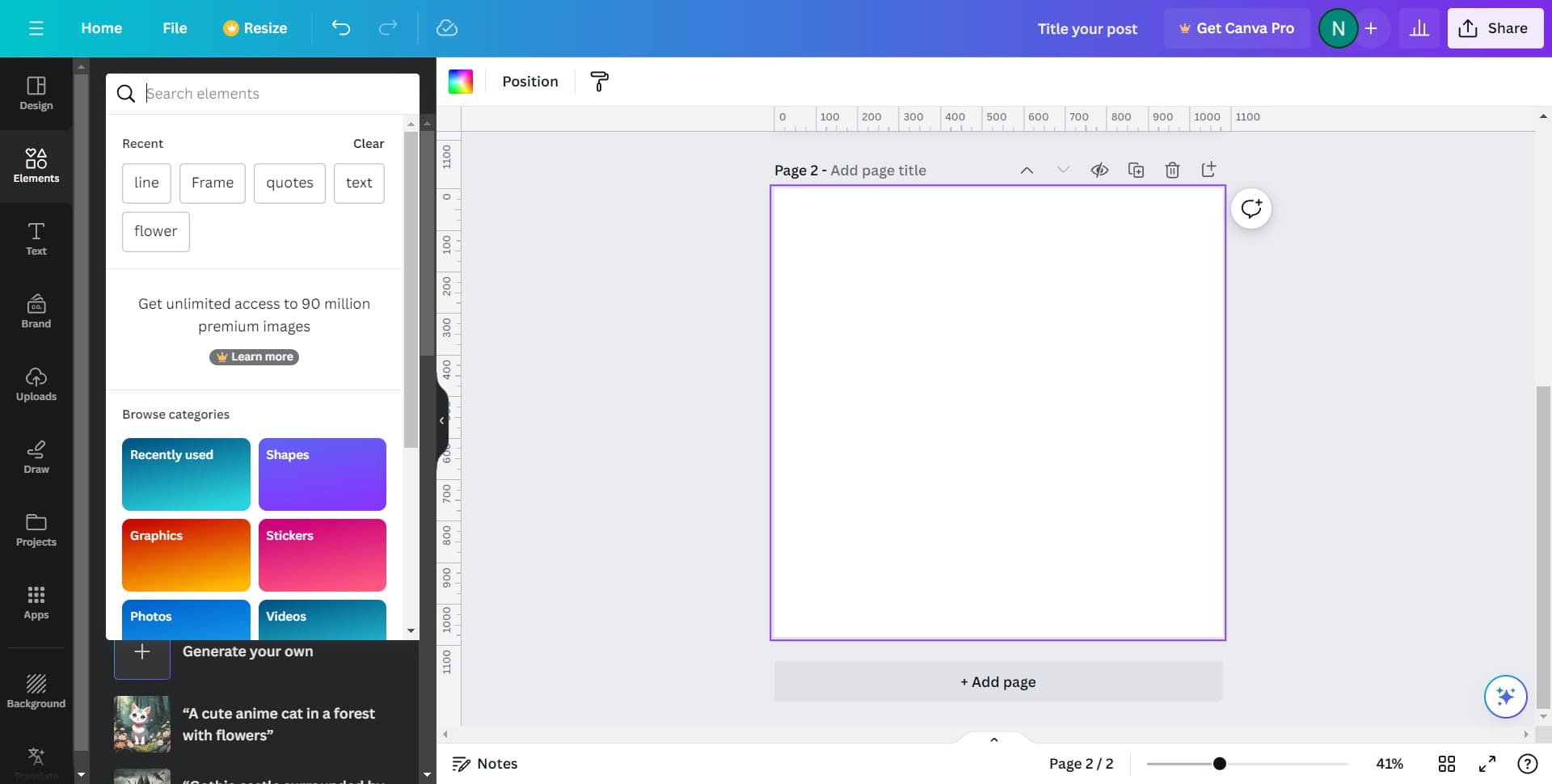
Access the tables menu
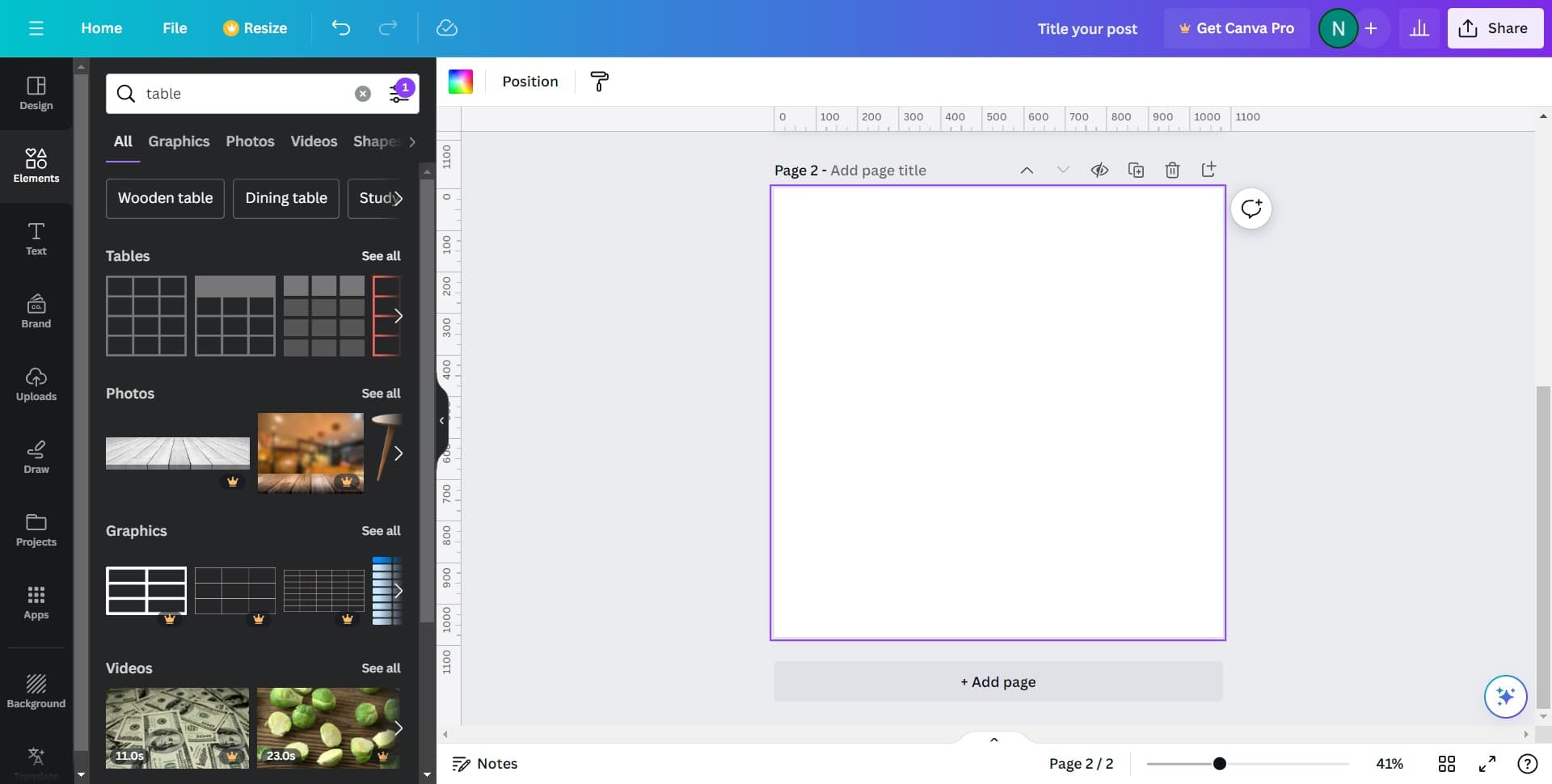
Look for the tables option within the elements section and click on it. This will reveal the available table templates and styles you can add to your design.
- 4
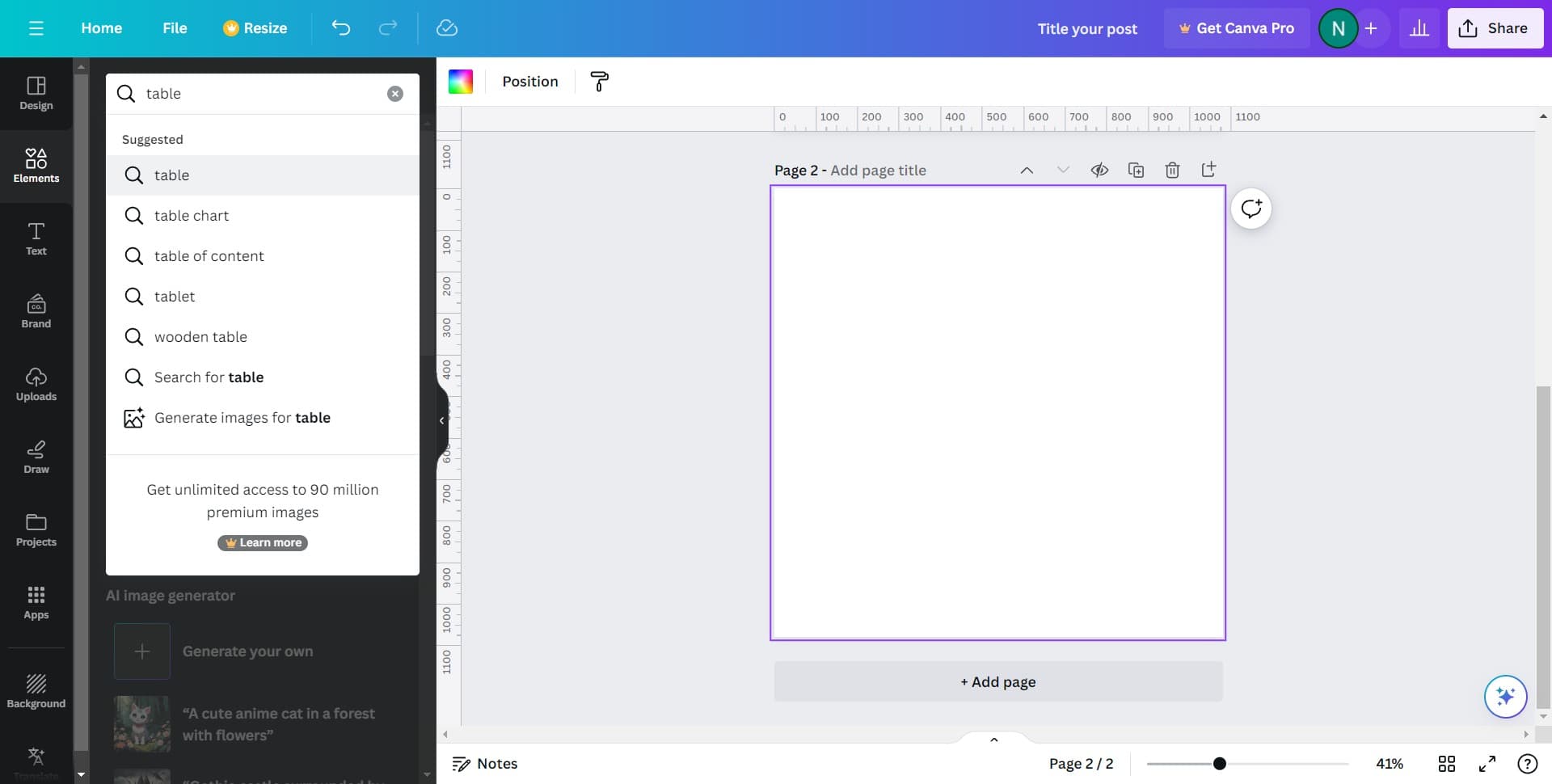
Select a table template
Click on the 'table' option to view available table designs. You'll see various pre-designed table templates that you can insert directly into your Canva project.
- 5
Explore all table options
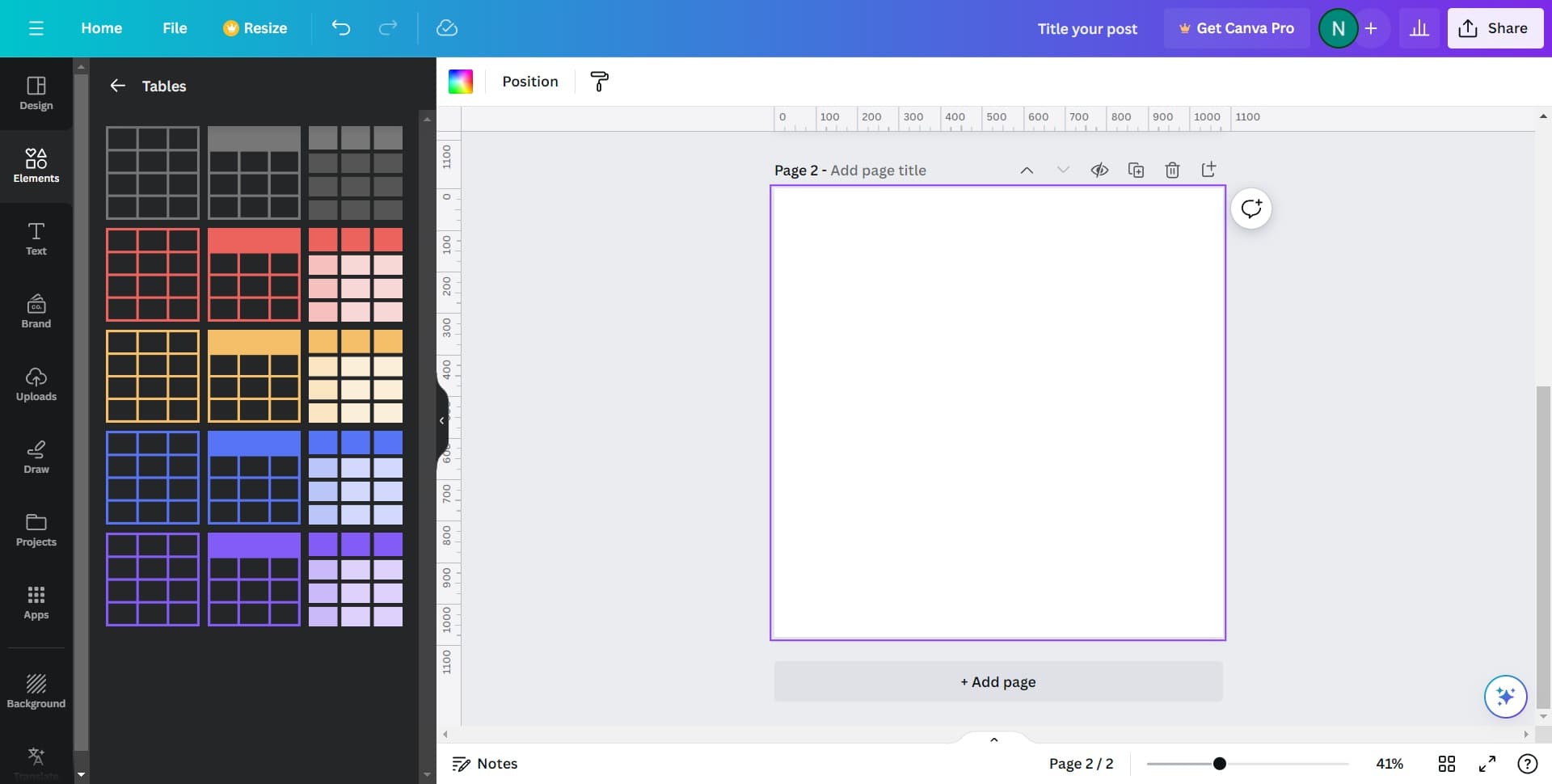
Click on 'See all' to view the complete collection of table templates and styles available in Canva. This allows you to find the perfect table design that matches your project's aesthetic and requirements.
- 6
Insert your chosen table
Click on the table design you want to use to add it to your canvas. The table will be inserted and ready for you to customize with your own content, colors, and formatting.
Frequently asked questions
Common questions about how to add tables in canva.
Yes, once you insert a table into Canva, you can easily customize it by adding or removing rows and columns to fit your data. Simply click on the table and use the editing options to adjust its structure according to your needs.
Absolutely. Canva offers a variety of table templates with different styles, colors, and layouts. You can browse through the 'See all' option to find a table design that matches your brand or project theme.
Yes, you can fully customize the text, font, colors, and cell backgrounds in any table. After inserting a table, click on individual cells or the entire table to modify its appearance and content.
Tables are ideal for pricing guides, comparison charts, schedules, résumés, reports, and any design that needs to present structured data. They help organize information in a clear, professional manner that's easy for viewers to understand.
Yes, once you've customized a table to your liking, you can save your entire design to your Canva templates. This allows you to quickly reuse the same table design across multiple projects without starting from scratch.