How to add text to design in Canva

Adding text is one of the most fundamental design tasks in Canva, whether you're creating social media posts, presentations, or marketing materials. This guide walks you through the process of inserting and customizing text elements to bring your designs to life.
Quick summary
In this tutorial, you'll learn how to add text to your Canva designs using both heading and subheading options, as well as how to access additional text elements through the Elements menu. By the end, you'll be able to quickly insert and position text in your projects.
Why this matters
Text is essential for communicating your message in any design. Mastering Canva's text tools allows you to create professional-looking designs faster, maintain consistent typography, and focus more on your creative vision rather than struggling with formatting.
Step-by-step guide
- 1
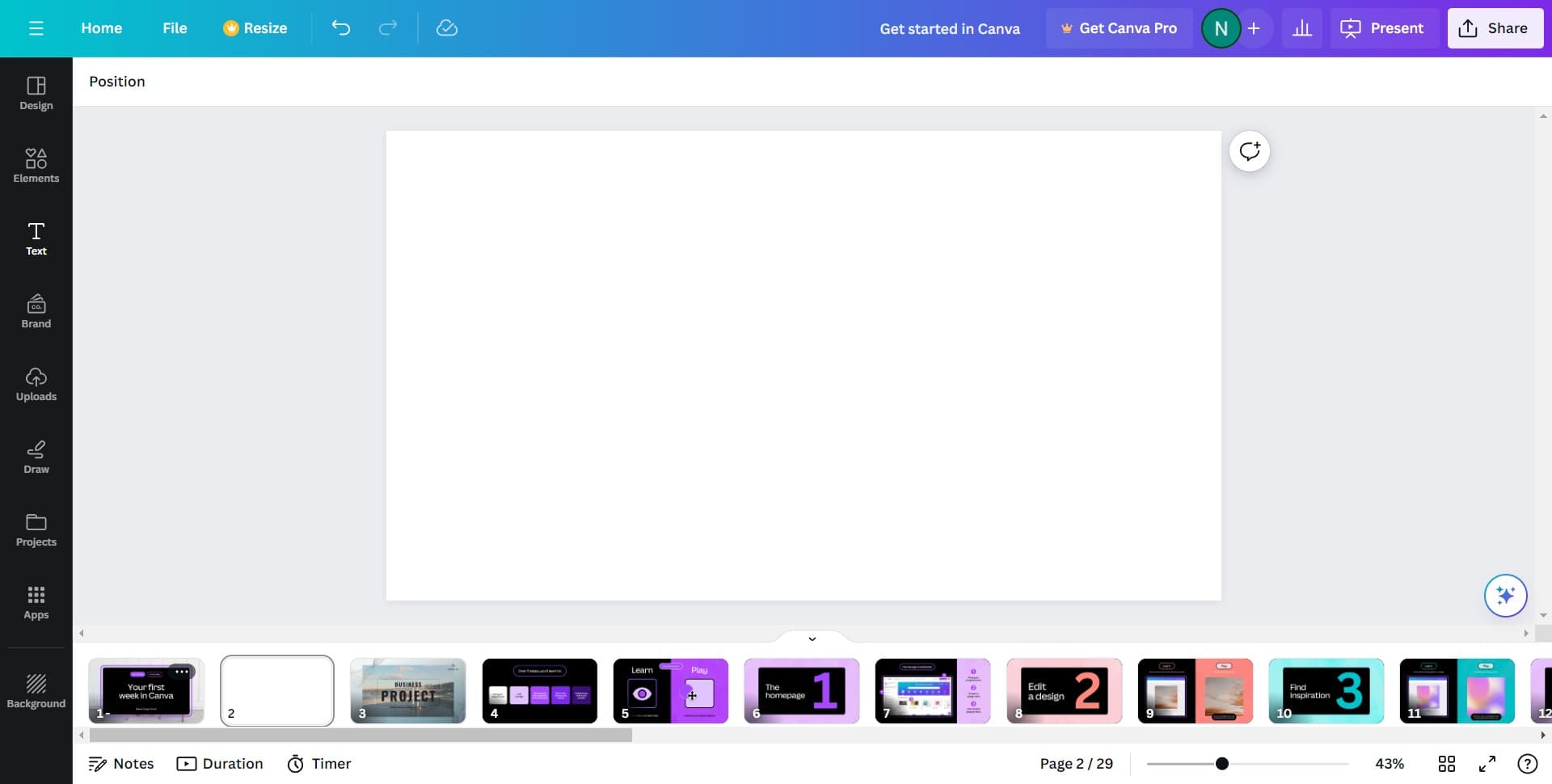
Open your Canva project
Start by accessing the design you want to work with in Canva. You'll see the main canvas editor where all your design elements will appear.
- 2
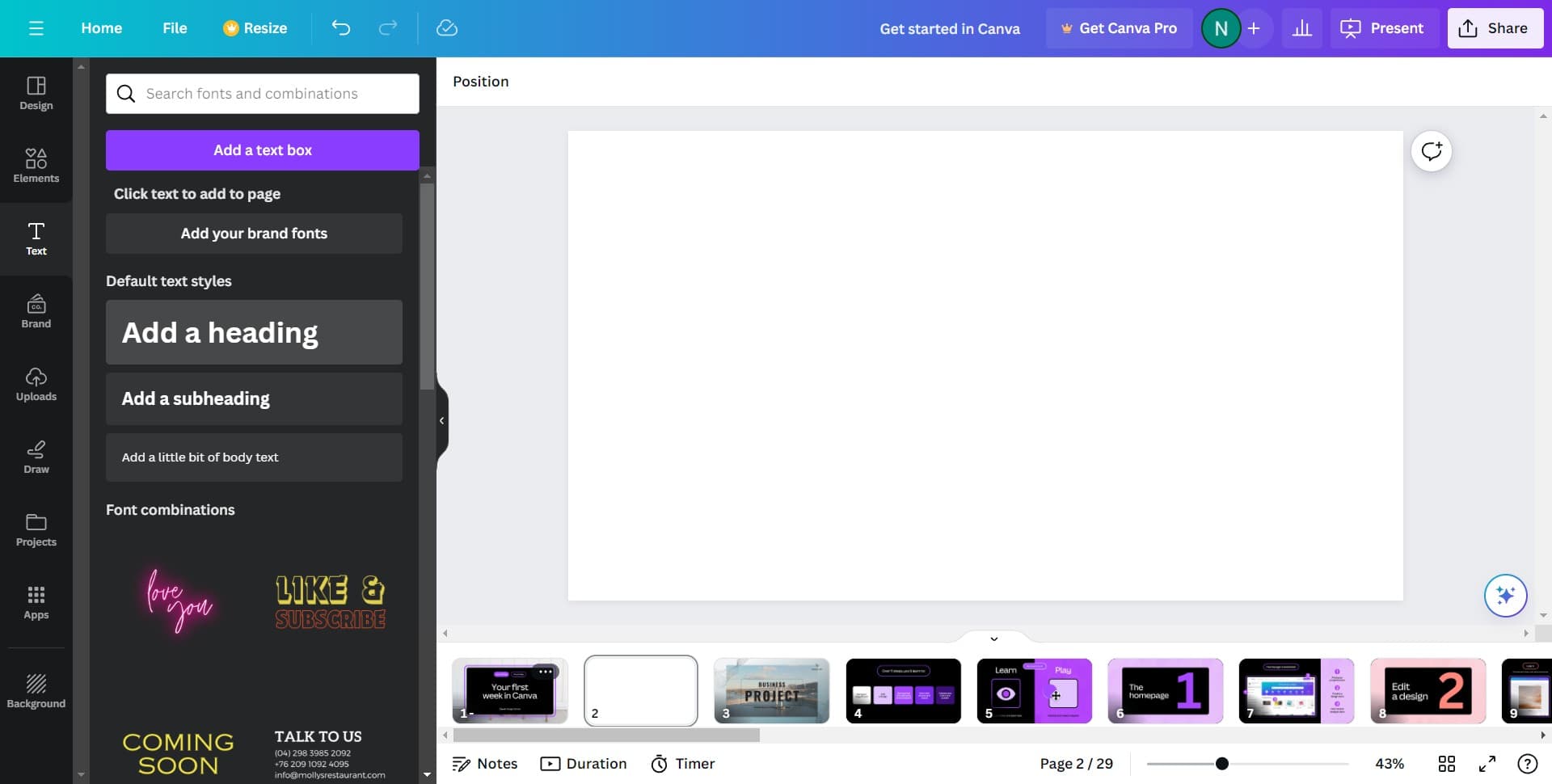
Click on Add a heading
Select the heading text option from the menu. This will insert a large, prominent text block that's perfect for titles and main messages in your design.
- 3
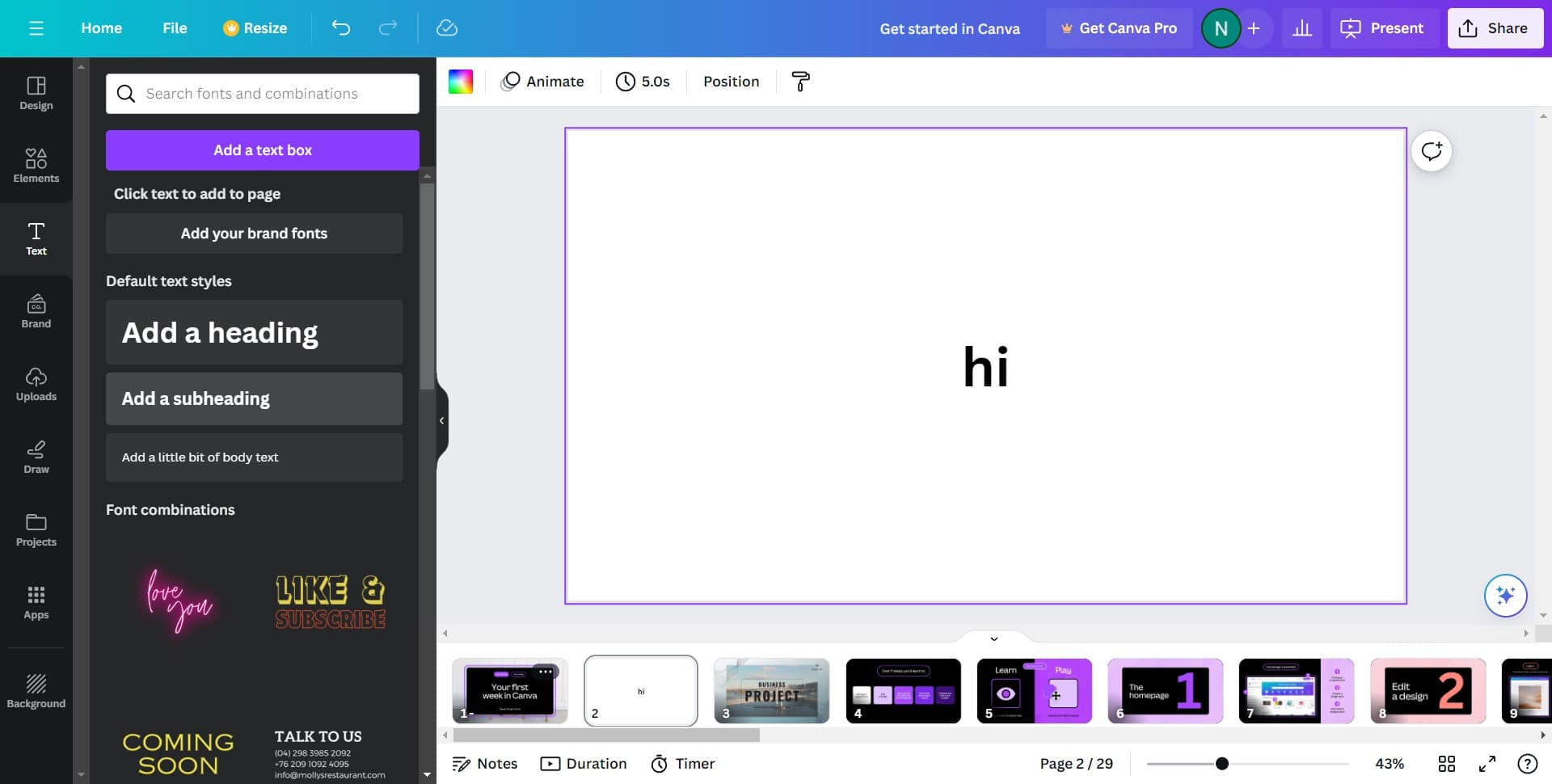
Click on Add a subheading
Add a secondary text element by selecting the subheading option. This creates a smaller text block ideal for supporting information below your main heading.
- 4
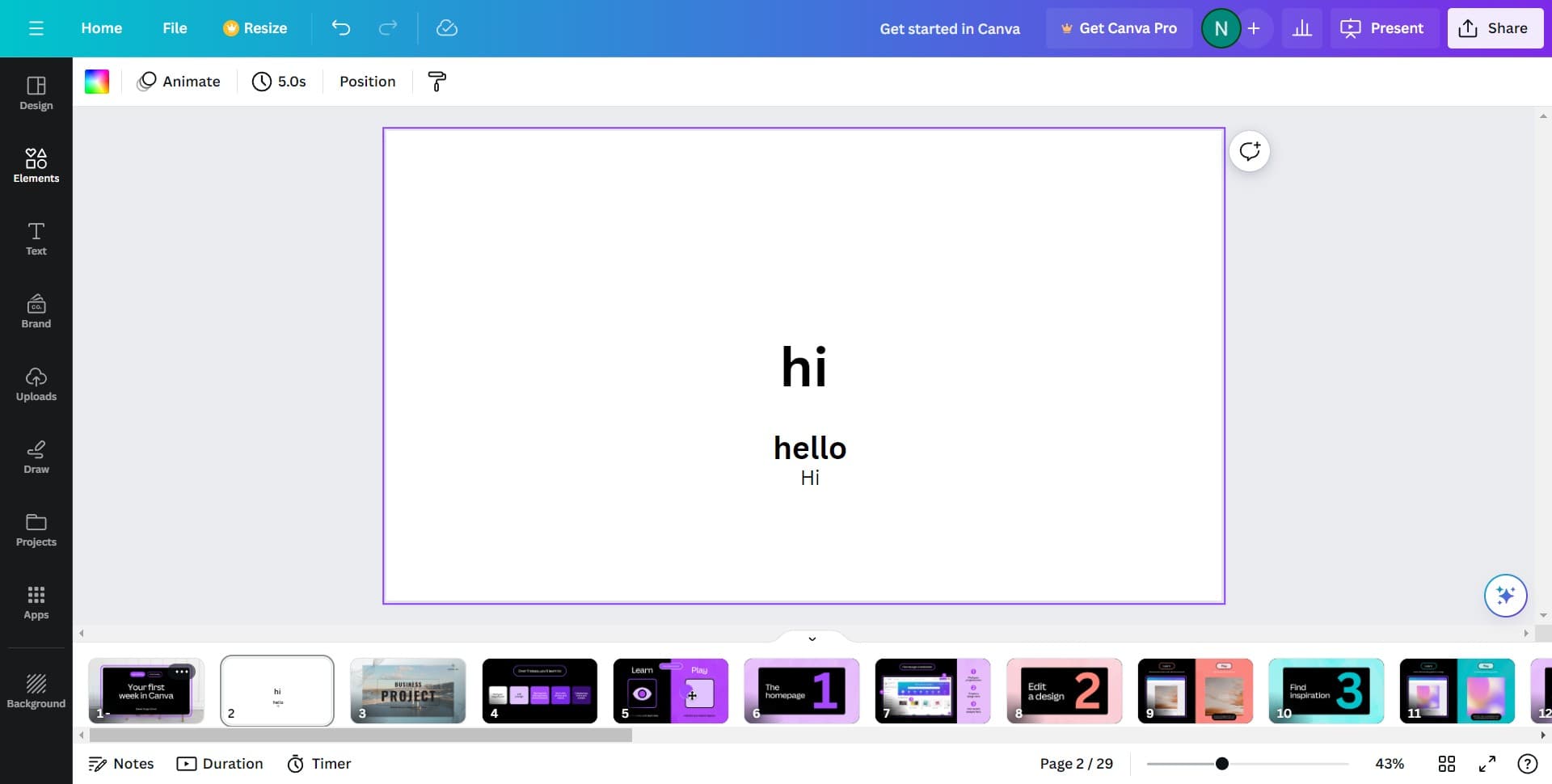
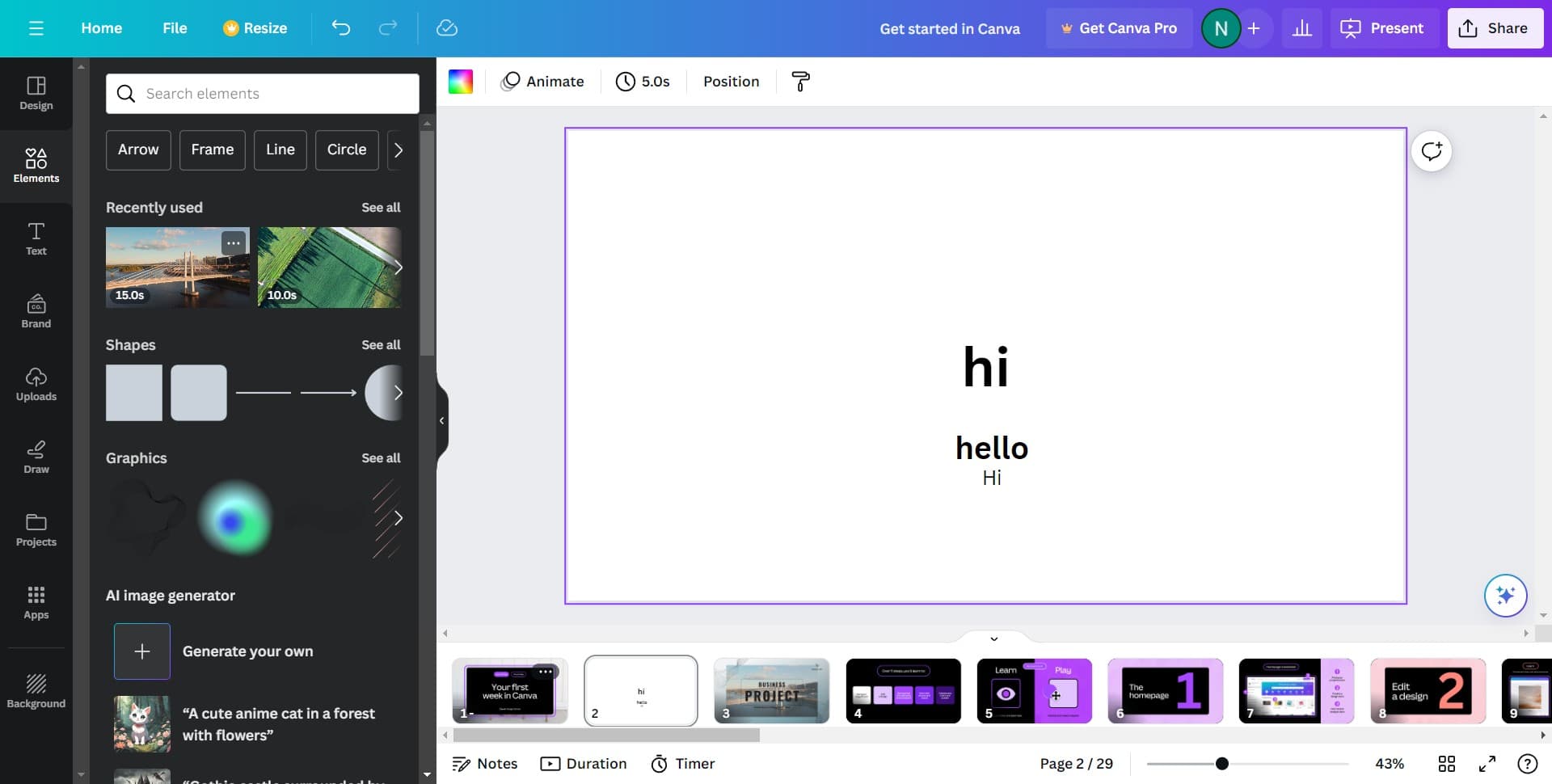
Click on Elements
Navigate to the Elements panel to access Canva's full library of design components. This opens additional options for customizing and expanding your text choices.
- 5
Select the text category
Within the Elements panel, locate and click on the text section to view all available text styles and formatting options available in Canva.
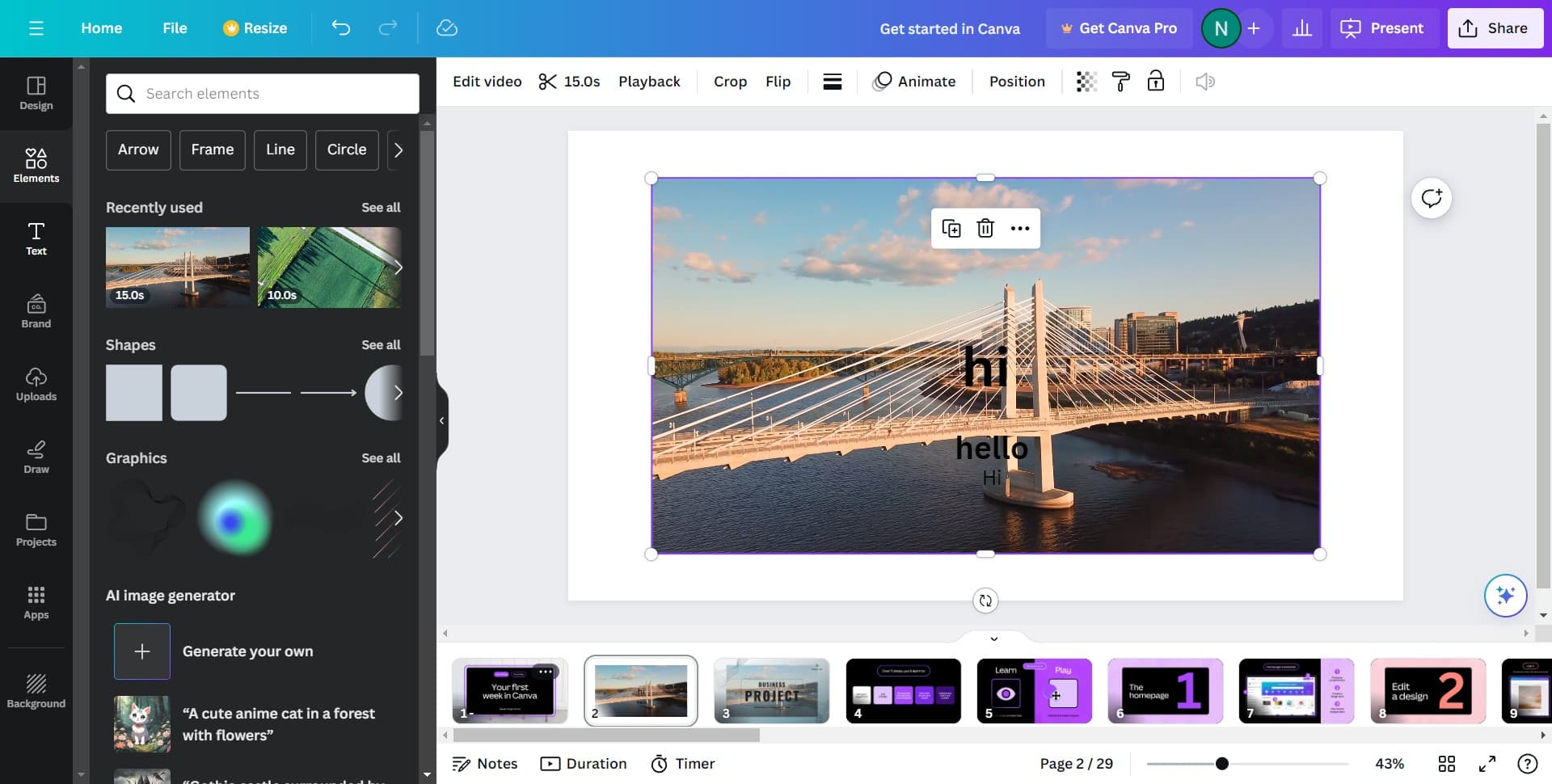
- 6
Click on Text
Choose the generic text option to add a basic text block without preset styling. This gives you full control over how your text will appear and function in the design.
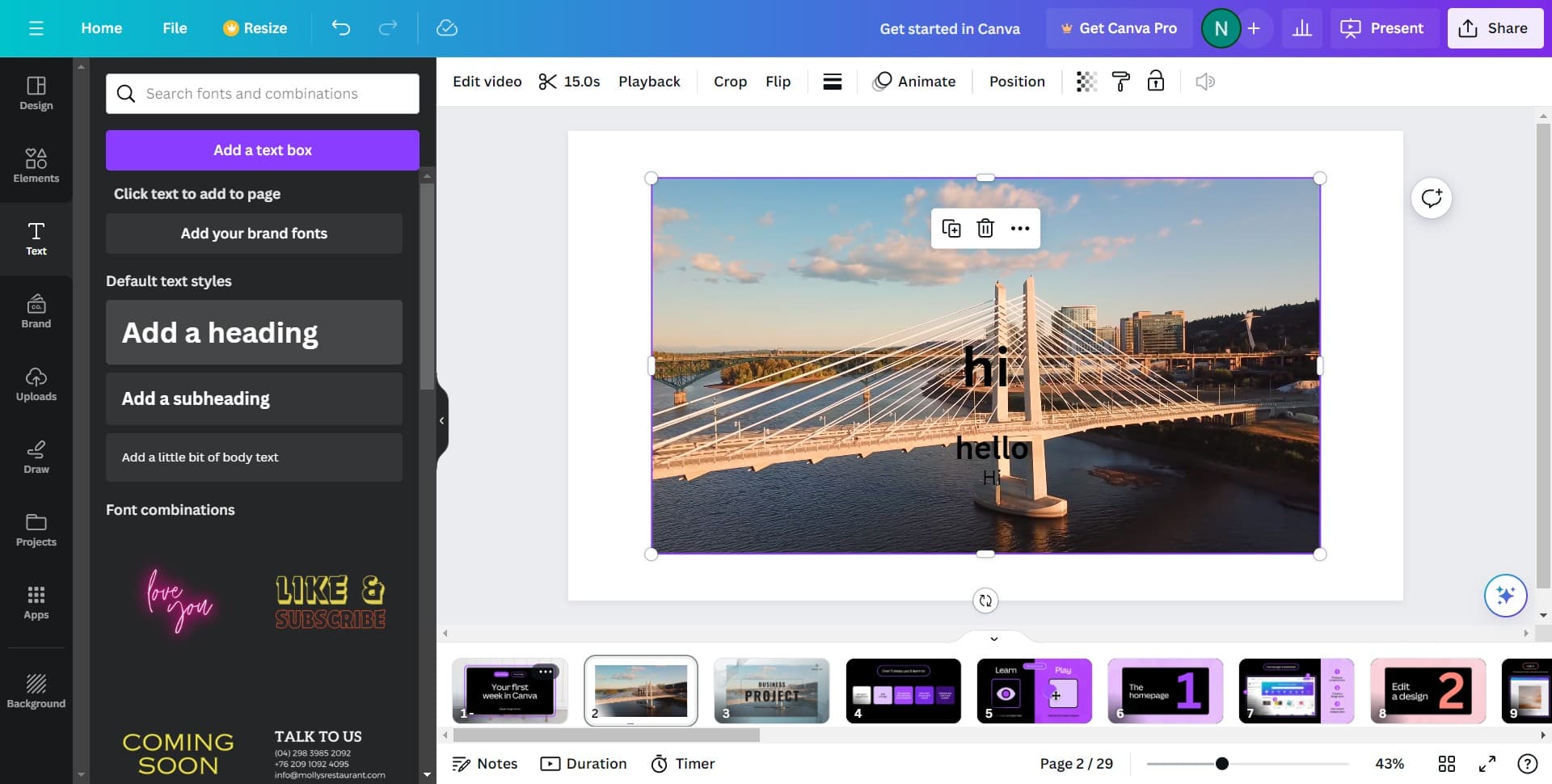
- 7
Insert another heading
Add an additional heading to your design if needed. This allows you to create multiple text layers with different hierarchies and emphasis levels.
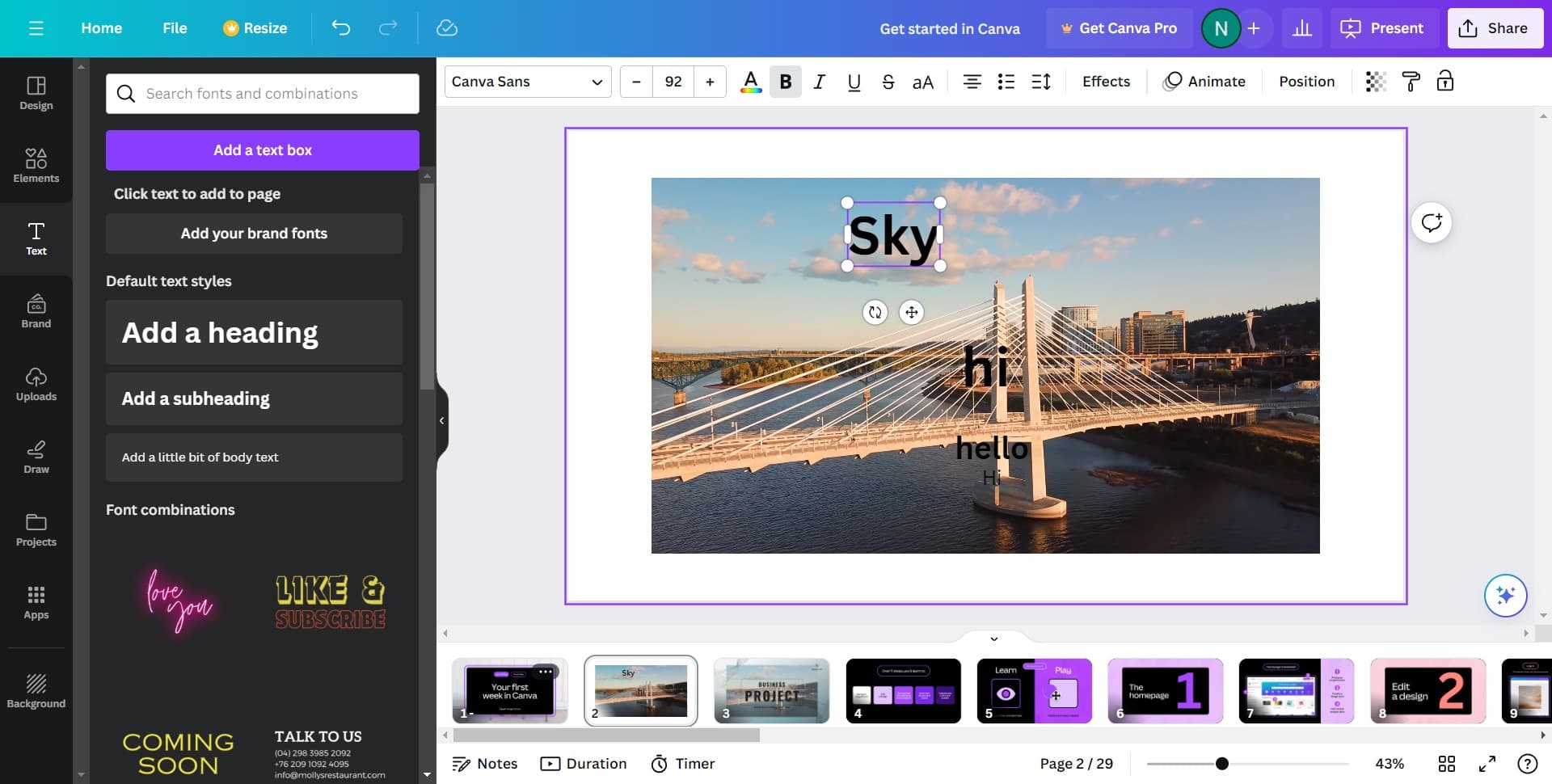
- 8
Finalize your text placement
Position your text elements as desired on the canvas and adjust sizing or formatting as needed. Your text is now ready to be edited with custom fonts, colors, and styles.
Frequently asked questions
Common questions about how to add text to design in canva.
Yes, you can customize fonts after adding text. Click on the text element you want to modify and access the font options in the toolbar above the canvas. Canva offers hundreds of fonts to choose from, and you can adjust size, color, and formatting as needed.
A heading is larger and bolder, designed for main titles and key messages, while a subheading is smaller and works better for supporting text. Headings naturally draw more attention, making them ideal for primary content, whereas subheadings complement and add detail to your main message.
Absolutely. You can add as many text elements as you need by repeating the process of selecting heading, subheading, or text options. Each text element is independent, so you can position, style, and edit them separately.
After clicking on a text element, look for alignment options in the toolbar. You can typically align text to the left, center, or right, and also adjust spacing and positioning on your canvas by dragging the text box to your desired location.
Yes, Canva has an undo feature (usually accessible via Ctrl+Z on Windows or Command+Z on Mac) that lets you revert recent changes. You can also delete text elements by selecting them and pressing delete, then add new text as needed.