How to Create a QR Code in Canva

QR codes are a powerful way to share links, contact information, and other data in a scannable format. Canva makes it easy to generate and customize QR codes directly within your designs, eliminating the need for external tools.
Quick summary
In this tutorial, you'll learn how to create a QR code in Canva by navigating to the QR code feature and generating a code for your specific needs. By the end, you'll be able to add fully functional QR codes to any Canva design.
Why this matters
QR codes bridge the gap between print and digital content, making it simple for your audience to access websites, promotions, or contact details with a single scan. Adding QR codes directly in Canva streamlines your design workflow and ensures your codes are professionally integrated into your marketing materials.
Step-by-step guide
- 1
Click on the element
Start by selecting the element you want to work with in your Canva design. This could be an existing graphic, text box, or design component where you plan to add your QR code.
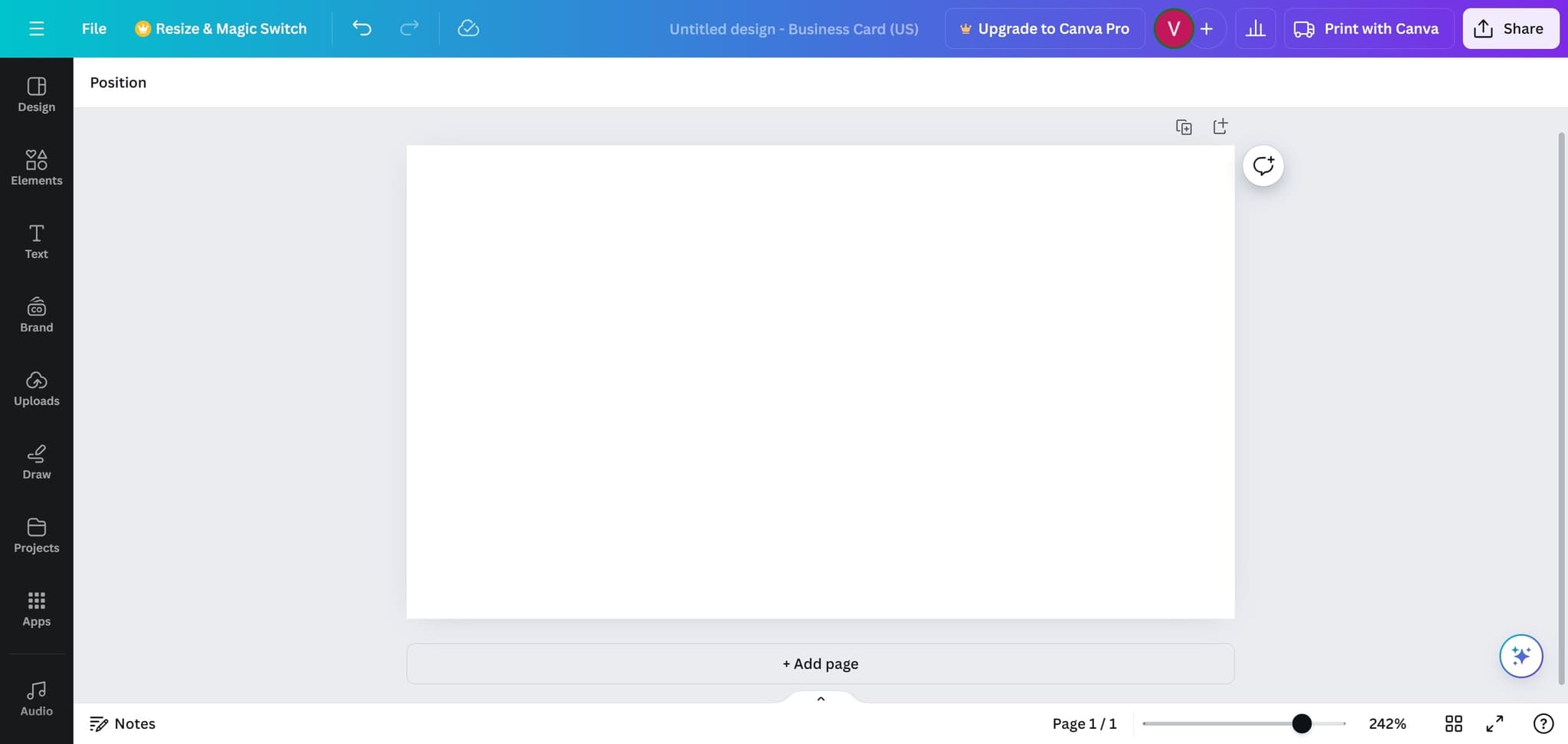
- 2
Click on the specified area
Click on the indicated section of the interface to access the next menu or toolbar option. This action will bring you closer to the QR code creation feature.
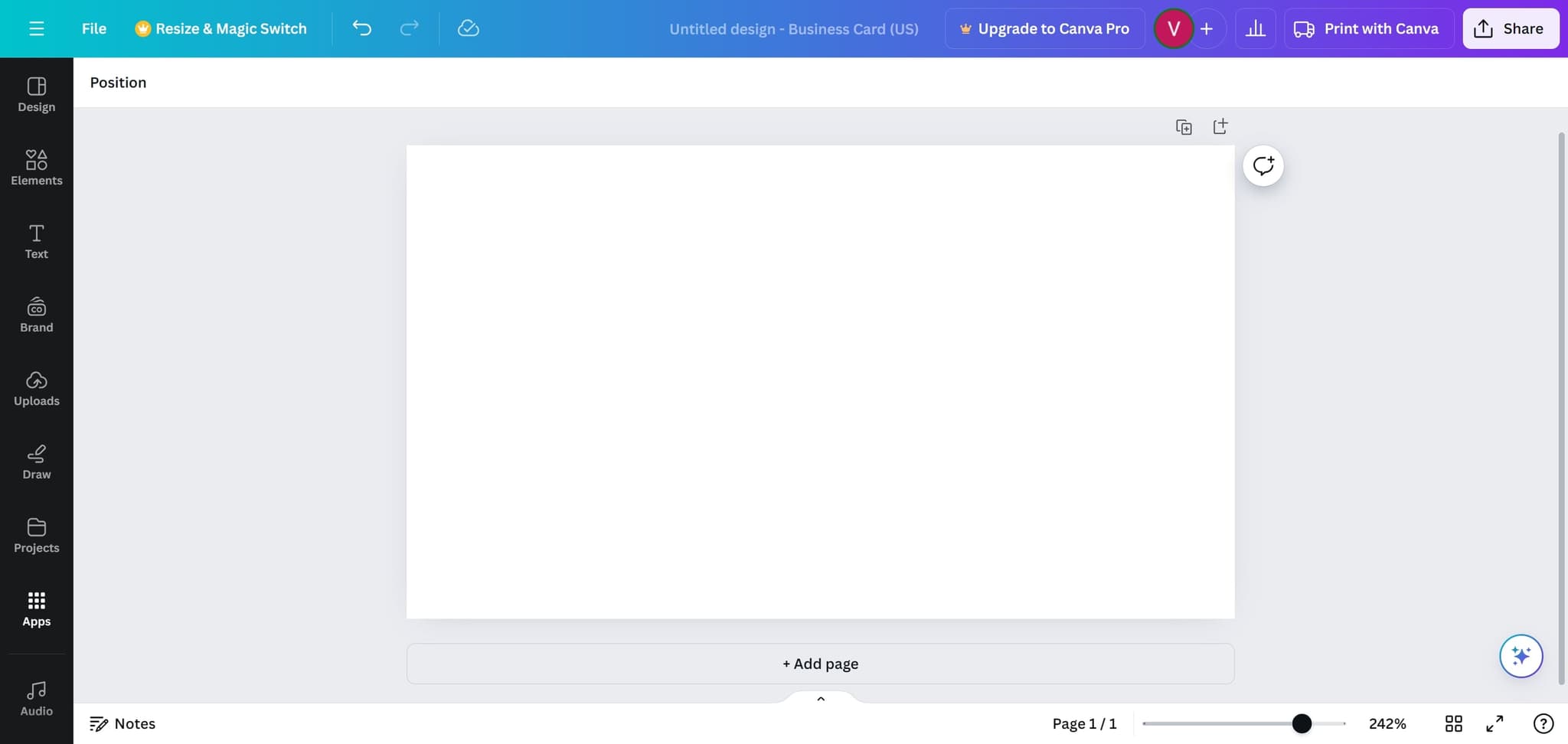
- 3
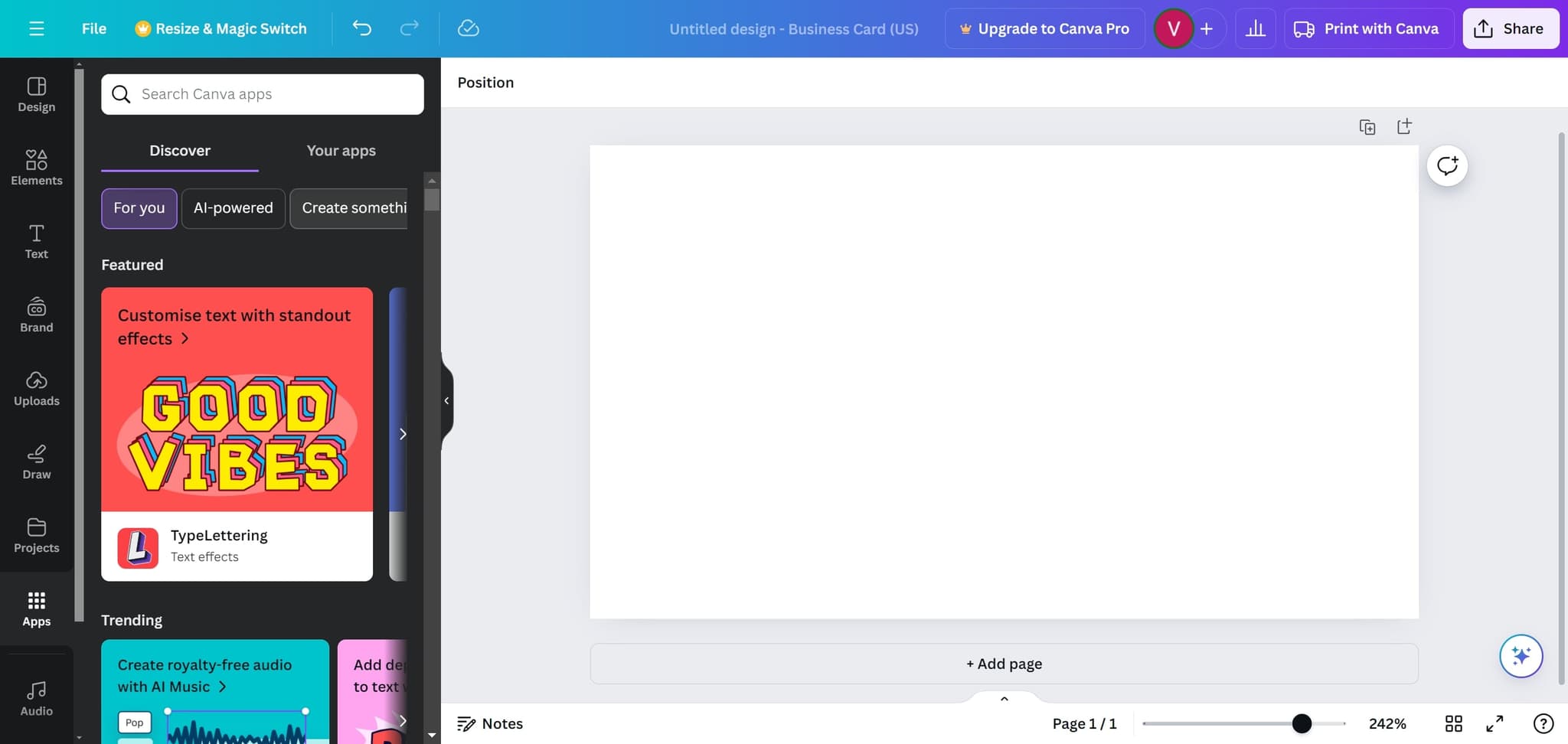
Click on Create something new
Select the 'Create something new' button to begin a fresh design project. This opens the design workspace where you can add and customize your QR code.
- 4
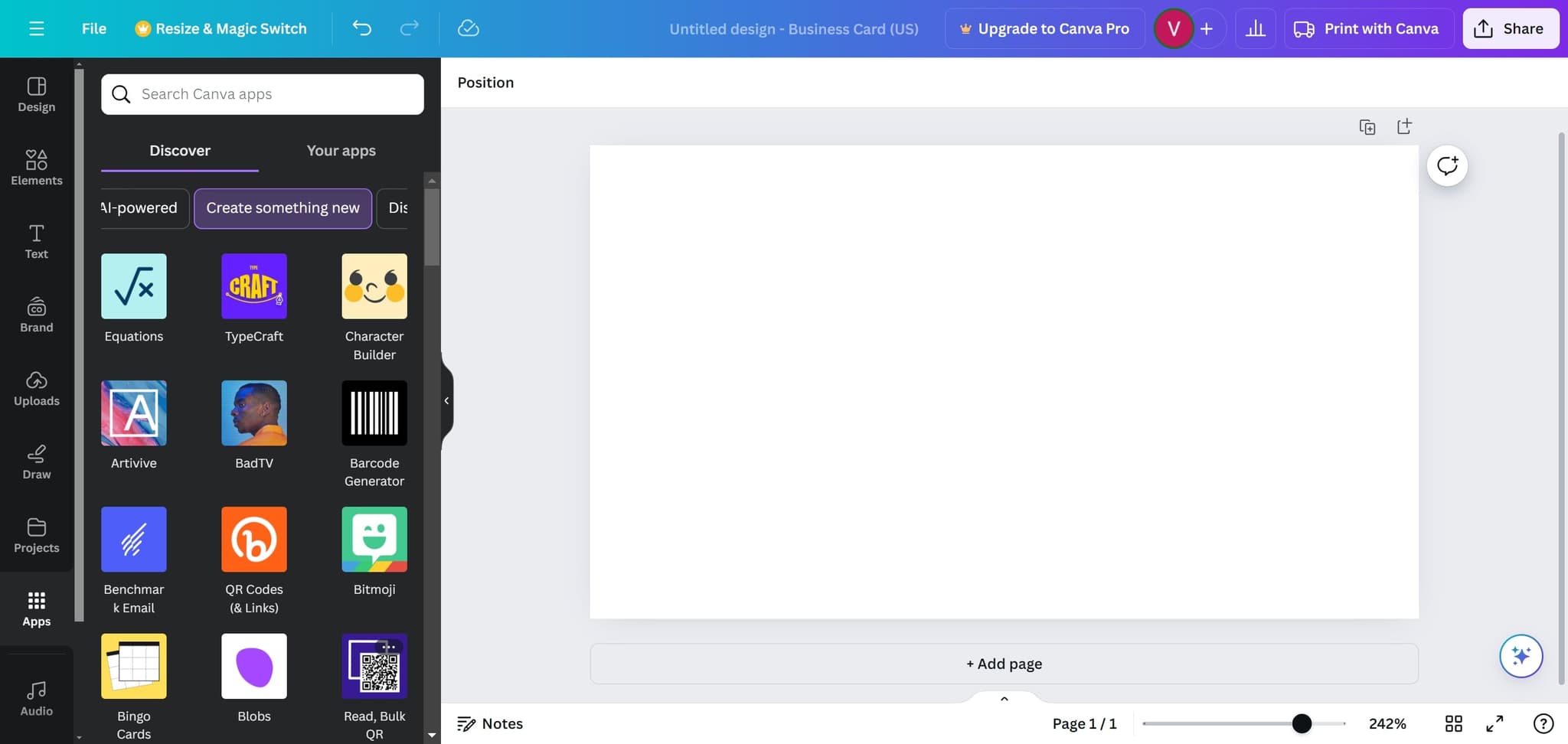
Click on the designated location
Click on the specific area or button shown in the interface. This step moves you forward in the process of accessing QR code functionality.
- 5
Click on another designated area
Follow the interface guidance and click on the next indicated location. This continues your navigation toward the QR code creation tool.
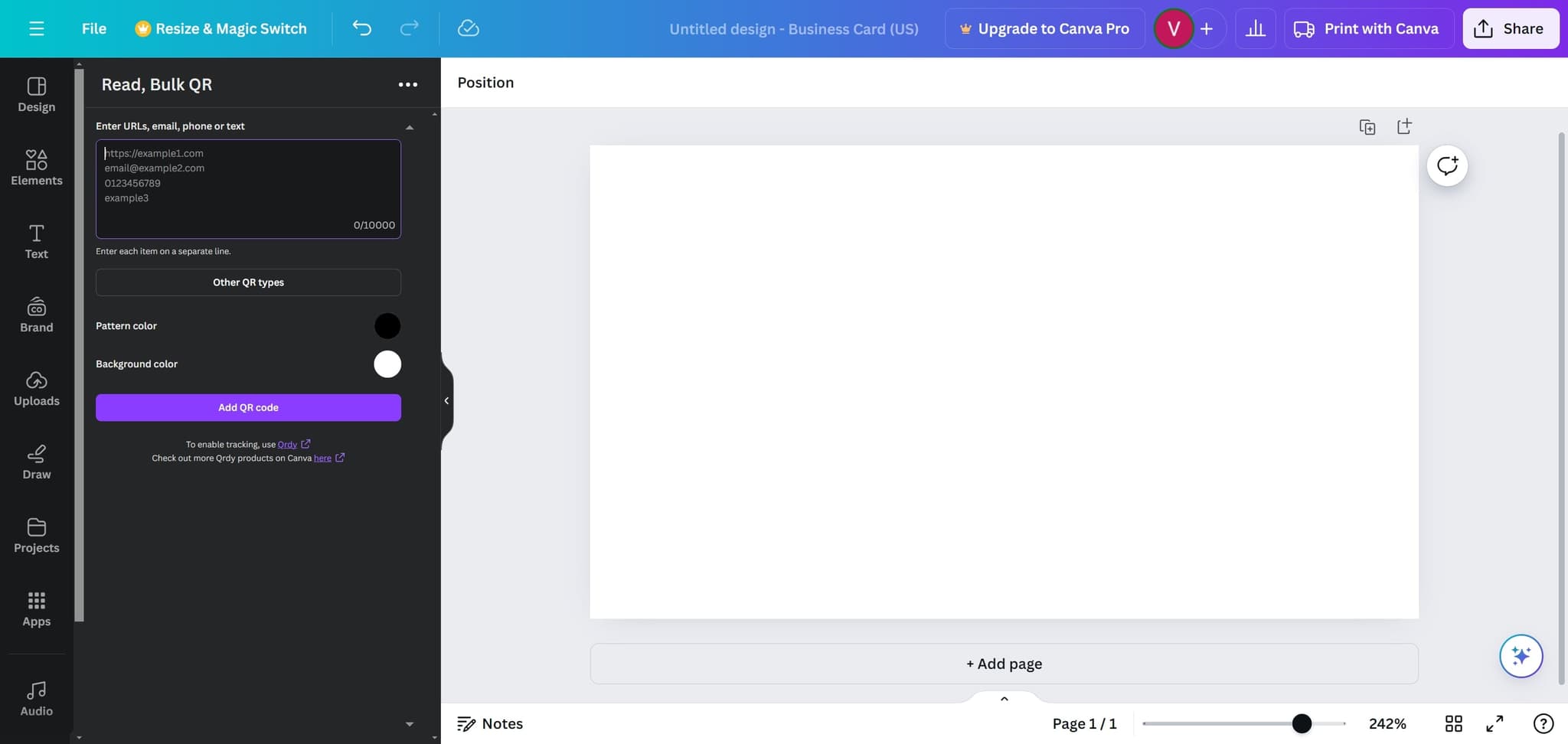
- 6
Click on Add QR code
Select the 'Add QR code' button to insert a QR code element into your design. A dialog or input field will appear where you can enter the URL, contact information, or other data you want the QR code to contain.
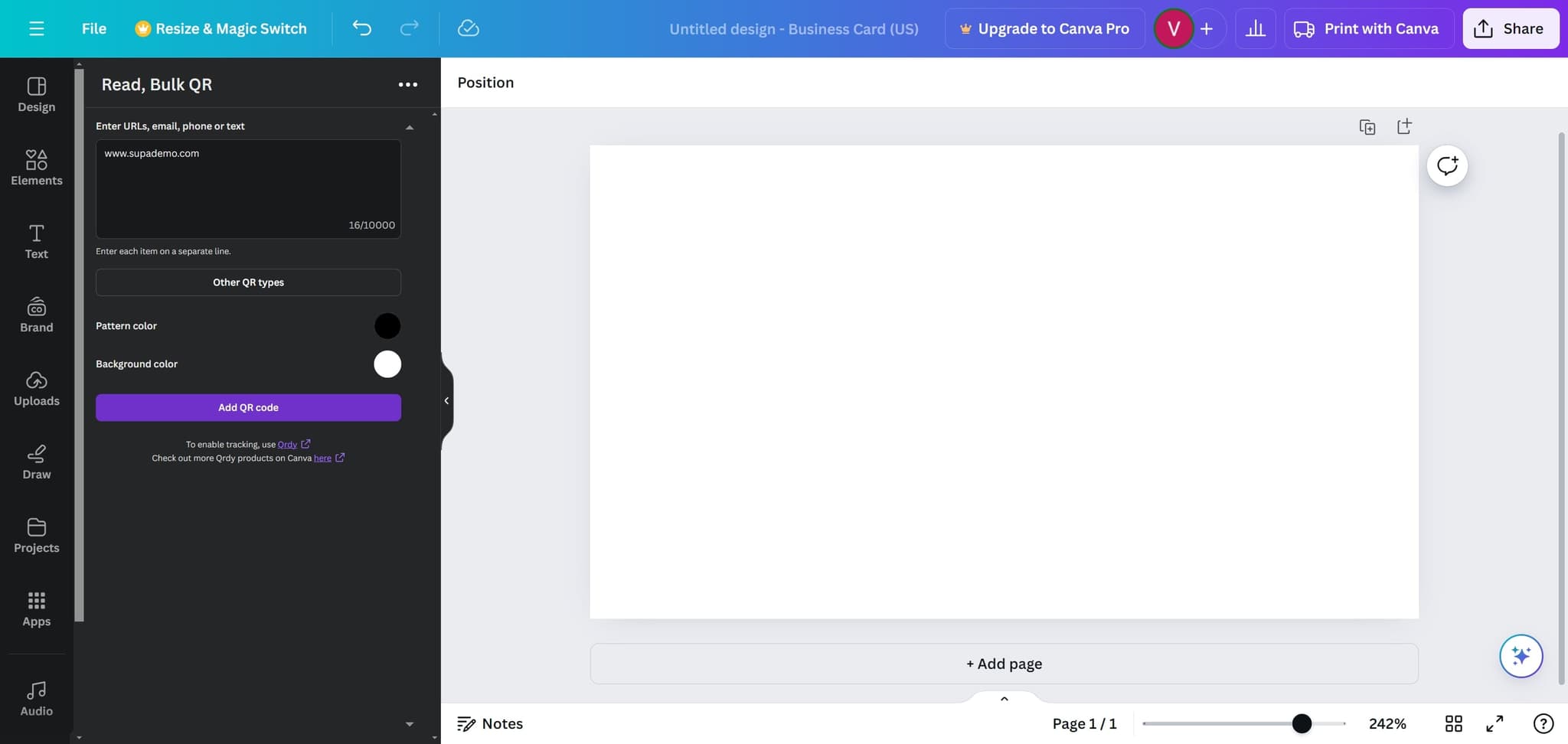
- 7
Click on the final location
Complete the process by clicking on the final indicated area to finalize your QR code creation. Your QR code is now ready to be customized, positioned, and saved as part of your design.
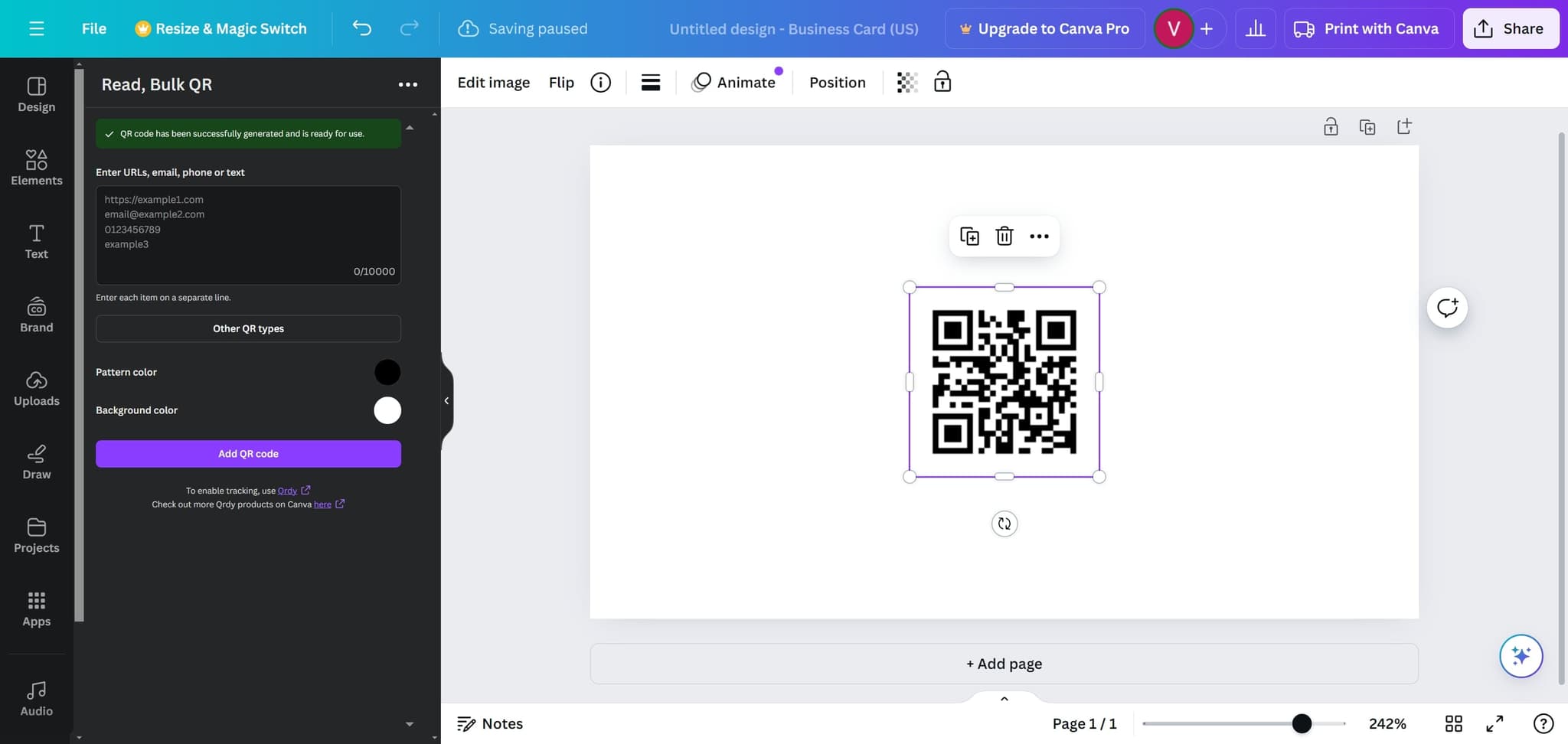
Frequently asked questions
Common questions about how to create a qr code in canva.
Canva QR codes can encode URLs, email addresses, phone numbers, text messages, WiFi credentials, and contact information. You can enter any data you want to make scannable directly into the QR code input field when creating your code.
Yes, once you've added a QR code to your design, you can resize it, change its colors, and adjust its position just like any other design element. However, ensure the design remains scannable by maintaining sufficient contrast between the code and background.
Canva allows you to add multiple QR codes to a single design. You can add as many as needed, though cluttering your design with too many codes may reduce visual appeal and user engagement.
Yes, your Canva QR code is functional immediately after creation. You can test it by scanning it with any smartphone camera or QR code reader app to ensure it directs users to the correct destination.
You can edit the QR code by selecting it in your design and accessing the QR code settings. Simply update the URL or data, and the new QR code will be generated and replace the old one in your design.