How to create an email signature from Canva for Gmail

Creating a professional email signature in Canva and integrating it with Gmail is a straightforward way to add branding and polish to your outgoing messages. This tutorial walks you through designing a custom email signature template in Canva and downloading it for use in Gmail. Whether you're an educator, business professional, or individual looking to enhance your email presence, a well-designed signature makes a lasting impression.
Quick summary
In this tutorial, you'll learn how to design a professional email signature using Canva's built-in templates, customize it to match your style, download it as an image file, and configure it in Gmail's settings. By the end, you'll have a personalized email signature ready to use in all your Gmail messages.
Why this matters
A professional email signature adds credibility and consistency to your communication while displaying contact information and branding automatically with every email. Using Canva's pre-designed templates saves time compared to coding HTML from scratch, and downloading as an image ensures your signature displays consistently across all email clients. This is especially valuable for educators, small business owners, and professionals who want to project a polished, organized image.
Step-by-step guide
- 1
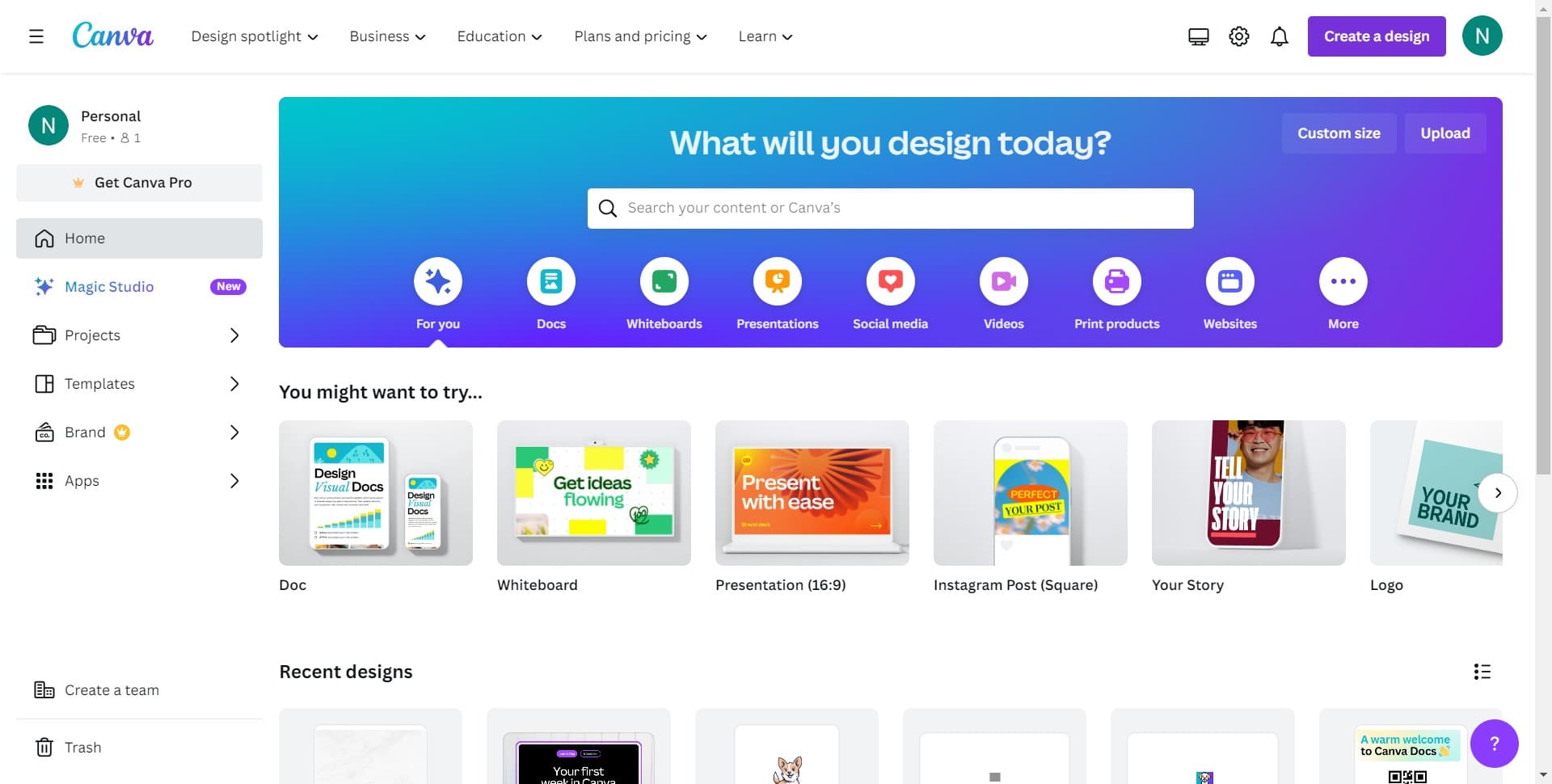
Click on Create a Design
Open Canva and locate the 'Create a design' button on the home page. Click it to begin designing your email signature template.
- 2
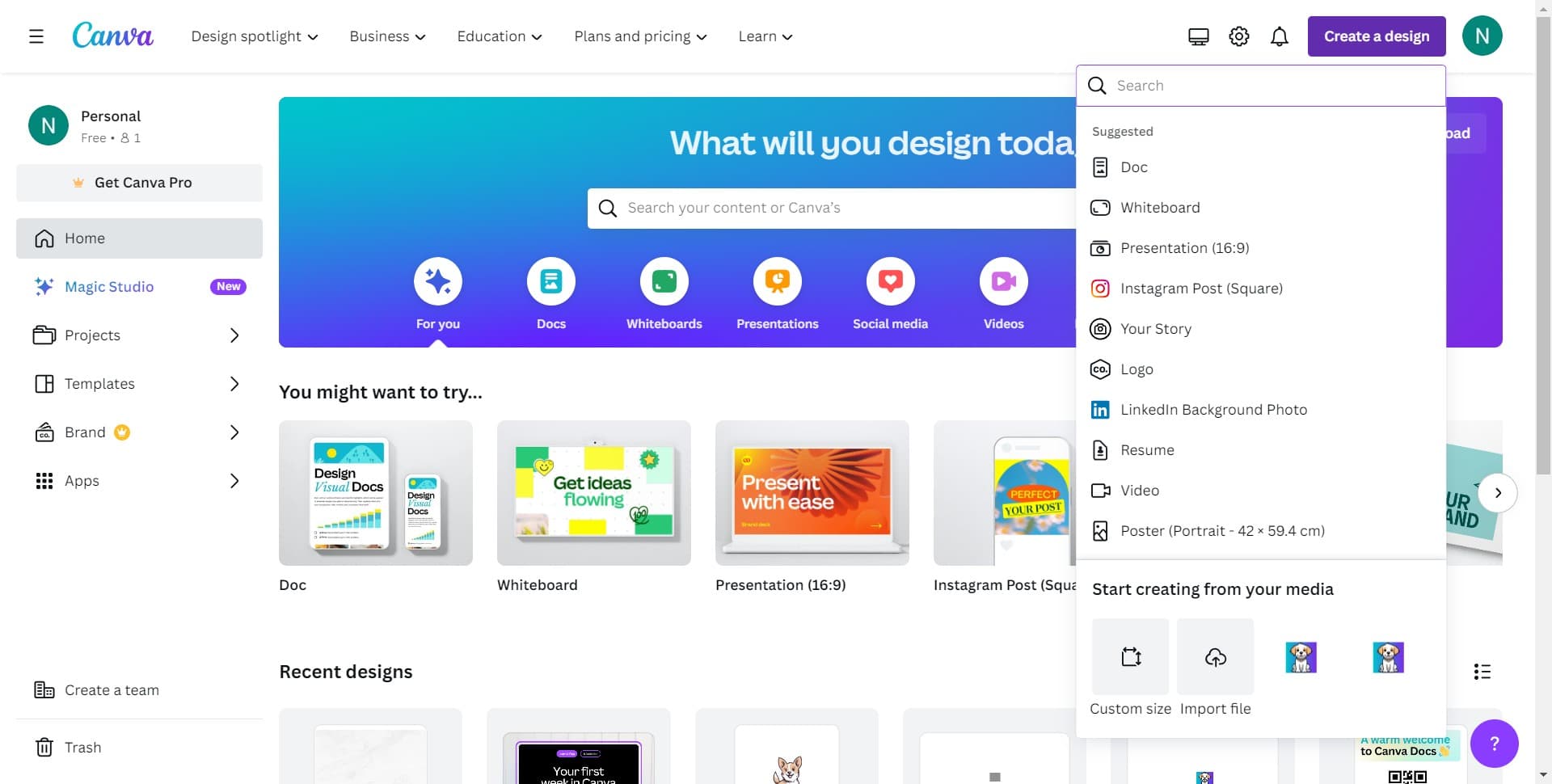
Select Your Design Dimensions
You'll see options to choose or customize your design size. Proceed to the next step to access email signature-specific templates.
- 3
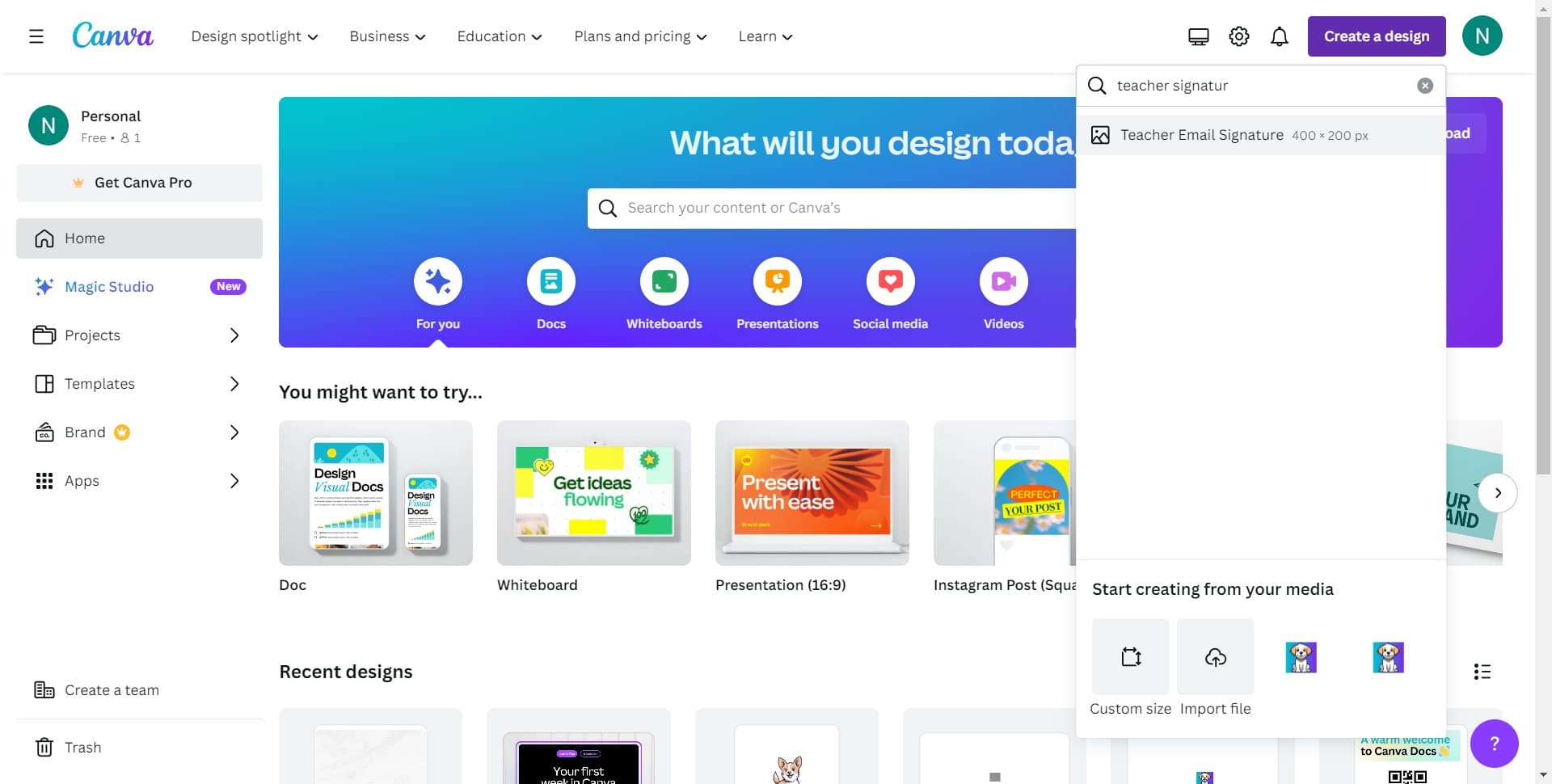
Click on Teacher Email Signature
From the template library, find and select 'Teacher Email Signature' or a similar email signature template that matches your profession or style preference.
- 4
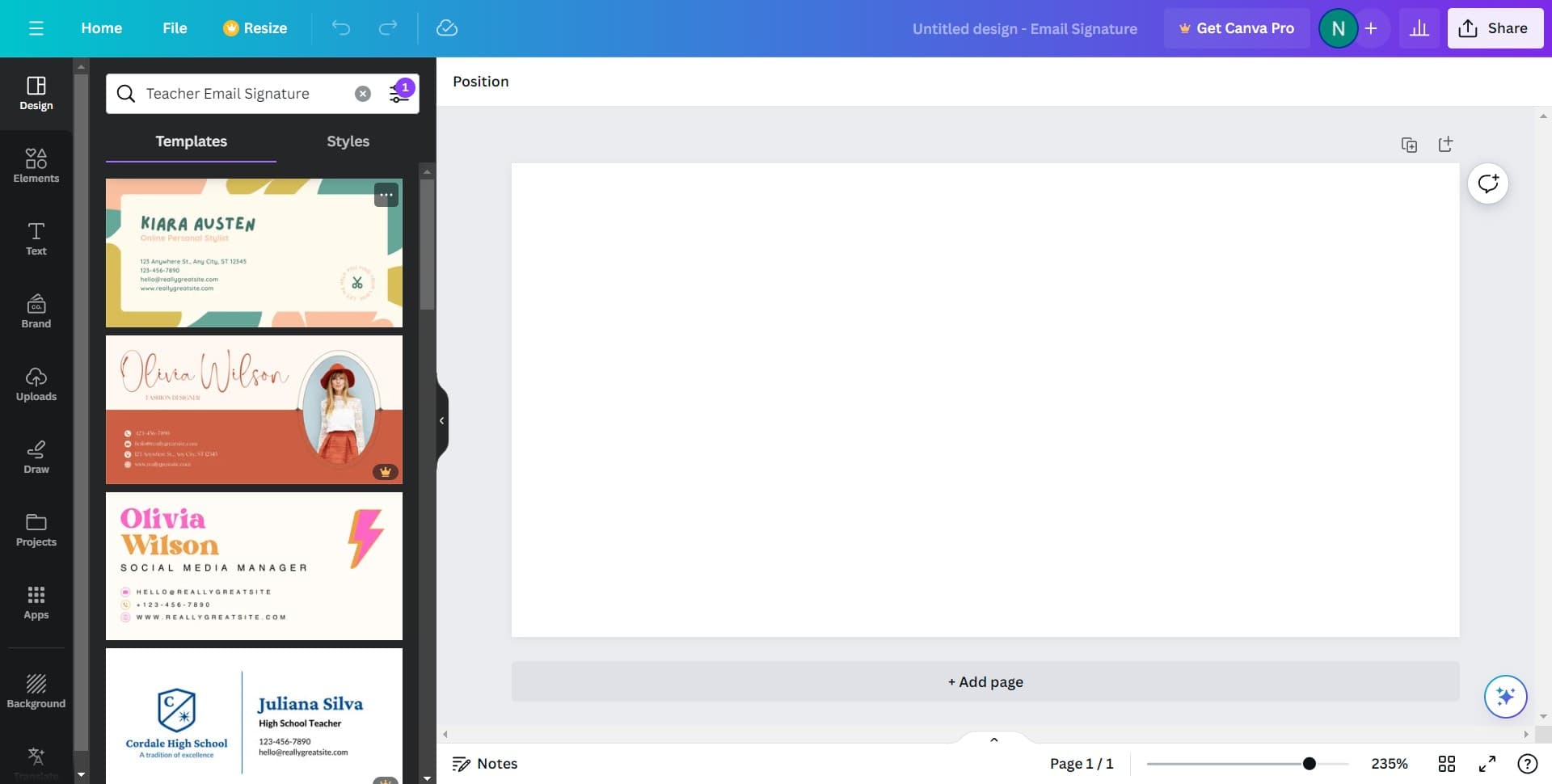
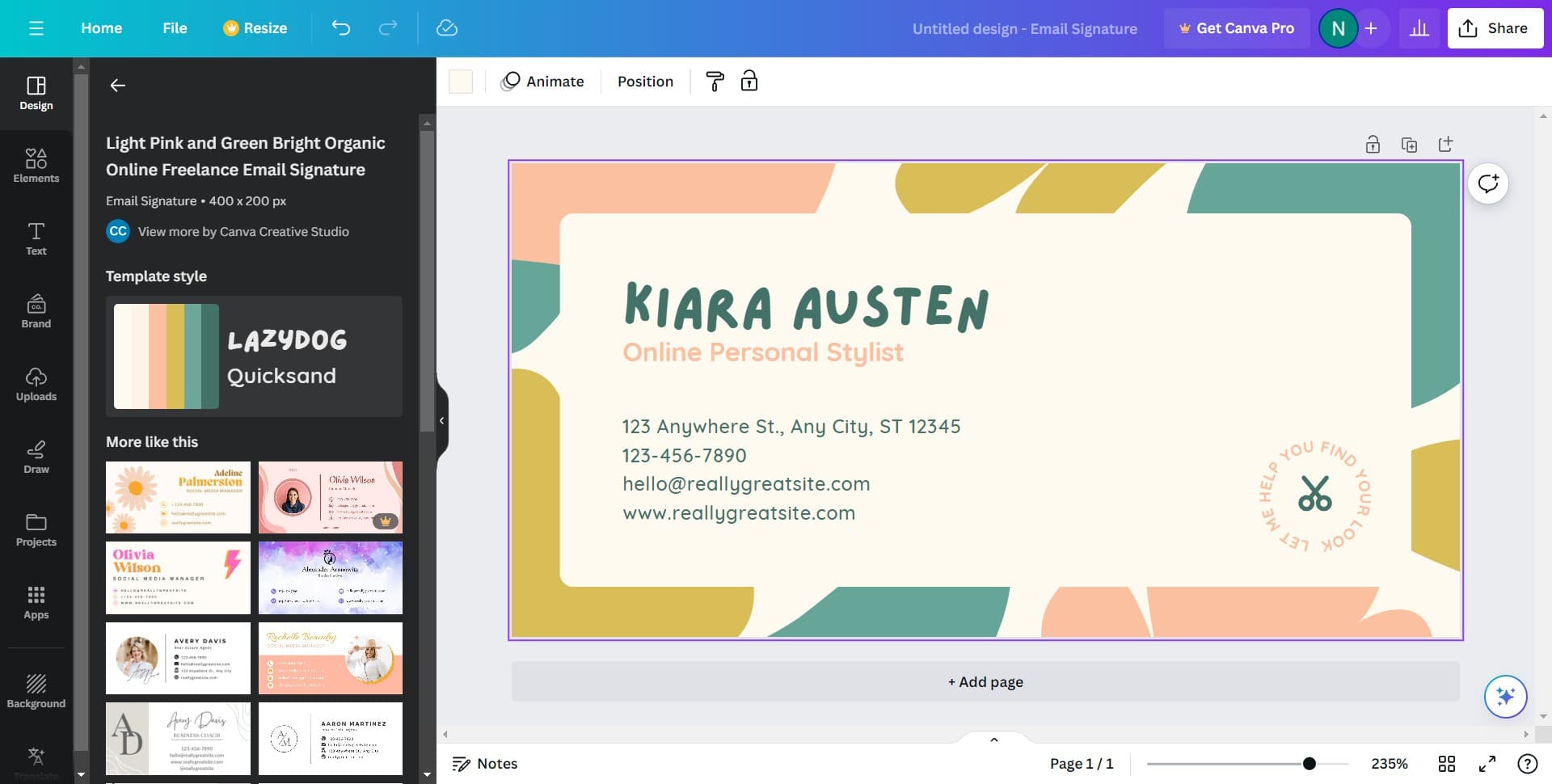
Customize Your Template
Edit the template to include your name, title, contact information, and any other details you want in your email signature. Adjust colors, fonts, and layout to match your personal or organizational branding.
- 5
Click on Share
Once your design is complete, click the 'Share' button to access download and export options for your signature.
- 6
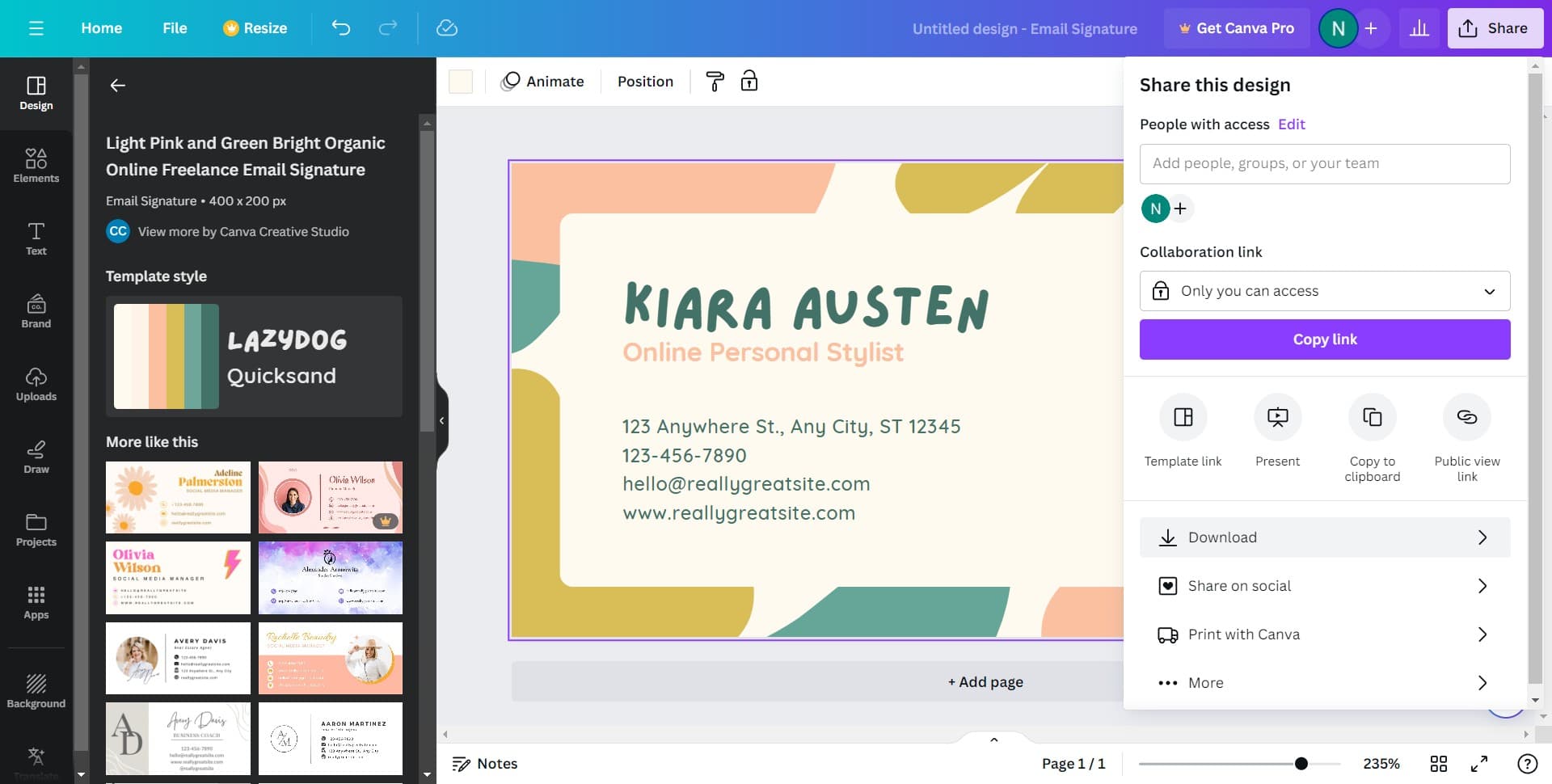
Download Your Signature
Click 'Download' to save your email signature as an image file (PNG or JPG format works best for email signatures).
- 7
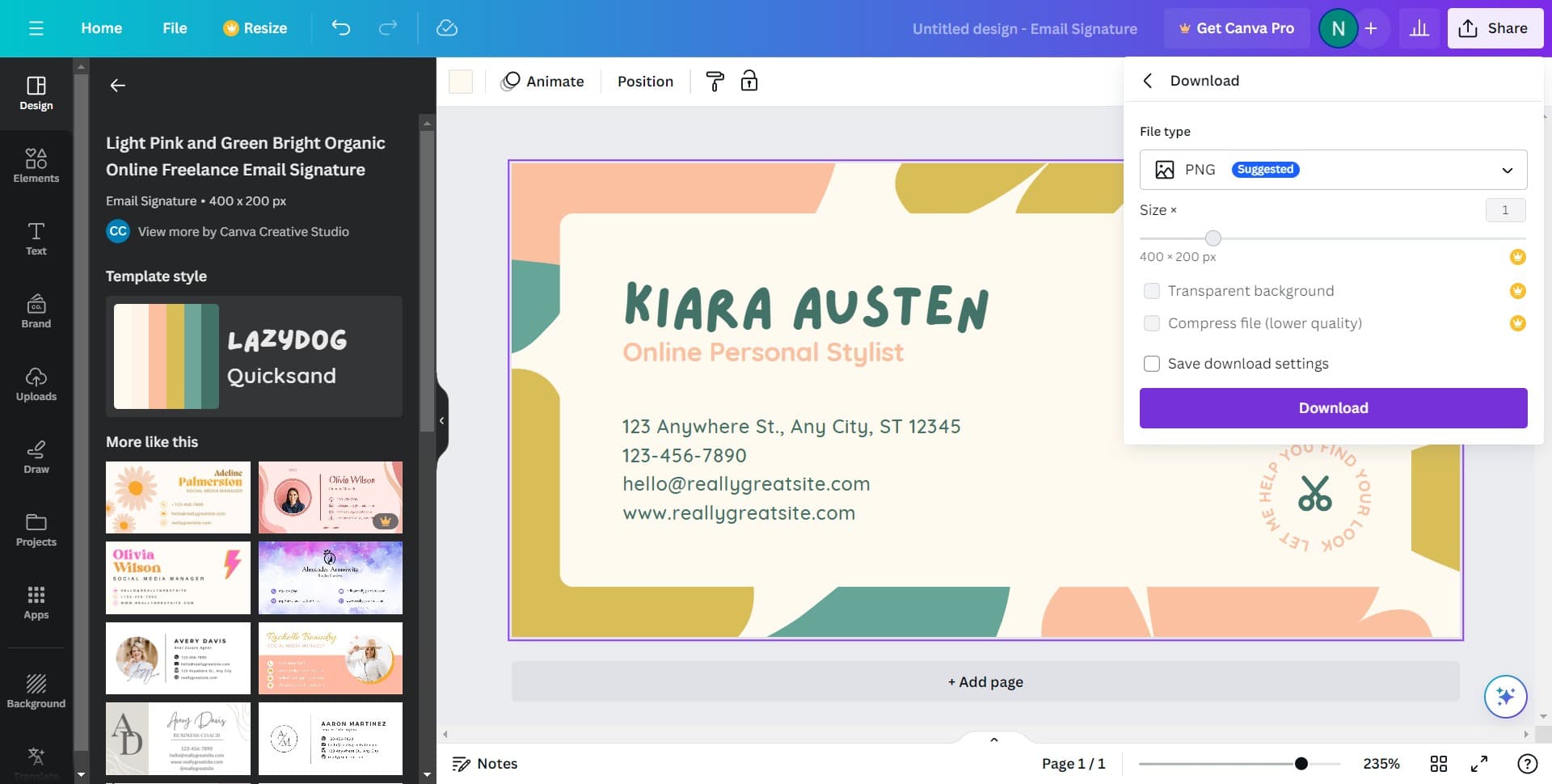
Confirm the Download
Click 'Download' again to finalize saving the file to your computer. Note the location where your file is saved.
- 8
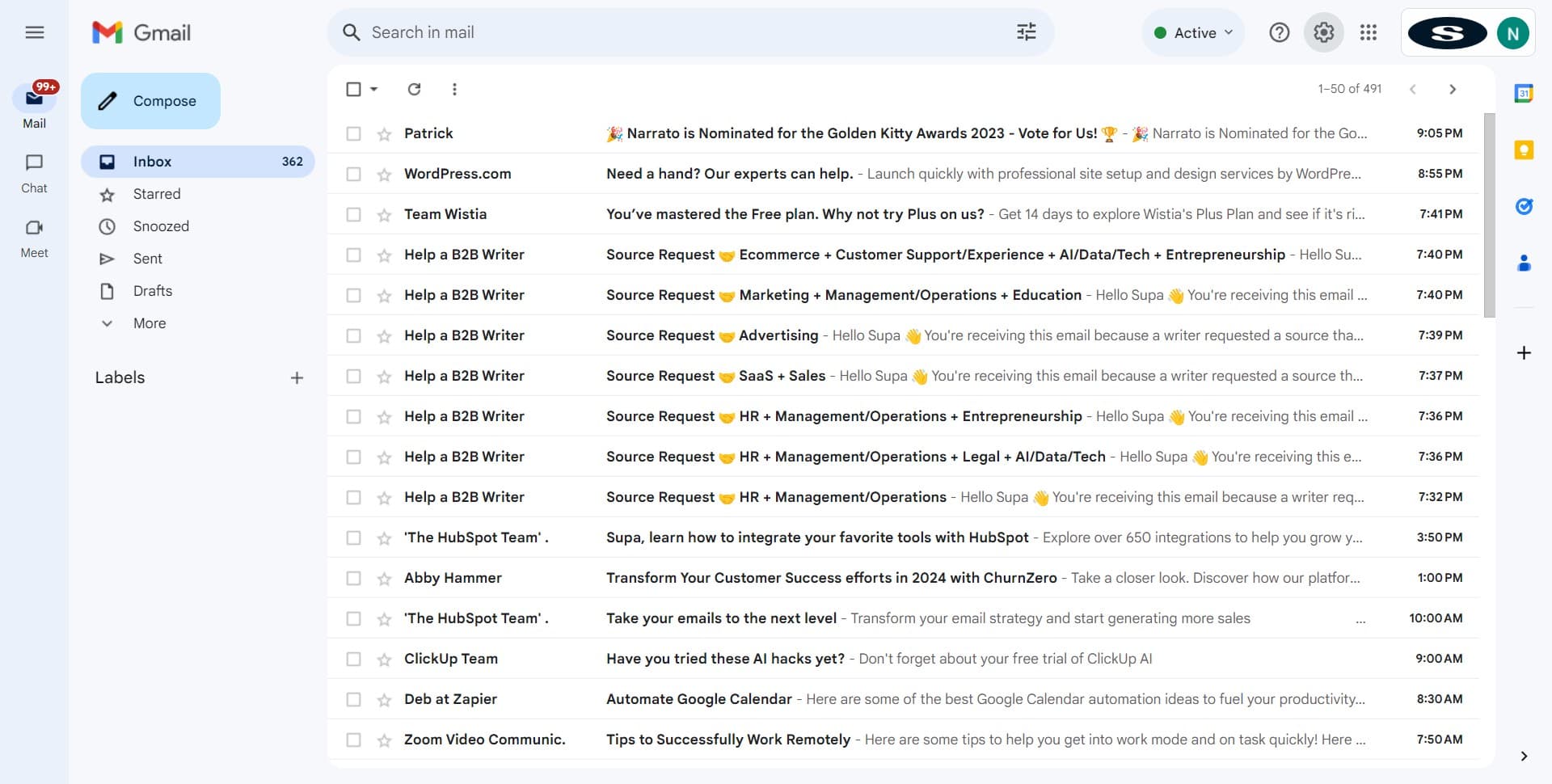
Open Gmail Settings
Log into your Gmail account and click the settings icon (gear icon) in the top right corner to access account settings.
- 9
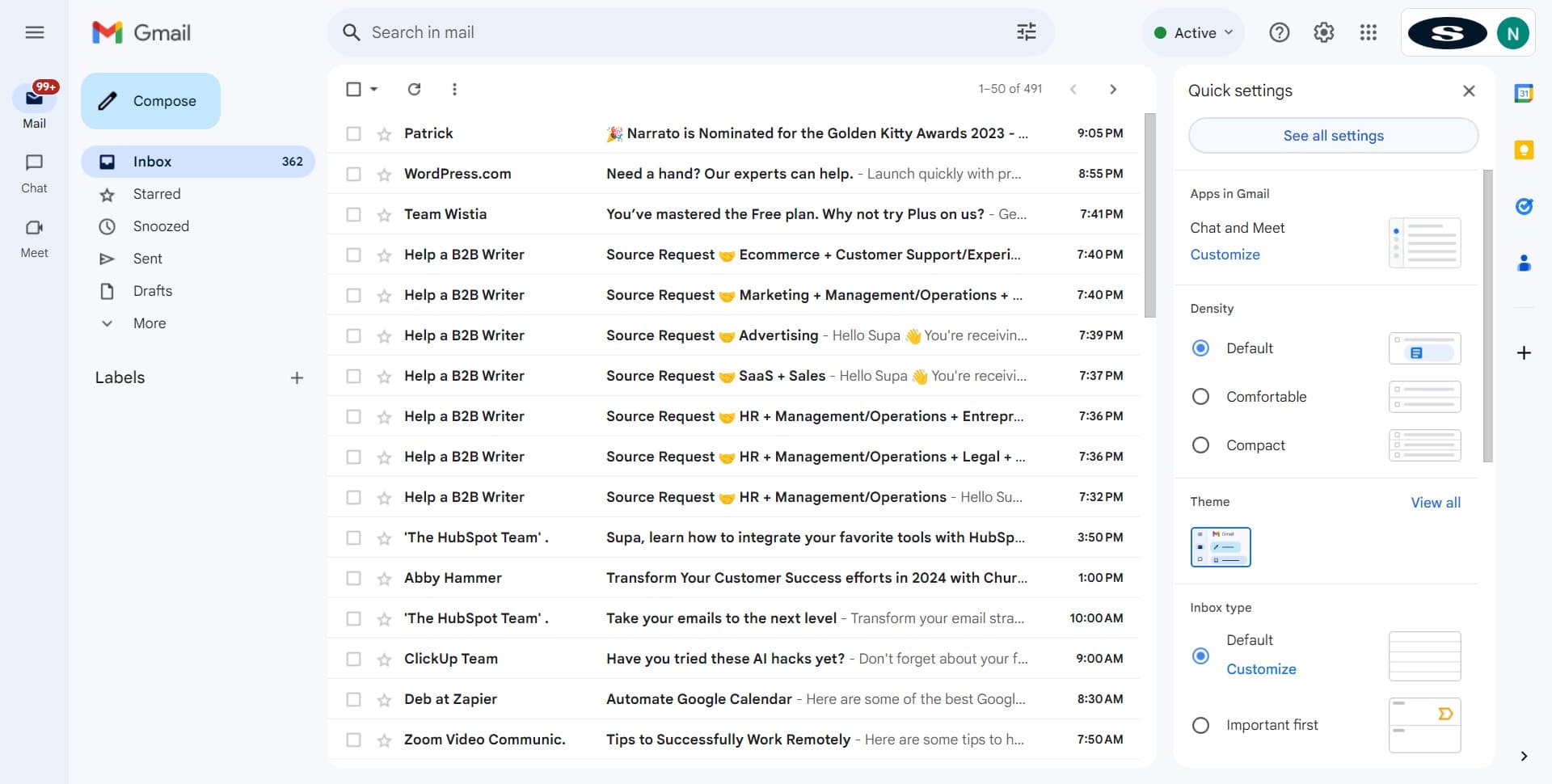
Click on See All Settings
In the dropdown menu, select 'See all settings' to open the full Gmail settings panel where you can manage signatures.
- 10
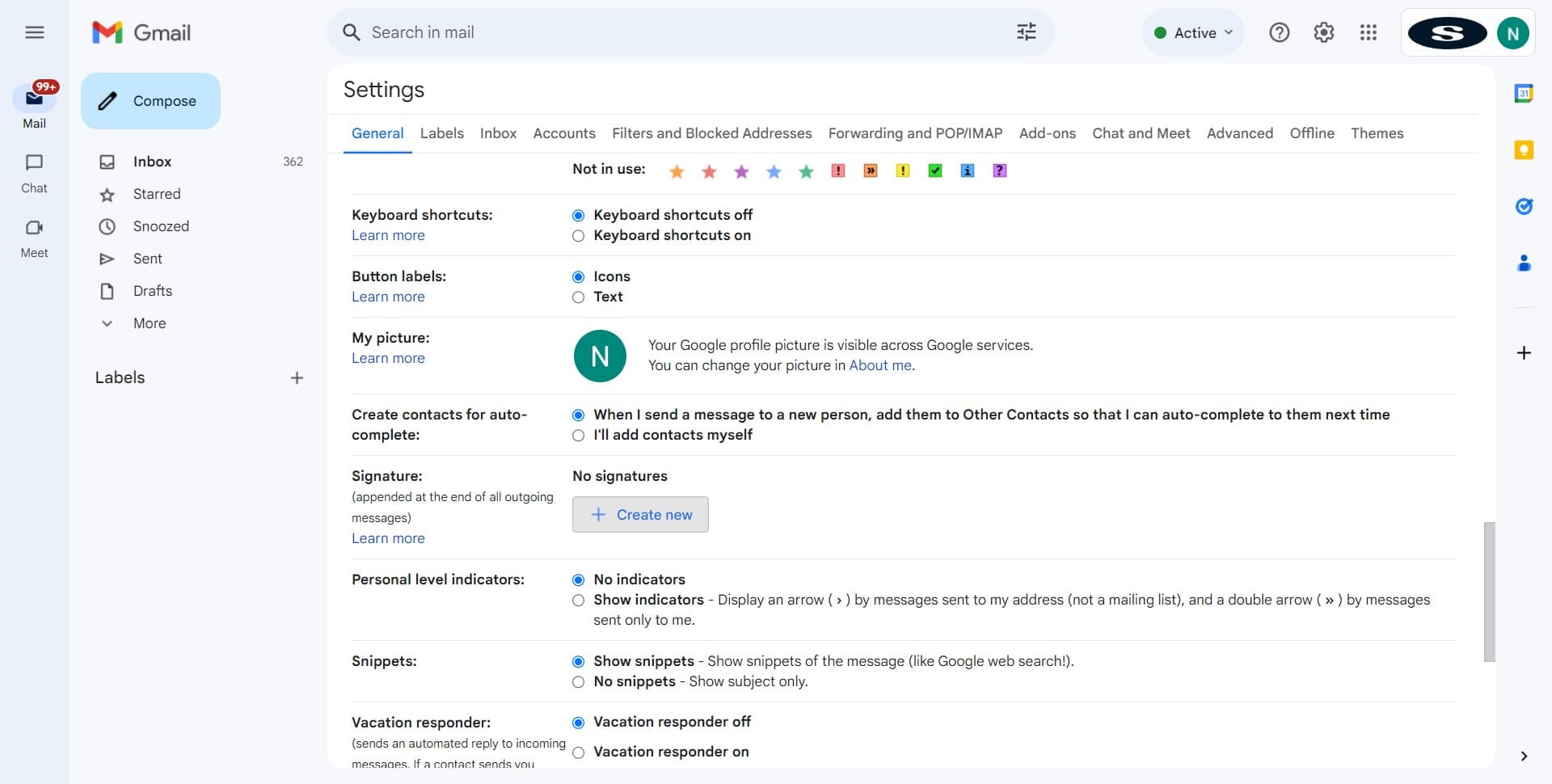
Click on Create New
Navigate to the 'Signatures' section and click 'Create new' to add a new email signature to your Gmail account.
- 11
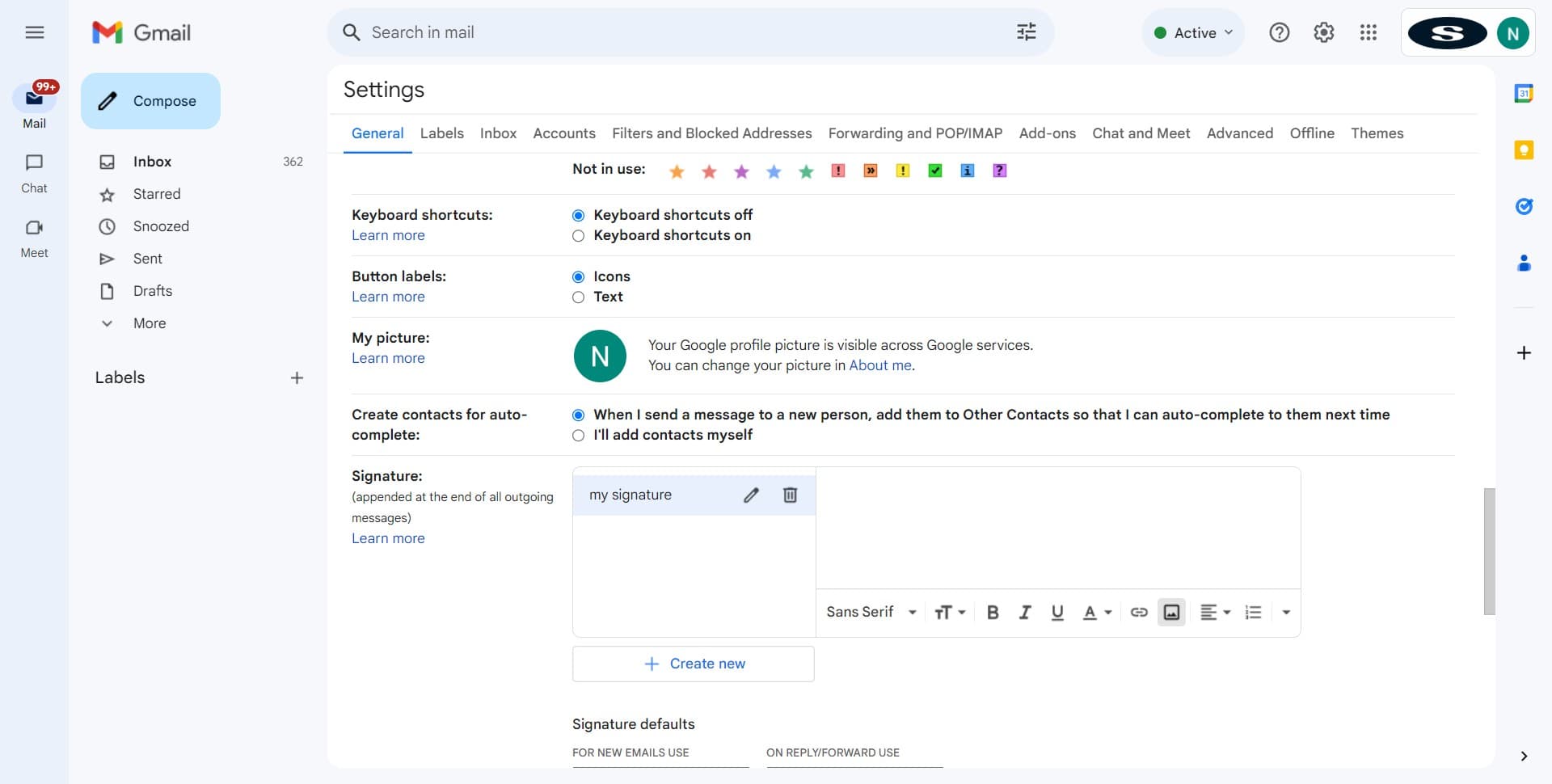
Upload Your Signature Image
In the signature editor, click to insert an image or drag and drop your downloaded Canva signature file into the signature field.
- 12
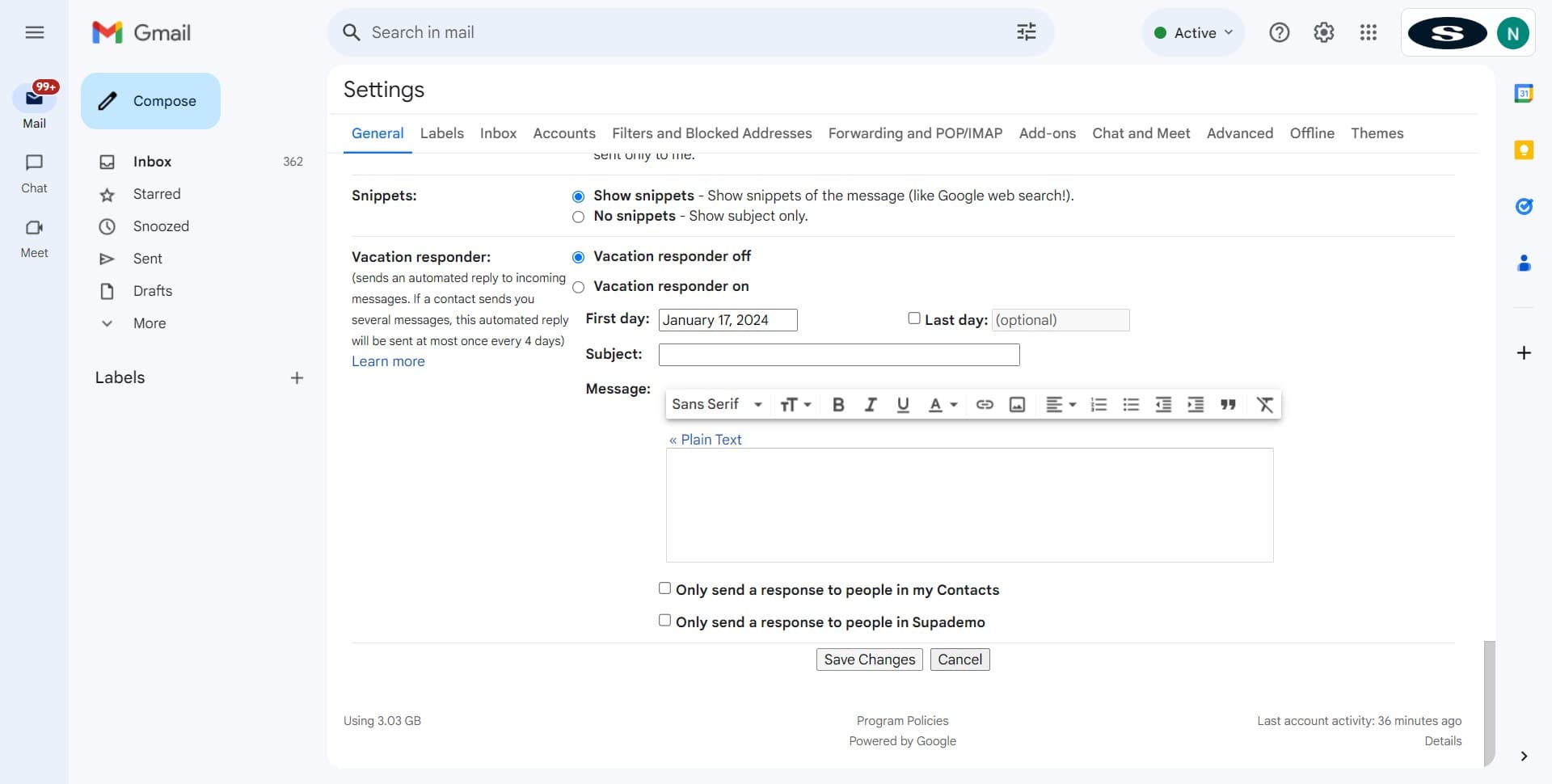
Click on Save Changes
Review your signature preview and click 'Save Changes' at the bottom of the settings page to apply your new email signature to all outgoing Gmail messages.
Frequently asked questions
Common questions about how to create an email signature from canva for gmail.
Download your Canva signature as a PNG or JPG file. Both formats work well in Gmail and maintain quality across different email clients. PNG is recommended if your design has transparency or a non-solid background.
Yes, you can download your Canva signature once and upload it to multiple Gmail accounts. Simply log into each account, go to Settings > Signatures, and repeat the upload process for each account.
Image-based signatures from Canva display consistently on mobile devices since they're saved as image files rather than HTML code. However, test your signature on both desktop and mobile to ensure the size and layout work well on smaller screens.
You can edit the original design file in Canva anytime by returning to your design and making changes, then re-downloading it. Once uploaded to Gmail, you'll need to re-upload the updated image file to reflect changes in your email signature.
You can resize your signature in Gmail's signature editor or resize the image in Canva before downloading. Most email signatures work best at a width of 600 pixels or less to ensure they display properly without excessive scrolling on mobile devices.