How to create a Valentine's day post on Canva

Creating an eye-catching Valentine's Day post on Canva is a quick way to celebrate with your audience on social media. Whether you're promoting a business, sharing personal memories, or spreading holiday cheer, Canva's pre-designed templates make the process simple and accessible.
Quick summary
In this tutorial, you'll learn how to design a Valentine's Day Instagram post on Canva from start to finish. You'll discover how to select the right template, customize it with your own images, and share your finished design directly to social media.
Why this matters
Valentine's Day is a peak engagement period on social platforms, and having a polished, on-brand post ready can help you capitalize on the occasion. Creating custom designs in Canva allows you to maintain visual consistency while saving time and avoiding expensive design tools.
Step-by-step guide
- 1
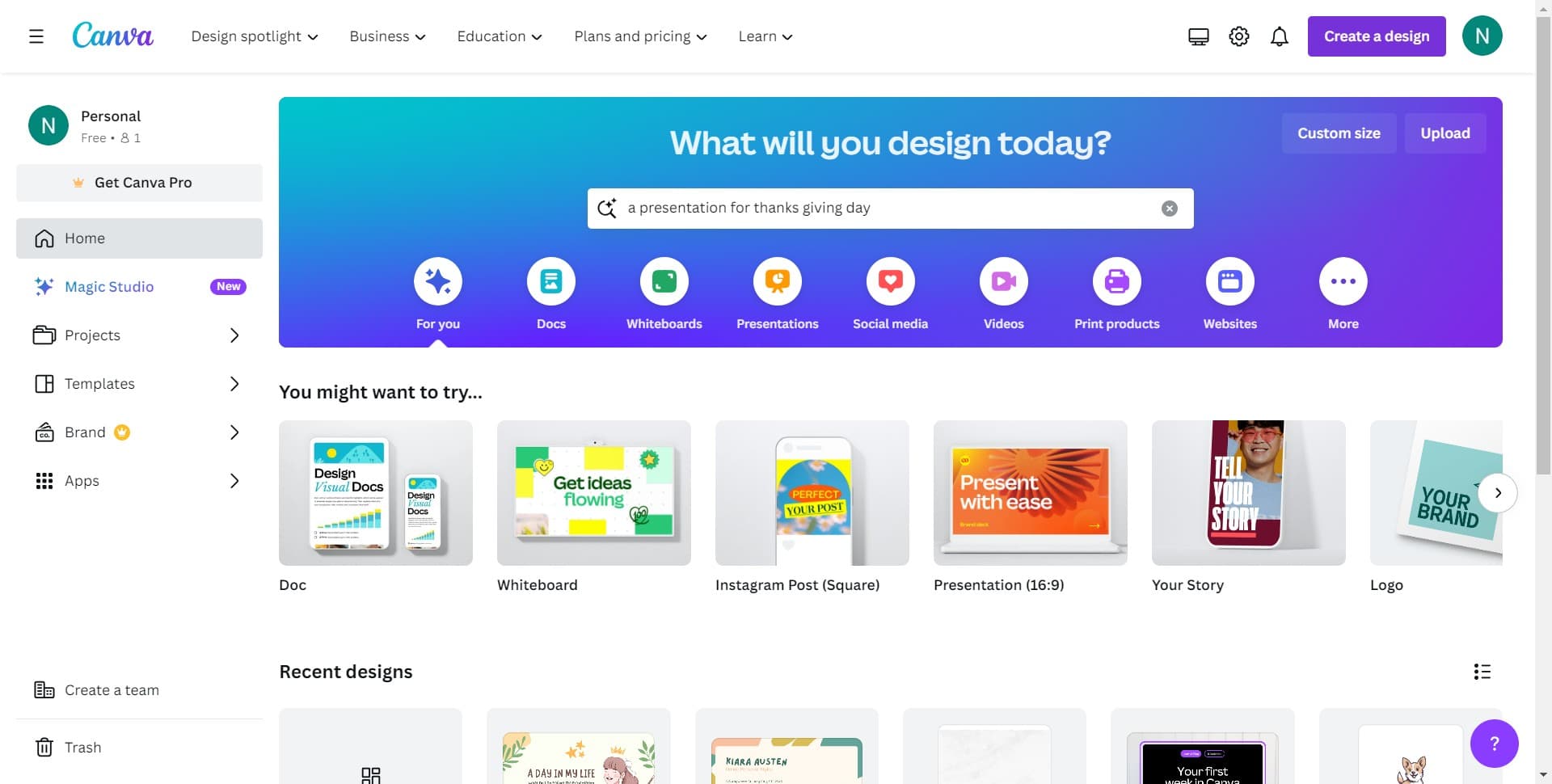
Click on Create a design
Open Canva and locate the "Create a design" button on the homepage. This button will take you to the main design interface where you can choose a template format.
- 2
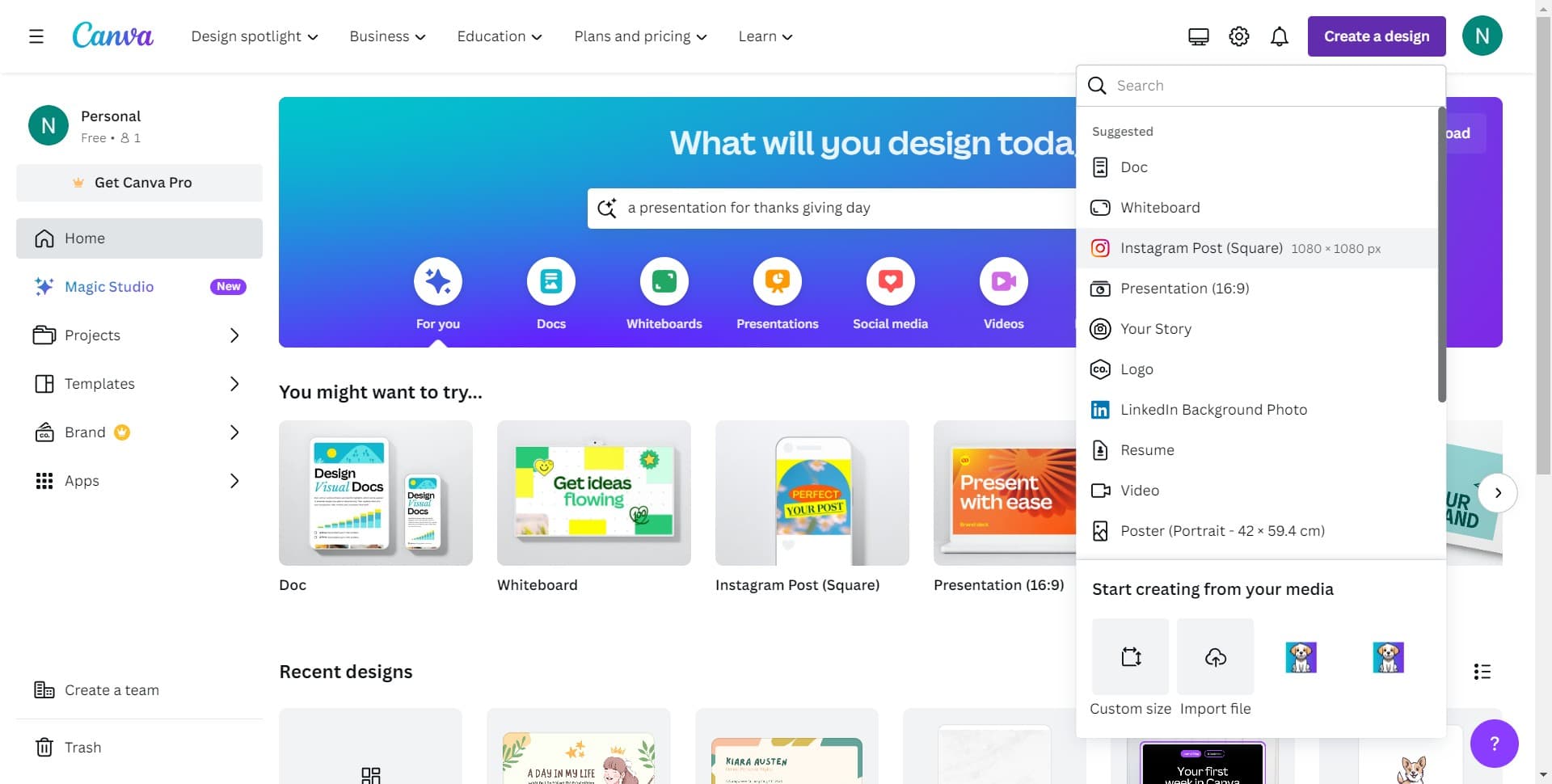
Select Instagram Post Square format
From the list of available templates, click on "Instagram Post (Square)" to start with dimensions optimized for Instagram. This ensures your design will display properly on the platform.
- 3
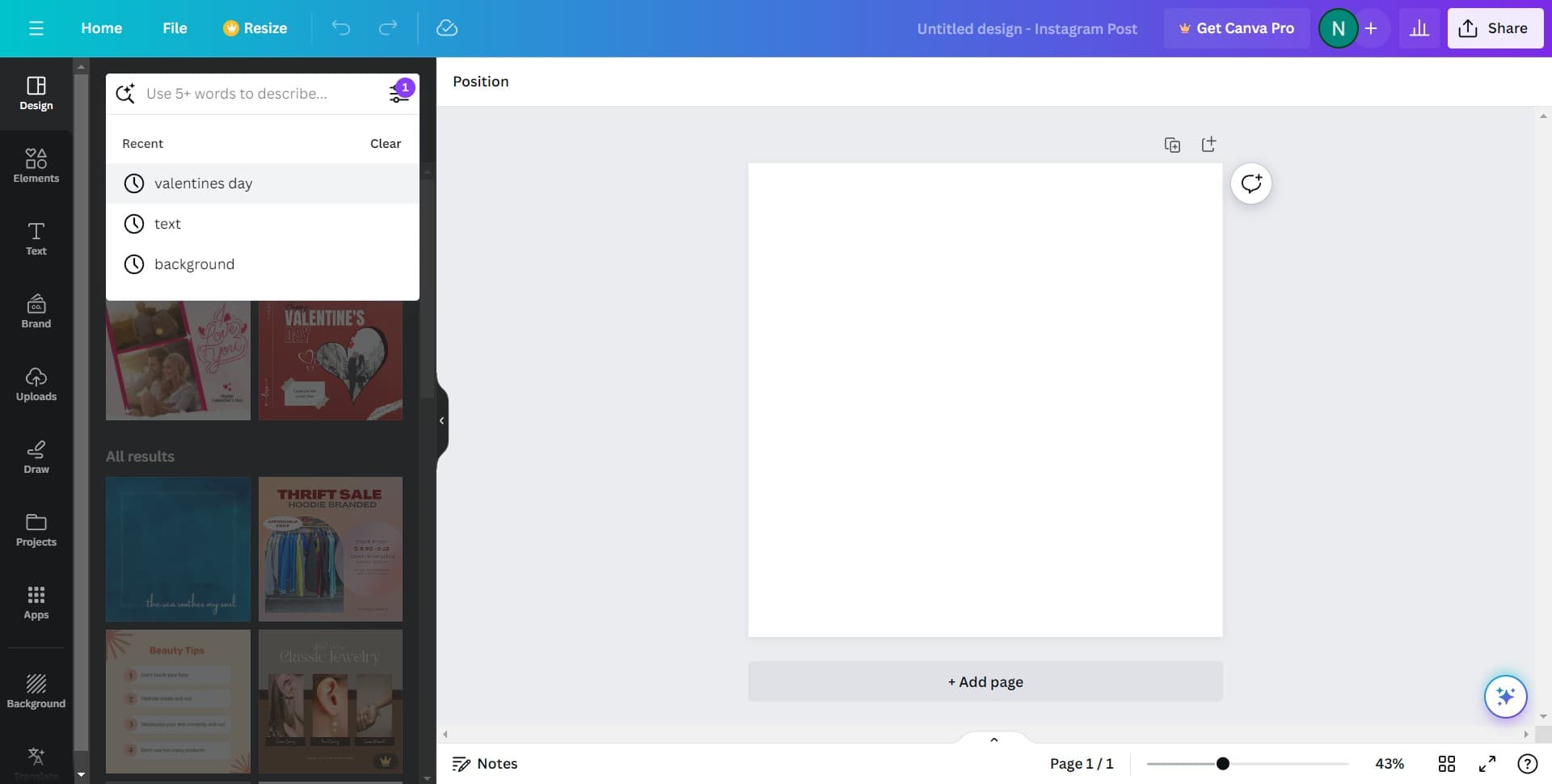
Search for Valentine's Day templates
Use the search bar or browse the template library and click on "valentines day" to filter templates specifically designed for the holiday. You'll see multiple design options to choose from.
- 4
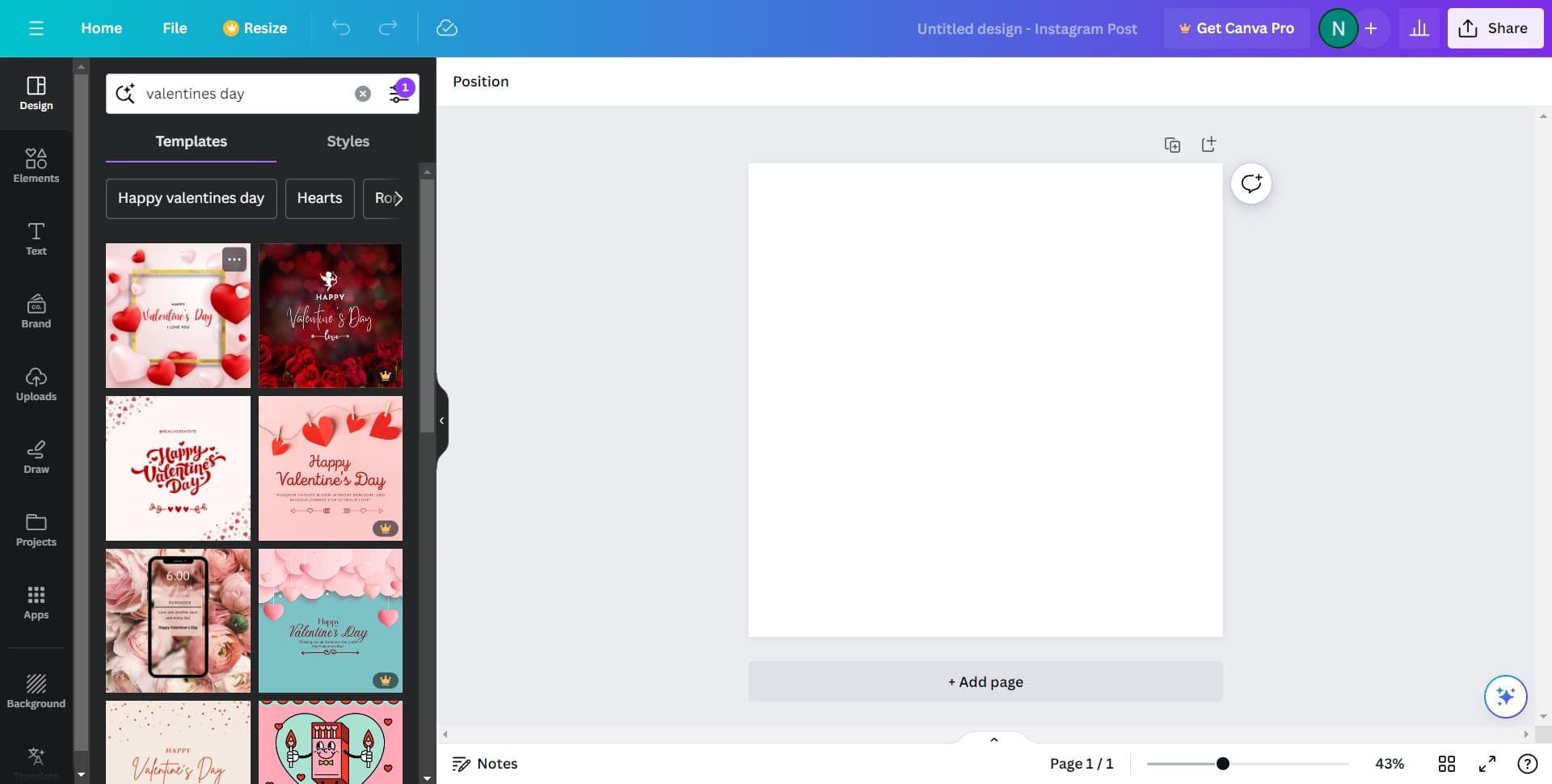
Select your preferred template
Click on the template that best matches your vision and brand style. The template will load into the editor, giving you a starting point to customize.
- 5
Customize the template elements
Edit text, colors, and design elements to match your message and branding. Use the editing tools to personalize fonts, sizing, and layout to your preference.
- 6
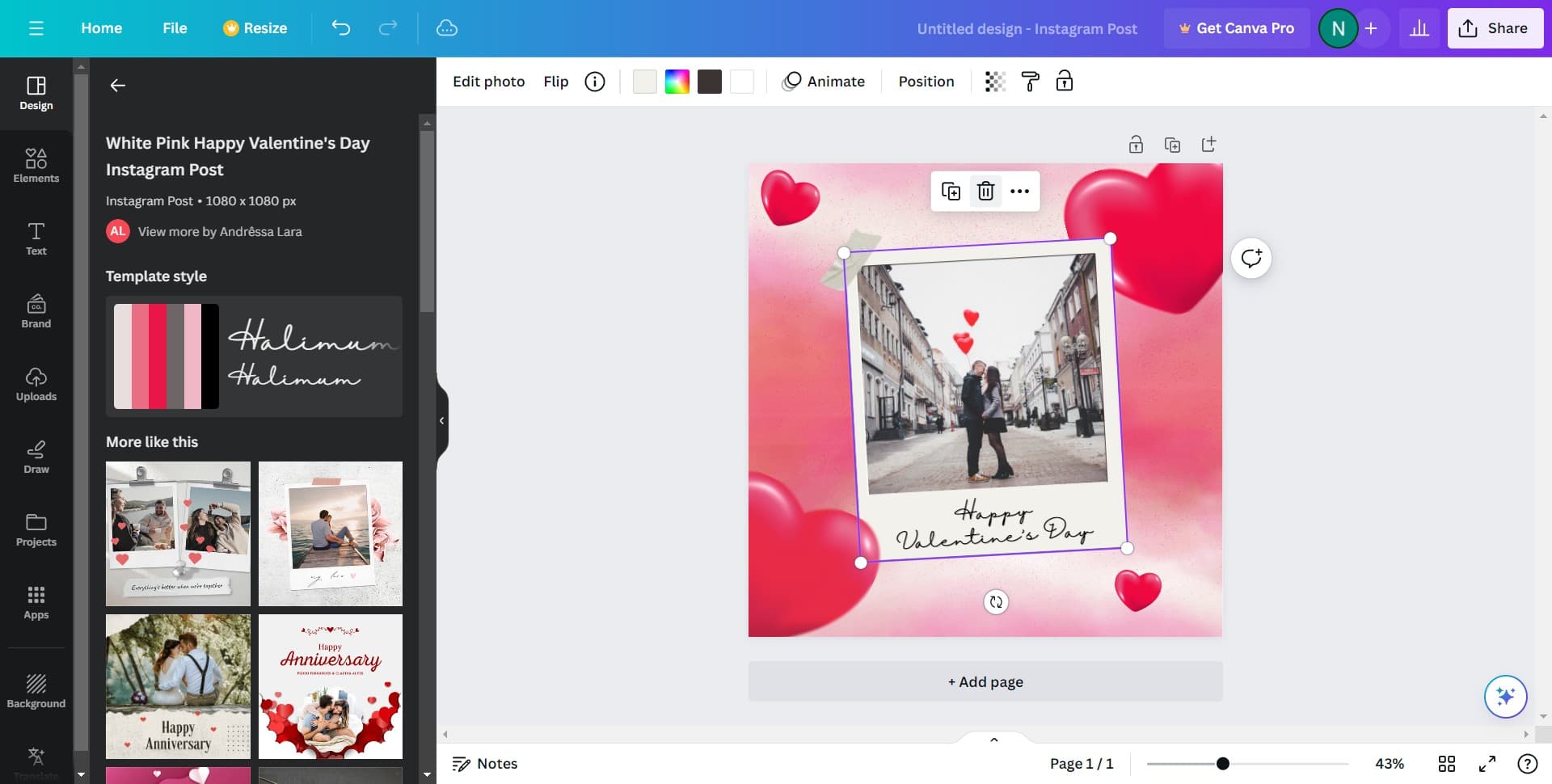
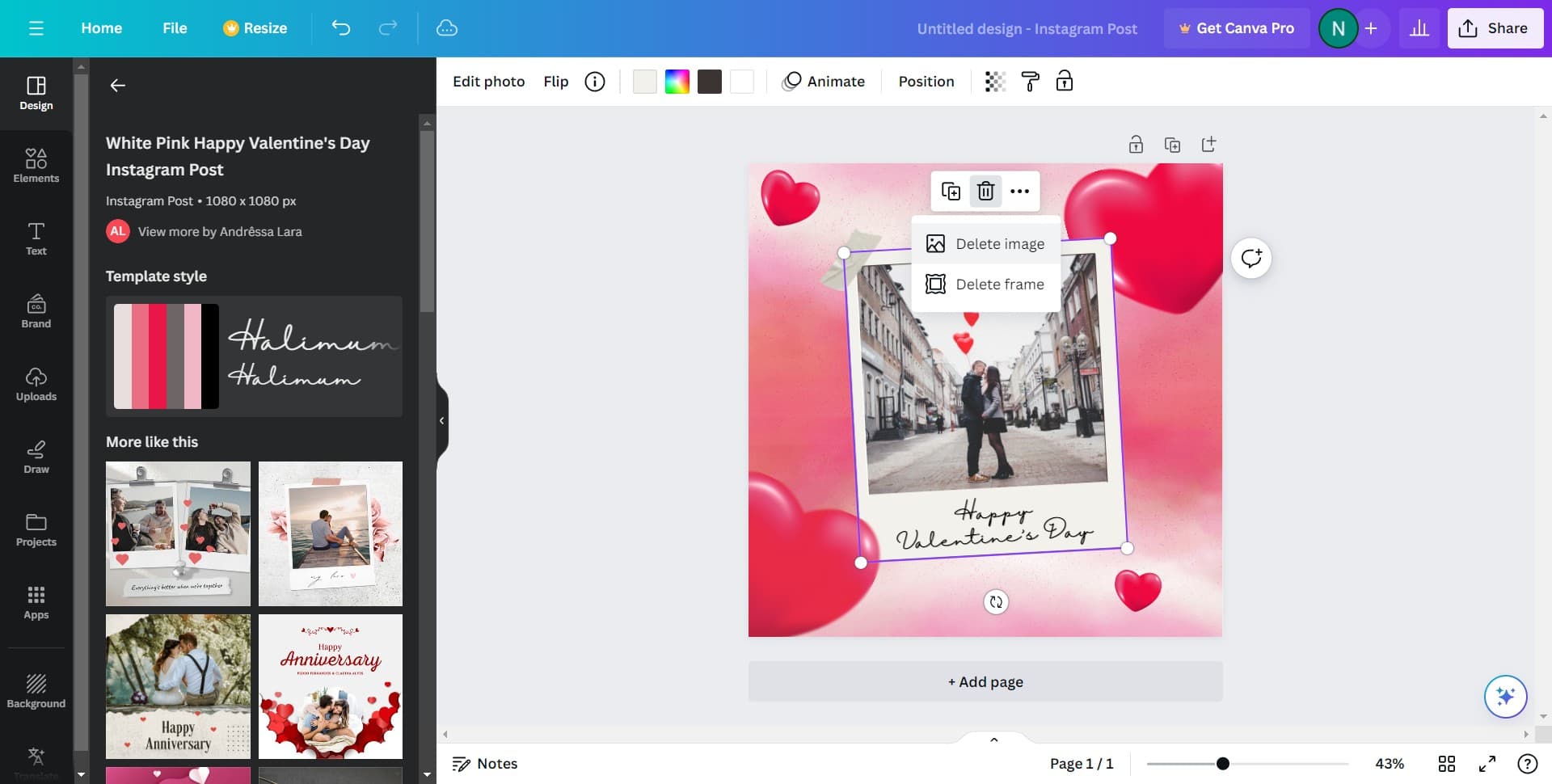
Remove the existing placeholder image
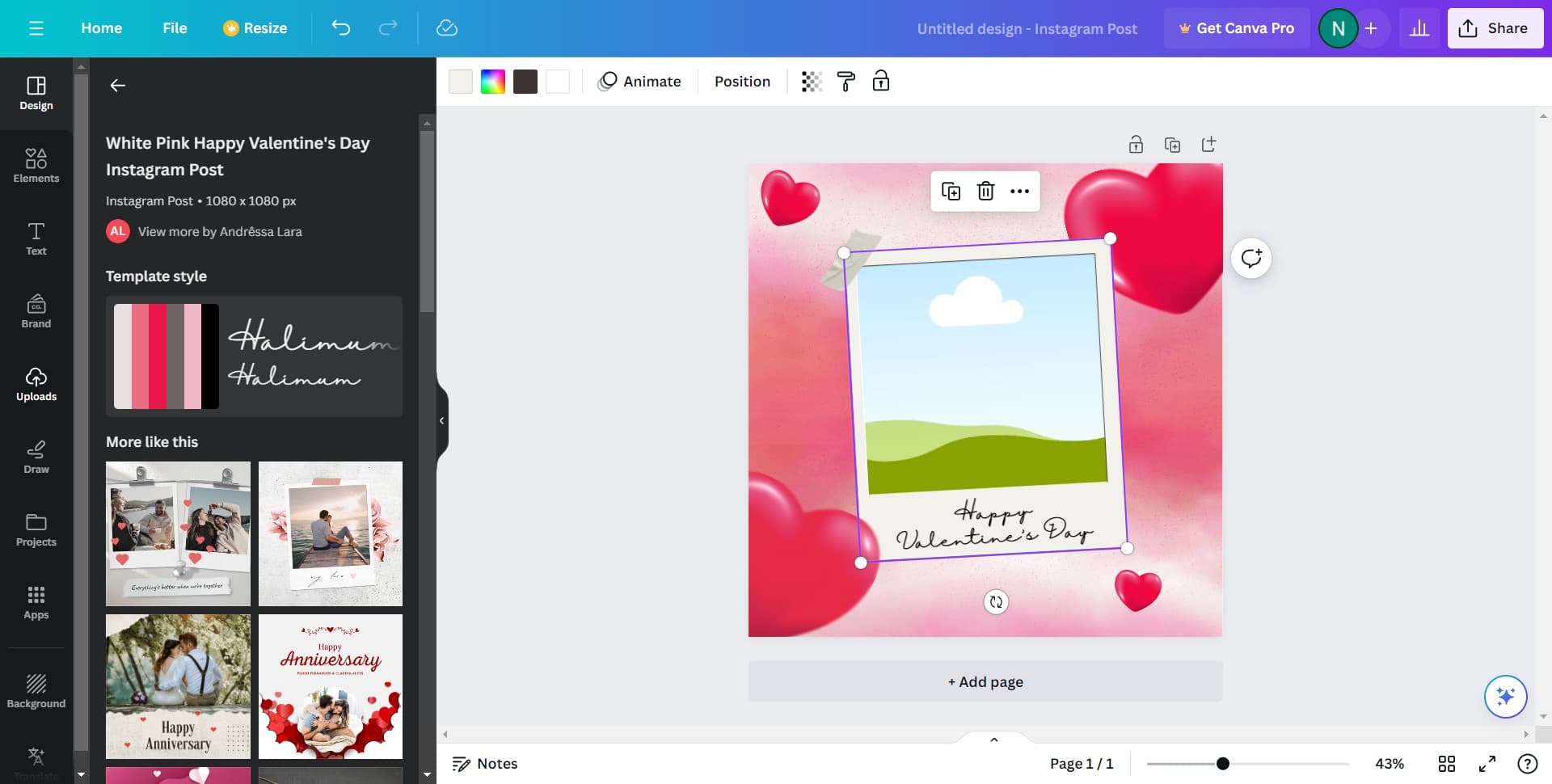
Click on "Delete image" to remove the current image from the template. This clears space for you to upload your own custom image.
- 7
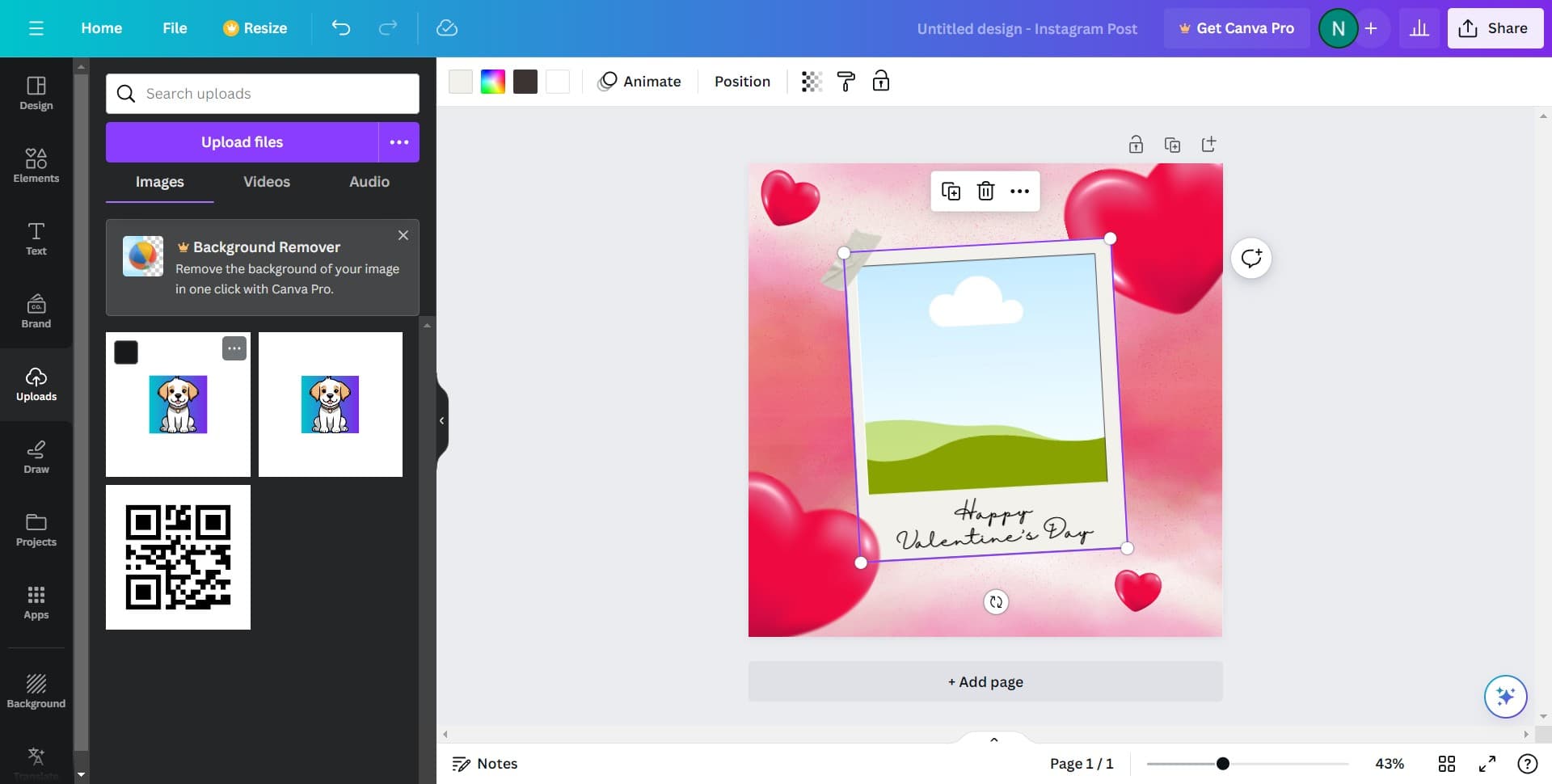
Navigate to Uploads section
Click on "Uploads" in the left sidebar to access your previously uploaded images or prepare to upload a new one. This section stores all media files you've added to your Canva account.
- 8
Upload or select your image
Choose an image from your uploads or upload a new one to add to your design. Once selected, the image will be placed on your template and can be resized or repositioned.
- 9
Finalize your design
Make any final adjustments to layout, text, and positioning to ensure your post looks polished. Review the entire design to confirm it meets your expectations.
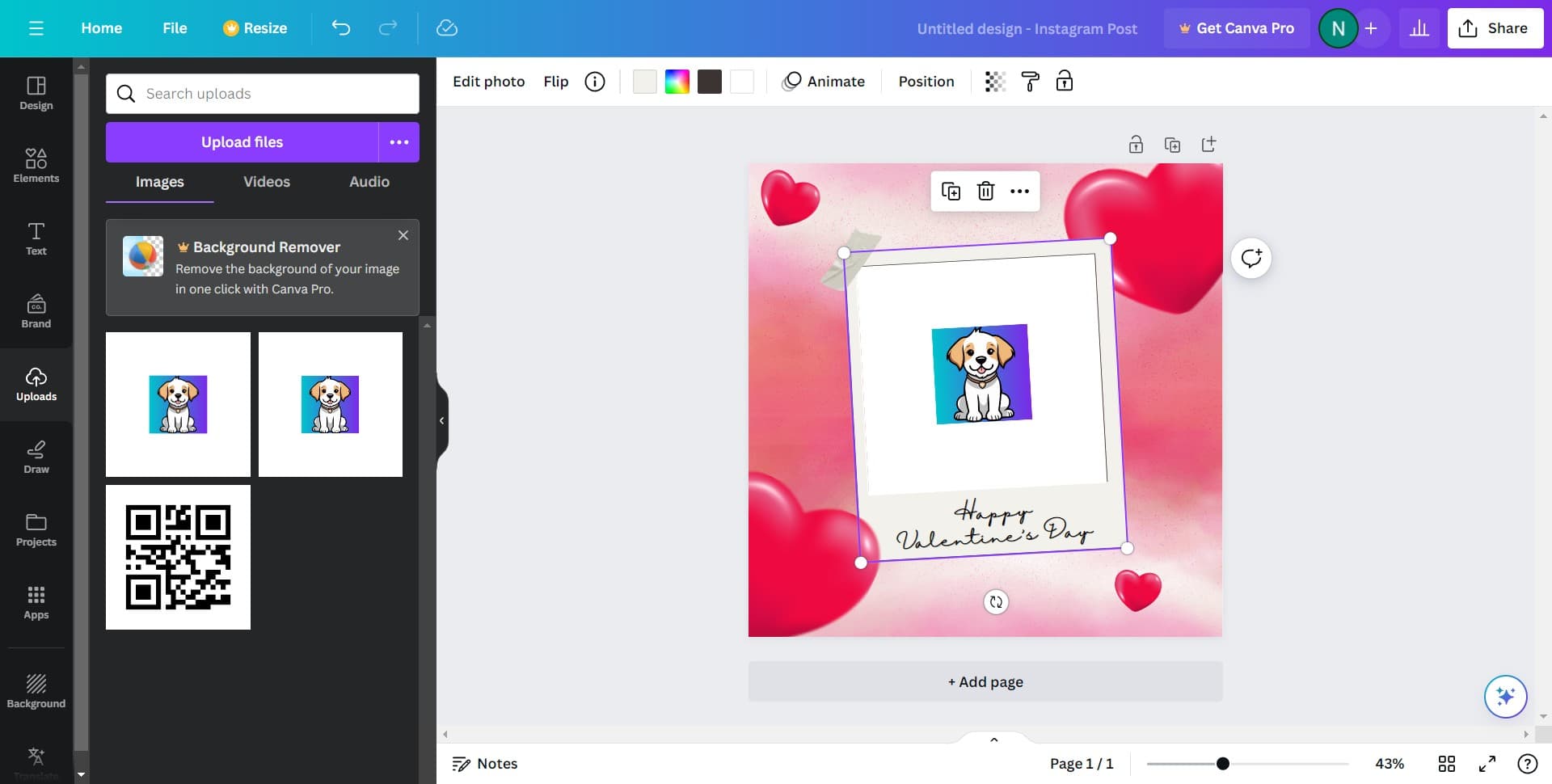
- 10
Click on Share
Once your design is complete, click the "Share" button in the top right corner. This opens sharing options for your finished design.
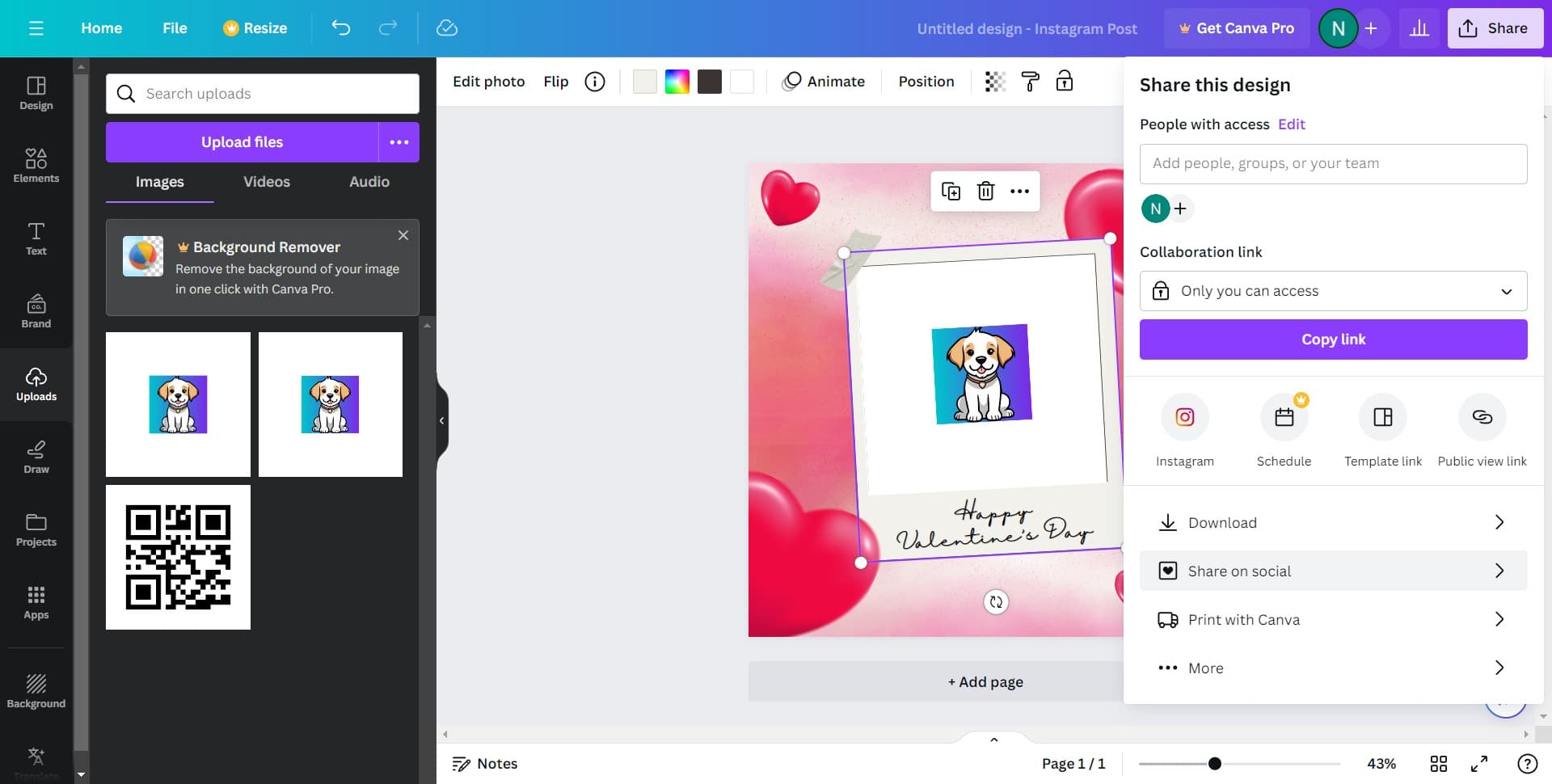
- 11
Select Share on social
Click on "Share on social" to access direct posting options to your social media accounts. This allows you to schedule or immediately publish your Valentine's Day post.
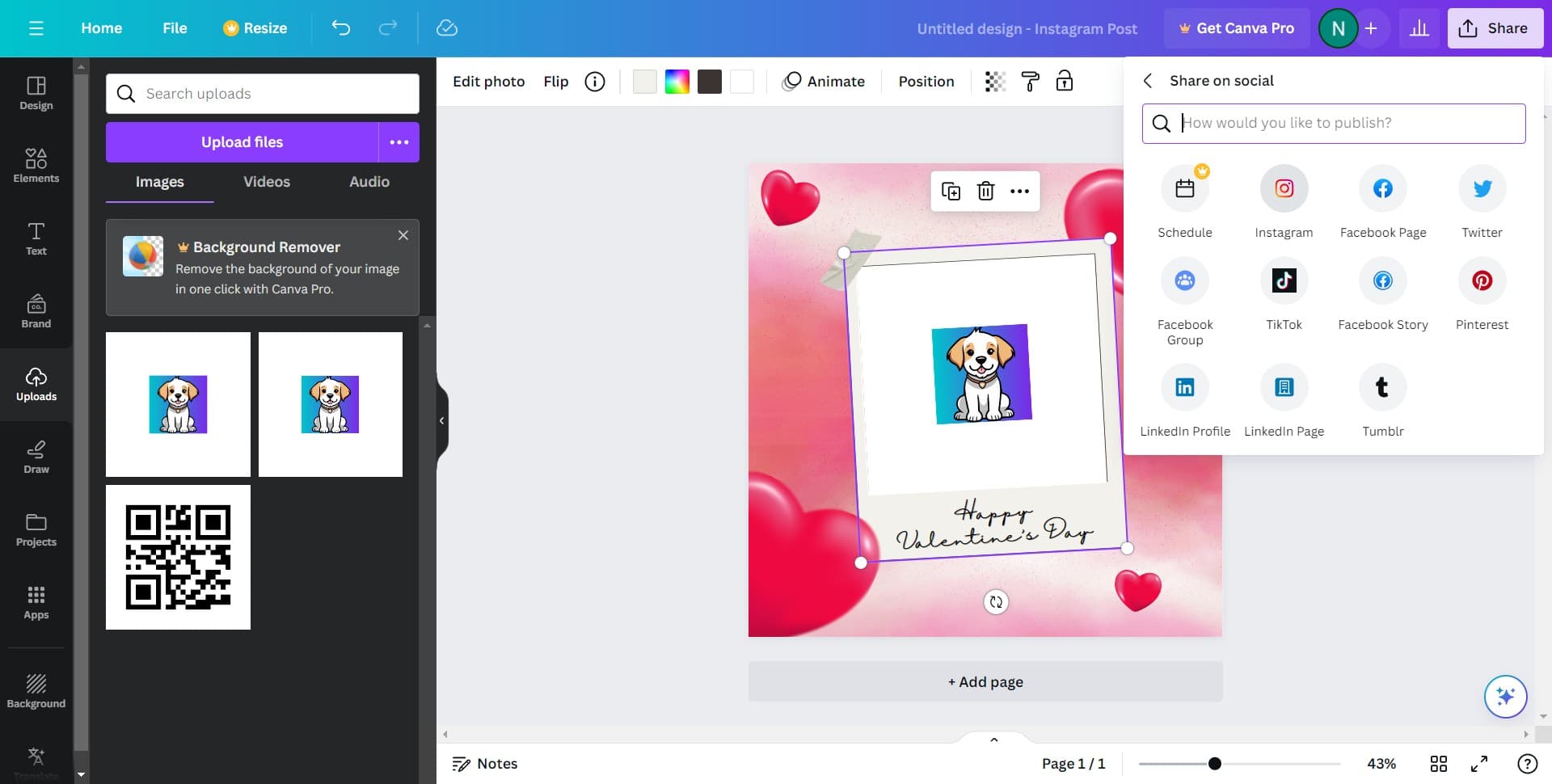
- 12
Complete the sharing process
Follow the prompts to connect your social media account and choose your posting preferences. Your Valentine's Day post will be shared with your followers once you confirm.
Frequently asked questions
Common questions about how to create a valentine's day post on canva.
Yes, absolutely. After clicking "Delete image" and navigating to the Uploads section, you can upload your own photos from your computer or phone. Canva supports most common image formats and allows you to resize and reposition your uploaded images to fit the template.
For Instagram posts, use the square format (1080 x 1080 pixels), which is what the "Instagram Post (Square)" template provides. This ensures your design displays perfectly on Instagram feeds without cropping or distortion.
Yes, when you click "Share on social," Canva offers scheduling options if you're connected to a business account. You can choose a specific date and time for your Valentine's Day post to go live, allowing for better reach optimization.
Simply click on any text element in the template to edit it, and use the toolbar at the top to change fonts, sizes, and colors. You can also click on design elements like backgrounds or shapes to modify their colors to match your brand.
Yes, Canva automatically saves your work as you design. You can also manually save your project by clicking the save icon, and you can return to edit it later from your Canva dashboard before sharing to social media.